How to Convert Screenshots to
Editable Word Documents
For decades, document conversion tools were optimized for one type of input: scanned paper. They compensated for paper texture, skew, variable lighting, and low contrast — all the flaws of a physical page passed through a scanner. But here's what most people don't realize: a screenshot has none of these flaws. No paper grain. No skewed text. No uneven lighting. Perfect contrast on every character. Screenshots aren't the compromise input for document conversion — they're the ideal input. The tools just haven't caught up.
Key Takeaways
- Screenshots aren't the compromise input for document conversion — with digital-perfect contrast and none of the paper defects OCR was built to compensate for, they're secretly the best input a document engine can receive.
- The five-step screenshot→JPG→PDF→Word→cleanup pipeline exists because OCR reads characters at screen coordinates, not documents — the resulting Word file has every letter in its own unmovable text box.
- A single Vision AI pass on a screenshot outputs a native Word document with real paragraphs that reflow, real tables you can sort, and real heading styles — no cleanup, no detours, no text box soup.
Why Screenshots Are Actually Better Input Than Scanned Paper
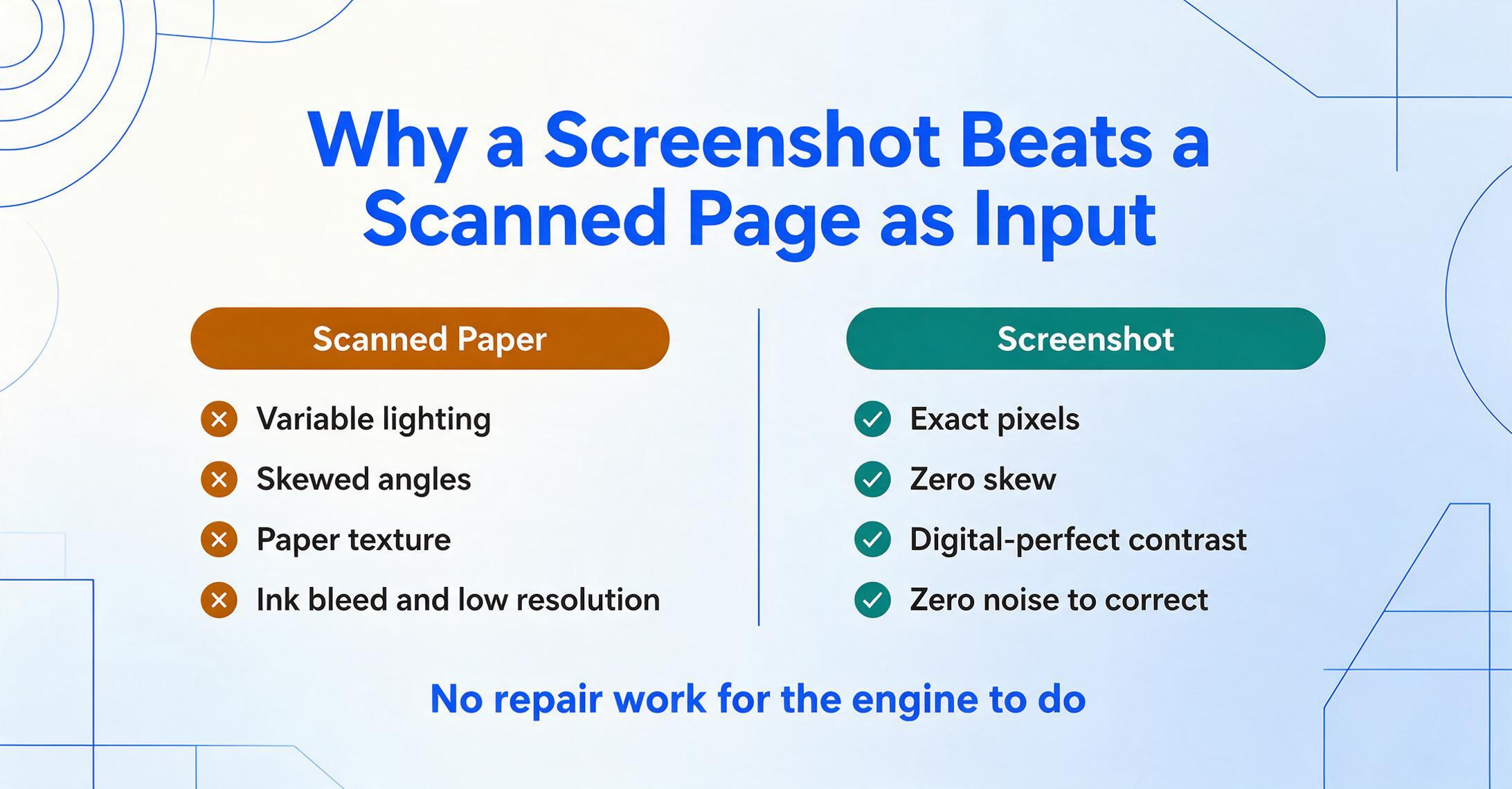
Traditional OCR (Optical Character Recognition) was built to solve a hard problem: reading text from imperfect physical documents. The engineering went into compensating for variable lighting, paper curl, ink bleed, skewed angles, and low-resolution scans. These are real problems — when your input is a photo of a receipt taken in a dim restaurant.
A screenshot is different. Every pixel is exact. The contrast between text and background is digital-perfect. There is zero skew, zero rotation, zero paper texture interfering with character edges. The "noise" that OCR engines spend half their processing budget on simply doesn't exist in a screenshot.
This makes screenshots uniquely suited to a fundamentally different approach — not character-by-character OCR, but whole-page visual understanding. Instead of scanning the image left-to-right looking for letter shapes, a vision AI model reads the entire page at once: recognizing headings as headings, paragraphs as paragraphs, tables as tables. The pixel perfection of a screenshot means the model can spend 100% of its capacity on understanding the document, not compensating for input defects.
Most people assume a scanned document is more "legitimate" input than a screenshot. The opposite is true — and the gap widens the more complex the layout.
Key insight: OCR was built to make bad input usable. A screenshot is perfect input. The right tool exploits that difference instead of treating the screenshot like a poor-quality scan.
The Problem With Most Screenshot-to-Word Tools
Search "convert screenshot to Word" and you'll find dozens of results. Try them on a real screenshot and you'll discover the same two failures, repeated across every tool.
Problem 1: UI Elements Contaminate the Output
Take a screenshot of a web article. It includes the browser toolbar, navigation menu, sidebar widgets, cookie banners, and social sharing buttons. Traditional OCR reads them all — indiscriminately. Your output document will contain "File Edit View History Bookmarks" and "Sign Up Now" and "You May Also Like" mixed into the article text.
This is not a minor annoyance — it means you have to manually delete dozens of lines of garbage text before you can use the document. And that's the best case. The worst case is a screenshot of a dashboard or spreadsheet, where UI labels ("Filter," "Export," "Refresh") get injected between data rows, corrupting the structure.
OCR tools have no concept of "this is a menu button, not content." They see characters and read them. They don't understand what a user interface is.
Problem 2: The Multi-Tool Detour
The standard workflow every tool tutorial recommends is four or five steps across two or three tools:
Even after all five steps, the result is a Word file where text characters are individually positioned at fixed x,y coordinates — what industry pros call "text box soup." A Reddit user on r/techsupport described what happens next: "A PDF is basically a digital 'printout.' It treats every element — a letter, a line, or a logo — as an object with fixed coordinates on a 2D plane. It doesn't 'know' what a paragraph is." When a converter rebuilds this in Word, every character is a separate text box. You can't edit a sentence without the layout falling apart.
Microsoft's own documentation confirms the limitation: as noted in a Microsoft Q&A thread, "You have a Word file that contains a picture of text rather than text." Word can display the image, but it cannot make the characters inside it editable — at least not without the multi-step PDF detour.
And that's the best-case scenario. On r/MicrosoftWord, users consistently report that converting images to editable text is "actually hard" — with the top reply being: "To transform bitmaps into editable text, you need OCR software. Word can't do it."
How Vision AI Handles Screenshots Differently
The limitation of traditional conversion isn't about accuracy — it's about what the engine doesn't try to understand. OCR reads characters. It doesn't read layout. It doesn't distinguish between a navigation menu and an article body. It doesn't see a table as a table — it sees horizontal and vertical lines near some text and guesses.
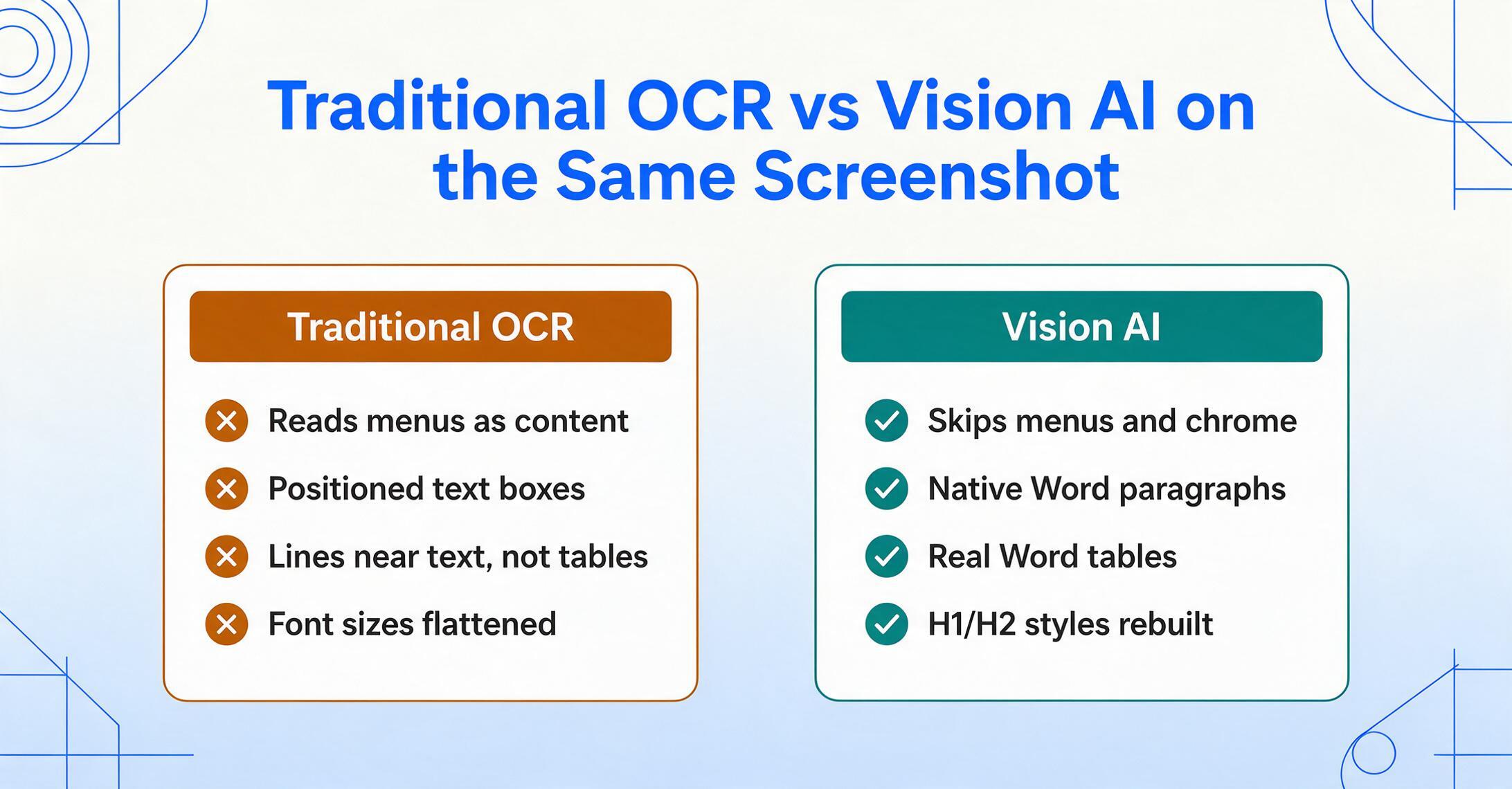
Vision AI — specifically, large multimodal models trained on millions of documents — approaches the screenshot differently. Instead of scanning for characters, it classifies content regions: this area is a heading, this area is body text, this area is a table, this area is UI chrome that should be skipped. The model understands what it's looking at before it extracts anything.
Here's what that means in practice:
- Reads every character on the page, including UI buttons and menus
- Outputs text as positioned text boxes — no paragraph structure
- Simulates tables with lines and positioned text — not real Word tables
- Font sizes are lost — everything becomes one uniform size
- Formatting (bold, italic, color) is discarded
- Classifies content regions — skips navigation, menus, chrome
- Outputs real paragraphs with native Word paragraph formatting
- Rebuilds tables as native Word table objects — resizable, sortable, editable
- Reconstructs font size hierarchy — H1 vs H2 vs body are real Word styles
- Preserves character formatting — bold stays bold, italic stays italic
The difference is not "better accuracy." It's a fundamentally different output format. Traditional OCR gives you text characters at coordinates — a word processing equivalent of a ransom note where you can see the words but can't edit them without the whole thing falling apart. Vision AI builds a native Word document: real paragraphs that reflow when you resize the window, real tables with sortable columns, real heading styles you can modify globally with one click.
This is what layout-preserving document conversion means — not just reading the text, but reconstructing the document as a document. We've written about this in depth in our complete guide to layout-preserving conversion, including why PDF to Word conversion loses formatting and how Vision AI outperforms traditional OCR on document layout preservation.
How to Convert a Screenshot to Editable Word (One Tool, Three Steps)
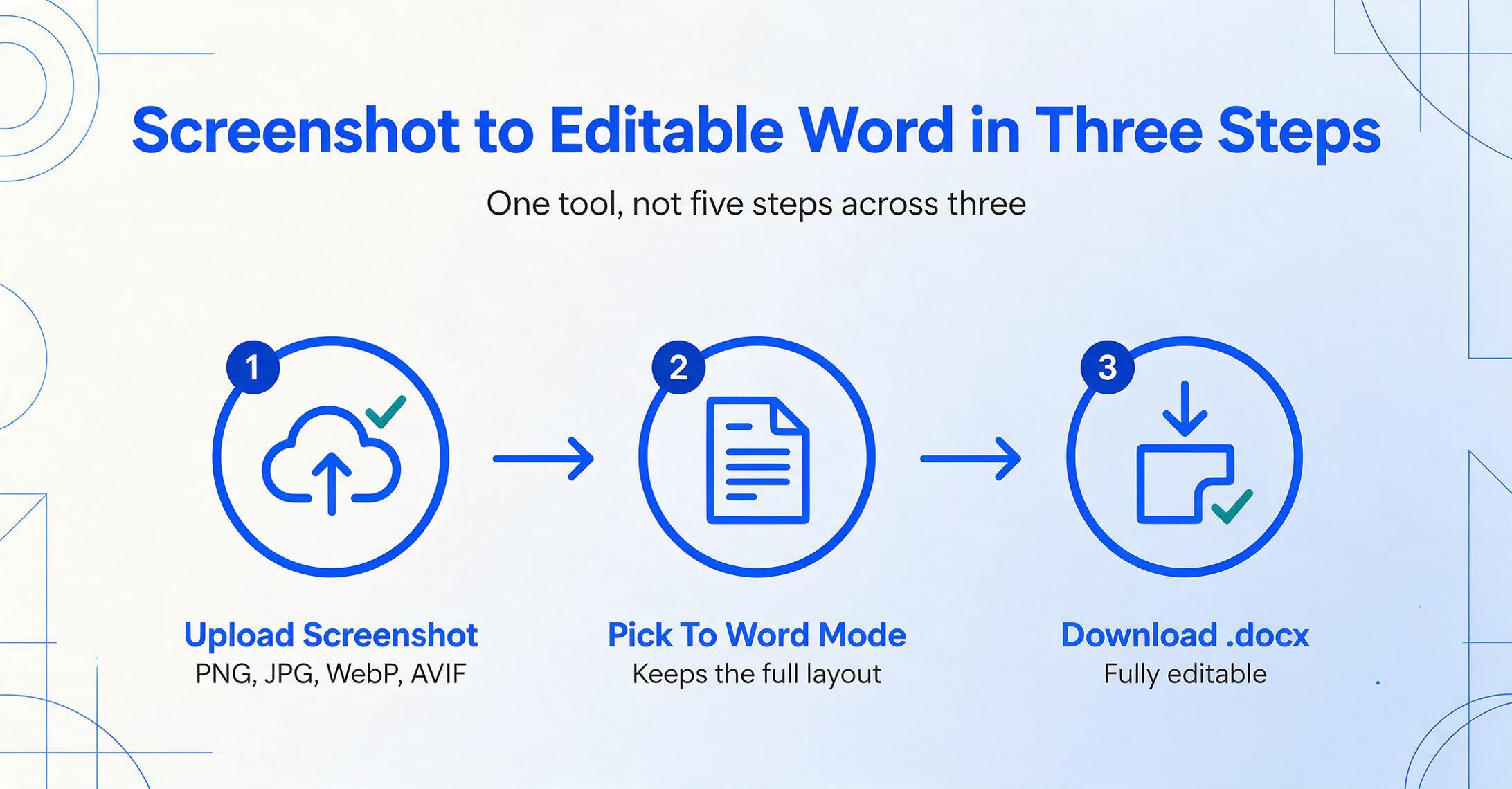
Instead of five steps across three tools, here's what the Vision AI workflow looks like:
Processing takes 5–10 seconds per screenshot — compared to the 10–20 minutes of manually retyping a page worth of content and reformatting it from scratch.
The result is a Word file where the heading from the screenshot is a native Word heading (not a blue text box), the body paragraph is a real paragraph (not 47 individual text boxes at fixed coordinates), and the data table is an actual Word table (not lines drawn near text). If you change the font, margins, or page size, everything reflows correctly — because the document has real structure.
You can try this directly below. Upload any screenshot — a web article, a presentation slide, a dashboard capture — and see what the output looks like:
Files are processed securely and not stored.
When Screenshot-to-Word Works Best (and Its Real Limits)
Vision AI document conversion is not magic. It's extremely good at specific things and realistically limited at others. Here's the honest breakdown:
Best For
The cleanest use case. Vision AI skips the navigation, sidebar, and footer — you get just the article body as editable paragraphs.
PowerPoint and Google Slides screenshots convert to structured text with headings and bullet points intact. No more retyping slide content into Word.
Dashboard exports, spreadsheet screenshots, and web-based tables become real editable Word tables — not text box approximations. For more on this, see our guide on converting documents to Word with tables intact.
Application forms, survey results, and structured layouts with labeled fields — Vision AI understands field-label relationships and preserves the form structure.
Limits to Expect
Vision AI can read handwriting, but accuracy drops compared to printed text. If your screenshot contains mostly handwriting, expect to proofread and correct a few words.
Script fonts, display typefaces, and text embedded in complex graphics can produce character errors. Standard system fonts (Arial, Times, Calibri) work best.
Text below ~8pt in a standard-resolution screenshot may lose accuracy. If you're capturing dense data tables, maximize the window before taking the screenshot.
Newspaper-style multi-column layouts and magazine spreads with irregular text flow may produce sections where text order needs minor manual correction in Word.
These limits are real, but here's the context: the same limitations apply to every other tool on the market — they just don't tell you. Traditional OCR adds to these the problems we covered earlier (UI text contamination, text box soup, lost formatting). Vision AI eliminates those while sharing the same baseline limits.
If your primary goal is extracting text from screenshots — not preserving layout — check out our comparison of the best screenshot-to-text tools for a broader view of what's available across different approaches. When the goal is only the words, the screenshot to text workflow drops the layout-reconstruction stage and returns reading-order prose.
A Note on Screenshots vs Other Document Types
We've focused on screenshots because their digital-perfect properties make them uniquely suited to Vision AI conversion. But the same technology works on other inputs:
| Input Type | Quality for Conversion | Main Challenge |
|---|---|---|
| Screenshot | Excellent | UI element filtering |
| Phone photo of document | Good | Lighting, angle, paper curl |
| Scanner PDF | Good | Paper texture, skew, resolution |
| Digital PDF (text-based) | Excellent | None — text is already selectable |
| Handwritten note photo | Fair | Handwriting variability |
The phone-photo row is where most people begin — a photo to Word conversion rebuilds the captured page's headings and tables, which is more than a character-level engine can recover from uneven lighting and angle.
For a deeper dive into how AI models understand document content beyond simple character recognition, read how AI reads and understands documents — it covers the shift from OCR to multimodal understanding that makes this entire workflow possible.
Frequently Asked Questions
Can I convert a screenshot to Word for free?
Yes. The demo above lets you try screenshot-to-Word conversion without creating an account. For ongoing use beyond the free tier, you'll need a plan. But there's no requirement to pay before testing on your own screenshots.
Does the Word output keep the original fonts and colors?
The output preserves the structure of the original — heading hierarchy, bold and italic formatting, table structure, paragraph breaks. Font family and exact colors may differ, since Word documents use the fonts available on your system. The text is fully editable, so you can apply any font or color scheme you want afterward.
What's the difference between "To Word" and "To Table" mode?
To Word preserves the full document layout — headings, paragraphs, tables, images — as an editable .docx file. It's for when you want to edit or repurpose the document content. To Table extracts specific data fields (like "Invoice Number," "Date," "Total") from one or more documents and compiles them into a structured Excel spreadsheet — one row per document. Choose To Word for document recreation; choose To Table for data extraction.
Can it handle screenshots with multiple languages?
Yes. Vision AI models are trained on multilingual data and can process screenshots containing English, Chinese, Japanese, German, French, Spanish, and many other languages — including mixed-language documents.
What if my screenshot contains sensitive information?
Files are transferred over encrypted connections and automatically deleted after processing. No human reviews your document content. For highly sensitive documents, you may prefer offline desktop OCR tools like ABBYY FineReader — but those won't give you the layout preservation or UI-skipping intelligence described in this article.
Is there a size or page limit?
The tool handles screenshots of any reasonable resolution. For documents longer than a single screen capture, you'll want to take multiple screenshots or use the original file (PDF, image) if you have access to it.
If you also need to extract data from screenshots into spreadsheets rather than Word, see our screenshot to Word and Excel converter for the To Table workflow — or explore the complete document-to-Word conversion guide for a full walkthrough of both modes.