Read the Order Number and Tracking Status on a Shopee Screenshot
Shopee is Southeast Asia's largest e-commerce platform, operating across eight markets from Malaysia and Singapore to Indonesia, Thailand, the Philippines, Vietnam, Taiwan, and Brazil. A buyer in Kuala Lumpur takes a screenshot of an order confirmation in Malay; a seller in Manila captures a delivery update written in Tagalog and English; a cross-border seller receives both orders plus one from Jakarta in Bahasa Indonesia — all in the same camera roll. The order number, product name, amount, and shipping status are on every screenshot, but the labels, positions, and even the currency signs change from one market to the next.
Key Takeaways
- Shopee screenshots from Malaysia, Indonesia, Singapore, and the Philippines look like four different apps — but the same four fields are always in the same positions.
- The order number's country prefix is a built-in market identifier — you don't need to decode the currency or read the label language to know where each order came from.
- Drop your full camera roll of mixed-market screenshots into one batch and the order number, product name, total amount, and shipping status land in a single cross-market table.
The Shopee Order Number — Your Market Prefix Tells You Where the Order Came From
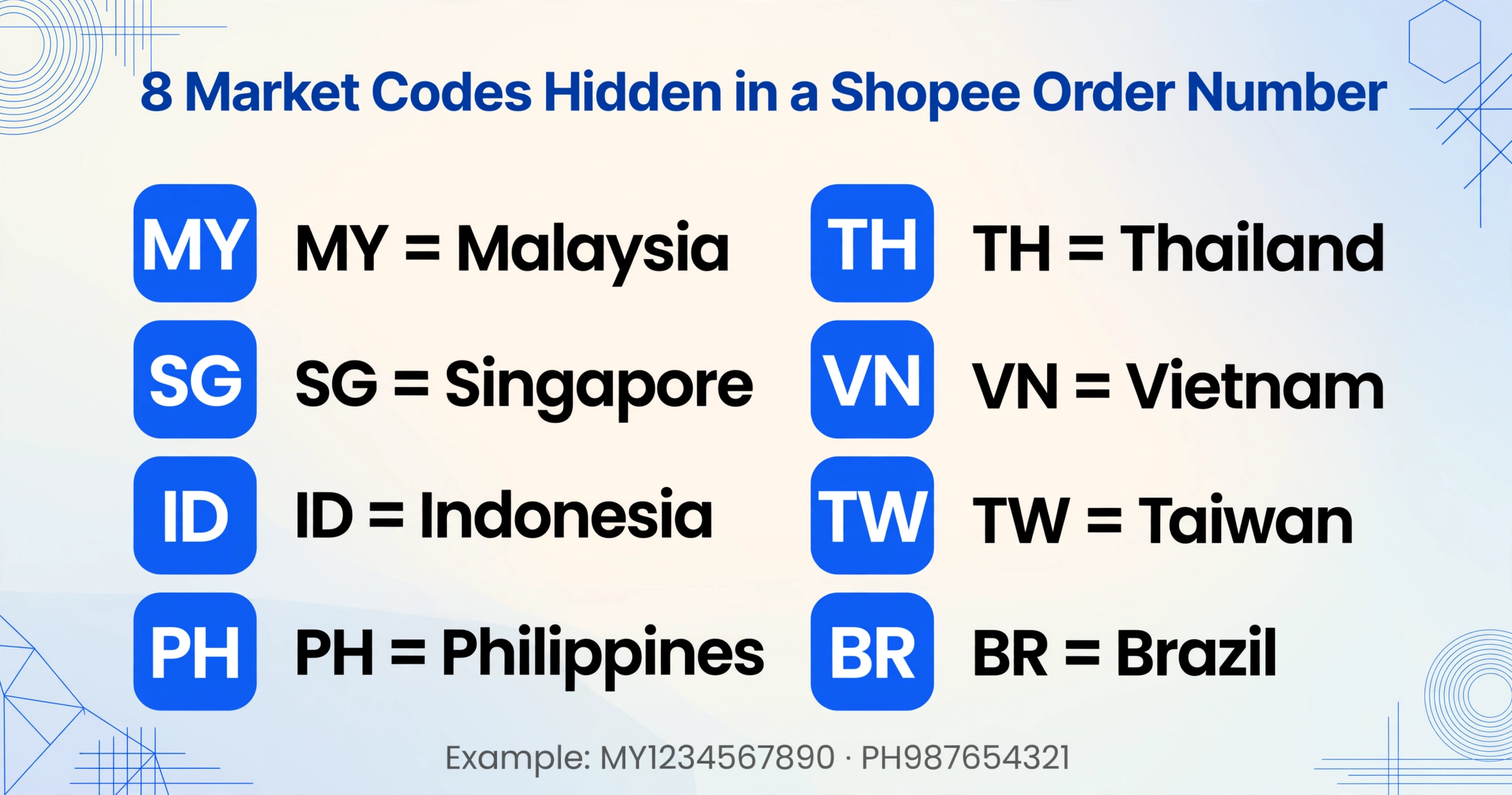
Every order placed on Shopee receives a unique order number, and the first thing you need to know is that this number contains a built-in market identifier. Shopee assigns order numbers with a country prefix that tells you, at a glance, which marketplace the transaction belongs to — a critical detail for any seller managing orders from multiple countries.
The order number format is consistent across all Shopee markets: a two-letter or three-letter country code followed by a string of digits. A Malaysian order starts with MY, a Singaporean order with SG, an Indonesian order with ID, a Philippine order with PH, a Thai order with TH, a Vietnamese order with VN, a Taiwanese order with TW, and a Brazilian order with BR. The prefix is followed by a variable-length numeric sequence, for example MY1234567890 or PH987654321.
Where you find this number on a screenshot depends on which page you captured. On the Shopee App order confirmation screen (the page that appears right after checkout), the order number is displayed near the top, just below the "Order Placed Successfully" or "Pesanan Berjaya" banner. On the My Purchases / Pesanan Saya page, each order card shows the order number in smaller text beneath the store name. Tapping into an individual order's Order Details screen reveals the number at the top under the status summary card — this is the most reliable place to capture it in a full screenshot.
A common point of confusion is mistaking the Shopee tracking number for the order number. They are different: the order number is generated at checkout and identifies the entire purchase, while the tracking number is created when the parcel is handed to the carrier — and often starts with a carrier-specific prefix like SPX for Shopee Xpress deliveries. A screenshot of the order confirmation page gives you the order number; a screenshot of the tracking page gives you the tracking number instead.
For cross-border sellers managing orders from multiple markets, the country prefix is a silent organizer. A single Seller Centre dashboard may display MY240712ABCDE alongside SG240712FGHIJ — the prefix alone tells you which local marketplace the order originated from, without needing to check the currency or the buyer's address.
Product Names — One Item Line Per Product Across Markets
Shopee's order detail screen lists each purchased item as a card or row containing the product thumbnail, the product name, the variant (size or color if applicable), the quantity, and the unit price. On a mobile screenshot, this layout is compressed — product names are frequently truncated to fit within the card width, especially for longer titles common in electronics and fashion categories.
On the My Purchases / Pesanan Saya page, each order shows a single product thumbnail and its name. If the order contains multiple items, Shopee displays the first product thumbnail with a "+ N other items" label (for example, "+2 item lainnya" in Indonesian or "+N 个商品" in Traditional Chinese for Taiwan). Tapping into the full order reveals each item on its own line. A screenshot of the collapsed view will show only the first product name; capturing the expanded view is necessary to see every item.
The language of the product name depends on what the seller entered in their listing, not on the buyer's market. A seller based in Malaysia may list a product in English; a Thai seller uses Thai script; a Taiwanese seller uses Traditional Chinese. This means a screenshot from Shopee TH can have Thai product names even though the UI buttons are in Thai, and an Indonesian buyer's screenshot of a Singaporean seller's item will show English product names inside a Bahasa Indonesia interface.
The practical upshot: product names on Shopee screenshots are the most variable field across markets — not because of UI differences (the product name is always in the same card position), but because the language of the name depends entirely on the seller's listing language. A batch of Shopee screenshots from different markets may contain product names in Malay, English, Thai, Chinese, and Indonesian all in one batch.
For order management or expense tracking, having the product name extracted alongside the order number is important because the order number alone does not tell you what was bought — and the order number format (with country prefix) does not encode anything about the product category. The product name is the only field that directly identifies the purchased item across all markets.
The Amount — Subtotal, Shipping, Vouchers, Coins, and the COD Question
The amount displayed on a Shopee order screenshot is rarely a single number. It is a stacked breakdown that reflects Southeast Asia's most distinctive e-commerce feature: multiple layers of discounts, coins, vouchers, and a payment method (COD) that changes how the final total behaves.
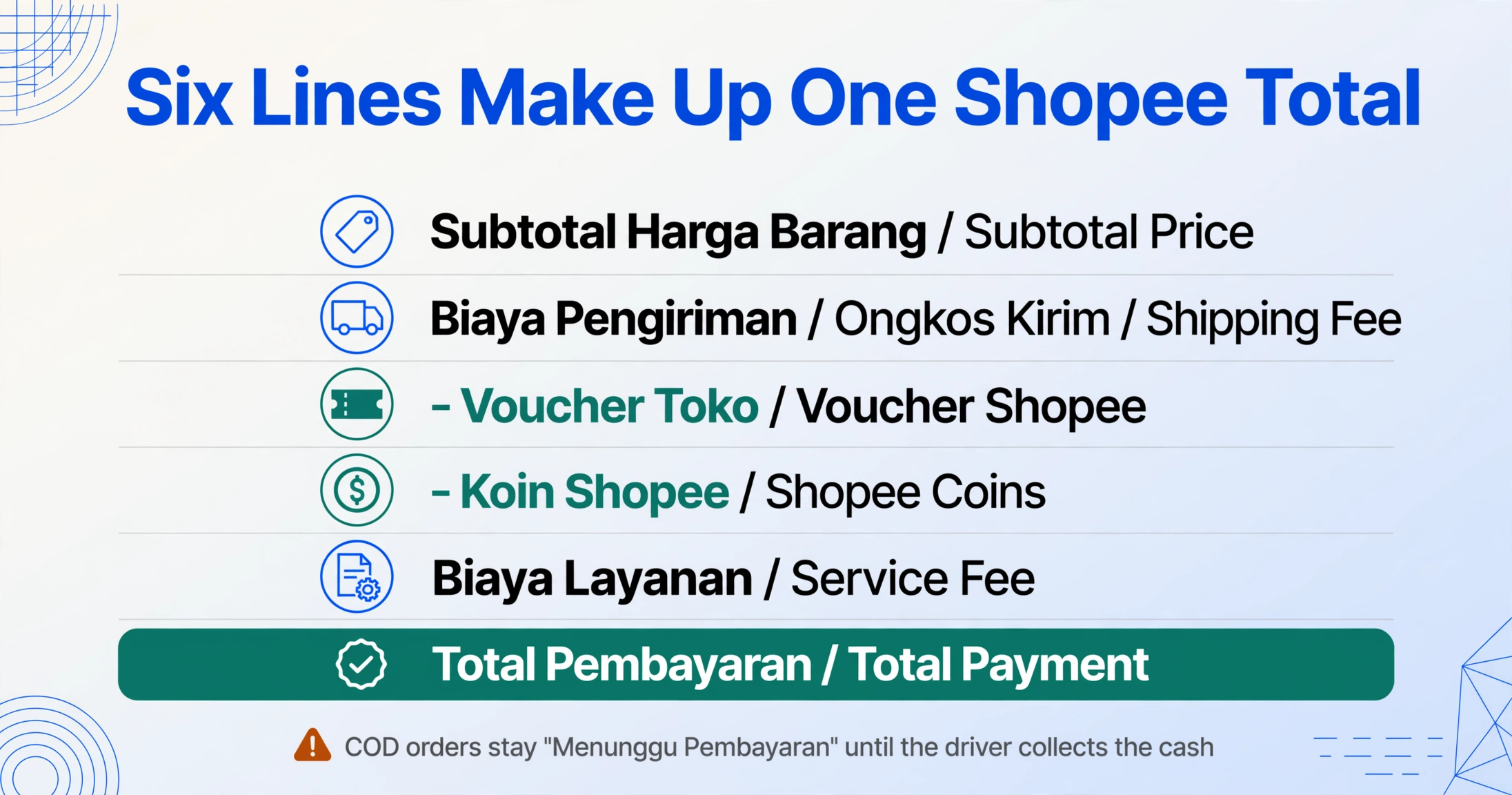
On the Order Details screen, Shopee shows a full price breakdown (or "Ringkasan Pembayaran" in Indonesian, "Resumen de pago" for Brazil):
- Subtotal Harga Barang (MY/ID) or Subtotal Price (SG/PH) — the sum of all item prices before shipping and discounts
- Biaya Pengiriman (MY) / Ongkos Kirim (ID) / Shipping Fee (SG/PH) — delivery charges
- Voucher Toko / Voucher Shopee — seller vouchers and platform vouchers applied to the order (deducted from the subtotal)
- Koin Shopee (MY/ID) or Shopee Coins (SG/PH) — the number of coins redeemed on this order, shown as a deduction
- Biaya Layanan (ID) or Service Fee — a small platform service fee (applies in some markets)
- Total Pembayaran / Total Payment — the final amount due
If the buyer paid using Cash on Delivery (COD), the order details screen shows "Cash on Delivery" or "Bayar di Tempat" (ID) as the payment method, and the total appears with a "Wait for payment" or "Menunggu Pembayaran" status until the parcel is delivered and the cash is collected by the driver. This is a uniquely Southeast Asian behavior — COD accounts for a substantial share of Shopee transactions across Malaysia, Indonesia, the Philippines, and Vietnam, and the status of a COD payment directly affects whether the amount shown on a screenshot is "already paid" or "still owed."
A COD order screenshot taken before delivery shows the amount still owed, not the amount already paid. This is the opposite of an online payment screenshot (ShopeePay, credit card, or bank transfer), where the amount shown is the amount already charged. Reading this distinction from a screenshot — looking for the "Cash on Delivery" or "Bayar di Tempat" label — is the single most important check when extracting the payment status from a Shopee order image.
If the buyer used ShopeePay (Shopee's integrated e-wallet), the order details display "ShopeePay" as the payment method and the total shows as "Paid" or "Lunas" (ID). ShopeePay orders also display a transaction ID separate from the order number — this is important for reconciliation because ShopeePay transactions generate their own reference code that appears on the buyer's e-wallet history, and matching it to the order number requires both fields.
Shipping Status and SPX Tracking — Where the Parcel Is, in Any Language
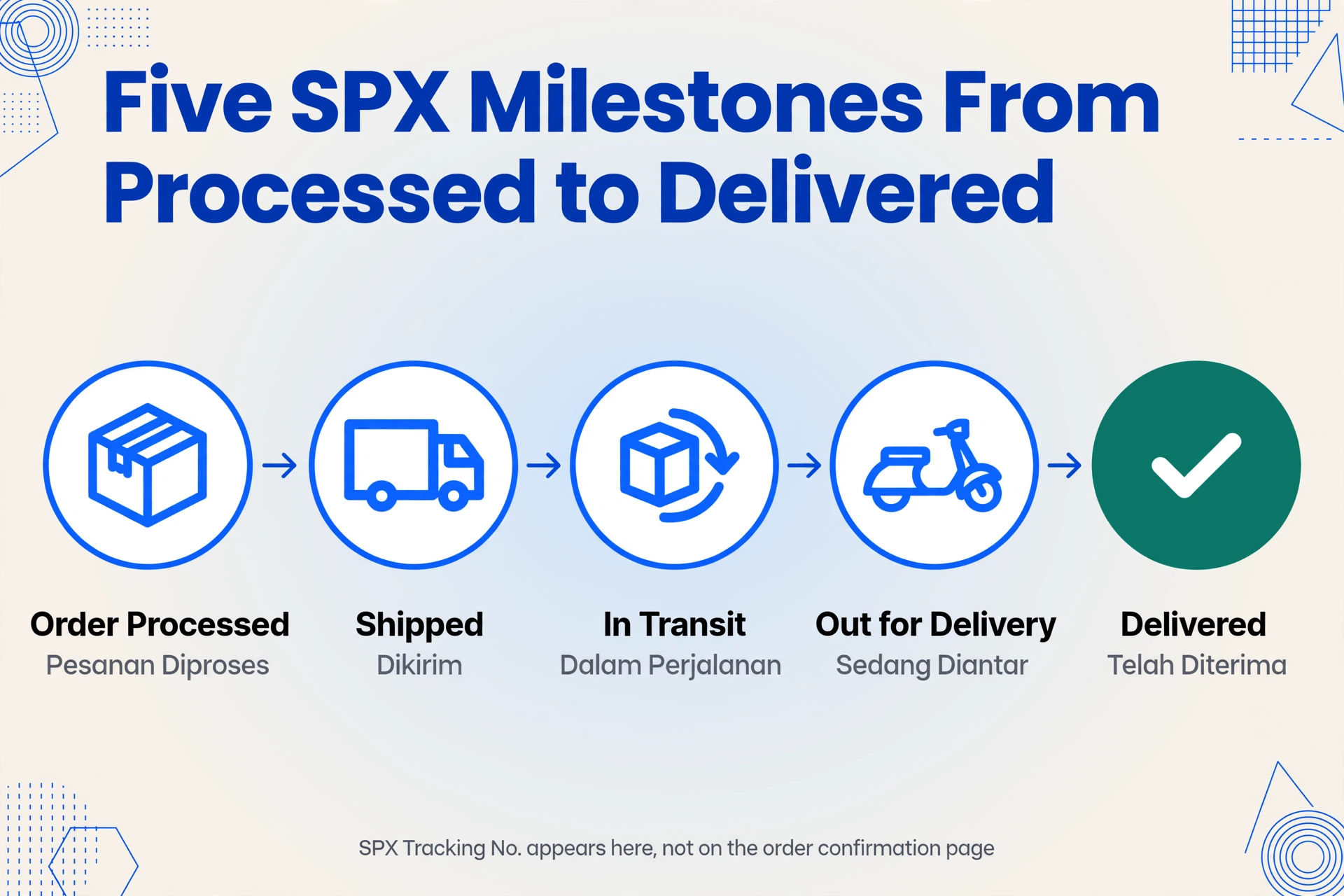
Shopee operates its own integrated logistics service called SPX Express (formerly Shopee Xpress) across most of its major markets. When a seller ships via SPX, the tracking page within the Shopee app shows real-time status updates in the local language — but the underlying status structure is consistent across markets.
A typical SPX tracking screenshot shows these milestones:
- Pesanan Diproses (MY) / Pesanan Diproses (ID) / Order Processed (SG/PH) — seller is preparing the package
- Dikirim (MY) / Dikirim (ID) / Shipped (SG/PH) — package has been picked up by SPX
- Sedang Dalam Perjalanan (MY) / Dalam Perjalanan (ID) / In Transit (SG/PH) — package is moving through the SPX network
- Sedang Diantar (MY) / Sedang Diantar Kurir (ID) / Out for Delivery (SG/PH) — last-mile driver has the package
- Telah Diterima (MY) / Pesanan Diterima (ID) / Delivered (SG/PH) — package has been delivered
The SPX tracking number is distinct from the order number. It typically starts with the carrier prefix and appears on the tracking detail page, often inside a collapsible section labeled "See All Updates" or "Lihat Semua Update." The tracking number is not shown on the order confirmation page — only on the shipping status page or the tracking page. A screenshot of the My Purchases page alone will not contain the tracking number; you need a screenshot of the tracking detail page.
For orders shipped via third-party couriers (J&T, Ninja Van, DHL, Flash Express, etc.), Shopee shows the carrier's name and the carrier's own tracking number. The format and length of the tracking number vary by courier — J&T numbers are typically 12–18 digits, Ninja Van numbers start with "NV" — and the status updates are provided by the carrier through Shopee's tracking integration. A screenshot taken inside the Shopee app will show the same layout regardless of which carrier is used, but the tracking number format will differ.
The estimated delivery date appears as a date range on the order details page. Shopee typically shows a window (for example, "Estimated delivery: Jul 14–18" or "Estimasi tiba: 14–18 Jul") based on the seller's handling time plus the carrier's transit time. This date range is visible on the order card in My Purchases before the seller ships, and is replaced by real-time tracking updates after shipment.
Why These Four Fields Work Better as a Cross-Market Record
Individually, each of these four fields solves a specific need — the order number identifies the transaction, the product name tells you what was bought, the amount shows what was paid (or still owed), and the shipping status tracks where the parcel is. Together, they form a complete record of a Shopee order that is usable across any market, in any language, for any purpose.
Consider a few real scenarios where this combination matters, especially for users managing orders across Shopee's markets:
- Cross-border seller order reconciliation: A Malaysian seller on Shopee MY also sells to Singaporean buyers through Shopee SG. The order number prefix tells them which market each order belongs to, the product name identifies the SKU, the amount (in MYR for local orders, SGD for cross-border) determines revenue, and the shipping status shows whether SPX Express or a third-party carrier is handling the delivery. Manually collecting these four fields from screenshots in multiple languages is repetitive and error-prone.
- Buyer return documentation: Shopee's buyer protection program requires the order number to initiate a return or refund request. Having a screenshot that clearly captures the order number and the order total eliminates the need to open the app and navigate through order history — especially if the screenshot was taken weeks ago and the order has been marked "Completed" (Selesai / Telah Selesai).
- COD payment tracking: For cash-on-delivery orders that are still in transit, the screenshot is the only portable record of "what is still owed." Once the parcel is delivered and the cash is collected, the status updates to "Delivered" — a screenshot taken before delivery preserves the COD status at that moment, which matters if a dispute arises about whether payment was made.
The friction is not in reading a single screenshot — it is in reading a dozen screenshots across different markets, each in a different language, with different currency symbols, and different carrier tracking formats, and assembling them into a single view. That is the gap that a structured extraction workflow addresses.
Frequently Asked Questions
Is a Shopee order number the same as a tracking number?
No. The order number (which starts with a market prefix like MY or SG) is assigned at checkout and identifies the entire purchase. The tracking number is generated when the parcel is picked up by the carrier. SPX Express tracking numbers start with the carrier prefix and are displayed on the tracking page, not on the order confirmation page. An order can have multiple tracking numbers if the items ship in separate parcels, but it always has exactly one order number.
Can I extract Shopee order data if the screenshot is in Thai or Indonesian?
Yes, if the extraction tool uses vision-based AI that reads what it sees rather than matching keywords. The label for "Total Pembayaran" in Indonesian looks different from "Total Payment" in English, but a vision model trained on document semantics understands that both label the final amount regardless of language. This is where template-free, semantic extraction has a clear advantage over label-matching approaches — it does not need to know that "Total Pembayaran" means "Total Payment" in advance, because it reads the value next to the bottom-most amount line in the price breakdown.
The amount on my Shopee screenshot is in MYR, SGD, IDR, or PHP — can I still extract it?
Absolutely. The currency symbol (RM for Malaysian Ringgit, S$ for Singapore Dollar, Rp for Indonesian Rupiah, ₱ for Philippine Peso, ฿ for Thai Baht, ₫ for Vietnamese Dong, NT$ for Taiwan Dollar, R$ for Brazilian Real) is part of the visual content of the screenshot. A semantic extraction tool reads the currency symbol and the numeric value together, and can output them as a combined field (e.g., "RM 45.90") or separately.
My Shopee order has multiple items — will a screenshot show all of them?
On the My Purchases page, Shopee shows only the first item thumbnail with a "+ N other items" label. To see all items, you need to tap into the order details screen, which lists each product on its own line with its name, variant, quantity, and unit price. A screenshot of the collapsed My Purchases view will only capture the first item name. For a complete record, screenshot the expanded order details screen instead.
Does the total amount include Shopee Coin deductions?
The order total shown on the checkout confirmation and order details screens reflects the amount actually charged to the buyer after all deductions, including Shopee Coins redeemed, vouchers applied, and any platform service fees. The total is what the buyer needs to pay (for COD orders) or what has been charged (for ShopeePay/card payments). The Coin deduction itself is shown as a separate line in the price breakdown, but the final total already accounts for it.
Can I extract order details from multiple Shopee screenshots at once?
ImageToTable.ai supports batch processing — upload multiple Shopee order screenshots from different markets in one go, specify the columns you want (such as "Order Number," "Product Name," "Total Amount," and "Shipping Status"), and the AI extracts matching values from all images in a single run. The results merge into one spreadsheet, so screenshots from Shopee MY, SG, ID, and PH all land in the same table, side by side — no manual sorting by market prefix or currency type required.