Rakuten Order Screenshot:
How to Find the Order Number, Points, and Delivery Method
You just placed an order on Rakuten Ichiba (楽天市場) — Japan's largest e-commerce marketplace — and took a screenshot of the confirmation page. Maybe you want to track the point earnings, save the order number for a return, or confirm the delivery method. But the entire interface is in Japanese, and the screenshot has more information than a typical Amazon order screenshot or eBay order page: two different point fields, a multi-choice delivery method, and a unique order number format that follows its own rules.
Key Takeaways
- During お買い物マラソン your SPU multiplier can push Rakuten Points up to 10x, but the only proof you'll have is a Japanese screenshot you took at checkout — and those points won't appear in your usable balance for 20 days.
- Each Rakuten order screenshot splits points into earned and spent as two separate values buried in different sections of the page, and manual transcription during a 楽天スーパーSALE binge means opening dozens of photos just to grab four numbers from each.
- ImageToTable.ai reads the visual labels by semantic context — 注文番号, 獲得ポイント, 配送方法 — directly into a spreadsheet without you needing to type or read a single Japanese character.
The Order Number (注文番号) — Format and Where to Find It
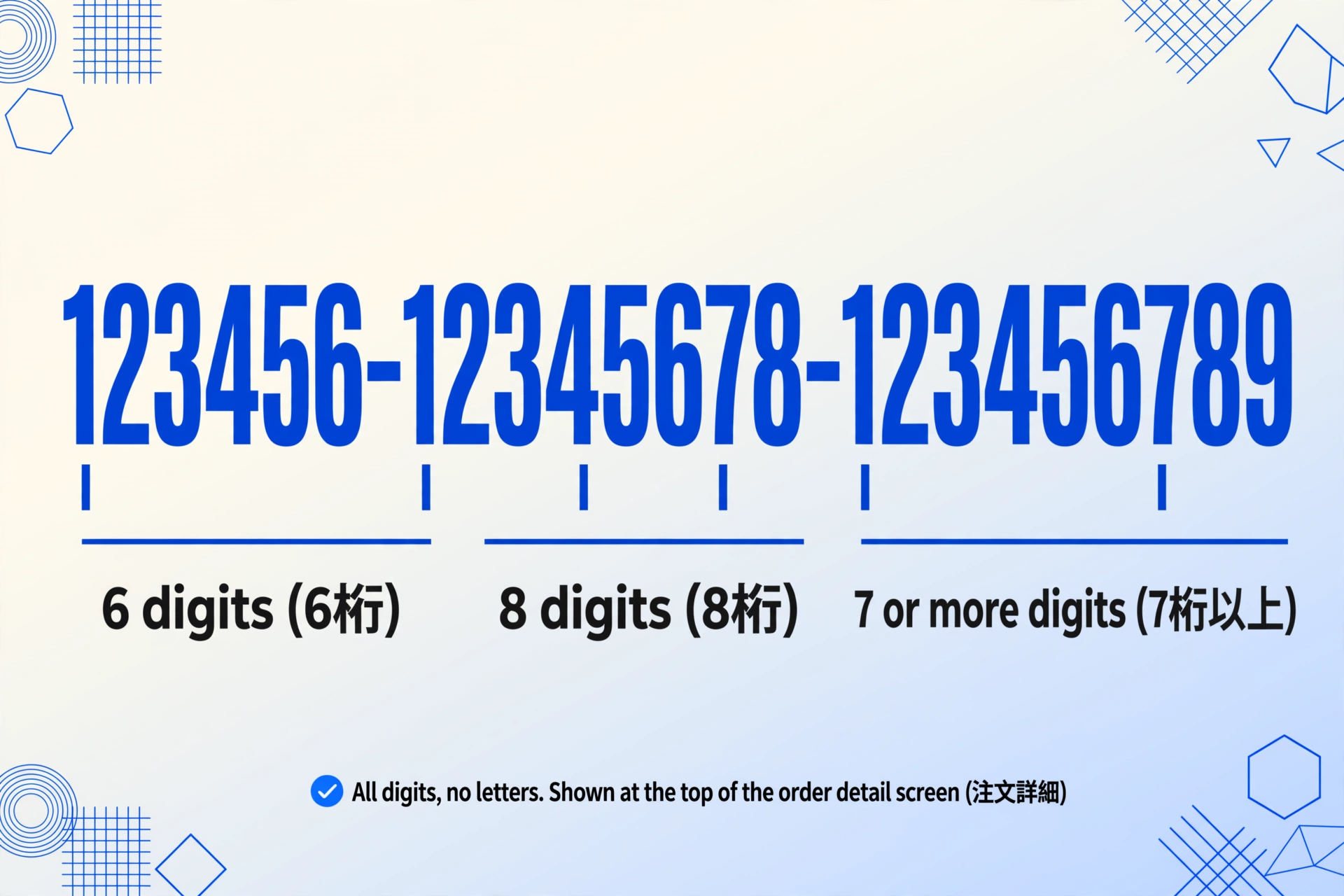
Every Rakuten Ichiba order receives a unique identifier called the order number (注文番号). It follows a consistent multi-segment format that distinguishes it from other e-commerce platforms. According to Rakuten's official FAQ, the order number is displayed on the final step of the checkout process and follows this pattern:
123456-12345678-123456789
The format is, as Rakuten's help page specifies: 6 digits, then 8 digits, then 7 or more digits, separated by hyphens (6桁-8桁-7桁以上). All digits — no letters, no special characters beyond the dashes. This is notably different from Amazon's 3-7-7 pattern or eBay's alphanumeric format.
The most reliable place to find the order number from a screenshot is the purchase history page (購入履歴), accessible at order.my.rakuten.co.jp. On the purchase history list, each order entry shows basic info; clicking "Order Details (注文詳細)" reveals the full detail screen where the order number appears prominently at the top. Rakuten's FAQ confirms that purchase history reflects orders within minutes to a few hours after placement.
The order confirmation email (sent automatically from [email protected] with the subject line "【楽天市場】注文内容ご確認(自動配信メール)") also contains the order number. If your screenshot captures this email — common among users who snap a quick photo of their inbox — the number is present in the email body.
A common point of confusion: the order number is not the same as the tracking number (伝票番号) assigned by the delivery carrier. The order number is created at checkout and stays the same for the entire purchase; the tracking number (if one exists) is generated when the item ships, and its format depends on the courier. A screenshot of the order confirmation page gives you the order number; a screenshot of the shipping notification page gives you a tracking number instead.
The Product Name (商品名) and Shop Name (楽天ショップ)
Rakuten Ichiba is a marketplace, not a direct retailer. Every item is sold by an individual shop (楽天ショップ) — similar to eBay sellers but referred to as "shops" rather than "sellers." This means your order screenshot contains two separate name fields: the product title and the shop that sold it.
On the purchase history detail screen, each item appears with a product thumbnail, the product name (商品名) — often truncated on mobile — and the shop name (ショップ名) in smaller text below. Desktop screenshots capture more context per image, including the price breakdown, point earnings, and delivery details on one scroll.
The shop name matters because Rakuten customer support routes inquiries through the shop first — the FAQ advises contacting the shop directly for shipping, cancellations, and returns.
Rakuten Points (楽天ポイント) — The Most Distinctive Fields
This is where a Rakuten order screenshot differs fundamentally from any other e-commerce platform. Rakuten's loyalty points system is the most sophisticated in Japan, spanning not just shopping but banking, securities, mobile plans, travel, and insurance. An order screenshot can show two point-related fields, and understanding both is essential for anyone tracking their Rakuten Points balance.
Points Earned (獲得ポイント)
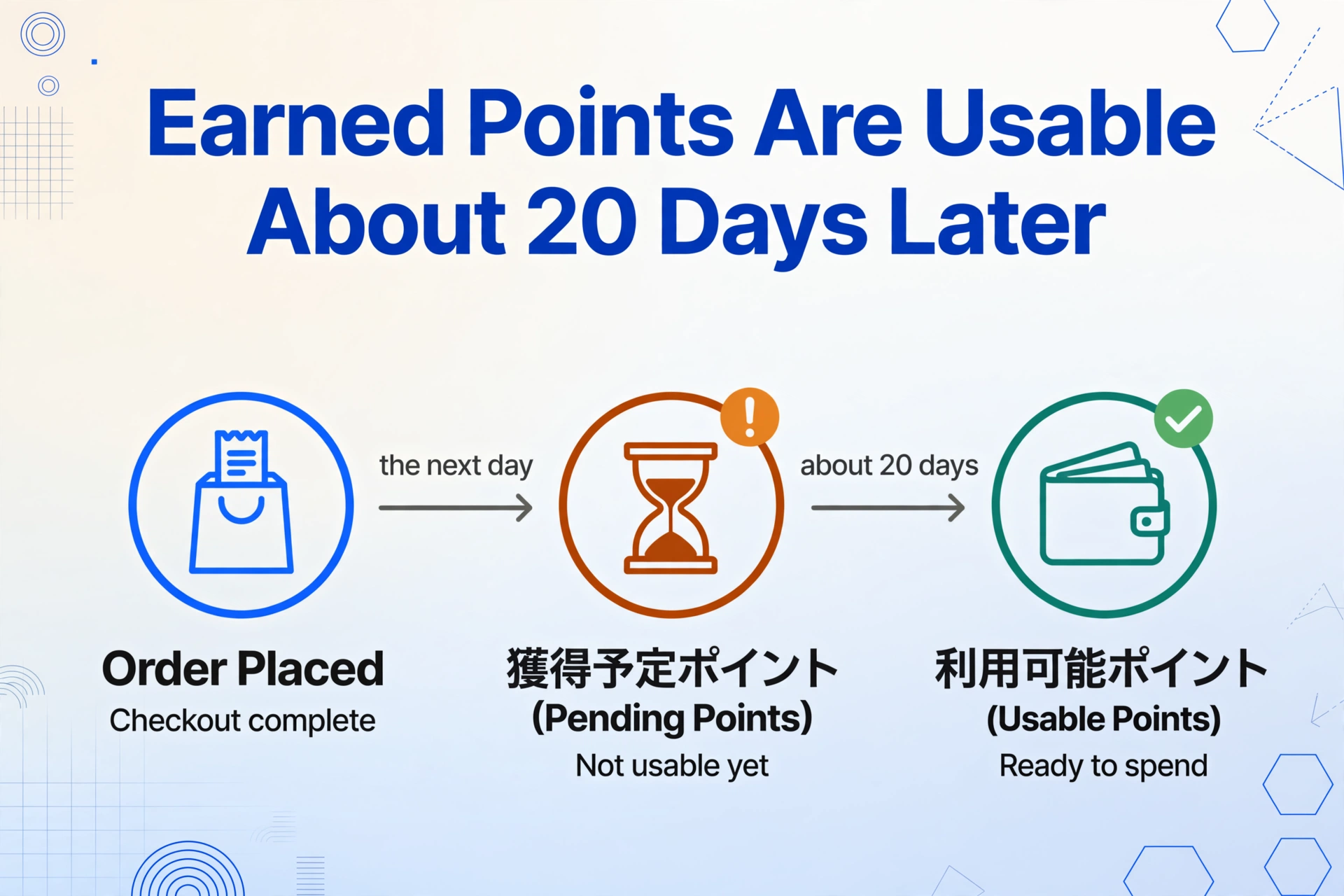
The points earned (獲得ポイント) field shows how many points you will receive from this purchase. On the order confirmation page and purchase history detail, this appears as "獲得予定ポイント" (points to be earned) — a pending amount that becomes usable about 20 days after the purchase date, as confirmed by Rakuten's point system FAQ.
The base earning rate is 1 point per 100 yen (excluding tax). But this is rarely the actual rate because of Rakuten's SPU (Super Point Up) program, which multiplies your points based on how many Rakuten ecosystem services you use:
| Service Combination | Multiplier |
|---|---|
| Rakuten Card holder | +1x |
| Rakuten Card + Rakuten Bank | +2x |
| Rakuten Card + Bank + Mobile | +3x |
| During お買い物マラソン campaign | Up to +10x |
Multipliers shown are additive to the base 1x. Exact rates depend on active campaigns and shop-specific promotions.
Rakuten's FAQ confirms that the points multiplier is shown as "あなたはポイント〇倍" at the top of the shopping site. During campaigns like お買い物マラソン (Shopping Marathon) or 楽天スーパーSALE, users with full ecosystem participation can see 7x to 10x. The order screen shows the final calculated points — the multiplier itself may not appear in the screenshot.
Points Used (利用ポイント)
If the shopper used points on this purchase, the screenshot shows a points used (利用ポイント) field. Rakuten allows points toward the entire order including shipping and tax, not just the subtotal.
These two values together tell the complete story: how many points you spent (利用ポイント) and how many new points the purchase earns (獲得ポイント). Japanese users often screenshot orders specifically to verify point earnings during SPU campaigns when a single order might earn several thousand points. Cross-checking earned points against what later appears in Rakuten PointClub (楽天PointClub) is a common monthly ritual.
The Delivery Method (配送方法) — Japan's Hyper-Specific Options
Japanese e-commerce delivery is more granular than any other market. Rakuten's order screenshot captures the delivery method (配送方法) selected by the shop, appearing in the purchase history detail screen under or near the shipping information section. The field contains both the method type and the courier name — for example, "配送方法: 宅配便 (ヤマト運輸)".
- 宅配便 (Takkyūbin / Standard Courier) — For larger items. The carrier (Yamato's クロネコヤマト, Sagawa's 佐川急便, or Japan Post's 日本郵便) is specified alongside. A tracking number (伝票番号) is typically provided, with status updates through the carrier's network.
- メール便 (Mēru-bin / Mail Delivery) — For small items like CDs or books. Uses the postal system and typically does not include a tracking number. If your screenshot shows メール便, you won't see detailed shipping updates beyond "出荷" (shipped).
- コンビニ受取 (Convenience Store Pickup) — Shipped to a designated 7-Eleven, FamilyMart, or Lawson for 24-hour pickup. The screenshot shows the store name and address as the delivery destination.
- 置き配 (Oki-hai / Leave at Door) — The courier leaves the package without a signature. Common since the pandemic, some shops now offer this as the default.
Rakuten's FAQ confirms that delivery tracking granularity depends on the method: 宅配便 gets detailed status (出荷→配達店→配達完了), while メール便 may show only "出荷" with no further updates. This level of delivery specificity is similar to other East Asian e-commerce platforms — for comparison, see how Coupang's Rocket Delivery status displays on its order screenshots. That same layout — order number, product name, and a delivery window in one frame — is what makes Coupang order screenshot extraction work without reading Hangul field labels.
Mobile App vs Desktop — Same Fields, Different View
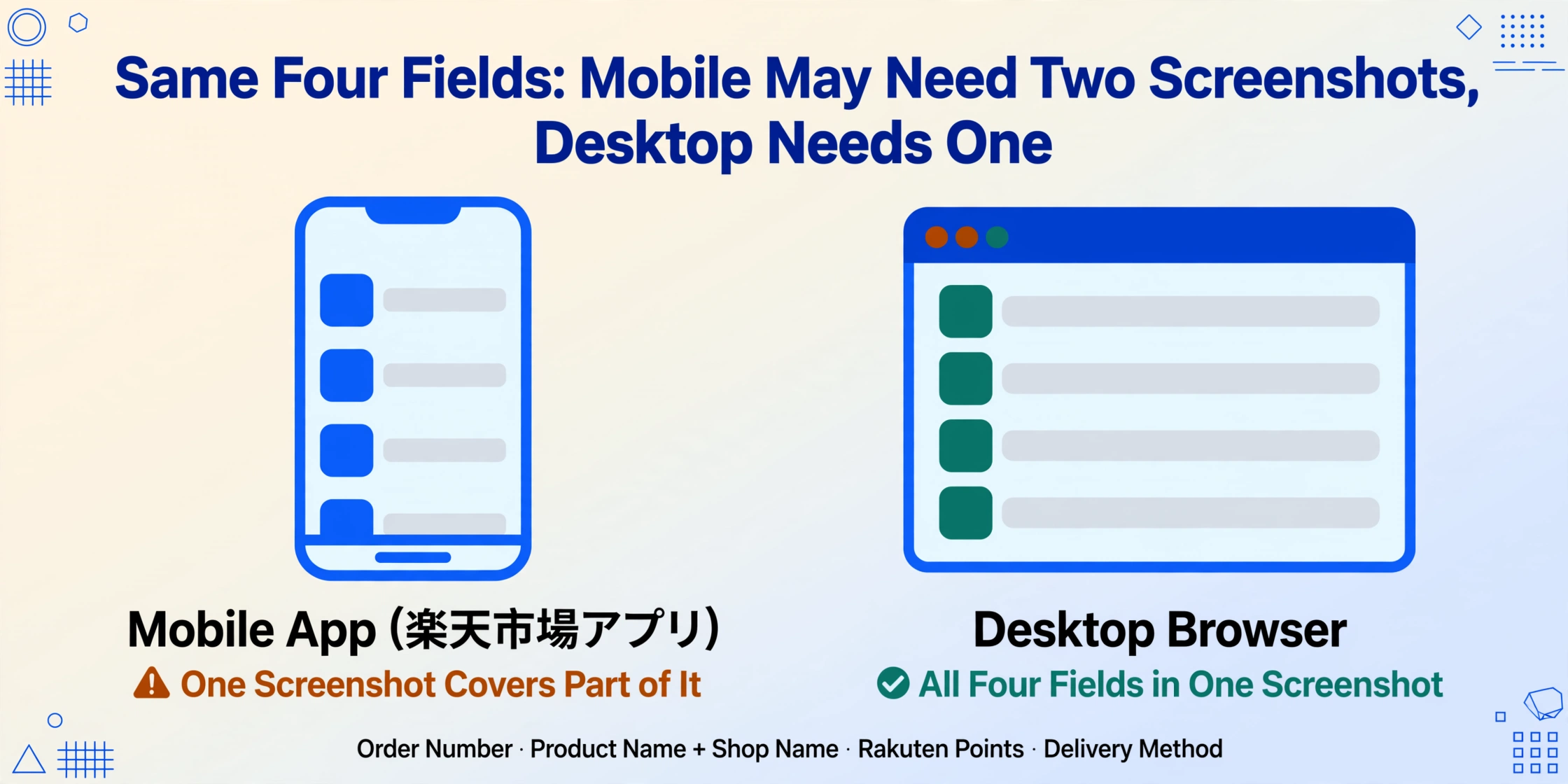
Rakuten's mobile app (楽天市場アプリ) and desktop website organize the same four fields differently — recognizing these differences is essential for reading any screenshot you've taken.
Mobile app screenshots use a card-based layout optimized for the phone screen. The purchase history (購入履歴) shows order cards with the product thumbnail and truncated name. Tapping into the order detail reveals a vertical stack: order number at top, product card with shop name, order summary with points, and shipping section at the bottom. Because the screen is narrow, a single screenshot may capture only part of the detail — you might need two screenshots to capture all four fields.
Desktop browser screenshots use a wider layout where the order number, item rows, shop name, point details, and delivery method are all visible on one screen without scrolling. A single desktop screenshot can capture every relevant field at once.
Rakuten periodically updates both interfaces (the app currently requires iOS 16+ / Android with app version 13.0.0+, per the FAQ), but the field locations stay consistent: order number at top, points in the summary section, delivery method near shipping info.
Why These Four Fields Work as a Complete Record
The order number, product name, Rakuten Points (earned and used), and delivery method form a self-contained purchase record that answers every practical question about a Rakuten order without logging back in:
- Order number — the master reference for returns, support inquiries, and warranty claims
- Product name + shop name — identifies what was bought and from which shop, since Rakuten routes support through the specific shop
- Points earned (獲得ポイント) — verifies SPU-multiplied points are credited correctly, especially during お買い物マラソン campaigns
- Points used (利用ポイント) — documents how many points were spent, which matters for budget tracking and is separately tracked in Rakuten PointClub
- Delivery method (配送方法) — determines how the package arrives and whether tracking updates are available
Manual transcription works for one or two screenshots, but the friction appears with volume — say, all orders from a 楽天スーパーSALE that need reconciliation against point statements. Each image has the data, but extracting it means opening every photo, reading multiple fields in Japanese, and typing them in. Rakuten's dual point fields make this particularly tedious — missing the 利用ポイント number means the payment-to-points relationship is incomplete.
"I've been using Rakuten for years and I still screenshot every order during お買い物マラソン to check the points later. The SPU multiplier is great but it's hard to verify once the points hit your account a month later." — r/japanlife user discussion
This is where treating the screenshot as a data source makes sense: the information is already visually captured, and the only manual step is transcription. A tool that reads the image and extracts these specific fields — order number, product name, shop, points earned, points used, delivery method — directly into a spreadsheet turns a gallery of order screenshots into a searchable, sortable purchase log.
Frequently Asked Questions
Does every Rakuten order number follow the 6-8-7+ digit format?
Yes, according to Rakuten's official FAQ. The pattern of 6 digits, 8 digits, and 7 or more digits separated by hyphens (XXXXXX-XXXXXXXX-XXXXXXXXX) is the standard order number format for Rakuten Ichiba. All characters are numeric — no letters. The number is generated at checkout and does not change even if the order is modified.
When do earned Rakuten Points appear in my account after an order?
Rakuten's FAQ states that the base 1% points are not immediately usable after purchase. They appear as "獲得予定ポイント" (pending points) the day after the order and become usable (利用可能ポイント) approximately 20 days later. During major sales or SPU campaigns, the points from multiplier bonuses may follow a different schedule — check the campaign rules for exact timing.
Can a data extraction tool read a Rakuten screenshot in Japanese?
Vision-based extraction tools work on the visual content of the image, not the language. A tool like ImageToTable.ai reads the characters as they appear — whether they are English, Japanese, or mixed. The labels (注文番号, 獲得ポイント, 配送方法) are visually distinctive enough for the AI to locate by semantic context. However, the extracted field names will be in the original Japanese unless you configure column name mapping — for example, mapping 獲得ポイント to a column labeled "Points Earned." This is available through the Custom Column Extraction feature, where you define the output columns you want and the AI locates the corresponding data by meaning.
Do Rakuten Points show as a discount on the order total?
Yes. If the user applied points (利用ポイント) to the order, the purchase history detail shows the original item total, the points used as a deduction, and then the final payment amount. The points used field is listed separately from the cash payment. This is important for expense tracking: the amount you actually paid in yen is the total minus the points used, and only the yen amount appears on your credit card or bank statement.
My screenshot says メール便 — can I still track the package?
According to Rakuten's delivery FAQ, メール便 (mail delivery) typically does not include a tracking number (伝票番号). The delivery status in purchase history will show "出荷" (shipped) but may not provide further granular updates. For 宅配便 (standard courier), a tracking number is provided and the status updates through the carrier's tracking system (出荷 → 配達店 → 配達中 → 配達完了).