Amazon Order Screenshot:
How to Find the Order Number, Item, and Total
You just placed an Amazon order and took a screenshot — maybe to save a receipt for a return, to track a business purchase, or simply to remember what you paid. Days or weeks later, you open that screenshot and need to find the order number, the product name, and the amount you actually paid. Those three pieces of information sit right there in the image, but depending on which page you captured and whether you were on your phone or a desktop browser, they don't always look the same.
Key Takeaways
- You took that screenshot to save time — but an Amazon order page can show four different dollar amounts, and only the one labeled "Order Total" matches what your credit card statement will show.
- Amazon customer service skips your name and asks for a 17-digit string first — confusing it with a tracking number is the single most common reason people dig through order history while on hold.
- Put the order number, item name, and total together in one place, and a screenshot becomes a portable receipt that handles returns, expense tracking, and charge verification without ever logging back in.
The Amazon Order Number — Format, Location, and Why It Matters
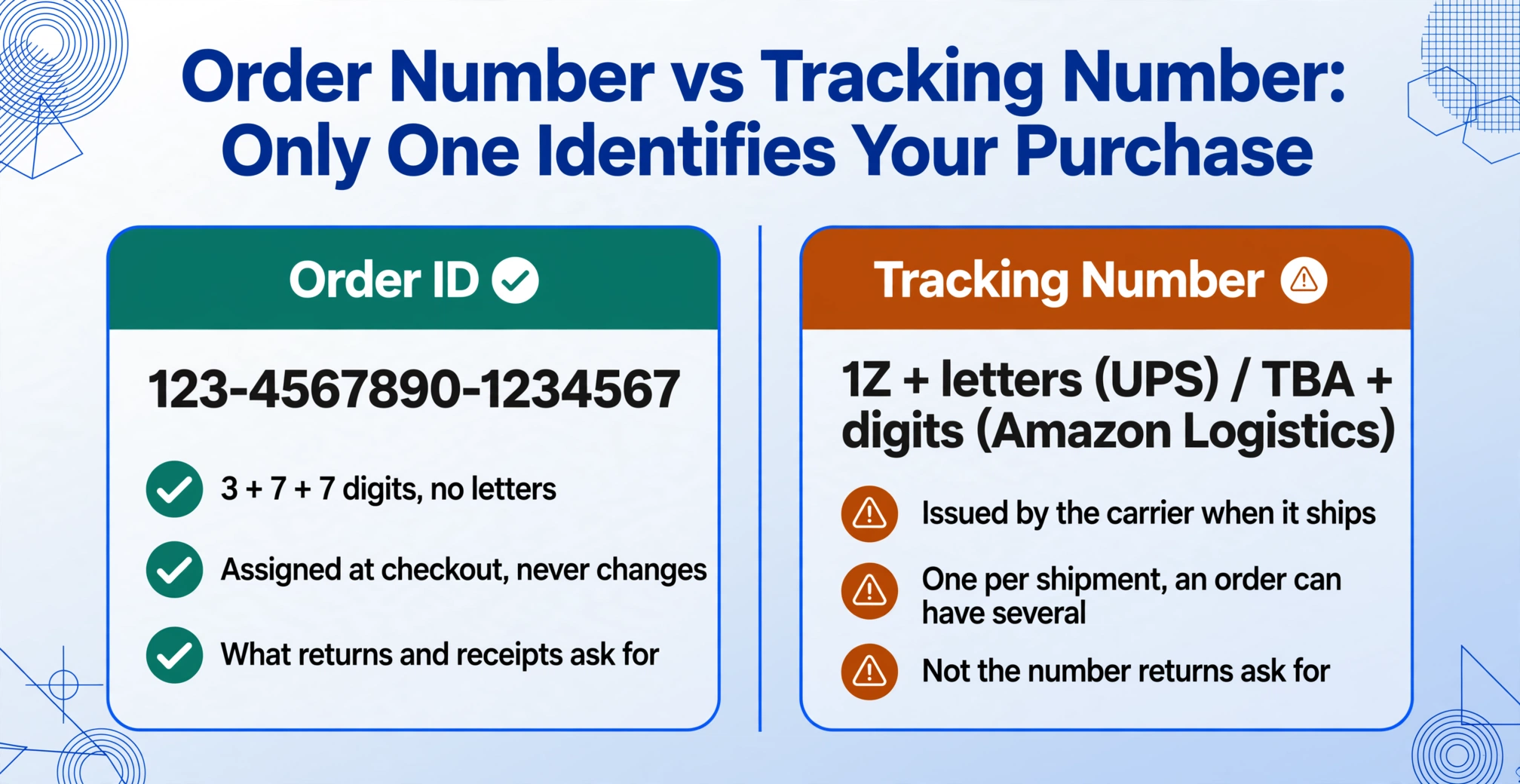
Every Amazon order gets a unique identifier called the Order ID or order number. It follows a consistent 17-character pattern across every Amazon marketplace worldwide — whether you ordered from Amazon.com, Amazon.co.uk, Amazon.de, or Amazon.co.jp:
123-4567890-1234567
The format is always three groups separated by hyphens: 3 digits, then 7 digits, then 7 digits. All digits — no letters. The first three digits vary per order (commonly starting with 111, 112, 113, or 114, but not always), and contrary to some online guides, there is no single fixed prefix that identifies a valid Amazon order number.
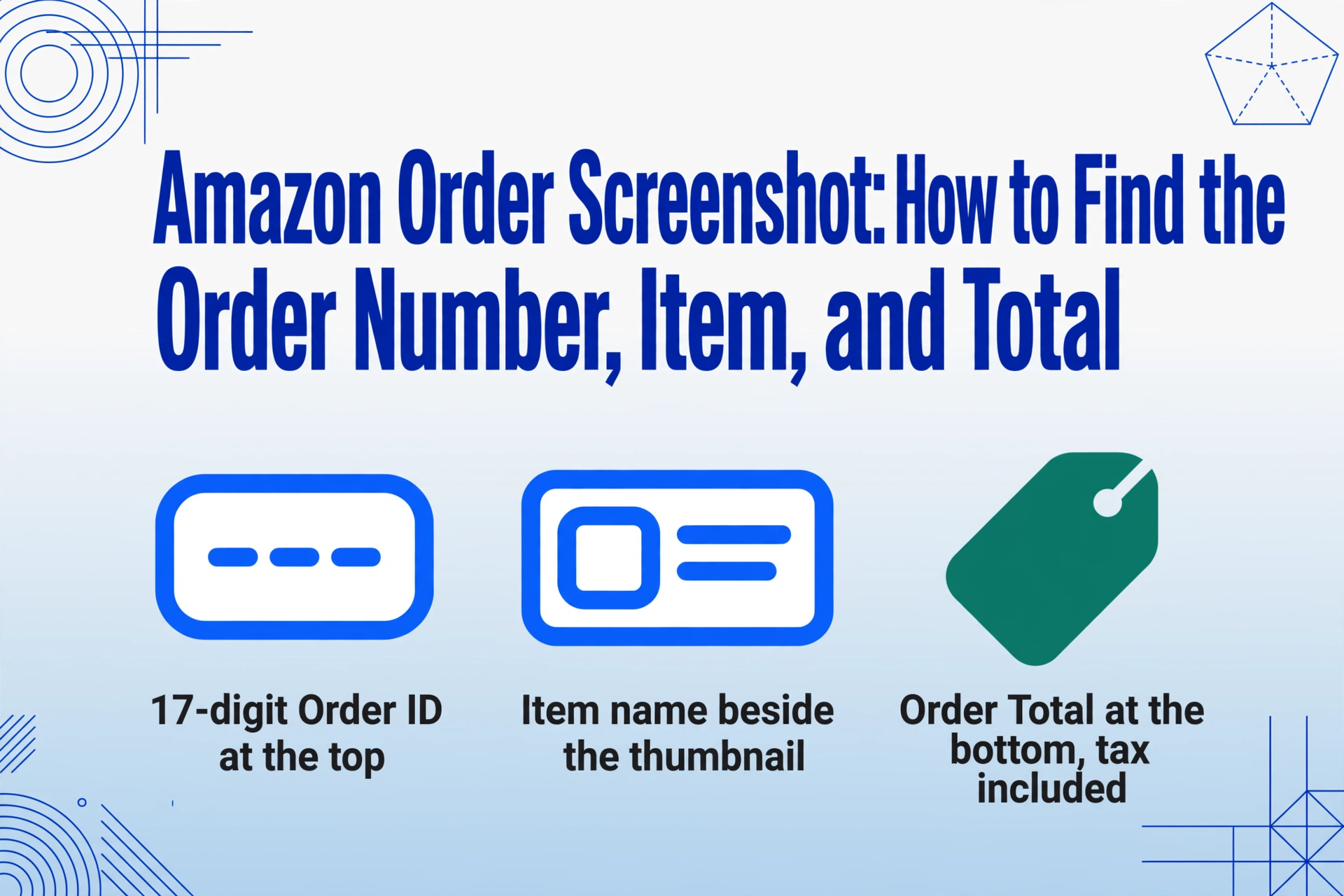
On an order confirmation screenshot, the order number appears near the top of the page, labeled "Order ID" or "Order Number". In the Amazon shopping app, you tap the profile icon → Your Orders → select the order → View Order Details, and the 17-digit string sits at the top of the detail screen (a YouTube tutorial with 46,000+ views confirms this exact path). On a desktop browser, the order number appears in the same position on the order details page within the Your Orders section.
The most common mistake is confusing the order number with a tracking number. They are different: the order number is assigned at checkout and never changes, while a tracking number is issued by the carrier (UPS, FedEx, Amazon Logistics) when the item ships — it follows a different format and can vary per shipment. A screenshot of the order confirmation page gives you the order number; a screenshot of the shipping notification page gives you a tracking number instead.
Why does the order number matter? It is the master reference for returns, refunds, customer service, warranty claims, and A-to-Z Guarantee cases. Amazon support asks for it first, before your name or address. A screenshot that captures the order number is essentially a portable receipt.
The Item Name — From Truncated Titles to Full Product Names
Amazon product titles are famously long. A single listing might read "Sony WH-1000XM5 Wireless Noise Canceling Headphones with Auto Noise Cancellation — 30 Hours Battery Life — Midnight Blue". On a mobile screenshot, that title gets cut off after about 40 characters. On a desktop order confirmation, you might see the full title in a row within a detailed order table.
On the mobile app order details screen, the item name appears as the title of a card layout — usually the first thing you see after the product image thumbnail. It's often truncated with an ellipsis. Tapping through to the full product listing shows the complete title, but the screenshot itself only captures the visible portion.
On a desktop order confirmation page, the item name appears as the first column in a table row that also includes the seller, price, quantity, and order status. The full title is usually visible unless the window is unusually narrow.
If the screenshot captures an order confirmation email (Amazon sends one to your inbox after every purchase), the item name is listed as a clickable link in a plain-text format — no truncation, but also no visual layout cues like border lines or column headers. This email screenshot is actually the most reliable source for the full product name.
Each item in an Amazon order also has an ASIN (Amazon Standard Identification Number — a 10-character alphanumeric code like B09XYZ1234), but this is rarely shown on consumer-facing order pages or screenshots. The product title is the human-readable identifier that tells you what you actually bought.
The Amount — Subtotal, Shipping, Tax, or Total?
This is where Amazon order screenshots get confusing. An Amazon order page can show up to four different dollar amounts in different places, and which one you need depends on why you took the screenshot in the first place.
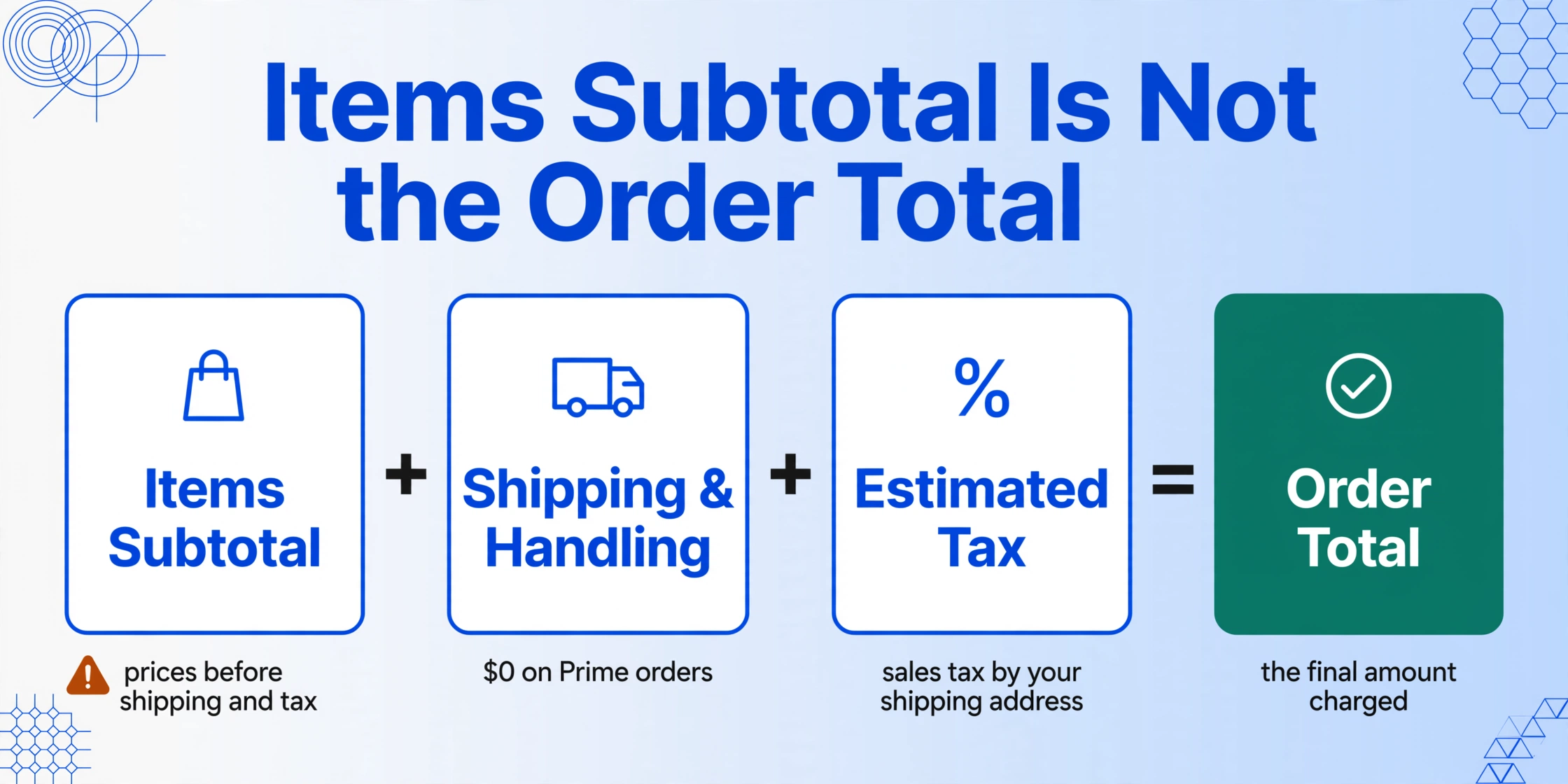
The number most people actually need is the Order Total — the final amount that was charged to the payment method. This includes the item subtotal, shipping charges, gift wrap fees, any discounts applied, and tax.
On the mobile app order confirmation page, Amazon shows a simplified price breakdown. After tapping Place Your Order, the confirmation screen displays the order total prominently at the bottom. Some mobile order history cards show only a single price — this is the total, not the subtotal.
On the desktop order confirmation page (the page that appears right after placing the order), you see a more detailed table with:
- Items Subtotal — the sum of all item prices before shipping and tax
- Shipping & Handling — delivery charges (may be $0 for Prime orders)
- Total Before Tax — subtotal + shipping
- Estimated Tax — sales tax based on your shipping address
- Order Total — the final charge (what we're looking for)
If your screenshot captures the order details page within Your Orders (after logging in and clicking into a past order), the display is similar to the desktop confirmation. The total is clearly labeled, though the detailed breakdown may be tucked under a collapsible section labeled "Order Summary" or "Price Details".
A common pitfall: if the screenshot was taken on the checkout page (before placing the order), the amount may not include the final tax or may reflect an estimated shipping cost that changes with the selected delivery speed. Only the post-purchase confirmation page or order details page reflects the actual charged amount.
Mobile App vs Desktop — Same Fields, Different Layout
Amazon's mobile app and desktop website show the same three fields — order number, item name, amount — but in visually different ways. Recognizing these layout differences is key to correctly reading any screenshot you've taken.
Mobile app screenshots use a card-based layout. Each order appears as a rounded card with the product image on the left and the details stacked vertically on the right. The order number is at the top of the order details screen, not on the order list card. The item name is truncated next to the product thumbnail. The total sits at the bottom of the card or at the bottom of the order details screen. This layout changes slightly between Android and iOS versions, and Amazon occasionally A/B tests design variations — but the core structure (card format, vertical stack, thumbnail image) stays consistent.
Desktop browser screenshots use a table-based layout in the Your Orders section. Each order occupies a full-width row with columns for order date, item name, price, and status. Clicking into the order reveals a traditional web page with the order number at the top, a table of items, and a summary sidebar on the right showing the price breakdown. Desktop screenshots tend to capture more fields at once because the wider layout fits more information on screen.
The practical difference: a mobile screenshot is more portable and easier to snap in the moment, but it shows less data per image. A desktop screenshot captures the full context but requires you to be at a computer. Many people end up with a mix of both, especially when tracking multiple orders across different devices.
Why These Three Fields Work Better as a Data Set
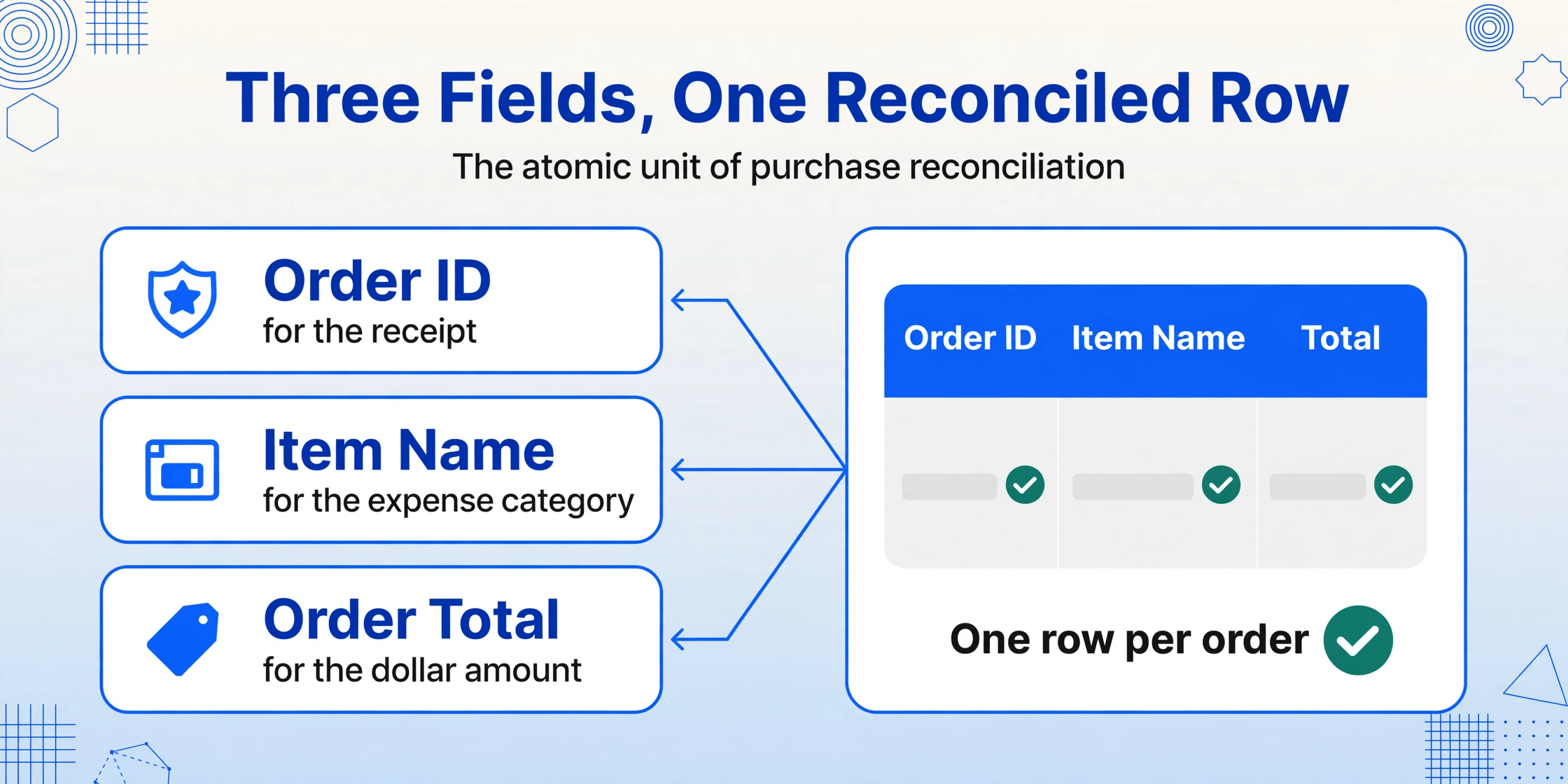
Individually, the order number, item name, and amount each serve a purpose. Together, they form the atomic unit of purchase reconciliation — the three pieces of information that let you match an Amazon order to a credit card statement line, categorize a business expense, or confirm a return was processed correctly.
Consider a few real scenarios where this combination matters:
- Small business expense tracking: An Amazon order confirmation screenshot contains the order number (for the receipt), the item name (for the expense category), and the total (for the dollar amount). Manual entry means copying each field from the image into a spreadsheet — three fields per screenshot, one screenshot at a time.
- Monthly budget reconciliation: Did that $87.43 Amazon charge on your credit card match what you expected? The order screenshot's total is the only way to verify, since Amazon sometimes splits single orders into multiple credit card charges.
- Return documentation: Amazon's return system asks for the order number first. Having a screenshot with that 17-digit string visible means you don't need to log in and search through your order history.
When you're looking at just one or two screenshots, manually copying these fields is manageable. The friction appears with a batch — say, all Amazon orders from a month that need to go into an expense report. Each image has the data, but getting it out means opening every photo, reading three fields, and typing them into a row. The screenshot preserves the information perfectly; the manual retyping is what takes time.
"LPT: When doing Amazon returns, use screenshots of your return codes instead of the page in the app. That way you can scroll from one to the next quickly in the photo gallery." — r/LifeProTips
Frequently Asked Questions
Is an Amazon order number the same as a tracking number?
No. An Amazon order number (Order ID) is a 17-digit code in the format XXX-XXXXXXX-XXXXXXX that identifies the entire purchase. A tracking number is issued by the shipping carrier when the item ships — its format varies (UPS uses 1Z followed by alphanumeric characters, Amazon Logistics uses TBA followed by digits). An order can have multiple tracking numbers if items ship separately, but it always has exactly one order number.
Does the amount on my Amazon order screenshot include tax?
It depends on which part of the page you captured. The Order Total at the bottom of the confirmation page always includes tax. However, if your screenshot shows only the item subtotal (the price column in the items table), that amount is before tax. On mobile, Amazon typically shows the total only. On desktop, the breakdown is itemized. When in doubt, look for the label — "Order Total" or "Total" at the bottom of the group includes everything.
Can I extract the order number from a blurry Amazon screenshot?
The 17-digit order number format is designed to be machine-readable — the dash-separated groups make it easier to parse even when individual digits are unclear. A vision-based extraction tool can often reconstruct the number parts from partial visual information, but severe blur or extreme low resolution may make even AI-powered extraction unreliable. Sharp screenshots taken at standard phone resolution (1080p or higher) typically produce clean results.
My screenshot shows multiple items in one order — how do I read each one?
Amazon displays multiple items in a single order as separate rows or cards, each with its own product name, price, and quantity. On mobile, each item gets its own card with a thumbnail and truncated title. On desktop, they appear as rows in an itemized table. The order number is the same for all items in the order; only the item name and individual price change per row. Multi-item order extraction is covered in detail in a related article.