Amazon Multi-Item Orders
Read Each Item Name, Qty, Price From a Screenshot
A single Amazon order can contain five items, each with its own product name, quantity, and price — all stacked vertically on the same page, separated by nothing more than a thin grey line. Finding the data isn't the hard part. Keeping it straight is: making sure item two's price doesn't end up attached to item one's total, and that the wrapped second line of a long product name doesn't get read as a separate entry altogether.
Key Takeaways
- OCR tools promise table extraction — until they hit a multi-item order screen where items are divided by nothing but a grey line too faint for the engine to detect.
- A product name that wraps to a second line sits at the exact same screen position as the next item's price — and a coordinate-based reader assigns that price to the wrong row every time.
- Semantic extraction doesn't look for grid lines at all — it reads each item as a bundled unit of name, quantity, and price, getting the attribution right whether there are five items or fifty.
Why Multi-Item Orders Challenge Traditional Extraction Tools
A single-item order screenshot presents a straightforward reading task: one product name, one quantity, one price. A multi-item order introduces a structural problem that most traditional OCR tools can't solve. The issue isn't that there are more fields — it's that the visual relationship between fields breaks down when items are stacked closely together.
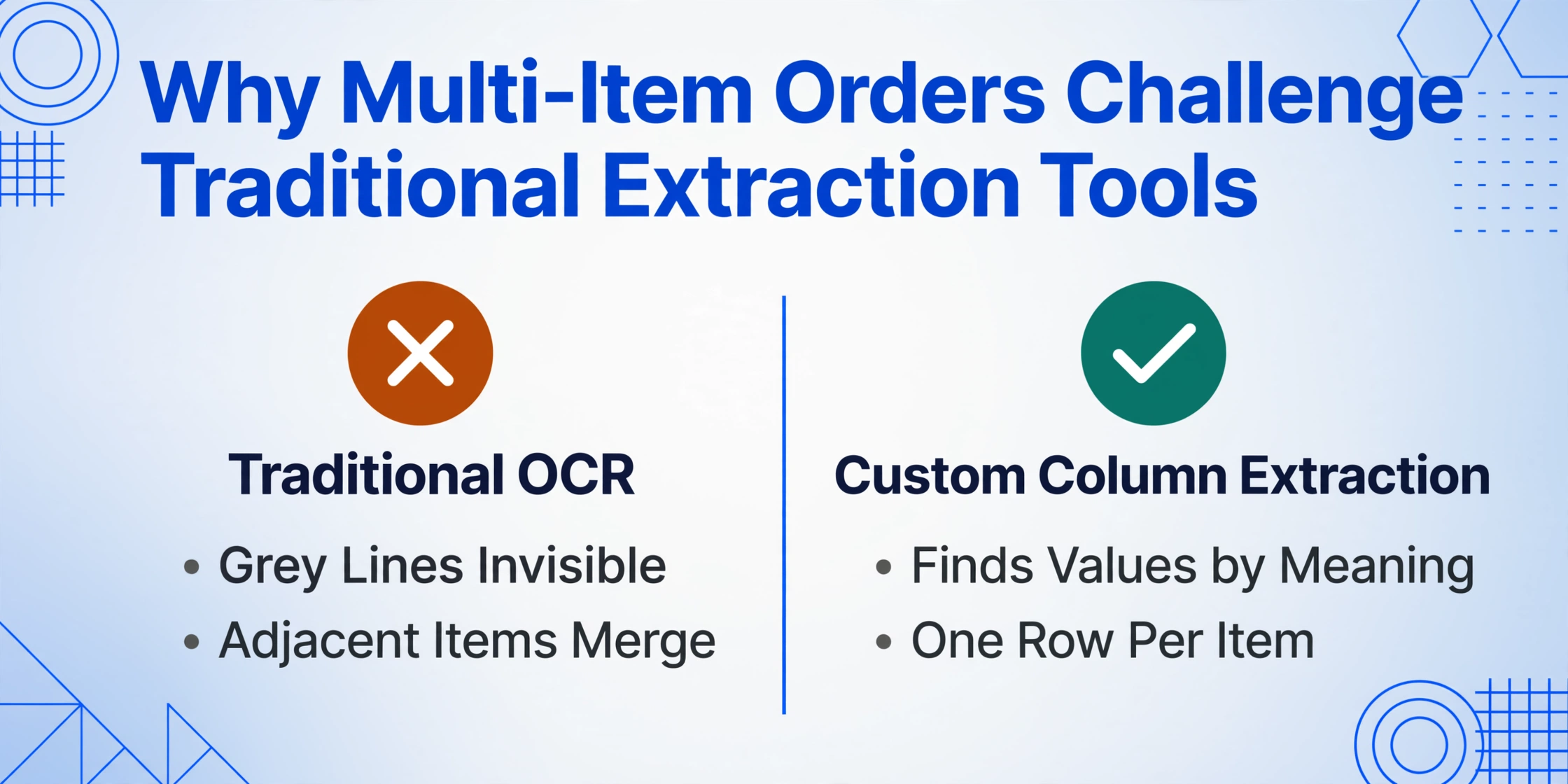
The grey line problem. Amazon separates items on the order details page with thin horizontal grey rules. To the human eye, these lines are obvious dividers: everything above the line belongs to item one, everything below to item two. To a traditional OCR engine, a grey line is either invisible (too faint to detect) or just another visual element with no semantic meaning. The engine sees a continuous block of text and doesn't know where one item ends and the next begins. The result: item boundaries disappear, and the data from adjacent items merges into a single unstructured blob.
Wrapped text breaks the reading order. Amazon product names are often long. "Bissell Pet Stain Eraser Cordless Carpet Cleaner, 2454, Gray" doesn't fit on one line in the order summary — it wraps to a second or even third line. That wrapped text sits at the same vertical position as the next item's price. Traditional OCR reads left-to-right, top-to-bottom, so it can easily grab the second line of item one's name and pair it with item two's price. The reader gets a table where items and prices are misaligned by one row.
"Order again" buttons disrupt the visual flow. Below each item on the order page, Amazon places a "Buy it again" or "Order again" button. These buttons add visual weight between items and change the vertical rhythm of the page. A traditional extraction tool that relies on uniform spacing or line detection can misinterpret these buttons as text belonging to the item above or as the beginning of a new section. Either way, the extraction result loses structural integrity.
The core problem is row attribution. Traditional OCR tools read text. They don't understand that a product name, its quantity, and its price form a single logical unit. When visual boundaries are subtle — a thin line, a wrapped name, a button — the attribution breaks down.
What Each Line Item Actually Contains
Before tackling the extraction approach, it helps to know exactly what fields appear per item on an Amazon multi-item order screenshot. The composition varies by seller type and order configuration, but the core fields are consistent.
Item name (truncated). Amazon displays the product title, but on the order summary page it's almost always truncated — commonly after two lines with an ellipsis ("..."). The full name is available on the product page, but the screenshot captures only the abbreviated version. For extraction purposes, the truncated name is usually sufficient for identification.
Quantity. Displayed as "Qty: 1", "Qty: 2", etc. The font size is typically smaller than the item name, and the quantity label sits beside or below the product image. In mobile app screenshots, the quantity may be hidden behind a collapsed state and only visible after tapping to expand.
Unit price and line total. Each item shows its individual unit price and, for multi-quantity items, a line total (qty × unit price). The order summary at the bottom also shows an "Item Subtotal" — the sum of all line totals — which is separate from the per-item values. Traditional OCR can mistake this subtotal for the last item's price because of spatial proximity.
Seller and fulfillment information. Below the item name, Amazon may display additional lines depending on the seller type:
- Third-party sellers: "Sold by [Seller Name]" appears below the item name, along with the seller's rating if visible on the page.
- FBA (Fulfilled by Amazon): These items typically show no seller attribution on the order summary — just the product name, quantity, and price.
- Subscribe & Save: Items enrolled in Subscribe & Save display a discount percentage (e.g., "5% off with Subscribe & Save") and the discounted price alongside the regular price. Two price values per item can confuse tools that expect a single price field.
Shipping and delivery status per item. Amazon may ship items from different fulfillment centers, which means one order can arrive in multiple packages. Each item on the order screen may show a different delivery status: "Arriving tomorrow" for item one, "Shipped" for item two, "Preparing" for item three. These status labels sit below the item price and add noise to the extraction target.
For a quick comparison of the single-item scenario (which lacks these complexities), see our guide on extracting the order number and item details from a basic Amazon order screenshot. The multi-item case demands a different approach because there's more than one "item details" block to isolate.
Desktop vs. Mobile — Same Order, Different Screenshot
The Amazon order page renders differently on desktop and mobile, and the screenshot format directly affects how line items can be read.
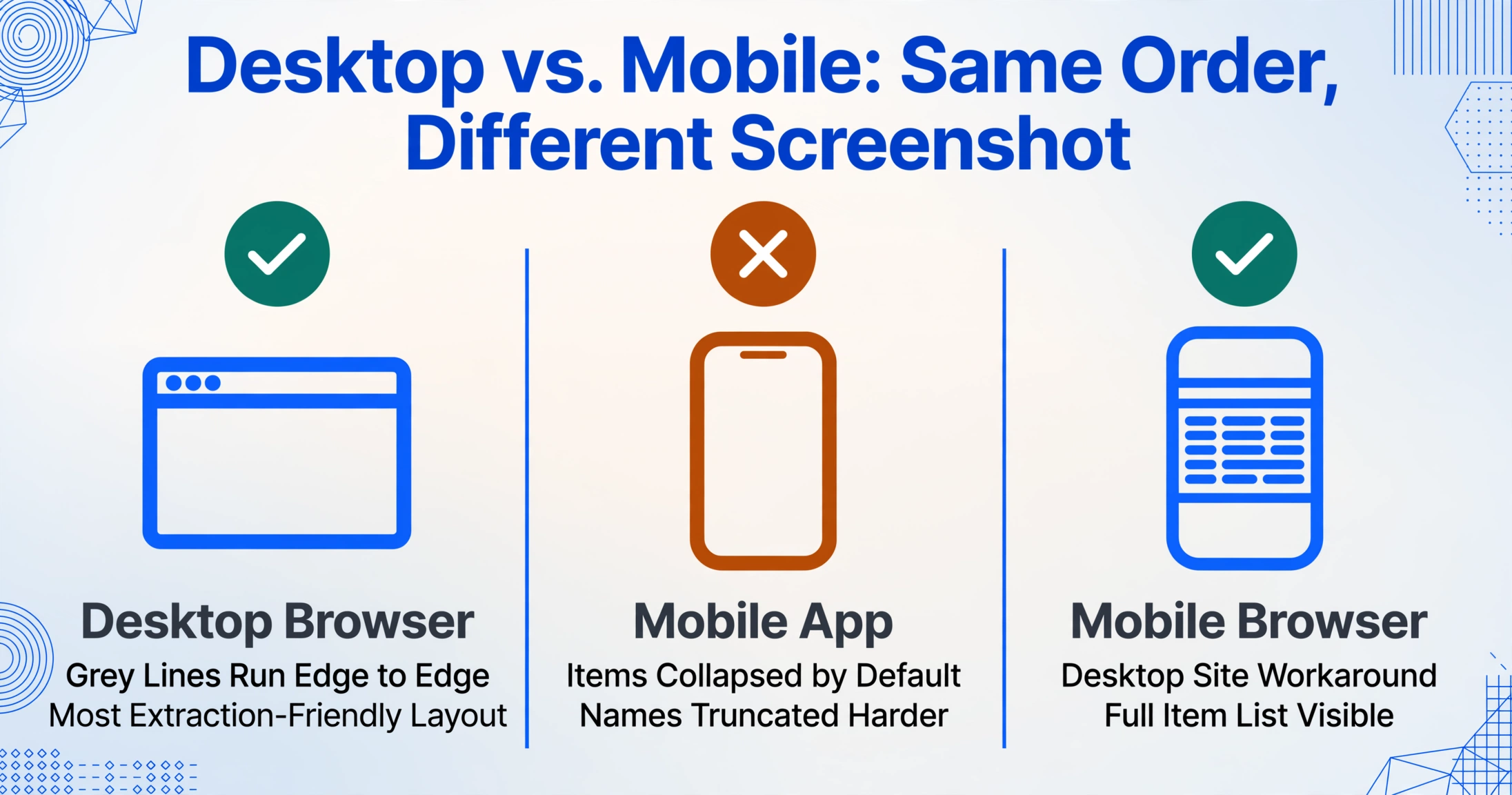
Desktop (web browser). The full "Your Orders" page on a desktop browser shows items in a vertically stacked list, each with a product image on the left, item details in the center, and the price on the right. Grey separator lines run edge-to-edge. Item names are partially visible but may still wrap. The "Order again" buttons are clearly distinguishable. This layout is the most extraction-friendly because the visual structure is consistent and information-dense.
Mobile app. The Amazon mobile app takes a different approach. The order list is collapsed by default: you see a summary card with the total and delivery status, and you need to tap into each order to see the individual items. Even within the order detail view, item names are more aggressively truncated to fit smaller screens, prices may be shown only as line totals without unit prices, and the seller information may be hidden behind an additional tap. More importantly, some users on r/amazonprime have reported that the Amazon app restricts screenshots on certain devices — forcing the user to either take a photo of the screen with another device or open the desktop site in a mobile browser and screenshot from there.
Mobile browser (desktop site). A common workaround is to load the Amazon website in a mobile browser and request the desktop version of the page, then screenshot that. The result is a zoomed-out desktop layout on a small screen — text is smaller, but the full item list is visible without collapsing. This is often the best mobile extraction scenario.
The layout variation between these formats means a template-based extraction tool would need a separate template for each format — and even more when Amazon updates its UI (which happens regularly, as seller forum complaints document). Template-free semantic extraction avoids this entirely.
First Item, Middle Item, Last Item — The Serial Position Trap
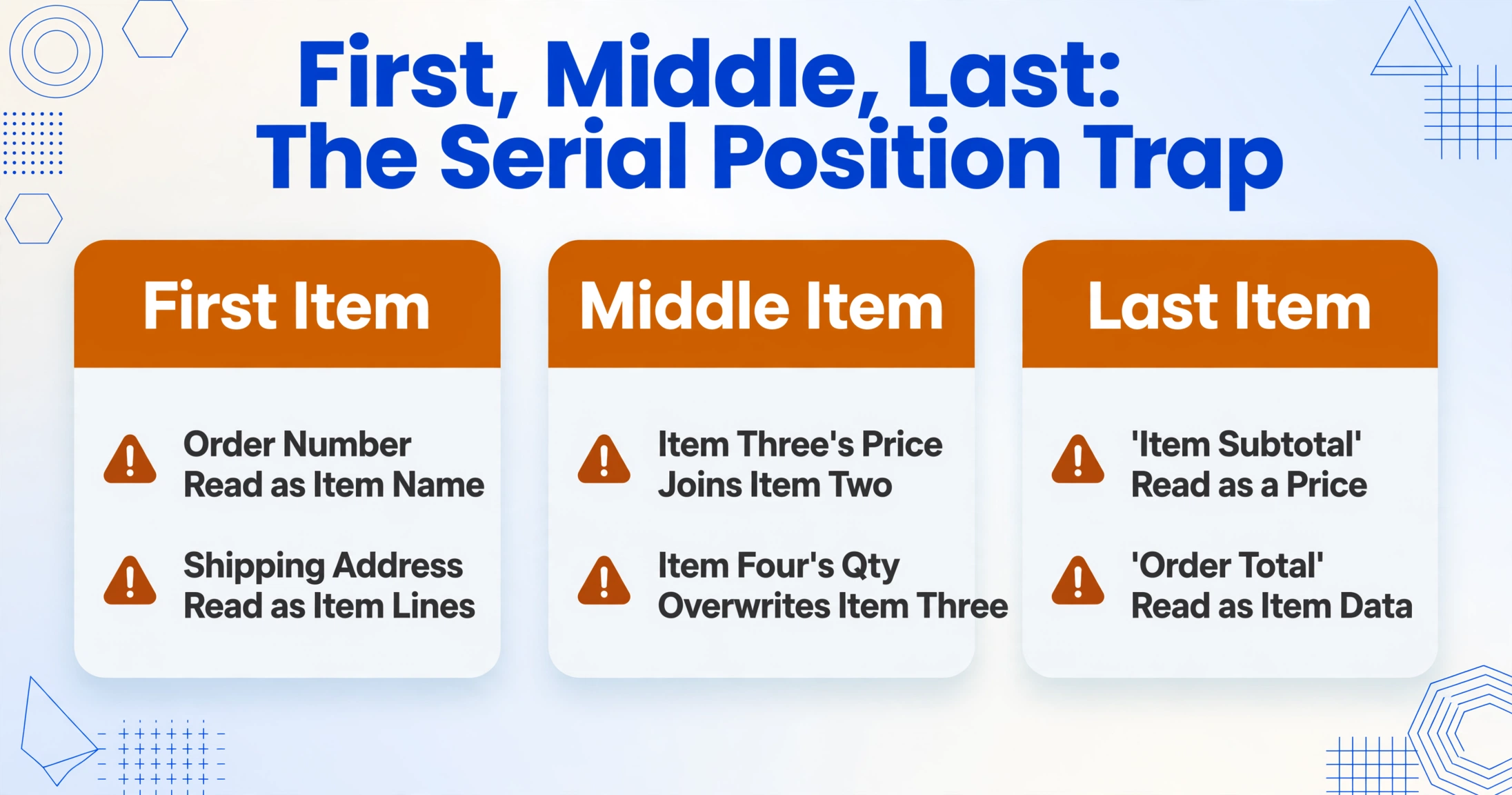
The position of an item within the list creates distinct extraction risks that are different for the first, middle, and last rows.
The first item sits directly below the order header — the order number, order date, and shipping address. A traditional OCR tool reading top-to-bottom can interpret the order number as an item name and the shipping address lines as item descriptions. The first item's data needs to be isolated from this header context, which requires understanding that the header information is not part of any product row.
The middle items are sandwiched between their neighbors with only grey lines as boundaries. This is where serial position effects are most acute: the end of one item's details and the beginning of the next are visually close. When item names wrap to multiple lines, the potential for cross-item misattribution is highest here. Item three's price gets read as the continuation of item two's description. Item four's quantity overwrites item three's. Each misalignment cascades down the list.
The last item faces proximity to the order summary section: "Item Subtotal," "Shipping & Handling," "Total Before Tax," "Estimated Tax," and the final "Order Total." The last item's price sits just above this block, and the summary figures can be mistaken for additional item data. "Item Subtotal" especially — it's a large dollar amount close to the last item's price — is a classic OCR misread.
These positional risks are not theoretical. In a 2025 industry analysis of document extraction errors, over 60% of data entry mistakes originated at the line-item level, not header fields. Multi-item orders concentrate this risk because every line item except the first and last is surrounded on both sides by similar data.
How Semantic Extraction Reads Multi-Item Orders Differently
The standard response to line-item extraction problems is to build better row detection: sharper line finding, better column alignment, more training data. ImageToTable.ai takes a fundamentally different approach, one that doesn't rely on detecting visual boundaries at all.
Custom Column Extraction works by understanding what each field means, not where it sits. You define the columns you want — "Item Name", "Quantity", "Unit Price", "Line Total" — and the AI locates the corresponding values anywhere on the screenshot by semantic understanding. Because column definitions are based on meaning rather than position, the approach works identically whether the screenshot was taken on desktop, mobile browser, or the collapsed mobile app view.
Multi-item orders benefit from this approach directly. The AI doesn't need to detect the grey separator lines to know where item one ends and item two begins. It identifies each complete product entry as a semantic unit — a bundle consisting of a name, a quantity, and a price — and extracts them as separate rows. The wrapped second line of a long product name stays with the correct item because the AI understands it as part of the same semantic unit, not as a visually separate text block.
If you're already familiar with single-item Amazon order extraction, the workflow is identical for multi-item orders — you just get more rows in the output. The same tracking and shipping information can be extracted alongside the item data when you need both purchase details and logistics status in one table.
Batch processing multiple orders. One of the practical advantages of semantic extraction is that it scales to multiple screenshots. If you have ten multi-item Amazon order screenshots — perhaps from a month of Amazon Business purchases — you can upload them all at once, define your columns once, and get a single consolidated table with every item from every order. Each row includes its source identifier so you can trace items back to the original order. This turns a manual copy-paste session of an hour or more into a few minutes of setup.
For a deeper discussion of why the visual complexity of a multi-item order screenshot doesn't prevent clean extraction, see our companion article on why a packed Amazon order screenshot is not as messy as it looks.
FAQ
Can I extract line items from a mobile app screenshot where items are collapsed?
Yes, but only if the item details are visible in the screenshot. If you captured the order list without tapping into each order, the individual items may not appear. The best practice is to tap into the order detail view — which shows the full item list — and screenshot from there. If the Amazon app blocks screenshots on your device, use a mobile browser to load the desktop version of the site and screenshot that instead.
What if item names are truncated with "..." in the screenshot?
The extraction captures what it can read from the screenshot. The truncated name — usually the first 60–80 characters — is typically enough to identify the product. If you need the full product title, you can cross-reference the order ID or item description with your Amazon account. The extraction output will include whatever text is visible on the screenshot, truncated or not.
Does Subscribe & Save discount information get extracted correctly?
Yes. When an item has a Subscribe & Save discount, the screenshot shows both the discounted price and the regular price, along with the discount percentage. You can define a "Unit Price" column to capture the price you actually paid, or define separate columns for "Regular Price" and "Discount" if you want to track the savings. The extraction handles both prices as distinct fields because it recognizes them as price values with different semantic labels.
Can I process multiple multi-item order screenshots in one batch?
Yes. The tool supports batch-first processing, meaning you can upload any number of Amazon order screenshots — single or multi-item — and process them together. The output is a single spreadsheet where every row represents one item from one order, with the columns you defined (item name, quantity, price, plus any additional fields like order ID or delivery status). This transforms a stack of screenshots into a structured purchase log.
What happens if an order has items from different sellers (FBA vs. third-party)?
The extraction works the same regardless of seller type. FBA items appear without seller attribution on the order page; third-party items show "Sold by [seller name]." You can add a "Seller" column to capture this information if you need it for record-keeping. The AI treats each item as an independent row regardless of how the seller information is displayed.
How does item quantity work in the extraction — one row per item or one row per unit?
By default, the tool outputs one row per line item. If an order contains "Qty: 3" of the same product, you'll get one row with Qty=3, not three separate rows. If you need each individual unit as a separate row — for inventory tracking or cost allocation — you can define a computed column or split the quantities after export. The extraction preserves the display logic of the order page.