A Multi-Item Amazon Order Screenshot
Looks Like a Mess — Here's Why You Can Still Get Clean Data Out
You bought seven things in one Amazon order. The receipt page shows a dense block of items, each separated by a thin grey line. Some product names trail off with an ellipsis. A couple of items say "Sold by" under them, adding extra text that doesn't belong to the next row. The whole thing looks like it was designed to defeat any attempt at automatic extraction.
Key Takeaways
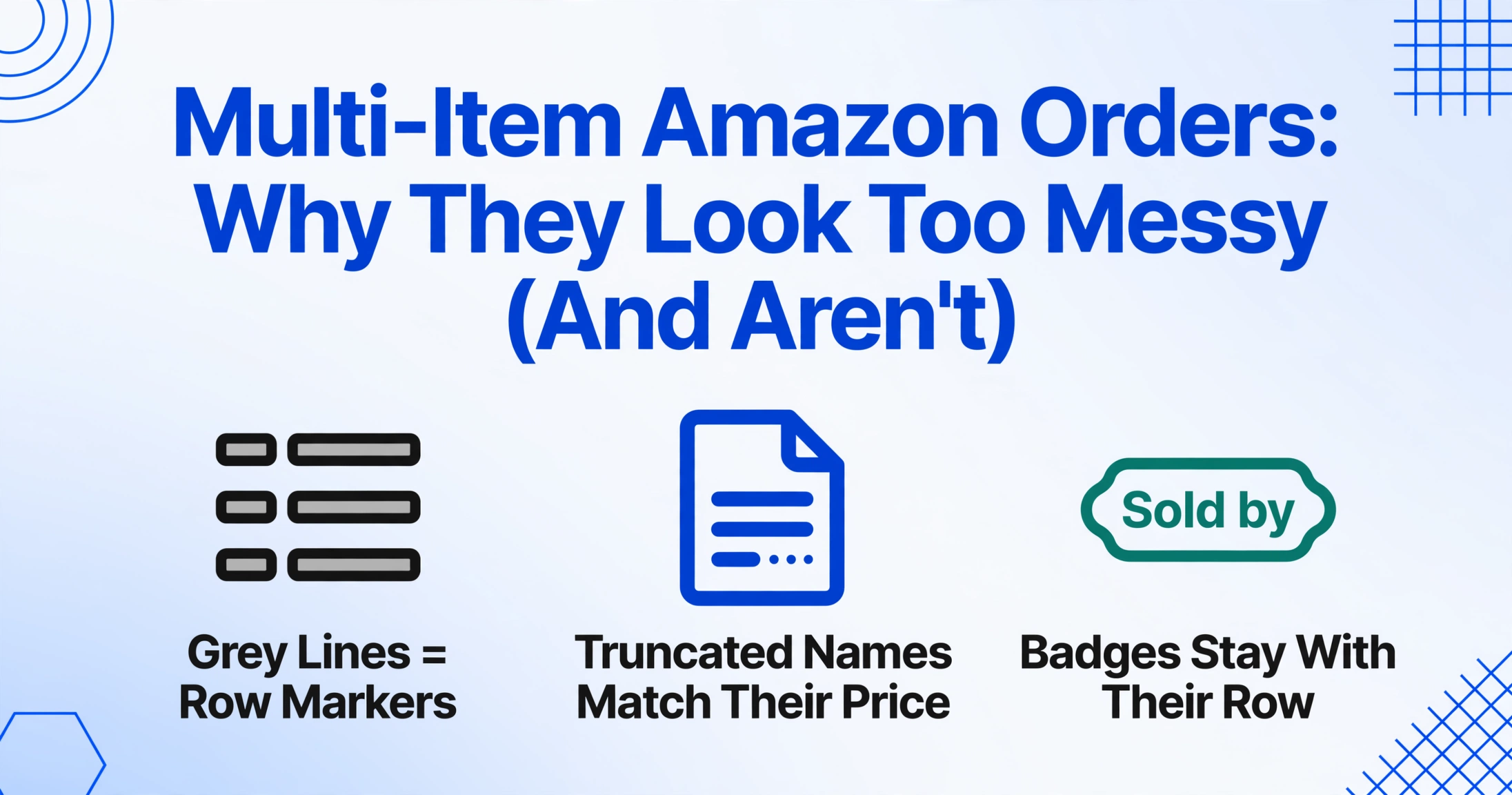
- Seven Amazon items stacked behind grey separator lines look like a data entry chore — but every grey line, truncated name, and seller badge that makes the page chaotic gives visual AI a complete row map before it reads a single character.
- Traditional OCR fragments the page at every grey line because it treats them as document boundaries, but a vision language model sees the whole screenshot at once and uses those same lines the way you use receipt perforations — to count items, not to cut them apart.
- The denser the Amazon order screenshot, the faster and more accurate the extraction becomes — visual clutter is not noise to visual AI, it is a surplus of free structural landmarks that make page layout completely unambiguous.
Why a Multi-Item Amazon Screenshot Looks Hopeless at First Glance
Let's name the specific things that make this kind of screenshot look impossible to parse automatically. They aren't vague problems — each one is a concrete obstacle that traditional extraction methods trip over.
Grey separator lines. Amazon draws a thin grey horizontal line between every item row on the order summary page. To a traditional OCR engine — which works by detecting regions of text, then trying to assemble them into meaningful groups — these lines look like boundaries. It treats each item as its own isolated text zone, and when something gets split into isolated zones, the engine has to guess how they relate to each other. Did the price at the right edge of zone two belong to zone two or zone three? The OCR has no way to know.
Truncated product names. "Logitech G502 X PLUS LIGHTSPEED Wireless Gaming Mouse with HERO 25K Sensor..." — but on the screenshot it shows "Logitech G502 X PLUS LIGHTSP..." followed by an ellipsis. That truncated text throws off any system that relies on reading a complete line left to right. A row-based parser sees the abbreviated name, then doesn't know where the next column starts because the line just stops in the middle of a word.
Third-party seller badges. Items that aren't sold directly by Amazon show "Sold by [Seller Name]" in a smaller font beneath the product name. This text sits between two line items but belongs to the preceding row, not the following one. A naive extraction treats it as a separate row or, worse, appends it to the next item's data. Either way, the output is wrong.
Quantity and price alignment. On Amazon's order page, the quantity is displayed next to the item name — "Qty: 1" — while the price sits on the far right. Traditional OCR extracts the price as a standalone number floating in the right margin and has to guess which item it belongs to. When seven prices and seven item names are scattered across the same visual field, the matching problem compounds with every additional row.
None of these problems is a dealbreaker individually. But together, they turn a dense multi-item screenshot into exactly the kind of data extraction challenge that makes people say "this is too messy, I'll just type it out."
The Difference Between Reading Pixels and Reading a Page
Traditional OCR and visual AI approach the same image in fundamentally different ways, and the difference matters most when the input is visually dense.
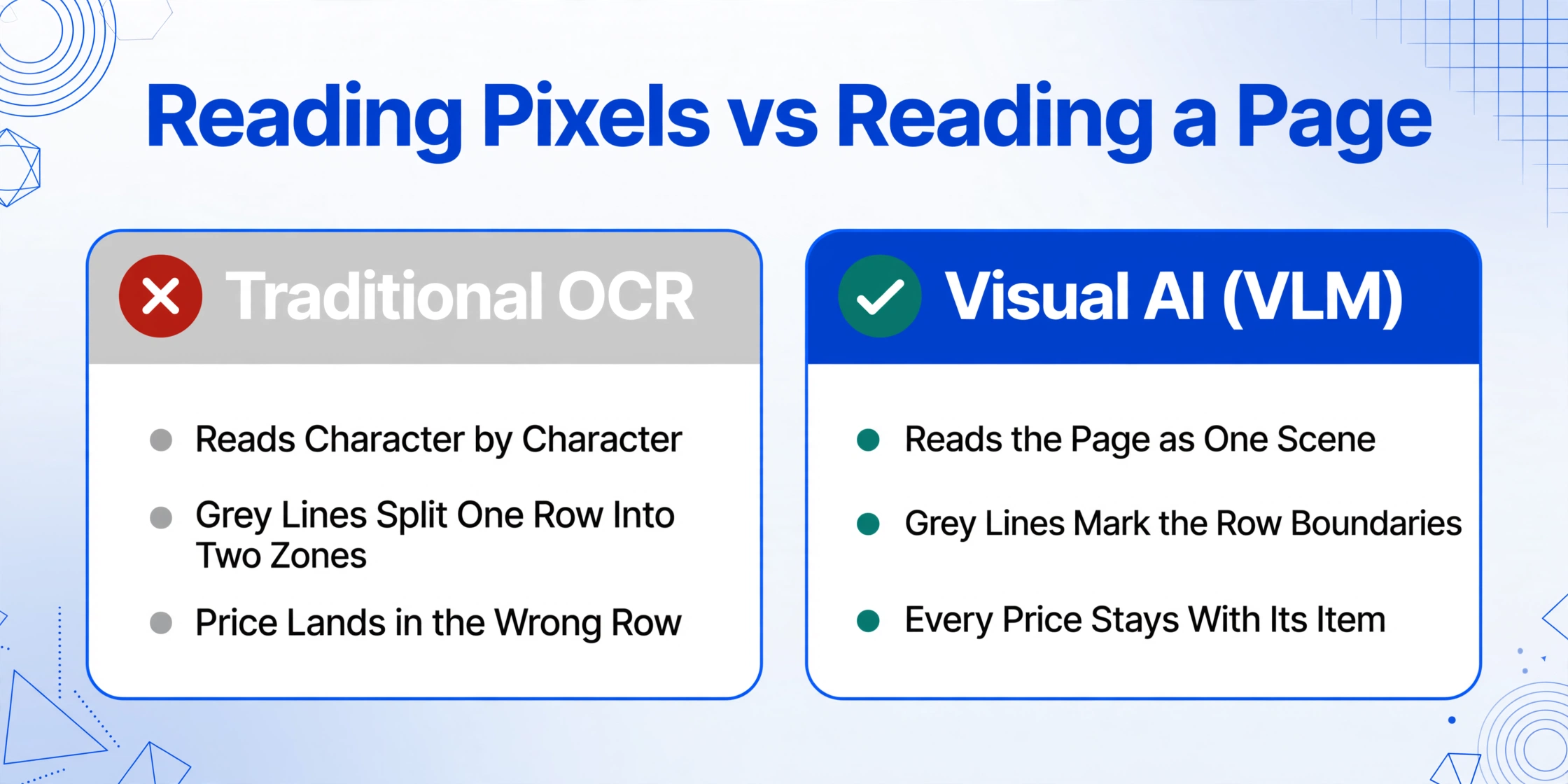
An OCR engine works character by character — it finds letter shapes, assembles them into words, groups words into text blocks by proximity, and then tries to infer structure from those blocks. When the visual cues it depends on (clear column boundaries, uninterrupted text lines, consistent spacing) are absent or ambiguous, the result is scrambled data.
A vision language model (VLM) works differently. It treats the entire screenshot as a coherent scene — the same way you or I look at a photograph and immediately understand which objects are near each other, which are separate, and how they relate spatially. Grey lines aren't text region borders — they're visual separators, like the margin between columns in a newspaper. Truncated names aren't incomplete lines — they're titles that extend beyond the visible frame, and the VLM can still associate the data that is visible with the correct row.
ImageToTable.ai uses this kind of visual AI. When you give it a multi-item Amazon screenshot and tell it you want three columns — Item Name, Qty, and Price — it doesn't try to parse the page like a spreadsheet scanner would. It looks at the image holistically, identifies every distinct row region by spotting the visual boundaries (the grey lines are a strong signal, not a distraction), and then maps the text within each region to the columns you asked for.
The grey separator line — which confuses traditional OCR — becomes a reliable structural anchor for VLM-based extraction. The system can see: "this grey line marks the end of row one. Everything above it belongs to item one. Everything below it, until the next grey line, belongs to item two." It's not guessing — it's reading page layout the same way a human reader does, just at machine speed.
The same logic applies to distinguishing line items from page totals. "Subtotal," "Shipping," "Order Total" — these sit below the last item row, often formatted differently (bold, or with a different background). The VLM recognizes them as summary rows, not additional products. It doesn't try to force them into the Item Name column.
A Concrete Walkthrough: 7 Items on One Amazon Order
Let's make this concrete. Imagine a real screenshot from an Amazon confirmation page — a single order with seven different items. Here's what each row contains and how the extraction plays out.
| Row | What the Screenshot Shows | Extracted Item Name | Qty | Price |
|---|---|---|---|---|
| 1 | "Kindle Paperwhite (11th Gen) — Qty 1 — $129.99" | Kindle Paperwhite (11th Gen) | 1 | $129.99 |
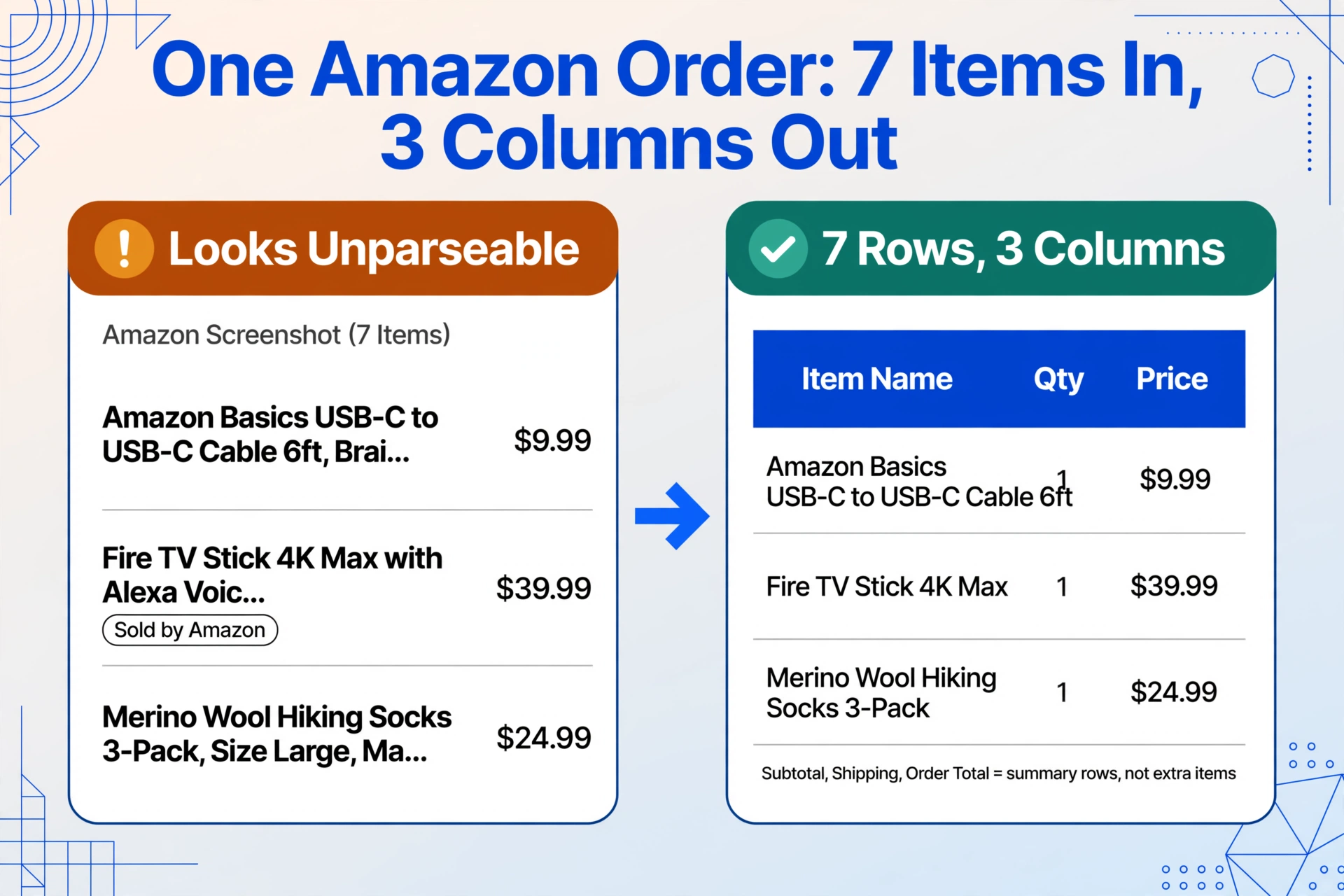
| 2 | "Amazon Basics USB-C to USB-C Cable 6ft, Brai..." — $9.99 | Amazon Basics USB-C to USB-C Cable 6ft | 1 | $9.99 |
| 3 | "Fire TV Stick 4K Max with Alexa Voic..." + "Sold by Amazon" badge | Fire TV Stick 4K Max | 1 | $39.99 |
| 4 | "Anker 20W USB-C Charger, Compact Fast Cha..." — Qty 2 — $14.99 | Anker 20W USB-C Charger | 2 | $14.99 |
| 5 | "Samsung T7 Portable SSD 1TB, Up to 1050MB/s..." — $99.99 | Samsung T7 Portable SSD 1TB | 1 | $99.99 |
| 6 | "Hydro Flask 32oz Wide Mouth Stainless Steel..." — $34.95 | Hydro Flask 32oz Wide Mouth | 1 | $34.95 |
| 7 | "Merino Wool Hiking Socks 3-Pack, Size Large, Ma..." — $24.99 | Merino Wool Hiking Socks 3-Pack | 1 | $24.99 |
| — | Subtotal → Shipping → Order Total | Correctly recognized as summary rows, not extra items | ||
Notice what happened with each challenge:
- Grey lines — each row boundary was identified by the visual separator between items. The VLM used them as reliable row markers.
- Truncated names — rows 2, 3, 4, and 7 all have visibly shortened product names ending with "...". The AI still correctly associated each price and quantity with its parent row, because the spatial relationship (what text sits at what vertical position in the page) was unambiguous.
- Third-party badges — row 3's "Sold by Amazon" label was recognized as a sub-element of item 3, not a separate record.
- Quantity in-line — row 4's "Qty 2" was correctly read and assigned to the Anker charger, and the AI understood that the $14.99 was the per-unit price, not the total for two.
- Summary rows — Subtotal, Shipping, and Order Total were correctly excluded from the item list. They're clearly distinct in formatting and position, and the VLM recognized them as meta-level information.
The result is a clean seven-row table — exactly what you'd want if you were tracking spending, splitting costs with a roommate, or logging an order for business records.
What This Means for Your Workflow
The concrete walkthrough above proves one thing: the visual mess of a multi-item Amazon screenshot isn't an obstacle for the right kind of extraction tool. The grey lines, truncation, and seller badges — these are surface-level noise that a VLM sees through easily.
What changes when you can reliably extract line-item data from any Amazon order screenshot?
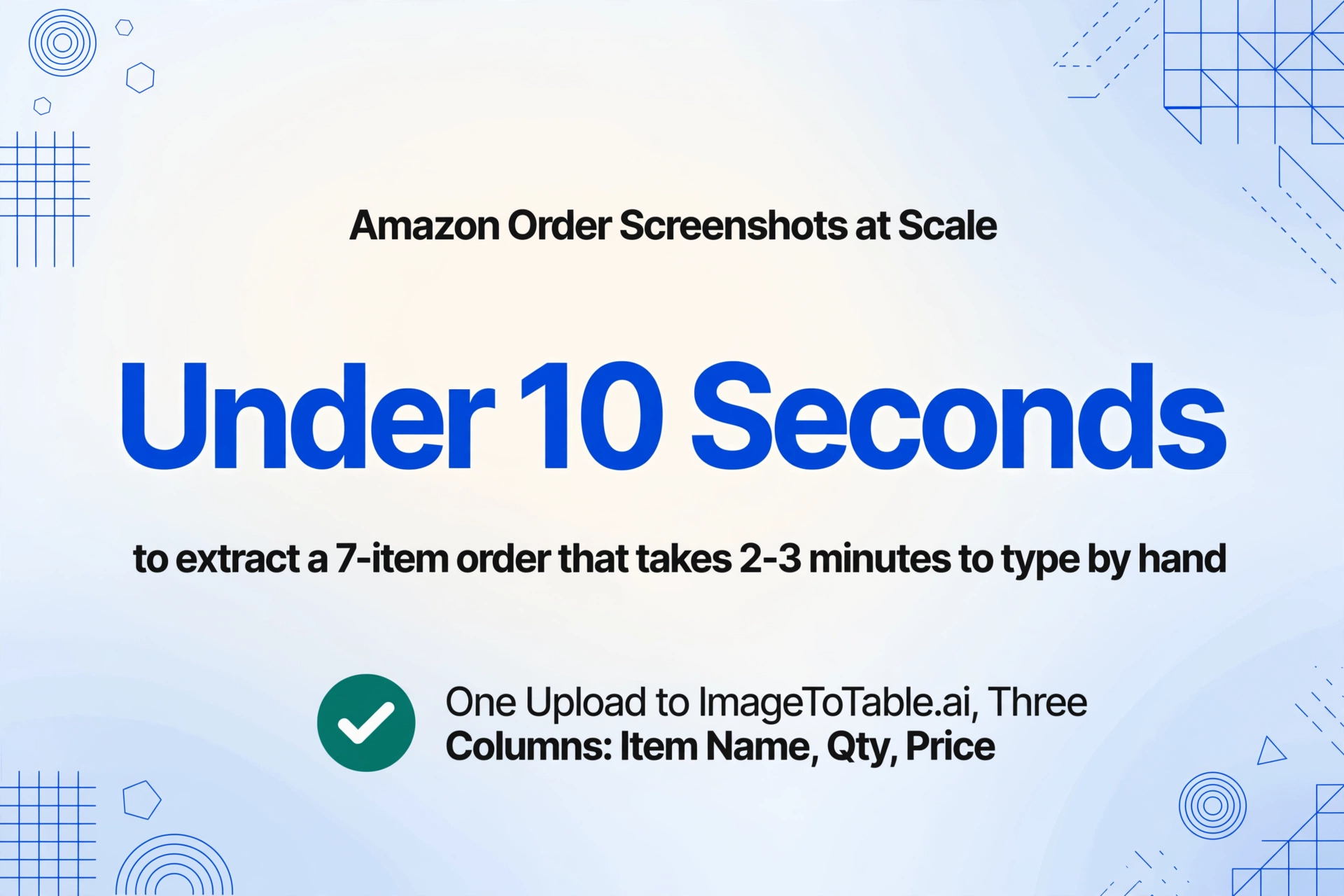
You stop treating each screenshot as a one-off manual data entry task. Instead of opening the Amazon order page, typing the items into a spreadsheet cell by cell, and double-checking the numbers, you upload the screenshot to ImageToTable.ai, tell it what columns you need, and get the table back in seconds. Seven rows that would take 2-3 minutes to type out manually are extracted in under 10 seconds.
The recurring scenario becomes the valuable one. One screenshot is trivial — you could type it out. But what about the monthly Amazon order for household supplies? The reseller who places weekly orders across different Amazon accounts? The freelance bookkeeper who receives Amazon receipts from five clients? At scale — a dozen or more multi-item orders per week — manual entry becomes a significant time drain. Automated extraction makes it sustainable.
You can combine extracted data with other sources. The Item Name, Qty, and Price columns can go into the same spreadsheet as payment confirmations, supplier invoices, or expense reports. If you're already using ImageToTable.ai to extract data from other document types, adding Amazon multi-item orders to the same workflow is just one more input format that the same system handles.
For a complete step-by-step guide on doing this with a real tool, see the companion article Amazon Orders with Multiple Items: How to Extract Each Item Name, Quantity, and Price from a Single Screenshot. That article walks through the practical workflow — this one exists to settle the question of whether it's even possible in the first place.
Frequently Asked Questions
What if the screenshot comes from the Amazon mobile app instead of a desktop browser? Does the layout look different?
The mobile app order summary page has a slightly different layout — items are stacked vertically with smaller fonts and tighter spacing, and the grey separator lines are thinner. But the core visual structure is the same: each item occupies a distinct row region with its name, quantity, and price. Visual AI handles both formats because it reads the page holistically rather than depending on fixed pixel positions. You can mix mobile and desktop screenshots in the same batch and the extraction will still align correctly.
Can the AI distinguish between per-unit price and total price when multiple quantities are ordered?
Yes. When a row shows "Qty 2" and a price of $14.99, the AI recognizes the $14.99 as the per-unit price — not the total for two units — based on how Amazon typically displays this information on the order summary page. If you need the line total as a computed column ($29.98 = 2 × $14.99), you can define a computed column rule that multiplies the quantity by the unit price during extraction. The system supports this natively without any post-processing in Excel.
Do Amazon Business orders with tax information work the same way?
Yes. Amazon Business orders add a Sales Tax line and sometimes show tax exemption details, but the underlying line-item structure is identical to a personal Amazon order. The extra tax-related rows are treated as metadata — they won't clutter your item list. If you need the tax amount as a separate column, you can add "Sales Tax" as a column name and the AI will extract it from wherever it appears on the page.
Can I process multiple Amazon order screenshots at once, or does it have to be one at a time?
Multiple at once. ImageToTable.ai is designed as a batch-first system — you upload several screenshots, and the AI processes them together, producing a single unified table. Each screenshot's items appear as separate rows, and if you need to track which items came from which order, you can add a custom column (like "Order ID" or "Screenshot Source") and the AI will identify the order number from the page.
What about screenshots that show only part of the item list — can the AI still extract what's visible?
Yes. If only six of seven items are visible in the screenshot, the AI extracts those six. It doesn't need a complete or perfectly framed page to work. The limitation is that it can only extract what's in the image you give it — if an item is cut off entirely, it won't be in the output. For long orders that span multiple scrolls, take separate screenshots of each section and batch them together.