Amazon Shipping Screenshots:
Locate Tracking Numbers and Delivery Dates
When your Amazon order ships, the tracking page shows exactly two things you actually need afterward: the tracking number so you can follow the package, and the estimated delivery date so you know when to expect it. A screenshot of that page is the fastest way to save both — no logging back in, no scrolling through email, no copying numbers you can't even tap to select on mobile.
Key Takeaways
- You screenshot the Amazon tracking page to avoid logging back in — but every tracking number you have ever captured is now trapped inside a photo you cannot search, filter, or match to any other order.
- A single order shipped in two boxes creates two tracking numbers from two carriers — and your camera roll has no way to tell you which package arrived on which doorstep.
- Batch-extract every shipping screenshot at once and get every tracking number lined up next to its delivery date in a sortable spreadsheet — one row per shipment no matter the carrier.
Why a Screenshot of the Amazon Shipping Page Saves You a Login
Amazon shows tracking information on the Track Package page inside Your Orders, not on the order confirmation page. The shipping confirmation email also contains it. But both require you to be signed in. A screenshot taken right after the order ships — or when you check the tracking — captures the tracking number, the carrier name, and the delivery date in a single frame that lives in your photos, not inside Amazon's login wall.
This is useful in more situations than you might think:
- You shared the screenshot with someone else — a recipient, a housemate, or a client who needs the tracking number. They can copy it from the image instead of asking you to log in and look it up.
- You're recording deliveries for bookkeeping — a delivery date can serve as a receipt timestamp for expense tracking or order fulfillment records.
- You bought from a third-party seller on Amazon — their tracking information sometimes uses a different carrier than Amazon Logistics, and the tracking number format is entirely different.
- You're managing multiple orders across platforms — an Amazon shipping screenshot ends up in your camera roll alongside eBay and Etsy confirmations, and extracting the tracking number from each one manually becomes repetitive fast.
The catch is that the tracking page doesn't look the same for every order. The carrier changes, the UI shifts between mobile app and desktop browser, and the estimated delivery date can appear as a specific day, a date range, or a same-day window. Knowing what you're looking at is the first step.
The Tracking Number — Carrier by Carrier
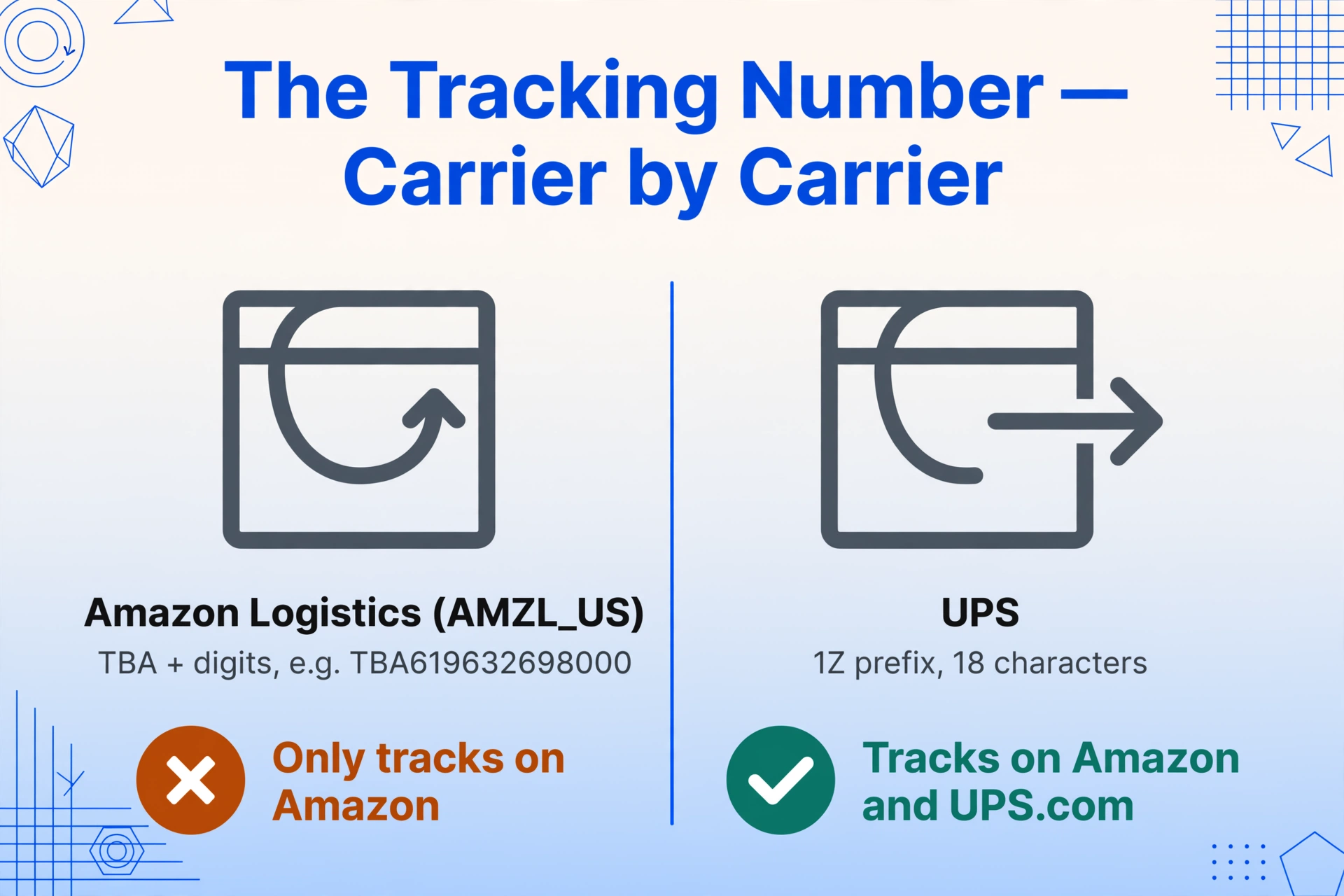
Amazon does not use a single tracking number format. The number you see depends on which carrier is handling the delivery. The carrier name usually appears near the top of the carrier tracking page — look for text like "Shipped with Amazon Logistics," "Carrier: UPS," or simply a logo. Once you know the carrier, the tracking format becomes predictable.
Amazon Logistics (AMZL_US) — TBA Numbers
When Amazon itself handles the last mile of delivery, the tracking number starts with "TBA" (Transportation Booking Number), followed by a string of digits — for example, TBA619632698000. The label "AMZL_US" is often shown on the tracking page as the carrier name.
TBA numbers are unique in that they can only be tracked on Amazon's own platform. Entering a TBA number into UPS or USPS tracking will return nothing — it is an internal Amazon identifier, not a carrier-compatible number.
On the Amazon Track Package page, the TBA number is displayed under "Tracking ID" or "Tracking Number." On mobile, it often appears inside a collapsible section labeled "See all updates" — you may need to tap to expand before the full number is visible. A screenshot of the expanded view captures the complete TBA.
UPS — 1Z Prefix
If the carrier is UPS, the tracking number begins with "1Z" and is typically 18 characters long. The format is: 1Z [XXX] [XX] [XXXX] [XXXX] — a combination of letters and numbers unique to UPS. This number works on both Amazon's tracking page and UPS's own website.
Amazon displays the UPS tracking number directly on the Track Package page, usually in a clickable or copyable text field. On the mobile app, you may see a "Track with UPS" button that links out to the UPS site — the actual number is visible above or beside that button.
USPS — Alphanumeric, 20-22 Digits
USPS tracking numbers are longer and take several formats. Common ones include 9400 1110 0000 0000 0000 00 (22 digits starting with 94) or shorter alphanumeric strings like LZ000000000US. Amazon usually shows the USPS number alongside a "Track with USPS" link.
On the desktop tracking page, the USPS number may appear at the bottom of the shipment details section — scroll down past the progress bar and status updates. The mobile app often truncates it inside a smaller font; tapping the number or the "See all updates" section reveals the full sequence.
FedEx — 12-15 Digit Numbers
FedEx tracking numbers are typically 12 to 15 digits long with no letters — for example, 123456789012. Amazon displays them similarly to UPS numbers, with a "Track with FedEx" link next to the number. Some international FedEx shipments use a different format with a two-letter prefix; Amazon will show whatever the carrier assigned.
Regardless of which carrier Amazon uses for a given shipment, the tracking number always appears on the same Track Package page — but its exact position shifts depending on whether the carrier is Amazon Logistics (collapsible updates section) or a third-party carrier (prominent clickable link). A screenshot taken before expanding the carrier details may miss the full number.
The Delivery Date — "Arriving Today" vs. "Arriving July 15–17"
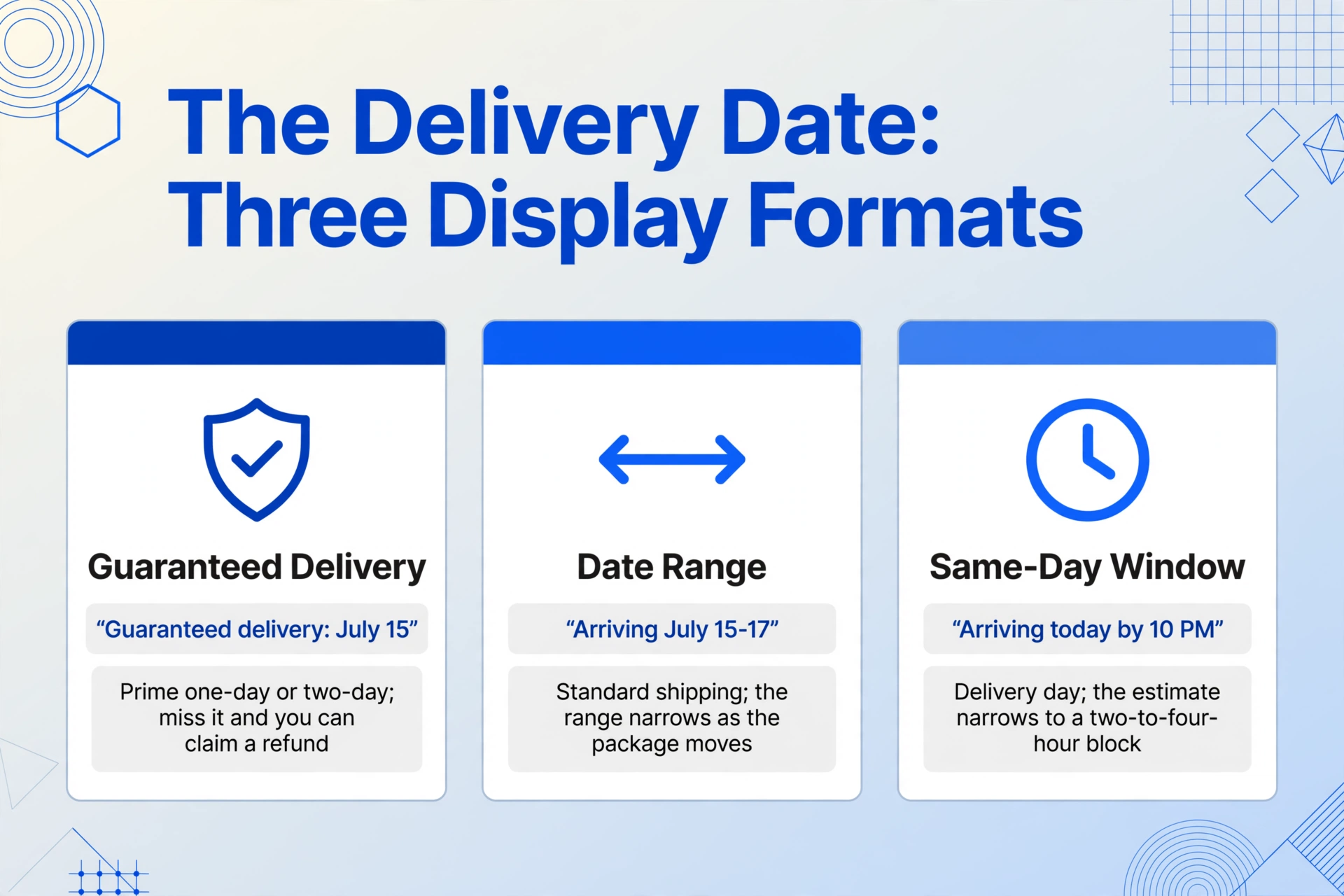
The estimated delivery date is the second critical field on any Amazon shipping screenshot. Unlike the tracking number, the date display format changes depending on shipping speed, Prime status, and how close the package is to delivery.
Prime Guaranteed Delivery
Prime orders with one-day or two-day shipping show a fixed delivery date with a guarantee: "Guaranteed delivery: July 15" or "Arriving tomorrow by 10 PM." If Amazon misses this date, you are eligible for a shipping fee refund or a promotional credit. This guarantee makes the delivery date more than an estimate — it is a promise that affects your recourse if the package is late.
Date Ranges for Standard Shipping
Non-Prime orders and standard-speed shipments show a date range: "Arriving July 15–17" or "Delivery: July 15 - July 19." The range reflects Amazon's calculation of transit time plus handling time, including weekends and holidays. The date may narrow as the package moves — by the day of delivery, it often becomes a single date or a same-day window.
"Arriving Today" and Estimated Delivery Windows
On the day of delivery, Amazon switches to a same-day message: "Arriving today by 10 PM" for standard deliveries, or a specific Estimated Delivery Window — a two-to-four-hour block during which the package should arrive (for example, "2:00 PM – 6:00 PM"). This window appears on the Track Package page and in push notifications. A screenshot taken on delivery day captures the most precise timing information available.
The Estimated Delivery Window is not guaranteed — Amazon notes that external factors like traffic can shift it. But it is the closest approximation to a specific delivery time that Amazon provides, and it is only visible on the day of delivery.
Map Tracking (Amazon Logistics Only)
For packages delivered by Amazon Logistics (TBA), the tracking page may show a live map on delivery day, showing the driver's location and the number of stops before yours. This map is available through the Track Package page or the Amazon app. If you take a screenshot of the map view, it captures both the delivery progress and the final delivery estimate in one frame.
Map tracking is not available for UPS, USPS, or FedEx deliveries. For those carriers, Amazon shows carrier-provided updates but not a real-time driver map.
One Order, Multiple Shipments — More Than One Tracking Number
Amazon frequently splits a single order into multiple shipments. This happens when items come from different fulfillment centers, or when some items are in stock and others need restocking. Each shipment gets its own tracking number and its own estimated delivery date — and they may not arrive on the same day.
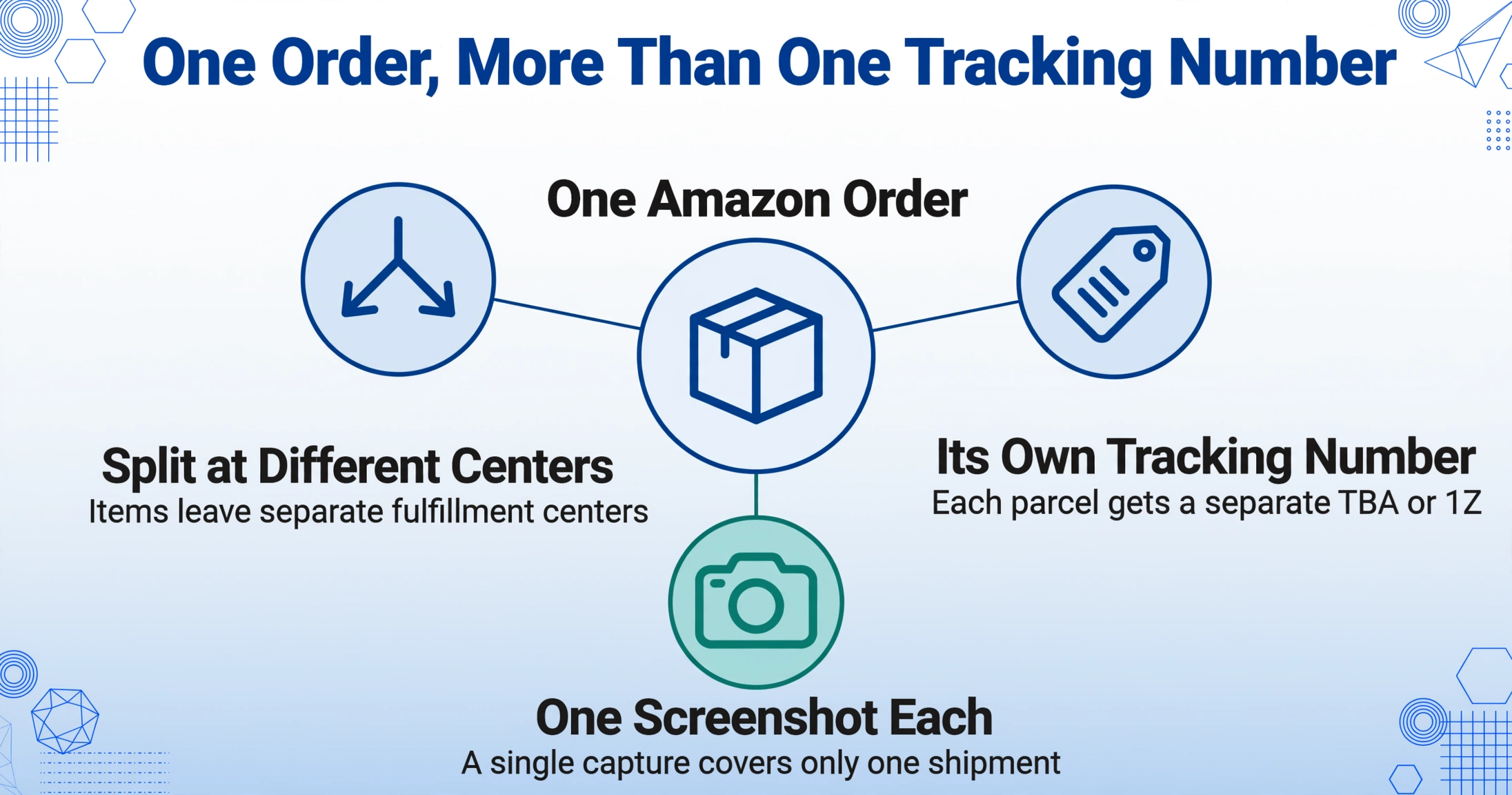
On the Your Orders page, split shipments appear as separate entries under the same order. Each entry has its own "Track Package" button. The tracking number and delivery date for shipment A may be completely different from those for shipment B. If you took a screenshot of the tracking page for shipment A, you do not have tracking information for shipment B — you need to navigate back and capture it separately.
The key sign of a split shipment is that the Track Package page shows only one item or a subset of items. If the page lists "1 of 3 items" in the shipment header, there are two more shipments with their own tracking numbers. A screenshot of this page alone is not a complete record of the order's delivery status.
For bookkeeping or order management, this means you may need multiple screenshots — one per shipment — to have a complete picture of when each item actually arrived.
Frequently Asked Questions
Can I track a TBA number on UPS or USPS?
No. TBA numbers are internal Amazon Logistics identifiers. They do not work on any carrier's tracking system. To track a TBA number, you must use Amazon's own Track Package page or the Amazon app. Some third-party tracking aggregators like 17TRACK can accept TBA numbers if you paste the Amazon tracking link rather than just the number.
Why is my Amazon tracking number not showing up on the carrier's website?
There is usually a delay of 24–48 hours between when Amazon generates the tracking number and when the carrier first scans the package into its system. If the number does not work immediately, wait a day and try again. If it still fails after 48 hours, the package may be handled by a mail forwarding service (such as DHL eCommerce) that hands off to USPS later in transit — the number becomes active only at that handoff point.
Can one order have different delivery dates for different items?
Yes. Each shipment in a split order has its own estimated delivery date. Item A might arrive on Wednesday while item B arrives on Friday. The Your Orders page shows each shipment's date separately. A screenshot of a single tracking page only reflects the delivery date for that specific shipment.
Does every Amazon package have map tracking on delivery day?
No. Map tracking is only available for packages delivered by Amazon Logistics (AMZL_US). If your package is shipped via UPS, USPS, FedEx, or another third-party carrier, Amazon does not provide a live map. You can use that carrier's own tracking system for detailed updates, but the driver map is exclusive to Amazon's own delivery service.
Can I extract tracking numbers from multiple Amazon screenshots at once?
ImageToTable.ai supports batch processing — you upload multiple screenshots at once, specify the columns you want (such as "Tracking Number" and "Estimated Delivery Date"), and the AI extracts the values from all images in a single run. The results merge into one spreadsheet, so you get a unified view of tracking information across multiple orders and multiple carriers without processing each screenshot one by one.
The Record That Outlasts the Login
An Amazon tracking page is temporary — once the package is delivered, the tracking updates stop, the delivery estimates disappear, and the page becomes a static record of past events. A screenshot taken while the package was in transit preserves the tracking number, the delivery date that was current at that moment, and the carrier details. It is a snapshot of information that the live page does not retain in the same form.
The challenge is that the screenshot is just an image. The tracking number and delivery date are visible to you but not searchable, not sortable, and not combinable with data from other orders. That is where structured extraction becomes useful: turning a visual record into a row of data that you can file, search, and act on.
If you are managing more than a few Amazon orders — as a reseller tracking inbound stock, a bookkeeper matching delivery dates to invoices, or a frequent shopper who wants a clean log — the value is not in reading one screenshot. It is in reading many of them at once, from different carriers and different delivery stages, into a single table where the tracking number and the delivery date sit side by side.