Find the Order Number, Seller, and Total
on an eBay Screenshot
An eBay purchase screenshot looks different from any other order confirmation you'll take. The order number includes dashes, the seller's username sits right next to their feedback score, and somewhere between the item title and the total there's a condition tag — New, Used, Refurbished — that most other platforms don't show at all. If you're snapping screenshots of your eBay purchases for record-keeping, returns, or inventory sourcing, knowing exactly where each field lives saves you from squinting at the wrong line later.
Key Takeaways
- The price you screenshot isn't the price you paid — eBay's list view shows item price only, and every screenshot taken from the wrong page undercounts your actual cost by the shipping and tax.
- No other marketplace puts the seller's name and feedback percentage front-and-center like eBay does — which means every purchase screenshot doubles as a supplier vetting record for your next order.
- Four fields — order number, item title, seller name, total — turn a pile of eBay screenshots into a sortable sourcing ledger where you can filter by seller quality, calculate actual costs, and stop squinting at individual orders.
The Order Number: Your 12-Digit Reference Key
Every time you complete a purchase on eBay, the platform assigns a unique order number. Unlike Amazon's purely numeric string (#xxx-xxxxxxx-xxxxxxx), an eBay order number uses a 12-digit format with dashes — it looks like 12-34567-89012. This format is consistent whether you're buying on eBay.com, eBay.co.uk, eBay.de, or eBay.com.au. The digit grouping isn't random: the first pair identifies the year or period, and the remaining digits are sequential identifiers within eBay's system.
You can find your order number in three places:
- Purchase History → View Order Details. This is the most reliable source. Log into your eBay account, hover over "My eBay" in the top-right corner, select "Purchase History," find the item, and click "View Order Details." The order number appears near the top of the detail page.
- The order confirmation email. eBay sends this to the email address on your account every time a purchase is completed. The subject line typically includes "Order Confirmation" and the order number is listed in the email body alongside the estimated delivery date.
- The Purchase History list view itself. In the default list, each item row shows a truncated summary — click through to Order Details for the full number.
An important distinction: an order number is not the same as an item number. The item number (also called the listing ID or eBay item ID) is a separate identifier assigned to each individual listing. One order can contain multiple items from the same seller, all sharing one order number but each with its own item number. If you need to leave feedback or request a return, the order number is what eBay and the seller will ask for — the item number is more relevant if you're looking up the original listing page.
The Item Title and Condition: What You Actually Bought
The item title is the most visible piece of text on any eBay order screenshot — typically rendered in bold or as a clickable link. It contains the product name as the seller wrote it in their listing, which can range from a tidy "Apple iPhone 15 Pro Max 256GB — Natural Titanium — Unlocked" to a more compressed "Vintage Levis 501 Jean Jacket Size L Blue Denim." Because sellers write their own titles, there's no standardization in length or format, but the key information you need — what the item is — is almost always there.
What sets eBay apart from most other e-commerce platforms is the item condition field. Directly below or adjacent to the item title, eBay displays the condition the seller assigned to the item at listing time:
- New — Never used, original packaging intact.
- New (Other) — New condition but packaging may be damaged or opened.
- Open Box — Item has been removed from its packaging but never used.
- Used — Pre-owned, with normal wear.
- For Parts / Not Working — Damaged or non-functional, sold as-is.
For resellers sourcing inventory on eBay, the condition field is critical — it determines the resale value and channel (a "Used" item goes to a different buyer than an "Open Box" one). If you're taking a screenshot for inventory tracking, make sure the condition tag is visible in the frame. It often appears as a small gray label right below or beside the item title, and it's easy to crop out by accident.
If you purchased multiple items from the same seller in one transaction, eBay groups them under a single order number. Each item appears as a separate line with its own title, condition, and price. This seller-grouping behavior is similar to Amazon, but eBay's per-item condition display makes multi-item screenshots visibly denser — you'll see condition tags repeating for each line.
The Seller Name and Feedback Score: Why eBay Puts This Front and Center
This is the field that most sharply distinguishes an eBay order screenshot from an Amazon one. On Amazon, the "Sold by" line is small text tucked below the Buy Box — easy to miss. On eBay, the seller's username and feedback score are displayed prominently on the order page, typically next to the item title or at the top of the Order Details section.
eBay's marketplace model means you're often buying from an individual or a small business, not a faceless warehouse. The seller name tells you who fulfilled your order, which matters for:
- Returns and communication. You contact the seller directly through eBay's messaging system — knowing their username is the first step.
- Repeat purchasing. If you're a reseller who found a reliable wholesale source on eBay, noting the seller name lets you find them again for future orders.
- Quality tracking. Over time, you can associate certain sellers with consistent condition quality vs. those whose "Used" items arrive in worse shape than expected.
The feedback score (a percentage like 99.5% positive) usually accompanies the seller name. It's not just decoration — it signals reliability at a glance. When you're reviewing a batch of screenshots from multiple eBay sellers, the feedback percentage can help you prioritize which sellers to reorder from without clicking into each listing again.
One subtlety: on the desktop Purchase History page, the seller name is clickable and leads to their About Me page. On a screenshot, you obviously can't click — but the name itself is readable, and that's what matters for your records. The mobile app displays the same seller info, though the layout is more condensed (the feedback score may appear as an icon rather than text).
The Total: Item Price, Shipping, and What You Really Paid
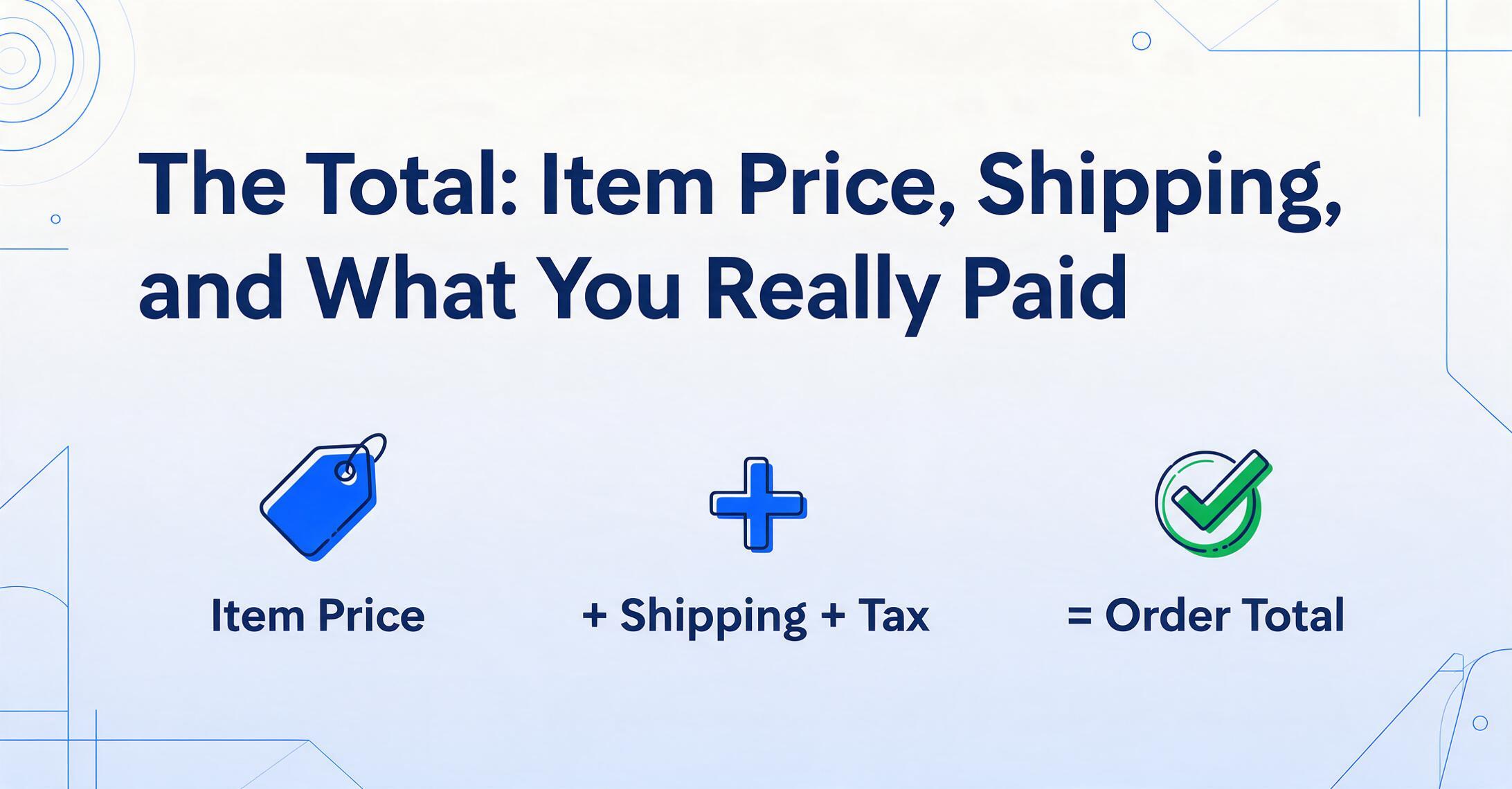
eBay is transparent about cost breakdown, and the order page shows exactly what you paid: item price + shipping + any applicable taxes. Unlike some platforms that display a single all-in number, eBay itemizes these components, and the total you see depends on where in the page you're looking.
On the Order Details page, the total is displayed clearly near the bottom of the order summary — typically labeled "Order Total" in bold. The breakdown above it shows:
- Item price (for each item, if multiple)
- Shipping cost
- Sales tax (where applicable)
- Any discounts or combined shipping savings
The Purchase History list view shows a simpler version — usually just the total price per item without the shipping/tax breakdown. If you screenshot the list view to capture an overview of recent purchases, be aware that the displayed "price" may not reflect your actual payment if shipping was extra.
For resellers tracking cost of goods sold (COGS), the itemized breakdown matters. Your actual inventory cost isn't just the item price — it's the total including shipping and taxes. This is where taking a screenshot of the full Order Details page (rather than just the Purchase History list) saves you from having to guess later whether the $25.99 you see was the item alone or the all-in number.
A quick note on multi-item orders: when you buy multiple things from the same seller, eBay applies the total across all items, often with a combined shipping discount. The order total reflects the full purchase, and individual item prices are listed separately in a table format. If you screenshot only the bottom total thinking it covers one item, you may overestimate what that single item cost you.
Bid vs Buy It Now: The Purchase Type Your Screenshot Captures
eBay transactions come in two flavors: auctions (where you placed a winning bid) and fixed-price Buy It Now purchases. The order page records which one applied, and knowing the difference matters for your records.
If you won an auction, the Order Details page shows "Won" alongside the price and a note about the winning bid amount. If you used Buy It Now, it shows "Bought" or "Purchased." This distinction isn't just trivia — it affects how you document the purchase:
- Auction wins represent the market's valuation at that moment. A reseller who won a pallet of returned electronics at auction paid a different price dynamic than someone who clicked Buy It Now on the same category of item.
- Best Offer purchases (where you made an offer and the seller accepted) are also tracked on the order page, typically showing "Best Offer Accepted" or similar. This is common in the wholesale and liquidation categories where resellers operate.
On a screenshot, the purchase type usually appears in the order status area near the top of the Order Details page. It may be subtle — a line of text rather than a prominent badge. If your screenshot is from the Purchase History list, the item status column (e.g., "Paid," "Shipped," "Delivered") won't tell you whether it was an auction or Buy It Now — you need the Order Details view for that.
From Screenshot to Spreadsheet: Making These Fields Work for You

Knowing where each field lives on an eBay screenshot is one thing. The real value comes when you can gather those fields — order number, item title, condition, seller name, total — from multiple purchases and put them in one place where you can sort, filter, and analyze them.
For a single purchase, copying the order number and total into a notes app takes thirty seconds. But when you're managing purchase records from multiple eBay sellers — or juggling orders from eBay alongside purchases from Amazon, Etsy, and other platforms — the manual approach scales poorly. Each platform has its own layout, its own way of displaying the same type of field, and its own screenshot format.
This is where the idea of Custom Column Extraction comes in. Instead of looking at each screenshot individually and typing the fields into a spreadsheet row by row, you name the fields you want — "Order Number," "Item Title," "Seller Name," "Total" — and the AI reads each screenshot, locates the corresponding values by understanding what they mean (not where they sit on the page), and fills them into a table. Because it works by semantic understanding rather than template matching, it handles eBay's varying layouts — desktop vs mobile, .com vs .co.uk, Buy It Now vs auction — without needing separate configurations for each variant.
This is particularly relevant for the reseller workflow. If you source inventory from eBay — buying pallets, wholesale lots, or individual items to resell on other channels — your purchase records become the foundation of your cost basis. The order number ties back to eBay for returns or disputes. The item title and condition tell you what you actually received. The seller name lets you evaluate sourcing relationships. The total (item price + shipping + tax) gives you your landed cost. Putting these four fields into a spreadsheet, order after order, turns a pile of screenshots into a structured sourcing ledger.
The pattern holds across marketplaces. The same four-field structure applies to other platforms too — Amazon orders have their own version of these fields (order ID, product name, seller, total), and being able to pull them into the same spreadsheet regardless of platform is what turns cross-platform purchasing from chaos into routine data entry.
Frequently Asked Questions
What's the difference between an eBay order number and an item number?
An order number (12 digits, format 12-34567-89012) identifies your entire purchase transaction with one seller. An item number (also called listing ID) identifies a specific listing on eBay's platform. One order can have multiple item numbers if you bought multiple things from the same seller. The item number is useful for looking up the original listing page; the order number is what you use for returns, customer service, and tracking.
Is the eBay order number format the same across all country sites?
Yes. Whether you're on eBay.com, eBay.co.uk, eBay.de, or eBay.com.au, the order number uses the same 12-digit dashed format. This is because eBay assigns order numbers centrally — the number doesn't encode country-specific information. An order from a German seller on eBay.de looks structurally identical to one from an Australian seller on eBay.com.au.
Can I find my eBay order number from just a screenshot of the confirmation email?
Yes — the order confirmation email includes the order number in the email body. If your screenshot captures the upper portion of the email near the order summary, the order number should be visible. The email also shows the item title, seller name, total, and estimated delivery date, making it a compact alternative to a Purchase History screenshot.
Does eBay combine items from different sellers into one order number?
No. Each seller's items get their own order number. If you buy one item from Seller A and another from Seller B in quick succession, you'll receive two separate order numbers. eBay groups items from the same seller only — if you buy three things from the same seller, they fall under one order number with separate line items.
Why does my eBay purchase screenshot show a different total than I expected?
The Purchase History list view displays the item price only. The Order Details page shows the full breakdown including shipping and tax. If you're looking at a quick screenshot from the list, you may be seeing the subtotal rather than the grand total. The difference is usually shipping cost — on eBay, shipping is listed separately rather than folded into the item price.
Can I get an invoice for my eBay purchase from the order page?
Yes. In the Order Details page, look for "View order summary" or a print option. eBay provides a printable invoice that includes all fields — order number, seller name, item details, payment breakdown, and shipping address. This is the most complete document you can capture for record-keeping.