Layout-Preserving Document to Word:
The 2026 Complete Guide
In 2024, the intelligent document processing market hit $2.3 billion and is projected to reach $21 billion by 2034, according to GM Insights. Yet the single most common document task — turning a PDF into an editable Word file that actually looks like the original — still fails more often than it succeeds. The reason isn't the tool you picked, or the file size, or even whether your PDF was scanned. The reason is a 17-year-old file format that never stored the information converters need in the first place.
Key Takeaways
- You keep blaming different PDF-to-Word converters — this one broke your tables, that one collapsed your columns, the third turned your report into floating text boxes scattered across the page.
- The fault isn't in any converter. It's in PDF itself — a format built for visual fidelity that stores characters as fixed X/Y coordinates, never as paragraphs, table cells, or columns. OCR compounds this with a three-step error cascade: misrecognized characters produce misgrouped words produce broken layout, and each step's errors feed into the next.
- This means your job isn't to find a "better OCR." Higher character accuracy doesn't fix reconstruction — the structure was already lost the moment characters became coordinates. Your job is to skip reconstruction entirely: Vision AI sees the whole page at once, treating headings, tables, and columns as coherent objects that map directly to Word, because it never deconstructed them in the first place.
Why PDF-to-Word Layout Breaks — and It's Not Your Converter's Fault
Every PDF-to-Word conversion failure starts with the same invisible problem: a PDF file does not contain the information you think it contains.
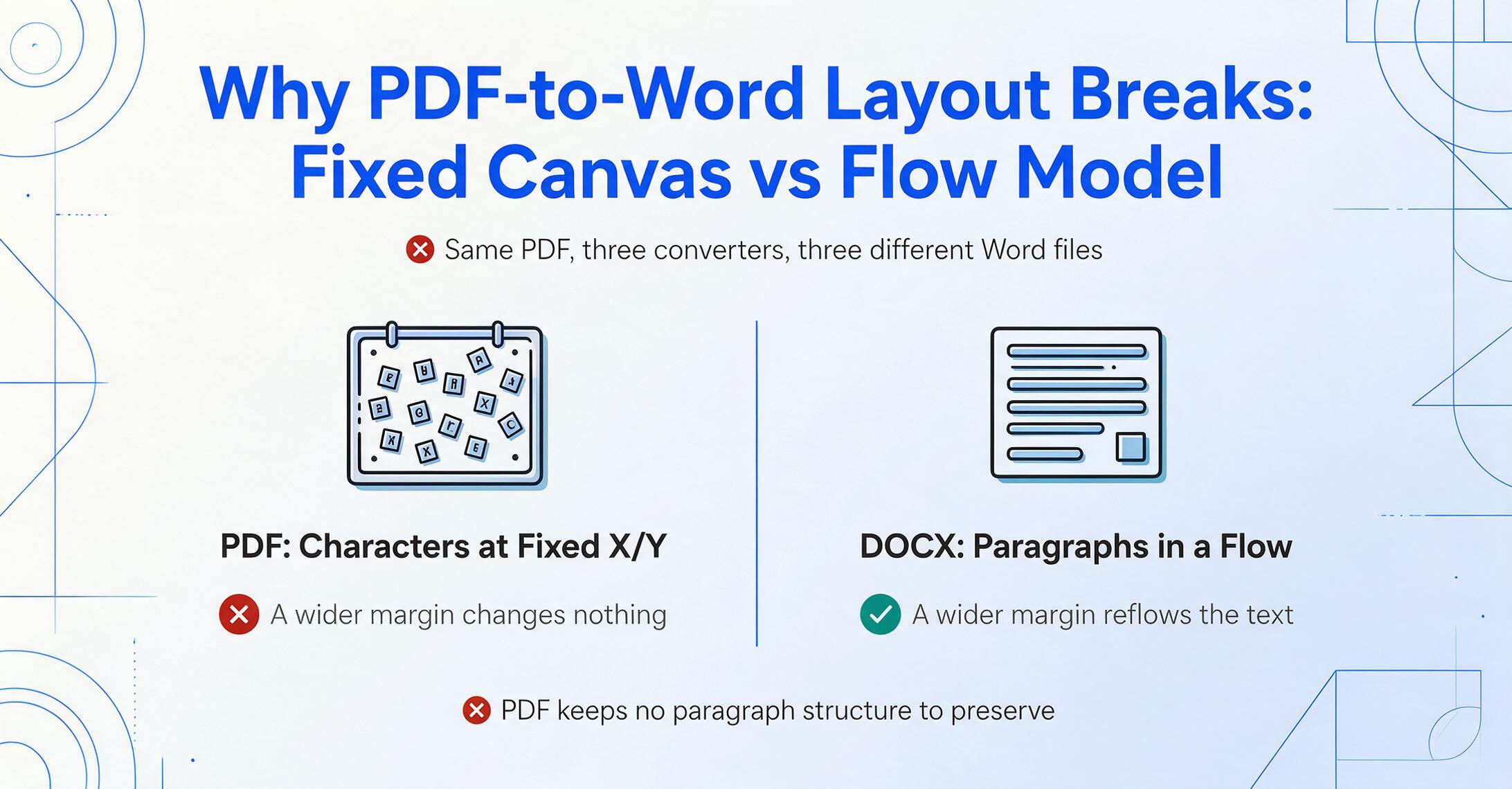
Open a PDF of a contract. It looks structured — headings, paragraphs, a signature block at the bottom. But what the file actually stores, per ISO 32000-2:2020, the international standard that defines the PDF format, is closer to a gallery of positioned objects: each character at a fixed X/Y coordinate, each line drawn individually, each image placed on a specific region of the page. The PDF format was designed to guarantee visual fidelity — that a page looks identical on any screen or printer — not to preserve the logical structure of a document (ISO 32000-2:2020, ISO/TC 171/SC 2).
A Microsoft Word document works on an entirely different principle. A DOCX file stores content in a flow-based model: paragraphs, sections, tables with row-and-column semantics, headings with hierarchy levels. When you change your margin width in Word, text reflows automatically because the document knows where each paragraph starts and ends. A PDF knows none of this — it only knows where each character sits on a fixed canvas.
This is why opening the same PDF in three different converters produces three different Word outputs. The converters aren't "reading" a document structure that was there all along. Each one is independently reverse-engineering paragraphs, tables, and columns from a flat grid of positioned characters — and each one makes different guesses.
How Traditional OCR Reconstructs Layout — The Three-Step Error Cascade
For digital PDFs, the text coordinates are available in the file itself. But for scanned documents — and 61% of intelligent document processing workflows still include paper, per the AIIM 2025 IDP Survey — Optical Character Recognition must first extract those characters from an image. That's where the real damage to layout begins (AIIM, 2025).
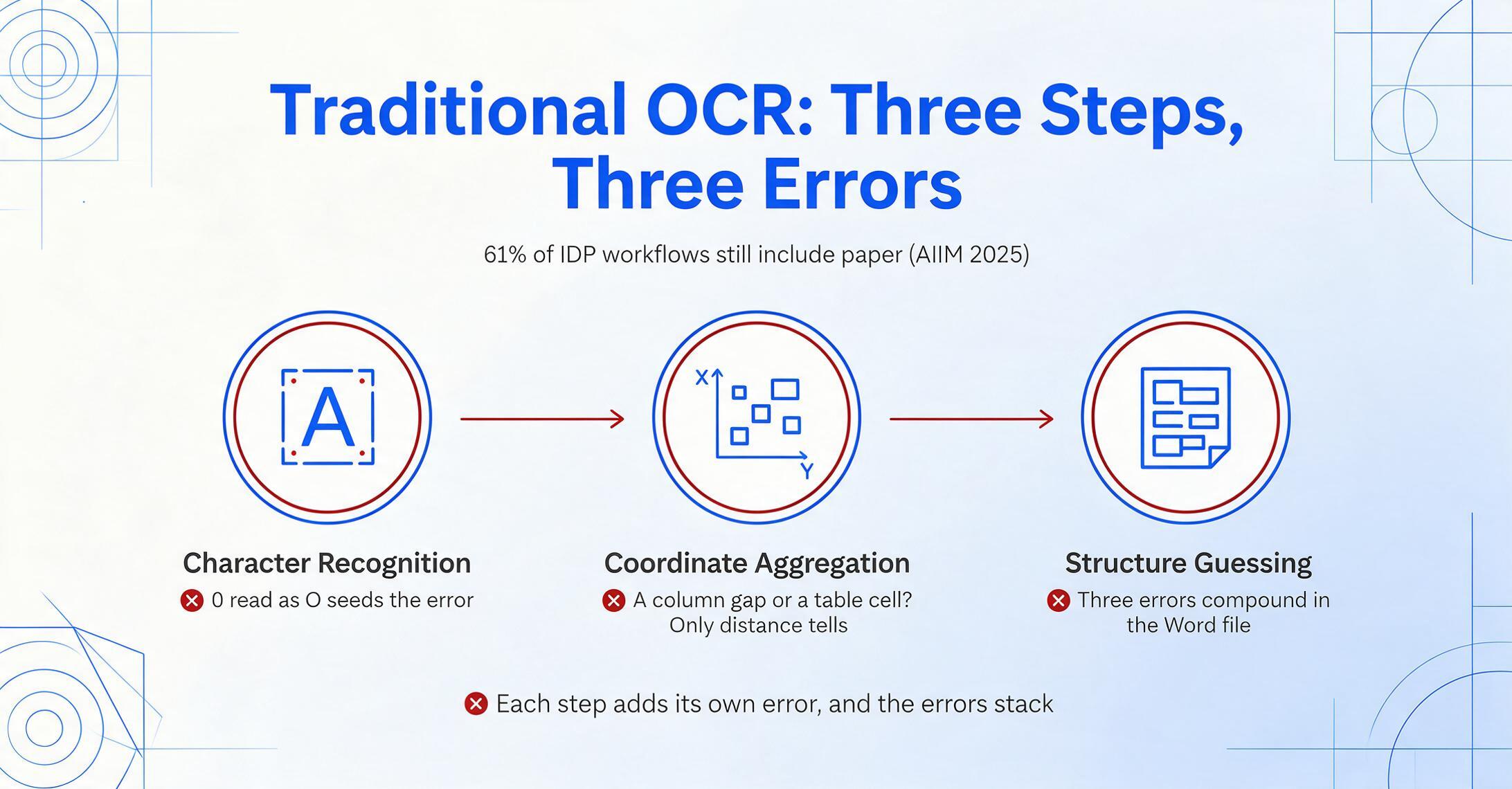
Traditional OCR works in three sequential steps. Each step introduces its own errors. The three compound.
Step 1 — Character Recognition. The OCR engine scans the document image and identifies individual characters: "this dark shape is an 'A', this curved one is a '3'." For clean printed text at 300 DPI, this is reliable — ABBYY FineReader, a professional OCR suite, reports 99.8% character accuracy on high-quality scans. But every misread character (a "0" mistaken for an "O," a smudged "8" read as "3") becomes a seed error that propagates downstream.
Step 2 — Coordinate Aggregation. The engine assigns each recognized character a bounding box with X, Y, width, and height. It then attempts to group nearby characters into words, words into lines, and lines into blocks — purely based on spatial proximity. The problem: proximity alone cannot distinguish a table cell boundary from a column gap, or a paragraph indent from a margin. A two-column PDF layout becomes a guessing game. Does this word belong to the end of the left-column paragraph or the start of the right-column paragraph? The only clue is horizontal distance, and when columns are narrow, the signal is ambiguous.
Step 3 — Layout Inference. With characters grouped into blocks, the engine now attempts the hardest task: deducing the document's logical structure. It must decide which blocks form a paragraph, which blocks belong to a table, where a section heading ends and body text begins. This inference is entirely heuristic — the OCR engine has no semantic understanding of the content. It cannot tell that "Total Due: $1,250.00" is a summary line that should stay together, not a random pair of text blocks separated by whitespace.
The result is a Word document where tables fragment into floating text boxes, paragraphs merge across column boundaries, and images drift to unpredictable positions. The error isn't in any single conversion step — it's that each step's output feeds into the next, and the uncertainty compounds. As one Reddit user put it when describing their PDF-to-Word result: "the format changes upon save" — a three-word summary of a three-step failure (r/MicrosoftWord).
Vision AI: Why "Seeing the Whole Page" Changes Everything
Vision AI — also called a Visual Language Model (VLM) — approaches the problem from the opposite direction. Instead of reading characters one at a time and guessing what they mean together, it looks at the entire page as a single image and understands it the way a person would: seeing the headline, the body text, the table in the middle, the footer at the bottom — all at once, in context.
The key distinction is not speed or accuracy (though both improve). It's that Vision AI doesn't need to reconstruct layout because it never deconstructed it in the first place. Traditional OCR flattens a document into a stream of characters, then tries to rebuild structure from that stream. Vision AI preserves the spatial and structural relationships from the start — it identifies text blocks, table grids, image regions, and paragraph hierarchies as coherent objects, then maps them directly to corresponding Word elements.
Here's what that means in concrete terms for the elements that break most often:
- Tables. OCR sees a grid of positioned characters and must infer which belong to which cell, which cells span multiple columns, and where row boundaries fall. Vision AI sees the entire table structure — borders, merged cells, column widths — and rebuilds it as a native Word table with the same row/column relationships. For a deeper look at why table extraction has been one of document processing's hardest problems, see our explainer on how AI reads and interprets document structure.
- Multi-column layouts. OCR must guess the reading order across columns by analyzing horizontal gaps. Vision AI recognizes each column as a distinct flowing region and preserves the correct reading sequence automatically.
- Mixed content. Documents that combine text, tables, charts, and images — financial reports, academic papers, technical documentation — present the worst case for OCR, which has no framework for deciding whether a region is text or a graphic. Vision AI identifies content types natively and maps each to the appropriate Word element.
This capability isn't theoretical. It's the same paradigm shift that's reshaped document data extraction — from template-based extraction that breaks when formats change to semantic understanding where the AI locates data by meaning, not by position. In the Word conversion domain, the parallel shift is from character-coordinate reconstruction to whole-page semantic understanding. That shift is what lets the photo to Word path preserve the layout of a photographed page, where character-coordinate reconstruction would only ever produce positioned fragments.
The result difference is easiest to see in the table problem. An OCR pipeline might produce: isolated text fragments that look like a table if you squint, but break into 47 separate text boxes the moment you try to edit. Vision AI produces: a native Word table with actual rows, columns, merged cells, and editable content — the same structure you'd have if you had built the table in Word yourself. PNG inputs feel this just as sharply: a PNG to Word conversion has only pixels to work from, so the table grid has to be recognized visually rather than read from any underlying structure.
For anyone who hasn't followed the rapid evolution of document AI, the last three years have transformed what's possible. Our breakdown of what changed after OCR covers the technical leaps that made Vision AI a production-ready technology, not a lab experiment.
Three Tiers of Document-to-Word Conversion: What Each Approach Actually Delivers
Every tool that claims to convert documents to Word sits somewhere on a three-tier spectrum. Understanding which tier you're using explains why your last conversion worked — or didn't.
| Tier | Approach | Layout Quality | Best For | Falls Apart On |
|---|---|---|---|---|
| Tier 1 | Free online converters (Smallpdf, iLovePDF) | Basic — preserves fonts and paragraph blocks when the PDF is simple | Single-column text documents, simple forms, internal memos | Tables with merged cells, multi-column layouts, scanned documents, any page with mixed content |
| Tier 2 | Desktop OCR suites (Adobe Acrobat Pro, ABBYY FineReader, Nitro PDF) | Good — OCR + rule-based layout correction, offers "Retain Flowing Text" vs "Retain Page Layout" modes | Business documents with moderate complexity, digitized archives, legal and regulatory filings | Complex table structures with nested headers; heavily formatted reports with multiple content types on one page |
| Tier 3 | Vision AI platforms | High — semantic page understanding; identifies text blocks, tables, images as coherent elements and rebuilds as native Word structures | Complex multi-element documents — financial reports, contracts with tables, scanned academic papers, technical documentation | Extremely degraded scans with <50 DPI; documents requiring pixel-perfect reproduction of decorative elements |
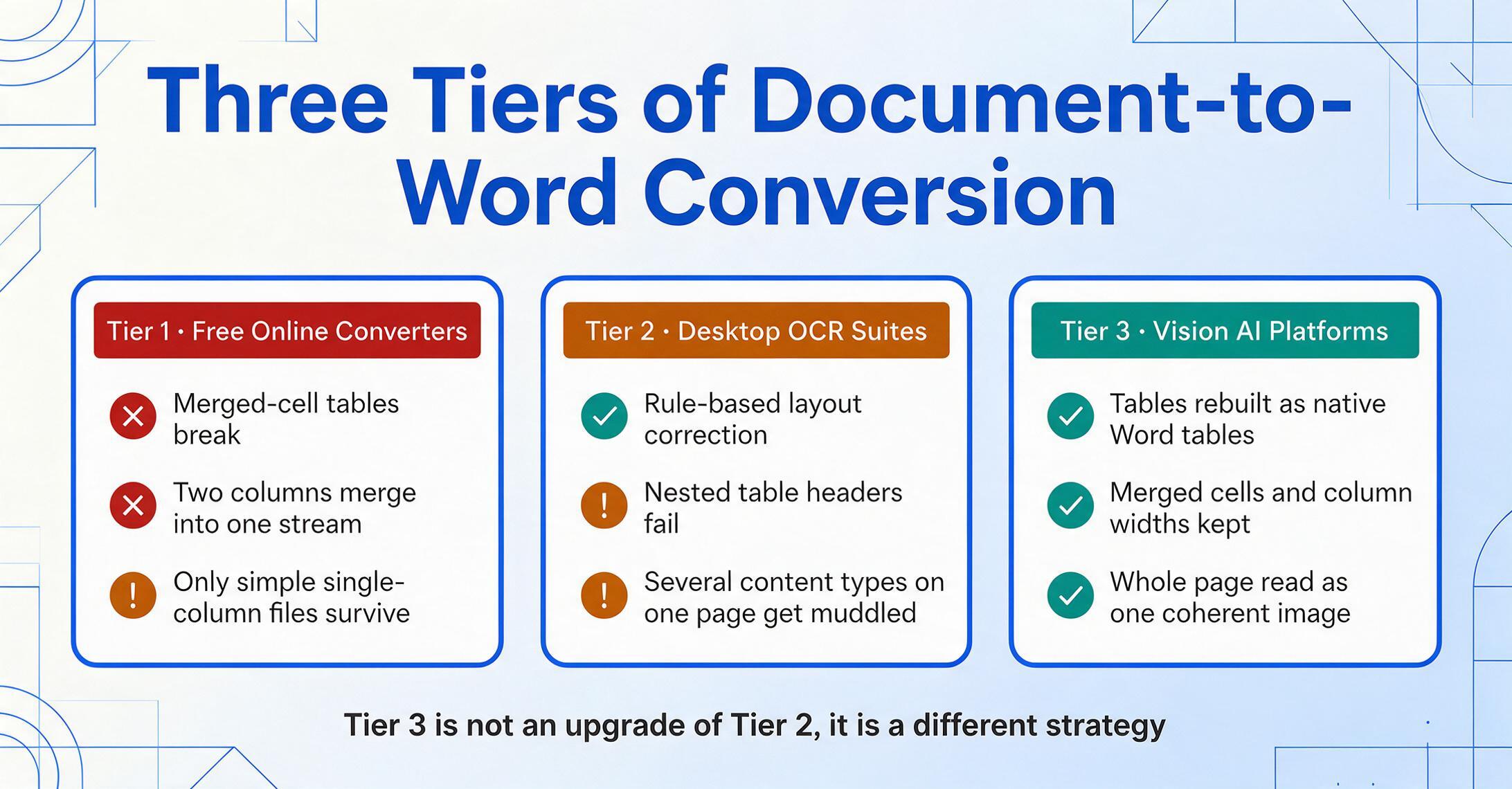
The gap between Tier 2 and Tier 3 is not incremental improvement — it's a different technical strategy. Tier 2 tools improve the OCR pipeline with better character recognition and smarter heuristics. Tier 3 tools remove the pipeline altogether: instead of recognizing → positioning → guessing → rebuilding, they see → understand → generate.
Adobe Acrobat Pro, priced at roughly $20-25/month for individual plans, represents the ceiling of Tier 2. Its "Retain Page Layout" mode uses text boxes to fix content at specific positions — preserving visual appearance but making the resulting Word file difficult to edit. Its "Retain Flowing Text" mode prioritizes editability but often sacrifices precise positioning, particularly around tables and multi-column sections. ABBYY FineReader, at $99-165/year, offers stronger OCR accuracy across 198 languages but shares the same fundamental limitation: it's still reconstructing layout from recognized characters (ABBYY, 2026 pricing).
If you're weighing these tools against each other and against Vision AI, our detailed comparison of PDF-to-Word converters walks through what each one handles well and where each one breaks.
The To Word vs To Table Question: When You Need Layout, Not Data
One distinction that matters more than most people realize: there are two fundamentally different things you can ask an AI to do with a document.
To Table mode — also called structured data extraction — reads a document and pulls out specific fields into a spreadsheet. You upload 50 invoices, define columns like "Invoice Number" and "Total Due," and the AI populates each row. The output is an Excel file. The original document layout is irrelevant — you only care about the data points. This is what data extraction software is built for.
To Word mode — also called layout-preserving conversion — reads a document and rebuilds it as an editable Word file that looks like the original. You upload a scanned contract, the AI understands the full page structure, and the output is a DOCX you can edit in Microsoft Word. The data inside the document matters less than the visual and structural fidelity of the output.
These two modes answer different questions. "How much did we spend on office supplies last quarter?" — that's a To Table question. "I need to update clause 4.3 of this contract before the client signs it" — that's a To Word question. The tools that excel at one are not necessarily good at the other. OCR suites like ABBYY are built for the second use case; data extraction platforms are built for the first.
What's unusual about ImageToTable.ai is that it supports both on the same platform. The same document processing engine handles structured data extraction into Excel and layout-preserving conversion to Word — because the underlying Vision AI capability (understanding the entire page semantically) serves both purposes. We've written about this distinction in depth — the short version is that most people don't realize they need different tools for these two tasks until they've spent an hour trying to make the wrong one work.
What Layout Preservation Actually Means in Practice
No document conversion technology — OCR or Vision AI — delivers pixel-perfect reproduction across every possible document type. The honest question isn't "does it preserve layout?" but "what does it preserve, and where do you need to do a quick review?"
What Vision AI preserves reliably:
- Table structures — Borders, merged cells (spanning rows or columns), column widths, cell alignment. Tables are the hardest element for OCR and the strongest demonstration of Vision AI's advantage, because the AI sees the entire grid as one object rather than guessing cell boundaries from character positions.
- Paragraph hierarchy — Headings, subheadings, body text paragraphs with correct indentation and spacing. The AI recognizes heading levels by combining visual cues (font size, bold, position) with semantic understanding (this text functions as a section title).
- Font styling — Bold, italic, underlines, and relative font sizes are mapped to Word styles. Absolute font matching depends on whether the original fonts are available — converted documents may substitute similar fonts when the originals aren't installed.
- Image placement — Images, logos, charts, and photos are extracted and positioned inline within the document flow, roughly where they appear in the original.
- Basic multi-column layouts — Two-column or three-column text sections are preserved as distinct flowing regions.
Where manual review is still needed:
- Extremely complex nested tables — Tables within table cells, or tables that combine both horizontal and vertical merged cells in intricate patterns, may need minor adjustment of cell boundaries after conversion.
- Precise page headers and footers — Headers that span multiple columns or include complex alignment (right-aligned page numbers alongside centered chapter titles) may require repositioning.
- Handwritten annotations over printed text — While Vision AI can recognize handwriting, documents where handwritten corrections overlay printed text create two competing text layers that require case-by-case judgment.
- Heavily stylized decorative elements — Watermarks, intricate border designs, and purely ornamental graphics may not replicate at pixel precision.
The practical workflow for most documents: the conversion handles 90-95% of the layout correctly. You spend 2-3 minutes reviewing the output — checking tables, verifying section breaks, adjusting any shifted images — rather than 20-30 minutes reconstructing the entire document from scratch. That's the real definition of layout preservation: not zero-touch perfection, but reducing the cleanup from "rebuild the whole thing" to "spot-check and approve."
The Real-World Workflow: From PDF to Editable Word in Under a Minute
Here's what the Vision AI workflow looks like in practice, using ImageToTable.ai's To Word mode — the feature that outputs a fully editable Word document preserving the original layout and formatting. Unlike To Table mode, which extracts specific data fields into a spreadsheet, To Word mode rebuilds the entire document structure for editing in Microsoft Word or Google Docs.
Files are processed securely and not stored.
The processing engine — a Visual Language Model — achieves up to 99% recognition accuracy for printed content and processes each page in 5-10 seconds, compared to an average of 3 minutes for manual retyping. That 18x efficiency gain matters less for a single-page letter than for a 40-page technical report with 15 embedded tables — which is precisely the kind of document where OCR-based converters generate the most cleanup work.
Frequently Asked Questions
Does Vision AI work with scanned documents, or only digital PDFs?
Both. For digital PDFs, Vision AI reads the page image and text content simultaneously. For scanned documents — images of paper pages — it processes the visual content the same way a person reads a photograph of a document. This is a significant advantage over traditional OCR, where scanned documents add a layer of character recognition error on top of the layout reconstruction challenge.
How well does it handle tables with merged cells?
Tables with merged cells — where a header spans multiple columns or a category label spans multiple rows — are handled natively. Vision AI sees the table's visual structure (borders, alignment, spacing) and maps merged cells directly to Word's table model. OCR tools struggle with merged cells because they rely on character position alignment to guess cell boundaries, and a merged cell breaks the alignment pattern.
Will my fonts stay exactly the same after conversion?
Font styling — bold, italic, size hierarchy, color — is preserved. Whether the exact same font file is used depends on whether that font is installed on your system. If a PDF uses a proprietary font not available locally, Word will substitute the closest match. For most business documents using standard fonts (Arial, Times New Roman, Calibri), the match is exact.
What's the accuracy rate for layout preservation?
For printed text in tables, ImageToTable.ai achieves up to 99% accuracy on character recognition. Layout preservation — the structural fidelity of the output — depends on document complexity. Clean business documents (reports, contracts, invoices) with standard layouts typically require minimal cleanup. Highly complex multi-element pages — dense academic papers with footnotes, equations, and multi-level tables — may need a few minutes of review and adjustment.
How is this different from the PDF-to-Word converter built into Microsoft Word?
Microsoft Word's built-in PDF import — called PDF Reflow — works well for simple, single-column text documents but struggles with tables, multi-column layouts, and scanned content. It's a Tier 1-to-2 approach: coordinate-based reconstruction with limited layout inference. Vision AI is Tier 3: page-level semantic understanding that preserves table structures, column relationships, and content hierarchy natively.
Can I batch-convert multiple documents at once?
Yes. ImageToTable.ai was designed as a batch-first platform — you can upload multiple documents simultaneously, and each one is processed through the Vision AI pipeline. The To Word mode currently processes files one at a time (each document produces its own DOCX output), while the To Table mode merges multiple documents into a single spreadsheet. Upload limits depend on your plan's processing capacity.
Does this replace Adobe Acrobat Pro for my workflow?
It depends on what you use Acrobat for. If your workflow is editing PDFs directly (adding signatures, filling forms, annotating), Acrobat remains the standard. If your workflow is converting PDFs to editable Word while keeping tables, images, and layout intact — especially scanned PDFs or complex multi-element documents — Vision AI can produce better layout fidelity, particularly for scanned documents and tables with merged cells.
What This Means for Your Document Workflow
AIIM's 2025 industry research found that 78% of companies are now operational with AI for document processing — a shift from experimental pilots to production deployment. At the same time, IDC estimates document-related inefficiencies cost the average information worker $19,732 per year in lost productivity. The gap between these two numbers — widespread AI adoption on one side, persistent document friction on the other — is where document-to-Word conversion sits.
The technology to preserve layout during document conversion is no longer an unsolved problem. What changed is the underlying approach: from character-by-character reconstruction that guesses at structure, to whole-page semantic understanding that preserves it from the start. Whether you're updating last year's contract, digitizing an archive of scanned reports, or converting a supplier's PDF quote into a document you can actually edit — the tools exist, the technical explanation is clear, and the workflow is measured in seconds, not hours.
Go try it on a document you've already attempted to convert before — one where the table broke into pieces or the columns merged into a single text stream. See what happens when the AI reads the page the way you do.