Layout-Preserving Document to Word Converters:
Free Online vs Desktop Pro vs Vision AI
Ask ten people which PDF-to-Word converter works best, and you will get ten different answers — because everyone is converting different kinds of documents. The real question is not "which tool is best" but "which approach matches what is in your PDF right now." A single-column memo, a scanned contract with embedded tables, and a 40-page financial report with mixed charts are three completely different conversion jobs. They need three completely different tiers of technology. This article maps which tier handles which document — with pricing checked to current date, so you can stop guessing.
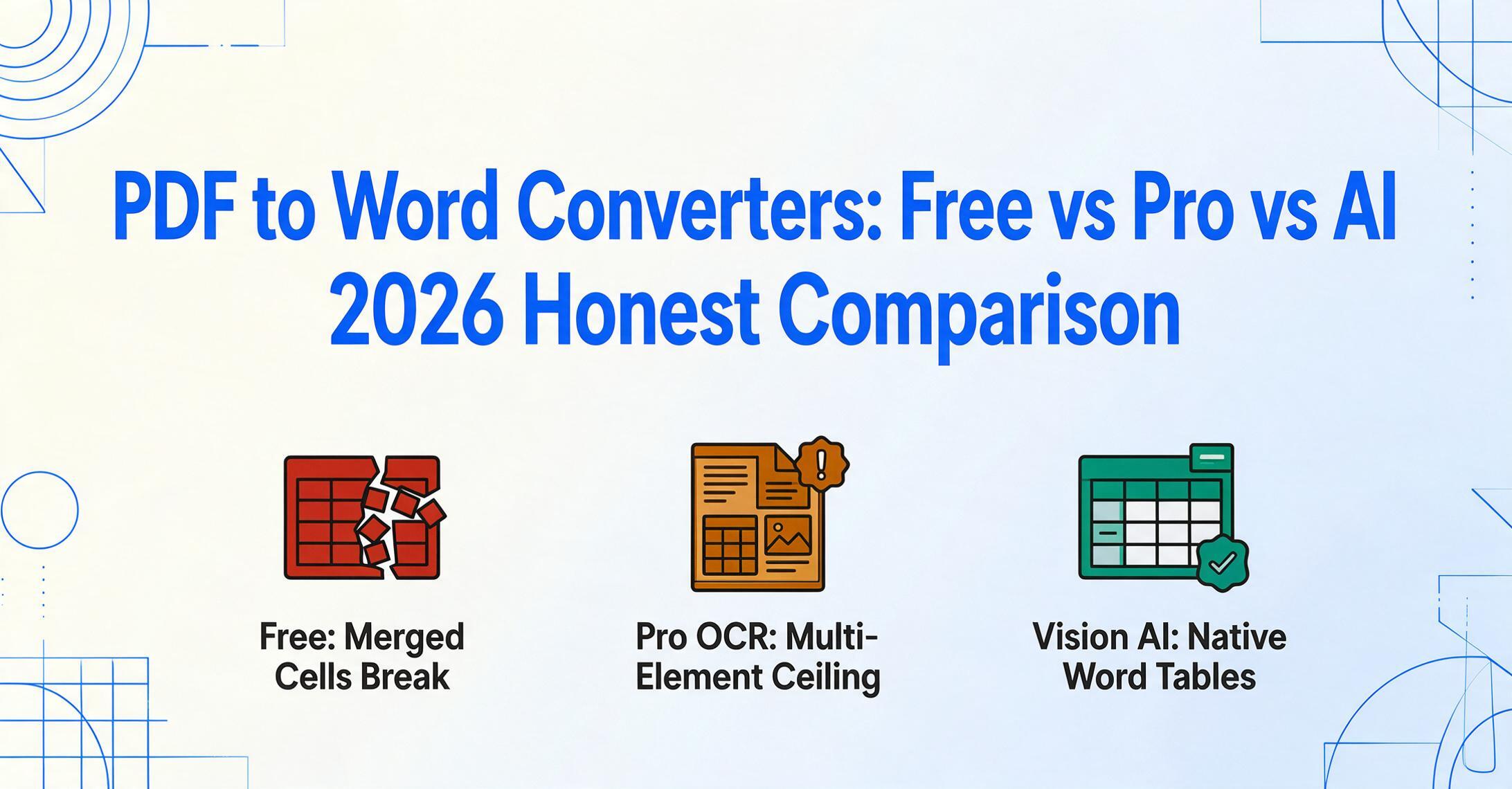
Key Takeaways
- Ask ten people which PDF-to-Word converter is best and every answer will be different because a converter that handles a simple memo perfectly will shred a financial report with embedded tables into gibberish.
- Every comparison article ranks tools by OCR accuracy and price but a 99.8% accurate character recognition rate is useless when the converter has already merged your left and right columns into a single stream of randomized words.
- The right converter is not about which tool tops a feature chart but which of the three technical tiers actually reads your document the way it is structured and your answer changes with every PDF you open.
The Three-Tier Problem Nobody Talks About
Every PDF-to-Word conversion tool on the market falls into one of three technical tiers. The tiers are not about pricing — a free tool and a $20/month tool can both sit in Tier 1. They are about how the tool reads your document, and that determines what comes out the other side.
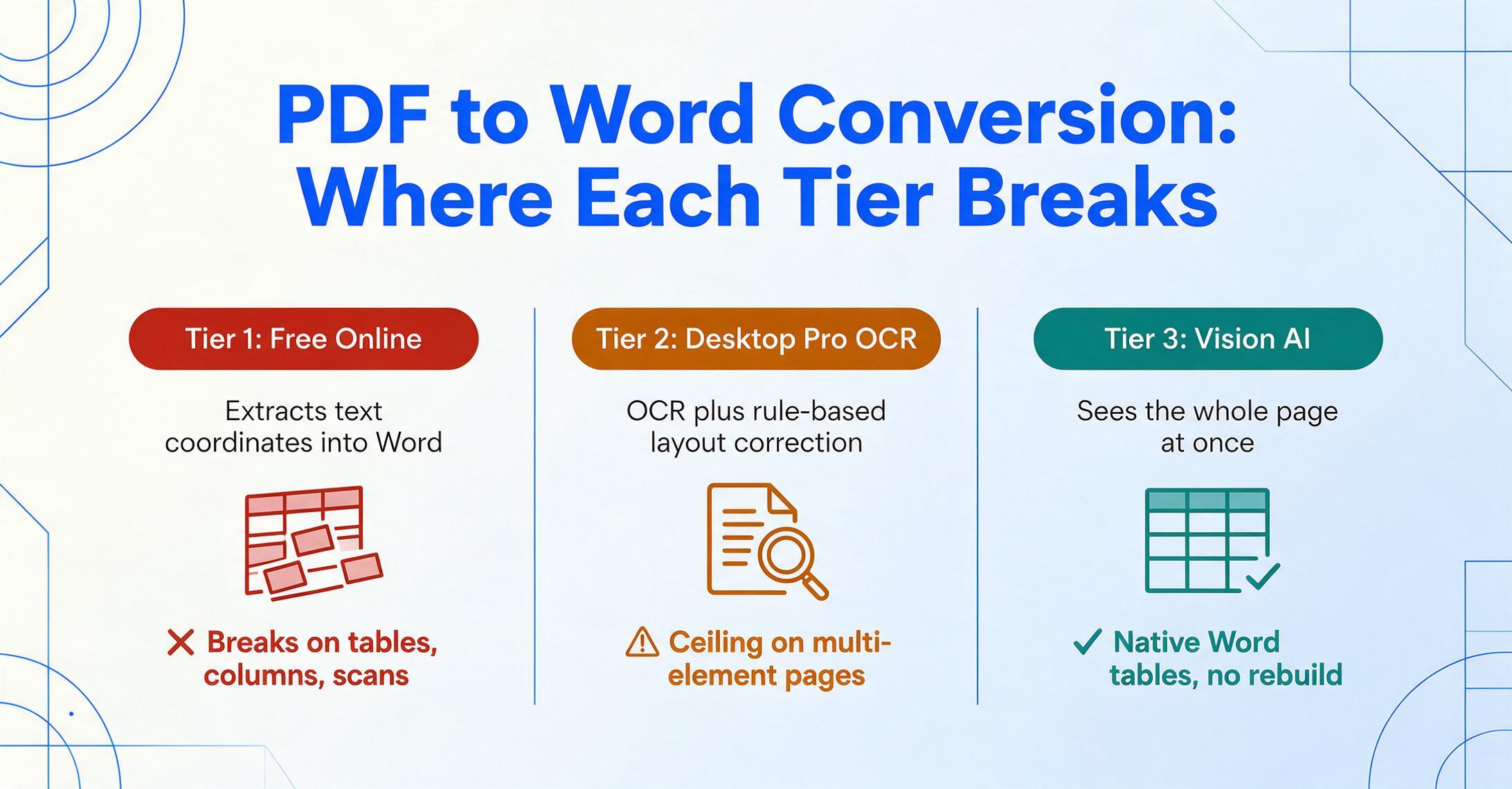
The three tiers, in ascending order of capability on complex documents:
- Tier 1 — Free online converters (Smallpdf, iLovePDF, PDF Candy, and dozens more). Extract text from PDF coordinates and place it into a Word file. Work well on simple text documents. Break on tables, columns, scanned content, and mixed layouts.
- Tier 2 — Desktop pro OCR suites (ABBYY FineReader, Adobe Acrobat Pro). Add OCR for scanned documents and rule-based layout correction. Handle moderate complexity well. Hit a hard ceiling on multi-element pages — financial reports, contracts with embedded tables, forms with checkboxes.
- Tier 3 — Vision AI platforms (ImageToTable.ai To Word mode). Use visual language models to see the entire page at once — text blocks, table grids, image regions, paragraph hierarchies — and map them directly to native Word elements. No character-by-character reconstruction. No guesswork about what is a column vs what is a margin.
What makes this framework useful is that each tier has documents it handles perfectly well — and documents it butchers. The rest of this article explains where those lines are drawn, with actual pricing and test data, so you can match your PDF to the right tier without overpaying for capability you do not need.
If you are evaluating layout-preserving PDF-to-Word conversion as a concept, start with our complete guide to layout-preserving document conversion — it covers the technical reasons behind formatting loss and how Vision AI page understanding differs from OCR reconstruction.
Tier 1 — When Free Converters Win, and When They Don't
Free online PDF-to-Word converters are the most-used tier for a reason: they are instant, browser-based, and genuinely good enough for a specific class of document. The problem is that most users do not know where that class ends.
A free converter reads the text coordinates stored in a digital PDF — each character with an X/Y position — and writes those characters into a Word file, attempting to group them into paragraphs by spatial proximity. For a PDF that was originally created in Microsoft Word and exported cleanly, this works because the coordinate stream still maps reasonably to the original paragraph structure. The converter is essentially reversing the Word-to-PDF export, and the trail is still warm.
Here is what free converters handle well:
- Single-column text documents — internal memos, letters, simple reports, articles exported from Word. The text flows continuously from top to bottom, with no competing column or table structures to confuse the spatial grouping algorithm.
- Simple forms with basic fields — documents where form fields are labeled with plain text and there are no checkboxes, radio buttons, or image-based markings to interpret.
- Clean digital PDFs — not scanned documents. Free converters that lack OCR produce gibberish on scanned PDFs: they see a blank page because there are no embedded text coordinates to extract.
And here is where free converters fall apart, consistently:
- Tables with merged cells. The coordinate-based grouping algorithm sees a merged header cell spanning four columns and cannot determine which data columns it belongs to. The result: the header text ends up floating in an independent text box while the data rows form a partial table below it.
- Multi-column layouts. Two-column text is indistinguishable from two adjacent paragraphs to a proximity-based algorithm. Words from the left and right columns get merged into a single text stream, producing sentences that read across columns — gibberish.
- Scanned documents. Without OCR, a scanned PDF is a photograph stored in a PDF wrapper. Free converters without OCR (and many free trials of paid tools) return an empty Word file or an embedded image of the page — the opposite of editable.
- Mixed content on one page. A report page with body text, an embedded table, a sidebar callout, and a chart: the converter has no framework for distinguishing these element types. Everything becomes undifferentiated text blocks.
This is not a quality problem — it is a design limitation. These tools were built for a specific job: turning simple digital PDFs back into Word. They were not built to understand document structure. As one Reddit user put it when describing a PDF-to-Word result from a free converter: "the format changes upon save" — a three-word summary of the coordinate-reconstruction approach (r/MicrosoftWord).
Current pricing (June 2026):
- Smallpdf: Free tier (2 tasks/day, limited file size), Pro ~$12/month or $108/year, Teams ~$8/user/month. (pricing page)
- iLovePDF: Free tier (limited docs, ads), Premium ~$4–7/month or $48/year, Business custom pricing. (pricing page)
The bottom line: if your PDF is a single-column text document exported from Word, use a free converter. If it contains a table, a scanned page, or more than one column, plan for a Tier 2 or Tier 3 tool — or plan to spend time manually fixing the output. For a deeper look at the technical reasons PDF-to-Word breaks, see our breakdown of the OCR error cascade that explains why this is not a tool quality issue — it is a PDF format limitation.
Tier 2 — Desktop Pro Tools: Where the OCR Ceiling Lives
Desktop pro tools add two capabilities that free online converters lack: Optical Character Recognition (OCR) for scanned documents, and rule-based layout correction for moderately complex pages. They represent the best that the traditional OCR pipeline can deliver — and they also reveal where that pipeline hits its ceiling.
ABBYY FineReader, the gold standard in this tier, reports 99.8% character accuracy on high-quality scans across 198 languages. Adobe Acrobat Pro adds a "Retain Page Layout" mode that uses fixed-position text boxes to preserve visual appearance, and a "Retain Flowing Text" mode that prioritizes editability. Both are substantial improvements over free converters. If your workload is digitizing a library of scanned books, processing legal filings, or converting business correspondence, Tier 2 tools are purpose-built for exactly these jobs.
But the ceiling is structural, not a question of better character recognition. Here is why.
All Tier 2 tools rely on the same fundamental pipeline: recognize characters → assign coordinates → group by proximity → infer layout. Each step introduces errors, and the errors compound. As detailed in our technical comparison, Vision AI and OCR read documents in fundamentally different ways. OCR reconstructs layout from character positions; Vision AI preserves layout from the start because it never deconstructed the document in the first place.
Where this pipeline breaks specifically for Tier 2 tools:
- Complex table structures. Nested headers — where a category spans three columns and each sub-column has its own header — create a grid that proximity-based grouping cannot reliably parse. The tool must guess: does this header apply to the two columns below it, or three? In a Vision AI approach, the table is seen as a single coherent object with border relationships understood visually. In OCR, it is a grid of character coordinates with boundaries inferred from whitespace gaps — and when headers break the alignment pattern, the inference fails.
- Multi-element pages. A financial report page might contain: a section heading, two paragraphs of analysis, a data table with merged header cells, a footnote at the bottom, and a sidebar annotation. An OCR pipeline processes this as a single undifferentiated text block and then tries to separate elements by analyzing whitespace. A sidebar annotation 50 pixels from the main text is indistinguishable from an indented paragraph. The result: the annotation gets merged into the body text, and the table headers drift.
- Scanned documents with handwriting. Printed text OCR is mature. Handwriting OCR — annotations, signatures, checkmarks — is a different problem that sits at the edge of what Tier 2 tools can handle reliably.
Adobe's own export settings inadvertently reveal the tradeoff. "Retain Page Layout" mode preserves visual fidelity by placing content in fixed-position text boxes — but editing those text boxes in Word is cumbersome, and they do not reflow when you change margins. "Retain Flowing Text" mode produces more editable output but often loses precise table alignment and image positioning. You cannot have both with Tier 2 technology. The pipeline forces a choice between visual fidelity and editability because the tool does not understand the document — it is reconstructing it from fragments.
Current pricing (June 2026):
- ABBYY FineReader PDF: Standard $99/year, Corporate $165/year (includes automated batch conversion, document comparison). (pricing page)
- Adobe Acrobat Pro: $19.99/month (annual, billed monthly), Standard $14.99/month. (pricing page)
- Nitro PDF Pro: ~$179 one-time or subscription, positioned as a cost-effective Acrobat alternative.
Tier 2 tools are the right choice when your documents fit their sweet spot — business documents with moderate complexity, digitization of scanned archives, legal and regulatory filings where character accuracy and language support matter. If your PDFs never contain complex tables, mixed content on one page, or handwritten annotations, Tier 2 is likely all you need. The ceiling only matters when you are hitting it.
Tier 3 — Vision AI: What Changes When the Engine Sees the Whole Page
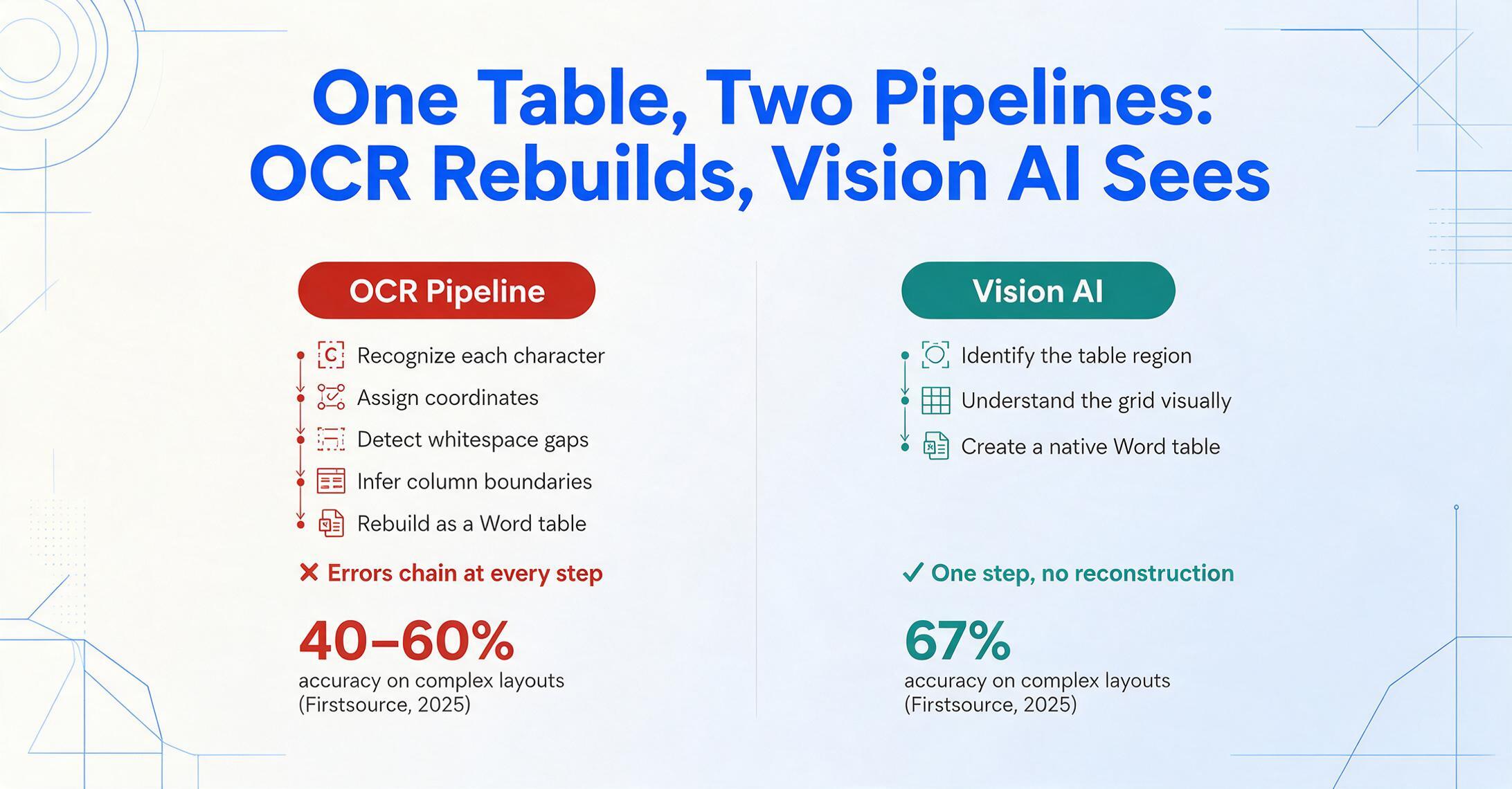
Vision AI — powered by visual language models (VLMs) — eliminates the OCR pipeline entirely. Instead of recognizing characters one at a time and reconstructing structure from coordinates, the model looks at the entire document as a single image and understands it the way a person does: seeing headings, paragraphs, tables, images, and footers as coherent regions with defined relationships.
The practical difference is easiest to see in the table problem. An OCR pipeline processes a table as: recognize each character in each cell → assign coordinates → detect whitespace gaps between cells → infer column and row boundaries → guess which cells span multiple columns → attempt to rebuild as a Word table. Each inference step has an error rate, and the errors chain. A Vision AI model processes the same table as: identify the table region → understand the grid structure visually (borders, alignment, cell spanning) → create a native Word table with the same row, column, and merge relationships. No reconstruction. No inference chain.
Independent benchmarks confirm the magnitude of the gap. In testing by Firstsource comparing four production AI models on real business documents, vision-language models achieved 67% accuracy on complex layouts — compared to 40–60% for traditional OCR on the same document types (Firstsource, 2025). The key finding was not just the accuracy difference — it was that VLMs handled the entire document in a single step, eliminating the cumulative error of multi-stage OCR pipelines.
What Vision AI preserves that Tier 2 tools struggle with:
- Tables with merged cells and nested headers. Merged cells spanning rows or columns, multi-level headers, tables within table cells — all mapped directly to Word's table model because the AI sees the visual structure.
- Multi-column layouts. Two-column and three-column text is recognized as distinct flowing regions, not merged into a single scrambled stream. The AI reads each column separately and preserves the correct reading order.
- Mixed content on one page. A page with text, a table, an image, a chart, and a footnote: each element type is identified and mapped to the appropriate Word element. The text stays as flowing paragraphs, the table as a native Word table, the image in its approximate position.
- Scanned documents and screenshots. The AI processes a photograph of a document the same way it processes a digital PDF — by seeing the page content as a visual input. No separate OCR step needed for scanned input. For the specific case of screenshots, see our guide on converting screenshots to editable Word.
Where Vision AI still needs manual review:
- Extremely complex nested table structures — tables within table cells, or tables that combine both horizontal and vertical merged cells in intricate patterns, may need minor cell boundary adjustments after conversion.
- Precise page headers and footers with complex alignment (right-aligned page numbers alongside centered chapter titles) may need repositioning.
- Handwritten annotations over printed text create competing text layers. The AI can recognize the handwriting but distinguishing which layer takes priority is a case-by-case judgment.
- Heavily degraded scans below ~50 DPI where even a human would struggle to read the text.
The practical outcome: for most business documents, Vision AI handles 90–95% of the layout correctly. You spend 2–3 minutes reviewing and adjusting, rather than 20–30 minutes rebuilding. That gap — between "spot-check and approve" and "rebuild from scratch" — is the effective difference between Tier 2 and Tier 3.
For a complete walkthrough of how to convert scanned documents to Word with tables intact — covering the step-by-step workflow that turns a scanned PDF into an editable document in under a minute — see our hands-on guide. The Vision AI section above explains the why; that guide covers the how.
Comparison Table: Three Tiers at a Glance
| Dimension | Tier 1 — Free Online | Tier 2 — Desktop Pro | Tier 3 — Vision AI |
|---|---|---|---|
| How it works | Extract text coordinates from digital PDF → write to Word | OCR characters → assign positions → group by proximity → infer layout | See the entire page as an image → understand structure → generate native Word elements |
| Simple text docs | Excellent — these documents are what free converters were built for | Excellent — handles them as well as Tier 1, with better font matching | Excellent — but overkill for a single-column memo |
| Tables (simple) | Unreliable — columns may shift, merged cells break alignment | Good — standard tables with uniform rows/columns convert cleanly | Excellent — native Word tables with correct row/column relationships |
| Tables (merged cells, nested headers) | Fails — text fragments scattered across the page | Mixed — depends on complexity; merged cells break alignment inference | Good — visual grid recognition preserves merge structure |
| Multi-column layouts | Fails — columns merged into one text stream | Moderate — works for simple two-column; complex layouts may drift | Good — each column recognized as a distinct region |
| Scanned documents | Fails — no OCR, returns empty file or embedded image | Good — mature OCR engines with strong language support | Excellent — processes scans as images natively, no OCR pipeline errors |
| Mixed content (text + tables + images on one page) | Fails — everything becomes undifferentiated text blocks | Limited — elements often merge or misalign; sidebars drift into body text | Good — identifies content types and maps each to the correct Word element |
| Handwriting | Fails — no handwriting recognition | Limited — ABBYY supports some handwriting; accuracy drops with cursive | Moderate — VLM recognizes handwriting but complex annotations may need review |
| Offline use | No — browser-only | Yes — desktop-installed, fully offline | No — cloud processing required |
| Batch processing | No — one file at a time on free tier | Yes — ABBYY Corporate automates up to 5,000 pages/month | Yes — batch upload support; files processed individually with individual DOCX output |
| Price (cheapest annual plan) | Free (limited); ~$48–108/year for unlimited | ~$99–165/year (ABBYY); ~$180–240/year (Acrobat Pro) | Free tier available; paid subscriptions for volume processing |
| Best for | Single-column text PDFs, quick one-off conversions, users with no budget | Business docs with moderate complexity, scanned archives, offline/air-gapped environments, legal/regulatory filings | Complex multi-element docs, scanned contracts with tables, financial reports, mixed content, documents you need to actually edit — not just view |
| Not ideal for | Any document with tables, columns, scanned content, or multiple content types on one page | Complex nested tables, mixed element pages, documents where you need both visual fidelity and editability simultaneously | Highly sensitive documents requiring offline-only processing; single-page simple text documents (overkill) |
One distinction worth noting: our roundup of PDF-to-Word converters covers individual tools in depth with feature-by-feature breakdowns. The table above is a tier-level comparison — which category of tool fits your documents. The roundup answers "which specific tool in that category is right for me."
Which Tier Should You Pick? A Decision Framework
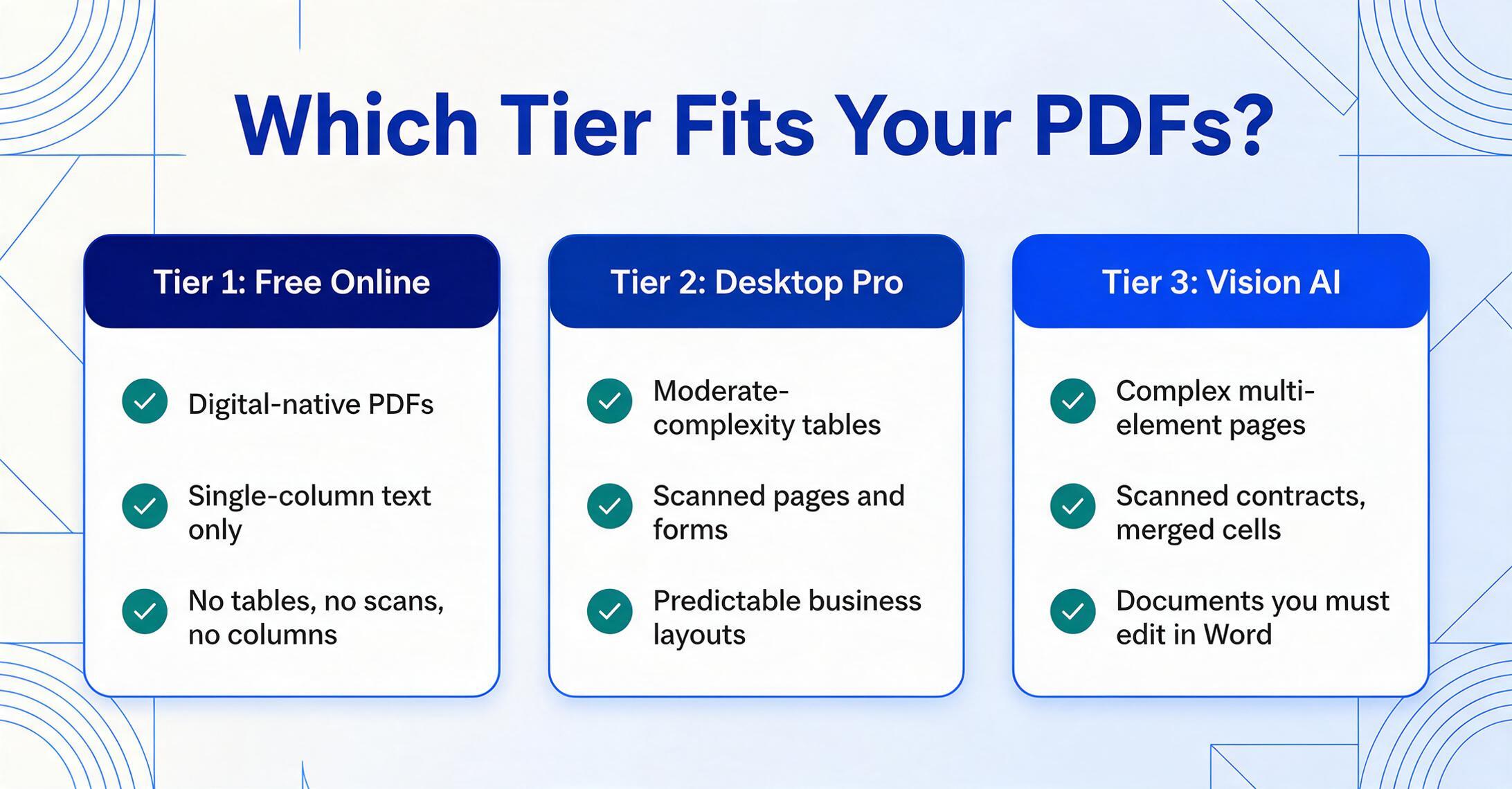
Rather than a generic recommendation, here is a decision path based on what your documents actually contain:
→ Tier 1 (Free converter). Smallpdf or iLovePDF will handle this. Do not pay for capability you do not need. But verify: open your PDF in a viewer and check. One hidden table or one scanned insert page moves you to Tier 2.
→ Tier 2 (Desktop Pro). ABBYY FineReader or Adobe Acrobat Pro. These tools are mature, well-supported, and handle the common business document formats competently. Choose ABBYY if OCR accuracy and language diversity are your priority; choose Acrobat if you are already in the Adobe ecosystem and need integrated e-signing and cloud storage.
→ Tier 3 (Vision AI). The jump from Tier 2 to Tier 3 is the largest capability gap in this framework — from character-based reconstruction to whole-page semantic understanding. The tradeoff is cloud dependency: Tier 3 tools process on remote servers, not your local machine, so documents with strict air-gap requirements may need Tier 2 instead.
If your documents span multiple complexity levels — which is common, since most people do not have only one type of PDF — the pragmatic approach is to use Tier 1 for your simple documents and Tier 3 for your complex ones. Mixing tiers based on the document in front of you is more cost-effective than buying the highest tier for everything. A free converter handles the one-page memo from HR; Vision AI handles the 40-page client report with 15 embedded tables.
One final dimension: AIIM's 2025 industry survey found that 61% of intelligent document processing workflows still involve paper — meaning scanned documents remain the dominant input format (AIIM, 2025). If your documents are predominantly scanned rather than digital-native, Tier 1 is effectively unavailable to you — free converters without OCR cannot process scanned input. The real choice is between Tier 2 (mature OCR, offline, established) and Tier 3 (Vision AI, cloud, better complex layout handling).
See Tier 3 in Action: Convert Any Document to Editable Word
The difference between tiers is best understood by trying them on your own document — not reading about them. The demo below runs ImageToTable.ai's To Word mode. Upload a PDF, scanned page, or screenshot; the Vision AI processes the full page structure and outputs an editable DOCX with tables, columns, and formatting preserved. Unlike To Table mode (which extracts specific data fields into a spreadsheet), To Word mode rebuilds the entire document for editing in Microsoft Word or Google Docs.
Files are processed securely and not stored.
Frequently Asked Questions
Can I use a free online converter for a PDF with a simple table?
Sometimes, but do not count on it. A free converter may handle a table with uniform rows and columns where all cell boundaries are clearly separated by whitespace. But the moment the table has a merged header cell, vertical text, or cells with significantly different amounts of content (uneven row heights), the coordinate-based grouping algorithm loses alignment. If the table matters — if you need to edit those values in Word rather than retype them — use a Tier 2 or Tier 3 tool. The 30 seconds you save by not opening a pro tool gets spent many times over fixing the broken table.
Why does ABBYY FineReader sometimes produce better results than Adobe Acrobat?
ABBYY and Adobe use different OCR engines with different strengths. ABBYY's engine, refined over 30+ years, generally achieves higher character accuracy on challenging scans — low contrast, unusual fonts, mixed languages. Adobe's engine is integrated with a broader PDF ecosystem (editing, e-signing, cloud storage) and is more convenient if you are already paying for Creative Cloud. For pure conversion quality on difficult documents, ABBYY tends to edge ahead. For workflow integration and all-in-one PDF management, Adobe is the more complete package. Both share the same fundamental limitation: they reconstruct layout from recognized characters rather than understanding pages visually.
How much does a good PDF-to-Word converter actually cost?
Free: $0 for simple text-only PDFs (Smallpdf/iLovePDF free tiers). Desktop pro: $99–240/year depending on the tool and plan tier (ABBYY Standard $99/year, Acrobat Pro ~$240/year). Vision AI: free tier available for occasional use; paid subscriptions typically start below desktop pro pricing for individual users and scale by volume for teams. The cost question is really: how much is your time worth? If you spend 20 minutes manually fixing a broken conversion twice a week, that is roughly 35 hours per year — at any professional hourly rate, even the most expensive PDF tool pays for itself in under a month.
Does Vision AI work offline?
No. Vision AI tools process documents on cloud servers because the visual language models that power them require significant compute resources — far more than a typical desktop can provide. If your documents require air-gapped, offline-only processing (common in defense, certain legal, and some healthcare workflows), Tier 2 desktop tools (ABBYY FineReader, Adobe Acrobat Pro) are your only option. This is the most significant tradeoff between Tier 2 and Tier 3 — not accuracy, but deployment model.
Will the fonts in my converted Word document match the original exactly?
Font styling — bold, italic, size hierarchy, color — is preserved across all three tiers. Whether the exact same font file is used depends on whether that font is installed on your system. If a PDF uses a proprietary font not available locally, Word substitutes the closest match. For most business documents using standard fonts (Arial, Times New Roman, Calibri), the match is exact. Tier 3 Vision AI tends to produce the most faithful font rendering because it processes the visual appearance of text rather than mapping font metadata — but the installed-font limitation still applies when you open the DOCX on a system without the original font.
Can I batch-convert multiple PDFs at once?
It depends on the tier and the tool. Free online converters (Tier 1) typically process one file at a time — and on free tiers, you are limited to a handful of tasks per day. ABBYY FineReader Corporate (Tier 2) supports automated batch conversion of up to 5,000 pages per month via Hot Folder scheduling. Adobe Acrobat Pro supports batch processing through its Action Wizard. Vision AI platforms (Tier 3) support batch upload — you can submit multiple files at once, and each is processed individually with its own DOCX output. Note that Vision AI To Word mode produces one DOCX per input file (unlike To Table mode, which merges multiple documents into a single spreadsheet).
Is there really a difference between Tier 2 and Tier 3, or is it marketing?
The performance gap is measurable and structural, not marketing. Independent benchmarks from Firstsource (2025) found that vision-language models achieve 67% accuracy on complex document layouts, compared to 40–60% for traditional OCR pipelines on the same documents. The root cause is not character recognition quality — ABBYY's 99.8% character accuracy is excellent. It is that Tier 2 tools must reconstruct document structure from individual characters, and complex layouts break the reconstruction heuristics. Tier 3 tools never deconstruct the document in the first place. For simple and moderate-complexity documents, the practical difference may be negligible. The gap widens with document complexity.
Match Your Document to the Right Tier
Three tiers. Three different conversion strategies. The right tier for you depends entirely on what is inside your PDFs — not on brand names, not on price, not on which tool claims "best accuracy" on its landing page. A free converter beats a $20/month pro tool for a simple memo. A desktop OCR suite beats a cloud Vision AI platform for offline-sensitive documents. And for the complex multi-element pages where both free and pro tools break — financial reports with embedded tables, scanned contracts with mixed content, documents you need to actually edit — Vision AI is not an incremental improvement. It is a different category of result.
Test your own document. The demo above processes real PDFs — not curated examples — through the same Vision AI pipeline. Upload a page you have already tried to convert before, one where the table broke or the columns merged. See what happens when the engine reads the page the way you do.