Why PDF-to-Word Formatting Loss Is Worse
Than Most Users Realize
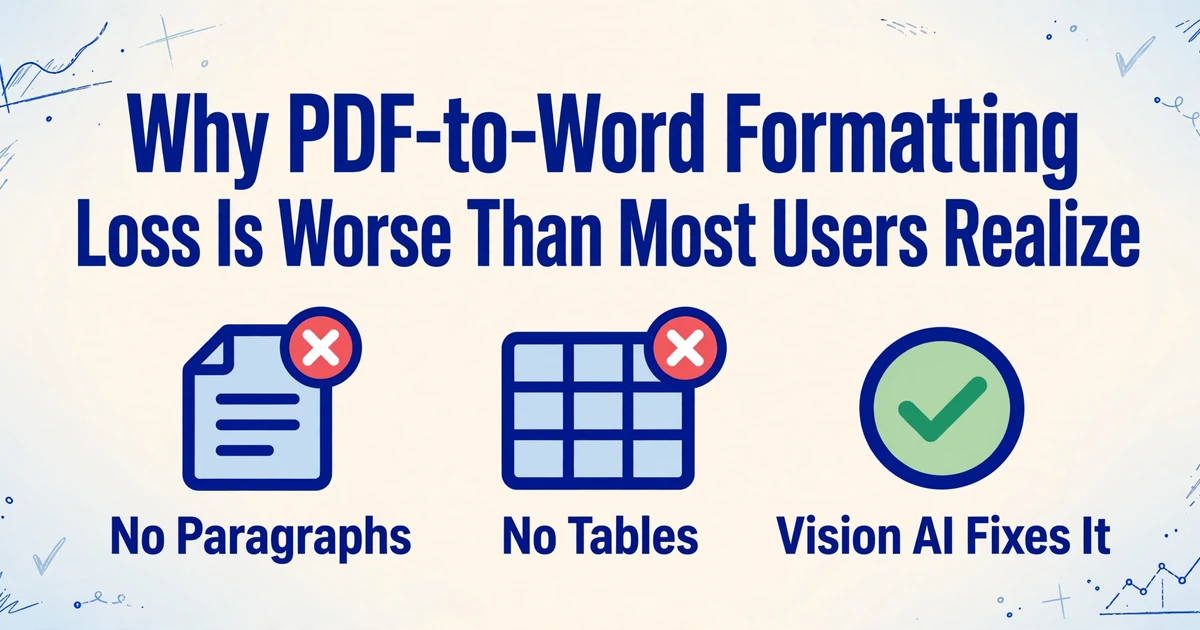
PDF-to-Word conversion doesn't "lose" your formatting in the way you think it does. The problem isn't that a tool made an error during conversion. The problem is that formatting — the kind Microsoft Word understands, with paragraph styles and table structures and heading hierarchies — was never in the PDF to begin with. What looks like a well-structured document on screen is, beneath the surface, a flat scatter plot of individual characters dropped onto a page at precise x,y coordinates. Explaining why this matters — and why it guarantees every traditional converter will break your layout — is what this article is about.
Key Takeaways
- You're not experiencing conversion errors — you're watching software try to reconstruct a document from a scatter plot of individual characters.
- Every table you convert triggers a five-deep chain of guesses — detect grid, count columns, assign cells, merge headers, order rows — and one wrong guess at step one poisons everything downstream.
- Vision AI reads the entire page as a visual scene — headings, tables, paragraphs — and outputs native Word structure that reflows when you edit instead of locking every element in place.
PDF Doesn't Store What You Think It Stores
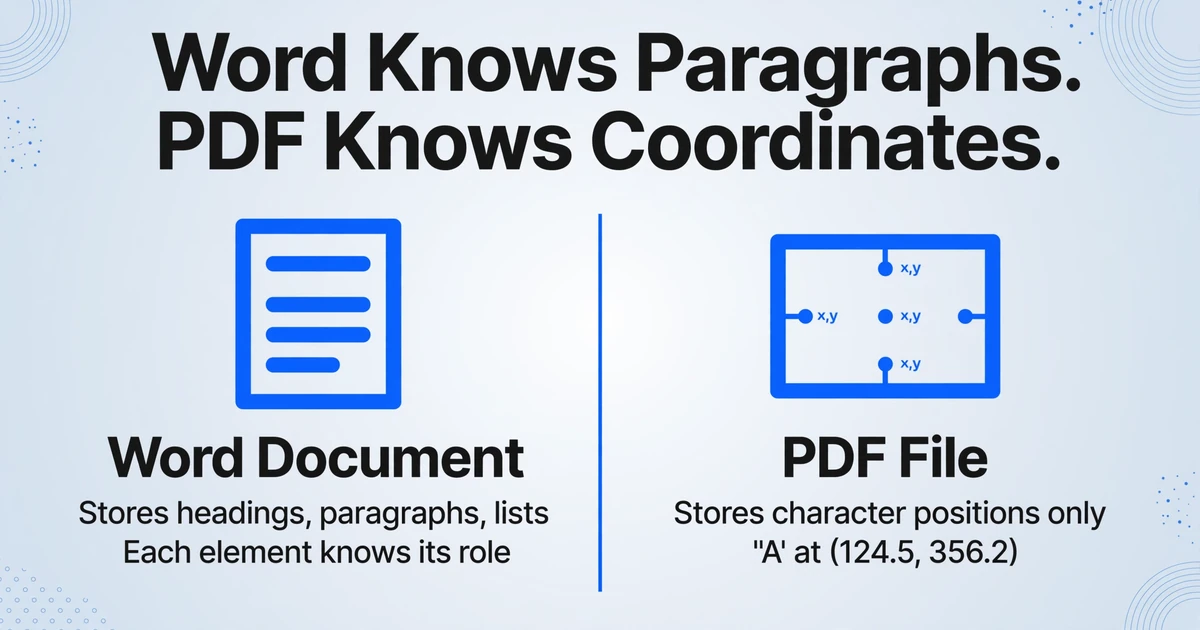
Microsoft Word stores a document as a hierarchy of semantic elements: a heading, followed by a paragraph, followed by a numbered list, followed by a table with three columns. Each element carries its own formatting rules and relationships to the elements around it. When you add a sentence to a paragraph, Word recalculates the page layout from the ground up because it knows what a paragraph is.
PDF stores none of that.
The PDF specification — ISO 32000-1:2008, the international standard that defines the format — describes a page as a sequence of drawing instructions. A text element in PDF is not "paragraph 3, sentence 2." It is: "render the character 'A' at coordinates (124.5, 356.2) in Helvetica 10pt, followed by character 'c' at (131.8, 356.2), followed by 'c' at (137.2, 356.2)..." Each character is positioned independently on the page. PDF stores no information about which characters belong to which word, which words belong to which line, which lines form a paragraph, or which paragraph is a heading.
A widely-cited PDF technical primer states this bluntly: "PDF doesn't recognize paragraphs, formatting, headers, footers, indentations, broken words (line-breaks). Text is broken down into fragments as small as single characters but not more than one line."
There is an optional extension called Tagged PDF (defined in clause 14.8 of ISO 32000) that can embed logical structure — heading levels, paragraph boundaries, table semantics — into a PDF file. But tagged PDF is primarily an accessibility feature, and the vast majority of PDFs in circulation were not created with it. Even Adobe's own support forum has experts explaining that conversion quality depends on "how well-formed the PDF's structure tree is" — with the implication that most PDFs lack one.
This is the first thing most PDF-to-Word converter vendors won't tell you: the document structure you see on screen does not exist in the file. Every conversion tool must reconstruct it from scratch, using only the scattered (x,y) coordinates of individual characters. And that reconstruction is a three-step chain of educated guesses — each step compounding the errors of the one before it.
The Three-Error Chain That Breaks Every Conversion
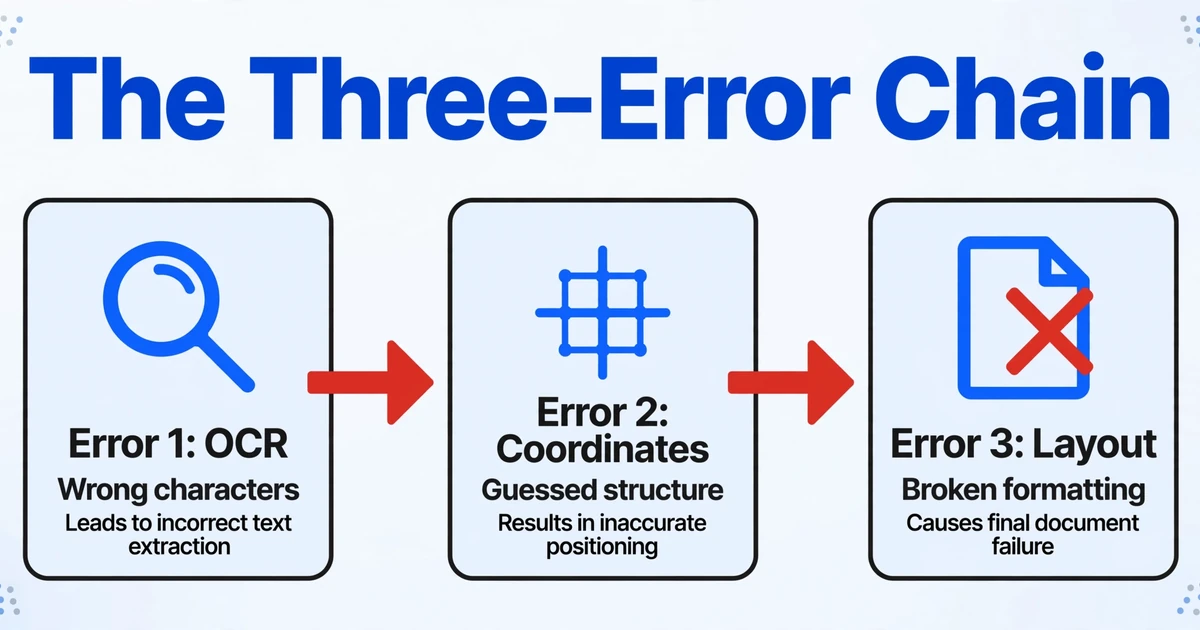
Converting a PDF to an editable Word document involves three sequential reconstruction steps. At each step, the software makes decisions based on incomplete information. Each decision that is wrong cascades into the next step, producing output that is progressively further from the original.
Error 1: Character-Level OCR — Getting the Wrong Characters
For scanned or image-based PDFs (where text exists as pixels, not selectable characters), the first step is Optical Character Recognition (OCR) — software that examines each tiny region of the page image and tries to identify what character it contains. OCR works one character at a time. A page with 3,000 characters makes 3,000 independent recognition decisions.
Even high-quality OCR engines make errors. A speck of dust on the scanner glass turns a period into a comma. A low-contrast section of text causes 'rn' to be read as 'm'. An unusual font causes 'I' (capital i) and 'l' (lowercase L) and '1' (digit one) to become indistinguishable. If the OCR engine achieves 99% per-character accuracy — which is considered excellent — it still produces 30 incorrect characters on a 3,000-character page.
But character misreads are the visible problem. The deeper problem happens even when OCR gets every character right: it records each character's position on the page, and nothing else. That position data feeds directly into the next reconstruction step.
Error 2: Coordinate Reconstruction — Guessing What Goes With What
Once the converter has a list of characters and their (x,y) coordinates, it must answer a series of questions that have no definitive answer in the data:
- Which characters form a word? Characters that are physically close to each other are probably in the same word — but what about justified text, where word spacing varies widely? What about a decimal number where the period sits closer to the next digit than to the previous one?
- Which words form a line? Words at roughly the same y-coordinate are probably in the same line — but what about a superscript footnote marker that sits at the same y position as the line above the one it belongs to?
- Which lines form a paragraph? Lines with similar left margins and vertical proximity are probably the same paragraph — but what about the last line of a paragraph that's shorter than the rest? What about a multi-column layout where the bottom of column 1 is physically closer to the top of column 2 than it is to the next line in column 1?
Every one of these decisions is made purely on spatial proximity. The software has no understanding of what the text means. A superscript footnote citation — say, "14" — gets merged into the paragraph text because it's spatially close. A sidebar pull-quote with large text gets interleaved into the body copy because its y-coordinates overlap. The converter is building a document structure from a scatter plot. It would be remarkable if it didn't make mistakes.
Error 3: Layout Guessing — Inventing Structure That Was Never There
With characters grouped into words and words into lines, the converter now faces its hardest task: deciding what the document's layout actually is. Is this big bold text a heading, or just a single-line paragraph in a large font? Is this block of text below an image a caption, or the start of the next section? Is this grid of numbers a table, or just text that happens to align in columns?
The software guesses. It looks for patterns: lines that repeat at regular intervals, text that aligns in rows and columns, font sizes that differ from body text. But these are heuristics, not certainties. A well-designed page with generous whitespace and intentional typography produces layout signals that are ambiguous to an algorithm. The converter guesses wrong. Repeatedly.
This is the step where most visible formatting breaks occur. A document that looked pristine as a PDF emerges as a Word file with text boxes scattered across the page, each one locked to an absolute position that shatters the moment you try to edit. This isn't a conversion failure — it's the converter doing exactly what it was designed to do with the only information it has. The information is simply insufficient for the task.
Tables: Where the Whole System Collapses
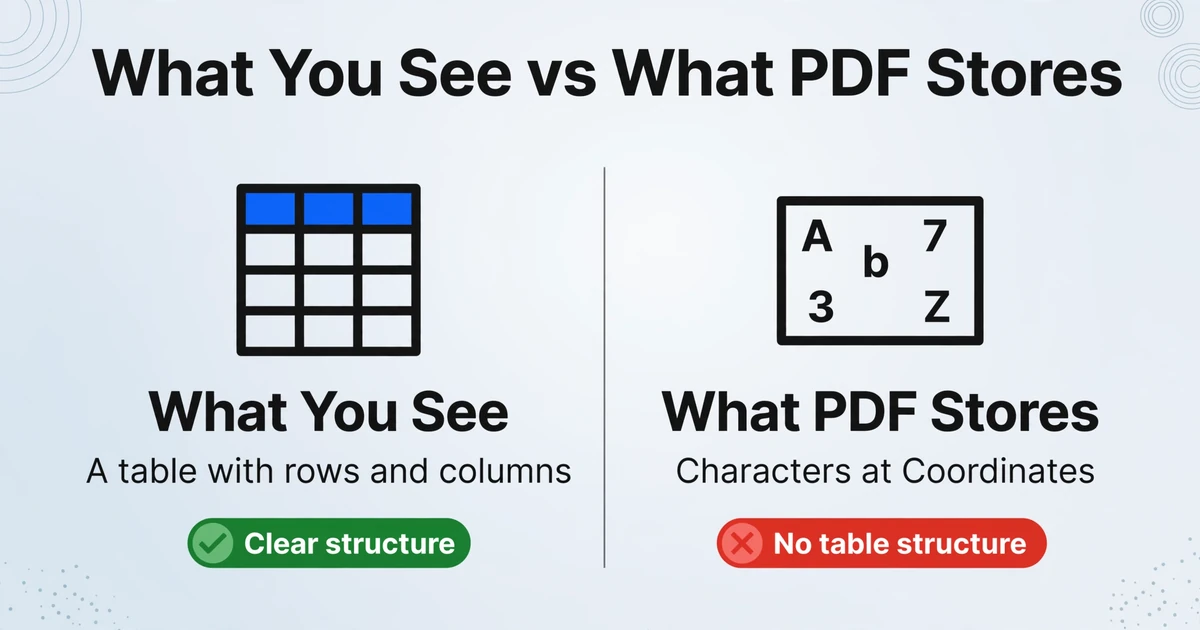
If the three-step error chain describes why text layout breaks, tables represent its catastrophic failure mode. The problem is fundamental: PDF has no concept of a table.
When a PDF displays what looks like a table — rows of data with column headers and grid lines — it's actually drawing a collection of independent visual elements: horizontal and vertical line segments for borders, and individual text characters positioned inside the resulting grid cells. The PDF file contains no information connecting the cell at row 3, column "Amount" to the value $1,247.00. It only stores "render the character '$' at position X, then '1' at position X+7, then...", along with line-drawing instructions for the borders.
This means a converter must:
- Detect that line segments form a grid — not always obvious when borders are thin or missing
- Determine how many rows and columns that grid contains — easily thrown off by merged cells or varying column widths
- Assign each character to the correct cell — where a single misaligned character cascades the entire grid
- Guess whether cells with similar content should be merged (like a header spanning two columns)
- Decide the reading order of columns — left to right? right to left? Does a wrapping line break within a cell or start a new row?
It's a sequence of guesses built on guesses. A Hacker News discussion among developers who build PDF parsing tools captured the sentiment precisely: "PDFs don't always lay out characters in sequence, sometimes they have absolutely positioned individual characters instead." One developer described the entire process as "absurd."
On Reddit, the user experience is a consistent chorus of frustration. A poster on r/MicrosoftWord described a PDF-to-DOCX conversion result as "weird formatting" that resisted every fix. Another on r/Acrobat reported that after exporting a PDF to Word, "it breaks paragraphs down into strange text boxes, and everything shifts" the moment any edit is attempted. A user on r/TechnologyProTips summed up years of collective experience: "I've been asked this a zillion times. [...] formatting is gone blah blah. I have this document and I am trying for days to convert it to doc."
These aren't edge cases. They're the expected output of a pipeline that was designed for a fundamentally different task than the one we're asking it to perform.
Why the "Preserve Formatting" Button Is a Label, Not a Fix
Every PDF-to-Word converter offers a "preserve formatting" or "retain page layout" option. Adobe Acrobat has it. Smallpdf has it. ILovePDF has it. The implication is that if you check this box, your converted document will look like the original.
What these options actually do is worth understanding, because it reveals why the results feel so fragile. When you select "retain page layout" in Adobe Acrobat's export settings, the converter doesn't magically reconstruct the document's logical structure. Instead, it places every piece of text into an absolutely positioned text box in Word — effectively recreating the PDF's coordinate system inside a Word document.
The result looks correct when you open it. But the moment you try to edit — add a word, delete a sentence, adjust a margin — the entire layout collapses because each text box is anchored to a fixed position on the page, not to the content around it. You haven't received an editable document. You've received a screenshot made of text boxes.
Microsoft's own documentation is unusually candid about this. An official response on Microsoft Q&A states: "There is no way to convert PDF to Word and have it use the appropriate formatting methods in Word. That is because there is no 1:1 correspondence in how things are handled." A separate response adds: "Documents converted from a different program's file structure will always contain formatting anomalies and often are very difficult to edit."
This isn't a limitation Adobe or Microsoft can fix with a software update. It's a category-level restriction: the source format (PDF) and the target format (Word) represent documents in fundamentally incompatible ways. One stores appearance. The other stores structure. Converting appearance to structure without the original structural data is a problem that cannot be solved — only approximated, with varying degrees of failure.
Our roundup of PDF-to-Word converters tested over a dozen tools across the same set of documents. Every single one failed on tables with merged cells. Every single one mangled multi-column layouts to some degree. The differences were in how much cleanup was required, not whether cleanup was required. For a deeper explanation of why conversion and data extraction are fundamentally different operations, see our comparison of document conversion vs. data extraction.
How Vision AI Bypasses the Entire Error Chain
Everything described so far — the character-level OCR, the spatial reconstruction, the heuristic layout guessing — is the pipeline every traditional PDF converter uses. It is the only pipeline available when your starting point is "a list of individual characters and their coordinates."
But there is a fundamentally different approach, and it sidesteps the entire error chain by changing what the software looks at in the first place.
Vision AI — specifically, vision-language models (VLMs) trained on millions of document images — doesn't read character by character. It sees the entire page as a visual unit, the way a human does. Where OCR sees this:
Character 'I' at (45.2, 120.8)
Character 'n' at (52.1, 120.8)
Character 'v' at (57.3, 120.8)
Character 'o' at (65.1, 120.8)
Character 'i' at (72.9, 120.8)
Character 'c' at (78.4, 120.8)
Character 'e' at (85.7, 120.8)
[...3000 more entries...]
Vision AI sees:
A document header with the title "Invoice" at the top center. Below it, a two-column layout: vendor details on the left (company name, address, tax ID), invoice metadata on the right (invoice number, date, due date). A table with 4 columns — Description, Quantity, Unit Price, Amount — containing 6 line items. A subtotal line, a tax line at 8.5%, and a total due of $1,247.00 at the bottom.
The difference is categorical. OCR produces character positions. Vision AI produces document understanding.
Because Vision AI understands what it's looking at, it can generate a native Word document — not a collection of positioned text boxes, but real Word paragraphs, real Word headings, real Word tables with the correct number of rows and columns. The output behaves like a document that was authored in Word from the start: you can add text to a paragraph and the text below flows naturally; you can resize a table column and the adjacent columns adjust; you can apply a new heading style and it propagates through the document.
This is what ImageToTable.ai's To Word mode does. Unlike traditional PDF-to-Word converters, it doesn't attempt the OCR → coordinate reconstruction → layout guessing pipeline at all. Instead, a vision-language model analyzes the entire page image — whether it's a digital PDF, a scanned document, a screenshot, or a phone photo of a printed page — and outputs a structured Word document with paragraphs, headings, and tables intact. No templates, no training, no per-document configuration. If you want the full technical picture of how AI vision models process documents differently from OCR, our plain-English guide to how AI reads documents walks through the mechanics in detail.
Files are processed securely and not stored.
This approach also means that To Word mode handles scanned documents and digital PDFs identically. Both are just images to a vision model. There is no separate "OCR first, then convert" step because character recognition and layout understanding happen simultaneously, informed by the model's understanding of how documents work. For more on how OCR technology has evolved and what changed in the last three years, see our analysis of what happened after OCR.
The result is what traditional converter vendors have been claiming their "preserve formatting" button does, but never actually delivered: a Word document where you can edit the content without rebuilding the layout from scratch. For the complete technical picture of layout-preserving document conversion — including the underlying mechanics, comparison of approaches, and selection guide — see our complete guide to layout-preserving document-to-Word conversion.
Frequently Asked Questions
Does this work on scanned PDFs, or only digital ones?
Vision AI treats both identically. A scanned PDF is an image of a page; a digital PDF rendered to screen is also an image of a page. The vision model processes the visual appearance directly, so there is no difference in output quality between a scanned document and a digitally generated PDF. Traditional converters degrade significantly on scans because they must run OCR first, separate from layout reconstruction — reintroducing the entire error chain described above.
What about handwritten documents or annotations?
Because Vision AI understands context rather than matching character shapes against a font library, it handles handwriting more robustly than OCR. OCR treats a handwritten note as a series of ambiguous shapes to decode individually. Vision AI reads the surrounding text, understands the document's purpose, and uses that context to interpret handwritten marks — the same way a human reader would. Performance varies with handwriting legibility, but the approach is categorically different from OCR.
Is the Word output truly editable, or does it break when I make changes?
The output is native Word — real paragraphs, headings, and tables, not positioned text boxes. You can add text to a paragraph and the content below reflows naturally. You can adjust column widths in a table. You can apply Word styles. The document behaves as if it was authored in Word. This is the structural difference between Vision AI output and traditional converter output: the latter preserves appearance (at the cost of editability), while the former preserves structure (making appearance naturally follow).
How well does Vision AI handle complex layouts like multi-column reports or forms?
Vision AI processes the page as a visual scene, not as a coordinate grid. Multi-column layouts, forms with labeled fields, documents with embedded charts and images — the model recognizes these as semantic patterns, not as spatial artifacts to reconstruct. The quality of output depends on document clarity and complexity, but the approach avoids the systematic failure modes (column interleaving, text box fragmentation) that are inherent to coordinate-reconstruction methods. Our layout preservation guide covers edge cases and limitations in detail.