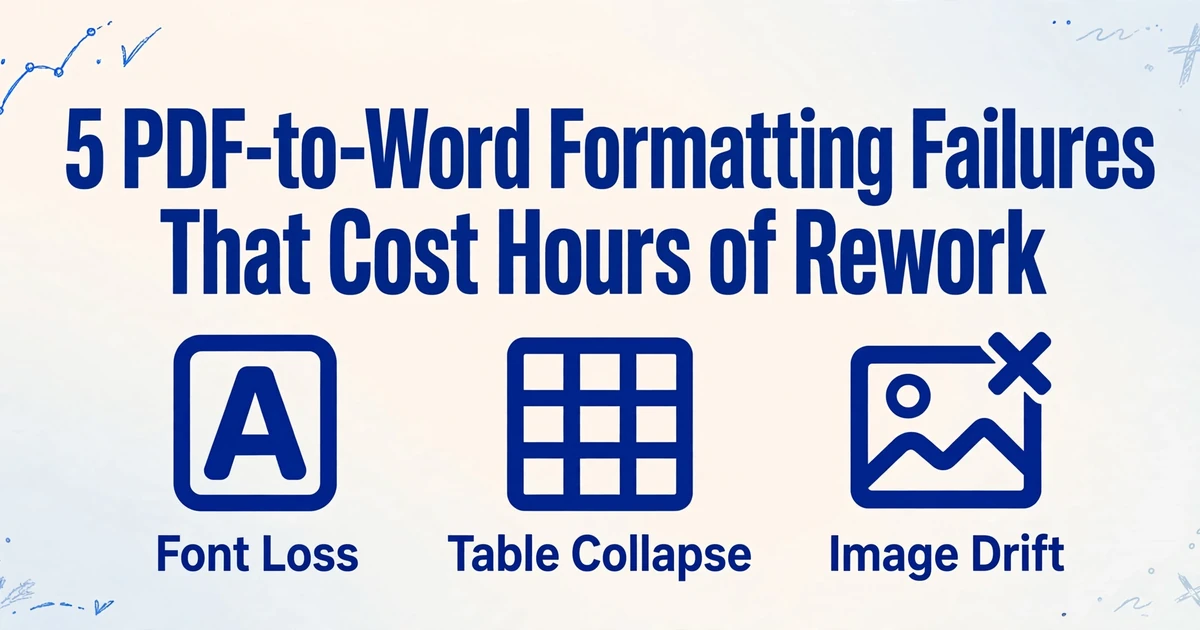
5 PDF-to-Word Formatting Failures
That Cost Hours of Rework
Here's a truth most PDF converter tools won't tell you: those formatting failures you keep running into aren't bugs. They aren't the result of a "bad tool" or a corrupted file. They're the mathematically predictable output of how OCR actually works — and until you understand why, you'll keep burning hours on manual reformatting no matter which tool you try.
Key Takeaways
- Five formatting failures eat 90% of your post-conversion rework hours — and here's the part no tool vendor tells you: they aren't bugs, they're OCR working exactly as designed.
- OCR wasn't built for documents — it sees characters as pixel coordinates on a page, which means it literally cannot tell a paragraph break from line spacing, a table from a word grid, or a header from body text.
- Processing the document visually — recognizing paragraphs, tables, and headers the same way a human reader does — eliminates all five failures at once by addressing their shared root cause, not by patching each symptom.
The OCR Trap: Why Your Converter Sees Characters, Not Documents
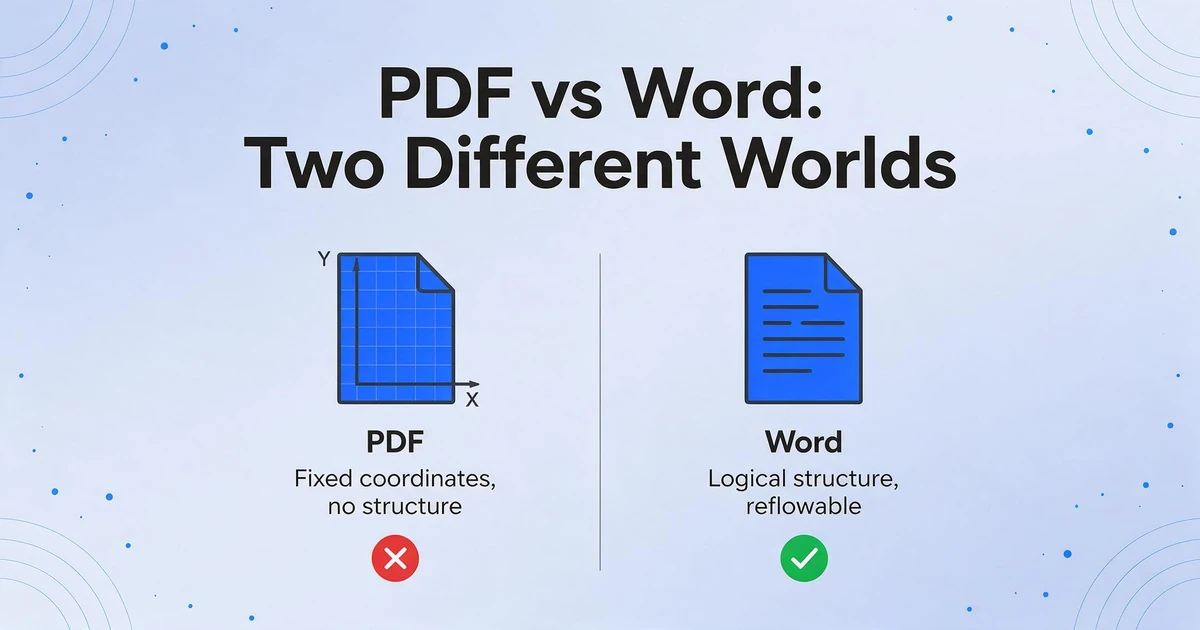
To understand why every failure mode on this list happens, you need to understand one thing: PDF and Word represent documents in fundamentally incompatible ways.
A PDF is essentially a digital printout. It stores every element — a letter, a line, a logo — as an object with fixed X/Y coordinates on a two-dimensional plane. The PDF "knows" that the letter "H" sits at position (124, 587) in 11pt Helvetica. It does not know that "H" is the first letter of a heading, or that the heading belongs to a section, or that the section lives inside a document with a specific information hierarchy. These are human concepts that PDF — by design — doesn't encode.
As one Reddit user put it: "Converting a PDF to Word is less like translating a language and more like trying to turn a baked cake back into flour, eggs, and sugar."
Traditional OCR (Optical Character Recognition) makes this worse. OCR reads the pixels on a page and tries to match them against known character patterns — but it only sees characters at coordinates. It has no concept of why PDF-to-Word conversion loses formatting because it was never designed to understand documents. It was designed to read license plates and scanned book pages — contexts where "what does this paragraph mean?" was never part of the problem statement.
The result: five recurring failure patterns that account for virtually all PDF-to-Word formatting complaints. Here's what each looks like, why OCR causes it, and how a fundamentally different approach — Vision AI — eliminates the root cause.
Failure 1: Font Loss and Substitution
What It Looks Like
You convert a beautifully typeset PDF — perhaps a client proposal in Calibri with bold section headers and italicized financial figures — and open the resulting Word file. The entire document is now Times New Roman. Worse, the font size is slightly off, which triggers Word's reflow engine, and suddenly your carefully paginated 12-page document has become 14 pages with orphaned headings stranded at the bottom of pages.
In some cases, you get a font that's almost right but not quite — your sans-serif body text becomes a slightly narrower sans-serif substitute, and every line break shifts by a word or two. The document is technically readable, but you wouldn't send it to a client in that state.
Why OCR Causes It
OCR engines recognize character shapes — they don't recognize fonts. When OCR processes a PDF page, it sees pixel patterns that match known glyphs (the letter "a" in various forms) and outputs the corresponding Unicode character. The font metadata — which typeface was used, at what weight, with what stylistic set — is either stored in the PDF's font dictionary (which OCR ignores) or lost entirely if the font wasn't embedded in the PDF.
Adobe's own documentation explains what happens next: when a font is missing or not embedded, the system substitutes a Multiple Master typeface — AdobeSerifMM for missing serif fonts, AdobeSansMM for missing sans serif fonts. These substitution fonts "stretch or condense to fit, maintaining line and page breaks" — but they "cannot always match the shape of the original characters." The result is a document that's structurally preserved but visually wrong.
For scanned PDFs, the problem is worse: there is no font metadata. The OCR engine is guessing character identities from pixel patterns, and font information is simply not recoverable. Every character becomes whatever default font the converter assigns.
How Vision AI Fixes It
Vision AI doesn't attempt to identify fonts by name. Instead, it treats the document visually — it sees that certain text is larger, bolder, or lighter than surrounding text, and it preserves those visual relationships in the output. A heading that's visually larger and heavier in the PDF will be rendered as a larger and heavier heading in the Word output. It doesn't need to know it was "Calibri Bold 16pt" — it just needs to reproduce the visual weight hierarchy that the human reader sees.
This is a fundamentally different strategy: OCR asks "what font is this?" and fails when it can't answer. Vision AI asks "how does this text look relative to everything else on the page?" — a question it can always answer because it's processing the document the same way a human reader does.
Failure 2: Table Structure Collapse
What It Looks Like
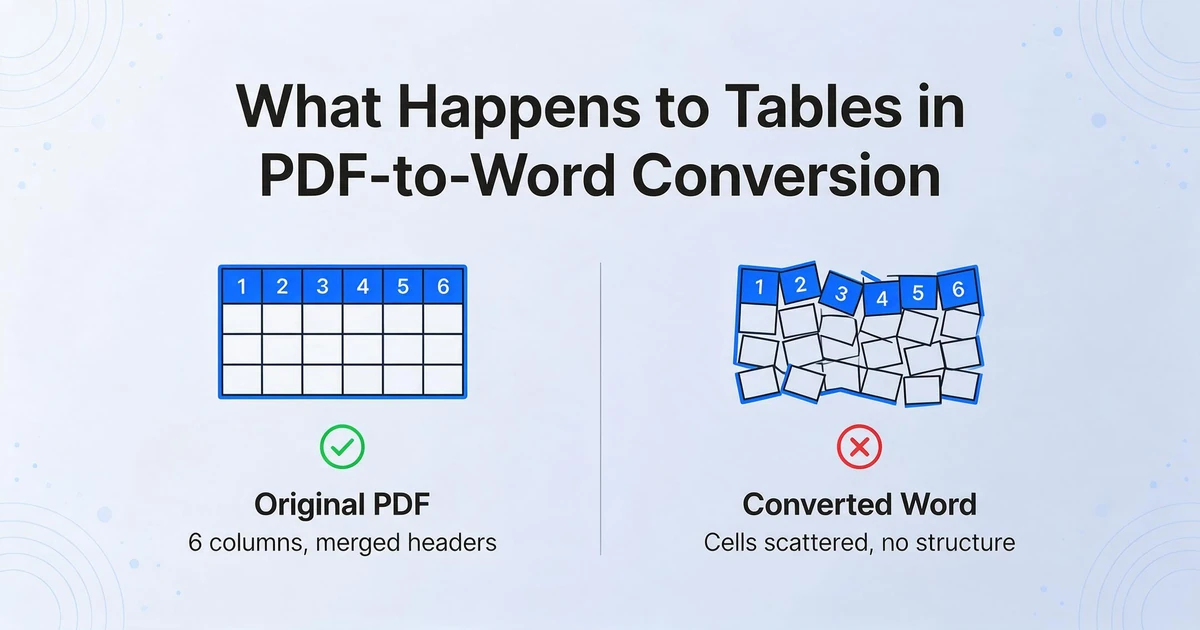
You convert a financial report with a neatly formatted table — quarterly revenue figures across six columns with merged header cells and subtotal rows. In the resulting Word document, each cell's content is now a standalone paragraph, the column relationships are gone, and "Q1 Revenue: $142,000" sits right next to "Q3 Revenue: $156,000" with no indication they were ever in different columns. If the original table had invisible borders (a common design choice in professional reports), the converter often doesn't even detect that a table existed at all.
On a Reddit thread about this exact problem, one user noted that "tables are usually the thing that breaks first during conversion" — and the consensus was that for table-heavy documents, the cleanest approach is often to strip all formatting and manually rebuild the tables from scratch. That's not a solution; it's surrender.
Why OCR Causes It
Here is the critical technical detail that explains everything: PDF does not have a native "table" structure. A table in a PDF is simply a collection of text objects positioned in a grid-like arrangement, optionally with line-drawing commands creating visible borders. There is no metadata that says "these six text objects belong to the same row" or "this cell spans two columns."
An OCR-based converter has to reverse-engineer the table from visual clues: it looks for aligned text columns, detects ruled lines, and tries to guess which cells belong together. When column spacing is irregular, when cells are merged, when borders are invisible, or when cell content wraps across multiple lines — the inference fails. Each cell becomes an independent text block with no relationship to its neighbors.
This is why converting scanned documents to Word with tables intact has been such a stubborn challenge: the OCR pipeline was designed for text streams, not for reconstructing two-dimensional data structures from visual coordinates alone.
How Vision AI Fixes It
Vision AI processes tables the way a person does: by looking at the page and understanding the grid structure. When it sees aligned text columns with consistent horizontal spacing and row-by-row repetition, it recognizes a table — whether or not there are visible borders. It preserves merged cells, column spans, and hierarchical headers because it understands the visual architecture of the table, not just the coordinates of individual text fragments.
For borderless tables — a format that breaks virtually every OCR-based converter — Vision AI is particularly effective. Since it relies on visual pattern recognition rather than line-detection heuristics, it can identify tabular structures purely from the alignment and spacing of content.
Failure 3: Image Displacement
What It Looks Like
Your PDF has a chart on page 3 with two paragraphs of explanatory text wrapped neatly around it. You convert to Word. The chart is now on page 5, sitting on top of unrelated body text, and the two paragraphs that were supposed to wrap around it are stacked above in a jumbled block. Or worse: the image is simply gone — a blank space or a broken-image placeholder where your quarterly performance chart used to be.
This is especially frustrating with image-heavy documents like marketing brochures, technical reports with embedded diagrams, or academic papers with figures and captions. The text you needed is there, but the document's visual logic — the relationship between images and their surrounding content — has been obliterated.
Why OCR Causes It
In a PDF, images and text occupy the same coordinate space but are stored as entirely separate object types. An image is defined by its bounding box coordinates and pixel data; surrounding text is defined by its own text-run coordinates. There's no explicit "this image is anchored to this paragraph" relationship — the document creator intended that relationship, but the PDF format doesn't encode it.
OCR complicates this further. OCR engines are designed to process text — images are either ignored or treated as obstacles in the text flow. When the converter reconstructs the Word document, it has to decide where to place each image. Without understanding the spatial relationship between the image and nearby text, it often anchors images to arbitrary positions — or drops them entirely when the placement logic can't find a valid anchor point.
How Vision AI Fixes It
Vision AI processes the document holistically. It doesn't see "text channels" and "image channels" as separate processing streams that need to be reconciled later — it sees one page with visual elements that have spatial relationships. A chart with text wrapped around its left side isn't a placement puzzle; it's a single visual scene that Vision AI understands as "chart with two-column text wrap on the left."
The output preserves images in their correct positions relative to surrounding content because the model understands the document visually — the same way you would describe the page layout to someone who couldn't see it: "There's a bar chart on the right, and the text flows around it on the left."
Failure 4: Paragraph Merging
What It Looks Like
This is one of the most insidious failures because it's easy to miss on a quick scan. You convert a contract or a report from PDF to Word, and everything looks roughly correct — until you start reading. Where there should be paragraph breaks, you find continuous walls of text. Two or three logical paragraphs have been merged into one, separated only by a regular line break (Shift+Enter in Word) instead of a paragraph break (Enter). Indentation is gone. The document's rhetorical structure — the rhythm of argument, evidence, conclusion — has been flattened into an undifferentiated text stream.
For legal documents, this is dangerous. A merged paragraph can blur the boundary between a clause and its exceptions. For business reports, it undermines readability. For any document, it means the editor now has to re-read the entire text and manually re-insert paragraph breaks — a task that takes almost as long as retyping the document from scratch.
Why OCR Causes It
OCR records characters and their coordinates — it does not record paragraph boundaries. A paragraph break in a PDF is not a special character; it's simply a larger vertical gap between two lines of text. The OCR engine registers this as "text line at Y=540, text line at Y=520, gap of 20 units" — exactly the same data structure as a line break within a paragraph, just with a slightly larger Y offset.
The converter now faces an impossible classification problem: is a 18-point vertical gap a paragraph break or just generous line spacing? Is a 24-point gap with indentation a new paragraph or a section heading? Without understanding the meaning of the text, the converter can only apply heuristic thresholds — "if gap > X, insert paragraph break" — which work for some documents and fail catastrophically for others.
Multi-column layouts multiply the problem. When two columns sit side by side, the OCR engine's line-by-line left-to-right reading order produces gibberish: the first line of column A concatenated with the first line of column B, followed by the second lines of each column. The converter doesn't know about columns — it just knows about character coordinates on a two-dimensional plane.
How Vision AI Fixes It
Vision AI reads the page the way a human does: it sees columns, recognizes indentation patterns, and distinguishes paragraph breaks ("end of one thought, start of another") from line wraps ("same thought, ran out of horizontal space"). It identifies document-level patterns — consistent indentation at the start of new paragraphs, wider spacing between sections, alignment of section headings — and uses these visual cues to reconstruct the document's logical structure.
For multi-column documents, Vision AI processes each column as a separate reading zone before merging them into the correct sequential order — Column A's full text, then Column B's full text — rather than interleaving lines from different columns.
Failure 5: Headers, Footers, and Page Numbers Disappear
What It Looks Like
Your converted Word document opens. You scroll through. Something feels off, but you can't immediately identify it. Then you notice: the running header that said "Confidential — Q3 Internal Review" on every page of the PDF is nowhere to be found. The page numbers are gone. The footer with the document reference code has vanished. These elements — which appeared consistently on every page of the original — have simply disappeared from the converted output.
In other cases, they haven't disappeared but have been misidentified: the header text appears as a random sentence inserted into the body of the first page, and the page number "Page 3 of 12" sits awkwardly in the middle of a paragraph on page 3, as if it were part of the sentence.
Why OCR Causes It
Headers and footers occupy a spatial zone that OCR engines struggle with for two reasons. First, they sit in the page margins — peripheral areas that many OCR engines treat as low-priority or simply skip during text extraction, assuming that content in the margins is noise rather than information. Second, they're repetitive — the same text appears in roughly the same position on every page. Some converters interpret this repetition as a printing artifact and deliberately suppress it.
In a PDF, there is no structural distinction between "this text is a header" and "this text is body content." Both are text objects positioned at specific coordinates. The converter has to infer which text should become a Word header/footer section and which should remain in the body — and this inference relies on fragile heuristics about position (top/bottom of page) and repetition (same text on multiple pages). When these heuristics fail — when a document has unique headers per section, or when body text accidentally sits in the header zone — the results are unpredictable.
How Vision AI Fixes It
Vision AI identifies headers and footers by their visual role: consistently positioned text in the top or bottom margin zones that repeats across pages. It recognizes that "Confidential — Q3 Internal Review" appearing at the same Y-coordinate on every page is a running header, not body text that happens to live near the top of the page. It detects page numbers by their content pattern (incrementing numbers in the same position across pages) and their spatial context (typically in the footer zone, often accompanied by "Page X of Y" text).
The output preserves these as native Word header and footer sections, where they function correctly — appearing on every page, automatically updating if you add or remove pages, behaving exactly as headers and footers should.
Beyond Patching Symptoms: Why the Approach Matters More Than the Tool
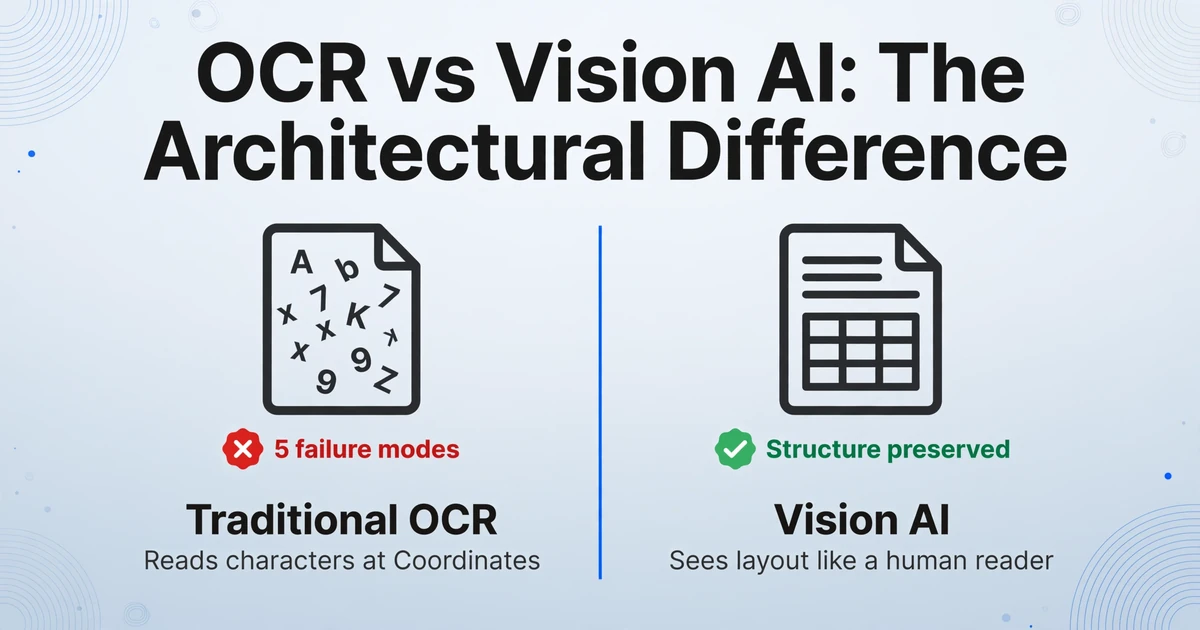
Step back and look at what these five failure modes have in common. In every case, the root cause is the same: OCR processes documents as character coordinates, not as visual information. Fonts fail because OCR can't identify typeface metadata. Tables break because OCR can't infer two-dimensional structure from one-dimensional text streams. Images displace because OCR treats them as obstacles, not elements. Paragraphs merge because OCR can't distinguish paragraph spacing from line spacing. Headers disappear because OCR can't recognize spatial repetition patterns.
These aren't five separate bugs that need five separate fixes. They're one architectural limitation manifesting in five different ways. And the implication is important: no amount of patching or heuristics on top of an OCR pipeline will solve this. You can tune the paragraph-spacing threshold, improve the table-detection algorithm, add font-substitution rules — and you'll still hit failure cases because the underlying processing paradigm (character recognition without document understanding) hasn't changed.
This is where the difference between Vision AI and traditional OCR becomes more than an academic distinction. Vision AI doesn't try to reconstruct document structure from character coordinates — it sees the document visually and understands the layout the way a human reader does. It recognizes paragraphs by their visual patterns, not by vertical gap thresholds. It identifies tables by their grid structure, not by line-detection algorithms. It preserves fonts by reproducing visual weight hierarchies, not by looking up typeface names.
For a complete guide to layout-preserving document-to-Word conversion, the workflow is straightforward: upload your document, and the Vision AI engine analyzes the full page — text, tables, images, headers, footers — as a single visual scene. It reconstructs the document in an editable Word format by understanding what each element is and how it relates to every other element, not by guessing from coordinate data.
This also means the same engine handles edge cases that break OCR pipelines entirely: screenshots converted to editable Word — where there's no PDF font metadata at all, just pixels — or documents with mixed handwritten and printed content. When you process the document visually, the source format matters far less. If you're comparing specific tools, our layout-preserving Word converter comparison breaks down how different approaches handle each of these five failure modes.
Files are processed securely and not stored.
Frequently Asked Questions
Why does my PDF look perfect but the converted Word document is a mess?
The PDF looks perfect because it's a fixed-layout format — every element is pinned to exact coordinates. The Word document looks like a mess because your converter had to reconstruct paragraphs, tables, and formatting from raw coordinate data, and that reconstruction is inherently lossy when done by character-level OCR. The document looks great on screen because it was great — as a PDF. Converting it to an editable format means rebuilding the document's logical structure from scratch, which is a fundamentally different challenge.
Can I just embed all fonts in my PDF to fix font substitution?
Embedding fonts helps when the PDF was originally created from a digital source (like a Word document saved as PDF with embedded fonts). But for scanned PDFs — documents that started as paper and were digitized — there are no fonts to embed. The "text" is just pixels in an image. OCR must recognize character shapes and assign them to Unicode values, but it cannot recover the original typeface information because that information was lost when the document was scanned. In these cases, Vision AI's approach of preserving visual weight hierarchies rather than trying to identify typefaces is the only viable path to a well-formatted output.
Why do some online converters work better than others for specific documents?
Different converters use different table-detection heuristics, paragraph-spacing thresholds, and font-substitution rules. A converter that's tuned for single-column reports with generous line spacing may produce clean output for that document type, then fail completely on a multi-column newsletter with tight spacing. This is why you find yourself hopping between tools — each one is calibrated for a different set of document layout assumptions. A Vision AI approach sidesteps this by not relying on layout-specific heuristics at all.
Does higher scan resolution fix PDF-to-Word formatting problems?
Higher scan resolution (300 DPI or above) improves OCR character recognition accuracy — fewer "0" vs "O" confusions — but it doesn't fix the structural failures on this list. A 600 DPI scan still won't tell OCR where paragraphs begin and end, how table cells relate to each other, or where headers should be placed in the output. Resolution improves text accuracy; it doesn't improve layout understanding. Those are separate capabilities that require a fundamentally different processing approach.
Should I convert to Word or to a structured table?
It depends on what you need to do with the output. If you need to edit, review, or repurpose the document in its original layout — a contract that needs clause revisions, a report that needs content updates, a brochure that needs text changes — Word output preserves the visual document. If you need to analyze data across multiple documents — extracting invoice totals into a spreadsheet, comparing vendor quotes in columns — structured table output (Excel/CSV) is the right target. Our To Word vs To Table decision framework walks through how to choose based on your specific use case.
Can Vision AI handle documents with multiple columns and complex layouts?
Yes — this is where the gap between OCR and Vision AI is widest. OCR's line-by-line left-to-right reading order produces garbled output from multi-column documents because it interleaves text from different columns. Vision AI processes each column as a separate visual zone before sequencing them in the correct reading order, preserving the original reading experience. The same capability applies to documents with text flowing around images, sidebars, callout boxes, and other non-linear layouts.