How to Convert Scanned Documents to Word
With Tables Intact (2026 Guide)
"Has anyone actually succeeded at this?" That question, or words close to it, appears in r/pdf with enough frequency that it has become its own genre of frustrated post. The scenario is always the same: a scanned PDF containing tables — maybe a contract with a fee schedule, a financial report with a three-year comparison grid, a research paper with merged-column headers — gets fed into a PDF-to-Word converter, and what comes out is a document where the text is mostly right but the table has been reduced to a jumble of misaligned cells, split merged headers, and vanished column boundaries. The search for a converter that preserves tables isn't a matter of finding a better tool. It's a matter of understanding why the entire category of tools breaks tables by design — and what the alternative actually is.
Key Takeaways
- Your PDF doesn't store a table — it stores scattered character coordinates, and every traditional converter is a guessing machine trying to reassemble them into columns and rows.
- At 98% OCR accuracy, one page of text generates 20–40 character-level errors — each capable of splitting a merged cell, detaching a header, or turning a 5-row table into an unrepairable 12-row jumble.
- Vision AI reads a table the way you do — by seeing the whole page as a visual scene — so the concept of "fixing a broken table after conversion" disappears and you start editing native Word tables instead.
Why Scanned PDF Tables Always Break in Word Conversion
The failure isn't in the converter you chose. It's in the PDF format itself — and what happens when Optical Character Recognition gets involved.
A PDF file, per the ISO 32000-2:2020 international standard, stores a document not as paragraphs, tables, and headings, but as a flat collection of individually positioned objects: each character at a fixed X/Y coordinate, each line drawn as a separate graphical instruction. The format guarantees that a page looks identical on any screen or printer — visual fidelity — but it does not store the logical relationships between those objects. A table in a PDF is not a table to the file format. It's a grid of positioned characters and rule lines that happen to look like one to human eyes.
For digital PDFs created directly from Word or another authoring tool, the character coordinates are embedded in the file. But for scanned documents — and 61% of intelligent document processing workflows still include paper, per the AIIM 2025 IDP Survey — the text doesn't exist as selectable characters at all. It exists as pixels in an image. Before any Word conversion can happen, OCR must turn those pixels back into characters — and that's where the real damage to table structure begins, as explained in our deep dive on why PDF-to-Word formatting loss is worse than most users realize.
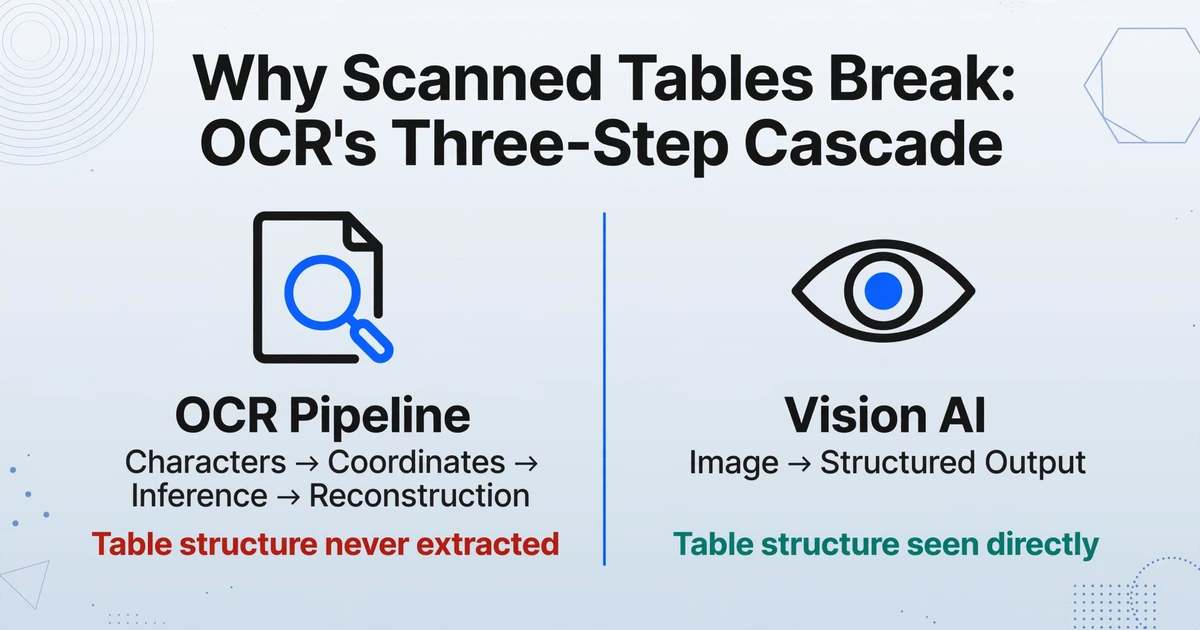
OCR works in a three-step cascade. Step one: recognize individual characters from the scanned image. Step two: group those characters into words and lines based on proximity. Step three: infer higher-level structure — which words belong to which cell, which cells form which row, which rows form which table — from the spatial relationships between those groups. Each step introduces errors, and each step's errors feed into the next. A misrecognized character at step one produces a misgrouped word at step two, which shifts the spatial boundary used to infer column separation at step three. By the time the converter tries to build a Word table, it's working with cascaded inaccuracies — not the original document structure.
Even under ideal conditions, traditional OCR accuracy for printed text tops out at a Character Error Rate of 1–2% (98–99% accurate), according to benchmarks established in large-scale digitization programs (Docsumo OCR accuracy analysis). For a page with 2,000 characters, that's 20–40 misread characters — each one potentially shifting a word boundary just enough to confuse the downstream layout reconstruction. And that's the good scenario. For lower-quality scans, faded print, or complex multi-column layouts, the CER climbs sharply.
The core problem isn't OCR accuracy. It's that OCR can only output characters and coordinates — never table structure. Every byte of table intelligence in the output was inferred by a converter performing educated guesswork on an incomplete, potentially error-riddled coordinate map.
Five Ways Tables Fall Apart — and Why OCR Can't Fix Them
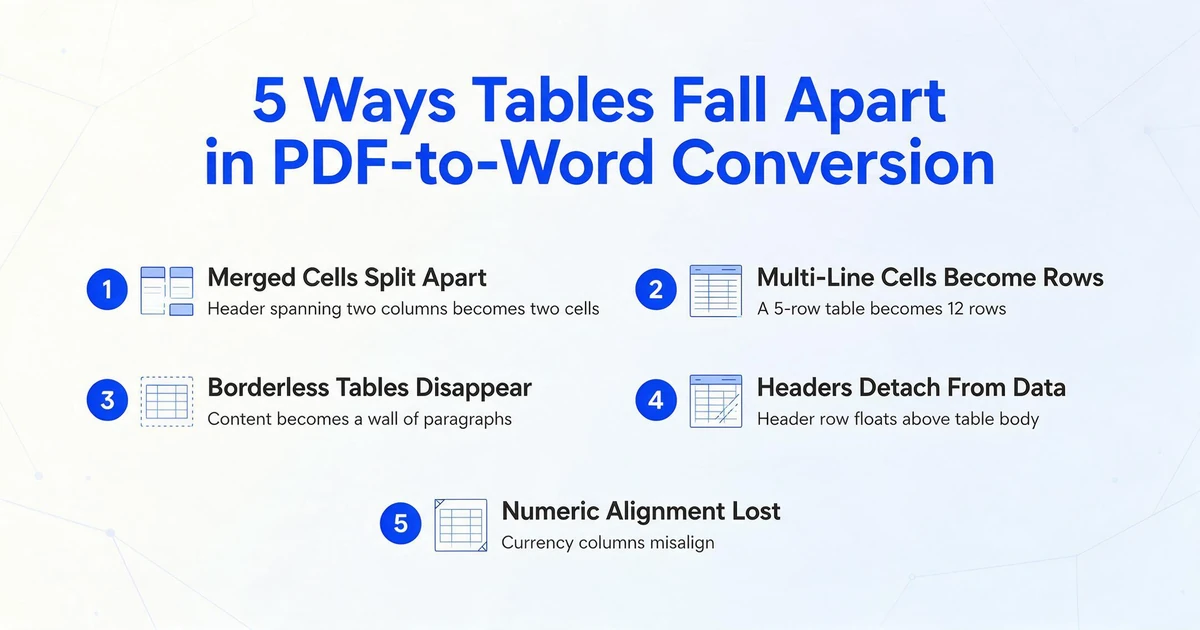
Mapsoft, a PDF tooling company with over 30 years of experience in the format, published one of the rare technical breakdowns of exactly how tables fail during PDF-to-Word conversion (Mapsoft, 2025). Their taxonomy of five recurring failure modes captures what users on forums experience daily:
These aren't edge cases. They're the predictable result of asking software to reconstruct a logical structure — a table — from a file format that never stored one. And the failure compounds: when you open a converted Word document and discover a 5-row table has become 12 rows with split headers and misaligned columns, you're not fixing one error. You're fixing a cascade of errors where the first mistake (merged cell split) makes the second (detached headers) harder to even identify.
Mapsoft's production advice is blunt: "For tables that matter — financial statements, regulatory submissions, structured data tables — don't convert from PDF if you can avoid it. Get the source Word, Excel, or CSV file." But that advice only works when you have the source file. For scanned documents — signed contracts, archived reports, research papers where the original authoring file was lost years ago — there is no source file. The scan is the source.
How Vision AI Reads a Table vs. How OCR Guesses at One
The bottleneck in every OCR-based conversion is the same step: reconstruction. OCR strips a table down to characters and coordinates, then asks a converter to reassemble those fragments into something that resembles the original. The process is inherently destructive — information about table structure (which cells are merged, which rows belong together, which lines form column boundaries) was never extracted in the first place, so it must be inferred from spatial relationships alone.
Vision AI — the class of models that powers modern image-to-structured-data tools — takes a fundamentally different path. Instead of reading text character by character and then trying to rebuild structure from coordinate proximity, a vision model sees the entire page as a visual scene. It understands a table the way a human does: by recognizing that a bordered rectangle containing rows and columns is a table, that a cell spanning two columns is a merged cell, and that bold text in the top row is a header — all in a single pass of visual understanding.
This difference is not incremental. It eliminates the reconstruction step entirely. The model goes from image → structured output without ever passing through the character→coordinate→inference cascade that makes OCR fragile. For tables specifically, this means merged cells stay merged, multi-line cell content stays in one cell, and borderless tables don't disappear — because the model saw the table structure, rather than trying to deduce it from scattered text fragments.
A benchmark published by IBM Research on their Docling/TableFormer model illustrates the ceiling of even specialized ML table extraction: 93.6% average accuracy on the PubTables benchmark — impressive, but still leaving 6.4% of cells wrong (Kramer, 2025 benchmark). Traditional tools like Tabula and Camelot scored 67.9% and 73.0% respectively on the same benchmarks. The gap between 68% and 94% accuracy is the difference between "most tables are usable with cleanup" and "most tables are broken beyond repair." And the 6.4% gap to perfection is why the right architecture — one that doesn't fragment the table before trying to understand it — matters more than incremental accuracy improvements within a broken paradigm.
For a complete overview of how vision models understand document structure, see our explainer on how AI reads and comprehends documents. The key insight for table preservation is that vision models operate on visual semantics — borders, alignment, whitespace, font weight — not on coordinate proximity. A merged cell spanning columns A–C looks like a merged cell to a vision model, just as it does to a human reader, because both perceive it as a single visual object rather than as scattered text fragments that happen to share the same column-spanning width.
Step-by-Step: Convert a Scanned Document to Editable Word With Tables Intact
Understanding why tables break is one thing. Getting a scanned document into an editable Word file where the tables actually work is another. Here's the process.
If your document has both tabular data you need to extract and layout you need to preserve, these are two different problems with two different approaches. Our guide to document conversion vs. document extraction explains when to use each — and why converting a table-heavy document to Word for editing is a fundamentally different task from extracting table data into a spreadsheet for analysis.
Files are processed securely and not stored.
What to Do When the Original Source File Is Lost
The most common scenario for scanned document-to-Word conversion is also the most helpless one: the original Word, Excel, or InDesign file that generated the PDF is gone. The contract was signed and scanned five years ago. The financial report was emailed as a PDF by a consultant who left the firm. The research paper exists only as a photocopy. There is no "source file" to fall back on.
This is where the OCR-vs-Vision-AI distinction stops being academic. With only a scanned PDF and no original file, every traditional converter forces you through the same OCR→character→coordinate→inference→reconstruction pipeline. The output will have errors, and those errors will be concentrated in the document elements — tables — where structure matters most. You'll spend more time fixing broken tables than you would have spent retyping them from scratch, by some estimates.
The Vision AI path treats the scan as what it actually is: a photograph of a document. The model sees the table, understands its structure visually, and maps it to Word. It doesn't need text to be "selectable" in the PDF. It doesn't need the original authoring file. It doesn't need you to tell it where the tables are or how many columns they have. It just needs to see the page — the same page you're looking at.
For a broader look at which conversion tools handle which document scenarios best, our roundup of the best PDF to Word converters in 2026 covers the full landscape from free online tools to Vision AI — with honest assessments of what each category can and cannot preserve.
Comparing Your Options: Traditional Converters vs. Vision AI
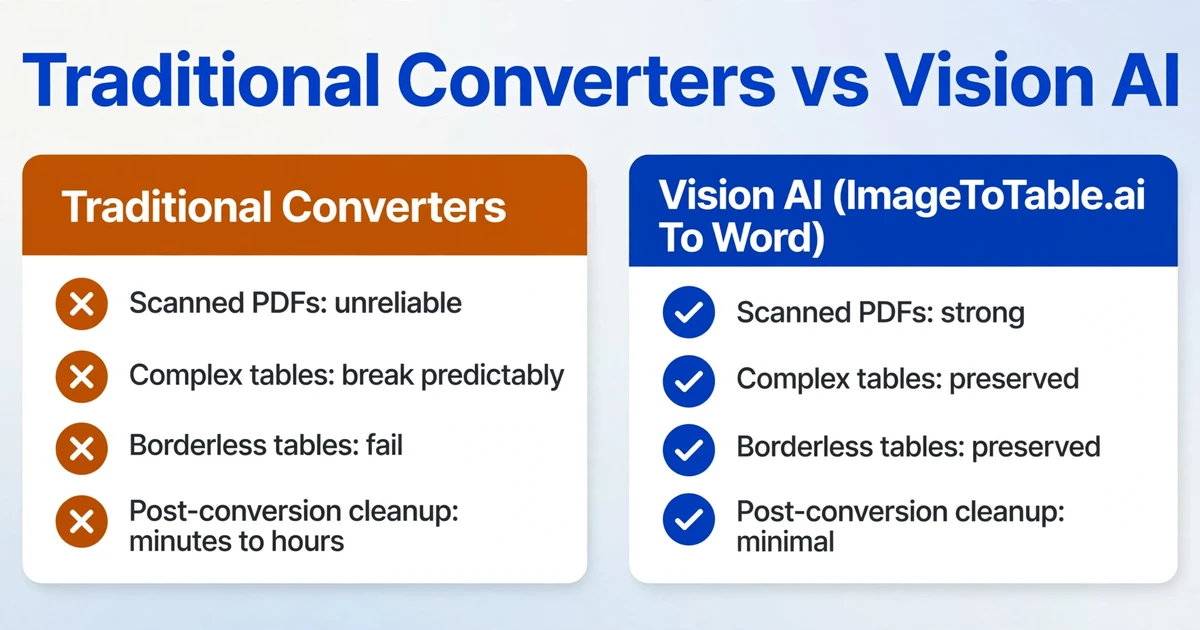
| Capability | Traditional Converters (Adobe Acrobat, Word, Online Tools) | Vision AI (ImageToTable.ai To Word) |
|---|---|---|
| Digital PDFs (text selectable) | Good — character data available in file | Excellent — sees full page structure |
| Scanned PDFs (image only) | Unreliable — OCR cascade degrades table structure | Strong — reads from visual page directly |
| Simple tables (single header row, no merges) | Good — basic grid inference works | Excellent — direct visual mapping |
| Complex tables (merged cells, multi-level headers) | Breaks predictably — merged cells split, headers detach | Preserved — sees merges as visual objects |
| Borderless tables | Fails — no visual cue for grid inference | Preserved — identifies tabular layout by alignment |
| Multi-column page layouts | Inconsistent — columns merge or split unpredictably | Preserved — recognizes column flow |
| Setup required | None for simple conversion; OCR language selection for scans | None — upload, select To Word mode, process |
| Post-conversion cleanup | Minutes to hours depending on table complexity | Minimal — spot-check merges and multi-line cells |
Traditional converters have their place. If you have a digital PDF of a text-heavy document with simple formatting — a memo, a single-column report, a letter — Word's built-in converter or Adobe Acrobat's export will likely produce a serviceable result. But the moment tables enter the picture, especially in scanned documents, the OCR reconstruction pipeline becomes the bottleneck — and no amount of incremental OCR accuracy improvement can fix a paradigm that starts by stripping away the very structure you're trying to preserve.
The complete guide to layout-preserving document-to-Word conversion covers the full knowledge spectrum — from PDF internals to practical tool selection — and is the central hub for this topic cluster.
FAQ
Can I just open a scanned PDF directly in Microsoft Word?
You can try, but Word's built-in PDF converter cannot extract text from a scanned PDF because there is no text in the file — only an image of text. Word will either open the image as an uneditable picture or produce a blank document. You need OCR or Vision AI to extract text from the scanned image before conversion. Even with OCR, Word's converter will struggle with tables for the reasons described above. Scanned PDFs to Word conversion has to read the page image before it can rebuild a single table cell, which is why the tool you choose matters more here than for born-digital files.
Does Adobe Acrobat Pro preserve tables when converting scanned PDFs to Word?
Adobe Acrobat Pro includes built-in OCR that runs automatically before exporting to Word. For simple tables with clear borders and no merged cells, the results are often acceptable. For complex tables — merged cells, multi-level headers, borderless layouts — the same OCR reconstruction limitations apply. Acrobat cannot see table structure; it can only infer it from the OCR output, and inference is fragile.
What's the difference between "To Word" mode and "To Table" mode?
To Word mode preserves the entire document — text, tables, images, columns, and formatting — as an editable Word (.docx) file that looks like the original. It's for when you need to edit the document itself. To Table mode extracts specific data points (like invoice numbers or dates) from one or more documents and compiles them into a spreadsheet. It's for when you need to analyze data across multiple documents, not edit one document. If your goal is to get a scanned document into an editable format where tables stay intact, To Word is the right choice.
Will Vision AI handle handwritten tables in scanned documents?
Vision AI can recognize handwritten text and table structures, but accuracy depends on handwriting legibility. A clearly written table with visible borders or consistent alignment will convert well. Scribbled notes in uneven rows or heavily cursive handwriting will be less reliable. The same visual understanding principle applies — the model sees the page as you do — but handwriting introduces variability that printed text does not.
How long does it take to convert a scanned document?
With a Vision AI tool, processing a single scanned page typically takes 5–10 seconds, compared to an average of 3 minutes for manual retyping — an efficiency gain of roughly 18x. For multi-page documents, each page processes sequentially. Complex pages with dense tables may take slightly longer, but the total time will still be a small fraction of what manual reconstruction would require.
Is there a free way to convert scanned PDFs to Word with tables intact?
Free online converters with OCR (Smallpdf, PDF2Go, Xodo) can extract text from scanned PDFs, but table preservation is inconsistent and often poor — especially for complex layouts with merged cells or borderless tables. Adobe Acrobat Pro's export produces better results but requires a subscription (~$15/month). Vision AI tools offer a free tier that lets you test conversion quality on your own documents before committing.