Best Screenshot to Text Converters
in 2026
For most people, the best screenshot-to-text tool is the one already built into their operating system — and it costs nothing. Windows 11's Snipping Tool, macOS Live Text, and Google Lens can all pull the words out of a screenshot in seconds, no download required, and for a one-off capture they're genuinely the right answer. The interesting question isn't "which converter is best." It's when does free-and-built-in stop being enough — the moment you're transcribing screenshots by the dozen, need consistent output you can export, or want the text landing in a spreadsheet instead of your clipboard. This review covers eight tools across that whole range, and for transparency, ImageToTable.ai — published on this site — is one of them.
Key Takeaways
- The best screenshot-to-text tool isn't one you buy — it's the free OCR already built into Windows 11, macOS, and Google Lens.
- For a single screenshot, those built-in tools aren't a budget compromise — they're the fastest option that exists, and paying only starts to make sense once one capture becomes thirty.
- The real dividing line isn't free versus paid — it's one-off versus recurring, and a dedicated tool earns its price only when you need consistent, exportable output across a whole batch of screenshots.
What "Screenshot to Text" Actually Covers
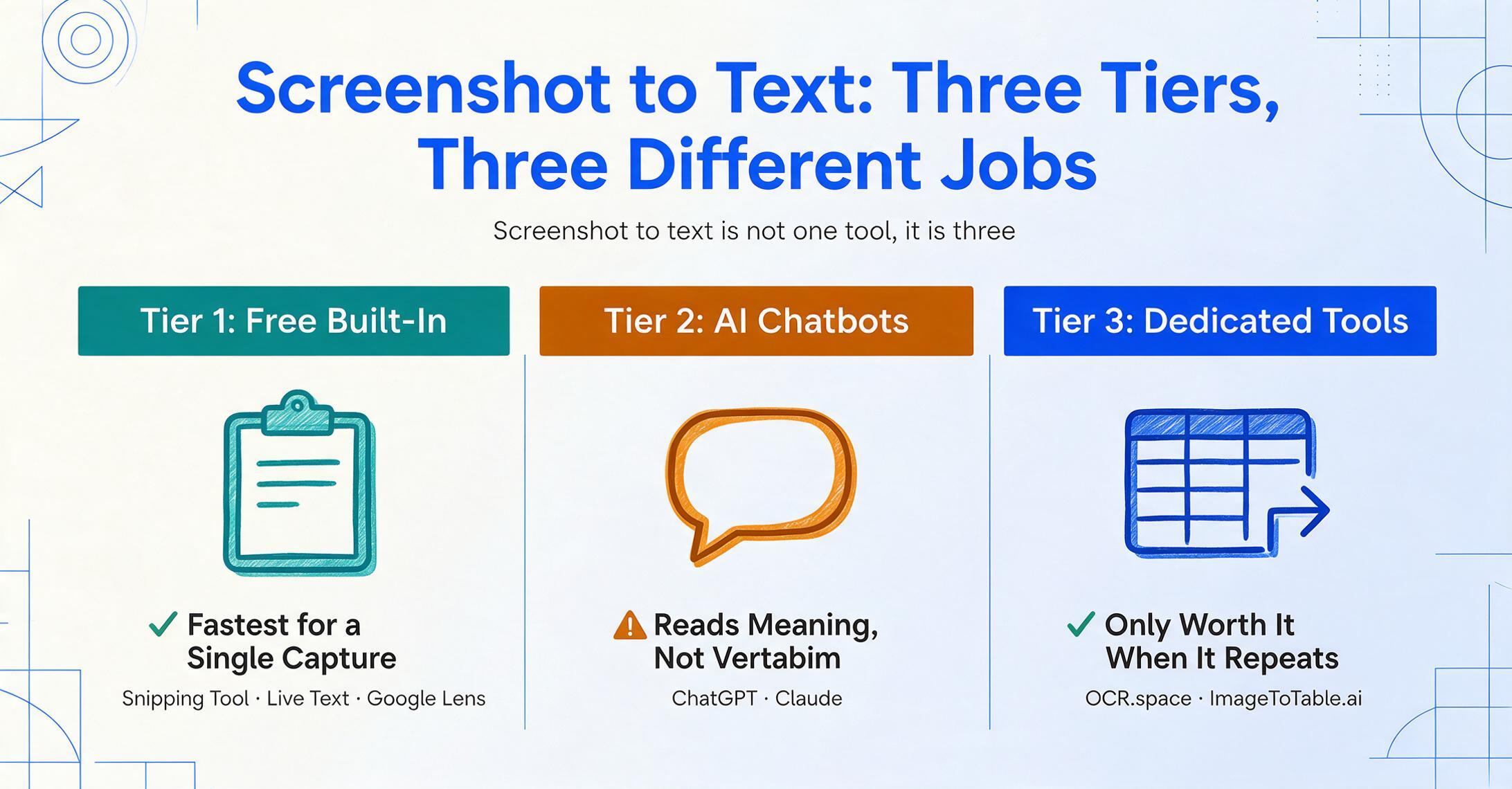
"Screenshot to text" spans three very different kinds of tool, and picking the wrong tier is the most common reason people waste money. Before comparing anything, it helps to see the three tiers clearly, because they solve different problems and only one of them is worth paying for in most cases.
The first tier is free, built-in OS utilities: Windows 11's Snipping Tool with its Text Actions feature, macOS Live Text, Google Lens, and Microsoft's free PowerToys Text Extractor. These are designed for instant single captures — you grab a region of the screen, the recognized text drops onto your clipboard, and you paste it. There's no file to save, no account, and no cost. For copying a phone number out of an image, lifting code from a tutorial screenshot, or grabbing a paragraph from a locked PDF, this tier is not just adequate — it's the fastest option that exists.
The second tier is general-purpose AI chatbots — ChatGPT and Claude. Paste a screenshot into either and ask "what does this say," and you get a conversational read: the text, plus the ability to summarize it, translate it, or reformat it in the same breath. That's powerful when you want to do something with the words, not just copy them verbatim. It's slower and less literal than a built-in OCR shortcut, which matters when fidelity is the whole point.
The third tier is dedicated extraction tools built for repeatability: feeding many screenshots through the same process, getting consistent output, and exporting it somewhere usable. This is the tier that earns its keep only when you've outgrown the first two — when "take a screenshot, OCR it, paste it, repeat" has become the job rather than a one-time chore.
One distinction worth getting right
This article is about screenshot → plain text: reading the words out of a screenshot so you can copy, search, or edit them. That's different from screenshot → structured table, where you want a screenshot of a table or receipt turned into spreadsheet rows and columns with the right fields in the right cells. They're separate jobs that need different tools. If your goal is genuinely "turn this screenshot into a spreadsheet," the plain-text tools below will under-serve you — that's a structured-data problem, and we'll point toward it where it's relevant rather than blur the two together.
How We Picked and Tested These Tools
We picked tools by what real people actually reach for first, then tested each on the same job: lift clean, accurate text out of a screenshot. We started from forum threads where people describe the problem in their own words. On Microsoft's own community hub, one user summed up the everyday version of it: "My client sent me dozens of project details with screenshots and I have to extract text from images manually… it could be really boring and time consuming for copy and paste." That single sentence contains the whole spectrum — a free quick capture at one end, a repeatable batch workflow at the other, and behind it the recurring need to extract text from images without doing it by hand.
For each tool, we did three things. First, we confirmed what it actually costs — and for the built-in utilities, that the "free" really means free, with no hidden tier (it does). Second, we identified its recognition engine and ceiling: a clipboard OCR shortcut is brilliant for one capture but has no concept of "do this to fifty screenshots and export the result," while a vision-language model reads context but trades away the one-keystroke speed. Third, we wrote an honest "best for" and "not ideal for" for every tool, our own included. We didn't score on adjectives; we scored on the match between what the tool does and what you're actually trying to accomplish. One caution shapes the whole list: screenshots are often low-resolution, and even at 99% character accuracy that's still one error per hundred characters — so for anything you can't eyeball-check, a tool that lets you review and re-run beats one that silently copies to your clipboard.
The 8 Tools at a Glance
Here is every tool on the same six dimensions, with the free built-in options listed as "Free / built-in." "Starting price" is the lowest publicly available entry point; the free-trial column tells you how far you can test before paying.
| Tool | Starting Price | Pricing Model | Best For | Key Limitation | Free Trial? |
|---|---|---|---|---|---|
| Windows Snipping Tool | Free / built-in | Built-in OS feature | Instant single captures on Windows 11 | No batch or export; clipboard only | N/A — already free |
| macOS Live Text | Free / built-in | Built-in OS feature | Selecting text in images on Apple devices | No batch; Apple-only | N/A — already free |
| Google Lens | Free | Free app / web | Handwriting and translation | Not a batch or export workflow | N/A — already free |
| PowerToys Text Extractor | Free | Free Microsoft utility | Copy text from anywhere on a Windows screen | Needs install + OCR language pack | N/A — free, open source |
| ChatGPT | Free tier; Plus $20/mo | Freemium | Reading + summarizing + translating | Not verbatim; no export pipeline | Yes — free tier |
| Claude | Free tier; Pro $20/mo | Freemium | Long screenshots + careful reading | Conversational, not repeatable batch | Yes — free tier |
| OCR.space | Free tier; PRO from ~$30/mo | Free + API | Quick web/API OCR, searchable PDFs | Upload step; basic on complex layouts | Yes — free tier + API key |
| ImageToTable.ai | Free to try (no sign-up) | Subscription / usage | Repeatable, batchable, exportable output | Overkill for a single quick capture | Yes — instant, no sign-up |
Pricing checked June 2026 from each vendor's public page. Built-in OS features are free with a current Windows 11, macOS, or mobile install. If your real goal is image to text for any image rather than a screenshot specifically, this sits alongside our roundup of the best AI OCR software.
The Free Built-In Tools: When They're All You Need
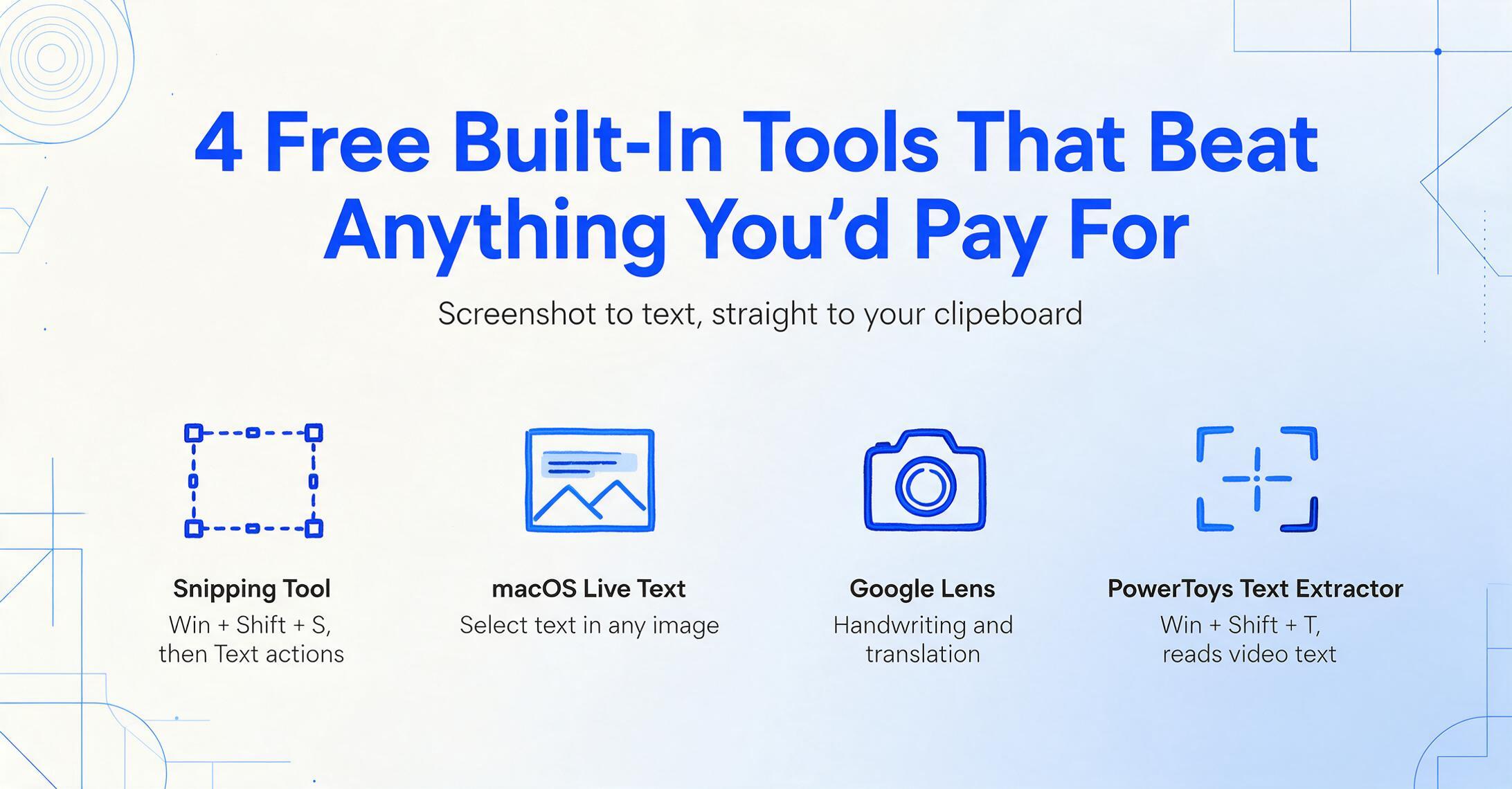
For a single screenshot, these four free tools beat anything you could pay for — they're faster, already installed, and good enough. They share one shape: select a region of your screen, and the recognized text lands on your clipboard ready to paste. The differences are about which device you're on and how the text reaches you.
Windows Snipping Tool — Text Actions
Windows 11's Snipping Tool gained built-in OCR ("Text actions") in late 2023, and for most Windows users it's the answer. Press Win + Shift + S to capture a region, then use the Text actions button to read and copy any text in the snip — no extra software. A user on r/Windows11 put the discovery moment plainly: "Snipping Tool has OCR functionality now… there is a button (Text actions) to trigger it." It requires Windows 11 (build 11.2308.33 or later).
Best for: Anyone on Windows 11 who wants to copy text out of a screenshot occasionally, with zero setup and zero cost.
Not ideal for: Processing many screenshots in a row, or getting the text anywhere other than your clipboard — there's no batch mode and no export.
Pricing (checked June 2026): Free, built into Windows 11.
macOS Live Text
On Apple devices, Live Text makes the text inside any image directly selectable, so there's no separate "OCR step" at all. Open a screenshot in Photos or Preview, drag to select the text just as you would in a document, and copy it. It works system-wide — in the Camera app, in Notes, even on a frame of a paused video — and is built into macOS Monterey and iOS 15 or later. As one r/mac user described it, "Live Text allows you to select text in photos and copy to the clipboard," with no third-party app needed.
Best for: Mac, iPhone, and iPad users who want to treat screenshot text like ordinary selectable text, including quick translation.
Not ideal for: Windows users, and anyone who needs to run the same extraction across a stack of files and export the result.
Pricing (checked June 2026): Free, built into macOS and iOS.
Google Lens
Google Lens is the strongest free option for messier text — handwriting and other languages especially. It runs inside the Google app, Chrome, and Google Photos: point it at an image or screenshot, and it recognizes the text, offering copy, search, and on-the-fly translation. Where the OS tools handle clean printed text well, Lens is the one to reach for when the screenshot contains handwritten notes or text in a language you want translated as you read it.
Best for: Handwriting, foreign-language text, and anyone already living in Chrome or the Google app across phone and desktop.
Not ideal for: A structured, exportable workflow — Lens is built for read-and-copy, not for turning batches of screenshots into a file.
Pricing (checked June 2026): Free.
PowerToys Text Extractor
If you want a Snipping Tool–style shortcut that works anywhere on screen — including inside videos and apps where you can't normally select text — Microsoft's free PowerToys Text Extractor is it. Its default shortcut is Win + Shift + T: an overlay appears, you draw a box around the text, and it's copied to your clipboard. A practitioner on r/productivity described the appeal exactly: "drag over the bit of the screen you want and it copies just the text straight to your clipboard." It does need the matching OCR language pack installed.
Best for: Power users on Windows who want one global shortcut to grab text from any pixel on screen, free and open source.
Not ideal for: Non-technical users who'd rather not install a utility, and (again) any workflow that needs batch processing or a saved output file.
Pricing (checked June 2026): Free (part of Microsoft PowerToys).
When a Chatbot Reads Your Screenshot: ChatGPT and Claude
ChatGPT and Claude are the right tool when you want to understand or transform a screenshot's text, not just copy it character for character. Paste a screenshot into either and ask what it says, and you get the text back along with the ability to summarize, translate, reformat, or answer questions about it in the same conversation. For a wall of text you want condensed, or a foreign-language screenshot you want explained, that's far more useful than a clipboard dump.
The trade-off is fidelity and repeatability. A language model reads for meaning, so it may tidy up, paraphrase, or quietly skip a line it considers noise — which is exactly what you don't want when you need the text verbatim, like a serial number or a code snippet. And neither is built for volume: there's no "drop in forty screenshots and export a file" mode. We dug into where this breaks down for screenshot work specifically in our piece on why ChatGPT and Claude aren't the best fit for screenshot data extraction.
ChatGPT
Paste a screenshot and it reads, summarizes, translates, and reformats conversationally. Strong general comprehension; the free tier handles occasional reads.
Best for: Reading a screenshot and immediately doing something with it.
Not ideal for: Verbatim transcription or repeatable, exportable batches.
Pricing (checked June 2026): Free tier; Plus $20/month.
Claude
Similar capabilities with a reputation for careful reading of longer screenshots and structured replies. The free tier covers light use.
Best for: Longer or denser screenshots where careful comprehension matters.
Not ideal for: One-keystroke capture or high-volume, exportable pipelines.
Pricing (checked June 2026): Free tier; Pro $20/month.
When the Built-In Tool Stops Being Enough
The built-in tools stop being enough the moment "screenshot to text" becomes a repeating task instead of a one-off. Copying one paragraph from a screenshot is a five-second job; transcribing thirty screenshots into a consistent, exportable file — and being able to re-run it next week — is a workflow. That's the gap dedicated tools fill, and it's the only reason to move past the free options.
OCR.space
A free, no-registration online OCR service that's a step up from a clipboard shortcut when you want an actual output file. You upload a screenshot (or call its API), pick a language, and get back plain text — or a searchable PDF. The free tier and API make it a fair pick for occasional web-based conversions and light automation, and it keeps things browser-simple. It's basic on complex multi-column layouts, and the upload step makes it slower than an OS shortcut for a quick grab.
Best for: Web or API OCR when you want a text file or searchable PDF rather than just clipboard text.
Not ideal for: Privacy-sensitive screenshots (it's an upload, not local), or messy multi-column layouts.
Pricing (checked June 2026): Free tier with an API key; PRO plans from roughly $30/month for higher volume.
ImageToTable.ai
Built for the repeatable end of the spectrum — when you need consistent, exportable output from screenshots rather than a quick clipboard copy. It runs on a vision-language model and explicitly accepts webpage screenshots as input, alongside photos, scans, and PDFs. Its To-Text mode reads the screenshot and reconstructs the content as editable text (or an editable Word document) with the original layout preserved, rather than a flat clipboard string. It's batch-first: drop in many screenshots and get one merged output instead of repeating the same capture-and-paste by hand. And because it points at the next problem too — turning a screenshot of a table into actual spreadsheet rows and columns via Custom Column Extraction (you type the column names you want, and the AI fills them in) — it bridges the plain-text job and the structured-data job that the free tools can't touch. If your screenshot is really a table you want in Excel, that's the path to turn a screenshot into a structured spreadsheet.
Best for: People who transcribe screenshots regularly and need consistent, exportable output — or who actually want the screenshot's data structured into a spreadsheet, not just copied as text.
Not ideal for: A single quick capture. If you just need one phone number off one screenshot, the free Snipping Tool, Live Text, or Lens is faster and we'd send you there first.
Pricing (checked June 2026): Free to try with no sign-up; affordable subscription/usage plans for volume.
How to Choose Based on What You're Actually Doing
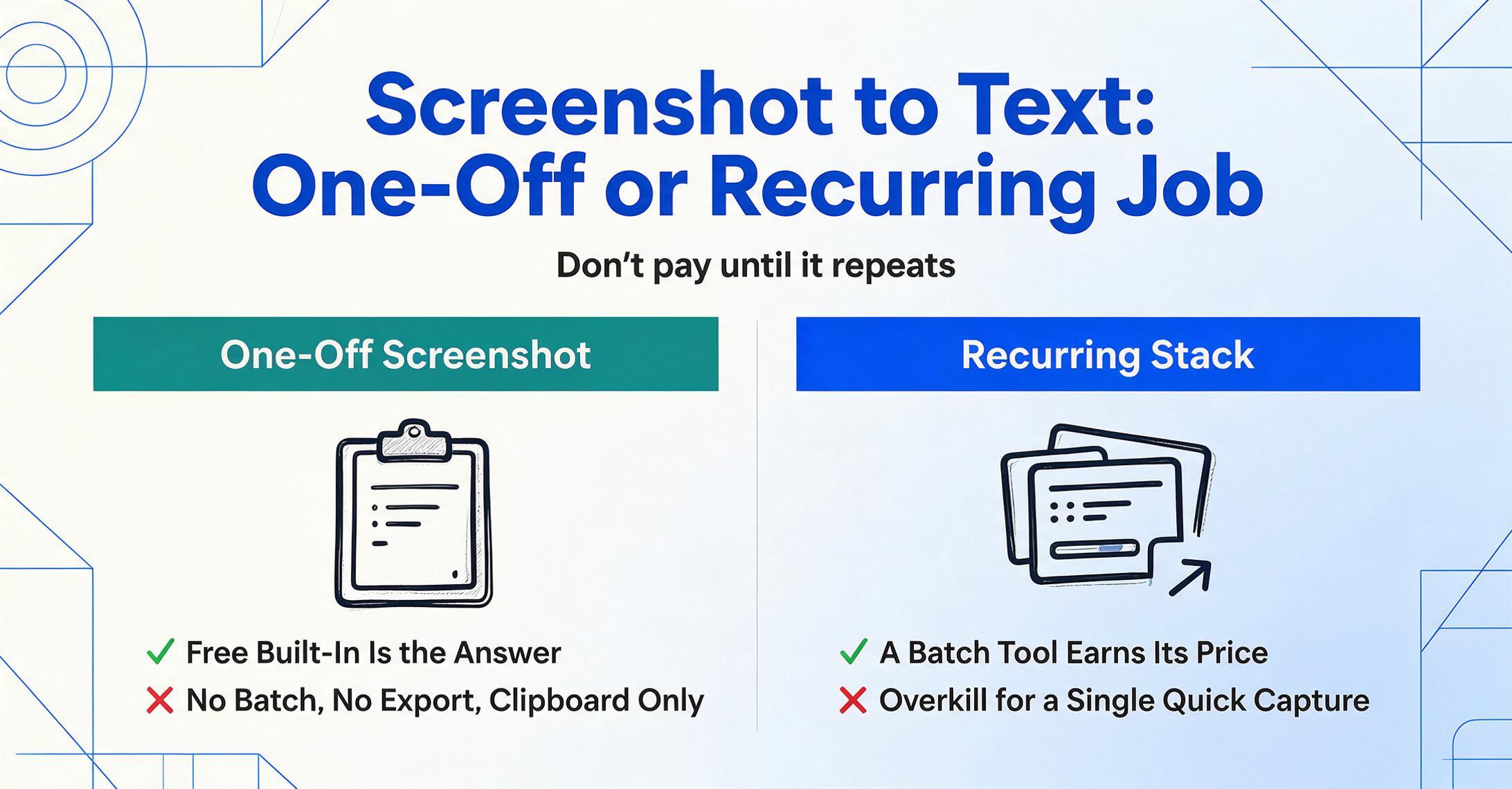
The right tool falls out of one honest question: is this a one-off, or a recurring job? Answer that and the eight options collapse to one or two worth opening.
Just one screenshot, and you only need to paste the text?
Use what's already on your machine. On Windows 11, press Win + Shift + S and hit Text actions; on a Mac or iPhone, open the image and select the text with Live Text; for handwriting or translation, Google Lens. Free, instant, nothing to install. Don't overthink it — this is genuinely the best answer for a one-off.
You want to understand, summarize, or translate the text?
Paste the screenshot into ChatGPT or Claude and ask. You'll get the text plus the ability to act on it in one step. Just remember it reads for meaning, so verify anything that has to be exact — a chatbot is the wrong tool for lifting a verbatim serial number or code block.
It's many screenshots, repeatedly, and you need a file out the other end?
Now a dedicated tool pays for itself. Use OCR.space for a quick web/API text file, or a batch-first tool like ImageToTable.ai when you want consistent, exportable output across a stack of screenshots — and especially if the screenshots are tables you ultimately want as structured spreadsheet data rather than a block of text. This is where the clipboard tools genuinely run out of road.
If your buying question is really broader than screenshots — any image, or document extraction in general — our roundups of the best document data extraction tools and the best no-code document AI tools widen the field on those axes.
Frequently Asked Questions
How do I extract text from a screenshot for free?
On Windows 11, take a screenshot with Win + Shift + S, then click "Text actions" in the Snipping Tool to copy the recognized text to your clipboard. On a Mac, iPhone, or iPad, open the screenshot in Photos or Preview and use Live Text to select and copy the text directly. On any device, Google Lens does the same and is especially good with handwriting and translation. All three are free and built in — for a one-off free image to text job you don't need to install or pay for anything.
Does Windows have a built-in tool to copy text from a screenshot?
Yes. The Windows 11 Snipping Tool has built-in OCR called Text Actions: capture a region with Win + Shift + S, then use the Text actions button to read and copy any text in the snip. It needs Windows 11 (build 11.2308.33 or later). Microsoft also offers the free PowerToys Text Extractor, which adds a global shortcut (Win + Shift + T) to grab text from anywhere on screen — including videos and apps where text normally can't be selected.
Can ChatGPT or Claude read text from a screenshot?
Yes — paste a screenshot in and ask what it says, and either will read it back and can summarize, translate, or reformat it in the same chat. That's ideal when you want to do something with the text. The catch is fidelity: a language model reads for meaning and may paraphrase or skip a line, so for anything that must be exact — a serial number, a code snippet — a built-in OCR shortcut is more reliable. They also have no batch or export mode for processing many screenshots at once.
When is a paid screenshot-to-text tool actually worth it?
When extraction becomes a repeating task instead of a one-off. If you copy text from a screenshot a few times a week, the free built-in tools are the right answer and a paid tool is overkill. But once you're transcribing many screenshots, need consistent output you can export to a file, or want to re-run the same process regularly, a dedicated tool like ImageToTable.ai saves real time — especially if the screenshots are tables you want as structured spreadsheet data rather than a wall of text.
What's the difference between screenshot-to-text and screenshot-to-Excel?
Screenshot-to-text gives you the words — a transcript you can copy, search, or edit, with no particular structure. Screenshot-to-Excel (or to a table) gives you the data arranged: the right values in the right rows and columns, ready for a spreadsheet. The free clipboard tools in this guide do the first job well. The second is a structured-data problem that needs a tool which understands which value is a date, an amount, or a quantity — not just a tool that can read the characters.
Is ImageToTable.ai included because it's your product?
Yes, and we've said so plainly. ImageToTable.ai is published by the same team that wrote this article and is reviewed here alongside seven other tools. We placed it where it honestly belongs — at the repeatable, exportable end of the spectrum — and we say outright that for a single quick capture, the free Snipping Tool, Live Text, or Google Lens is the better choice. Every option here gets a fair "best for" and "not ideal for," and all pricing was checked against public sources in June 2026.
The Bottom Line
The most useful takeaway isn't a winner — it's permission to use the free tool you already have. For copying text out of a screenshot now and then, Windows Snipping Tool's Text Actions, macOS Live Text, and Google Lens are not a budget compromise; they're the fastest tools that exist, and they cost nothing. Reach past them only when the job changes shape.
And it does change shape the moment "screenshot to text" stops being a quick favor to yourself and becomes a recurring chore — many screenshots, consistent output, a file at the end, or data you actually want structured into a spreadsheet. That's the line. Below it, open the tool that's already on your machine. Above it, test a batch-first tool on your own real screenshots and see whether five minutes of copy-paste becomes five seconds of processing.
Disclosure: This article is published by ImageToTable.ai, which is one of the eight tools reviewed above. All pricing was checked against public pages in June 2026; freemium and usage-based prices vary with volume and plan. We aim to describe every tool — including our own — accurately, and we welcome corrections.