ImageToTable.ai vs OCR.space:
Structured Data Extraction vs Raw Text Output
OCR.space and ImageToTable.ai both accept the same input — images and PDFs. What they return is fundamentally different. OCR.space gives you the text it found in the document. ImageToTable.ai gives you the data you asked for, in a spreadsheet with the column names you defined. That gap — between "text extracted" and "data ready to use" — is what this comparison is about.
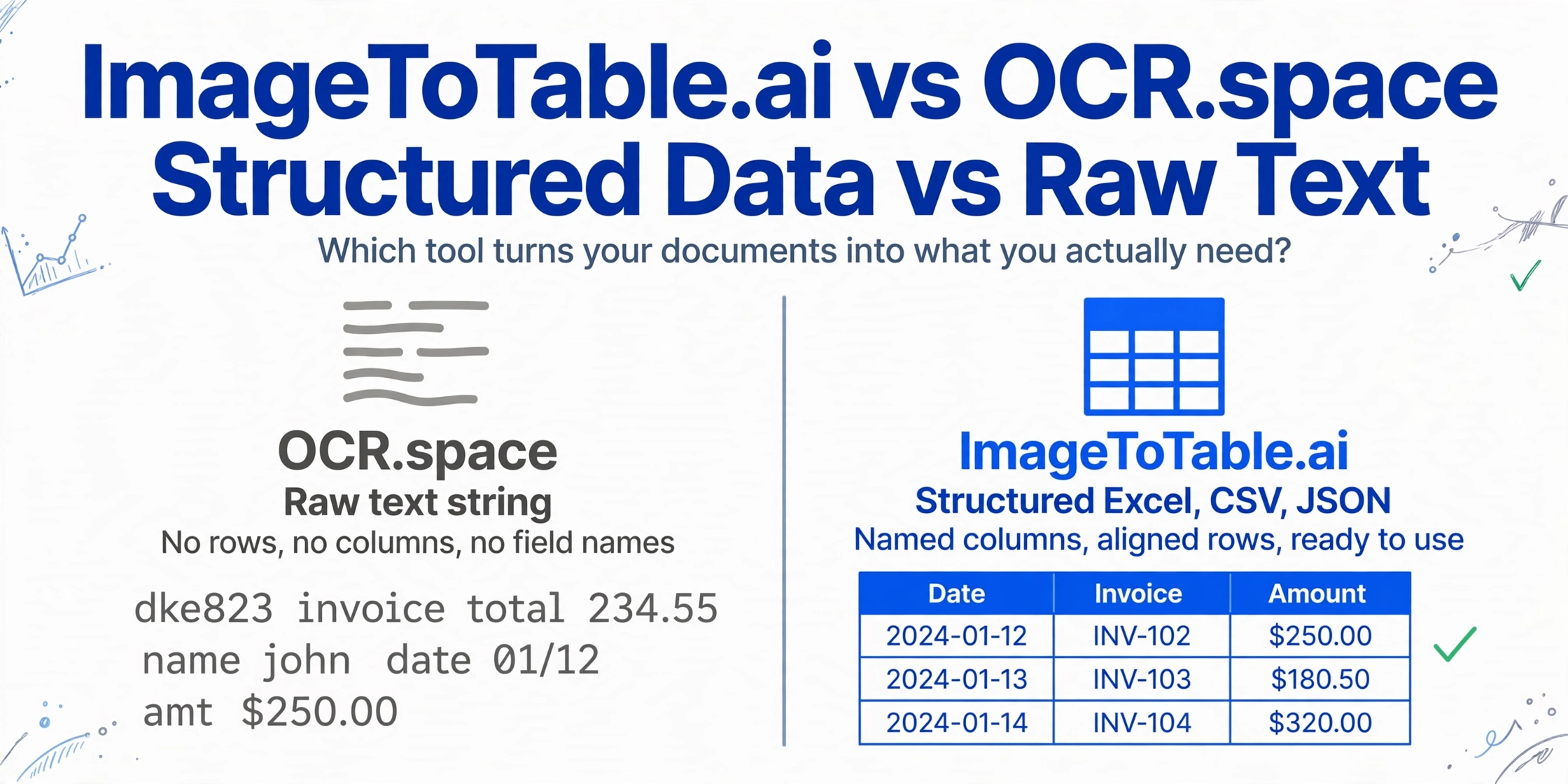
Quick Comparison
Choose ImageToTable.ai if…
- You need data from documents in a spreadsheet — labeled, aligned, ready to use
- You're not a developer and can't write parsing code to interpret OCR output
- Your documents have variable layouts across different vendors or sources
- You want to define specific column names and extract only those fields
- You need batch processing that merges multiple documents into one table
Choose OCR.space if…
- You're a developer building an app and need a free, high-volume OCR API
- You need raw text out of an image and will handle the structure yourself
- You're prototyping a document pipeline and want 25,000 free API calls/month
- Your use case is text digitization, not field extraction
- You need OCR in 200+ languages with minimal setup
Feature Comparison
| Feature | OCR.space | ImageToTable.ai |
|---|---|---|
| Output format | Raw text string or space-aligned text in JSON; no structured rows/columns | Excel (XLSX), CSV, JSON with named columns; Word with layout preserved |
| Table extraction | isTable=true flag produces space-aligned text approximating the layout — not actual row/column data structures | Vision LLM identifies table structure from document semantics; outputs aligned rows and named columns |
| Custom field extraction | Not supported — OCR.space has no concept of named fields; all text is returned undifferentiated | Core feature — type the column names you want; those become your Excel headers |
| Batch processing | API supports batch calls; output is separate text blobs per file with no cross-file merging | All files in a batch merged into one aligned spreadsheet automatically |
| Primary user | Developers building apps or automation scripts | Business users who need data from documents in a spreadsheet |
| Setup required | API key (no registration for free tier); REST call with a few parameters | Upload files, type column names, download — no account required for guest mode |
| Language support | 200+ languages with auto-detection | All languages supported by the underlying vision LLM |
| Handwriting support | Limited — accuracy degrades significantly on handwritten or stylized text | Handles handwriting, cursive, checkboxes, stamps |
| Free tier | 25,000 API requests/month, no registration required | Free guest mode; daily free quota on registered accounts |
| Pricing | Free (25,000 req/mo); PRO $30/mo (300,000 req); PRO PDF $60/mo (large PDFs) | Free guest tier; paid from $9/month; pay-as-you-go from $6/50 pages |
What OCR.space Actually Returns
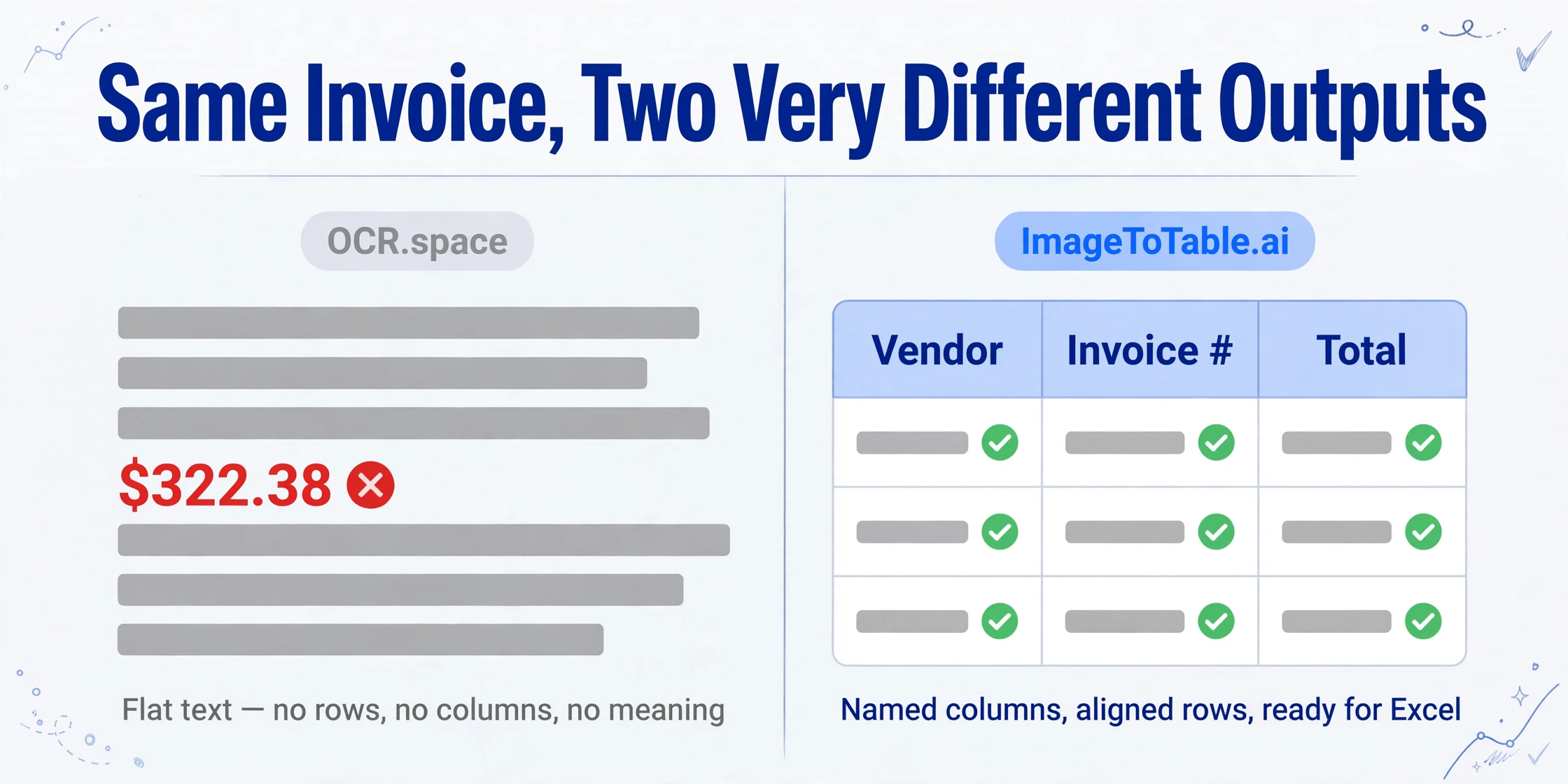
OCR.space answers one question precisely: what text is in this image? Feed it a photo of an invoice and it returns the characters it found, roughly arranged to match the original layout. Here's what a typical API response looks like for a scanned invoice:
INVOICE
Vendor: Acme Supplies Ltd        Invoice #: INV-2024-0892
Date: March 15, 2024             Due Date: April 14, 2024

Description              Qty    Unit Price    Total
Office paper (500 sheets)  10     $12.50      $125.00
Printer cartridges          4     $34.00      $136.00
Desk organizers             2     $18.75       $37.50

                                  Subtotal:   $298.50
                                  Tax (8%):    $23.88
                                  TOTAL:      $322.38
That looks usable at a glance. The problem appears the moment you try to put it into a spreadsheet. The text is a flat string — there are no rows, no columns, no field names, no data types. The number $322.38 is indistinguishable from any other number in the string. The label "TOTAL" is just another word. OCR.space has no idea that $322.38 is an invoice total, that INV-2024-0892 is an invoice number, or that Acme Supplies Ltd is a vendor name. That's the same structural ceiling Excel's built-in Data from Picture runs into — our Excel Data from Picture comparison looks at grid-copying tools specifically.
As Koncile.ai's hands-on review puts it directly: "Table recognition does not replace 100% structured extraction (field by field): you get formatted text, but not directly a table that can be used in the form of a spreadsheet."
ImageToTable.ai's output for the same document is different in kind, not just degree. You type "Vendor, Invoice Number, Total, Due Date" as your column names. The tool returns a spreadsheet with those four columns, each populated with the correct values from every document in your batch — including documents from different vendors with different layouts.
The Four Steps Between OCR Text and Usable Excel
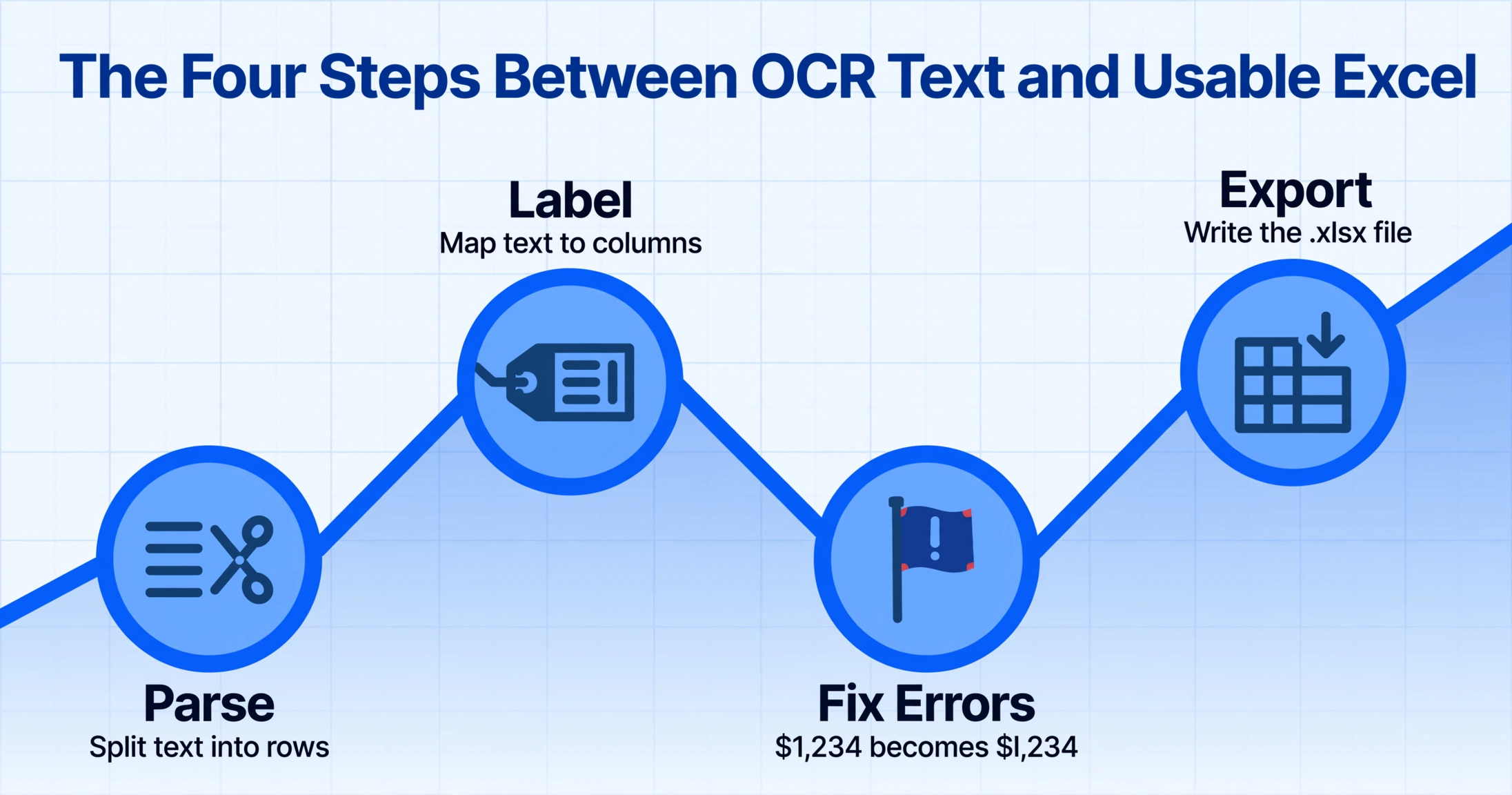
Getting from OCR.space output to a usable spreadsheet requires engineering work that the tool provides no help with. For a developer, this means days of implementation. For a non-developer, it's simply not possible without additional tools.
As Parseur's breakdown of OCR vs. document processing frames it: "OCR is like reading text on a page; document processing is like understanding that text, labeling it, and doing something useful with it, automatically." OCR.space does the former. Everything after that is up to you.
Here's what "everything after that" actually involves:
- Step 1 — Parse the text into rows. Write regex or string-splitting logic to identify where one line item ends and another begins. For invoices with consistent formats, this is tedious but feasible. For variable-layout documents from multiple vendors, it requires a separate rules engine per format.
- Step 2 — Identify and label fields. Write code that maps text position to column headers — so the tool knows that the number following "TOTAL:" is an invoice total, not a line item price. This logic must be rewritten for every new document layout.
- Step 3 — Handle OCR errors. Even at 99% character accuracy, a 500-character document contains ~5 corrupted characters. Dollar amounts like
$1,234can become$l,234or$1.234, breaking numeric parsing. Validation and error-correction logic must be implemented separately. - Step 4 — Write the Excel file. Use a library (openpyxl, xlsxwriter, xlsx.js) to create the actual .xlsx file with correct headers, column widths, and data types.
The existence of entire secondary tools — sites like ocrtoexcel.com and ocrdataextraction.com — built specifically to bridge OCR output to Excel is itself evidence of this gap. There's a market for the conversion layer that OCR.space doesn't provide.
In Klippa's comparison of 10 OCR APIs, OCR.space ranked 9th out of 10 — with the primary knock being the lack of structured data output. That ranking reflects the gap between "text extracted" and "data ready to use."
When OCR.space Is the Right Tool
OCR.space is genuinely excellent at what it's designed for, and it's worth being specific about when that matches your actual need.
Developer prototyping at zero cost. 25,000 API requests per month with no registration is an unusually generous free tier. If you're building an app that needs to pull text from images and you want to validate the approach before committing to a paid service, OCR.space is the fastest way to start. No account, no credit card, no quota approval.
Text digitization, not field extraction. If your goal is making scanned documents searchable — converting a PDF archive into indexable text for a search engine — OCR.space does this well. The output doesn't need to be structured; you just need the words.
Embedding OCR into a custom pipeline. If you're a developer building a document processing pipeline where you'll handle the field extraction, validation, and database writing yourself, OCR.space provides the character recognition layer reliably and cheaply. Its Engine 1 (speed), Engine 2 (accuracy on numbers), and Engine 3 (layout preservation) give you meaningful control over the trade-off.
High-volume, low-cost text extraction. At $30/month for 300,000 requests on the PRO plan, OCR.space has one of the lowest per-request costs in the market for raw text extraction. If volume matters more than structure, nothing else comes close at that price. Inside an AWS stack with heavier volumes, AWS Textract takes over — our AWS Textract comparison covers the trade-offs.
The honest line between the two tools: OCR.space is infrastructure for developers; ImageToTable.ai is a finished product for business users. If you need to write code to do something useful with the output, OCR.space may be the right foundation. If you need a spreadsheet at the end of the process and don't want to write any code, it isn't.
Frequently Asked Questions
Can OCR.space export data directly to Excel?
No. OCR.space returns raw text or JSON containing extracted characters — it does not produce Excel files. Converting that output into a structured spreadsheet requires writing custom parsing code to identify rows, label fields, and create the .xlsx file. ImageToTable.ai produces a download-ready Excel file directly, with the column names you specify as headers.
Does OCR.space's isTable=true parameter extract structured table data?
Not in the spreadsheet sense. The isTable=true flag (and Engine 3's layout mode) outputs text with spacing preserved to visually approximate the original table layout. The result is still a text string — not a 2D array of rows and columns, not JSON with field names, and not an Excel file. As Koncile.ai's review notes, "you get formatted text, but not directly a table that can be used in the form of a spreadsheet."
I'm not a developer — can I use OCR.space to process my invoices?
OCR.space has a web interface at ocr.space where you can upload an image and get text back. But getting from that text to a usable spreadsheet requires manual copy-pasting and formatting — there's no automatic field extraction or Excel export. If you're processing more than a handful of documents, ImageToTable.ai is a more practical choice: upload your files, type the column names you want (like "Vendor, Invoice Number, Total"), and download a merged Excel file directly.
What are OCR.space's free tier limits?
The free tier offers 25,000 API requests per month with no registration required — the "helloworld" demo key works immediately. File size is limited to 1 MB via API (5 MB via the web interface), and PDFs are limited to 3 pages. Processing speed is slower than paid tiers and there is no SLA. Free-tier outputs include an "OCR.space" watermark on generated searchable PDFs. The free tier is suitable for prototyping and low-volume testing; OCR.space's own documentation advises against using the demo key in production.
Can ImageToTable.ai and OCR.space be used together?
Technically yes, but there's no practical reason to combine them for document data extraction. ImageToTable.ai runs its own vision LLM pipeline that produces structured output directly — it doesn't depend on a separate OCR layer. If you're a developer building a custom pipeline and want to use OCR.space for text extraction and then feed the output into a separate field-parsing layer, that's a valid architecture — but it's a multi-step engineering project rather than a ready-to-use solution.
Try ImageToTable.ai Free
Upload your invoices, receipts, or forms and download a structured Excel table with your column names — no account required, no parsing code needed. If you want to test the no-install browser workflow first, start with the online OCR tool.
No credit card required. Free credits included on signup.