Best Screenshot to Excel & Table Extraction Tools
in 2026
Reading the words out of a screenshot is the easy part — almost any tool can do it. The hard part is everything that happens after the text is read: putting each number back into the cell it belongs in. A screenshot of a spreadsheet has quietly thrown away the one thing that made it a spreadsheet — the grid. What's left is a flat picture of values that used to be rows and columns, and rebuilding that structure is a different, harder job than simply transcribing the characters. This review covers six tools across that gap, from the feature already inside Excel to dedicated extractors, and for transparency, ImageToTable.ai — published on this site — is one of them.
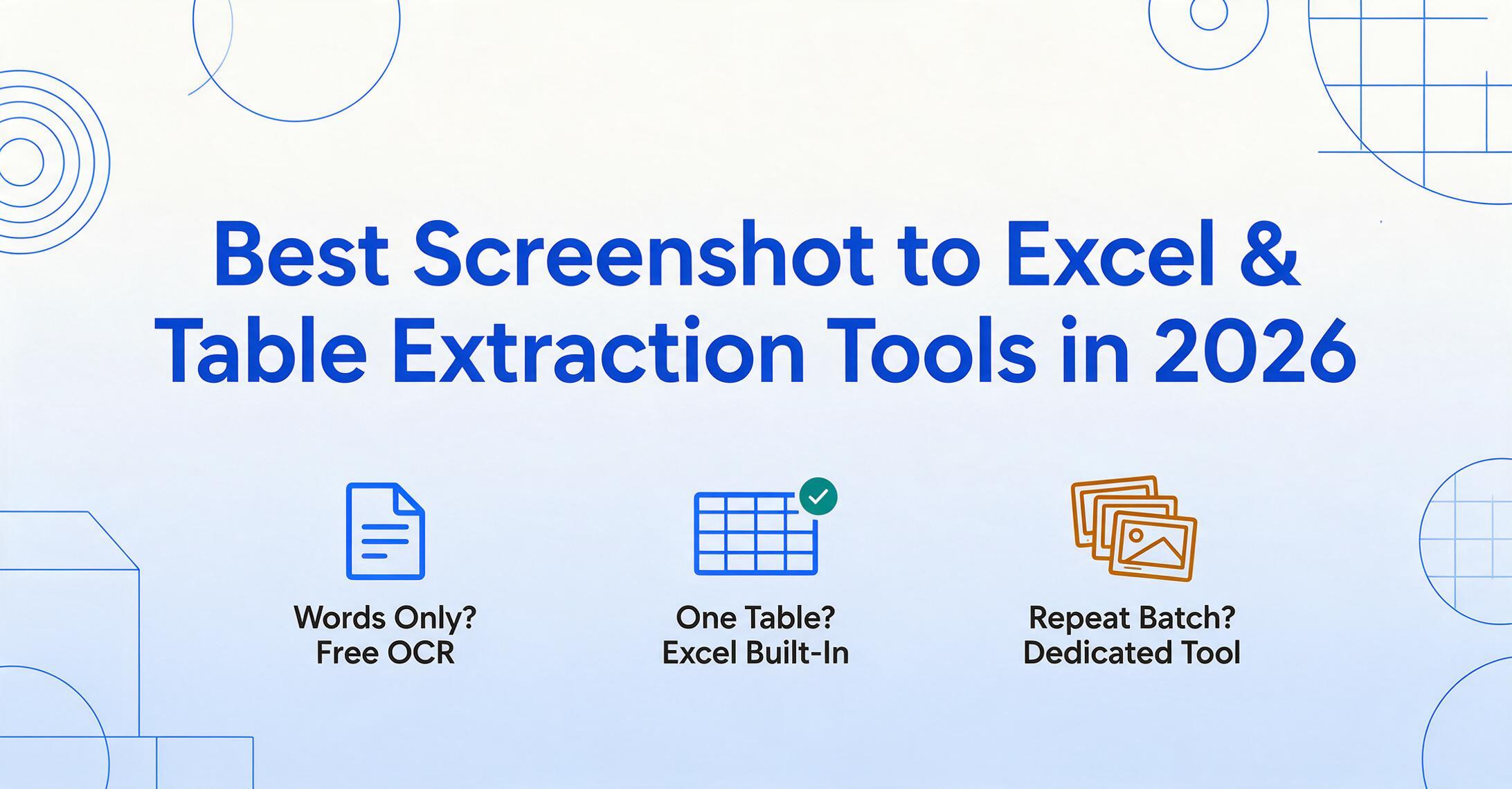
Key Takeaways
- A screenshot throws away the one thing that made it a spreadsheet — the grid that told every value which cell it belonged to.
- When a tool reads only characters it hands you a stream of words that needs as much cleanup as typing the data yourself.
- Your tool choice becomes obvious once you ask yourself whether you need the words or a real spreadsheet you can compute on.
What "Screenshot to Excel" Actually Means
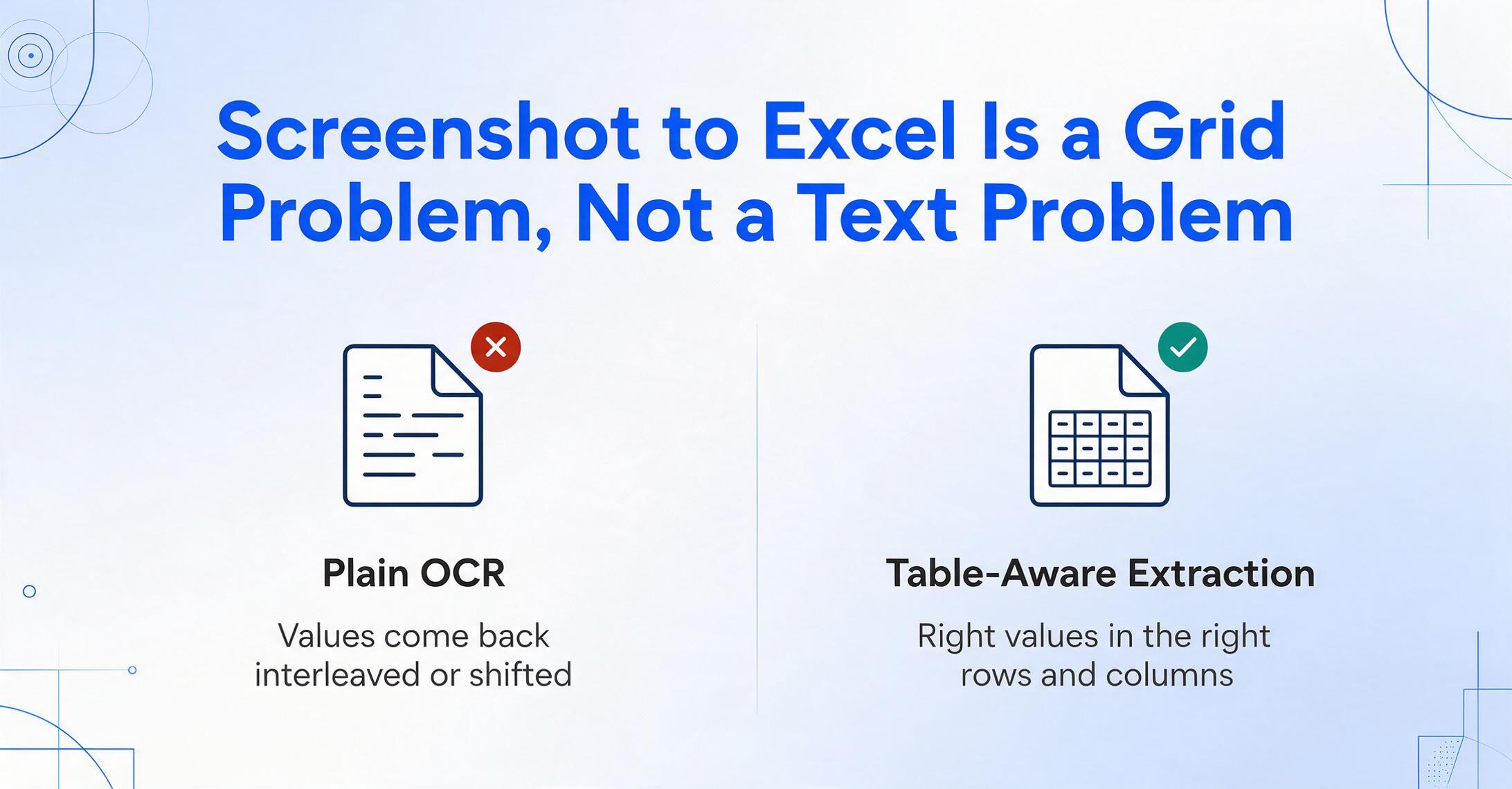
"Screenshot to Excel" is a structured-data problem, not a text problem — and that distinction decides which tool will actually work for you. When you screenshot a table, the picture keeps the visual arrangement but loses every machine-readable signal underneath it: there are no cells, no column boundaries, no delimiters, no data types. To a computer, a screenshot of a price list and a screenshot of a paragraph are the same thing — a rectangle of pixels. The job isn't to read the characters; it's to reconstruct the grid, deciding where one column ends and the next begins, which value is a date and which is an amount, and which numbers share a row.
That's why the obvious tool — plain OCR — so often disappoints here. Optical character recognition reads text in roughly the order it appears and hands you a stream of words. For a chunk of prose that's perfect. For a table it's a problem: a column of dollar amounts and the labels beside them can come back interleaved, run together, or shifted by a single mis-detected gap, and now your "spreadsheet" needs as much cleanup as typing it would have. Getting a screenshot into Excel correctly means a tool has to understand the table as a table, not as a wall of characters.
The distinction that decides your tool
Screenshot → text gives you the words: a transcript you can copy, search, or edit, with no particular structure. Screenshot → structured table gives you the data arranged — the right values in the right rows and columns, ready to sort, filter, and total in Excel. They're separate jobs that need different tools. If all you want is to lift the words out of a screenshot, you're better served by our companion roundup of the best screenshot-to-text converters. This article is about the harder half: turning a screenshot of a table into an actual spreadsheet.
Why screenshots specifically, rather than scans or PDFs? Because a screenshot is almost always a picture of something that was already structured somewhere else — a web table, a dashboard, an app, a report another system rendered — but you can't get at that source. The data exists in clean form on someone's server; you just have a photo of it on yours. That's the everyday frustration behind the search, and a user on r/excel put it bluntly: "Most of the tools I tried are paid. I desperately need something, it's impossible to type all the data I'm given at work." The goal is to skip the retyping entirely — and to skip it without introducing new errors.
How We Picked and Tested These Tools
We picked tools by what people actually reach for first, then judged each on one job: turn a screenshot of a table into clean, correctly aligned spreadsheet rows. We started from the free option most people don't realize they already have — the "Insert Data from Picture" feature inside Excel — and worked outward to general AI chatbots and dedicated extractors. Across forum threads the underlying ask is identical; one r/excel poster framed it simply: "I have an image which contains tabular data. I want to extract that table for manipulation purpose."
For every tool we did three things. First, we confirmed what it actually costs, from public pricing pages, and whether a free or built-in path exists. Second, we identified its ceiling — not just "can it read a table," but "can it read your table, repeatedly, and get the result into a file." Third, we wrote an honest "best for" and "not ideal for" for each, our own included, scored on fit rather than adjectives. One number shaped the whole exercise: decades of research put unaided manual data entry error rates in the low single digits — a peer-reviewed review of clinical transcription found rates ranging from 0.83% per keystroke up to 8.8% in harder conditions. That matters because the point of any of these tools is to beat hand-keying, and a tool that quietly miscopies a cell can be worse than typing if you never catch it. So we weighted whatever lets you review and re-run over whatever silently dumps a result.
The 6 Tools at a Glance
Here is every tool on the same six dimensions, with built-in and free options labeled plainly. "Starting price" is the lowest publicly available entry point; the free-trial column tells you how far you can test before paying.
| Tool | Starting Price | Pricing Model | Best For | Key Limitation | Free Trial? |
|---|---|---|---|---|---|
| Excel "Insert Data from Picture" | Free / included with Microsoft 365 | Built-in feature | A quick one-off table screenshot, inside Excel | One image at a time; flat tables only; manual cell review | N/A — included |
| ChatGPT | Free tier; Plus $20/mo | Freemium | Ad-hoc "read this table, give me a CSV" | May drop or invent rows; no batch or export pipeline | Yes — free tier |
| Claude | Free tier; Pro $20/mo | Freemium | Careful reading of long, dense tables | Conversational, not a repeatable batch workflow | Yes — free tier |
| Google Document AI | $1.50 per 1,000 pages (OCR) | Usage-based API | Developers building high-volume pipelines | Requires GCP setup and code; not for non-coders | Free quota to start |
| OnlineOCR.net | Free tier; paid from ~$5 | Free + subscription | Quick browser conversion to XLSX, no install | Upload required; basic on complex, multi-section tables | Yes — free tier |
| ImageToTable.ai | Free tier, then $9/mo | Credit-based (1 credit = 1 page) | Screenshots → structured Excel with chosen columns, in batches | Overkill if you only need plain text, not a table | Yes — free tier, no sign-up for one doc |

Pricing checked June 2026 from each vendor's public page. Built-in and freemium prices vary with volume and plan. If your source is a PDF rather than a screenshot, the field shifts — see our roundup of the best PDF data extraction tools.
Excel's Built-In "Insert Data from Picture"
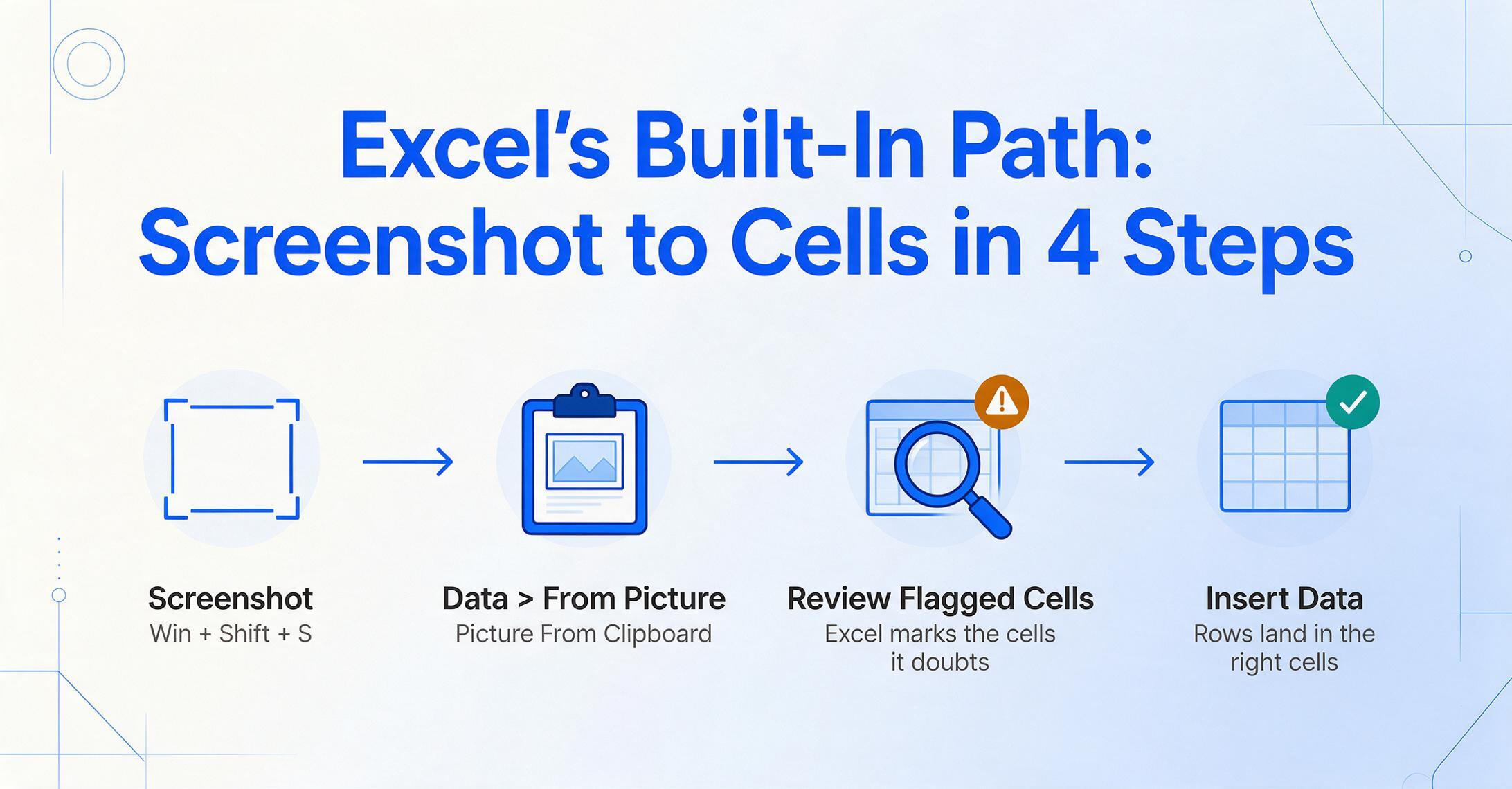
Before paying for anything, try the feature already inside Excel — for a single, clean table screenshot it's often all you need. Microsoft built optical table recognition directly into Excel under the name "Insert Data from Picture" (also shown as "Data from Picture"). On the mobile Excel app you tap Insert > Data from Picture and snap a photo or pick an image; on desktop Microsoft 365 you go to the Data tab, choose From Picture, and either paste a screenshot ("Picture From Clipboard," after capturing with Win + Shift + S) or load an image file. Excel's engine analyzes the picture, maps the values into cells, and then — importantly — lets you review and correct anything it flagged before inserting.
That review step is the feature's honesty and its limit at once. Excel highlights cells it's unsure about and, in its own words, makes you responsible for validating the result — so it's transparent about not being perfect, but it also means every conversion needs a pair of eyes. Microsoft's guidance is explicit that the "image should only depict the data you want to import," which tells you where it struggles: dense, multi-section, or visually noisy screenshots where the table boundary isn't obvious. And it's strictly one image at a time — there's no notion of "process these thirty screenshots and merge them." It converts the picture in front of you, as-is; you can't tell it to keep only certain columns or reshape the output.
Best for: Anyone on Microsoft 365 with a single, clean screenshot of a simple table who wants it in Excel without leaving Excel — free, fast, no extra tool.
Not ideal for: Batches of screenshots, complex or multi-block layouts, or any case where you want to pick specific columns rather than import the whole picture as-is.
Pricing (checked June 2026): Free in the mobile Excel app; included with a Microsoft 365 subscription on desktop.
Microsoft "Insert data from picture" guide →
When an AI Chatbot Reads Your Table: ChatGPT and Claude
ChatGPT and Claude are the right tool when you want to reshape or reason about a screenshot's data, not just import it cell-for-cell. Paste in a screenshot of a table, ask for it "as a CSV" or "as a markdown table with a total column," and either will read the image and hand back structured text you can drop into Excel — while also summarizing, converting units, or filtering rows in the same breath. For a one-off table where you also want a transformation, that flexibility is genuinely useful, and the free tiers cover light use.
The trade-off is reliability at the cell level. A language model reads for meaning, which means on a long or busy table it can silently drop a row, merge two, or "helpfully" round a number — exactly the failures you can't afford when the whole point is accurate data. There's also no repeatable pipeline: no "ingest forty screenshots and export one file" mode, just a conversation you'd have to repeat by hand. We dug into where this breaks down for screenshot work specifically in our piece on why ChatGPT and Claude aren't the best fit for screenshot data extraction.
ChatGPT
Paste a table screenshot and ask for CSV or a reshaped version; strong at on-the-fly transformations and follow-up questions.
Best for: A single table you want both extracted and transformed in one step.
Not ideal for: Guaranteed cell-accuracy on big tables, or repeatable, exportable batches.
Pricing (checked June 2026): Free tier; Plus $20/month.
Claude
Similar image-reading with a reputation for careful handling of longer, denser tables and tidy structured replies.
Best for: Long or dense table screenshots where careful reading matters.
Not ideal for: One-keystroke capture or a high-volume export pipeline.
Pricing (checked June 2026): Free tier; Pro $20/month.
Dedicated Extraction Tools: When It Becomes a Workflow
Dedicated tools earn their price the moment "screenshot to Excel" stops being a one-off and becomes a recurring task with a file at the end. Converting one table is a two-minute job for the built-in feature; turning a steady stream of screenshots into consistent, exportable spreadsheets — and being able to re-run it next week — is a workflow. These four tools sit at that end, and they differ mainly in who they're built for: a coder, a spreadsheet user, or someone who just wants the structured result.
Google Document AI
The cloud platform underneath many other products' extraction — powerful, accurate, and built for developers, not end users. Its Form Parser and OCR processors can pull tables and key-value pairs from images at scale, and its per-page pricing is low. But "low per page" hides the real cost: you need a Google Cloud project, code to call the API, and somewhere to put the output. For a non-technical person with a screenshot, that's a wall; for an engineering team building a high-volume pipeline, it's a sensible foundation.
Best for: Developers and teams building automated, high-volume extraction into their own systems.
Not ideal for: Anyone who just wants a spreadsheet without writing code or configuring cloud infrastructure.
Pricing (checked June 2026): Usage-based — about $1.50 per 1,000 pages for OCR; $30 per 1,000 pages for the Form Parser.
Google Document AI pricing → · prefer no-code? see the no-code roundup →
OnlineOCR.net
A free, browser-based converter that's a step up from a clipboard shortcut when you want an actual XLSX file out the other end. You upload a screenshot, pick a language and output format, and download an Excel or Word file — no install, no account for light use. It's a fair pick for occasional conversions, but it's basic on complex, multi-column or multi-section tables, and because it's an upload-and-process service it's not the right choice for anything privacy-sensitive.
Best for: A quick, no-install web conversion of a simple table screenshot into an XLSX file.
Not ideal for: Complex layouts, sensitive data, or a repeatable batch workflow with chosen columns.
Pricing (checked June 2026): Free tier with usage limits; paid plans from roughly $5 for more volume.
ImageToTable.ai
Built specifically for the screenshot-to-structured-table job — and screenshots are a first-class input, not an afterthought. It runs on a vision-language model and explicitly accepts webpage screenshots and screen photos alongside images, scans, and PDFs. Where it differs from plain OCR is Custom Column Extraction: instead of importing the whole picture as-is, you type the column names you want — say "Date," "Description," "Amount" — and the AI locates each value by understanding what it means and drops it under the right header, ignoring everything you didn't ask for. It's batch-first, so you can feed in many screenshots at once and get a single merged Excel sheet rather than converting them one by one. And because output lands directly in Excel, CSV, or Google Sheets, there's no separate clean-up pass. If you want to try the exact job, here's the path to turn a screenshot into a structured spreadsheet.
Best for: Anyone who regularly turns screenshots — web tables, dashboards, app screens, payment captures — into structured Excel, especially in batches or with specific columns.
Not ideal for: A plain-text job. If you just want the words out of a screenshot with no table structure, a free OCR tool is simpler — start with the screenshot-to-text options instead.
Google Sheets users: if your data is destined for a spreadsheet in Google Sheets rather than a local Excel file, the dedicated extract-to-Google-Sheets add-on page covers the sidebar workflow that lands rows directly in your active sheet.
Pricing (checked June 2026): Free tier, then $9/month (Basic), $19/month (Pro), $59/month (Max); team plans from $149/month. Credit-based — one credit per page.
How to Choose Based on What You're Actually Doing
The right tool falls out of two questions: do you need text or a table, and is this a one-off or a recurring job? Answer those and the six options collapse to one or two worth opening.
You only need the words, not a table?
Then you're not really doing screenshot-to-Excel — you want a transcript. Use a free built-in OCR tool and skip this whole category; our screenshot-to-text roundup covers the fastest free options. Forcing a structured-data tool onto a plain-text need just adds steps.
One clean table, and you have Microsoft 365?
Use Excel's "Insert Data from Picture." Paste your screenshot from the clipboard, review the cells Excel flags, and insert. It's free, it's already there, and for a single simple table it's the fastest answer. Just budget a minute to check the highlighted cells — the review step exists for a reason.
One table, but you also want to reshape or total it?
Paste it into ChatGPT or Claude and ask for "a CSV with a total column" or whatever transformation you need. Just verify the output against the image — on a long table a chatbot can drop or alter a row, so it's a draft to check, not a result to trust blindly.
Many screenshots, repeatedly, with specific columns you want?
Now a dedicated tool pays for itself. If you're a developer, Google Document AI is a solid pipeline foundation; if you live in spreadsheets, a batch-first tool like ImageToTable.ai turns a stack of screenshots into one merged Excel sheet — and lets you name the exact columns you want rather than importing each picture whole. This is where the free clipboard tools genuinely run out of road.
This page is about choosing between tools; the step-by-step guide to getting data from screenshots into Excel is the hands-on version once you've picked one, and the batch processing guide covers turning hundreds of screenshots into one structured spreadsheet.
If your buying question is broader than screenshots — any image, or document data extraction in general — our roundups of the best document data extraction tools and the best AI image-to-text converters widen the field on those axes.
Frequently Asked Questions
How do I convert a screenshot to an Excel spreadsheet for free?
If you have Microsoft 365, use Excel's built-in "Insert Data from Picture": take a screenshot of the table (Win + Shift + S on Windows), then in Excel go to Data > From Picture > Picture From Clipboard, review the cells Excel flags, and click Insert Data. On the mobile Excel app it's Insert > Data from Picture. Free web tools like OnlineOCR.net also produce an XLSX file from an uploaded image. For one clean table, the built-in Excel feature is usually the fastest free route.
Why does my screenshot-to-Excel result come out misaligned?
Because plain OCR reads characters in reading order, not as a grid. A screenshot has no underlying cells or column boundaries, so a tool has to infer the table structure — and when columns are close together, values are right-aligned, or the layout has multiple blocks, it can guess the boundaries wrong and shift values into the wrong cells. Tools that understand a table as a table (rather than as a stream of text) handle this better, which is why a structured-extraction tool beats a generic text OCR for spreadsheet work.
Can ChatGPT or Claude turn a screenshot into a spreadsheet?
Yes — paste a table screenshot in and ask for it "as a CSV," and either will read the image and return structured text you can paste into Excel, optionally reshaping or totaling it in the same chat. The catch is accuracy on larger tables: a language model reads for meaning and can silently drop, merge, or alter a row, so always check the output against the original image. They also have no batch mode, so they're best for a single table rather than a recurring pile of screenshots.
What's the difference between screenshot-to-text and screenshot-to-Excel?
Screenshot-to-text gives you the words as a transcript — useful for copying or searching, but with no particular structure. Screenshot-to-Excel gives you the data arranged: the right values in the right rows and columns, ready to sort, filter, and total. The first is a transcription job that free OCR tools do well; the second is a structured-data job that needs a tool which knows which value is a date, an amount, or a quantity — not just one that can read the characters.
Is the built-in Excel feature good enough, or do I need a paid tool?
For a single, clean table screenshot, Excel's "Insert Data from Picture" is usually enough and it's free with Microsoft 365. You'll outgrow it when you have many screenshots to process, layouts that are complex or multi-section, or a need to keep only specific columns and merge results into one sheet — none of which the built-in feature does. At that point a batch-capable tool like ImageToTable.ai saves real time, especially when you want to name the exact columns and process screenshots in bulk.
Is ImageToTable.ai included because it's your product?
Yes, and we've said so plainly. ImageToTable.ai is published by the same team that wrote this article and is reviewed here alongside five other tools. We placed it where it honestly belongs — the recurring, structured, batch end of the spectrum — and we say outright that for a single clean table, Excel's free built-in feature is the better first stop. Every option gets a fair "best for" and "not ideal for," and all pricing was checked against public sources in June 2026.
The Bottom Line
The most useful takeaway is to separate the two jobs hiding inside "screenshot to Excel." If you only need the words, that's a text problem — use a free OCR tool and move on. If you need a table you can actually compute on, that's a structured-data problem, and the tool has to rebuild the grid your screenshot threw away, not just read the characters back.
Once you've named which job you're doing, the choice is easy. One clean table on Microsoft 365? Excel's built-in feature, free, in a minute. A table you also want reshaped? A chatbot, with a quick accuracy check. A steady stream of screenshots you want as consistent, column-specific spreadsheets? That's where a batch-first tool earns its keep — test one on your own real screenshots and see whether a few minutes of retyping becomes a few seconds of processing.
Disclosure: This article is published by ImageToTable.ai, which is one of the six tools reviewed above. All pricing was checked against public pages in June 2026; built-in, freemium, and usage-based prices vary with volume and plan. We aim to describe every tool — including our own — accurately, and we welcome corrections.