ChatGPT Reads Screenshots — but
That Doesn't Mean It Belongs in Your Data Pipeline
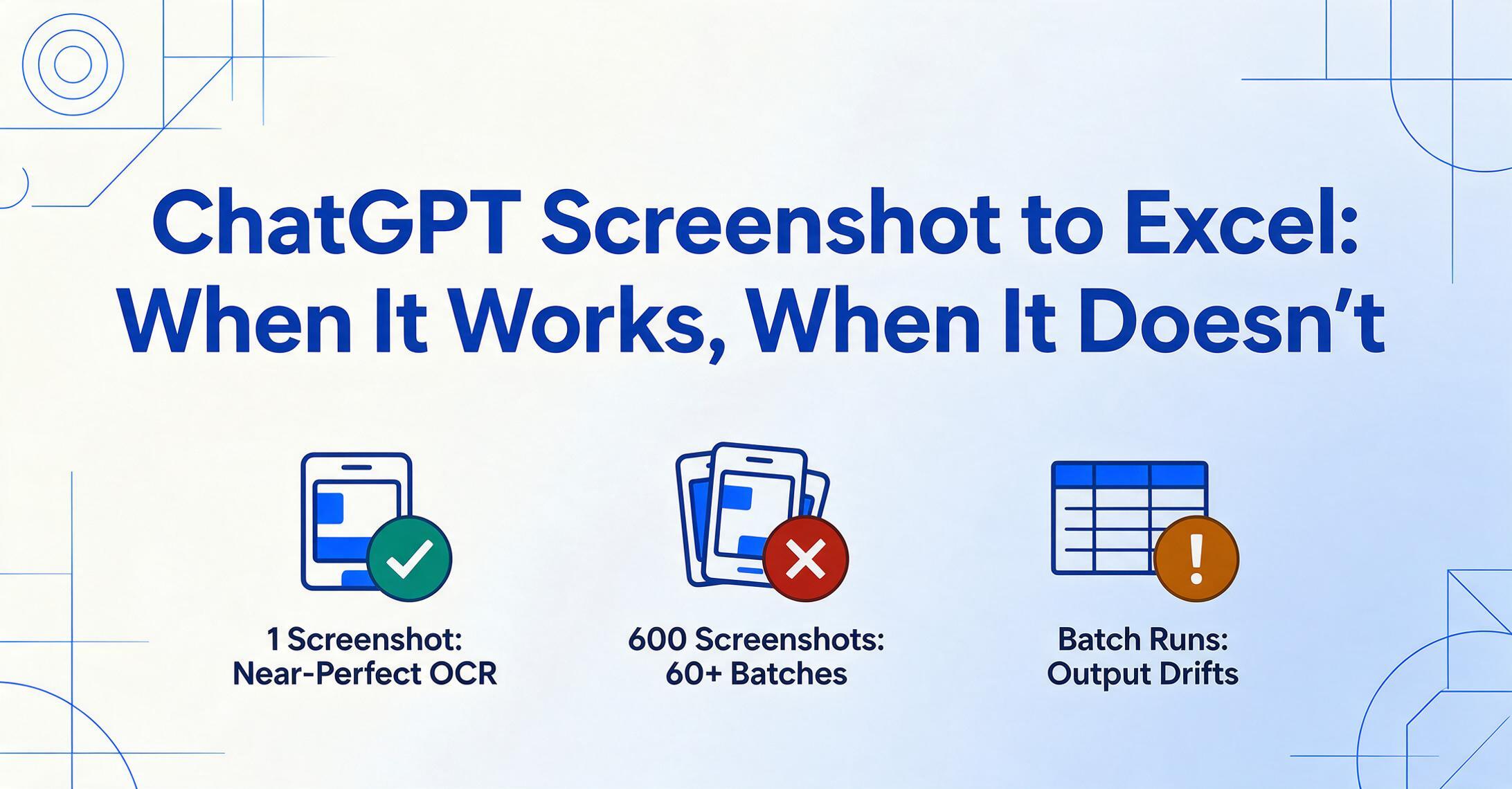
For a single screenshot of a simple table, ChatGPT works surprisingly well. The problem starts when your task involves 50 screenshots, 8 specific data fields, and the expectation of consistent, clean Excel output — which is exactly what "I need to extract data from screenshots" usually means in practice.
Key Takeaways
- ChatGPT can bleed data between sequential prompts — a journalist found customer names from invoice #1 contaminating the output for invoice #3. For datasets where record integrity matters, batch all files into a single extraction run rather than feeding them one batch at a time.
- ChatGPT reads multi-column tables left-to-right across columns rather than down each column, producing broken sentences and misaligned numbers. Cropping to single-column before uploading avoids this, but column-name extraction — which matches by content meaning rather than pixel position — handles it without preprocessing.
- On Claude, four out of every five usage tokens go to analyzing screenshots rather than the actual task, hitting limits after 3-4 image cycles. For repeated extraction, each new screenshot multiplies the cost — a flat-rate batch tool avoids this per-image token multiplier.
- One screenshot through ChatGPT takes seconds; one hundred screenshots takes two and a half hours of uploading, prompting, reviewing, copying, and pasting — with output format drifting between batches. The same task through a batch upload tool completes in under a minute and produces one consolidated spreadsheet.
- Template-based OCR that remembers a field's pixel position fails on screenshots because every app places the same field in a different spot. Column-name extraction finds values by what they mean — telling the AI to locate "Order Total" works across any layout — and outputs the same columns from every image.
ChatGPT Handles Casual, One-Off Screenshot Extraction Well — and That's Worth Acknowledging
Let's start with what it can do, because dismissing ChatGPT entirely would be inaccurate and unfair. If you have one screenshot of a receipt with 6 line items, or a QR-code order summary you need copied into a spreadsheet, ChatGPT handles it capably. Upload the image, ask it to format the data as a table, and in most cases you get usable results within seconds.
A comprehensive analysis by Data Studios confirms that ChatGPT's OCR performance on high-resolution digital screenshots is "near-perfect" — text extraction from clean, direct captures with clear contrast and consistent fonts is where the system genuinely excels. PCMag's guide demonstrates the same pattern: take a restaurant menu PDF, upload it to ChatGPT, ask for a formatted table, and you get structured menu data in seconds. For a one-off, informal task, this is perfectly adequate.
For a quick comparison, Excel's built-in "Data from Picture" feature — which uses OCR without AI reasoning — often produces worse results on the same image. A Reddit user described Excel's OCR as "far from perfect" on handwritten tables, while ChatGPT handled the same image with much higher accuracy. So if you're comparing ChatGPT to Excel's native OCR on a single screenshot, ChatGPT wins — sometimes decisively.
Claude, too, has strong vision capabilities. Anthropic's official documentation confirms Claude can process images up to 8,000×8,000 pixels and up to 600 images per API request, with documented strengths in OCR-style text extraction for screenshots and scanned documents. For a high-resolution screenshot of a dashboard or a single-page report, both ChatGPT and Claude can produce a readable extraction.
The key word is "casual." The moment the task becomes systematic — multiple screenshots, specific column requirements, output that needs to be used in another tool — the limitations compound quickly.
The gap between casual and systematic: ChatGPT and Claude are general-purpose AI assistants optimized for conversation, not data processing pipelines. Their screenshot-reading capability is an extension of their conversational intelligence — powerful for one-off queries, structurally unsuited for repeated, structured extraction tasks.
The Upload Cap: Why 600 Screenshots Breaks Every General-Purpose AI Tool
A real Reddit case makes this tangible. One user asked for help extracting data from 300 records, each documented with two screenshots — 600 screenshots total — from a mobile field data app. They needed 9 specific fields per record: Tag Number, Length, Weight, Event Type, Tagger, Date, Time, GPS Location, and Water Temperature. Their approach:
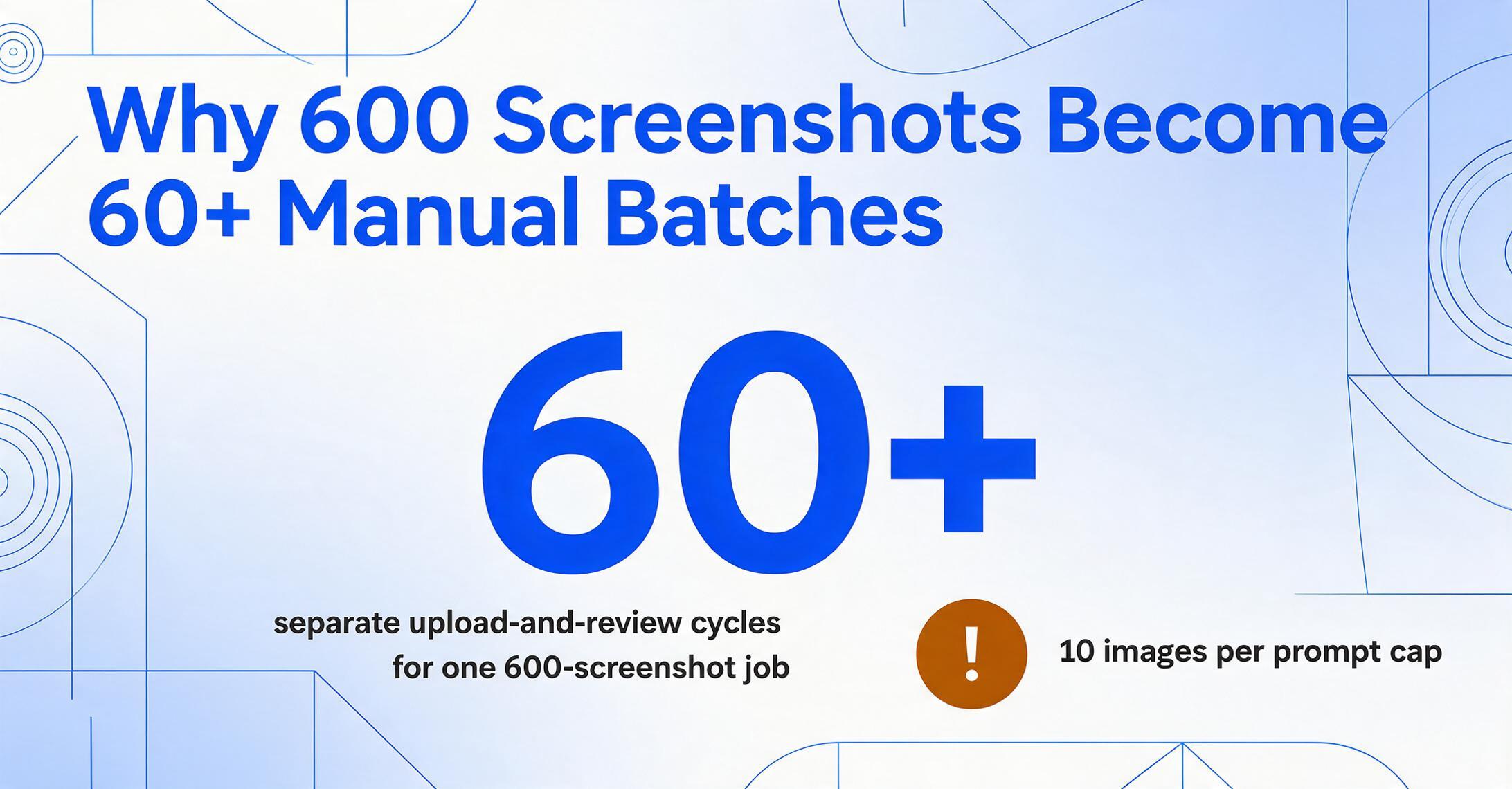
"Uploading 10 images at a time into ChatGPT to extract data. It works, but I hit the upload limit quickly and it's time-consuming at scale."
ChatGPT's image upload cap — typically 10 images per prompt — means this task requires at least 60 separate prompts, each with manual uploads, each needing verification of the extracted data, each producing output that must be manually consolidated into a single spreadsheet. What started as "let me just use ChatGPT for this" becomes a multi-hour manual coordination job.
Claude's limits differ in specifics but not in outcome. While Claude supports up to 600 images per API request technically, the 32 MB total request size limit and per-image dimension constraints make large batch uploads impractical in real workflows. One developer documented the frustration: "Claude Code burning through limits insanely fast because of screenshots — 80% of my tokens go to screenshot analysis, not actual code generation." The platform's token economics aren't built for high-volume image processing — every screenshot analyzed consumes tokens that count toward usage limits, and for paid plans (Pro at $20/month, Max at higher tiers), these limits are reached quickly with repeated image tasks.
The chasm is between what the architecture allows in theory and what's practically viable for real work. Processing 600 screenshots through any general-purpose AI chat interface is a recipe for frustration — not because the AI can't read images, but because the interface and pricing model were never designed for this workflow.
The Consistency Gap: Conversational AI Makes Different Choices Each Time
This is where the distinction between conversational AI and deterministic extraction becomes critical — and where most how-to articles stop their analysis.
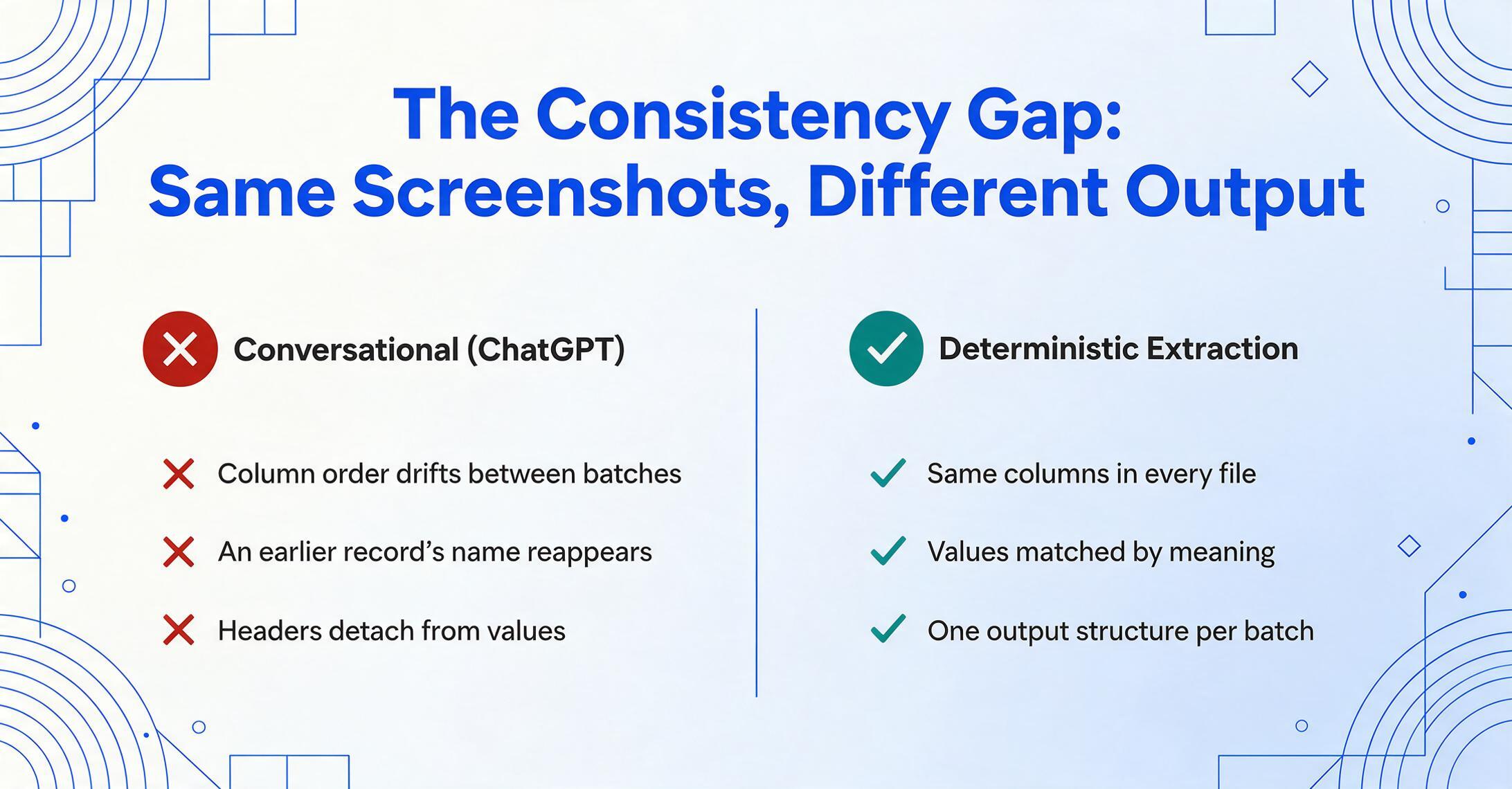
ChatGPT operates conversationally. It interprets prompts, makes judgment calls about what data to include or exclude, and formats output based on its understanding of what you want — which is flexible and intelligent for discussion, but introduces variance when you need identical output structure across multiple screenshots. A journalist who tested ChatGPT for structured PDF extraction at scale documented a revealing failure mode: "ChatGPT remembered previous prompts, causing mixups. Occasionally it would use a name or a business entity from an earlier record, despite a perfectly valid one appearing in the current record's text." The model's context-awareness — usually a strength — becomes cross-contamination when you're processing sequential documents.
Data Studios' analysis corroborates this pattern with specific technical detail: in multi-column layouts, ChatGPT "may be read left-to-right across columns (instead of down one column and then the next), resulting in broken sentences or misplaced data." Tables are "particularly sensitive — numeric data may lose its alignment, headers may become detached from their values, and merged cells can confuse the reading order." For casual use, you can spot and fix these errors. For 50 screenshots being merged into one spreadsheet, this becomes a data integrity problem.
Another Reddit user on r/ChatGPTPro described this as "ChatGPT is extremely lazy with data extraction from documents" — where some fields get truncated, others get approximated, and output format drifts from one prompt to the next. A different user asked: "Did ChatGPT get worse at parsing information from an image?" The answer isn't that the model degraded — it's that extraction consistency was never a design target. ChatGPT optimizes for helpful conversation, not for producing the identical 12-column CSV every time.
Claude has similar structural challenges. Anthropic's own documentation acknowledges that "Claude may hallucinate or make mistakes when interpreting low-quality, rotated, or very small images under 200 pixels" and that "spatial reasoning abilities are limited." These aren't bugs — they're characteristics of general-purpose vision AI being applied to what is essentially a data processing task.
The structural mismatch: ChatGPT and Claude are trained to be helpful, flexible, and conversational. Screenshot-to-spreadsheet extraction needs to be precise, consistent, and deterministic. A tool optimized for the first set of traits will, by design, be suboptimal for the second.
What Scale Does to the Economics
For one screenshot, the cost is zero (if you're already subscribing) or the time it takes to copy-paste. For dozens or hundreds, the cost equation flips entirely.
Start with time: uploading images one batch at a time, waiting for processing, reviewing output, correcting errors, and manually consolidating results into one spreadsheet. Even at 90 seconds per screenshot for upload-and-review, 100 screenshots is 2.5 hours of focused work — and that assumes near-perfect extraction, which research shows is not the norm.
Then layer on the per-image costs that accumulate invisibly. On Claude's API, vision processing is notably token-intensive — each image analyzed consumes tokens proportional to its resolution, and repeat processing multiplies the drain. Developers using Claude for UI analysis report hitting usage limits after 3-4 iteration cycles when screenshots are involved. Something that costs pennies for one image can become dollars per session when repeated.
On ChatGPT, the economics are different — the chat interface masks per-query costs — but the practical limit is the manual overhead. Every batch of 10 images requires someone to upload, prompt, review, and copy output. At scale, you're not paying for API tokens; you're paying for a human to coordinate a workflow the tool wasn't built to handle.
Compare this to a tool that accepts batch uploads (50+ screenshots at once), extracts the same set of columns from every file, and outputs one consolidated spreadsheet — the same task that takes 2+ hours manually becomes a 30-second upload plus a 10-second wait. The difference isn't marginally better; it's two orders of magnitude.
What Purpose-Built Extraction Does Differently — and Why It Matters for Screenshots
The architecture that makes ChatGPT a brilliant general-purpose assistant is the same architecture that makes it the wrong tool for structured data extraction at scale. Purpose-built extraction tools reverse the design priorities: they optimize for determinism, structure, and batch throughput — not conversational flexibility.
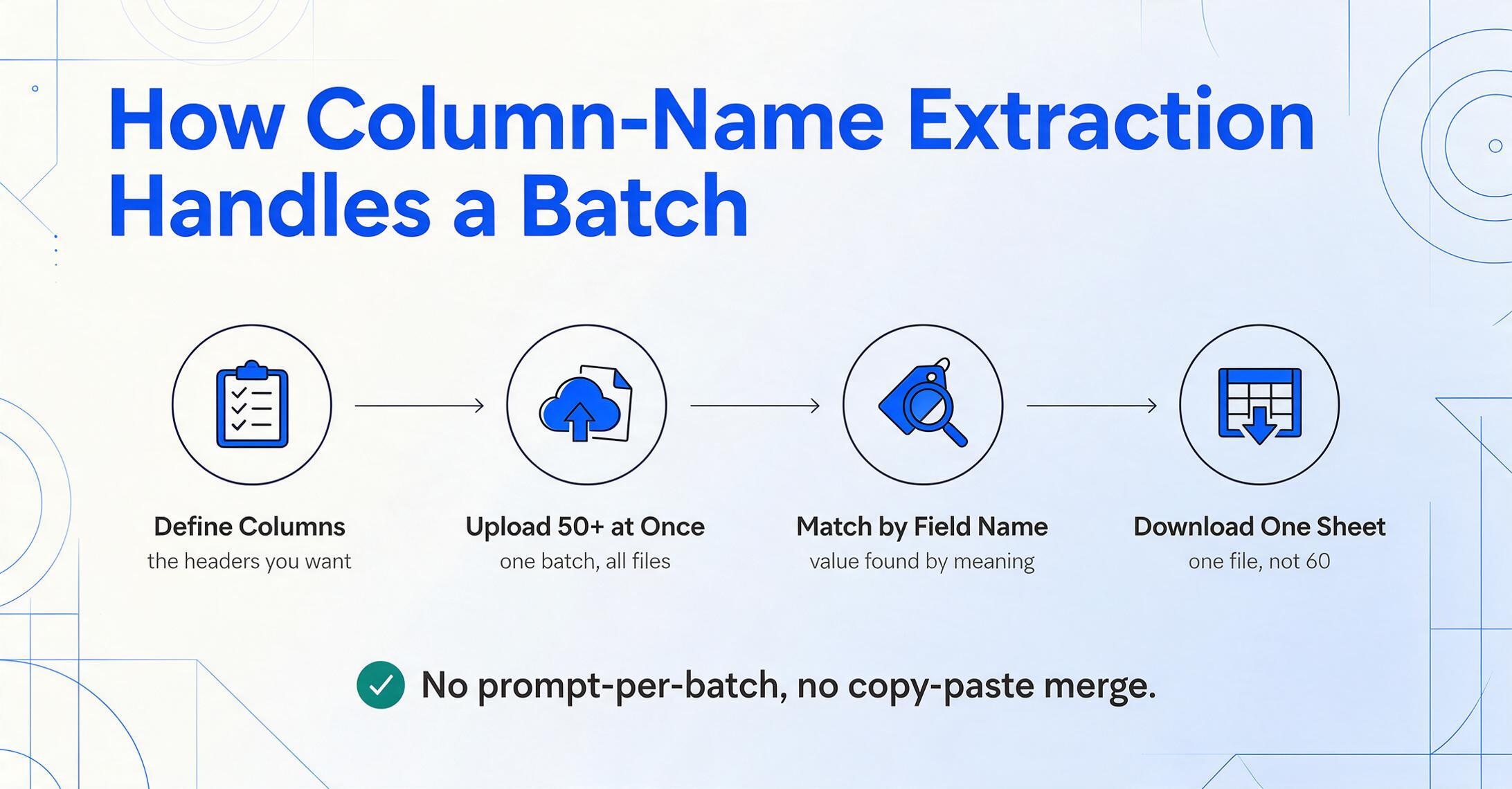
The core mechanism is column-name extraction: instead of asking the AI "tell me what's on this page," you tell it exactly which data fields you want — "Invoice Number," "Date," "Amount," "Customer Name" — and it locates those values across every screenshot you upload. The column names you specify become the headers of your output spreadsheet. The AI reads each image, finds the data that corresponds to each field, and populates the matching column. Every screenshot produces the same structured output format, regardless of where each field appears on the original image.
This matters for screenshots specifically because screenshot data comes from everywhere — app UIs with different layouts, dashboard cards that reorganize information, payment confirmations where the order total is in one position on one bank's app and a different position on another's. Traditional template-based OCR, which remembers where on the page a field sits, is nearly useless for screenshots because every source lays out information differently. Column-name extraction doesn't care where you put the field — it looks for what the value means.
The same mechanism handles batch processing natively: upload 50 screenshots from 20 different apps and websites, specify your columns once, get one Excel sheet with all 50 rows of extracted data. There's no "copy output from prompt 1, paste into sheet, copy output from prompt 2..." — batch merge is the default behavior, not a workaround. For a hands-on look at this workflow, see the screenshot to Excel conversion tool.
Files are processed securely and not stored.
For the Reddit user with 600 screenshots and 9 required fields, a dedicated extraction tool changes the workflow from "60+ prompts and hours of manual consolidation" to: define 9 column names, upload all screenshots at once, download the completed spreadsheet. The AI extracts the same 9 fields from every image, outputting one row per screenshot with matching columns — no copy-paste, no format drift, no field omission between batches.
For Google Sheets users, the same capability is available directly inside the spreadsheet — a sidebar add-on that accepts screenshot uploads, applies column-name extraction, and writes results into the active sheet without leaving the workspace. This removes the export-and-reimport step entirely for teams whose workflows already center on Sheets.
Head-to-Head: ChatGPT vs. Purpose-Built Screenshot Extraction
This comparison focuses on the specific task of extracting structured data from screenshots into spreadsheet formats — not on the broader capabilities of either approach. ChatGPT and Claude remain superior tools for tasks they were designed for: conversation, text generation, code assistance, and general analysis. This table addresses only the screenshot-to-structured-data use case.
| Capability | ChatGPT / Claude | Purpose-Built Extraction |
|---|---|---|
| Single screenshot, simple table | Excellent — fast, flexible, usually accurate | Excellent — equally accurate, with structured output |
| Batch processing (20+ screenshots) | Limited — upload caps, manual prompt-per-batch, no automatic merge | Native — upload all at once, single output spreadsheet |
| Consistent field extraction | Unreliable — format drift, field omission, cross-contamination between prompts | Deterministic — same columns extracted from every file |
| Output format | Manual — copy from chat, paste to Excel, reformat | Direct — downloadable XLSX, CSV, or direct-to-Sheets |
| Screenshot layout variety | Inconsistent — multi-column, dashboard, and label-value layouts cause errors | Robust — column-name matching works regardless of source layout |
| Cost at scale (100+ screenshots) | High — token consumption, manual labor, usage limits | Flat — fixed per-upload cost regardless of source complexity |
| Selective field targeting | Prompt-dependent — works in theory, drifts in practice across batches | Built-in — you define columns once, applied to all files |
The pattern is consistent: ChatGPT matches or approaches purpose-built tools on single-screenshot tasks, but the gap widens dramatically as volume, structure requirements, and format diversity increase. For the use case people actually mean when they search "ChatGPT extract data from screenshot to excel" — which is rarely a single image — the dedicated tool pulls ahead on every dimension that determines whether the output is usable without additional manual work.
When to Use Which Approach
Use ChatGPT or Claude when:
- You have one or two screenshots and need a quick, informal extraction
- The output destination is a conversation, not a spreadsheet — you're sharing findings with a colleague or summarizing what's on a dashboard
- You need the AI's reasoning alongside extraction — "summarize these quarterly metrics and flag anything unusual" combines analysis with data reading
- You're troubleshooting: upload an error screenshot and ask what went wrong
Use a purpose-built extraction tool when:
- You need the same data fields extracted from multiple screenshots with identical column structure
- Output must go directly into Excel, Google Sheets, or another structured format without copy-paste
- You're processing screenshots from diverse sources — different apps, different layouts, different formats — and need consistent column mapping
- Anyone else on your team will use the output data downstream without understanding how it was extracted
- You're building a recurring workflow, not solving a one-off problem
For a detailed walkthrough of the column-name extraction workflow, see this step-by-step guide to converting screenshots into structured spreadsheets. If your primary challenge is extracting only certain fields rather than everything on the page, the guide on selective field extraction from screenshots covers that workflow. For teams dealing with screenshot volume, batch processing app screenshots into a single structured spreadsheet explains the scaling path.
FAQ
Can ChatGPT extract data from a screenshot?
Yes, for a single screenshot with clean, well-structured content, ChatGPT extracts text and table data reliably. Upload the image and ask for a table output. The extraction quality diminishes with complex layouts, multi-column formats, low-resolution images, and when you need the same fields extracted consistently across multiple screenshots.
Is Claude better than ChatGPT for screenshot data extraction?
For single-screenshot tasks, both perform similarly — Claude's vision capabilities are strong and its OCR is well-regarded. For batch work, neither is designed for it. Claude has higher per-image token costs and usage limits that make repeated screenshot analysis expensive. The choice between them for this specific task is less about capability and more about the fact that neither tool's architecture is optimized for structured data extraction.
What's the fastest way to get data from multiple screenshots into Excel?
Purpose-built extraction tools that accept batch uploads and output a single consolidated spreadsheet. You define the columns you want once, upload all screenshots simultaneously, and download one Excel file with all extracted data. This eliminates the manual coordination ChatGPT workflows require — no prompt-per-batch, no copy-paste consolidation, no format drift correction.
Can I use the ChatGPT API to automate screenshot extraction?
Technically yes — you can write a script that sends screenshots to the ChatGPT API with extraction prompts. But this requires programming effort, API cost management, error handling for inconsistent outputs, and ongoing prompt maintenance. The API approach turns a data task into a software engineering project. For most teams, the overhead of building and maintaining this pipeline outweighs using a tool where structured extraction is already the default behavior.
Does image quality matter for ChatGPT screenshot extraction?
Significantly. Direct digital screenshots (browser, app, mobile) produce the best results because text is sharp and high-contrast. Phone photos of screens, low-resolution captures, and images with glare or skew introduce errors. Cropping to the relevant region before uploading improves accuracy — an extra workflow step that matters more as volume increases.
What about Google Sheets — can I avoid Excel entirely?
Yes. With a Google Sheets add-on, you can upload screenshots directly from the Sheets sidebar, define extraction columns, and append results to your active sheet without exporting or importing files. This keeps the entire workflow inside Sheets — ideal for teams already using it as their primary data environment.