Cash App Screenshots: Identify the
Amount, Sender, and Date
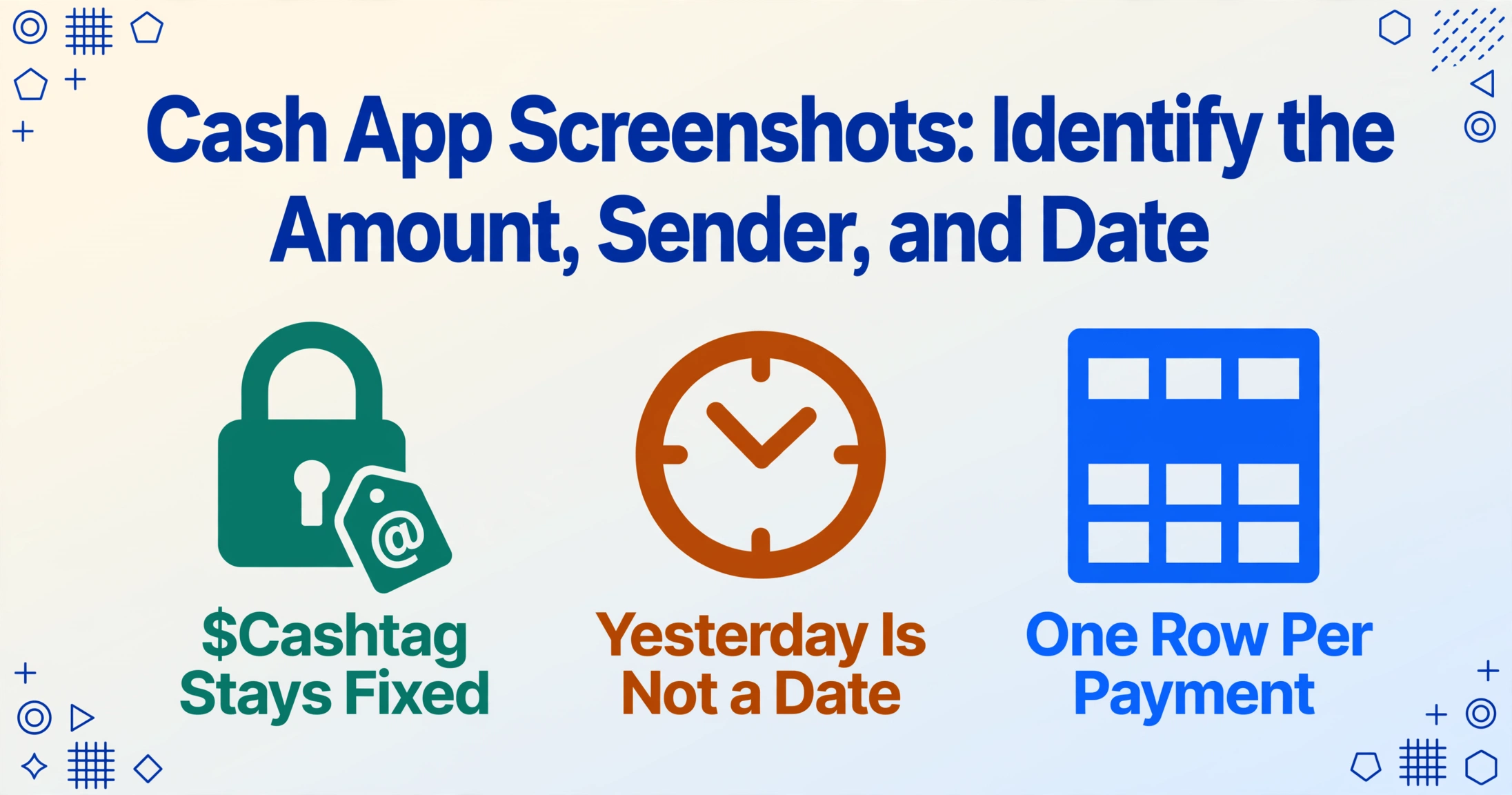
A Cash App payment screenshot carries three pieces of data you actually need — the dollar figure, the date the money moved, and who sent it — but the third one has a catch that the other two don't. Every Cash App user has three separate identities. A standard payment confirmation screen only shows two of them. The one that belongs in your ledger — the one that won't change behind your back by the time you reference it next month — might not be the one you'd assume. If you're logging transactions from screenshots — for a monthly income record, a tax-season reconciliation, or a folder of client payments to batch into a spreadsheet — getting the right sender identity is the difference between a clean entry and one you'll question later.
Why the Sender Name on a Cash App Screenshot Isn't Always Who You Think
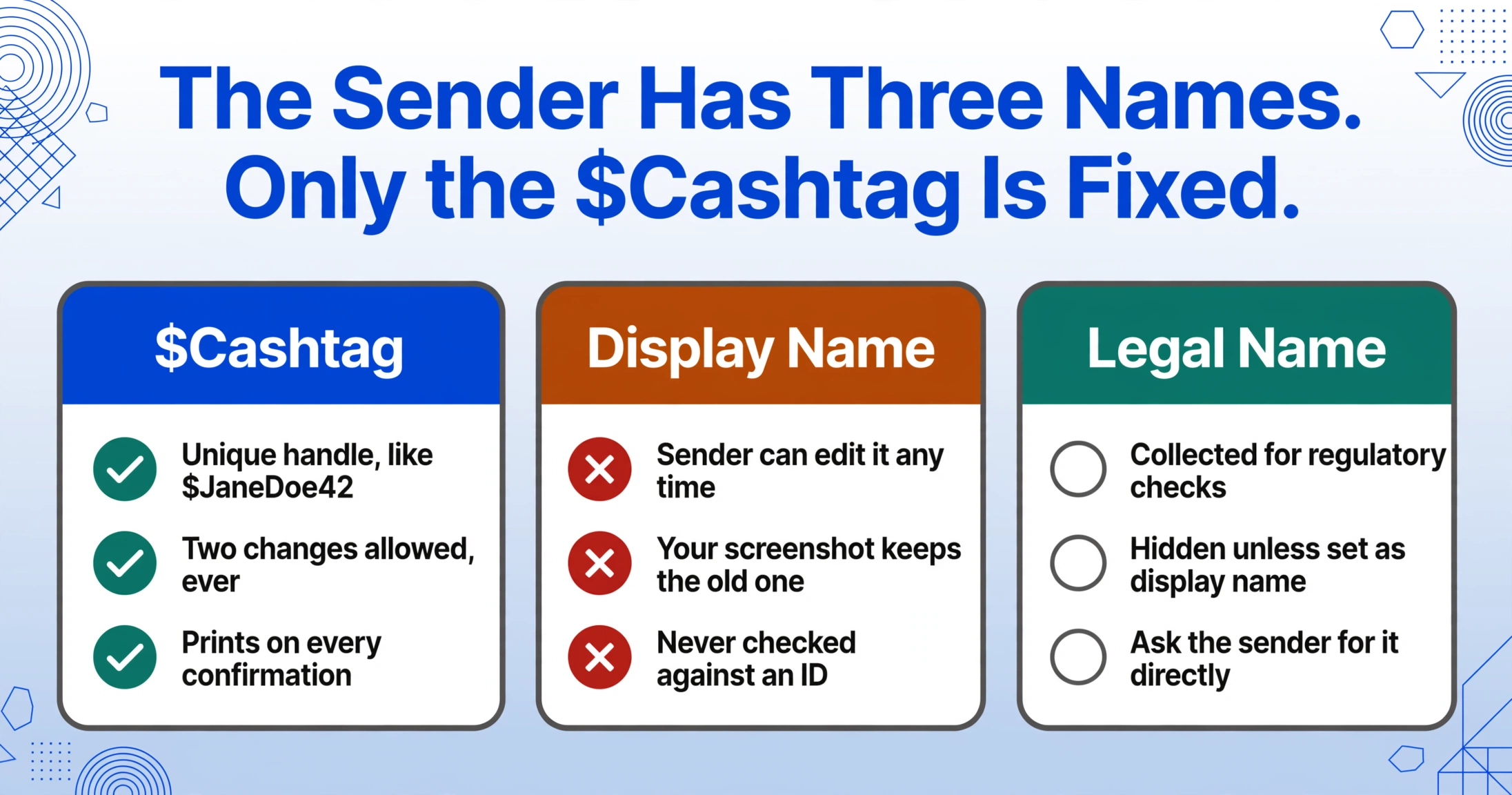
Cash App assigns every user three separate identities, and a standard transaction view — what you see when you open a completed payment — only surfaces two of them:
- The $Cashtag — the permanent unique handle (like
$JaneDoe42) that someone types to send you money. This is a username, not a name. Cash App limits users to two $Cashtag changes ever, so once someone picks one, it tends to stick. - The Display Name — a freely editable profile label. Could be "Jane D.," could be "JD's Landscaping LLC," could be "💸 Jane Takes Tips 💸." The sender can change it this afternoon and the screenshot you took this morning won't update.
- The Legal Name — the verified identity Cash App collects for regulatory purposes. This does not appear on a standard transaction view unless the sender manually set it as their display name.
What this means in practice: when you open a payment confirmation and see "$50 from Jane's Boutique," both pieces of information are coming from the sender's own settings — the $Cashtag and the display name they chose. Neither is verified against an ID. If the sender changes their display name from "Jane's Boutique" to "Jane's Gifts" next week, your screenshot still says the old name, but the live transaction inside the app now shows the new one.
The $Cashtag is the sender identifier on the screenshot that cannot change behind your back. If you're building a record that might be referenced weeks or months later — a tax-season ledger, a client payment log, a month-end reconciliation — record the $Cashtag alongside any display name. A display name tells you what the sender wanted to be called at that moment. A $Cashtag tells you who actually sent it.
The legal name that Cash App verified against the sender's ID will not appear on a payment screenshot at all — unless the sender happened to type it as their display name. You cannot assume the name you see has been verified.
Where the Amount and Date Actually Appear — and the Two Things That Can Throw You Off
Compared to the sender identity puzzle, the amount and date are simpler — but not foolproof. On a completed payment screen, the amount appears prominently at the top of the confirmation, usually in large type. The date and timestamp sit below it, often in a smaller, secondary typeface.
The amount you see is the gross payment — the total that left the sender's account. If the payment was funded by a credit card rather than a Cash App balance or debit card, the sender paid a 3% fee on top of that amount — but the fee is separate from the transaction total and doesn't appear on the recipient's confirmation screen at all. What you see as the recipient is what landed: the net amount post-fee, from your perspective.
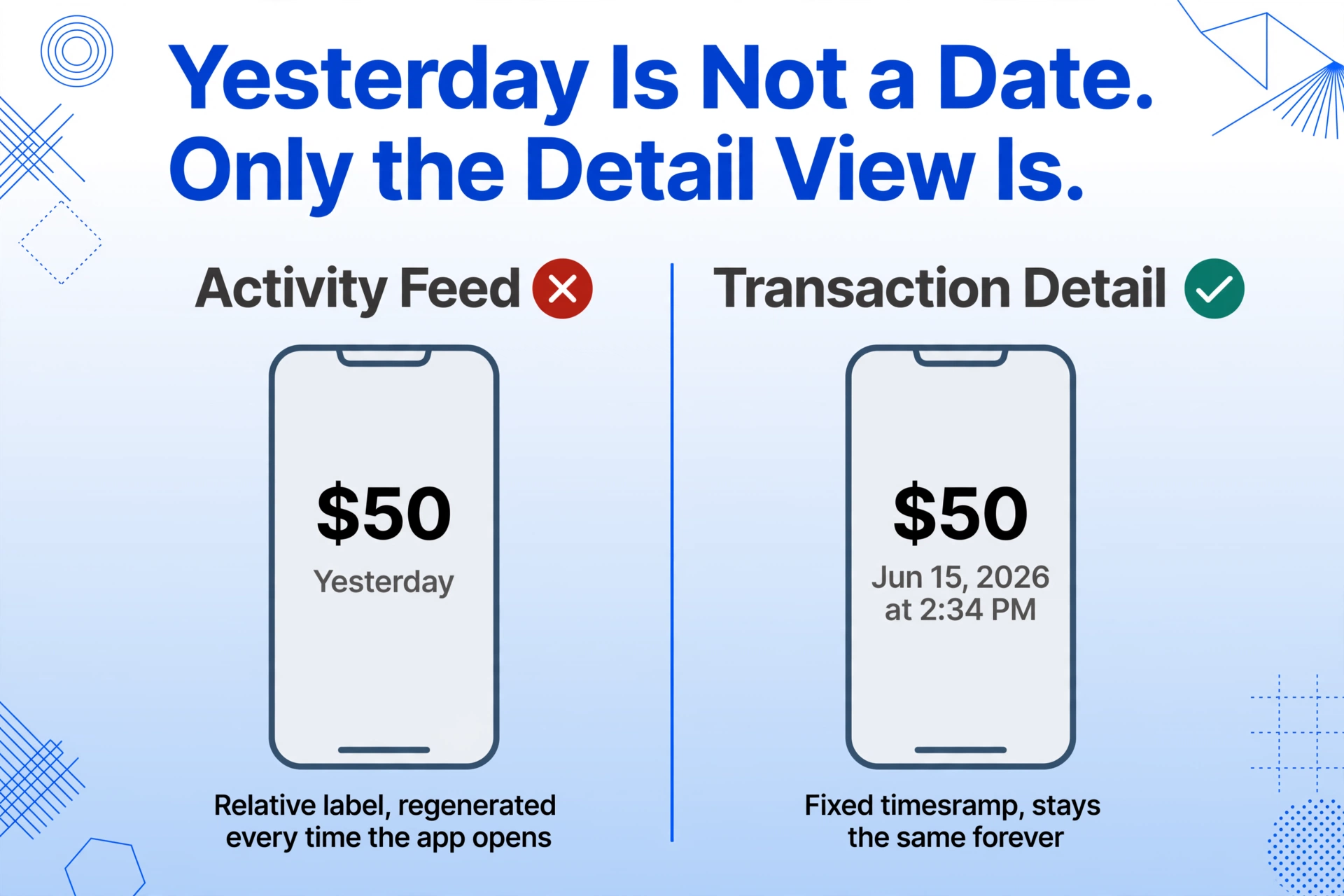
The date has its own subtle trap. On a freshly captured screenshot — taken from the Activity feed moments after the payment cleared — the timestamp may display as a relative label: "Just now," "5 minutes ago," or "Yesterday." These are dynamically generated by Cash App's interface based on the current time, not fixed metadata burned into the transaction record. A screenshot that says "Yesterday" is useless for record-keeping unless you capture it alongside a fixed date. The fix is simple: tap into the individual transaction detail view, where Cash App displays the absolute date and time — something like "Jun 15, 2026 at 2:34 PM." That's the permanent timestamp. Capture that screen instead of the Activity feed summary.
If you have screenshots that already say "Yesterday," the absolute date can be retrieved by opening the same transaction in the app — the Activity tab (accessed via the clock icon) shows all past transactions with full timestamps — or by matching the screenshot to the corresponding entry in Cash App's monthly statement export (CSV or PDF, available under Documents in your account settings).
Getting Payment Details Into a Spreadsheet — Without Retyping Each One
Once you know which fields to read and which identity to record, the next question is how to get them into a usable format. Cash App's built-in export produces CSV or PDF statements covering a date range — useful for an overview, but the CSV lumps all transactions into one table and may not format the sender field the way you expect it (it may show the display name, the $Cashtag, or both, depending on the export version).
If you're working from screenshots — because you took them as payments came in, or because a client sent you theirs as proof — the manual path is to open each image, read the three fields, and type them into a spreadsheet row. For a handful of payments a month, that's manageable. For a batch of payments — a freelancer logging every client payment from the quarter, a bookkeeper reconciling a small business's Cash App transactions — the time adds up fast.
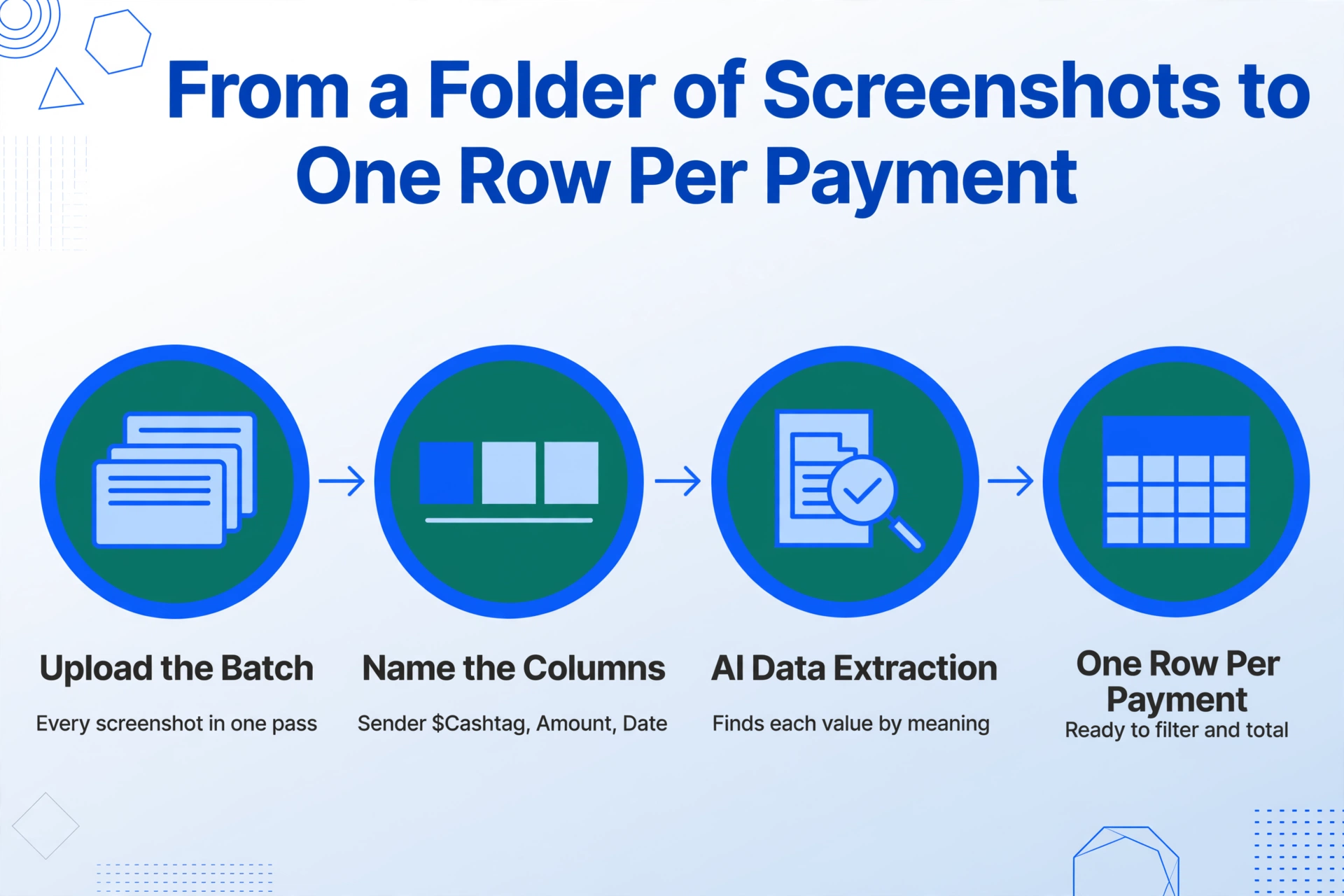
This is where AI-powered semantic extraction changes the workflow. Traditional OCR reads characters off an image in order and dumps them into a text block — you then manually hunt for the dollar figure, the sender handle, and the date. Semantic extraction works the other way: you name the columns you want — "Sender $Cashtag," "Amount," "Date" — and the AI locates each value on the screenshot by understanding what it means, not where it sits. The layout of a Cash App confirmation screen varies between iOS and Android, between light mode and dark mode, between an older version of the app and a newer one. A position-based tool breaks when the layout shifts; a semantic extractor reads the meaning of "you received $50 from $SarahB on Jun 15" regardless of where those elements sit on the screen.
The same approach works across other payment apps. Like Venmo, Cash App uses a username system to identify senders — but with a key difference: Venmo's @username is tied to a single identity and doesn't sit alongside a freely editable display name in the same transaction view. On a Venmo payment screenshot, the @username is the sender identifier — one field, straightforward. (See our breakdown of extracting the amount, date, and payer from Venmo screenshots.) Zelle, built into bank apps rather than a standalone interface, arranges the same three fields differently depending on which bank's app you're looking at — a Chase Zelle confirmation and a Bank of America Zelle confirmation put the amount, date, and recipient in different positions. (We covered the field location differences in finding the amount, date, and recipient on Zelle screenshots.) The common thread: all three apps present the same three data points, but each app's identity mechanics call for a slightly different approach to recording the sender correctly. When you mix Cash App screenshots with Venmo, PayPal, and Zelle in one batch, a single column set produces one unified log — the multi-app payment screenshot extraction handles all of them together.
What makes Cash App's case distinct — and why the $Cashtag matters — is that it's the only major US P2P app where the visible sender name on a screenshot is deliberately decoupled from the verified legal identity. That's not a flaw; it's a design choice. But it means that "who paid me" has two different answers, and the correct one for your records depends on what you're building the record for.
FAQ
My Cash App screenshot says "Yesterday" — how do I get the actual date?
Open the Cash App Activity tab (clock icon, bottom right), find the transaction, and tap into the detail view. The absolute date and timestamp are displayed there. If you no longer have access to the app (the screenshot was sent to you by someone else), ask them to do the same — or look up the transaction in their monthly statement CSV export from cash.app/account under Documents.
Can I match a $Cashtag to a real person's name?
Not from a screenshot alone. The $Cashtag is a unique handle that identifies one Cash App account, but the legal name associated with that account is not publicly visible. If you need the legal name for tax reporting or a formal record — for example, a 1099 for a contractor you paid via Cash App — you'll need to request it from the sender directly. Cash App does not expose verified identity information through its payment confirmation interface.
Can I process multiple Cash App screenshots at once?
Yes. If you're dealing with a batch of payment screenshots — all from Cash App, or mixed with Venmo and Zelle screenshots — AI-based extraction tools designed for batch processing can read all of them in one pass and output a single spreadsheet where each row is one payment and each column is a field you specified (amount, $Cashtag, date, memo). This is particularly useful at tax time or month-end, when a folder of screenshots that accumulated over weeks suddenly needs to become a clean ledger.