How to Extract Student Transcript Data
to Excel — A Step-by-Step Admissions Guide
AACRAO's member survey data confirms what every admissions director knows: manually keying a single high school transcript into a student information system takes 20 minutes or more. At a mid-sized university processing 15,000 applications per cycle, that is 5,000 staff hours — roughly three full-time employees doing nothing but reading PDFs and typing. Yet the deeper difficulty is not the volume. It is that each transcript tells the same story — courses, grades, credits, GPA — in a different visual language, from a different academic system, often using a grading scale that does not match your own. The bottleneck is not data entry speed. It is the semantic gap between how a transcript presents information and how your SIS needs to receive it.
Key Takeaways
- Fifteen thousand applications per cycle consume 5,000 hours of staff time retyping grades that already exist on the page, the equivalent of three full-time employees doing nothing else.
- OCR reads the characters "B+" off a transcript but cannot tell you that grade means 3.3 at one high school and 87 at another, and no admissions team can build and maintain parsing templates for all 2,000+ sending institutions.
- Define your desired output columns once and let semantic AI understand the academic meaning of each transcript, populating your spreadsheet regardless of which of 2,000+ schools sent the document.
What Makes Transcript Data Different from Any Other Document
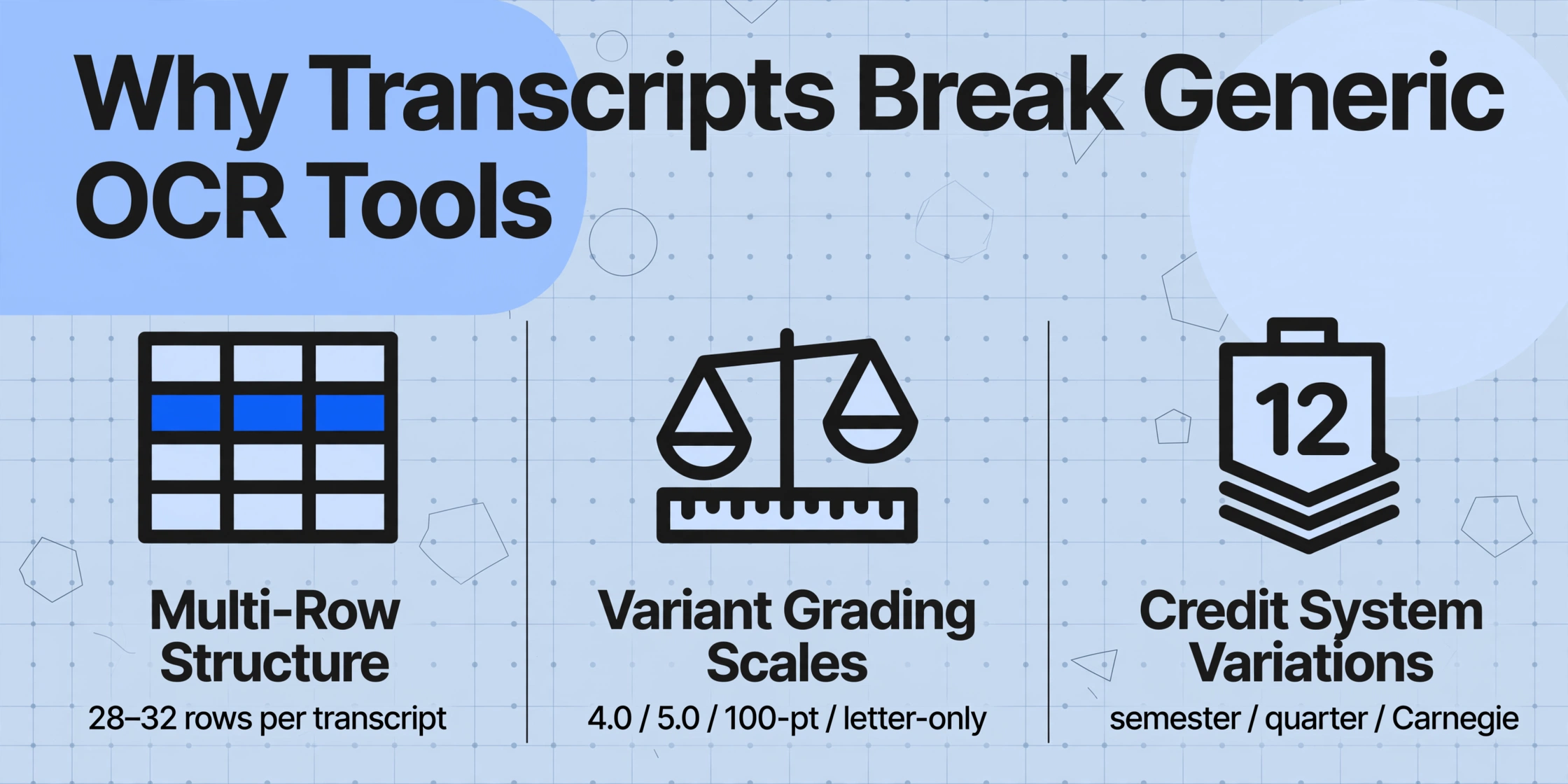
Most document extraction challenges share a common shape: find the invoice number, find the date, find the total — fields that appear once on a page. Transcripts break this pattern in three ways that explain why generic OCR tools struggle and why template-based approaches collapse under format variety.
Multi-row course listings. A transcript is not a form with single-instance fields. It is a table — sometimes spanning multiple pages — where every row represents a course with its own name, grade, credits, and term. A four-year high school transcript contains 28 to 32 course rows. A transfer student's combined transcript can exceed 60 rows across multiple prior institutions. Extracting the right data from the right row is a structural challenge that pixel-level OCR was never built for.
Variant grading scales. Institutions report performance on at least four common scales: unweighted 4.0, weighted 5.0 (AP/IB gets +1.0, Honors gets +0.5), 100-point percentage, and letter-only without numeric equivalents. A "B+" means 3.3 on a 4.0 scale at one high school, 87–89% at another, and a completely different value on a 4.3 scale (used by Stanford and several others). International transcripts add percentage bands, rank-based systems, and national examination scores that do not map cleanly to any US scale. Simply reading the characters "B+" off a page gives you nothing useful — you need to know what that grade means in the evaluating institution's framework.
Credit system variations and course designations. Semester credits, quarter credits (where 5 quarter hours = 3.33 semester hours per the standard ÷1.5 conversion), trimester units, and Carnegie units all coexist in the same applicant pool. Beyond the credit count, course-level designations carry admissions-significant meaning: Advanced Placement, International Baccalaureate, dual-enrollment, honors, transfer credit from a prior institution, remedial coursework. Each designation affects how the course should be weighted in GPA calculation and whether it satisfies prerequisite requirements. A transcript extraction tool that gives you "4.0 credits" without telling you it is "4.0 quarter credits of AP Calculus" has given you misleading data.
This is why the American Association of Collegiate Registrars and Admissions Officers (AACRAO) — representing over 18,000 professionals at approximately 2,300 institutions — has invested decades in transcript practice standardization through its Academic Record and Transcript Guide. And it is why the National Student Clearinghouse Electronic Transcript Exchange (ETX) now connects nearly 2,000 institutions for free, secure transcript exchange in PDF, XML, and EDI formats. The infrastructure for electronic transcript transmission exists. The remaining gap is turning the transmitted document into structured data your SIS can consume — without a staff member keying every field.
Traditional OCR reads characters. AI-powered semantic extraction — the approach we cover in this guide — reads academic meaning. It understands that "AP Calc BC" on one transcript and "Calculus BC (Advanced Placement)" on another are the same course category. It can distinguish a course grade from a cumulative GPA figure on the same page. And it can do this without requiring you to build and maintain a parsing template for every sending institution. For more on the underlying technology distinction, see our guide on what OCR actually does — and does not — understand.
Step 1: Prepare Your Transcripts for Extraction
What you feed into the extraction tool determines what you get out. Three preparation decisions make a measurable difference in output quality.
Scanning resolution. If you are working with paper transcripts that arrive by mail, scan at 300 DPI minimum. San Diego State University, which processes more than 31,000 college transcripts per year (82% via EDI, 18% via OCR from paper), standardizes on 300 DPI with grayscale output. Black-and-white scanning loses the subtle contrast that distinguishes a course title from a grade column in tightly-packed transcript layouts. Color scanning preserves maximum information but increases file size without meaningful accuracy gain for most transcript formats.
Page straightening and orientation. Transcripts are almost always portrait orientation, but scanned pages often arrive slightly rotated. Even a 2-degree tilt can cause traditional OCR to misread column alignments — it confuses which grade belongs to which course. If your scanning software offers automatic deskew, enable it. For already-digitized PDFs, most extraction tools handle rotation internally, but if you notice systematic errors in a batch, check the source PDFs for rotation before troubleshooting the extraction logic.
Batch organization. Group transcripts by processing priority before uploading. If you are evaluating transfer credit, batch the transcripts that require articulation review separately from straightforward first-year admissions files — the review workflow differs. Name your files consistently: [LastName]_[FirstName]_[Institution].pdf. This naming convention lets you cross-reference extracted data against the source file during validation without opening each one.
If your office receives transcripts primarily through the National Student Clearinghouse ETX or Parchment, you are already receiving digital PDFs — skip the scanning step and proceed directly to extraction. For more on optimizing image quality before extraction, see our practical guide to improving OCR accuracy.
Step 2: Define Your Extraction Columns
This is where the extraction approach diverges from everything a template-based tool does — and it is the step that determines whether you get usable data or a mess. In a template-based workflow, you would draw rectangles around fields on a sample transcript from each sending institution. With 2,000+ high schools and 4,000+ colleges in the US alone, that approach does not scale.
Semantic extraction works differently. Instead of telling the tool where to look, you tell it what you want — by naming the columns that will become your output spreadsheet headers. The AI reads each transcript, understands the academic meaning of the text it finds, and maps values to the columns you defined. This is what ImageToTable.ai calls Custom Column Extraction: you define the output schema once, and the tool applies it to every transcript in your batch regardless of formatting differences.
Here is a column schema that covers the core data most admissions offices need:
| Column Name | What It Extracts | Notes |
|---|---|---|
Student Name | Full name as printed on transcript | Match against application record for verification |
Institution Name | Issuing high school or college | Use for feeder school analysis and GPA context |
Course Name | Full course title | e.g. "AP English Literature & Composition" |
Grade | Letter or numeric grade as shown | Extract raw value; conversion handled in Step 3 |
Credits | Credit hours or units earned | Note the credit system type (semester/quarter/Carnegie) |
Term | Semester, trimester, or year | e.g. "Fall 2024", "Spring 2025" |
GPA | Cumulative GPA as reported | Scale varies; note whether weighted or unweighted |
Course Level | Regular, Honors, AP, IB, Dual Enrollment, Transfer | Use an inferred column with options list |
The last column — Course Level — is not a field that appears explicitly on most transcripts. It requires the AI to infer classification from context: "AP" in the course name, a separate "Honors" designation column, or dual-enrollment notation. This is an inferred column — the AI reads the document and reasons about what category each course belongs to based on the evidence present, even if the transcript never prints the words "AP" or "Honors" in a standalone field. You specify the inference logic by including options in the column definition: Course Level (options: Regular, Honors, AP, IB, Dual Enrollment, Transfer, Remedial).
For credit transfer evaluation, add these columns to capture articulation-relevant detail:
| Column Name | Purpose |
|---|---|
Course Code | Department prefix + number (e.g. "MATH 2413") for equivalency lookup |
Credit Type | Semester / Quarter / Trimester / Carnegie — determines conversion formula |
Transfer Institution | If credit was earned elsewhere and transferred in, the original institution name |
The column names you type are the column headers in your final Excel output. You are defining the output format — the AI figures out how to populate it from whatever transcript lands in the batch.
Step 3: Handle GPA Scales and Credit Conversion
Extracting the raw grade and credit values is half the work. Making those values comparable across applicants requires conversion — and this is where most manual workflows introduce errors that compound silently through the admissions pipeline.
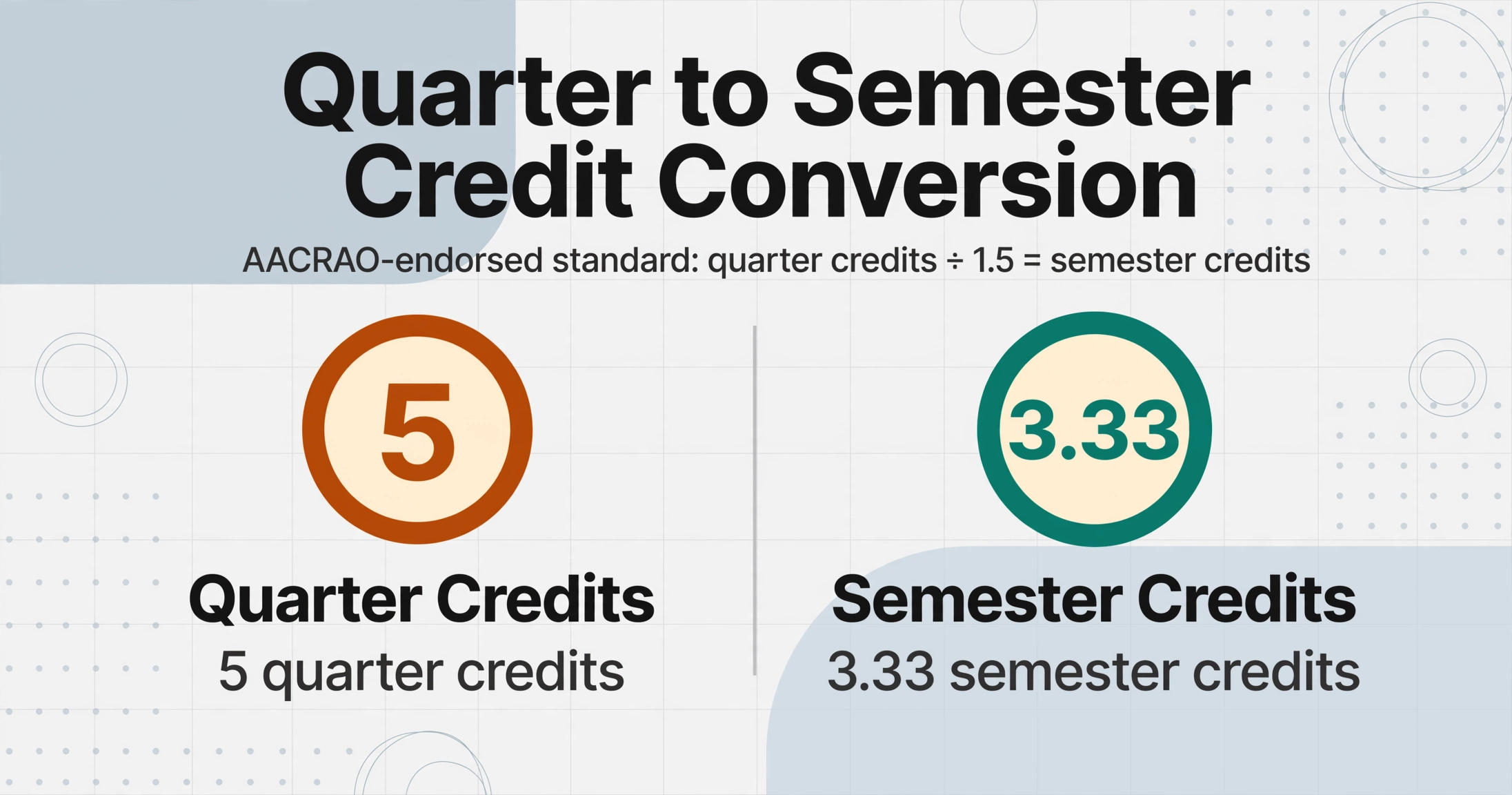
Quarter-to-semester credit conversion. The AACRAO-endorsed standard, adopted by institutions from Norwich University to Excelsior University, is: quarter credits ÷ 1.5 = semester credits. A course worth 5 quarter credits equals 3.33 semester credits. This conversion matters because it directly affects whether an applicant meets minimum credit thresholds for transfer admission, prerequisite completion, and financial aid eligibility. If your SIS expects semester credits and you import quarter credits without conversion, every subsequent credit total in the system is wrong.
With a Computed Column, you can automate this conversion during extraction. Define a column called Semester Credits (if Credit Type = Quarter then Credits ÷ 1.5 else Credits) — the AI reads the credit type, applies the formula, and outputs the converted value directly into your spreadsheet. No post-extraction Excel formula needed. This same approach handles other credit system conversions: trimester credits ÷ 1.17, Carnegie units × variable multipliers depending on your institution's policy.
GPA scale normalization. The challenge is that a 3.8 weighted GPA from a school that awards 5.0 for AP courses is not the same achievement as a 3.8 unweighted GPA from a school using a strict 4.0 scale. To compare applicants fairly, you need both the raw GPA as reported and contextual information about the scale.
Extract these three fields for every transcript:
GPA (as reported)— the number printed on the transcriptGPA Scale— use an inferred column:GPA Scale (options: 4.0 Unweighted, 5.0 Weighted, 4.3, 100-Point, Other)GPA Scale Max— the maximum possible on that scale (4.0, 5.0, 4.3, 100)
With these three values in your spreadsheet, your admissions team can normalize across scales using your institution's own formula rather than trusting a tool's black-box conversion. A common approach: divide reported GPA by scale max to get a percentage-of-maximum score (e.g. 3.6/4.0 = 0.90, 4.2/5.0 = 0.84), which enables cross-scale comparison without losing the original data.
Handling transfer credit and dual enrollment. When a transcript shows courses from multiple institutions — common for transfer students and dual-enrollment applicants — the extraction needs to preserve which courses came from where. Define a column for Institution (per course) to capture the originating school for each row. If the transcript lists "Columbus State Community College" next to a subset of courses, the AI can associate those rows with that institution and populate the column accordingly, even when the layout varies between transcripts.
For an overview of how AI extraction applies across the broader education document landscape — including enrollment forms, financial aid letters, and standardized test scores — see our complete guide to OCR and AI extraction for education.
Step 4: Review, Validate, and Export to Excel
No extraction tool — AI-powered or otherwise — achieves 100% accuracy on 100% of transcripts. The key is designing a review workflow that catches the small fraction of fields that need human attention without forcing staff to re-read every line. That is the difference between automation that augments your team and automation that creates a new kind of busywork.
Confidence-based review. Some extraction platforms flag low-confidence fields — values where the AI is uncertain about a grade, a course name, or a credit count — for human verification. Instead of reviewing every extracted row, staff focus only on the flagged items. At 95–99% field-level accuracy, this means reviewing roughly 1 to 5 fields per transcript rather than 30+. A 15,000-application cycle goes from 450,000 fields to verify manually to perhaps 22,500 flagged fields — still work, but work measured in hours rather than weeks.
Cross-reference validation. Before importing extracted data into your SIS, run two quick checks:
- Row count check: Does the number of course rows extracted match the number of courses visible on the transcript? If a four-year transcript with 32 courses produced only 28 rows, something was missed — typically a course spanning a page break or an unusual layout element.
- GPA sanity check: If the extracted GPA is 2.1 but every course grade is A or B, either the GPA field was misread or the transcript uses a scale you have not accounted for.
Batch export to Excel. When you process multiple transcripts in a single batch, the tool merges all extracted data into one spreadsheet — one row per course, with columns matching the schema you defined in Step 2. The output is ready for direct import into Ellucian Banner, PeopleSoft Campus Solutions, Workday Student, or any SIS that accepts CSV or Excel uploads. Each row is traceable to its source transcript through the filename column, so if a question arises during degree audit or credit evaluation, staff can pull the original PDF in seconds.
This batch-merge capability is what transforms transcript processing from a per-document task into a pipeline. Process 50 transcripts in one upload, get one spreadsheet with every course rowed out, and feed it directly into the system your registrar already uses.
FERPA Compliance in Transcript Data Extraction
The Family Educational Rights and Privacy Act (FERPA, 20 U.S.C. § 1232g; 34 CFR Part 99) requires educational institutions to use "reasonable methods" to control who can access student education records and to authenticate the identity of parties to whom information is disclosed. A transcript is an education record. Every person who touches it during processing is an access point that must be controlled and documented.
Where manual entry creates FERPA exposure. Before a single grade reaches your SIS through a manual workflow, the transcript PDF typically passes through: a shared network drive (accessible to anyone with departmental folder permissions), an email inbox (potentially forwarded, auto-saved, or cached on multiple devices), and a staff member's desktop or downloads folder. At each handoff, the document exists outside a system that logs who accessed it and when. If a FERPA complaint triggers an audit, the institution must demonstrate a chain of custody — and a correction log in a spreadsheet does not constitute an access log. As federal enforcement of FERPA has intensified, with the Department of Education requiring institutions to certify compliance and demonstrate proactive data protections, the gap between "we have always done it this way" and demonstrable governance has narrowed.
How automated extraction reduces the exposure surface. When transcript data flows through an extraction tool that processes files directly — without intermediate saves to shared drives, without email attachments, without downloading to individual desktops — the number of uncontrolled access points drops. The transcript goes from upload to structured output. Staff review extracted data fields rather than handling the full student record PDF. And because the extraction process is server-side with encrypted data handling, the FERPA-relevant access events become: uploader authentication, extraction processing, and reviewer access — all of which can be logged.
This does not eliminate FERPA obligations — it changes the shape of the compliance workflow from "track every human handoff" to "control and log system access points." For most admissions offices, the latter is easier to document, easier to audit, and harder to accidentally violate.
Frequently Asked Questions
Does AI extraction work on handwritten transcripts or grades?
Partially. Printed transcript data — course names, credit hours, institution names, GPA figures — extracts with high accuracy (typically 95%+). Handwritten annotations — a counselor's note in the margin, a hand-circled grade correction — are harder. Modern vision-language models can read handwriting with reasonable accuracy on clear, well-lit scans, but cursive, light pencil marks, or annotations that bleed into printed text will produce lower-confidence results. For transcripts with significant handwritten content, factor in extra review time for flagged fields.
What about international transcripts with non-Latin scripts?
Transcripts in languages using Latin script (English, Spanish, French, German, Portuguese) process reliably. Transcripts in non-Latin scripts (Chinese, Japanese, Korean, Arabic, Cyrillic) can be read by vision-language models that support those character sets, but accuracy varies by script complexity and document quality. Grade scales and credit systems from non-US institutions add a separate layer of complexity — a 20-point French grading system (where 16/20 is excellent) does not map to a US 4.0 scale through simple division. In these cases, extract the raw values and handle conversion through your institution's international credential evaluation process.
Can I extract data from unofficial transcripts or student portal screenshots?
Yes — the AI reads whatever visual content is present, regardless of whether the document bears an official seal. However, for admissions decisions, you will eventually need the official transcript for verification. A practical workflow: use unofficial transcripts or screenshots for preliminary evaluation (sorting, initial GPA estimation, identifying candidates for expedited review), then process official transcripts through the same extraction pipeline for final data entry into the SIS. Just keep unofficial and official batches separated so extracted data is never confused between the two.
How does this compare to Parchment Data Automation or Softdocs ITP?
Parchment Receive Premium + Data Automation and Softdocs Intelligent Transcript Processing are purpose-built for high-volume institutional transcript processing with direct SIS/CRM integration. They are the right choice for universities processing 10,000+ applications per cycle with dedicated IT support and the budget for enterprise contracts. The approach described in this guide — using a lightweight, no-template AI extraction tool — serves a different use case: smaller admissions offices, community college transfer evaluation, departmental graduate admissions, or any scenario where an enterprise platform is overkill for the volume and budget. Both approaches solve the same problem of manual data entry; they differ in scale, integration depth, and cost structure.
Does this work with PDFs that have security restrictions or password protection?
No. Password-protected or DRM-restricted PDFs must be unlocked before extraction. Most official electronic transcripts from services like Parchment and National Student Clearinghouse arrive as standard, unprotected PDFs. If you encounter a locked PDF, contact the issuing institution's registrar office — they can provide an unrestricted version or an alternative delivery method.
What is the actual accuracy rate for transcript extraction?
Field-level accuracy for printed transcript data — course names, grades, credits, institution names, dates, GPA — typically ranges from 95% to 99%, depending on scan quality, layout complexity, and whether the transcript contains unusual formatting elements (multi-column course listings, split-page designs, watermarks over text). The University of Texas at Austin, after adopting automated transcript data extraction, reported accuracy above 95% with a 70% reduction in staff processing time. The remaining 1–5% of fields — typically involving unusual abbreviations, heavily compressed layouts, or text printed near document borders — are what the confidence-based review workflow is designed to catch. This is not a tool that replaces human judgment; it is a tool that reduces the surface area where human judgment is needed.