How to Extract Construction Permit
Data into Excel (2026 Guide)
The permitting industry digitized the application and left the data entry behind. Cities now run e-permitting portals, plan reviews are tracked online, and approval letters arrive by email as PDFs — which means a project engineer still sits down every week and retypes permit numbers, issue dates, expiration dates, and conditions into a tracking spreadsheet, one document at a time. In Washington state, the average permit now takes 6.5 months to clear and carries roughly $31,000 in holding costs while it does — but the cost that nobody budgets for is the recurring transcription work that starts the moment approval finally lands.
Key Takeaways
- IBC Section 105.5 gives every building permit a 180-day expiration clock — one missed entry in your spreadsheet and you're re-applying from scratch, not getting an extension.
- The permit data you need is already in the PDFs you receive — it just never makes it into the tracker because the software industry built the application portal and walked away from the data entry.
- Define your tracking columns once, batch-extract a week's worth of permits into them, and the 180-day clock becomes a filter you run every Monday instead of a date you hope someone remembered.
Why E-Permitting Made Applications Faster and Left Data Entry Behind
Walk into any mid-size general contractor's office and you'll find the same split. The front end of permitting — submitting applications, tracking plan reviews, paying fees — moved onto city portals years ago. The back end didn't. When a permit is approved, the building department issues a permit card and an approval letter, and those still arrive as a PDF attachment, a printout, or a scanned document from the AHJ's counter. Someone on the project team has to read that document and carry its contents into the tracking spreadsheet by hand.
On Reddit's r/ConstructionManagers, the question "how do you usually keep track of new building permits" draws the same honest answers project after project: a shared Excel file, a wall calendar, or the memory of whoever filed the application. In a thread on tracking permits in project management software, a construction team describes "running into friction around building permits — especially when permits span" multiple jurisdictions, where every city uses a different form, a different portal, and a different approval letter layout. The tracker everyone wants exists. What nobody has is a reliable way to fill it.
The gap matters because permit data isn't just administrative noise — it's schedule-critical. A builder in Georgia told the Georgia Public Policy Foundation that he works across five metro Atlanta counties: in one, he can break ground two days after submitting a permit; in another, it takes seven months. Once the permit finally lands, the documents behind those timelines carry the exact data your schedule and compliance depend on.
The Permit Documents Behind Your Tracking Columns
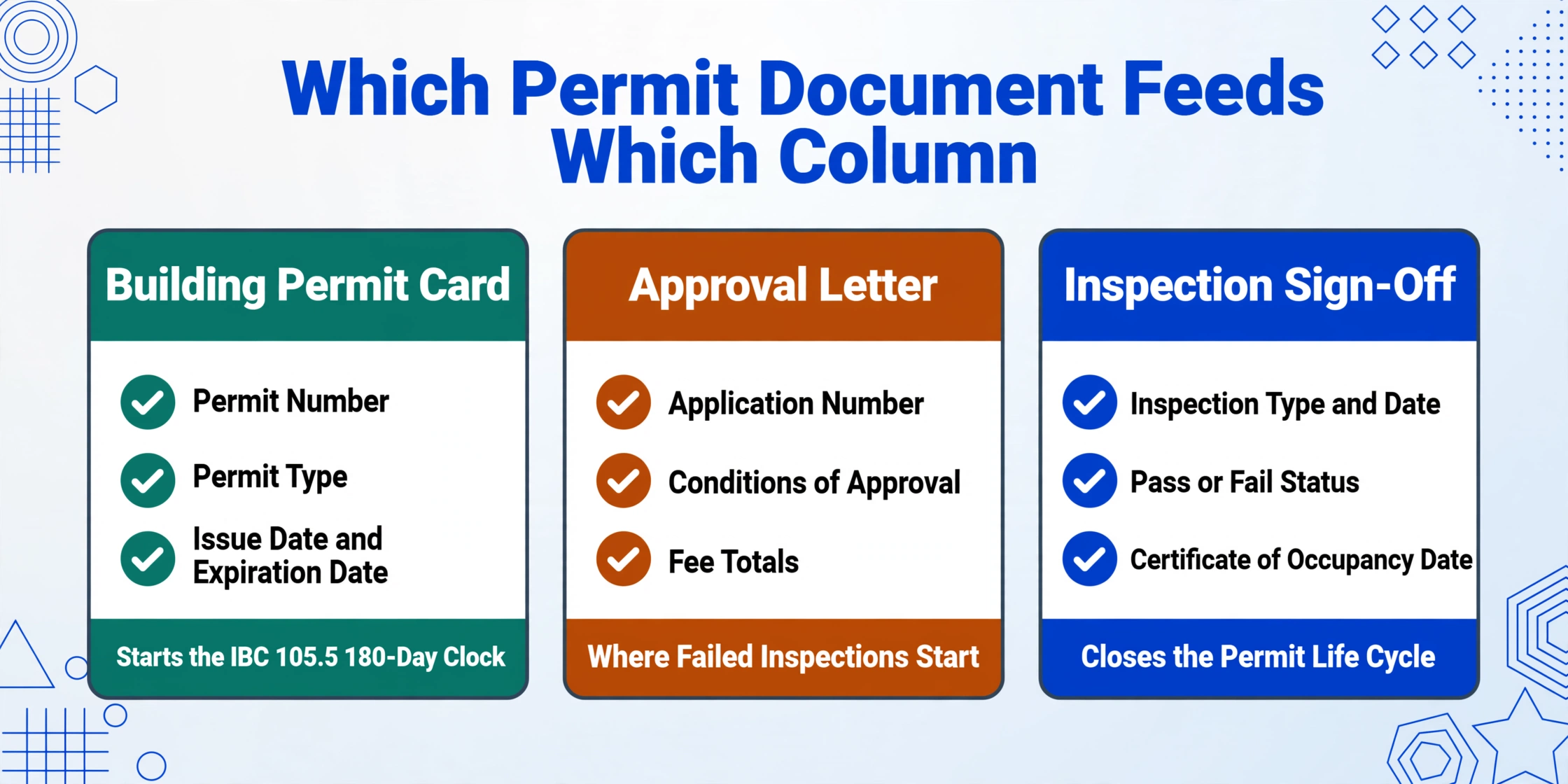
"Permit" isn't one document — it's a family of them, and each member contributes different fields to your tracking sheet. Knowing which document feeds which column is the first step to building a tracker that actually works.
Building Permit Card
The official authorization to perform a specific scope of work, issued by the building department. Core fields: permit number, permit type (new construction, alteration, mechanical, electrical, plumbing, demolition), property address, contractor of record, issue date, expiration date, valuation, and the signature of the building official. Under the International Building Code's Section 105.7, the permit card must be posted on the job site — which is why the document often comes back photographed, scanned, or faxed.
Approval Letter / Plan Review Response
The AHJ's written decision after plan review. Core fields: application number, plan review comments, conditions of approval, resubmission deadlines, and fee totals. These letters are where conditions — "fire-rated assembly required above the mezzanine," "shoring plans stamped by a licensed engineer" — hide, and where the data entry mistakes that lead to failed inspections usually start.
Inspection Sign-Off / Certificate of Occupancy
Inspection records and the final CO mark the end of a permit's life cycle. Core fields: inspection type, inspection date, inspector name, pass/fail status, and for the CO, the date the structure is approved for occupancy. For GCs managing closeout across multiple permits, this is the document that proves the permit obligation is closed — or, if it never gets signed, the one that holds up tenant handover.
Confined Space Entry Permit (OSHA)
A different species of permit entirely: an internal safety permit, not a municipal one. Under OSHA 29 CFR 1926 Subpart AA, any entry into a permit-required confined space must be documented on a written permit listing the space, the hazard evaluation, atmospheric test results, entrants, attendant, entry supervisor, and authorization signatures. Canceled entry permits must be retained for at least one year — a record-keeping requirement that makes these documents audit evidence, not just paperwork.
Hot Work Permit
Required for welding, cutting, grinding, or any operation producing sparks or open flame in areas with flammable or combustible materials, per OSHA 29 CFR 1926.352 and the NFPA 51B standard. Core fields: location, job description, fire watch assignment, start/end times, and sign-offs. A superintendent tracking a busy renovation can collect a dozen of these in a single week.
The pattern across all five: every document type contributes rows to your tracker, every one arrives in a slightly different layout, and none of them arrives pre-filled into your spreadsheet. That's the extraction problem in its purest form — and it's why the regulatory clock below makes the problem more expensive than it looks.
The Regulatory Clock That Makes Permit Logs a Compliance Task
Permits don't just expire on a date the city tells you about — they expire on a clock written into the code, and the tracking sheet is the only place that clock gets watched. Under IBC Section 105.5, a permit becomes invalid if work doesn't commence within 180 days of issuance — or if work is suspended or abandoned for 180 days. A permit that lapses means re-application, re-review, and in some jurisdictions, re-filing fees. On a project where a permit was pulled early to lock in the review queue, the 180-day clock is a real deadline that a hand-typed spreadsheet column — if anyone remembered to type it — is supposed to catch.
The stakes are higher than a re-application fee. A GC in Washington state watches an average permit delay of 6.5 months carry roughly $31,375 in holding costs per home, according to the state's Building Industry Association research — and every day of that delay accrues interest on construction loans, rental charges on idle equipment, and labor that can't be scheduled. Research from the University of Texas at Austin's Transportation Institute puts the cost of project delay at $96,000 to $447,000 per month on the projects it studied. A permit that quietly expires mid-project turns a schedule problem into a stop-work problem — and stop-work orders don't care how good your crew is.
The OSHA side runs on the same logic with a different clock. Excavation work requires daily inspection by a competent person before crews enter — and after every rainstorm (1926.651(k)) — with those inspections feeding the record trail an OSHA compliance officer can request at any time. Confined space entry permits must be kept for at least a year. Hot work permits document that a fire watch was posted. None of this is optional documentation, and all of it lands in the same place: someone's spreadsheet.
The Tracking Spreadsheet Isn't the Problem — Feeding It Is
The market has thoroughly covered the two ends of the permit problem. Permit tracking software like PermitFlow automates the application and submission side, and platforms like Procore and Autodesk Construction Cloud — along with Viewpoint, PlanGrid, and Bluebeam for document-heavy workflows — track permit milestones inside the project schedule. Free templates from Smartsheet and others give you a well-designed tracker with columns for application ID, permit type, status, and assigned officer. And yet the honest take you'll find in the threads on managing multiple projects and tracking permits across jurisdictions is blunt: a spreadsheet is only as good as the updates someone makes to it.
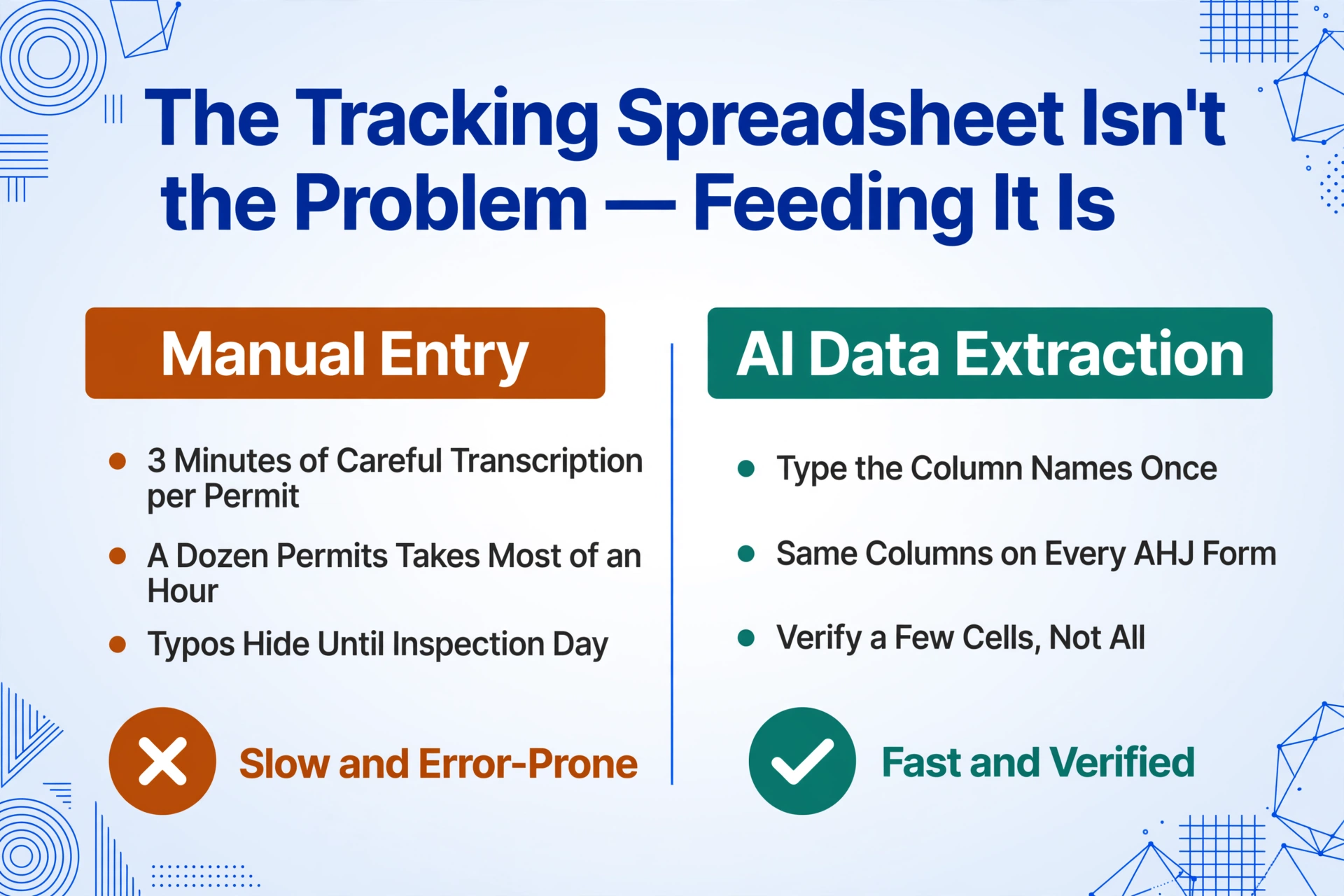
The unbuilt layer sits between the approval document and the tracker: nothing takes the fields off the permit card, the approval letter, or the confined space entry form and puts them into the spreadsheet. The software world built the application, the submission, and the milestone tracking. It never built the data entry — because data entry was assumed to be someone's job. For a project engineer managing ten active permits across four jurisdictions, that's a recurring weekly chore of opening PDFs, reading fields, and typing them into rows. At roughly three minutes of careful transcription per document, a dozen permits is the better part of an hour of pure keystroke work — and every retyped permit number is a place for a typo to hide until the inspection day when it matters.
Most tools also make a quiet assumption that breaks down on real permit documents: that the fields sit in a fixed position on a fixed layout. They don't. Your electrical permit card from one county prints the expiration date in the top-right corner; the next county prints it under the contractor block; the confined space permit from your safety director is a completely different form. Template-based extraction — the approach that draws boxes around fields and breaks when the layout shifts — fails on exactly the documents this workflow is built around. The approach that works is the one that reads fields by what they mean, not where they sit.
How to Extract Permit Data Into Your Compliance Tracker

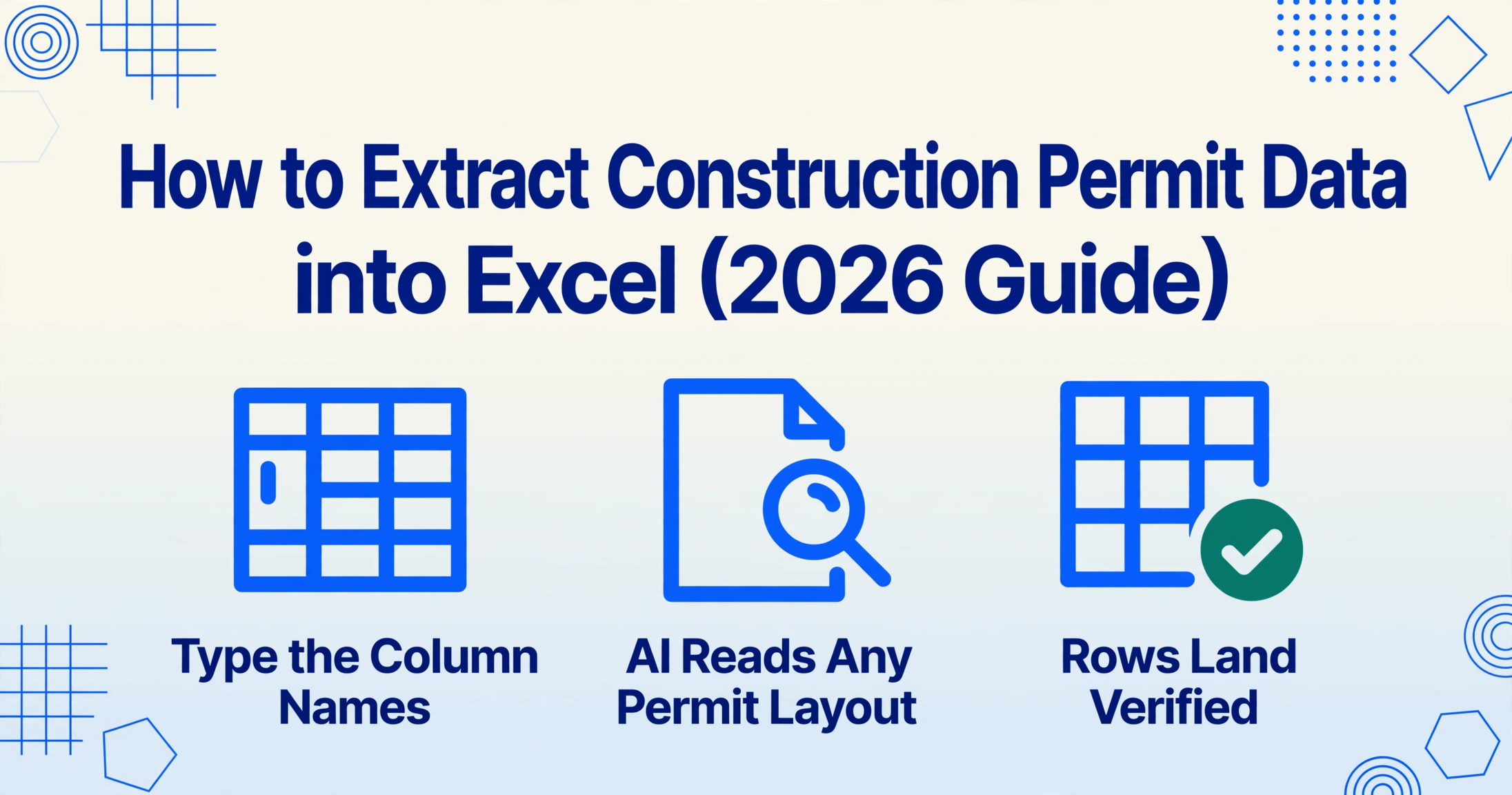
The method is built on a mechanism called custom column extraction: instead of drawing boxes around fields on a template, you type the column names you want in your tracker — "Permit Number," "Expiration Date," "Status" — and the AI reads each document, understands what each field means semantically, and pulls the matching value wherever it appears on the page. You define the output columns; the AI locates the data by meaning, not by coordinates. The column names you type become the exact headers of your final spreadsheet, so your tracker and your extraction stay in sync without any mapping step.
Because it's semantic rather than positional, the same column definitions work across every document type above — the county permit card, the approval letter, the confined space entry form — even when no two of them share a layout. Try it on a sample of your own documents:
Files are processed securely and not stored.
Here's the workflow, broken down for a typical permit-tracking setup:
Define your tracking columns once. Decide which fields your compliance tracker needs across all permit types — for a multi-project GC that might be: permit number, jurisdiction, permit type, property address, contractor of record, application date, issue date, expiration date, status, conditions of approval, fees, inspection dates, and the document link. Type these as column names; they become your spreadsheet headers. Add a computed column like "Days to Expiration" and the AI calculates it during extraction, so expiring permits flag themselves instead of waiting for someone to do the math.
Upload the permit documents — any format, any source. Screenshot the permit card photo your superintendent sent from the job site. Upload the approval letter PDF from the city portal. Scan the week's confined space entry permits and hot work permits. Batch them all together — the system processes the whole stack at once and merges the results into one table, so a dozen permits from five jurisdictions become a single spreadsheet run instead of five separate typing sessions.
Review, correct, and export. The AI populates one row per document. Before the data lands in your tracker, you verify it — for compliance-grade fields like permit numbers and expiration dates, you can hover any cell to highlight exactly where that value came from on the original document, and fix the one cell that's wrong instead of retyping all fifty. Then export as Excel (XLSX) and your tracker is current. What took three minutes per document now takes seconds, with the review pass catching the field that handwriting or a scan artifact scrambled.
The shift is from transcription to verification. A project engineer processing a dozen permit documents per week goes from roughly 36 minutes of typing to a few minutes of spot-checking — and the expired-permit miss that previously surfaced in a stop-work call becomes a highlighted row in a spreadsheet you looked at yesterday. For printed permit cards and typed approval letters, extraction accuracy runs up to 99%. Handwritten superintendent notes and water-stained scan artifacts are more variable — the honest ceiling is that the AI reads what a human could read, and it surfaces the rest for correction instead of guessing.
A Column Set That Covers Building, Trade, and Safety Permits
Generic permit trackers fail because they force every document into the same narrow row. The column set below is designed to hold municipal building permits, trade permits, and OSHA safety permits in one sheet — with columns that simply stay blank where a document type doesn't carry them. That's expected, and it's how the sheet stays filterable by permit type.
| Column | Source document | Why it matters |
|---|---|---|
| Permit number | Permit card, approval letter | The reference the AHJ uses for every follow-up, inspection, and status query |
| Permit type | Permit card | New construction / alteration / mechanical / electrical / confined space / hot work — drives filter and review |
| Jurisdiction | Approval letter, portal | Each city has its own forms, shot clocks, and fee schedules |
| Contractor of record | Permit card | Liability and license verification — who is responsible for the work |
| Issue date | Permit card | Starts the IBC 105.5 180-day clock |
| Expiration date | Permit card | The date work must have commenced or the permit lapses |
| Days to expiration (computed) | Calculated from expiration date | Flashes the at-risk permits without anyone doing date math |
| Status | Approval letter, inspection records | Applied / in review / approved / expired / closed — the project state |
| Conditions of approval | Approval letter | Where failed inspections and re-work typically originate |
| Fees | Approval letter, portal | Feeds job cost and preconstruction budget reconciliation |
| Inspection dates | Inspection sign-offs | Closing the loop from permit to certificate of occupancy |
Two of those columns deserve extra attention because they're where the compliance value hides. A computed "days to expiration" column means the 180-day clock in IBC Section 105.5 becomes a filter you apply weekly instead of a date you hope someone remembered. And an inferred column for the permit's relationship to the job — "assigned project," "phase," or "responsible PM" — fills in context the document never states, so a permit that arrived last quarter is still traceable to the project team that owns it.
Where This Changes the Workflow
Multi-jurisdiction GC catching a lapse before it becomes a stop-work. A GC running three active projects across four counties holds a mix of building, mechanical, and electrical permits pulled at different times. One permit was issued the day the owner authorized early procurement; nobody tracked that its 180-day commencement window was closing. With the permit stack batch-extracted into the tracker weekly and a computed expiration column, the permit surfaces as "15 days to expiration" in a Monday filter — the team pulls a plumbing rough-in forward or files the extension, and the re-application, re-review, and re-fee cycle never happens.
Safety manager's confined space and hot work log. A renovation superintendent collects hot work permits and confined space entry permits through the week — some signed on carbon forms, some photographed on a phone. Under OSHA 1926 Subpart AA, canceled entry permits must be retained for at least a year, which means the safety manager needs a retrievable log, not a folder of photos. Extracting each permit into a spreadsheet row (space, atmospheric test results, entrants, attendant, entry supervisor, authorization time) turns a stack of documents into a sortable audit trail — the thing an OSHA compliance officer asks to see before anything else.
Closeout and owner handover. At the end of a project, the owner's team asks for the complete permit record: every permit pulled, every inspection passed, the certificate of occupancy date. That's normally a project administrator spending an afternoon reconstructing history from files. With every permit already extracted into the tracker as it arrived, the closeout package is a filtered export — same data, assembled in minutes instead of an afternoon, and consistent because it was captured at the moment of approval rather than reconstructed from memory.
The same pattern applies across the rest of the compliance paperwork a GC handles. A permit tracking sheet built this way sits naturally alongside the certificate of insurance extraction workflow every GC already runs for subcontractor compliance — the difference is that permits carry a regulatory clock while COIs carry an expiration date, and both end up in the same kind of master spreadsheet. For teams already extracting their material purchase orders into job cost or reconciling change orders, adding permits is one more document type in the same pipeline, not a new system to learn.
FAQ
Does this work with permit cards photographed on a phone?
Yes — the AI reads photos of printed permit cards, including the angled, low-light photos a superintendent takes on a job site. Typed fields on a clean card extract at high accuracy. The variable cases are handwritten annotations on the card and photos taken at extreme angles or in glare, where you may need to correct a field or two. The practical trade-off holds: you verify a handful of cells instead of typing all of them.
Can I mix building permits, confined space permits, and hot work permits in one spreadsheet?
Yes. Define a column set that covers the fields you care about across all three — the shared ones like date, status, and location, plus the type-specific ones like atmospheric test results for confined space entries and fire watch assignment for hot work. Upload them together in one batch and the system merges everything into a single table, leaving fields blank where a document type doesn't carry them. Filter by permit type when you need one category — for example, the year's retained confined space permits for an OSHA audit.
How does this compare to using Procore or Autodesk for permit tracking?
Procore, Autodesk Construction Cloud, and similar platforms track permit milestones inside the project schedule — they're strong at showing where a permit stands in the approval flow and connecting it to tasks and dependencies. What they don't do is read the approved permit document and fill the tracking fields for you; that data enters the platform the same way it enters a spreadsheet — manually. This extraction workflow complements those tools: you can extract permit data into a spreadsheet and import it, or keep the spreadsheet as the working register. For a full comparison of the broader construction document landscape, our guide to document data extraction for construction project managers maps where each document type fits.
How accurate is extraction for compliance-critical fields like permit numbers and expiration dates?
For printed and typed text, extraction accuracy runs up to 99%. That's why the workflow includes a verification step rather than blind acceptance: you can hover any cell to see exactly where the value came from on the original document and correct it before export. Compliance-grade fields — permit numbers, dates, names — are precisely the fields worth verifying, and the review pass takes seconds per row instead of minutes per document. Nothing in the exported file should be treated as authoritative without that pass, and the tool makes the pass fast rather than optional.
What about permit fees and documents that need to feed job costing?
Fee fields extract the same way — permit fees, plan review fees, and resubmission charges end up as columns in the export, so they can flow into your job cost sheet alongside the material purchase order costs and subcontractor invoices you already reconcile. If your tracker uses a computed column for fees that must total against a budget, the extraction can carry the raw fee values and let your spreadsheet formulas do the math — or the computed column feature can calculate it during extraction if you prefer.
Are permit documents secure? They contain addresses, valuations, and contractor information.
Uploaded files are processed in memory and not stored after extraction completes. The tool doesn't retain your permit documents or extracted data on its servers, and results download directly to your machine. For secured government sites or projects with strict data-handling requirements, you keep full control of where the files go — the same browser-based upload and download path applies. It's the same data posture as the safety inspection report workflow we've documented for compliance documents.
How many permits can I process at once?
You can upload multiple files in a single batch — a month of approval letters, a stack of hot work permits from a busy week, or a mix of document types — and they merge into one table. There's no hard cap on batch size, though very large batches (50+ documents) take proportionally longer. A typical batch of ten to twenty permit documents completes in well under two minutes. If you're consolidating permits and inspections across sites, the same batch approach that works for weekly site reports applies here.
Every permit your project holds is already a row of data waiting to exist — the permit number, the expiration date, the conditions, the inspection trail. The only question is whether that data sits in a stack of PDFs where the 180-day clock runs unnoticed, or in the spreadsheet where your team actually watches it. The extraction is the easy part. The compliance edge is what you do with the row once it's there.
Try It on Your Permit Documents