Credit Card Statements in Google Sheets
Without the Monthly Typing Ritual
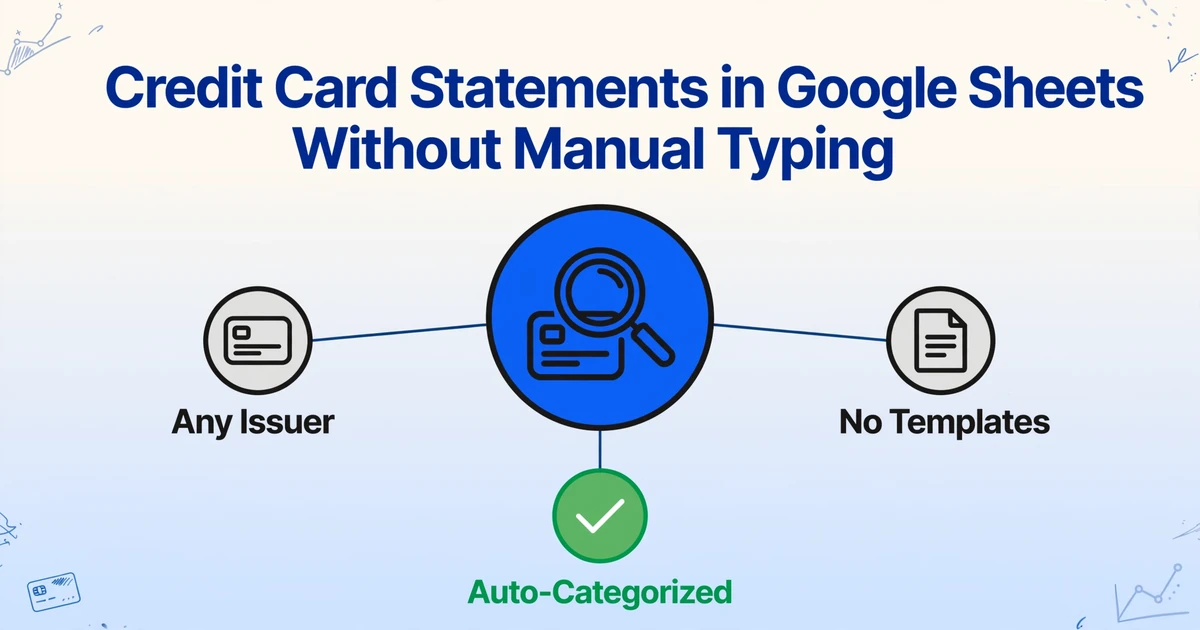
Every month, the same sequence: download the credit card PDF from your bank portal, open it in a browser tab, open your Google Sheets reconciliation file, and start transcribing—date, merchant, amount, row by row—until seventy transactions later you finally get to the work of actually reconciling. A sidebar add-on removes the transcription entirely so the sheet does the only thing it was built to do: compare, match, and flag.
Key Takeaways
- That monthly hour spent typing credit card transactions into Google Sheets isn't reconciliation—it's free data entry the PDF-to-spreadsheet format gap has been silently charging you.
- Bank feeds require sharing your login, CSV exports reformat differently per issuer, and dedicated PDF tools add an export-then-import detour—every existing solution treats your spreadsheet as a destination, never the extraction workspace.
- Define your column headers once, drag the statement PDF into the sidebar, and categorized rows appear where your formulas already live—ImageToTable.ai extracts directly into your sheet so your hour returns to what it was always supposed to be: actual reconciliation.
The Monthly Ritual Nobody Talks About
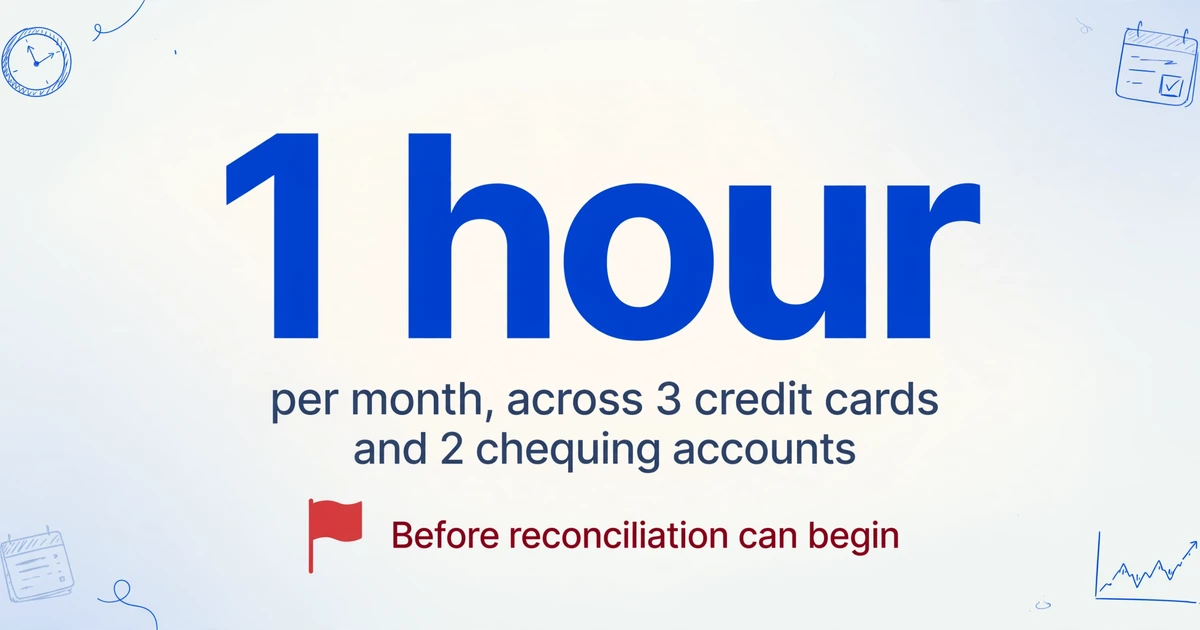
On a personal finance subreddit, a user described their routine with the kind of understatement that signals deep frustration: "I do it monthly into a spreadsheet manually. It takes one hour per month total across 3 credit cards and 2 chequing accounts. It's a pain."[1] On r/Bookkeeping, another put it more bluntly: "Our current credit card reconciliation process is for me to download the statement from Amex each month, manually input that information to an excel sheet."[2]
These are not people who don't understand accounting. They're small business owners, freelancers, and solo bookkeepers who know exactly how reconciliation works—matching transaction records against the statement, verifying amounts, flagging discrepancies, confirming the ending balance. That part is fine. What's not fine is the hour of transcription that happens before the reconciliation can begin.
Credit card statements present a particular flavor of this problem. Unlike bank statements, which tend to have straightforward debit/credit columns alongside a running balance, credit card PDFs layer on additional fields: previous balance, payments and credits received, purchases, cash advances, fees and interest charged, new balance, minimum payment due, payment due date, credit limit, available credit—and somewhere in the middle of all that, seventy individual transaction lines with dates, merchant names, reference numbers, and amounts. A Chase Ink statement separates purchases, payments, and fees into labeled sections. An Amex Business Gold statement groups charges by card member. A Capital One Spark PDF uses a running-balance format with transaction categories embedded in the description field. A credit union Visa statement might arrive as a scanned image with fixed-width columns from a mainframe printout. Each format expects you, the human parser, to figure out which numbers are the transaction amounts and which are the summary figures.
This is the monthly ritual that nearly 80% of small businesses perform in some form, given that roughly the same percentage use credit cards for business purposes.[3] With 61% of small businesses putting more than 25% of their total monthly expenses on credit cards, according to Intuit QuickBooks' April 2026 Small Business Insights survey[4], the volume of data passing through this PDF-to-sheet chokepoint every month is substantial—and almost entirely manual.
Credit card reconciliation is a verification task. Transcribing seventy transactions from a PDF into a spreadsheet to enable that verification turns it into a data entry job first. The spreadsheet was supposed to be the tool for matching and analysis—not the bottleneck that delays it.
Why Bank Feeds, CSV Downloads, and PDF Converters Don't Solve the Real Problem
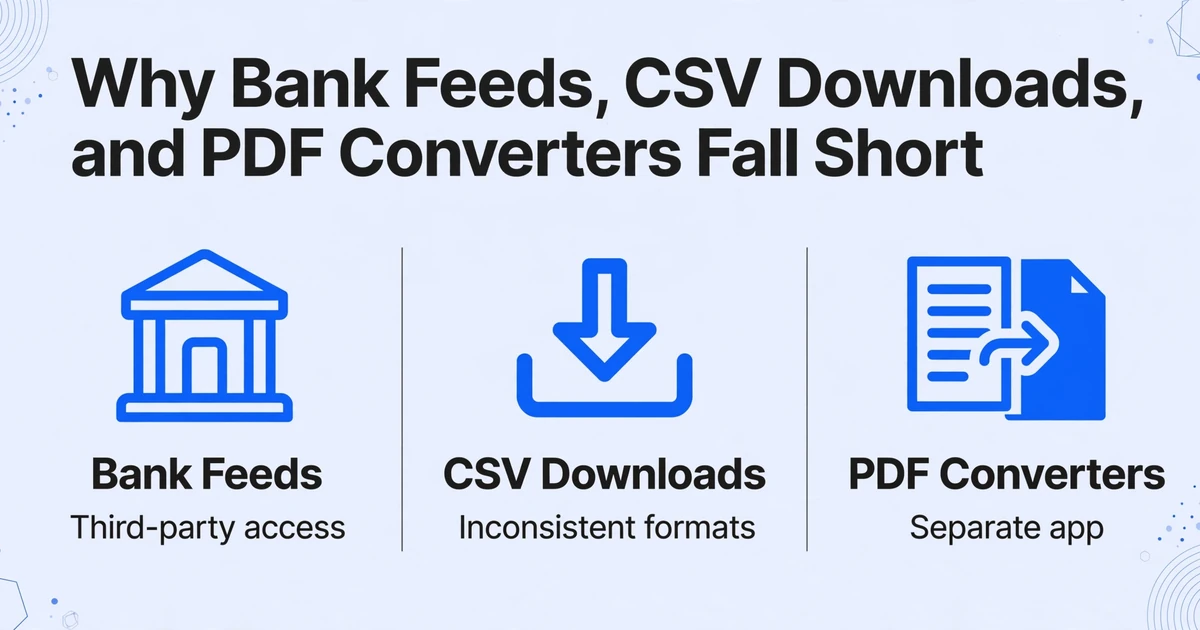
Before looking at what does work, it's worth understanding why the most commonly recommended alternatives each leave a gap.
Bank feeds and auto-sync tools like Tiller, Finta, and BudgetSheet connect directly to your credit card account and import transactions into Google Sheets automatically. They solve the typing problem elegantly—when they work. The trade-off is that you're granting a third party read access to your financial accounts. For a sole proprietor who's been using the same Chase login for both business and personal banking, or a freelancer who isn't comfortable with an API token that can pull transaction history, that's a genuine barrier. Credit unions and regional banks—disproportionately used by small businesses outside major metros—are frequently absent from these tools' supported institution lists. And when the connection breaks (a password change, a bank-side API update, a token expiration), your reconciliation sheet sits empty until you troubleshoot a bank-link issue instead of doing accounting.
CSV downloads from your card issuer's portal seem like the obvious low-tech solution: log in, export, import into Sheets. The problem is that every issuer formats their CSV differently. Chase puts the transaction date in column A and the post date in column B. Amex puts the amount in one column with a separate sign column for debits vs. credits. Capital One concatenates merchant name, location, and a transaction ID into a single description field. A CSV from Discover looks nothing like a CSV from Wells Fargo. You still end up cleaning and reformatting before your reconciliation formulas work—and for statement periods that cross calendar months, you're manually splitting transactions across two reporting periods.
Dedicated PDF extraction tools like DocuClipper and DigiParser can convert a credit card statement PDF into structured data. But they're separate web applications. You upload the PDF to their dashboard, wait for processing, download the result, then re-upload into Google Sheets. The extraction happens outside your workspace. Sheets is a destination, not the environment. For a task you repeat every month, adding a separate tool with its own login, its own interface, and an export-then-import step is replacing one friction with another.
All three approaches share an architectural assumption: that moving bank data into a spreadsheet requires an intermediary—a bank API connection, a file format conversion, or a separate processing service. The spreadsheet itself is treated as a passive receiver of data, never the active workspace where extraction happens.
What a Sidebar Add-on Changes About This Workflow
A Google Sheets add-on is not a separate application with a different login and a different tab. It's a panel that opens inside your spreadsheet—accessible from the Extensions menu—that stays in the same window, same session, same file. When you drag a credit card statement PDF into the sidebar and run extraction, the resulting rows appear directly in whatever sheet is currently active. There is no export step because the data was never anywhere other than your reconciliation sheet. For the full capability rundown — supported field types, formats, and plan details — see the Google Sheets add-on product page. The card-specific version of that workflow, with its own column setup for fees and payment credits, is laid out on the credit card statement to Google Sheets page.
The mechanism that makes this possible across every credit card issuer's PDF format is called column-name extraction: instead of training a template to recognize where "Transaction Date" appears on a Chase statement versus an Amex statement, you type the field names you want—"Date," "Merchant," "Amount," "Category"—and the AI reads the document to find those values by understanding what they mean, not which pixel coordinates they occupy. A Chase Ink PDF and a Capital One Spark PDF share no visual layout in common. But both contain transaction dates, merchant names, and dollar amounts. Column-name extraction searches for the semantic meaning of those fields and extracts them regardless of the document's visual design.
This is the difference between a template-based approach and a semantic one. Templates require one configuration per card issuer—and maintenance every time the issuer redesigns their statement layout. Column-name extraction requires one column definition per output sheet, and it works across Chase, Amex, Capital One, Citi, Discover, Wells Fargo, and regional credit unions without changing anything.
There's a second capability that transforms what you get out of the extraction: inferred columns. You can define a column like "Category (options: Advertising/Supplies/Travel/Meals/Office Expense/Insurance/Utilities/Other)" and the AI reads each transaction description—"FACEBOOK ADS 650-543-4800 CA," "STAPLES DIRECT 800-333-33," "UNITED AIRLINES 01624387654"—and classifies it into the correct category. No credit card statement on earth prints an expense category column next to each transaction. The AI infers it from context. For a small business owner who needs to know "how much did I spend on advertising this month" without manually tagging seventy rows, this merges extraction and categorization into a single pass.
For readers who already use the add-on to extract bank statement data into Google Sheets, the credit card workflow follows the same pattern: define columns once in the sidebar, upload the monthly statement PDF, and receive categorized rows in your sheet. The same add-on, the same mechanism, a different document type with its own quirks—fees, APR line items, payment credits—that the AI handles without additional configuration.
If your workflow ends in Excel or CSV rather than Sheets, our guide to extracting credit card statement transactions into Excel covers the same extraction with an Excel-first output — the same zone-aware reading of Purchases/Payments/Fees sections, just a different destination for the rows.
Setting Up Your Credit Card Statement Pipeline
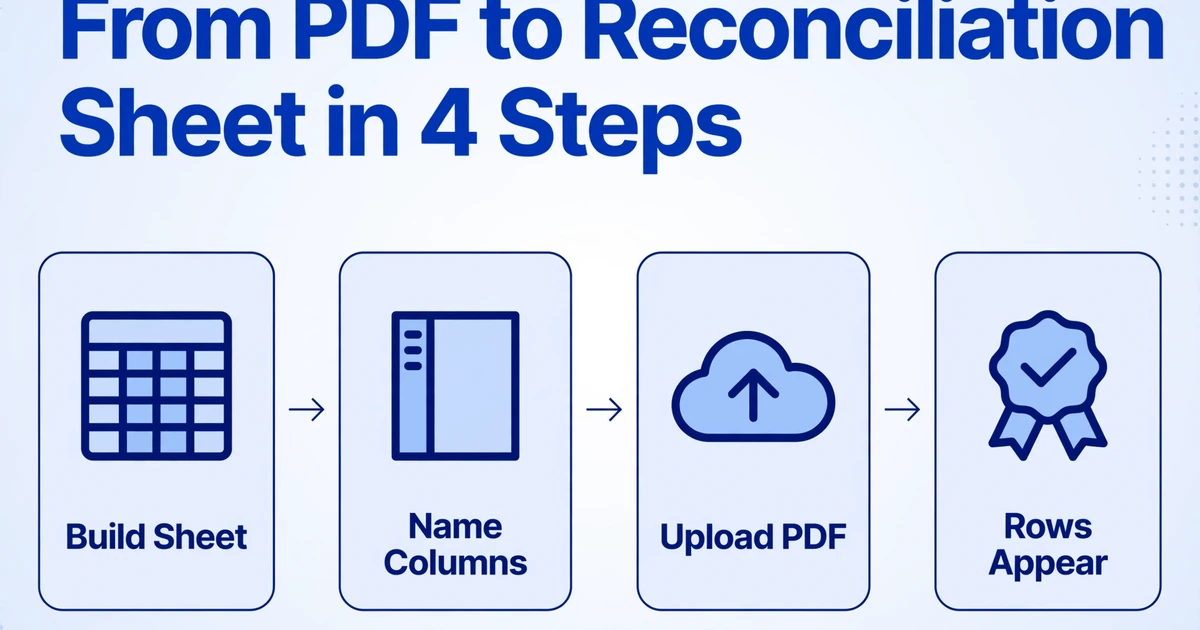
The setup takes under five minutes and requires no template training or bank-specific configuration. Here's the workflow that transforms your reconciliation sheet from a data entry form into a capture system:
1. Build your reconciliation sheet structure. If you already have a Google Sheets reconciliation template—columns for Date, Merchant/Description, Amount, and Category, with a section below for matching against receipts and flagging discrepancies—you don't need to change anything. The add-on appends new rows into the existing structure. If you're starting fresh, create column headers that match the data you want to track. Include a "Category" column even if you plan to fill it manually later—you can also let inferred columns handle it.
2. Open the add-on sidebar and name your columns. From Extensions in Google Sheets, open the add-on. In the sidebar, type the field names that correspond to your sheet's headers. For a standard credit card statement, that's "Date," "Merchant," and "Amount." If you want the AI to classify transactions on extraction, add a fourth column: "Category (options: Advertising/Supplies/Travel/Meals/Office Expense/Insurance/Utilities/Other)." Customize the category options to match your actual spending patterns—a freelance photographer's categories look different from a restaurant owner's. The column names you enter tell the AI what to find. They don't need to match the labels printed on the credit card statement.
3. Upload your credit card statement PDF. Drag the PDF into the sidebar or click to browse. The add-on accepts PDF files (both digital originals and scanned paper statements), images (JPG, PNG, WebP), and screenshots of your online banking transaction page. Screenshot support matters when your credit union doesn't provide PDF downloads—a screenshot of the transaction history page works as input when that's all you have. For end-of-month processing with multiple cards, upload them sequentially and each card's transactions are appended to the same sheet.
4. Data lands in your sheet. The AI reads the statement, locates values matching your column names, and appends each transaction as a new row. The column order follows what you specified in the sidebar. Your existing formulas—VLOOKUP cross-references against receipt logs, SUMIF category totals, conditional formatting for flagged transactions—stay intact. The new rows are simply the next rows in the same structure, ready for the actual reconciliation work: matching against receipts, verifying amounts, and confirming that everything adds up.
The pipeline collapses what was previously two separate tasks—data entry and reconciliation—into one: you feed the statement to the sidebar and spend your time on the verification that actually matters. If you also need to extract receipt data for the same reporting period, the same add-on handles both document types in the same sheet.
From Extracted Data to an IRS-Ready Ledger
For the self-employed and single-member LLC owners who file a Schedule C with their Form 1040, the monthly credit card reconciliation isn't just about keeping the books straight—it's about building a defensible record of deductible business expenses. The IRS, through Publication 583, explicitly lists "account statements" and "credit card sales slips" as acceptable supporting documents for business expenses. But the IRS also notes that "proof of payment of an amount, by itself, does not establish you are entitled to a tax deduction. You should also keep other documents to show that you also incurred the cost."
This is where the categorized ledger becomes more than a convenience. Every transaction on your credit card statement that qualifies as a business expense needs to be assigned to the correct Schedule C line item: advertising costs (Line 8), supplies (Line 22), travel (Line 24b), meals subject to the 50% limit (Line 24b), insurance (Line 15), office expenses (Line 18), professional services (Line 17), and credit card interest on business purchases (Line 16b). A monthly statement with seventy uncategorized rows is a December headache. The same statement extracted into Google Sheets with an AI-inferred category column is a running ledger that maps transaction by transaction to Schedule C lines—audit-ready from the moment it lands in the sheet.
For expenses of $75 or more, IRS Publication 463 requires documentary evidence beyond the credit card statement itself—an itemized receipt, a paid invoice. This is where the reconciliation sheet earns its name: each extracted transaction row gets matched against a corresponding receipt. The extracted data gives you the transaction side of the equation. The reconciliation step pairs it with the receipt—and flags any row where the match can't be made. When tax season arrives, you're not reconstructing twelve months of expenses from a stack of PDFs; you're handing your accountant a sheet where every row is either receipt-matched or flagged for follow-up.
Sharing the Ledger With Your Bookkeeper
For small business owners who work with an external bookkeeper or accountant—monthly, quarterly, or just at year-end—the end of the extraction pipeline is rarely the end of the workflow. The categorized ledger needs review. Receipts that weren't matched during extraction need to be attached. An accountant may want to reclassify certain transactions or request documentation for flagged items.
The Collection Link feature generates a shareable URL—a short link like /c/xxxx—that you send to your bookkeeper. The recipient opens the link, enters a verification code, and can upload files directly into your processing queue without creating an account or logging into anything. No shared Google account permissions. No emailing PDFs back and forth. No "which version of the sheet is current" confusion.
In practice, this means your month-end flow becomes: extract the credit card statement into your sheet via the sidebar → share the Collection Link with your accountant → they upload any missing receipts or documentation → you receive everything in one queue, matched to the same processing session. The sheet stays the single source of truth, and the sidebar—plus the collection link—handles the input pipeline from both you and your reviewer.
FAQ
Does this work with all credit card issuers?
The add-on processes the PDF or screenshot itself—not a bank API connection—so it works with statements from any issuer, including Chase, Amex, Capital One, Citi, Discover, Wells Fargo, Bank of America, Barclays, and regional credit unions. Because the extraction is semantic rather than template-based, the AI reads the statement content regardless of layout. Handwritten notes on a scanned statement will also be read, though accuracy depends on legibility.
What if my credit card statement is a scanned image, not a digital PDF?
The add-on processes images (JPG, PNG, WebP) and scanned PDFs the same way it handles digital PDFs. If your issuer provides only paper statements and you scan or photograph them, the AI extracts transactions from the image. For the best results with phone photos, ensure the statement is flat, well-lit, and the full page is visible—the same conditions you'd use for any document photo.
How accurate is the transaction categorization?
For clearly identifiable merchants—"Staples" → Office Expense, "Facebook Ads" → Advertising, "Delta Air Lines" → Travel—the AI categorizes with high reliability. Ambiguous transactions (a merchant name that could be either supplies or equipment, a generic "Amazon" purchase that could be anything) may default to "Other" or the most likely category based on pattern matching across your other transactions. You can always override individual category assignments directly in the sheet after extraction—the inferred category is a starting point, not a final answer.
How is this different from Tiller or Finta?
Tiller and Finta connect to your bank via API and automatically sync transaction data to Google Sheets. They require you to link your financial accounts, and their coverage depends on which institutions their integration partners support. The add-on described here works from the PDF or screenshot itself—no bank connection required, no dependency on API availability. Choose the bank-feed approach if you want automatic daily syncs and are comfortable granting account access. Choose the sidebar add-on if you prefer to process statements on your own schedule, from any issuer, without connecting accounts.
Can it handle multi-currency transactions on my credit card statement?
The AI extracts the amounts as they appear on the statement. If your Chase statement shows a foreign transaction in both the original currency and USD, the AI extracts both values if you define columns for them (e.g., "Amount (USD)" and "Amount (Original Currency)"). Currency conversion is not performed by the AI—it extracts what's printed.
What happens to my credit card statement data after extraction?
Uploaded files are processed for extraction and not stored. The data that lands in your Google Sheet is the only persistent copy. Your credit card statement PDF does not remain on any server after processing completes.
The monthly credit card statement ritual—download, open, transcribe, categorize, share—has been shaped by the tools available, not by what the task actually requires. A reconciliation sheet is built for verification: comparing, matching, and flagging. The hour spent typing transactions into it before that work can begin was never part of the accounting. It was a gap between formats that stayed open because the only bridge was your keyboard. A sidebar add-on closes that gap inside the spreadsheet where the work already lives. Try it on your own card statement this month. See if the sheet does what it was always supposed to do—and nothing more.