How Small Manufacturers Get Supplier PO Data into
Google Sheets — Without the Manual Entry
The American Productivity & Quality Center (APQC) benchmarks the cost to process a single purchase order between $50 and $150 — with a median near $100. That number covers the full lifecycle: requisition, approval, issuance, delivery confirmation, and invoice matching. But for a small manufacturer running procurement through a Google Sheet, a large chunk of that cost lives in one place: the moment a supplier's PDF purchase order hits the inbox and someone has to type its contents into the tracker. This article is about removing that moment. Not by changing the spreadsheet — the spreadsheet works. By changing how data enters it.
Key Takeaways
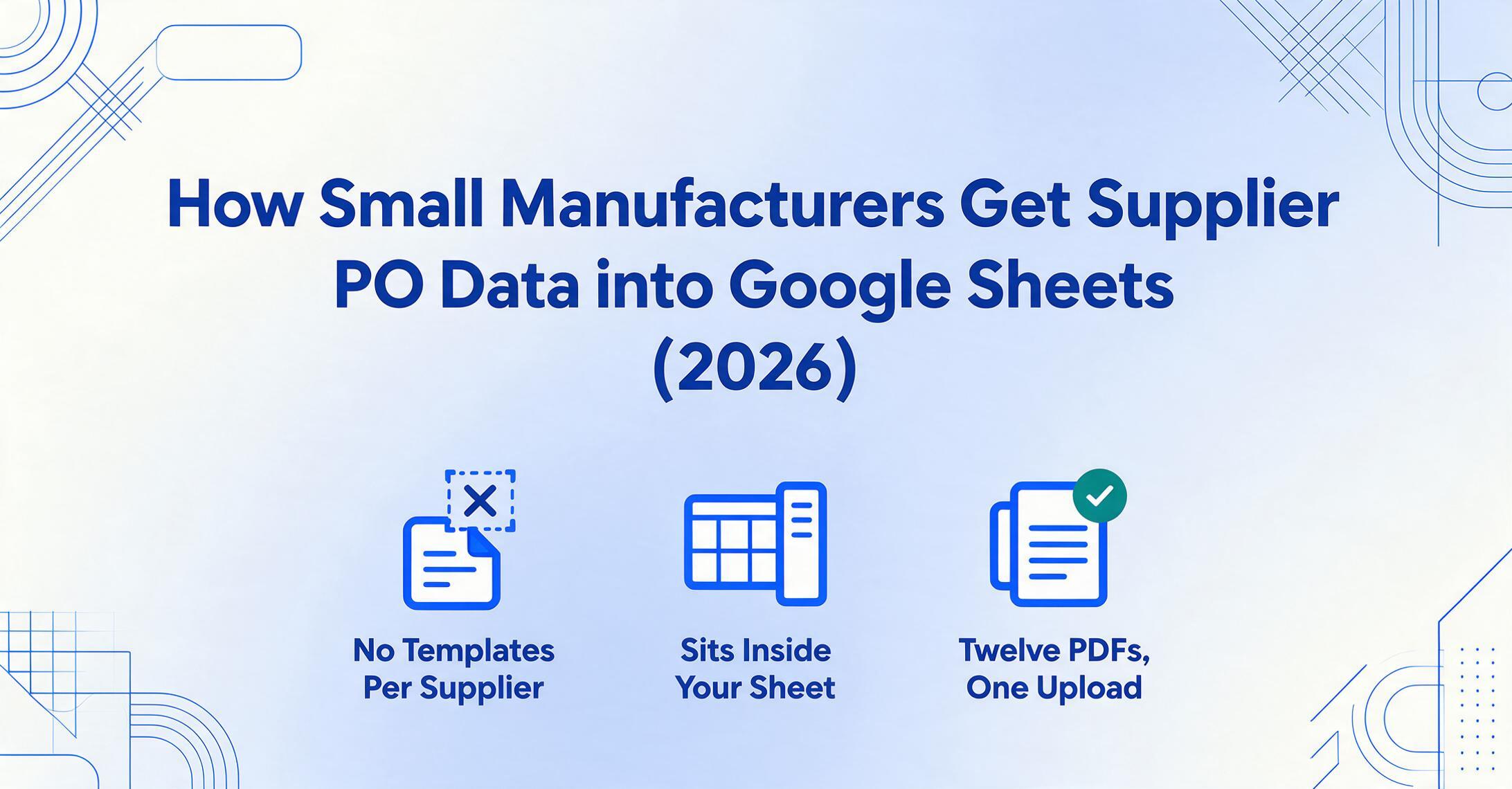
- $50 to $150 per purchase order. That’s what APQC benchmarks say a PO costs to process — and for small manufacturers tracking POs in Google Sheets, the bulk of that cost lives in one moment: someone typing a supplier’s PDF line-by-line into the tracker.
- Template-based PO extractors require a separate configuration for every supplier format, and break silently when a supplier changes their PDF layout — misaligned data gets discovered days later during reconciliation, when the error has already spread through the PO log.
- A semantic AI that reads POs by meaning rather than position lets you extract supplier data from any format into your existing sheet via the ImageToTable.ai sidebar — transforming the Friday-afternoon typing ritual into a quick scan for quantity discrepancies and missing deliveries.
The Hidden Bottleneck in Sheets-Based Procurement
A small metal fabrication shop in Ohio orders raw stock from half a dozen suppliers: Ryerson for sheet metal, a regional steel distributor for bar stock, McMaster-Carr for fasteners, a local plating house for finishing chemicals. Each supplier sends a purchase order confirmation as a PDF attachment. Each PDF uses its own layout — different field labels, different column orders, different table structures. The shop tracks every open PO in a Google Sheet: PO Number, Supplier, Item Description, Quantity Ordered, Unit Price, Line Total, Order Date, Expected Delivery, Status. The sheet has been refined over three years. It has conditional formatting that flags overdue deliveries. It has a summary tab the owner reviews every Monday morning.
The sheet is good. What feeds it is not.
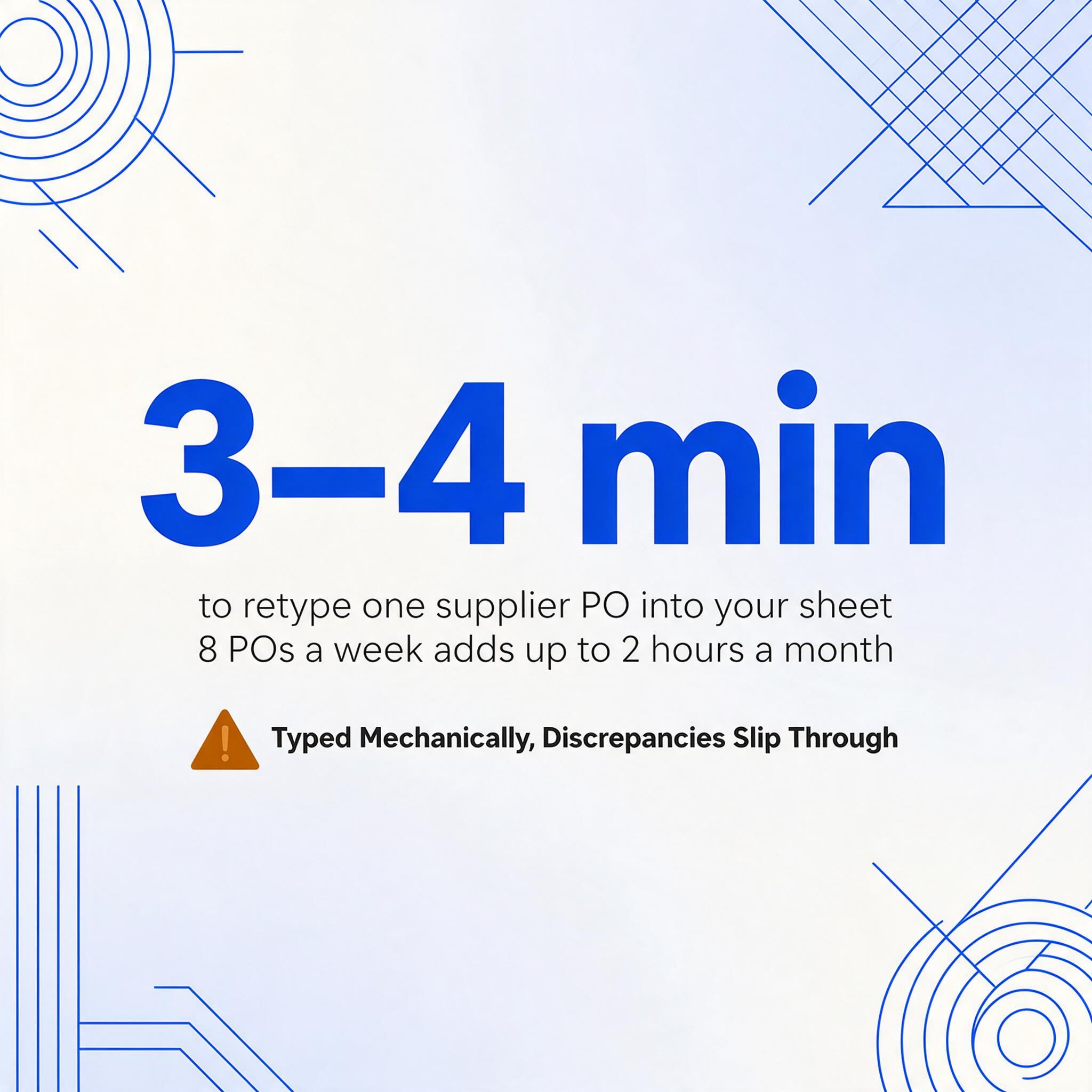
When a supplier PO confirmation PDF arrives, someone — often the owner or an office manager who also handles shipping labels, customer invoices, and HR paperwork — opens the PDF in a separate tab, reads across the line-item table to find quantities and prices, switches back to Sheets, and types each value into the correct cell. One PO takes about three to four minutes. At eight supplier POs per week, that's thirty minutes of transcription. Over a month, two hours — time spent not on procurement analysis, not on supplier negotiation, not on catching the quantity discrepancy that slipped through because the person was typing mechanically, not reading critically.
This is the bottleneck nobody writes about. The articles that rank for "purchase order Google Sheets template" cover template design, column structures, status dropdowns, and pivot table dashboards — all of which assume the data is already in the sheet. They solve class formatting. They don't solve class ingestion. For a small business tracking 30+ open POs across suppliers in China, the US, and Europe using WhatsApp and Excel, the spreadsheet structure isn't the problem. The problem is the intake pipeline — and addressing it doesn't require an ERP.
Small manufacturers don't need a new procurement system. They need a way to get supplier PO data into the system they already built.
Why Template-Based PO Extractors Break When Suppliers Multiply
Most tools designed to extract data from purchase orders use one of two approaches: template matching or rule-based parsing. Template matching requires you to draw bounding boxes around each field on a sample PO — "PO Number is here, Date is here, Line Item Description starts here" — and the tool applies those coordinates to every future document from that supplier. Rule-based parsing uses keyword triggers and position offsets: find the text "PO Number" and grab whatever follows it on the same line or in the adjacent cell.
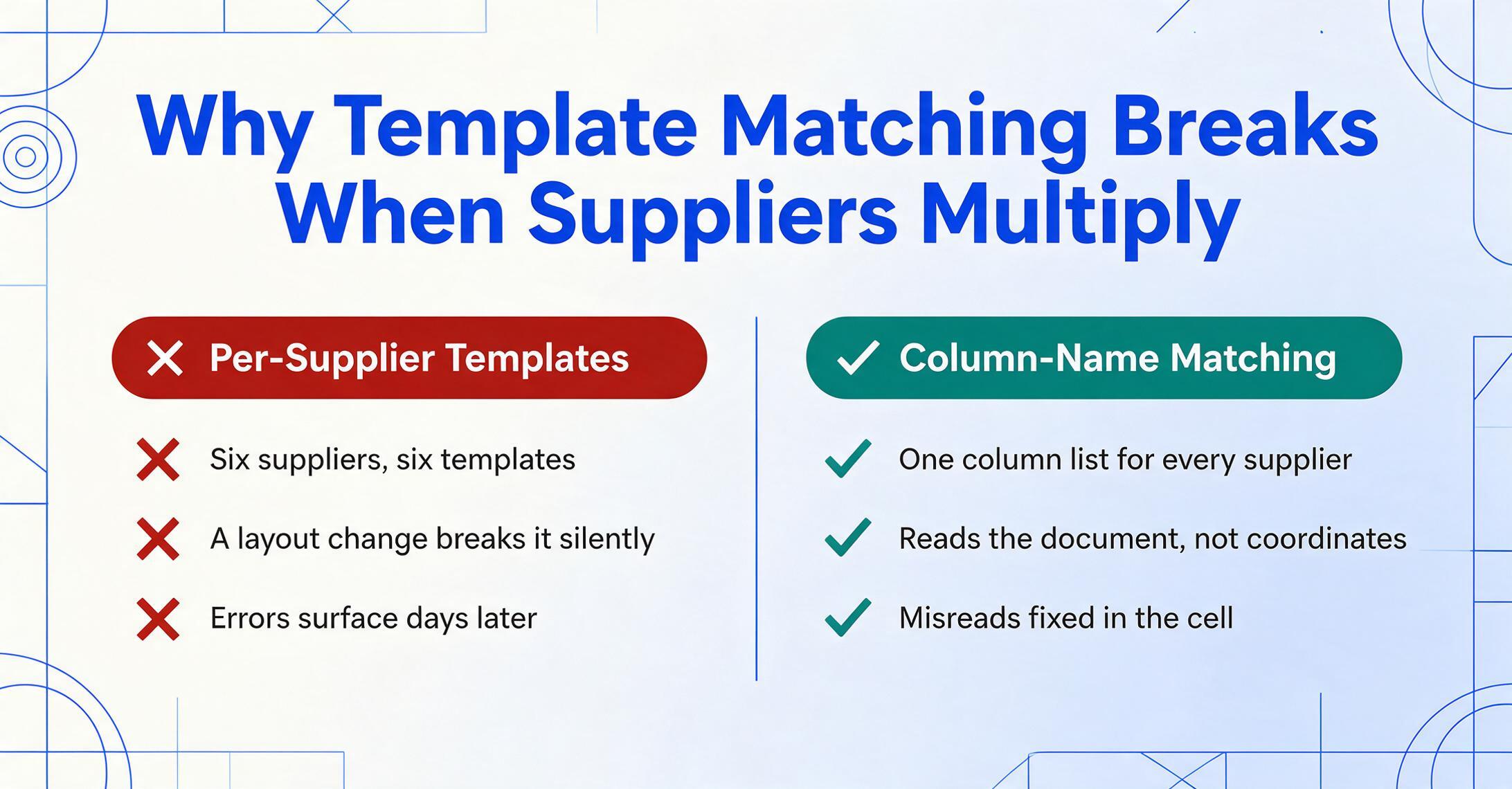
Both approaches break in the same place: when you have more than a few supplier formats. A shop with six suppliers might have six template configurations to build and maintain. If one supplier changes their PDF layout — which happens when they upgrade their ERP, switch invoicing platforms, or revise their letterhead — the template silently breaks. The extracted data comes out misaligned. Someone discovers it hours or days later, during a discrepancy check or a receiving reconciliation. By then, the error has propagated into the PO log, and correcting it means tracing back which rows came from which supplier in which format version.
This is why small manufacturers often give up on extraction tools and return to manual entry — not because the tools don't work, but because the maintenance cost scales with every new supplier, and the failure cost compounds in silence. The APQC found that organizations spend anywhere from $14 to over $54 to process a single PO, with the gap driven largely by how the procurement work is structured. Manual rework — extracting, correcting, re-extracting — accounts for a disproportionate share of cost at the upper end.
What changes the equation is semantic extraction: AI that reads a document not by position, but by meaning. It understands that "Order Ref," "PO #," and "Purchase Order Number" all refer to the same field, regardless of where the label sits on the page or whether the value is in a table, a header, or a free-text block. This approach — sometimes called column-name extraction — eliminates per-supplier template setup entirely. You define the fields once. The AI locates them on every document. If a supplier changes their layout next month, nothing breaks — the AI reads the new layout the same way a human would, by understanding what the content means.
The Add-On Intake Point: Extract Supplier POs Without Opening Another Tab
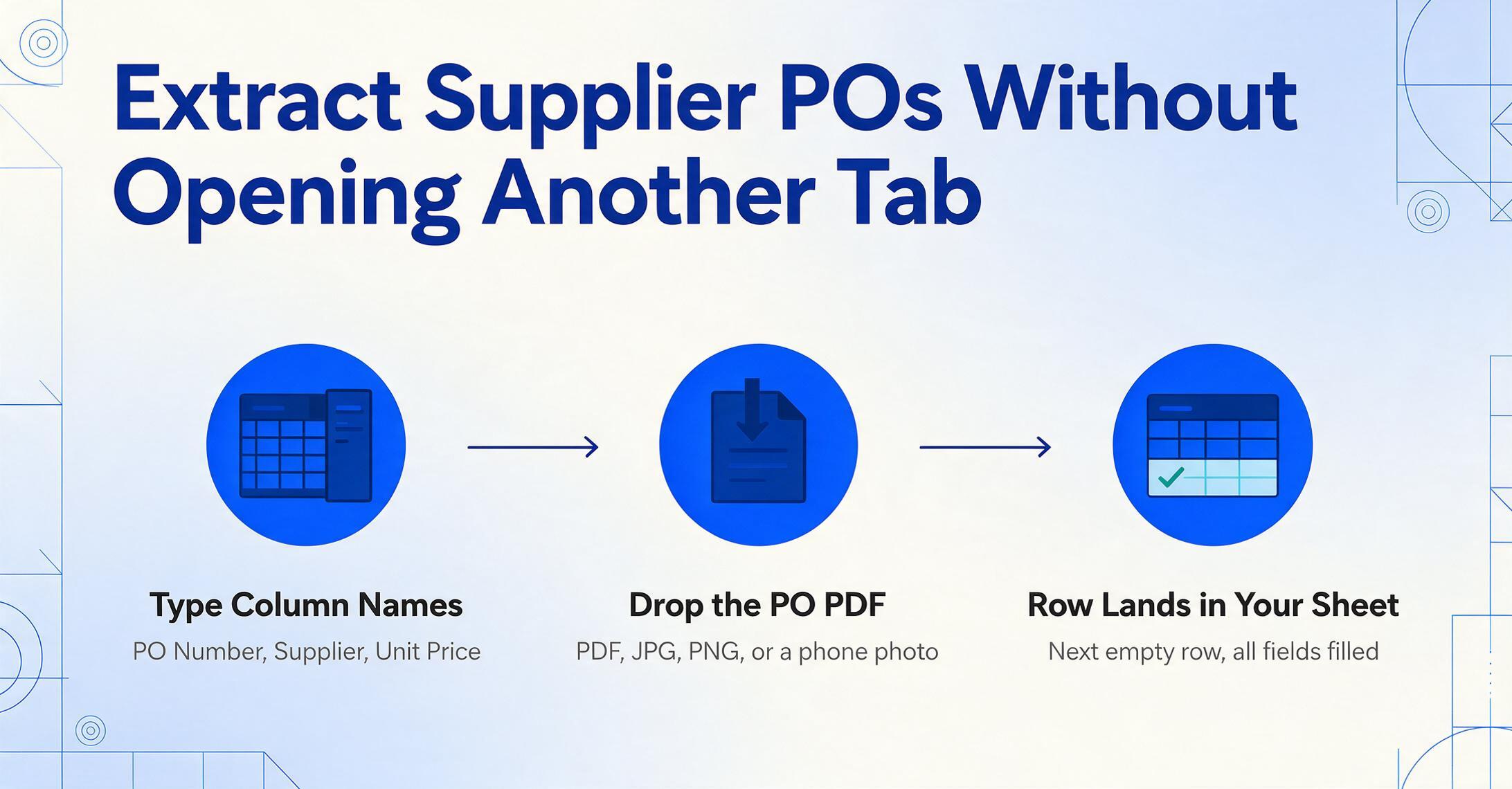
The Google Sheets Add-on is a sidebar panel that opens inside your spreadsheet — accessible from the Extensions menu, alongside the same sheet that contains your PO log and supplier list. When you install it, it becomes part of your Sheets workspace: same window, same spreadsheet, same data file. The extraction happens inside the sidebar. The results land in the active sheet. There is no separate web dashboard to log into, no email forwarding address to configure, no Zapier workflow to build and monitor. For the full capability rundown — supported field types, formats, and plan details — see the Google Sheets extraction add-on overview.
Here's the intake flow for a supplier PO:
Name the fields you track.
In the sidebar, type the column names that match your PO tracking sheet: PO Number, Supplier, Item Description, Quantity, Unit Price, Line Total, Order Date, Expected Delivery. The column names you enter become the fields the AI searches for in every uploaded PO — regardless of how each supplier labels them.
Upload the supplier's PO PDF.
Drag the PDF from your email or desktop into the sidebar panel. The add-on accepts PDF, JPG, PNG, WebP, and AVIF — a digital PO from a major supplier, a scanned PO confirmation, or a screenshot of a vendor portal order page. Upload one at a time or batch multiple files for end-of-week processing.
Data appears in the next empty row.
Hit extract. The AI reads the PO, locates the values matching your column names, and appends a new row to your active sheet. Column order matches what you defined. Your existing formulas — SUMIF totals by supplier, conditional formatting for overdue deliveries, pivot tables for spend analysis — stay intact. The new row is just the next row.
Three steps replace the manual loop. The key distinction from other PO extraction tools: you never leave your spreadsheet. The sidebar is the tool. The sheet is both the source of the extraction instructions and the destination of the results. There's no intermediary file, no CSV export, no copy-paste from one application to another. The data was never anywhere other than your sheet.
Files are processed securely and not stored.
Setting Up Your PO Tracking Columns (And Letting AI Match the Fields)
The column names you type into the sidebar are not templates in the traditional sense. You're not telling the AI where a field sits on the page or what bounding box to draw around it. You're telling the AI what you care about — and letting it find those values by understanding the document, not by measuring its layout. This distinction matters for procurement because supplier PO formats are inherently diverse, and the diversity compounds with every new supplier you add.
A core column set for a manufacturer's PO tracking sheet typically includes:
| Column Name | What the AI Looks For | Example Values |
|---|---|---|
| PO Number | Any field labeled "PO #," "Order Ref," "Reference," or a standalone alphanumeric sequence at the top of the document | PO-2026-0482, 4500123456 |
| Supplier | Company name in the document header or sender block | Ryerson, McMaster-Carr Supply Co. |
| Item Description | Line-item product/service descriptions within the order table | 304 SS Sheet 16ga 4'x8', Hex Bolt M10x1.5 |
| Quantity | Numeric quantity per line item | 25, 3, 200 |
| Unit Price | Per-unit cost — the AI distinguishes this from extended totals | $4.32, $12.75, $0.18 |
| Line Total | Extended price per line (Quantity × Unit Price) | $108.00, $38.25, $36.00 |
| Order Date | Date the PO was issued, regardless of label ("Order Date," "Date," "Issued") | 2026-06-02 |
| Expected Delivery | Delivery date or ship date, distinguished from the order date by context | 2026-06-17 |
| Status | Inferred column — AI can populate based on document content if you define options like "Ordered/Partially Received/Received/Closed" | Ordered |
You can also skip naming columns entirely and let the AI auto-detect everything on the document — useful when you're processing a one-off supplier PO whose structure you're still learning. The auto-detected result gives you a complete map of what's in the document. You can then refine your column list for future uploads from the same supplier.
The mechanism that pairs columns with document fields is semantic field matching: the AI reads the supplier PO as a whole, understands the relationships between labels and values, and maps each extracted field to your named column. If one supplier labels a field "Purchase Order Number" and another labels it "Reference No.," the AI recognizes both as the PO Number column you defined. This is what eliminates per-supplier configuration — and why the same sidebar works across every supplier's format without setup overhead.
From 20 PDFs to One Updated PO Log in Minutes
The single-PO workflow is intuitive. The batch workflow is where the time savings compound — and where the add-on's design choices matter most for procurement operations.
Consider a small manufacturer that places purchase orders on a weekly cycle. Every Monday, they issue new POs to suppliers. Throughout the week, supplier confirmations trickle in as PDF attachments — some on Tuesday, some on Friday, some the following Monday with a "sorry for the delay" note. By Friday afternoon, the person managing procurement has a folder of seven to twelve supplier confirmation PDFs that haven't made it into the tracking sheet. The manual approach means opening each one, reading line items, switching to Sheets, and typing — a Friday afternoon ritual that eats forty-five minutes of concentration and still leaves three POs "to be entered Monday."
The batch upload changes the rhythm:
Collect supplier PO PDFs in one folder.
Set up a Gmail filter that labels incoming supplier emails and saves attachments to a Google Drive folder. Or drag files from your desktop into the add-on sidebar's batch upload dialog. Either way, the goal is aggregation — all confirmations in one place before processing.
Batch upload to the sidebar.
Select all twelve supplier PDFs in a single upload. The add-on queues them for processing and applies the same column-name extraction to every file — simultaneously, not sequentially. The format diversity across suppliers doesn't matter because each document is processed independently by the same semantic AI.
Review and verify in the sheet.
Twelve new rows appear in your PO tracking sheet — one per supplier PO. Scan the rows for obvious anomalies (a quantity that seems off, a supplier name that came through as an abbreviation when you expected the full legal name). Corrections happen directly in the cell because the sheet is your working surface. No separate review interface to learn or navigate.
The batch upload isn't just faster than single-file processing — it changes the texture of the work. Manual entry forces you to think one PO at a time, line by line. Batch extraction lets you think in rows: scan twelve rows for discrepancies, spot patterns (one supplier consistently underpricing a particular material?), flag anomalies. The mental shift from data entry clerk to procurement reviewer happens precisely because you're no longer doing the entry.
This workflow also sets up the foundation for downstream procurement processes that feed from a consistently updated PO log. When every supplier PO row is structured with the same fields in the same order — regardless of which supplier PDF it came from — you can build receiving reconciliation checklists, delivery tracking dashboards, and spend-by-supplier reports that rely on complete, current data. The PO log stops being a historical record and starts being an operational dashboard. For a worked example of turning a week's supplier POs into a live dashboard in Sheets — including partial-shipment tracking and status columns — see our guide to batch purchase order dashboards in Google Sheets. For teams planning to add three-way matching — comparing PO, receiving report, and supplier invoice — a PO log that's always current is the prerequisite. Without it, three-way matching means matching an incomplete PO record against two other documents that may or may not reference the same order.
The same add-on that handles supplier POs also processes supplier invoices into Google Sheets — the matching half of the procurement intake pipeline. When both PO data and invoice data flow into structured sheets through the same sidebar, the three-way match becomes a comparison of two consistently-structured rows rather than a manual hunt through PDFs.
Where the Add-On Fits in a Growing Procurement Stack
It's worth being clear about what the add-on does not do, because procurement tools tend to promise end-to-end coverage and then deliver coverage that's shallow at every stage.
The add-on handles one step: getting supplier PO data from a PDF into structured rows in your sheet. It does not generate purchase orders to send to suppliers (you handle that on the output side, using your own PO template or a separate tool). It does not perform three-way matching against receiving reports and invoices (though it feeds consistent data into both sides of that comparison). It does not manage approval workflows, enforce spending limits, or integrate with your accounting software's general ledger. It is an intake layer — and that's the point. The gap it fills is narrow enough to be real and deep enough to matter.
This narrowness is a feature, not a limitation. Small manufacturers typically have a procurement process that grew organically: a Google Sheet PO log that evolved over years, a mix of supplier relationships managed through email and phone, a receiving process that's physical (someone checks the delivery against a printed PO), and a finance person who enters final PO data into QuickBooks or Xero at month-end. Inserting an ERP at any stage would disrupt three others. Inserting an add-on at the intake stage — the point where PDFs become rows — improves the whole chain without forcing anyone to change how they work downstream.
For a deeper look at how to handle PO data extraction without templates across any document format — useful background for understanding why semantic extraction matters — see our guide on extracting only the fields you need from purchase orders. For the broader argument on why PO data entry remains a bottleneck even as procurement software proliferates, the PO data entry problem examines the structural forces that keep manual entry alive. And if you occasionally need to export PO data to Excel rather than Sheets, the purchase order to Excel converter handles single-document conversions with the same column-name extraction approach.
Frequently Asked Questions
Does the add-on work with scanned or photographed paper purchase orders?
Yes. JPG, PNG, WebP, and PDF are all supported. A phone photo of a printed PO confirmation, a scan from a desktop scanner, or a clean digital PDF all work. The AI reads the document visually rather than parsing embedded text layers, so scanned documents and photos are handled the same way as digital PDFs. Extremely skewed photos or documents with very low contrast (faded thermal prints, poor lighting) may produce partial results. Flat, well-lit photos produce the best extraction quality.
Can the add-on extract line-item detail, not just the header fields?
Yes. Define columns for item-level data — "Item Description," "Quantity," "Unit Price," "Line Total" — and the AI extracts every row from the PO's line-item table. Each line item gets its own row in your sheet, with header-level fields like PO Number and Supplier repeated across rows for traceability. For POs with very long line-item tables (30+ rows), processing one file at a time rather than in batch yields more consistent line-item accuracy.
What happens if the AI misreads a field?
Extracted values appear as editable cells in your sheet. If "Order Date" came through as "2026/06/05" when your supplier wrote "2026-06-02," you correct it in the cell. There is no proprietary review interface, no locked data, no separate verification screen. Your sheet is the verification surface. This means extraction errors are caught and fixed in the same place they'd end up anyway — in your tracking sheet — rather than in a tool-specific review interface you have to toggle between.
Does the add-on handle purchase orders from suppliers in different languages?
The AI reads documents in English, Chinese, Japanese, Korean, German, French, Spanish, and Portuguese. Field labels in different languages — "Bestellnummer" (German), "Número de Pedido" (Spanish), "Numéro de Commande" (French) — are recognized and mapped to your English column names. The column names you define in the sidebar remain in English regardless of the input language.
Can I process POs from multiple suppliers in one batch, even though each supplier formats documents differently?
Yes — this is the primary use case. The colonne-name extraction approach reads each document independently by semantic meaning, not by layout. A PO from McMaster-Carr (digital PDF, horizontal layout, item codes in a separate column) and a PO from a regional steel supplier (scanned, vertical layout, hand-marked quantities) can be batched together. Each produces its own row mapped to the same column structure.
Does the add-on replace an ERP or procurement software?
No. The add-on fills one gap — getting supplier PO data into your tracking sheet — that sits between "I have a PDF" and "I have a row." Full procurement platforms (Procurify, Tradogram, Precoro) handle requisition routing, approval chains, budget enforcement, supplier management, and ERP integration. If your operation has outgrown Sheets as the system of record — you need multi-level approvals, automated reorder triggers, or real-time budget visibility across departments — a procurement platform is the right next step. But if your PO log in Sheets is still working and the bottleneck is data entry, the add-on removes the bottleneck without requiring you to migrate your entire workflow. For a step-by-step guide to automating just the data entry component without buying an ERP, see how to automate PO data entry without an ERP.
The sheet you built to track purchase orders still works. The manual loop that feeds it — open PDF, read fields, switch tabs, type values, repeat — is what costs $50 to $150 per PO. Test the add-on on this week's supplier confirmations and see if the intake step becomes what it should be: a sidebar upload, not a typing exercise.
Try the Google Sheets Add-on for Your PO Workflow