The Small Business Guide to Document Data Extraction
How to Handle Invoices, Receipts, and Bank Statements Without a Finance Team
Small business owners spend roughly 36% of their workweek on administrative tasks — and document data entry is the silent majority of it. Every invoice from a new supplier, every receipt crumpled in a pocket, every bank statement that needs categorizing before the quarterly estimated tax deadline: none of it moves the business forward, but all of it has to be done. This guide is for the owner who is also the bookkeeper, the AP clerk, the expense manager, and the tax preparer — and who wants a clear path from "I'm drowning in paper" to "the data is already in a spreadsheet."
Key Takeaways
- 36% of your workweek disappears into document data entry — costing the average small business $3,534 a year in tax errors from rushed manual typing.
- You're not disorganized — you're processing six document types from a dozen vendors who all use different layouts, and template-based extraction breaks the moment any supplier changes their invoice format.
- Template-free extraction that reads fields by meaning instead of position handles every document type with the same setup, turning 15 hours of monthly data entry into 15 minutes of verification.
Where Your Time Actually Goes (And What It's Costing You)
SCORE, the nation's largest network of volunteer business mentors, has been tracking small business owner time allocation for years. In their most recent survey, small business owners reported spending over 20 hours per month on financial tasks — bookkeeping, invoicing, expense tracking, and tax preparation — roughly a quarter of a 40-hour workweek spent on work about the business rather than work in the business. A separate survey from Time etc found that 36% of the average entrepreneur's workweek goes to administrative tasks, and 31% spend between a quarter and half of every week on small admin tasks alone.
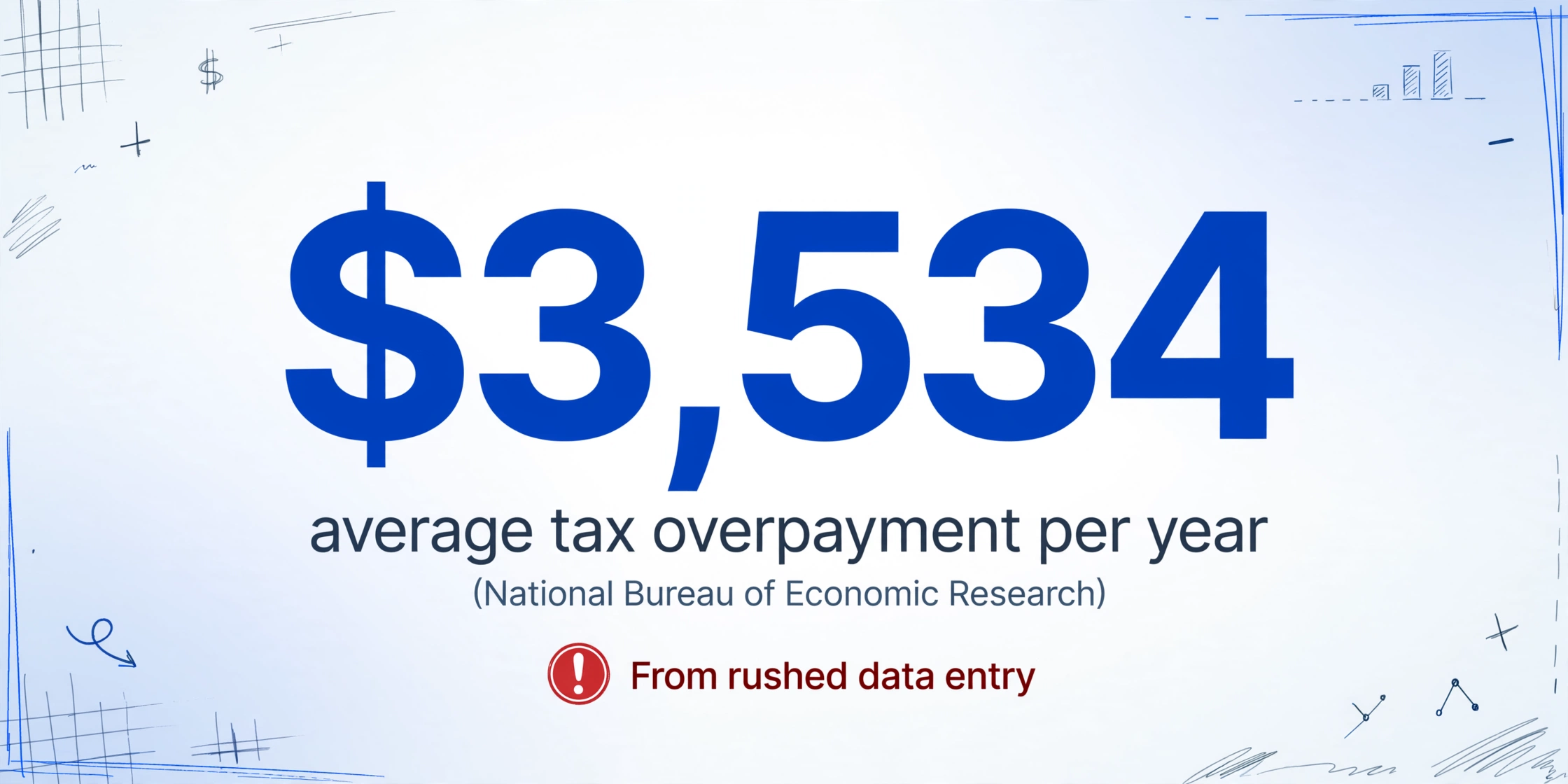
The money side stings more. The National Bureau of Economic Research found that small businesses overpay an average of $3,534 per year in taxes because of accounting mistakes — missed deductions, misclassified expenses, income recorded in the wrong period — errors that trace back to rushed data entry and guesswork categorization done at 11pm the night before the extension deadline.
And the document pile doesn't stop growing. A typical solo business owner processes invoices from half a dozen suppliers — each using a different layout — plus 30-50 receipts a month from Staples runs, client lunches, and software subscriptions, plus monthly bank and credit card statements that need reconciling. If you happen to track mileage or receive paper tax forms from contractors, those pile on too. Each document type lives in a different format. Each format needs a different approach to get the data out. And nobody has ever written the guide that covers all of them together — for the person who has to handle all of them alone.
For the bigger picture on whether automation actually saves money at small-business scale, our small business OCR comparison walks through 12 tools with specific pricing and setup-time estimates. If you're new to the concept of automated document reading entirely, start with what OCR actually is — it takes three minutes and the rest of this guide will make a lot more sense.
The Six Documents Every Small Business Creates (And Dreads Processing)
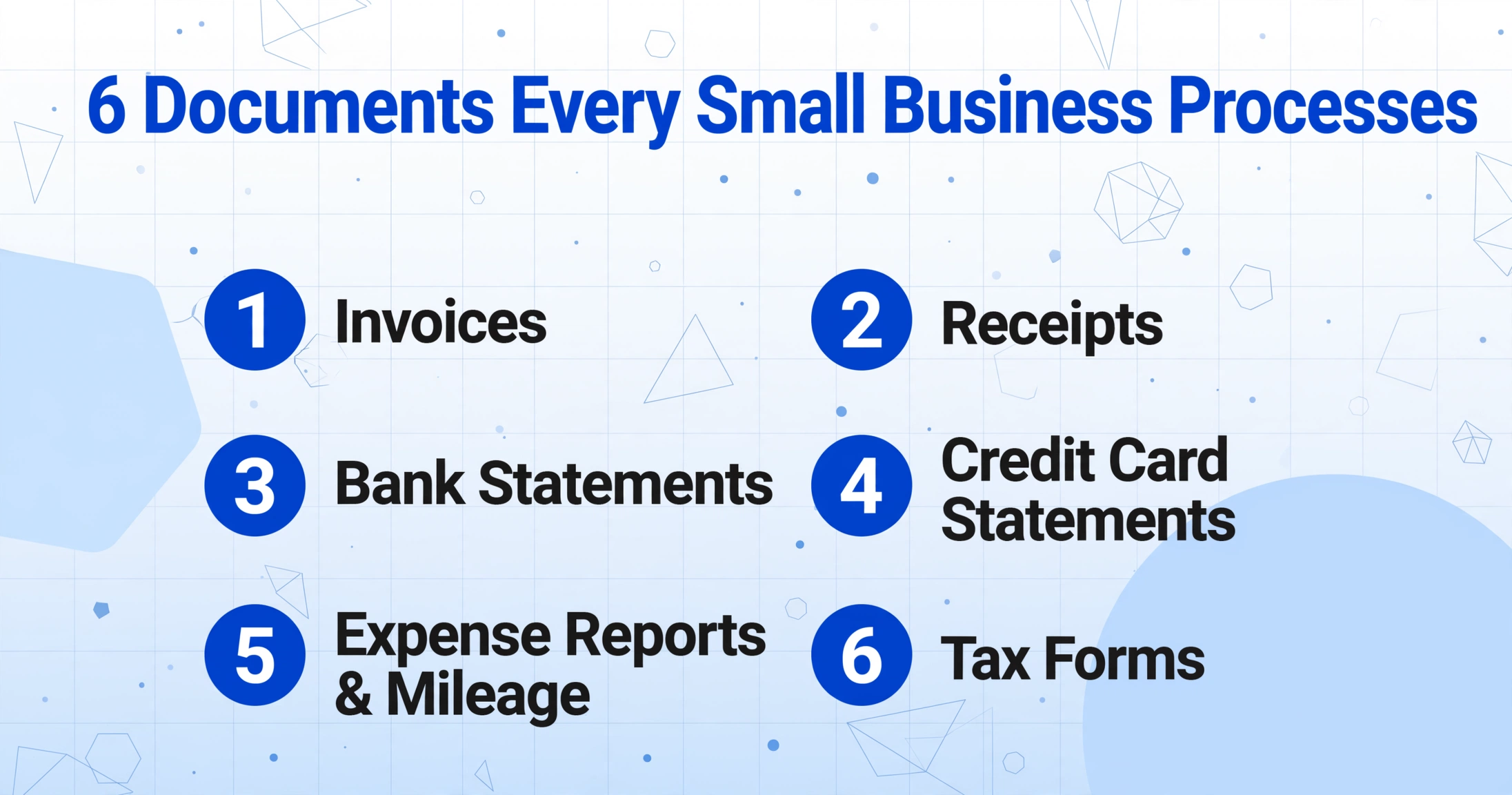
Small business paperwork isn't one problem. It's six different problems that arrive in the same inbox. Each document type presents a different extraction challenge — not because the technology is different, but because the information you need from an invoice (vendor name, due date, line-item prices) is structurally different from what you need from a bank statement (transaction descriptions, debits, credits, running balance). Here's the document landscape:
| Document Type | Typical Volume (Solo) | What You Need | Main Challenge |
|---|---|---|---|
| Invoice | 10–50/mo | Vendor, amount, due date, line items, PO# | Every supplier uses a different layout |
| Receipt | 20–100/mo | Merchant, date, amount, category | Phone photos — curved, shadowed, fading ink |
| Bank Statement | 1–3/mo | All transactions, dates, debits/credits | Format varies by bank; 12-page PDFs |
| Credit Card Statement | 1–3/mo | All transactions, merchant, category | Truncated merchant names; personal mix-in |
| Expense Report / Mileage Log | 1–5/mo | Date, purpose, amount, miles, client | Often handwritten or assembled from scraps |
| Tax Form (W-2, 1099-NEC, 1099-MISC) | 1–10/year | Employer EIN, wages, tax withheld, box values | Legal consequences of transcription errors |
The rest of this guide walks through each document type — what's extractable, what gets tricky, and how much time you should expect to recover. At the end, we'll cover how to pick a tool that fits a small-business budget, and how to set up a workflow that works when you're a team of one.
Invoices: The Document Where Format Diversity Hits Hardest
Invoice extraction is the most automated document type on this list — and the one where the difference between cheap tools and good tools is most visible. A typical invoice from a supplier contains 8–15 fields: vendor name, invoice number, issue date, due date, PO number, line items (description, quantity, unit price, line total), subtotal, tax, shipping, and grand total. On a clean PDF from a vendor you've worked with for three years, even basic extraction gets most of it right.
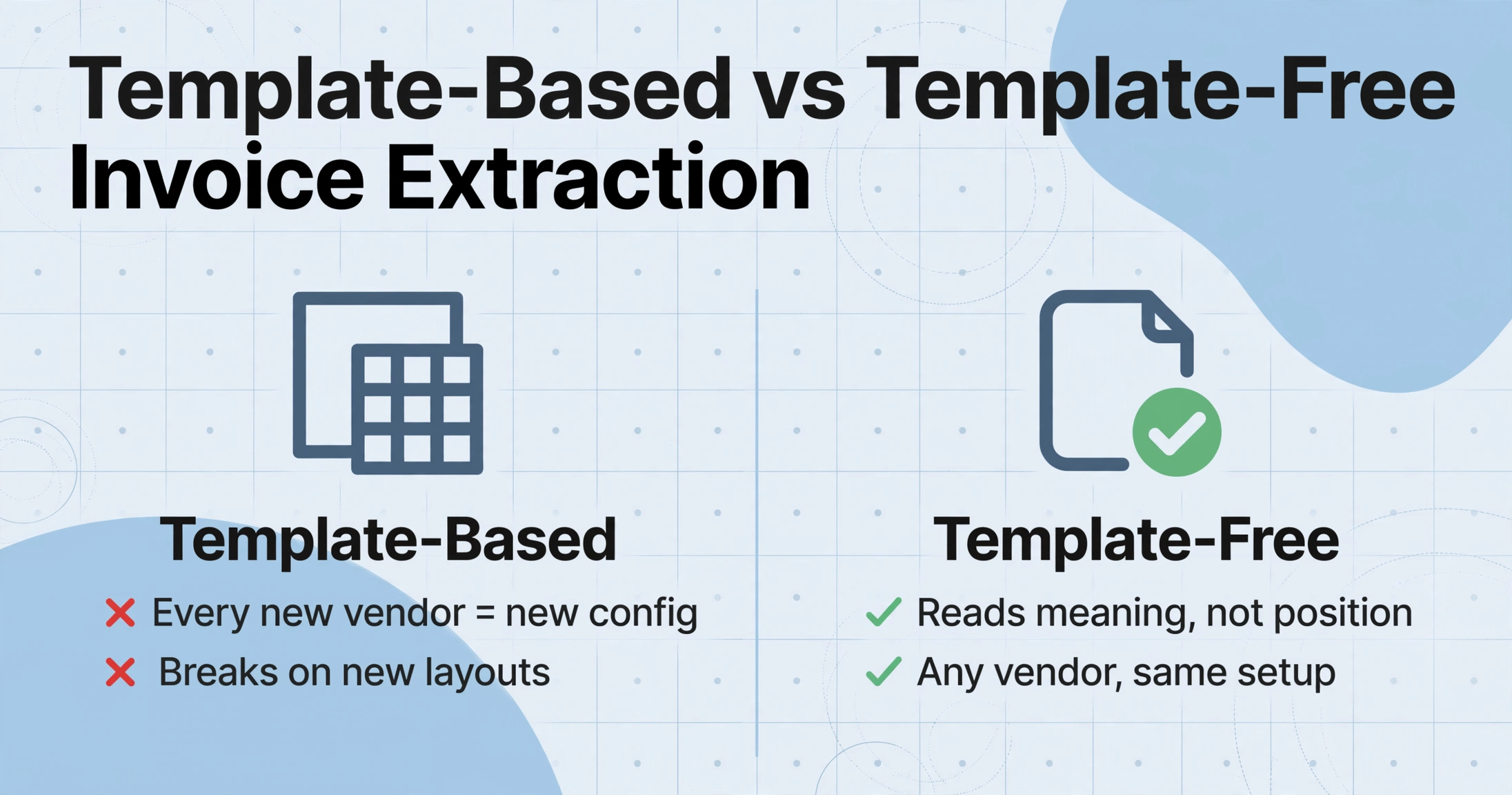
The problem is the "vendor you've worked with for three years" part. A small business doesn't get invoices from one vendor. It gets invoices from every vendor it buys from — Amazon Business, Home Depot, the local electrician who writes bills by hand, SaaS subscriptions that email PDFs, and international suppliers with multi-currency line items. Every new vendor means a new format, and tools that rely on templates — digital stencils that tell the software "the invoice number is at these pixel coordinates" — treat each new vendor as a new configuration project.
The alternative is template-free extraction: the AI reads the invoice by understanding what each field means, not by measuring where it sits on the page. An invoice number looks like an invoice number — a sequence of digits with maybe a prefix like "INV-" — regardless of whether it's in the top-right corner, the center header, or a barcode strip on the left margin. The tool finds it by its semantic role, not its position. When a supplier changes their invoice layout next quarter, template-free extraction keeps working. Template-based extraction breaks and waits for you to rebuild the template.
For a walkthrough of the batch processing workflow — handling 20, 50, or 100 invoices in one upload — see our batch invoice processing guide. The key advantage for a small business owner is not speed per document. It's not having to think about document formats at all. Upload a stack of invoices from six different suppliers and get one spreadsheet back — dates in one column, amounts in another, vendor names lined up — without ever opening a template editor.
Receipts: The Photo Problem Nobody Talks About
Receipts are the document type where input quality — not extraction technology — sets the ceiling on what's possible. A digital receipt from Amazon or a SaaS subscription extracts cleanly. A photo of a thermal-paper restaurant receipt, taken at an angle under yellow lighting after sitting in a wallet for two weeks — the kind that actually arrives in your expense folder — is fundamentally harder.
The rule for receipt extraction is simple and honest: if you, squinting at the photo, can't tell whether the tip line says $8.00 or $8.80, neither can the AI. The extraction ceiling is set by what's legible in the image, not by what the tool can theoretically read.
What extraction adds beyond basic reading — and what makes it worth using for receipts in particular — is automatic categorization. A restaurant receipt says "Table 7, Server: Carlos, $47.80" — it doesn't say "Meals & Entertainment." If you're filing a Schedule C, the IRS wants that expense under Line 24b (Meals, 50% deductible), not under "Miscellaneous" because that's where it ended up when you were categorizing 50 receipts at 10pm. Extraction tools with inferred columns can read the merchant name and context and assign a category as part of the extraction itself — so you don't just get "$47.80 at La Cantina" in a spreadsheet, you get "$47.80, Meals, 50% deductible" all in one row.
This classification step, done manually by reading each receipt and consulting the IRS Schedule C categories, typically adds 30–60 seconds per receipt. At 200 receipts per month, that's two hours recovered from classification alone — time that goes back to your actual work. See our receipt to Excel extraction guide for the step-by-step workflow, including how Custom Column Extraction — where you type the field names you want ("Merchant," "Date," "Amount," "Category") and the AI locates each value by what it means — handles the receipt format variety that breaks template-based tools.
Bank Statements: The Monthly Reconciliation That Shouldn't Take an Afternoon
For many solo business owners, the bank statement is the bookkeeping system. Every deposit is revenue. Every withdrawal is an expense. The logic is simple and mostly works — until tax season arrives, the statement shows 500 transactions, and roughly a third of them are personal expenses that drifted into the business account.
Bank statements present a specific extraction challenge: format diversity across financial institutions. A Chase statement puts the running balance on the far right, wraps multi-line descriptions, and uses a date format different from Wells Fargo, which groups pending and posted transactions in separate visual blocks. Bank of America limits CSV downloads to 3,000 transactions. A small business owner with a checking account at a local credit union and a credit card through Chase is dealing with two completely different statement layouts every month.
Template-based tools struggle here. A template built for Chase silently misfires on a Wells Fargo PDF that separates debits and credits into distinct columns instead of a single transaction amount column. The extracted data looks right — numbers are in columns — but credit card payments show as withdrawals and deposits show as fees. The tool has no way to know it made this error because it reads positions, not meaning.
Template-free extraction that understands column semantics — recognizing that "Withdrawals ($)" and "Debit" and "Payments and Other Charges" are the same concept expressed differently — eliminates this class of error. For the practical workflow from statement PDF to categorized spreadsheet, our bank statement extraction guide walks through the full process. Time savings benchmark: a 12-page monthly business bank statement takes roughly 15–20 minutes to manually enter and spot-check. Extraction processes it in under 60 seconds, and across 12 months that's about three hours recovered from statement entry alone — before counting the categorization errors it prevents.
Credit Card Statements: Same Problem, Different Format
Credit card statements share the same extraction structure as bank statements — rows of transactions with dates, descriptions, and amounts — but add two complications. First, merchant names are aggressively truncated: "AMZN MKTPL*RX2L93FE3" tells you it was Amazon but tells you nothing about what you bought, which means you still need the original receipt to categorize the expense correctly for Schedule C. Second, business and personal charges frequently share the same statement, especially in the first year or two of a side hustle turned LLC.
The extraction workflow is identical to bank statements — upload the PDF, get a spreadsheet — but the categorization step is more demanding. Relying on merchant-name matching alone (Staples = Office Expense, restaurant name = Meals) works for about 70% of transactions. The remaining 30% — Amazon, Costco, Walmart purchases that could be office supplies, inventory, or personal — require receipt-level documentation regardless of how the extraction tool processes them. No AI can tell that half of a Costco run was business supplies and half was groceries from the credit card statement alone. That's a documentation discipline problem, not an extraction problem.
Expense Reports and Mileage Logs: The Compound Document Challenge
Expense reports are not a single document. They're a compound: a report form or spreadsheet plus a stack of receipts that serve as proof. The extraction challenge isn't reading the individual receipts — that's the same receipt problem described above — but matching each receipt to the correct report line item and verifying the totals.
Mileage logs add a different layer. The IRS standard mileage rate for business driving changes annually, and the log needs to capture date, destination, purpose, starting and ending odometer readings, and total miles for each trip. Most small business mileage logs are maintained in a notebook, a notes app, or — most commonly — a mental estimate reconstructed the week before taxes are due.
The IRS does not accept reconstructed mileage logs in an audit. IRS Publication 463 requires that mileage records be made "at or near the time of the expense" and include the date, destination, and business purpose of each trip. If you're tracking mileage, the extraction tool can't help with the upfront recording — that's a habit change — but it can extract the data from whatever log you've been keeping (spreadsheet photos, notebook scans, odometer app screenshots) into a single structured table that matches what the IRS expects to see.
For expense reports specifically, the practical workflow is: run extraction on all supporting receipts, export to a spreadsheet, then use that spreadsheet as a verification tool against the report totals — not the other way around. It converts the review step from "flip through 30 receipts one at a time" to "scan a spreadsheet for anomalies," and it keeps the human judgment step — "was that client dinner actually a business meeting?" — where it belongs.
Tax Forms: The High-Stakes Extraction
Tax forms are the document type where accuracy has legal consequences. A miscategorized receipt creates a reconciliation error you'll find during month-end. A mistranscribed W-2 Box 1 wage amount creates a filing error that generates an IRS notice — and a conversation on the phone with the IRS that no small business owner wants to have.
W-2 forms contain 14 boxed fields. 1099-NEC and 1099-MISC forms add payer TINs, recipient TINs, and varying box assignments by form variant. For a small business owner with a handful of contractors or employees, this is a manageable volume — 5–10 forms per year. The risk isn't volume; it's that one wrong number out of ten has a 10% chance of being an IRS problem.
Extraction tools that handle tax forms add a practical safeguard: instead of typing box values by hand — read Box 1, type the number, read Box 2, type the number — you upload the form and verify the output. The extracted data is either right or it's visibly blank, and a blank field is safer than a mistyped one because it announces itself. For the deeper tax-form extraction workflow and the IRS compliance dimension (secure storage, access control, record retention under Pub 583), see our accountant's guide to document extraction — the tax-form section applies to business owners who do their own filing.
Affordable Tools vs. Enterprise Platforms: What You Actually Need
The document extraction market has a split personality. On one end: enterprise platforms like Rossum, Nanonets, and Hypatos that cost $500–$2,000+ per month, require weeks of onboarding, and are built for AP teams processing 5,000+ invoices. On the other end: tools designed for small businesses that start at $9–$39/month, work immediately without configuration, and handle the mixed-document reality of a solo operator.
The question isn't "what's the best tool." It's "what tool matches what I actually process." Here's a framework for thinking about it:
If you process under 100 documents a month and they're mostly one type
A focused, affordable tool in the $9–20/month range will cover your needs. At this volume, the ROI math is straightforward: if the tool saves you even three hours of manual entry per month and your time is worth $50/hour, it pays for itself in the first week. Our roundup of small business OCR tools compares 12 options across this price range.
If you process 100–500 mixed documents a month
You need a tool that handles multiple document types without per-type configuration. The key capability is format independence — the tool reads invoices from Amazon and receipts from restaurants with the same setup. Tools that require you to build a template for each supplier format will consume the time you're trying to save. Expect to pay $19–49/month at this tier.
If you need to receive documents from clients or employees
The extraction tool is only half the equation. The tool also needs a document collection mechanism: a way for the people you work with to send you files that land directly in your processing queue. Some tools include this as a built-in feature — a shareable link that clients open (no login required) to upload documents straight to your account. Others leave you collecting files via email and uploading them manually. If you spend more time chasing documents than extracting them, prioritize the collection feature.
If you use QuickBooks or Xero
Some tools push extracted data directly into QuickBooks Online or Xero as bills and expenses. Others export to Excel or CSV that you import manually. Direct push saves one import step per batch; Excel export gives you a review stage between extraction and ledger posting. Neither architecture is wrong — it depends on whether you want a review gate (excel export) or a direct pipeline (accounting integration). Our small business tools comparison covers which tools do which.
The Institute of Finance & Management (IOFM) estimates that manual invoice processing costs approximately $15.97 per invoice, while automated processing drops to roughly $3 per invoice. For a business processing 50 invoices a month, that's a $650/month difference — which makes a $19/month extraction tool the cheapest line item on the P&L, not an expense at all.
Your DIY Setup Guide: From Zero to Extraction in 30 Minutes
Most document extraction guides assume you already know how to set up a tool. This one doesn't. Here's the walkthrough for someone who has never used document extraction before and wants to go from "I just opened the website" to "I have a spreadsheet of extracted data" in half an hour.
Step 1: Pick your first document type. Don't try to automate everything at once. Start with the document type you process most frequently — for most owners, that's either invoices or receipts. The goal for the first session is to extract data from 5–10 documents of the same type and verify the output. Building confidence on one document type makes it easier to add the next one.
Step 2: Define your columns. This is where you tell the extraction tool what data you want. Instead of hoping the tool guesses correctly, you specify the column names yourself. For invoices, that might be: Vendor Name, Invoice Number, Issue Date, Due Date, Subtotal, Tax, Total. For receipts: Merchant, Date, Amount, Category. For bank statements: Transaction Date, Description, Debit, Credit, Balance. The tool reads these column names and finds the matching data in each document — the column names you enter become the headers of your output spreadsheet. If you're not sure what columns you need, most tools can also auto-detect fields from the documents themselves.
Files are processed securely and not stored.
Step 3: Upload, extract, verify. Upload your 5–10 documents, let the tool process them (5–10 seconds per page), and download the spreadsheet. Now do a quick verification: check that the first row and the last row of the output look correct — the dates match, the amounts are in the right columns, the vendor names are complete. If the first and last rows are right, the rows in between are almost always right too, because documents of the same type share a consistent internal structure. If something looks off, adjust your column names to be more specific ("Invoice Amount" instead of just "Amount" if the document has multiple amount fields) and run again. One adjustment is usually all it takes.
Step 4: Save your column template. Once you have column names that produce reliable output, save them as a template. Next month, when you process the same document type, load the template and you're ready to go — no column setup, just upload and extract. For a small business processing the same types of documents every month, this is the step that turns extraction from a "project" into a "workflow."
Building a Workflow That Scales (Even When You're a Team of One)
Extraction tools do one thing well: turn documents into spreadsheets. Building a workflow around them — one that handles document intake, processing, review, and storage — is what makes the time savings sustainable month after month. Here are the four habits that turn extraction from a tool you tried once into a system you rely on.
Collect documents in one place. The upstream bottleneck in most small business document workflows is not extraction — it's getting the documents into the pipeline in the first place. Your suppliers email invoices to three different addresses. Your receipts are spread across a wallet, a glove compartment, and a camera roll. Your bank statement PDF downloads to a folder you never organized. The first workflow habit: pick one intake channel and route everything through it. Some extraction tools include a built-in collection mechanism — a shareable link you send to clients, contractors, or even yourself on your phone — where uploaded files land directly in your processing queue. No email forwarding, no Dropbox folder management, no "wait, which folder did I save that to?"
Batch by document type, not by date. It's tempting to process everything at month-end — all 50 receipts, all 30 invoices, all three bank statements in one sitting. But mixing document types in a single extraction batch means mixing output formats, which means more spreadsheet cleanup. Instead, process each document type separately: run the invoice batch with your invoice template, the receipt batch with your receipt template, the bank statement batch with your bank statement template. Each batch produces one spreadsheet with consistent columns, and each spreadsheet is ready for its corresponding downstream task (invoices → AP tracking, receipts → expense categorization, bank statements → reconciliation). This takes an extra two minutes per batch and saves 20 minutes of post-extraction column realignment.
Review by exception, not by row. Don't verify every extracted field on every document. After extraction, scan for: blank cells where data should exist (obvious failures), amounts that look implausible (a $50,000 line item on a supplier invoice that's normally $500), and the first and last rows of each document (boundary checking). This three-step review finds the vast majority of extraction errors in under two minutes per batch. Field-by-field verification — checking every cell against the original document — defeats the time savings entirely and is the most common reason people abandon extraction tools after the first month.
Close the loop: from data to ledger. Extracted data that sits in a spreadsheet isn't bookkeeping. The last step is getting it into your accounting system — whether that's QuickBooks, Xero, a tax preparer's intake form, or a spreadsheet you hand to your CPA. If your extraction tool supports direct push to your accounting software, configure that. If it exports to Excel or CSV, set a recurring calendar reminder for the import step — 15 minutes on the first Sunday of each month — so it doesn't slip. The data is already structured; the import is the easy part. The hard part was getting it structured in the first place, and the tool just did that for you.
FAQ
I don't know what OCR or AI extraction means. Do I need to?
No. OCR (Optical Character Recognition) is the technology that reads text from images — it turns a photo of a document into machine-readable characters. AI extraction goes a step further: it not only reads the text but understands what each piece of text means (this number is the invoice total, this date is the due date, this name is the vendor). You don't need to understand how either one works to use it. You type the column names you want, upload your documents, and get a spreadsheet back. The tool handles the rest. For a fuller explanation, our OCR explainer covers the basics in plain language.
Can extraction tools handle handwritten receipts and notes?
Partially. Clear block-letter handwriting extracts with good accuracy. Cursive, rushed handwriting, and faded ink on thermal paper are harder — expect lower accuracy and flag those fields for manual verification. The rule is the same as for any document: if a person squinting at the image can't read it, neither can the AI. For most small business use, the volume of fully handwritten documents is low enough that you're better off typing those 2–3 entries manually than choosing a tool based on handwriting performance alone.
Do I need a separate tool for each document type?
Not if you choose the right tool. Template-free extraction tools process invoices, receipts, bank statements, credit card statements, expense reports, and tax forms with the same setup — you define the columns you want for each document type, and the AI adapts to whatever format arrives. Tools that require per-document-type configuration or per-supplier templates will force you into a separate setup for each document category, which negates the time savings. This is the single most important architecture question to answer before choosing a tool: does it require a different configuration for invoices versus receipts versus bank statements, or does one setup handle everything?
How much does a document extraction tool actually cost for a small business?
For a solo business or very small team, the effective range is $9–49/month. At the low end, tools like ImageToTable.ai start at $9/month for 100 pages — enough for most solo operators. At the mid-range, tools with direct QuickBooks integration and reconciliation features run $39–79/month. Enterprise tools start at $500/month and are built for AP departments, not small business owners. Our small business OCR software comparison covers pricing for 12 tools in detail, and our free OCR tools guide covers the zero-cost options if you're testing the waters.
What happens when the extraction gets a field wrong?
Extraction errors fall into two categories: blank fields (the AI couldn't find the data) and wrong values (the AI found something but it's not what you wanted). Blank fields are visible and easy to spot — scan the output for empty cells. Wrong values are harder to catch and are why the "first row, last row, implausible amounts" verification step matters. The good news: AI extraction that works by understanding field meaning produces fewer wrong-value errors than template OCR, because it's less likely to confuse adjacent fields (like picking up the shipping address zip code instead of the vendor zip code). The bad news: no tool is perfect, and the review step is not optional — just faster than typing everything from scratch.
Can I use this for tax filing — will the IRS accept extracted data?
The extracted spreadsheet is your working document for tax preparation, not a substitute for the original source documents. IRS Publication 583 requires that you keep the original documents — bank statements, receipts, invoices — for at least three years from the filing date. The extraction output organizes the data into a format your tax preparer or tax software can use, but the original PDFs and receipt images are the authoritative records. Keep both: the originals for audit documentation, the spreadsheets for tax preparation.
I mix business and personal expenses in the same account. Can extraction help me separate them?
Extraction gets the data into a spreadsheet. You still need to go through and mark which transactions are business versus personal — the AI can't tell that a Home Depot purchase was for office shelving (business) versus garden supplies (personal) without additional context. However, you can speed this up by adding a "Category" column to your extraction setup with options like "Business/Personal/Mixed" and have the AI make an initial pass based on the merchant name. Then you review and correct the flags that are wrong — which is faster than categorizing every transaction from scratch. The official advice from every CPA remains: open a separate business bank account. It takes 15 minutes online and eliminates the commingling problem at its source.
I use QuickBooks. Do I still need a separate extraction tool?
QuickBooks has built-in receipt capture and bank feed features, but they are limited in two ways that extraction tools address. First, QuickBooks receipt capture reads the merchant, date, and total — it doesn't extract line items from invoices or allow custom column definitions. If you need the line-item detail from a supplier invoice (quantities, unit prices, item descriptions), you need a dedicated extraction tool. Second, QuickBooks bank feeds pull transactions electronically — they don't convert a PDF bank statement into a spreadsheet, which matters if your bank doesn't offer direct feed integration or if you need to process historical statements. Extraction tools fill these gaps: custom-field extraction for invoices and PDF-to-spreadsheet conversion for bank statements. The output then imports into QuickBooks as a batch.
Is my financial data secure during AI processing?
This depends on the tool's architecture. Some tools route your documents through third-party AI APIs that may retain data for model training — a potential concern if the documents contain sensitive financial information. Others process through their own infrastructure with no data retention for training purposes and automatic deletion after processing. Before uploading any client or business financial documents, verify the tool's data handling policy: confirm that uploaded documents are not used for model training, that processing is encrypted in transit, and that files are automatically deleted after a defined retention period. These are standard questions that any reputable extraction tool should answer clearly on their security page or in their terms of service.
The documents your business generates — invoices from suppliers, receipts from purchases, statements from banks — aren't going anywhere. The question is whether you spend 15 hours a month typing them into spreadsheets or 15 minutes a month verifying what the extraction tool produced. For a small business owner whose time is the business's single most valuable resource, that difference compounds every month. Choose the tool based on what you actually process, start with one document type, and build the habit. The rest is just spreadsheet columns lining up.