How to Extract UK P60 Data into Excel
for Payroll Reconciliation (2026 Guide)
By 31 May every year, every UK employer must issue a P60 to each employee on payroll as of 5 April. That gives payroll teams roughly eight weeks to generate, distribute, and — in firms that don't have fully integrated HR systems — manually transcribe the same fields across dozens or hundreds of certificates into a spreadsheet for reconciliation. A mid-sized firm running payroll on Sage with 150 employees and no automated P60-to-payroll-software feed spends the last week of May retyping pay figures, tax deducted, and employer PAYE references from printed or emailed P60 PDFs into an Excel workbook. At two minutes per certificate — locating the right box on each provider's slightly different layout, checking the NI category letter, confirming the total-for-year figure matches the FPS submission — that is five hours of pure transcription work in a window where every hour counts.
Key Takeaways
- Five hours in late May: a mid-sized firm with 150 employees spends an entire working day retyping P60 pay figures, NI numbers, and PAYE references from printed certificates into a reconciliation spreadsheet.
- The bottleneck is not typing speed — every payroll software (Sage, Xero, BrightPay, QuickBooks) renders the same HMRC-mandated fields in a different visual layout, forcing someone to re-locate 25 boxes per certificate before typing a single digit.
- Define your columns once — NINO, Pay in This Employment, Tax Deducted, NI Category Letter — and the same extraction column names work across every payroll provider and every tax year because the AI reads field meaning, not template position.
What's on a P60 — and Why Each Field Matters for Your Spreadsheet
The P60, formally the End of Year Certificate, is a statutory document governed by HM Revenue and Customs (HMRC). Its content is not a suggestion from payroll software designers — it is prescribed by law under HMRC specification RD1, which defines every field every substitute P60 layout must carry for a given tax year. The tax year runs from 6 April to 5 April, and the fields on the form cover the full twelve months of that period for each employee.
Understanding what each statutory field is for — rather than just knowing its name — is what determines whether your extracted spreadsheet passes reconciliation against your Full Payment Submission (FPS) data on the first pass or generates a afternoon of cross-referencing. Here are the fields that matter for most payroll reconciliation work, grouped by their downstream function:
Identity & Reference Fields
- Employee NINO — National Insurance number in the format two letters, six digits, one suffix letter (e.g. QQ 12 34 56 C). Acts as the employee identity key for HMRC cross-referencing.
- Employer PAYE Reference — in the format
NNN/AAAAAAAA(3-digit tax office number, slash, up to 10 alphanumeric characters). Anchors each P60 row to the correct employer entity. - Works/Payroll Number — internal employee identifier, optional but useful when two employees share a name.
Pay & Tax Figures
- Pay in This Employment — gross pay for the year at this employer. This is the figure used for Self Assessment tax returns.
- Tax Deducted — total Pay As You Earn (PAYE) income tax deducted from this employment. Reconciles directly to your FPS year-end totals.
- Total Pay for Year & Total Tax for Year — aggregates across previous and current employments. Critical when an employee held multiple jobs in the same tax year.
- Final Tax Code — e.g. 1257L. May carry a Week 1 or Month 1 indicator. Tells you which emergency-tax regime applied at year-end.
National Insurance Details
- NI Category Letter — a single letter from the constrained set A, B, C, F, H, I, J, L, M, S, V, X, Z. Determines the contribution rates applied.
- Earnings Bands — earnings at the Lower Earnings Limit (LEL), between LEL and Primary Threshold (PT), between PT and Upper Earnings Limit (UEL), and above UEL. Shown separately for each category letter.
- Employee Contributions Due — the actual NI deducted on earnings above the PT.
Statutory Payments & Deductions
- Statutory Maternity Pay (SMP), Statutory Paternity Pay (SPP), Statutory Shared Parental Pay (ShPP), Statutory Adoption Pay (SAP), Statutory Parental Bereavement Pay (SPBP), Statutory Neonatal Care Pay (SNCP) — each listed separately. These appear only if the employee received them during the year; blank means "did not apply," which is different from "applied and was zero."
- Student Loan Deductions — Plan 1, Plan 2, or Plan 4 repayments in whole pounds.
- Postgraduate Loan Deductions — separate from undergraduate student loans, deducted at a different threshold.
The practical consequence of this field set is that a P60 extraction spreadsheet for 150 employees produces 150 rows and roughly 20 to 25 columns depending on how granular you go with NI band breakdowns. Manual entry across that grid — locating each box on each certificate, typing the value, double-checking the NI letter — is where the five hours go. Our complete guide to UK P60 data extraction for payroll teams frames the same field set against the three year-end workflows that consume it; AI-powered document extraction removes the locating-and-typing step by reading the certificate semantically rather than relying on pixel coordinates.
The core extraction principle: You name the columns your spreadsheet needs — "NINO," "Pay in This Employment," "Tax Deducted," "NI Category Letter" — and the AI locates each value on each P60 by understanding what the field means, not where it sits on the page. The same column definition works across Sage, Xero, QuickBooks, BrightPay, and any other payroll software's substitute P60 layout because the AI reads the label semantics, not the form template.
Why the Same P60 Data Looks Different Across Payroll Software
If every P60 looked identical — same box positions, same label placement, same font — extraction would be a solved problem with any template-based OCR tool. But HMRC's RD1 specification explicitly permits "variations in format and layout" for substitute forms, and every major payroll software provider exercises that permission differently.
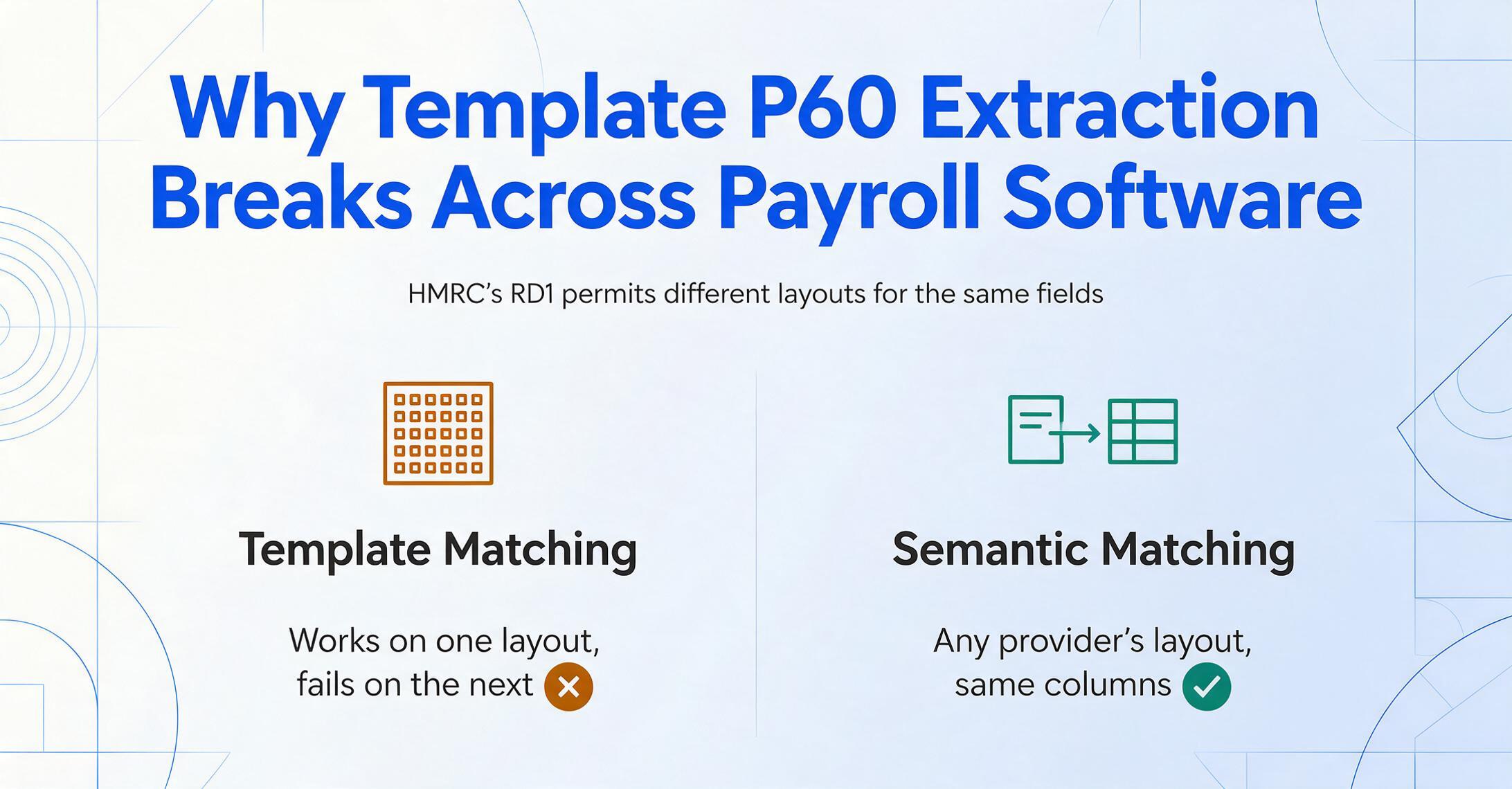
Sage Payroll might print the employee NINO in the top-right quadrant with the PAYE reference in a separate block below. Xero Payroll might place them side by side. BrightPay might use a three-column grid. IRIS Staffology might stack everything in a single vertical column. The paper size, ink colour, and box arrangement are all at the employer's or software provider's discretion — the only constraint is that all statutory fields must appear on one sheet of paper.
This is not a bug in the specification. It exists because employers have used different payroll software for decades, each with its own printing engine, and HMRC's approach is to mandate the data content rather than the visual layout. The result for anyone doing extraction is that every payroll provider's P60 is a layout variant of the same underlying data schema — and a template-based extraction tool that trained on Sage's layout will fail on Xero's.
The NI category letter section makes this visible in a way that costs real time. When an employee's NI category letter changed mid-year — for example, from A to C upon reaching State Pension age — the P60 must show two separate NI rows under different category letters. Sage might print these as two adjacent rows with letter labels on the left. Xero might print them as separate table sections with the letter as a section header. A template looking for "a row with an NI letter in column 1" catches one format and misses the other. Semantic extraction — reading by meaning rather than by position — handles both layouts because it understands that "NI category letter" is a column value regardless of its visual presentation.
Setting Up Your P60 Extraction Workflow
The workflow that replaces manual P60 transcription has three steps, and the configuration step — defining your columns — is what you do once and reuse for every tax year, every payroll provider, and every batch of employees.
Define your output columns
Type the field names you want extracted — exactly as you want them to appear as column headers in your spreadsheet. For a reconciliation workbook, a practical starting set is: Employee Name, NINO, Employer PAYE Reference, Final Tax Code, Pay in This Employment, Tax Deducted, Total Pay for Year, Total Tax for Year, NI Category Letter, Employee NI Contributions, Student Loan Deductions, Postgraduate Loan Deductions, Statutory Maternity Pay, Statutory Paternity Pay, Employer Name. This is Custom Column Extraction: you define the output schema, and the AI maps each document's fields to your columns — the same column names work across every payroll provider's P60 layout because the AI matches by semantic meaning, not by template position.
Upload all P60 PDFs in one batch
Drop in the full folder — 150 PDFs, a mix of Sage-printed, Xero-printed, and scanned paper P60s from an older payroll year. Batch processing handles them all in a single job: each file is processed independently, and all results are merged into one unified spreadsheet. Files can be PDF exports from payroll software, scans of printed P60s, or phone photos of certificates — the AI handles all three input types. For the pre-31-May audit workflow this feeds, see building the 100+ P60 audit spreadsheet before the deadline.
Export and validate
Download the Excel file — one row per employee per tax year, columns in the order you defined. Run the validation checks covered in the next section to flag any rows worth eyeballing against the source P60. The export is also available as CSV for direct import into payroll reconciliation tools or as JSON for teams using API-driven audit workflows.
This workflow works for any number of employees and any mix of payroll providers. The column definition is reusable across tax years because HMRC's statutory field set changes only when legislation changes — and when it does (as with the addition of Statutory Neonatal Care Pay in the 2025-26 specification), you add the new column to your definition without rebuilding the rest.
Set against the whole year-end, that is what P60 to Excel conversion comes down to — one column set that accepts Sage, Xero, and scanned paper certificates alike, and hands back a reconciliation-ready sheet.
Three P60 Extraction Workflows That Pay for Themselves Every Year-End
Most P60 extraction falls into one of three patterns, each with its own batch shape and output emphasis. Matching your workflow to the right output structure is what turns a generic "extract data" tool into something your team actually uses every May.
Self Assessment Preparation (March–May Window)
An accounting practice serving individual clients receives P60s alongside bank statements, dividend vouchers, and P11D forms in the run-up to the 31 January Self Assessment filing deadline. Clients with multiple concurrent employments produce two or more P60 rows for the same tax year. The headline columns for this workflow are Total Pay for Year, Tax Deducted, NINO, and Employer PAYE Reference — these map directly to the Employment pages of the SA100 tax return. A client with two part-time jobs generates two rows, and the "Total for Year" column on each P60 gives the figures that need to be entered separately on the return.
This is the highest-volume window for P60 extraction because it is when practices handle the largest number of client documents in the shortest time. Replacing manual transcription here does not just save hours — it eliminates the most common source of SA302 inquiry triggers: transcription errors where a pay figure from one P60 was typed into the wrong employment line. For the wider context of why this transcription happens at all — and what a mistyped figure costs downstream — see UK payroll's May problem: the hidden cost of P60 data entry.
Payroll Bureau Reconciliation Against FPS Submissions
A payroll bureau running year-end for multiple employer clients needs to confirm that the figures on each employee's P60 match the year-end Full Payment Submission (FPS) totals sent to HMRC. The reconciliation runs employer by employer: extract all P60s for Employer A into a spreadsheet, then diff the pay and tax totals against the bureau's own FPS extract for that employer. Column alignment is what makes the diff meaningful — if the P60 "Pay in This Employment" column sits next to the FPS "Total Pay" column, the variance formula is a single subtraction per row.
The NI category letter column is especially important in this workflow. An employee whose letter changed from A to C mid-year will show two NI rows on the P60 under different letters. The bureau's reconciliation needs both rows to verify that total contributions match the FPS — and a single "total NI" column that collapsed both rows into one number would hide a category-letter mismatch that HMRC may flag months later.
Income Verification at Scale
Mortgage providers, letting agents, employment-screening firms, and immigration advisers routinely request P60s as proof of prior-year income. The verification workflow is high-volume and narrow-field: Name, NINO, Employer PAYE Reference, Total Pay for Year. The other statutory fields — statutory payments, student loan deductions, NI band breakdowns — stay in the output as reference data, but the verification decision turns on the pay figure and the employer reference that ties it to a real entity.
Because this workflow often involves P60s from unfamiliar payroll providers — an applicant might bring a P60 from an employer using a niche payroll system the verifier has never seen — the extraction tool's ability to handle any layout without pre-configuration is what determines whether the verification pipeline can be automated or whether someone has to open each PDF and type the figure by hand.
Validating Your Extracted P60 Data Before It Hits the Payroll Spreadsheet
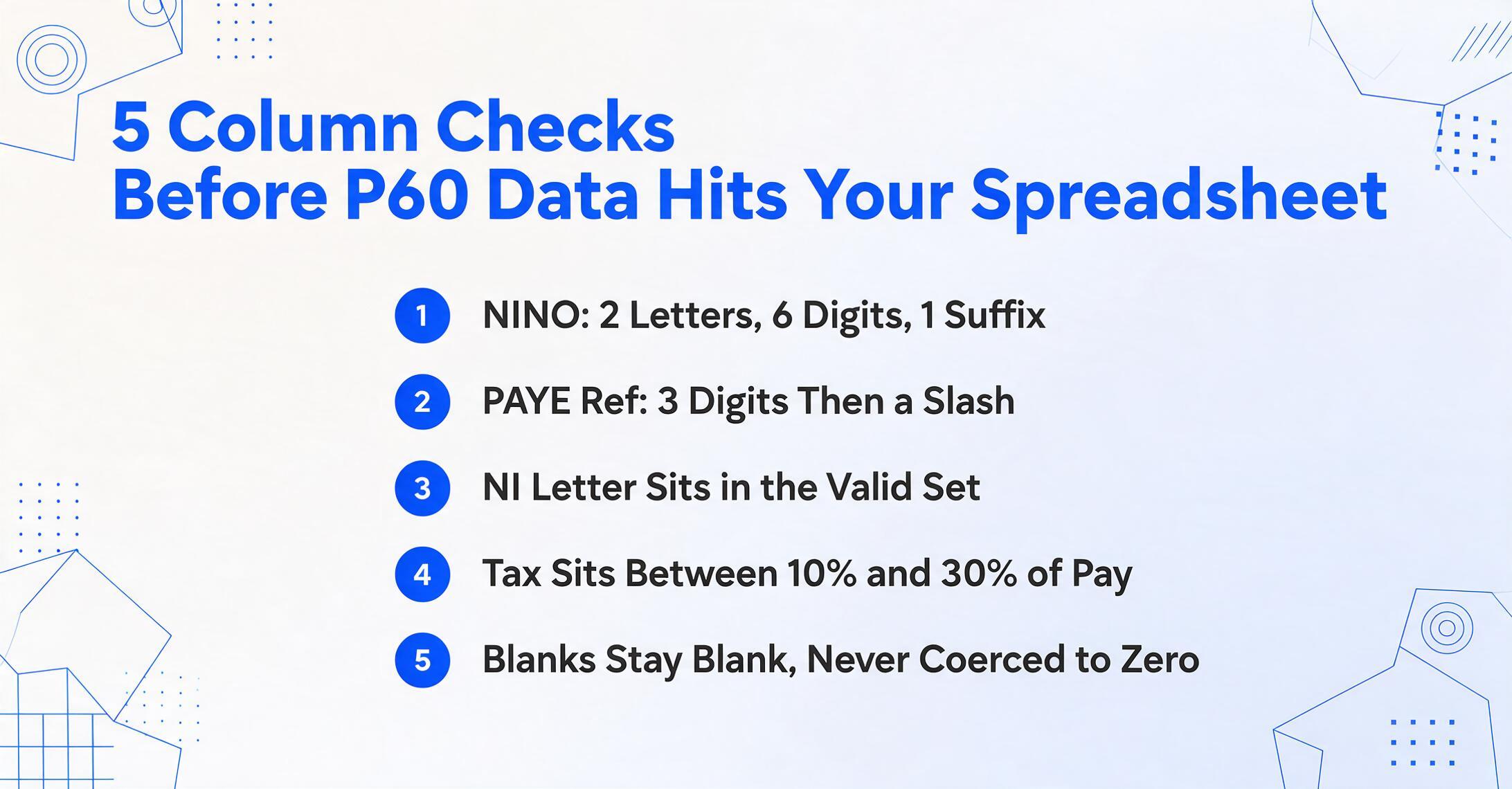
Even at high extraction accuracy, the operator owes the downstream reconciliation or verification check a sanity pass. The checks below are P60-specific and run column by column in Excel — none require auditing every field on every row. They are shape checks designed to surface the handful of rows worth eyeballing against the source P60.
| Check | What to Look For | Excel Formula (row 2, drag down) |
|---|---|---|
| NINO format | Two letters, six digits, one suffix letter (A–D). Invalid prefix letters: D, F, I, Q, U, V at start; O as second character. | =AND(LEN(A2)=9,NOT(ISERROR(SEARCH("??######?",""&A2)))) — flags non-conforming rows |
| PAYE reference shape | Three digits, slash, up to 10 alphanumeric characters. | =AND(LEN(B2)>=5,ISNUMBER(VALUE(LEFT(B2,3))),MID(B2,4,1)="/") |
| NI category letter membership | Must be one of: A, B, C, F, H, I, J, L, M, S, V, X, Z. Anything outside the set is a data-quality flag. | =NOT(ISERROR(MATCH(C2,{"A","B","C","F","H","I","J","L","M","S","V","X","Z"},0))) |
| Tax-to-pay proportionality | Tax deducted should be roughly 10–30% of pay for most tax codes. Rows outside this band warrant a closer look — not automatically wrong, but worth checking against the source. | =AND(D2/E2>0.1,D2/E2<0.3) — conditional formatting for outliers |
| Statutory payments null vs zero | Blank cells should remain blank. Zero should appear only where the form printed zero. Coerced blanks-to-zero produce phantom recovery amounts in employer NI reconciliation. | Apply =ISBLANK(F2) as a conditional format rule on null-check columns |
| Student loan plan plausibility | Where a deduction exists, cross-check the plan type against the borrower's known plan. A Plan 2 deduction on a Plan 1 borrower flags either extraction error or payroll coding error. | Manual cross-reference; flag any row with an unexpected plan code |
The reason this checklist is tractable — rather than aspirational — is that the extracted data is already structured in columns. Each row carries the source file reference, so any flagged row is a click away from the original P60. Manual transcription would never sustain column-level checks like these at firm scale, and extraction is what makes the validation pass possible at all.
P60 vs W-2: What UK and US Teams Need to Know
UK payroll teams encountering US tax form extraction tools for the first time — or US firms with UK subsidiaries — often ask whether a P60 is essentially a UK W-2. The short answer is that they serve the same function (year-end employee earnings certificate) but differ in structure, field set, and downstream use in ways that matter for extraction setup.
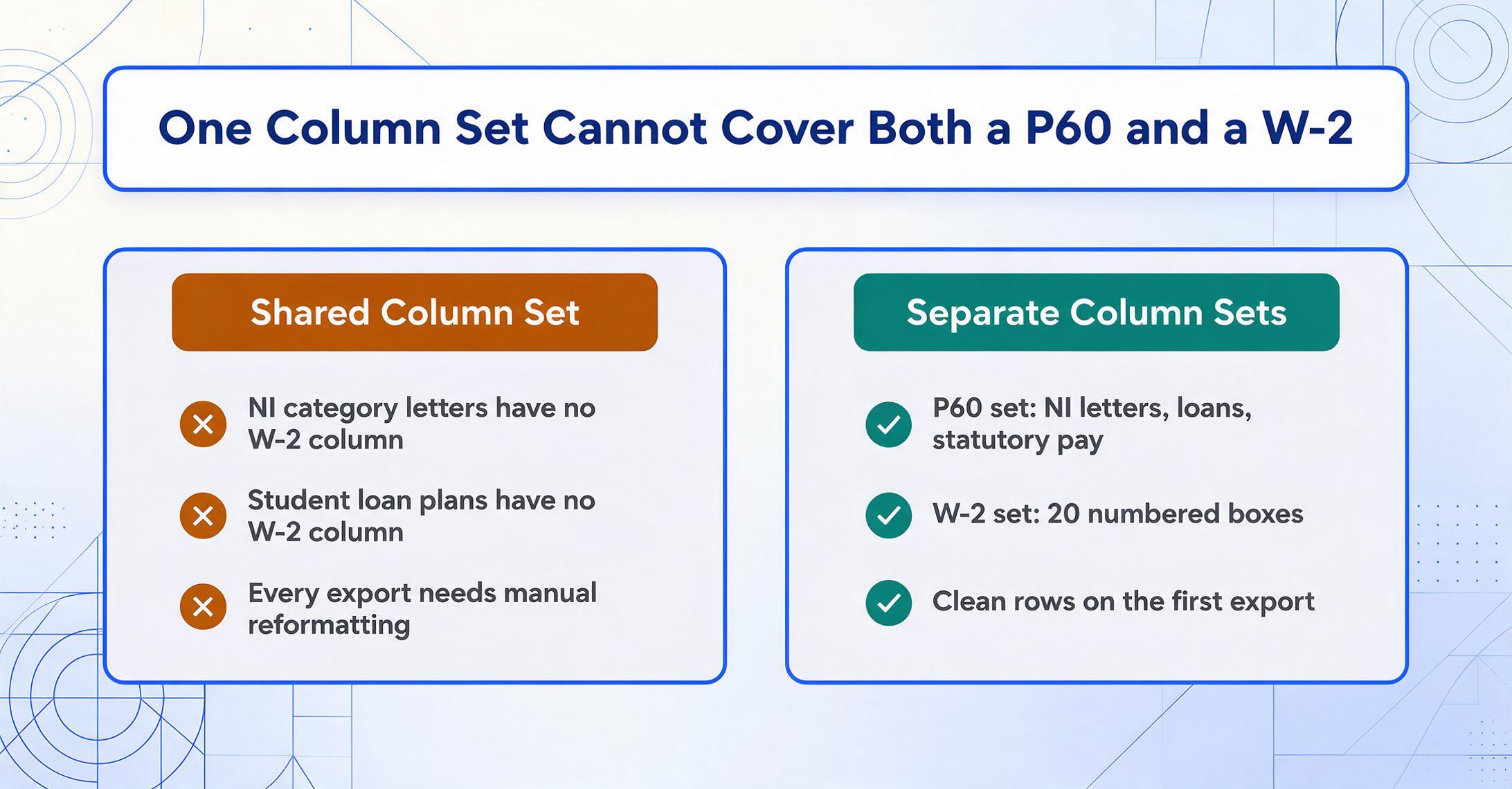
A W-2 reports federal wages (Box 1), Social Security wages (Box 3), Medicare wages (Box 5), and state-level breakdowns across 20 numbered boxes — all for a calendar tax year (January 1–December 31). A P60 reports taxable pay and PAYE tax for a tax year running 6 April to 5 April, with National Insurance shown by category letter and earnings band rather than as a flat percentage deduction. A W-2 has no concept of NI category letters, no statutory payment breakdown, and no student loan plan differentiation. A P60 has no state-level reporting and no Social Security/Medicare split.
The extraction implication is that the two form types need different column definitions. A W-2 column set works for W-2s across all US employers; a P60 column set works for P60s across all UK payroll providers. But the two column sets do not overlap beyond the identity fields — and treating a P60 as a W-2 with different box numbers produces a spreadsheet that needs extensive post-extraction reformatting.
If your firm handles both, see our complete guide to W-2 and 1099 tax form extraction for the US-side workflow, and use a separate column definition for each form type. The batch processing approach is the same — upload files, define columns, export spreadsheet — but the column names are market-specific.
NI vs FICA: UK National Insurance (NI) is not the same as US FICA. NI has multiple category letters determining contribution rates, earnings bands with different thresholds, and an annual rather than per-pay-period calculation structure for employees. An extraction column named "NI" on a US form or "Social Security" on a UK form will produce meaningless results — use the market-specific field name.
FAQ
Can I extract data from a paper P60 I photographed on my phone?
Yes. The AI handles phone photos of printed P60s — including scans with uneven lighting or slight skew — as long as the text on the certificate is legible to a human eye. This covers the common scenario where an employee brings in a paper P60 from a previous employer and the payroll team needs to digitise it into the reconciliation spreadsheet.
Does the extraction work across different tax years?
Yes. HMRC's statutory P60 field set is stable across tax years — the same fields appear on every P60 from 2018-19 through 2025-26, with only minor additions (Statutory Neonatal Care Pay was added in 2025-26). A column definition built for the current tax year will work for prior-year P60s without modification. The tax year itself appears as a printed value on the form and can be included as an extraction column to distinguish rows from different years in the same spreadsheet.
What if an employee has P60s from multiple employers in the same tax year?
Each P60 becomes its own row in the output spreadsheet. An employee with two jobs produces two rows — one per employer — with the Employer PAYE Reference column distinguishing which P60 came from which employer. The Total Pay for Year and Total Tax for Year figures on each P60 include the combined totals, but the Pay in This Employment and Tax Deducted columns report only the figures from that specific employer. This is by design: HMRC's P60 specification treats each employment as a standalone certificate, and extraction preserves that structure rather than attempting to merge rows.
How do you handle NI category letter changes mid-year?
When an employee's NI category letter changes during the tax year — most commonly from A to C on reaching State Pension age — the P60 shows two separate NI rows under different category letters. The extraction preserves both rows: the NI Category Letter column will contain both letters (as separate rows or as a delimited value depending on the extraction tool's output format), and the earnings band columns will show the split amounts. This is the correct behaviour — collapsing both rows into a single "total NI" figure loses the category-letter breakdown that matters for employer reconciliation against RTI submissions.
Can it read handwritten P60s or annotated certificates?
The AI handles printed text with high accuracy, including machine-printed substitute forms. Handwritten annotations on a printed P60 — a payroll manager's pencilled correction, for example — may be read with lower confidence and should be flagged for manual verification. The tool does not currently offer a handwriting-optimised mode for P60s specifically, though it performs well on printed and digitally generated certificates.
Is employee P60 data secure during extraction?
P60s contain sensitive personal data — NINOs, pay figures, and employer references. A responsible extraction platform encrypts files in transit and at rest, does not use uploaded documents to train AI models, and automatically deletes source files within a defined retention window after processing. If you are evaluating extraction tools for payroll data, confirm these security commitments before uploading any employee documents.
Can the extracted data go directly into Google Sheets instead of Excel?
Yes. In addition to Excel (XLSX) and CSV export, the extraction results can be written directly into Google Sheets through the Google Sheets Add-on. This means payroll teams who run their reconciliation in Sheets can upload P60 PDFs from the sidebar, define columns, and get structured data appended to the active sheet without ever leaving the spreadsheet.
The difference between finishing P60 reconciliation on 28 May and pushing it into the first week of June is five hours of typing. Define your columns once, and let the spreadsheet fill itself.
Extract Your First P60 BatchNo sign-up required to test on sample files. Secure processing with automatic file deletion.