How to Extract UK P45 Leaver Data into Excel
for Payroll and New Starter Processing
A 200-person company with average UK turnover — 15% annually across all sectors — processes roughly 30 new starters a year. Each one arrives with a P45 from their previous employer. The payroll administrator opens the PDF, reads the tax code, the leaving date, the year-to-date pay and tax figures, and the student loan indicator, then types each field into the payroll software's new starter form. Two minutes per P45, if nothing goes wrong. But one mistyped tax code digit — 1257L becomes 1275L — and the employee spends their first month on the wrong deductions until HMRC issues a corrected code. The core problem is not the volume. It is that the same structured data passes through a human transcription step every single time someone joins, and that step has no error-correction layer between the P45 and the payroll record.

Key Takeaways
- HMRC mandates every data field a P45 must carry — then lets every payroll software design its own layout, so the same tax code appears in a different box on every certificate, and a human is the only guaranteed common denominator.
- Asking 50 previous employers to standardise their P45 format is impossible — you are asking organisations that have never heard of each other to coordinate on a decision none of them benefits from, which is why P45 data entry has been manual since the form was created.
- Stop reading layouts and start reading labels — define your spreadsheet columns once by what each field means and let the AI find "Tax Code at Leaving" on any payroll provider's certificate by understanding the words, not the coordinates.
What's on a P45 — Four Parts, One Data Set, Your Spreadsheet Columns
A P45, formally titled "Details of employee leaving work," is the statutory document issued to every UK employee when their employment ends. It is governed by Regulation 36 of the Income Tax (Pay As You Earn) Regulations 2003, which requires employers to provide leaver information "without unreasonable delay" — in practice, with the final payslip or within one payroll cycle of the leaving date. Unlike a P60, which wraps up a full tax year for current employees, a P45 is triggered by a single event and carries data covering only the period from the start of the tax year (6 April) to the leaving date.
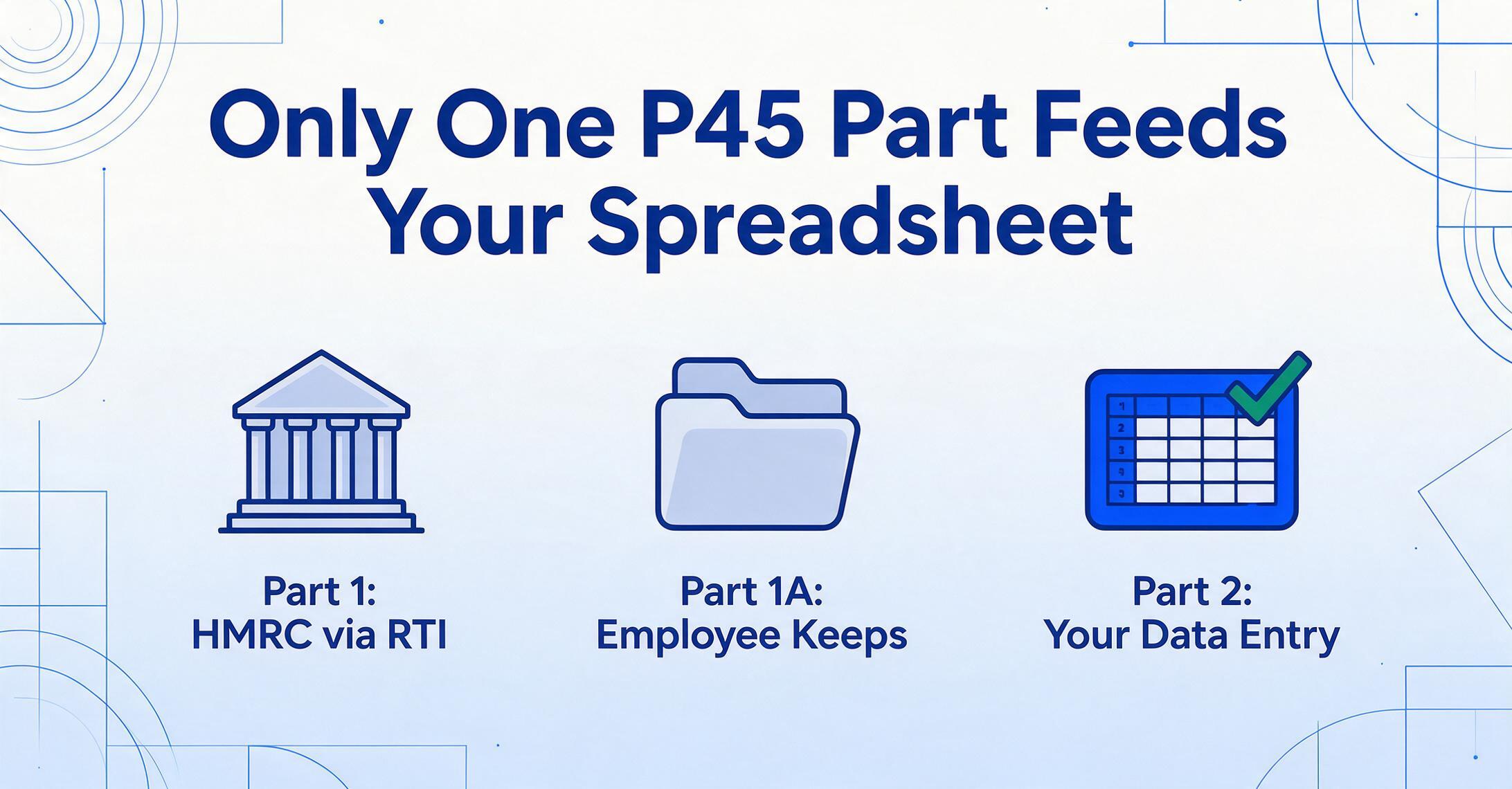
The form comes in four parts, but three of them carry the same data payload:
Part 1 — HMRC (submitted electronically via RTI)
The old employer transmits this to HMRC through the Full Payment Submission (FPS) on the final pay run. The employee never handles this part. In earlier decades it was a physical form sent by post; today RTI replaces the paper trail entirely.
Part 1A — Employee keeps
The employee retains this copy for their own records — proof of employment and tax paid. Most employees file it and never look at it again unless HMRC asks or their new employer's payroll team needs the original reference.
Part 2 — New employer (source of all payroll data entry)
This is the part your payroll team cares about. It carries the tax code the employee was on, the total pay and tax paid so far this tax year, the leaving date, the National Insurance number, and whether student loan deductions were being made. Every field on Part 2 is a field your payroll software expects you to enter when setting up the new starter.
Part 3 — New employer or Jobcentre Plus (backup copy)
A duplicate of Part 2. Same data, same columns. The new employer retains Part 2 for payroll records and uses Part 3 to register the employee with HMRC — or passes it to Jobcentre Plus if the individual is claiming benefits between jobs.
For extraction purposes, Parts 2 and 3 are identical in content. You are extracting from whichever one the employee hands you — a PDF from the previous employer's payroll system, a scan of a printed P45, or even a phone photo of a paper copy. The data fields are the same regardless of format.
The fields that become your spreadsheet columns
Identity & Reference Fields
- Employee NINO — National Insurance number in the format two letters, six digits, one suffix letter (e.g. QQ 12 34 56 C). The employee identity key that HMRC uses to reconcile across employments. Getting this wrong means HMRC cannot match the new starter to their existing record, and the first FPS submission will bounce.
- Employer PAYE Reference — the previous employer's reference in the format
NNN/AAAAAAAA(3-digit tax office number, slash, up to 10 alphanumeric characters). Not the same as your company's PAYE reference. Matters for audit trails and for HMRC when it maps the employee's employment history. - Works/Payroll Number — internal ID from the previous employer. Optional but helpful when cross-referencing payslips or contractor records.
Pay & Tax Figures (the Data You Type into Payroll Software)
- Total Pay to Date — gross pay from 6 April to the leaving date, including pay from any previous employments in the same tax year if the tax code was cumulative. This is the figure your payroll software uses to determine how much of the employee's personal allowance remains.
- Total Tax to Date — total PAYE income tax deducted across all employments in the current tax year. On a non-cumulative (Week 1/Month 1) code, this figure covers only the leaving employment.
- Pay in This Employment & Tax in This Employment — present only when the employee had multiple jobs. Shows the figures attributable solely to the leaving employer, distinct from the cumulative totals.
- Tax Code at Leaving — e.g. 1257L, BR, D0, or NT. May carry a W1 or M1 suffix indicating a non-cumulative basis.
- Leaving Date — the employee's last day of employment. Your payroll software uses this to set the start of your PAYE reporting period.
Student Loan & Other Indicators
- Student Loan Deductions Indicator — a checkbox or "Y/N" field, not an amount. Tells you whether the previous employer was deducting student loan repayments — Plan 1, Plan 2, or Plan 4. If checked, your payroll software needs to continue those deductions from the first pay period. The actual monthly repayment amount is calculated by your system based on earnings thresholds, not carried over from the P45.
- Postgraduate Loan Indicator — separate from undergraduate loans, deducted at a different threshold. Checked independently on the P45.
- Week 1 / Month 1 Indicator — a "W1" or "M1" suffix on the tax code. This one flag changes everything about how you enter the data. With a W1/M1 code, pay and tax figures are non-cumulative — they apply only to that specific employment. With a standard cumulative code, the figures carry forward from previous jobs.
Payroll Reference Fields
- Tax Week / Month Number — the tax week or month of the last payment. Week 1 = 6–12 April, Month 1 = 6 April–5 May. Your software uses this to position the employee correctly in the current tax year's PAYE timeline.
- Employee Name & Address — straightforward identity fields. Cross-reference with the employee's own details to catch mismatches.
- Date of Birth & Gender — present on some P45 layouts. Used by HMRC for identity verification and State Pension age determination (relevant when NI category letter changes).
That is 12 to 15 columns per new starter, depending on whether you extract the optional fields. At two minutes per P45 for 30 new starters a year, that is an hour of pure typing — and it is an hour spent on data that is already printed, correctly, on the form.
Why Every UK Payroll Admin Retypes the Same P45 Fields Dozens of Times a Year
If the P45 were just a data export — a CSV file from one payroll system to another — this article would not exist. The previous employer would press a button and your payroll software would ingest the leaver record directly. The reason that does not happen is structural, not technical. For the full regulatory background on the four-part form and every box on it, see our complete guide to UK P45 data extraction; for why the paper chain (Parts 1A, 2, 3) survives despite RTI, our analysis of why the P45 form still costs UK payroll teams more than they realise traces the underlying causes.
HMRC's P45 specification, governed by the regulatory framework under the PAYE Regulations, mandates what data must appear on the form — the fields listed above — but does not mandate how the form looks. Every payroll software provider designs its own substitute P45 layout. Sage 50 Payroll might print the tax code in the top-right quadrant with the NINO in a separate block below. BrightPay might use a three-column grid with the employee details on the left, pay figures in the centre, and tax information on the right. Xero Payroll might stack everything vertically. QuickBooks UK uses yet another arrangement. Moorepay, ADP UK, IRIS Staffology, Moneysoft Payroll Manager — each has its own layout engine.
The result is that a P45 from "Employer A using Sage" looks different from a P45 from "Employer B using BrightPay," even though they carry identical field sets. And because the new employer's payroll system cannot know which layout the previous employer used, it cannot automatically parse the fields. The only guaranteed common denominator is a human reading the PDF and typing the values into the payroll software's new starter form.
This is where template-based OCR approaches — tools that depend on knowing where a field sits on the page — fail. A template trained on Sage's P45 layout cannot read a BrightPay P45 because the tax code box is in a different position. Custom Column Extraction sidesteps this entirely: instead of telling the tool where the tax code sits on each layout, you tell it what data you want — "Tax Code," "Total Pay to Date," "NINO" — and the AI reads each P45 by understanding what the labelled field means, not where it appears on the paper. The same column definition works across every payroll provider's layout.
The extraction principle for P45s: You define the column names your payroll spreadsheet needs — "NINO," "Tax Code at Leaving," "Total Pay to Date," "Total Tax to Date," "Leaving Date," "Student Loan Indicator," "Employer PAYE Reference" — and the AI locates each value on each P45 by semantic understanding, not by position. The column definition is written once and reused for every new starter, regardless of which payroll software their previous employer used.
Setting Up Your P45 Extraction Workflow
The workflow that replaces manual P45 transcription has three steps. The configuration step — defining your columns — is what you do once and reuse for every new starter throughout the tax year.
Define your output columns
Type the field names exactly as you want them to appear as column headers. A practical starting set for new starter setup in Sage, BrightPay, or Xero is: Employee Name, NINO, Tax Code at Leaving, Total Pay to Date, Total Tax to Date, Pay in This Employment, Tax in This Employment, Leaving Date, Tax Week/Month Number, Employer PAYE Reference, Student Loan Indicator, Postgraduate Loan Indicator, Works/Payroll Number. This is Custom Column Extraction: you define the output schema, and the AI maps each P45's fields to your columns — matching by semantic meaning across any layout. If your payroll software expects a specific field that is not on every P45 (e.g. Pay in This Employment only appears when the employee had multiple jobs), the AI leaves the cell blank rather than guessing — which is the correct behaviour for a field that genuinely does not exist on the source document.
Upload P45s as they arrive — singly or in batches
The workflow adapts to how your P45s come in. If a new starter hands you a P45 on day one, upload one file and get one row back. If you on-boarded a team of five contractors from the same agency, drop all five P45 PDFs into a batch and get five rows in one spreadsheet. The input format is flexible: PDF exports from any payroll software, scans of printed P45s (the paper version the employee kept in a drawer for two years), and phone photos of paper copies all work. Batch processing merges multiple files into one unified output — useful at quarter-end when you are reconciling several months of new starter records. For a worked example of merging a month's P45s into an employee exit database, see batch-processing monthly P45 leaver forms.
Export and feed into your payroll software
Download the Excel file — one row per P45, columns in the order you defined. The output includes a source file reference column so you can trace any row back to the original P45 PDF. Run the validation checks in the section below, then enter the extracted values into your payroll software's new starter screen. The export is also available as CSV for import-compatible payroll systems, or as JSON for teams with API-driven onboarding pipelines. For teams running payroll reconciliation in Google Sheets, the Google Sheets Add-on writes results directly into the active sheet without leaving the spreadsheet.
This workflow works for one new starter or fifty. The column definition is reusable across the entire tax year because the statutory P45 field set is stable — HMRC changes it only when legislation changes, and when it does, you add or rename columns without rebuilding the rest of the definition.
Strip the narrative away and that is the whole P45 to Excel workflow: upload the leaver's PDF, name the columns once, download a row that drops straight into the new-starter screen.
Handling P45 Scenarios That Break a Rote Entry Habit
Most P45s follow the standard pattern: cumulative tax code, single employment, numeric pay and tax figures. But enough P45s deviate from the standard that a pure rote-entry approach — look at box X, type into field Y — produces errors on the exceptions. These are the scenarios where extraction provides a consistency layer that manual typing cannot.
Week 1 / Month 1 (Non-Cumulative) Tax Codes
A tax code ending in "W1" (weekly paid) or "M1" (monthly paid) — for example, 1257L M1 — is a non-cumulative code. It means the employee's tax is calculated independently each pay period, using only that period's pay and ignoring any pay and tax from earlier in the tax year. The practical consequence for your data entry: the "Total Pay to Date" and "Total Tax to Date" fields on the P45 cover only the leaving employment — they do not include earlier employments in the same tax year.
When you enter a W1/M1 employee into your payroll software, you need to know that the cumulative personal allowance has not been tracked across jobs. The software will treat this employee as if they started fresh in the current month, applying the full month's worth of tax-free allowance (the code number divided by 12 for monthly pay). This is neither "emergency tax" nor an error — it is the correct operation of a non-cumulative code, and understanding it is what prevents you from manually adjusting the pay figures to "make them look cumulative."
Concretely: if a P45 shows tax code 1257L M1 with Total Pay to Date of £4,000 and Total Tax to Date of £200, you enter those exact figures into your payroll software. You do not add estimates of earlier pay. Your payroll system will calculate the correct tax going forward using the M1 basis.
Emergency tax is different from W1/M1. An emergency tax code (0T, BR, or 1257L on a non-cumulative basis assigned temporarily) happens when the new employer has no P45 and must use a Starter Checklist. A genuine W1/M1 code on a P45 from the previous employer is not emergency tax — it is a deliberate HMRC instruction, usually issued because the employee had incorrect or incomplete PAYE records earlier in the year. The distinction matters because you treat the data on a P45 with a W1/M1 code as authoritative, not as "probably wrong."
The Zero Earnings P45
An employee who was added to payroll but never actually worked — or who left before their first pay period — triggers a zero earnings P45. The form shows Total Pay in This Employment: £0.00, Total Tax in This Employment: £0.00, with a valid tax code and leaving date. This is a real P45 with real compliance significance: the employer is required under Regulation 36 to issue it for any employee for whom HMRC has issued a tax code, even if no payment was ever made.
When extracting zero earnings P45s alongside standard ones in a batch, the zero rows naturally populate with £0.00 in the pay and tax columns. The data is correct. A manual operator encountering a £0.00 pay figure might second-guess it — "did I miss a box?" — and go looking for a number that does not exist. Extraction removes that hesitation because the AI reads the printed value and outputs what the form says.
Student Loan: Indicator, Not Amount
The P45 carries a student loan indicator — a checkbox or "Y/N" — not a monetary amount. This is a frequent source of confusion for payroll administrators new to P45s. A new starter who had student loan deductions at their previous job will show the indicator as checked, but no repayment figure. Your payroll software needs the indicator to know whether to deduct, at what threshold (Plan 1, Plan 2, or Plan 4), and then calculates the monthly repayment from the employee's gross pay. The extracted column should capture the indicator as a categorical value (Plan 1 / Plan 2 / Plan 4 / Postgraduate / None), not as a number.
Multi-Employment P45s
An employee who held two jobs simultaneously — for example, a full-time role and a weekend part-time role — leaves one of them. The P45 for the leaving employment shows both "Total Pay to Date" (cumulative, including both jobs) and "Pay in This Employment" (the leaving job only). The two figures differ, and both matter: Total Pay to Date goes into your payroll software's year-to-date field for HMRC continuity; Pay in This Employment is for your own records of what this specific job paid. Extraction captures both as separate columns. A manual operator who conflates the two fields — entering the "Pay in This Employment" figure as the year-to-date total — underreports the employee's cumulative earnings to HMRC, potentially triggering a tax code correction months later.
Validating Extracted P45 Data Before Your First Payroll Run
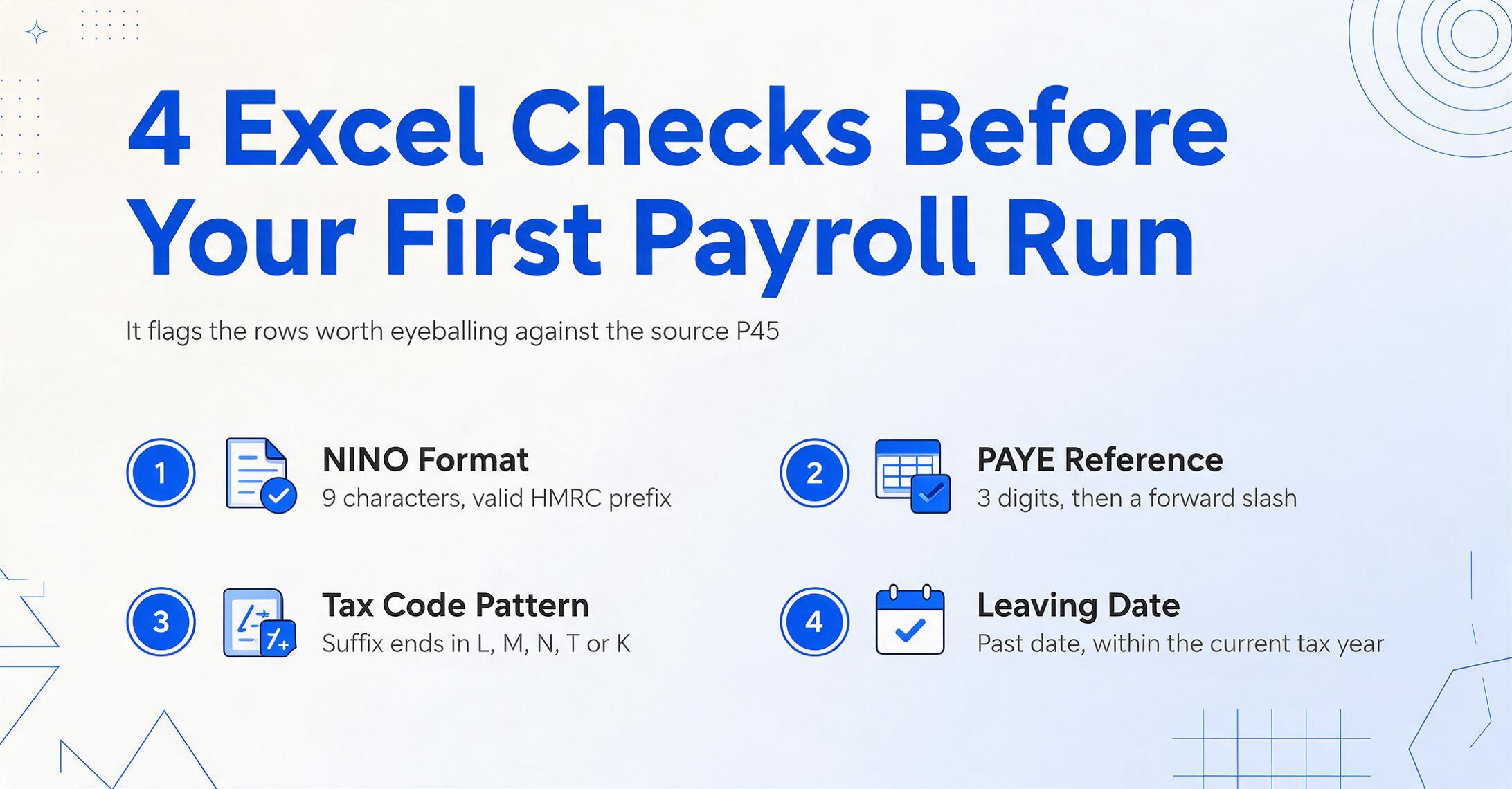
Even at high extraction accuracy, the payroll administrator owes the downstream payroll run a sanity pass. The checks below are P45-specific and run column by column in Excel. They are shape checks — designed to surface the handful of rows worth eyeballing against the source P45 — not full audits.
| Check | What to Look For | Excel Formula (row 2, drag down) |
|---|---|---|
| NINO format | Two letters, six digits, one suffix letter. The prefix letter combination must be a valid HMRC-issued prefix — D, F, I, Q, U, V are never used as first characters. An O in the second position is also not used. | =AND(LEN(A2)=9,NOT(ISERROR(SEARCH("??######?",""&A2)))) — flags format violations |
| PAYE reference shape | Format is three digits, a forward slash, then up to 10 alphanumeric characters. A value like "123AB4567" without the slash is almost always a transcription or extraction error. | =AND(LEN(B2)>=5,ISNUMBER(VALUE(LEFT(B2,3))),MID(B2,4,1)="/") |
| Tax code pattern | Valid codes end with L, M, N, T, BR, D0, D1, NT, 0T, K followed by a number, or S followed by one of the preceding. Optional W1 or M1 suffix. A code like "XYZ500" is never valid and should be flagged. | =OR(ISNUMBER(SEARCH({"L","M","N","T","BR","D0","D1","NT","0T","K"},C2))) — flags non-conforming codes; manual review required for edge cases |
| Leaving date reasonableness | Should be a past date, not in the future, and should fall within the current or immediately preceding tax year (6 April to 5 April, plus a one-month tolerance for late-received P45s). A leaving date of 01/01/1900 usually indicates a blank field coerced to a date. | =AND(D2 — conditional formatting to highlight outliers |
| Tax-to-pay proportionality | Tax deducted should be roughly 10–30% of total pay for standard-rate taxpayers. Rows outside this band are worth checking — they may be legitimate (high earners, large bonuses) or may indicate an extraction error on the tax digit count. | =AND(E2/F2>0.1,E2/F2<0.3) — with conditional formatting for outliers; not a hard fail, just a flag |
| W1/M1 indicator consistency | If the tax code contains "W1" or "M1," the Total Pay to Date figure should typically match Pay in This Employment (because the code is non-cumulative). A mismatch here warrants a manual check. | =IF(OR(ISNUMBER(SEARCH("W1",C2)),ISNUMBER(SEARCH("M1",C2))),G2=H2,"N/A") — where G is Total Pay and H is Pay in This Employment |
| Student loan indicator completeness | If the indicator is present, it should be one of: Plan 1, Plan 2, Plan 4, Postgraduate, or None. Blank is acceptable only if the P45 had no student loan section. "Yes" without a plan type is incomplete. | =OR(I2={"Plan 1","Plan 2","Plan 4","Postgraduate","None",""}) — data validation dropdown for manual entry consistency |
The value of a validation pass on extracted data is that it takes seconds per row rather than minutes. You are checking shape, not re-reading every value on every P45. A column of 30 rows takes under a minute to scan with these formulas applied as conditional formats — the three or four flagged rows get manual review, and the rest proceed directly into the payroll software.
P45 vs Starter Checklist: Why Getting the P45 Data Right Matters for the Employee's First Payslip
When a new starter arrives without a P45 — common for school leavers entering their first job, people returning to work after a long gap, or anyone who lost the document — the employer must use an HMRC Starter Checklist (which replaced the old P46 form). The checklist asks the employee three simple questions about their employment status and uses the answers to assign a temporary tax code — usually 1257L on a cumulative basis for Statement A (main job, no other income), or BR (basic rate) for Statement B (second job).
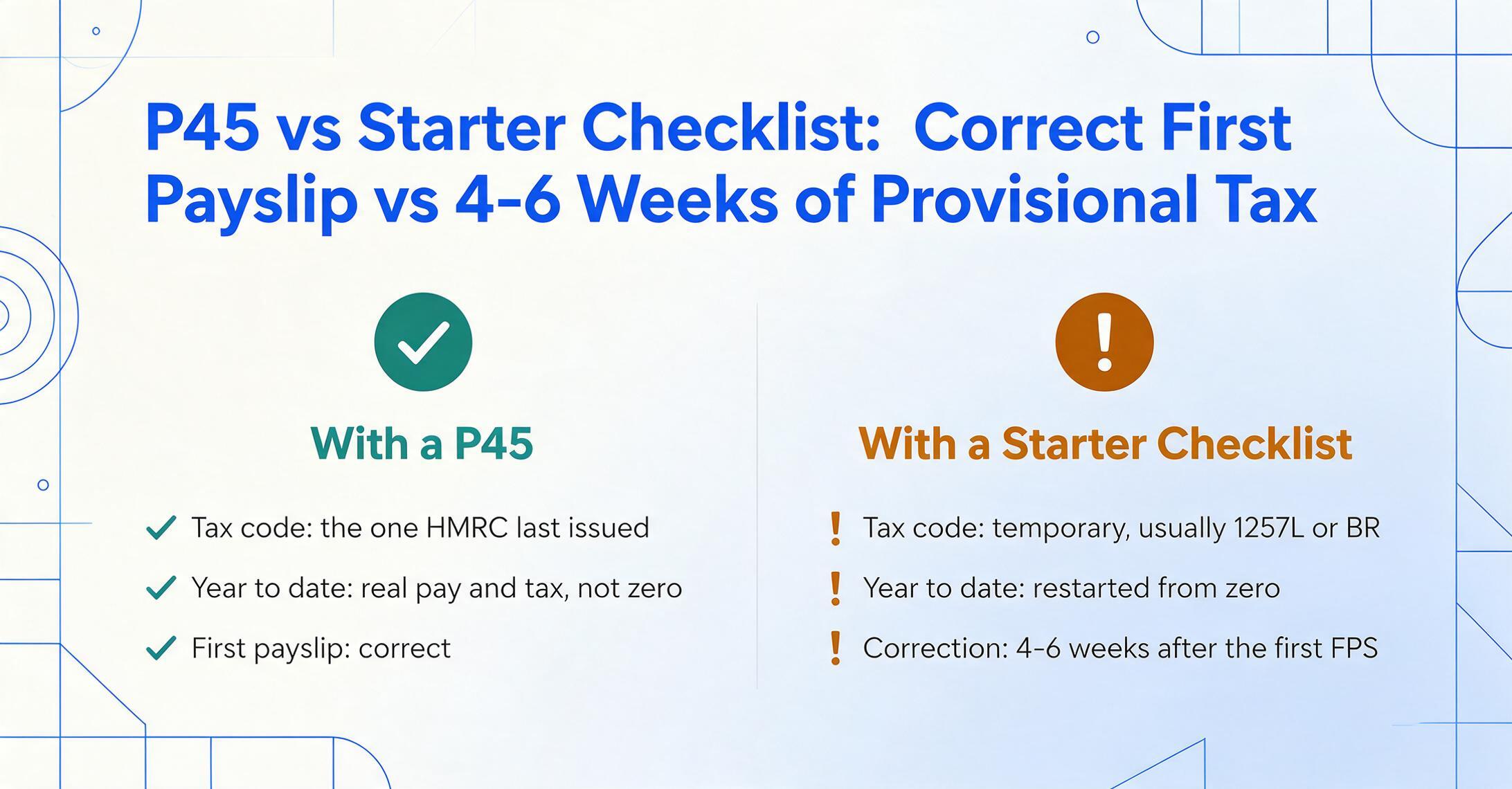
A Starter Checklist gets the employee into the payroll system, but it does not carry year-to-date earnings or tax figures. The consequence is that the employee's personal allowance is restarted from scratch — they get the full allowance applied from their start date, even though they may have already used part of it at their previous job. HMRC eventually corrects this, typically within 4–6 weeks after the first FPS submission, but the correction may come as a tax code adjustment rather than an automatic refund on the next payslip.
A properly extracted P45 avoids this entire reconciliation period. The tax code is the one HMRC last issued, not a generic starter code. The year-to-date pay and tax figures are accurate, not zero. The student loan deduction starts at the correct threshold rather than being discovered two months later when HMRC sends a start notice. For the employee, the difference is between a correct first payslip and 4–6 weeks of provisional deductions that may need clawback.
This is what makes P45 data extraction more than a convenience. It is the difference between "we will sort the tax out later" and "the tax is correct from day one." The further difference from P60 extraction, which is a once-a-year year-end reconciliation task, is that P45 extraction recurs with every hire — making it a workflow you amortise across the calendar year rather than cram into a two-week window.
FAQ
Can I extract data from a paper P45 I photographed on my phone?
Yes. The AI handles phone photos of printed P45s — including scans with uneven lighting, slight skew, or crease marks — as long as the text is legible to a human eye. This covers the common scenario where an employee brings a physical P45 from a previous employer who does not issue electronic copies, and the payroll team needs to digitise it.
Does extracting a P45 prevent emergency tax?
Extracting the P45 data accurately is the first step. Getting it entered into your payroll software is how emergency tax is prevented. If the P45 carries a valid tax code and you enter it correctly, your payroll system applies that code from the first pay period — no emergency code is triggered. The extraction step removes the transcription errors (mistyped digits, misplaced decimal points) that cause the payroll software to reject or misapply the code.
What if my new starter lost their P45?
A P45 cannot be reissued. Unlike a P60, where the employer may produce a duplicate marked "duplicate," the Income Tax (PAYE) Regulations prohibit issuing a second P45 because it would create duplicate PAYE records in HMRC's system. If an employee has lost their P45, direct them to the HMRC Starter Checklist. The employee can also check their personal tax account on GOV.UK to find their tax code and recent PAYE history from their previous employment, which can supplement the Starter Checklist data.
Does the extracted spreadsheet data import directly into payroll software?
It depends on your payroll software. Sage 50 Payroll, BrightPay, and QuickBooks UK all support CSV import for certain data types, but new starter records typically require manual entry through the software's UI for validation reasons. The extracted spreadsheet gives you a single source of truth — one row per employee with all the fields in the order your payroll software's new starter screen asks for them, so you can read across the row and type the values in sequence without flipping between the original P45 PDF and the entry screen.
What if I am processing P45s from different tax years in one batch?
The tax year appears as a printed range on the P45 (e.g. "6 April 2025 to [leaving date]"), and you can include it as an extraction column to distinguish rows from different years. The underlying field set — tax code, pay to date, tax to date, student loan indicator — is the same regardless of tax year. A column definition built for 2026-27 will work for 2025-26 P45s, with any year-specific differences (like threshold changes for student loan deductions) handled in your payroll software, not in the extracted data.
Can it read handwritten P45s or annotated forms?
The AI handles machine-printed P45s and digitally generated substitute forms with high accuracy. Handwritten annotations on a printed P45 — a payroll manager's pencilled correction to a tax code, for example — are read with lower confidence. Treat handwritten values on an otherwise printed P45 as a flag for manual verification. The tool does not offer a handwriting-optimised mode for P45s specifically, but standard printed fields on the same form will extract correctly alongside any handwritten segments that require human review.
Is employee P45 data secure during extraction?
P45s contain sensitive personal data — NINOs, pay figures, tax codes, and employer references. A responsible extraction platform encrypts files in transit and at rest, does not use uploaded documents to train AI models, and automatically deletes source files within a defined retention window after processing. If you are evaluating extraction tools for payroll data, confirm these security commitments before uploading any employee documents.
Can I batch-process P45s alongside P60s or other payroll documents?
P45s and P60s carry different field sets — a P45 has a leaving date and a student loan indicator; a P60 has NI earnings bands and statutory payment breakdowns. It is usually cleaner to run them in separate batches with different column definitions to avoid sparse columns where half the fields are empty for half the documents. However, if your workflow involves reconciling both document types for the same employee — for example, an accountant preparing a Self Assessment return for a client who changed jobs mid-year — you can define a combined column set with all fields and let the AI populate what exists on each document, leaving blanks where a field is absent from that particular form type.
Each new starter's P45 is one row in your payroll records that you should not have to type. Define your columns once, and let the spreadsheet fill the data in for every hire that follows.
Extract Your First P45No sign-up required to test on sample files. Secure processing with automatic file deletion.