100+ UK P60s Before 31 May
One Audit Spreadsheet, No Manual Entry
Under Regulation 67 of the Income Tax (Pay As You Earn) Regulations 2003 (SI 2003/2682), every UK employer must provide a P60 to each employee on payroll as of 5 April — and the 31 May deadline is set in statute, not in payroll software. The P60 itself is not the bottleneck. Sage 50cloud, BrightPay, QuickBooks Online, Moorepay, and IRIS each generate compliant certificates in seconds. The bottleneck is what happens next: someone has to consolidate 100+ of those PDFs — plus scanned paper copies from employees who lost theirs, plus HMRC portal screenshots — into one spreadsheet that reconciles against the year's Full Payment Submissions before month-end. At two minutes per certificate for the manual workflow — open PDF, locate Box 1 through Box 6, transcribe into a spreadsheet row — a 150-employee company burns five hours of May payroll window on pure copy-paste. And that assumes nobody changed payroll software mid-year, no employees left in March, and no scanned P60 arrived printed at 150 DPI.
Key Takeaways
- Under UK law, every employer must issue a P60 to each employee by 31 May — and for a 150-employee company running multiple payroll providers, "just open the PDFs and copy them into Excel" means five hours of pure transcription in the busiest month of the payroll calendar.
- The real bottleneck at 100-document scale is not file processing speed — it is column design: one set of identity columns (NI Number + PAYE Reference), one set of financial columns (pay, tax, NICs), and one set of verification columns (tax code type, NI category check) that together make every row auditable and every spreadsheet merge a simple append.
- Define that column schema once, apply the same names to every batch regardless of payroll provider or tax year, and merging 100 rows from Sage with 50 from BrightPay becomes a vertically stackable operation — no column remapping, no per-provider templates, no guesswork about which row belongs to which employer.
Why 100+ P60s Is a Fundamentally Different Problem from One
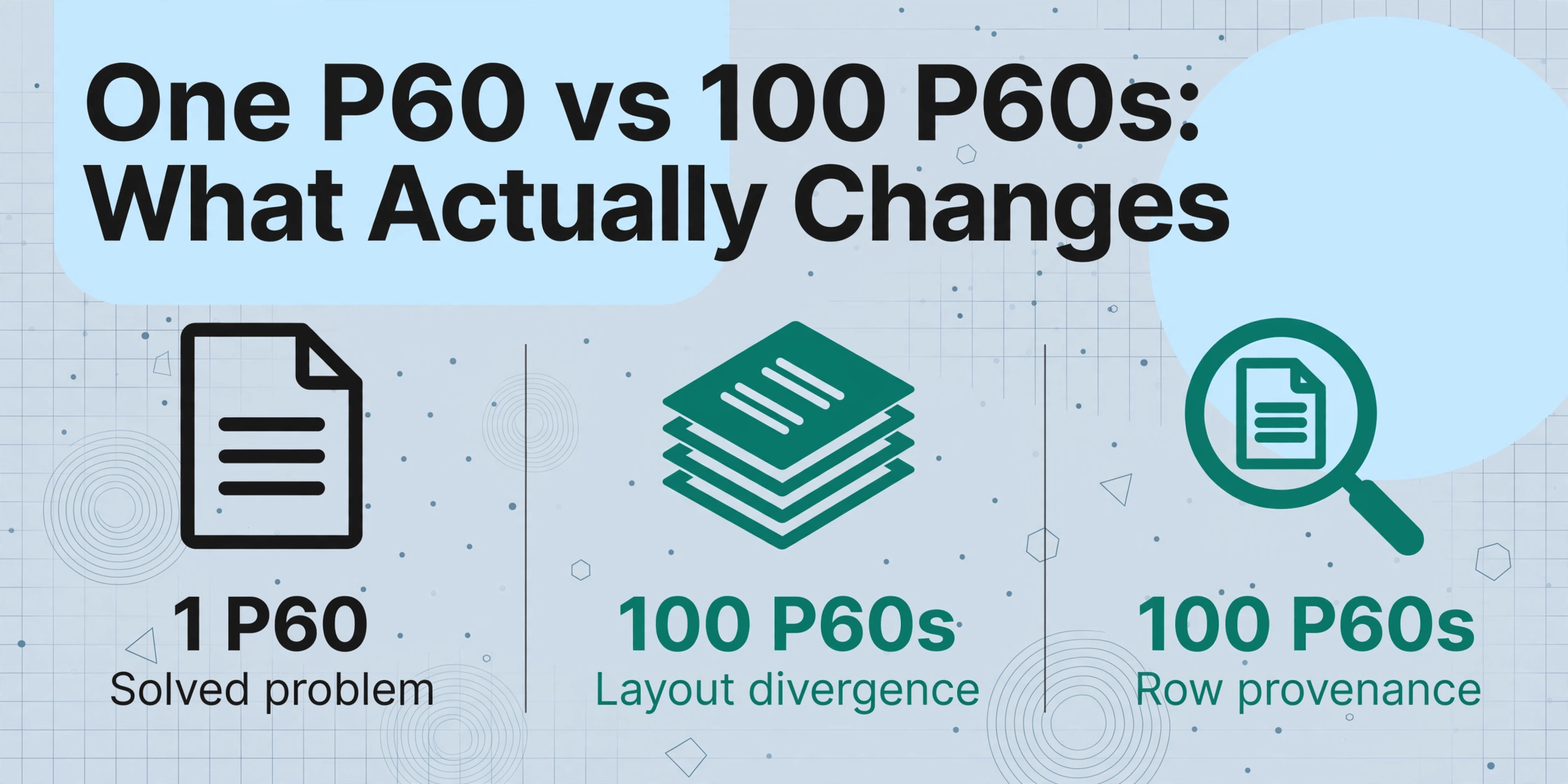
Processing a single P60 is a solved problem — extracting its fields into Excel takes attention, not tools. You open the PDF, locate the statutory boxes, type seven or eight numbers into a row, and move on. The moment you introduce volume — 100 employees, three payroll providers, a handful of acquired-company leavers with paper certificates — the problem stops being about speed and becomes about structure.
For the single-certificate case, a one-off P60 to Excel run is enough; the problems below only appear once the folder is large enough that no one can eyeball the rows.
Three structural problems appear at 100+ scale that do not exist at single-document scale. None of them are solved by processing files faster.
1. Cross-provider layout divergence
A Sage 50cloud P60 formats employee details left-aligned with PAYE reference in bold beneath the employer name. A BrightPay P60 separates the statutory certificates section with a bordered box. A QuickBooks Online P60 prints NI number above the employee address block rather than adjacent to the name. To a payroll administrator transcribing manually, each layout requires a visual re-scan — locating where each box sits on this particular provider's rendering before typing anything. Across 100 P60s split across three providers, that visual re-scan cost alone — roughly 10 seconds per document to re-orient — consumes 15 minutes of dead time before a single keystroke of transcription.
2. Row provenance at audit scale
When you extract 100 P60s into 100 spreadsheet rows, each row must be traceable back to exactly one source document and exactly one tax year. If the output spreadsheet has a column for "Total Pay" with £38,450 in it but no column identifying which employee's P60 produced that figure, the spreadsheet is an audit liability — not an audit asset. Under HMRC compliance checks, an inspector can request the P60 underlying any figure in your reconciliation. Without per-row source traceability built into the extraction itself, you are cross-referencing spreadsheet cells against PDFs manually — which takes longer than the original extraction.
3. Exception handling at volume
In a batch of 100 P60s, three to five will be edge cases. An employee with a Week 1 / Month 1 tax code because they started mid-year without a P45. A leaver who worked January through March — employed on 5 April and therefore entitled to a P60 — but whose certificate was generated by a payroll provider the company no longer uses. A scanned paper P60 from a 2023 acquisition where the PAYE reference belongs to the acquired entity, not the current company. In a manual workflow, you catch these one at a time. In a batch workflow, every exception missed becomes an incorrect figure in a reconciliation spreadsheet that HMRC can audit.
Each of these problems has a solution that does not involve hiring more data entry staff for May. They involve designing the batch workflow — from file preparation through column schema — as if the output is not a spreadsheet but an audit record that will be read six months from now by someone who did not produce the original data.
The Multi-Format Reality: Sage Isn't BrightPay Isn't a 150-DPI Scan
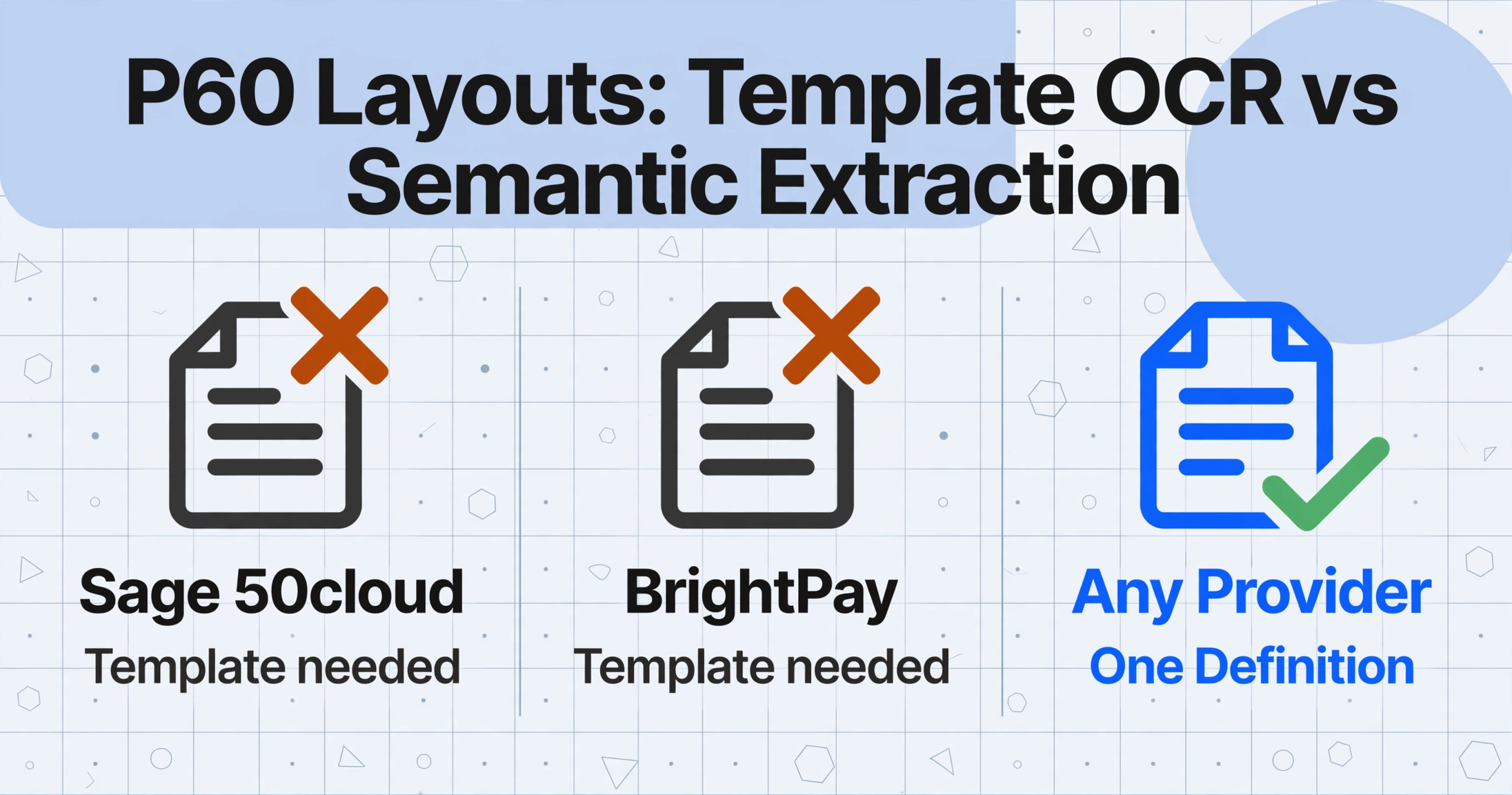
HMRC does not mandate a single P60 layout. It mandates the content: under specification RD1, a substitute P60 must display certain boxes — employee's name, NI number, PAYE reference, total pay for the year, total tax deducted, student loan deductions, final tax code, and employer details — but the visual arrangement is left to each payroll software vendor. The result is that a P60 from Sage 50cloud looks structurally different from a P60 from BrightPay, which looks different from a QuickBooks Online Payroll P60, which looks different from a Moorepay P60, which looks different from an IRIS P60. And that is before you introduce scanned paper copies from employees who misplaced their originals.
Traditional template-based extraction — where you draw rectangles around fields on a sample P60 — handles this by requiring a separate template for each payroll provider. Maintain five providers, maintain five templates. A provider updates their P60 layout for the new tax year — new HMRC guidance, a rebrand, a formatting change — and the template silently produces misaligned output. The payroll administrator only discovers this when the reconciliation doesn't balance against FPS totals.
Semantic extraction eliminates the template-per-provider problem by reading the document for meaning rather than position. You define the columns you want once — "NI Number," "Total Pay for Year (£)," "Tax Deducted (£)," "PAYE Reference," "Final Tax Code" — and the AI locates each value on every P60 by understanding what the data represents, not where it sits on the page. A Sage 50cloud P60, a BrightPay P60, a QuickBooks P60, and a scanned paper P60 from 2023 all feed into the same column definitions. For a deeper walkthrough of the individual fields on a UK P60 and how each one behaves during extraction, start with the single-P60 extraction guide. This article picks up where that one leaves off: what happens when you stop thinking about P60s one at a time.
What makes this particularly valuable in a UK payroll context is that the PAYE reference — in the format 123/AB456 — stays consistent across all P60s from the same employer, regardless of which payroll software produced them. A company running Sage for permanent staff and BrightPay for contractors will issue P60s bearing the same PAYE reference but in two visually different formats. Semantic extraction reads the value, not the layout. The "PAYE Reference" column in your output spreadsheet populates identically across both providers, giving you a natural grouping key for multi-provider batches.
File Naming at Scale: Making Every Row Traceable to Its Source
The single highest-leverage decision in a batch P60 workflow happens before you upload a single file: how you name the source documents. When your output spreadsheet has 100 rows and three months later an HMRC compliance officer asks to see "the P60 underlying row 47," the answer cannot be "I need to cross-reference the spreadsheet against my Downloads folder." It needs to be a filename you can locate instantly.
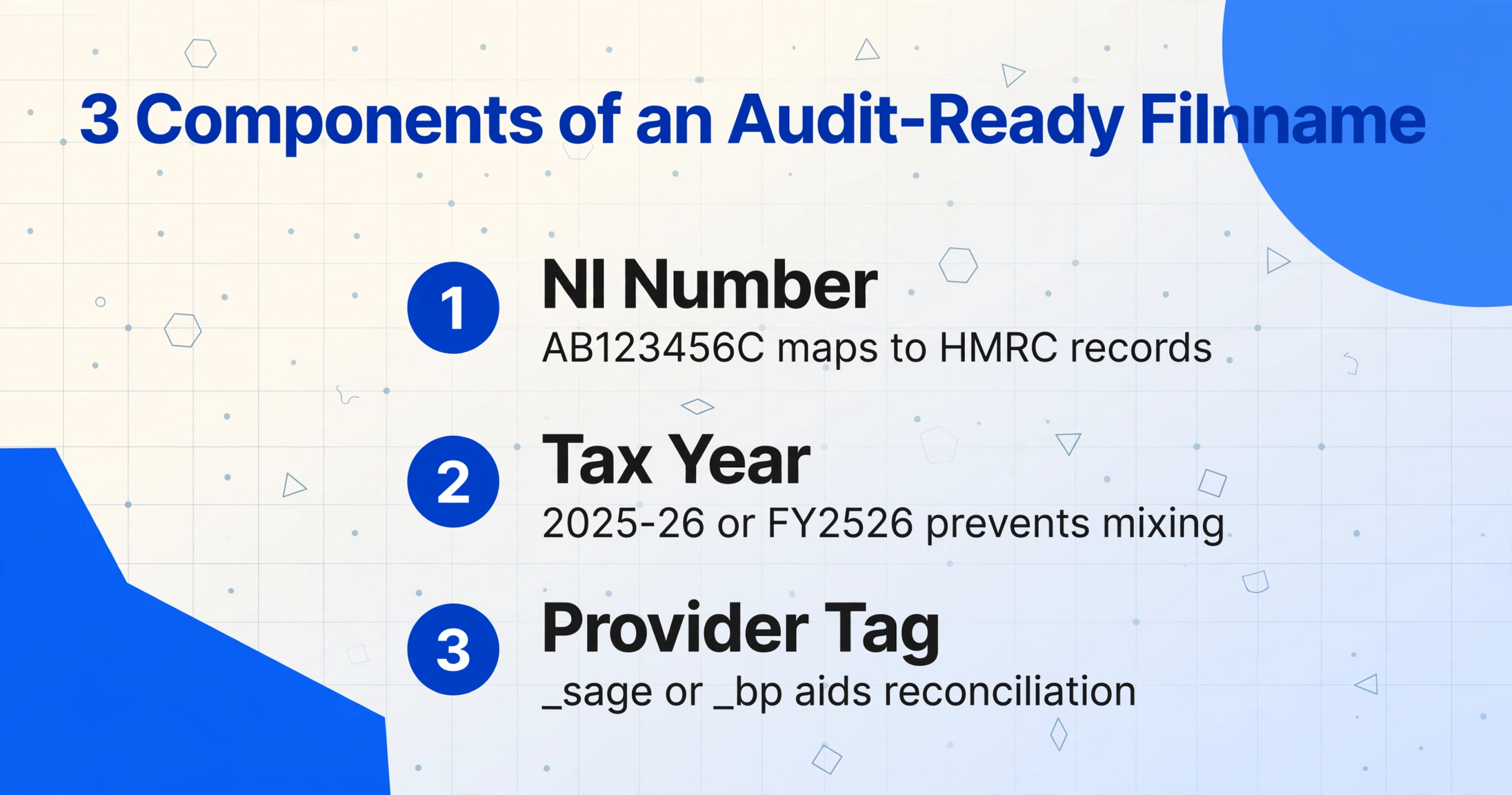
A naming convention that serves audit traceability includes three components:
Employee identifier
NI number is the natural primary key for UK payroll records — it is unique, permanent, and appears on every P60. Using it as the filename prefix gives you an instant lookup key: AB123456C maps directly to HMRC records. Where NI numbers cannot be used (data protection policy), use employee payroll ID — but add a mapping table.
Tax year
A P60 covers the tax year 6 April to 5 April. The filename should encode which year: 2025-26 or FY2526. This prevents the most common batch reorganization disaster — mixing 2024-25 and 2025-26 P60s in the same folder because someone saved them to the same directory six months apart. When you batch-process files from multiple tax years into separate spreadsheets, the year in the filename is the only thing preventing cross-contamination.
Provider or source tag
Not essential for the spreadsheet itself, but invaluable during reconciliation. A filename suffix like _sage or _bp tells you, three weeks into May when someone asks why row 23's Box 5 figure contradicts the FPS data, that row 23 came from BrightPay — which may have a known export rounding difference. A provider tag turns an unexplained anomaly into a known behavioral pattern.
The resulting filename pattern — AB123456C_2025-26_sage.pdf — embeds the audit trail into the filename itself. When your extraction tool preserves filenames in the output (ImageToTable.ai includes a "File Name" column by default in batch exports), every row in your spreadsheet carries its own provenance. No external cross-reference needed.
For payroll teams handling employees across multiple PAYE schemes — an umbrella company managing payroll for 20 client entities, or a group structure where each subsidiary has its own PAYE reference — the PAYE reference format 123/AB456 becomes the natural batch grouping key. Process all P60s bearing 123/AB456 in one batch, all P60s bearing 456/CD789 in another. The PAYE reference column in each batch's output serves as the pivot point when you merge the two spreadsheets later. You never need to guess which employer a row belongs to.
Leavers, Former Employees, and Who Legally Needs a P60
The HMRC rule is unambiguous: every employee on payroll as of 5 April in the tax year must receive a P60 by 31 May. That includes employees who left during the tax year — provided they were still employed on 5 April. An employee who resigned on 30 March and worked their notice through 4 April gets a P60. An employee who left on 31 March does not. The distinction matters because getting it wrong in either direction creates an audit exposure.
In a batch of 100 P60s, the leaver edge cases fall into four categories — and each category changes what you include in the batch and what you verify afterwards:
Employed on 5 April — leaver after
Receives a P60. Their certificate covers the full tax year and must be included in the batch. The "Final Tax Code" field will show whatever code was active at the year end, even if the employee left in June.
Left before 5 April — no P60
Receives a P45, not a P60. If their payroll record still appears in your batch because of a stale HR system export, they must be excluded before reconciliation — their data belongs to a different reporting obligation.
Former employee requesting a duplicate
HMRC requires employers to provide duplicate P60s on request. An ex-employee who needs their 2023-24 P60 for a mortgage application will contact you — and their certificate was issued two years ago, possibly from a payroll provider you no longer use. The P60 still carries the same statutory information but may exist only as a scanned PDF or an archived Sage backup.
Acquired-company employees
When Company A acquires Company B in October, Company B's employees who were on payroll as of the previous 5 April still need a P60 — issued by Company A as the successor employer, but potentially referencing Company B's PAYE scheme for the pre-acquisition months. The P60 issued may carry the old PAYE reference, the new one, or both depending on how the TUPE transfer was structured. Including these P60s in your batch with a dedicated "Previous PAYE Ref" column captures the complexity in one row.
The audit trap is not missing a P60. It is including a P60 for someone who should not have one, or excluding a P60 for someone who should. Either error propagates into your FPS reconciliation, and an HMRC compliance check under Compliance Handbook CH40000 will surface the discrepancy faster than your payroll software will.
The practical safeguard is to add an inferred column — "P60 Status" — where the AI classifies each document based on its content. Values like "Active 5 April," "Leaver After 5 April," "Prior Year Duplicate," and "Not a P60" let you sort the output before reconciliation, flagging rows that need review or exclusion. One column in the extraction saves the hour of manual cross-checking that would otherwise follow.
Designing Audit-Ready Columns for a 100-Row Spreadsheet
The column names you define before uploading a batch are the most consequential decision in the entire workflow. A column schema designed for a five-employee test batch often fails at 100 rows because it does not account for the volume-driven edge cases — duplicate NI numbers across PAYE schemes, tax codes that changed mid-year, student loan deductions split across plans.
A column schema that survives a 100-row audit is built around three types of column, each serving a distinct function in the output:
1. Identity columns — the composite key that makes every row unique
NI Number, Employee Name, PAYE Reference, and Tax Year. Together these four fields form a composite key: no two rows in your spreadsheet should share the same combination. NI Number alone is not sufficient — an employee who worked for two PAYE schemes in the same tax year (common in group structures) will have two P60s with the same NI number but different PAYE references. Including the PAYE reference in the identity block prevents those rows from colliding.
2. Financial columns — the figures that reconcile against FPS
Total Pay for Year (£), Total Tax Deducted (£), Employee NIC (£), Employer NIC (£), Student Loan Deductions (£), Statutory Payments (£). Every one of these must match the equivalent line on your Full Payment Submission for the tax year. The most common reconciliation failure in batch P60 extraction is a mismatch between Box 2 (Total Tax Deducted) on a P60 and the YTD tax figure from the final FPS — usually because the P60 includes a manual tax code adjustment applied after the final FPS was submitted.
3. Verification columns — computed cross-checks that flag anomalies before reconciliation
These are columns that do not appear on the P60 but are computed during extraction to surface discrepancies. A "Tax Code Check" column that flags non-standard codes — anything other than cumulative codes like 1257L, BR, D0, D1 — tells you instantly which rows need manual review. A "NI Category Check" column that flags anything other than Category A (the standard category for employed earners not in contracted-out schemes) surfaces employees on Category B, C, J, or Z — each of which has different contribution rates and may indicate a special payroll arrangement. These verification columns add zero transcription work because the AI populates them during the same extraction pass that reads the financial figures.
For payroll teams that manage P60s across multiple employers, a "PAYE Reference" column doubles as a batch grouping key and a reconciliation pivot. Filter the output by PAYE reference, sum the Total Pay and Total Tax Deducted columns, and compare against each employer's P35 (Employer Annual Return) totals. The AI does not need to understand the format of a PAYE reference — it reads the string as it appears, and because UK PAYE references use a consistent NNN/XXNNNNN pattern (PAYE20005), the output is naturally sortable and filterable.
Tax code handling deserves particular attention at batch scale. The standard cumulative tax code for 2025-26 is 1257L — reflecting the £12,570 personal allowance — but batch processing reveals how many deviations from standard exist across 100 employees. An employee with a K code (total deductions exceed allowances) has fundamentally different tax treatment from one on 1257L. An employee whose P60 shows a BR (Basic Rate) code was likely taxed on a second income source. An employee on NT (No Tax) may have submitted a P85 to HMRC confirming non-residence. Five employees on 1257L with an "X" suffix were placed on a non-cumulative (Month 1) basis — which means their year-to-date figures may not represent a full-year calculation. One column named "Final Tax Code" surfaces all of this. A second, computed column named "Tax Code Type" — where the AI classifies each code as "Cumulative," "Non-Cumulative," "BR/D0/D1," or "K Code" — turns a spreadsheet of codes into a spreadsheet of tax situations, filterable in one click.
Merging P60 Data Across Multiple Employers and Tax Years
The batch extraction produces one spreadsheet per batch. A payroll team managing P60s across three PAYE schemes — each with its own 123/AB456-style reference — ends up with three spreadsheets. The merge step is where the structural design of your extraction columns pays off or collapses.
If every batch used the same column names — "NI Number," "Employee Name," "PAYE Reference," "Tax Year," "Total Pay for Year (£)," "Total Tax Deducted (£)" — the three spreadsheets stack vertically without column remapping. The "PAYE Reference" column in each sheet identifies which employer each row belongs to, so the merged spreadsheet can be pivoted by PAYE reference to produce per-employer totals. This is the entire purpose of standardizing column names across batches: merge becomes an append operation, not a column-mapping exercise.
For the broader workflow question — organizing files, choosing a batch approach, and structuring the output for downstream use — the full batch OCR workflow guide covers file preparation, tool selection, and output structuring across multiple document types. The P60-specific column schema described here plugs into that general framework.
One merge-specific edge case: an employee who appears in two batches with the same NI number but different PAYE references. This is not an error — it is an employee who held two jobs in the same tax year. The P60 from employer A shows income and tax for one employment; the P60 from employer B shows income and tax for the other. Merged into one spreadsheet, these two rows should not be aggregated. The "PAYE Reference" column is what prevents you from summing two P60s that represent separate employments. Without it, a naive SUM of "Total Tax Deducted (£)" produces a figure that matches neither employer's P35 — and an HMRC reconciliation that will not balance.
FAQ: Batch-Processing UK P60s
Does batch extraction work with scanned paper P60s?
Yes — semantic extraction reads the text content of the document, not its digital metadata. A 150 DPI scan of a paper P60 from 2022 produces the same structured output as a digitally generated Sage PDF from 2026, provided the text is legible. The extraction quality depends on scan clarity, not on the document being born-digital. Severely skewed scans, low-resolution photocopies, and P60s with handwritten annotations may produce lower accuracy — in those cases, the verification columns (Tax Code Check, NI Category Check) will flag rows that need manual review.
What happens with P60s that include student loan deductions?
UK P60s include a dedicated section for student and postgraduate loan deductions (Plan 1, Plan 2, Plan 4, and Postgraduate Loan). The HMRC standard P60 format separates these by plan type. Define one column per plan — "Student Loan Plan 1 (£)," "Student Loan Plan 2 (£)," "Postgraduate Loan (£)" — rather than a single "Student Loan (£)" column. An employee repaying both Plan 1 and Plan 2 loans will have two non-zero fields, and a single combined column makes it impossible to distinguish which plan each deduction relates to during reconciliation against the SL1/SL2 start and stop notices HMRC issues.
Can I process P60s from multiple tax years in one batch?
Technically yes — the AI will extract data from any P60 regardless of tax year — but it is better practice to batch by tax year. A merged spreadsheet containing 2024-25 and 2025-26 P60s requires the "Tax Year" column to be 100% accurate before any year-specific reconciliation begins. Processing each tax year as a separate batch — with the tax year encoded in a batch-level column rather than relying on per-document detection — reduces the risk of cross-year contamination. If you must process mixed years, include a computed verification column that flags any row where the year-end date does not match the expected 5 April of the tax year.
How does batch extraction handle employees with the same name?
Employee name is not used as a unique identifier — NI Number is. Two employees named "John Smith" who share the same employer but have different NI numbers will produce two distinct rows with the same name but different NI numbers and different financial figures. The batch processor treats each document independently. The risk is in the merge step: if you merge two batches and sort by name, the two John Smith rows will appear adjacent, and the person reviewing the spreadsheet may overlook that they have different NI numbers. Including NI Number as the first column in your output — ahead of Employee Name — makes it the visual sort key and prevents name-based confusion.
What if a P60 does not display a PAYE reference clearly?
HMRC requires every P60 to display the employer's PAYE reference — it is a statutory field under RD1. However, some payroll software prints the reference in small type, buried in the employer details section, or adjacent to the HMRC logo rather than in the main certificate body. If a specific provider's layout consistently obscures the PAYE reference, you can add a fixed-value column — set the PAYE reference manually for that batch rather than relying on AI extraction. Because the PAYE reference is the same for every P60 in a single-employer batch, one manually set column covers the entire batch. The "File Name" column in the output still provides per-row provenance even when one column is batch-set rather than individually extracted.
The May 31 P60 deadline is not going anywhere — and neither is the gap between what payroll software generates and what payroll reconciliation requires. The five hours between "P60s are issued" and "the spreadsheet reconciles against FPS" is a structural problem that keyboard speed does not solve. It is a column design problem. Define your columns once. Upload the batch. Let the spreadsheet populate itself.
Try It on Your P60s