Batch a Month of
Handwritten Timesheets into Payroll
The American Payroll Association reports that manual transcription errors consume between 1% and 8% of total payroll in organizations that still rely on paper time tracking. For a 50-employee field crew earning prevailing wage on a Davis-Bacon project, that range translates to thousands of dollars per pay period — before counting the hours spent deciphering handwriting and rekeying data into ADP or QuickBooks.
Why Batch Timesheet Processing Is a Different Problem from Single-Document Extraction
Extracting data from one handwritten timesheet is a recognition challenge. Extracting data from 40 of them — collected from different field workers, written on different forms, with different handwriting styles and varying levels of completeness — is a consistency, merge, and validation challenge. The bottleneck in batch processing isn't reading the handwriting. It's making sure all 40 rows in your final spreadsheet actually line up, so your payroll software doesn't reject the import.
According to a 2018 ConstrucTech study, approximately 40% of construction companies still use paper-based time and attendance systems. UK-based research from Causeway found that number closer to 60% among construction firms specifically. These are not companies that want paper — they're companies where field conditions make digital clock-in impractical: no cell service on remote job sites, crews rotating through multiple locations daily, subcontractors who aren't on the company's software system. The paper timesheets exist. The question is what to do with them at the end of the month.
Single-document extraction asks: "can the AI read this one sheet?" Batch processing asks: "can the AI produce a spreadsheet where ADP's import parser won't reject row 17 because the date format mismatches, and row 23 because the overtime column is blank when it expected a number?" These are fundamentally different engineering problems.
The Three Problems That Make Batch Handwritten Timesheets Uniquely Difficult
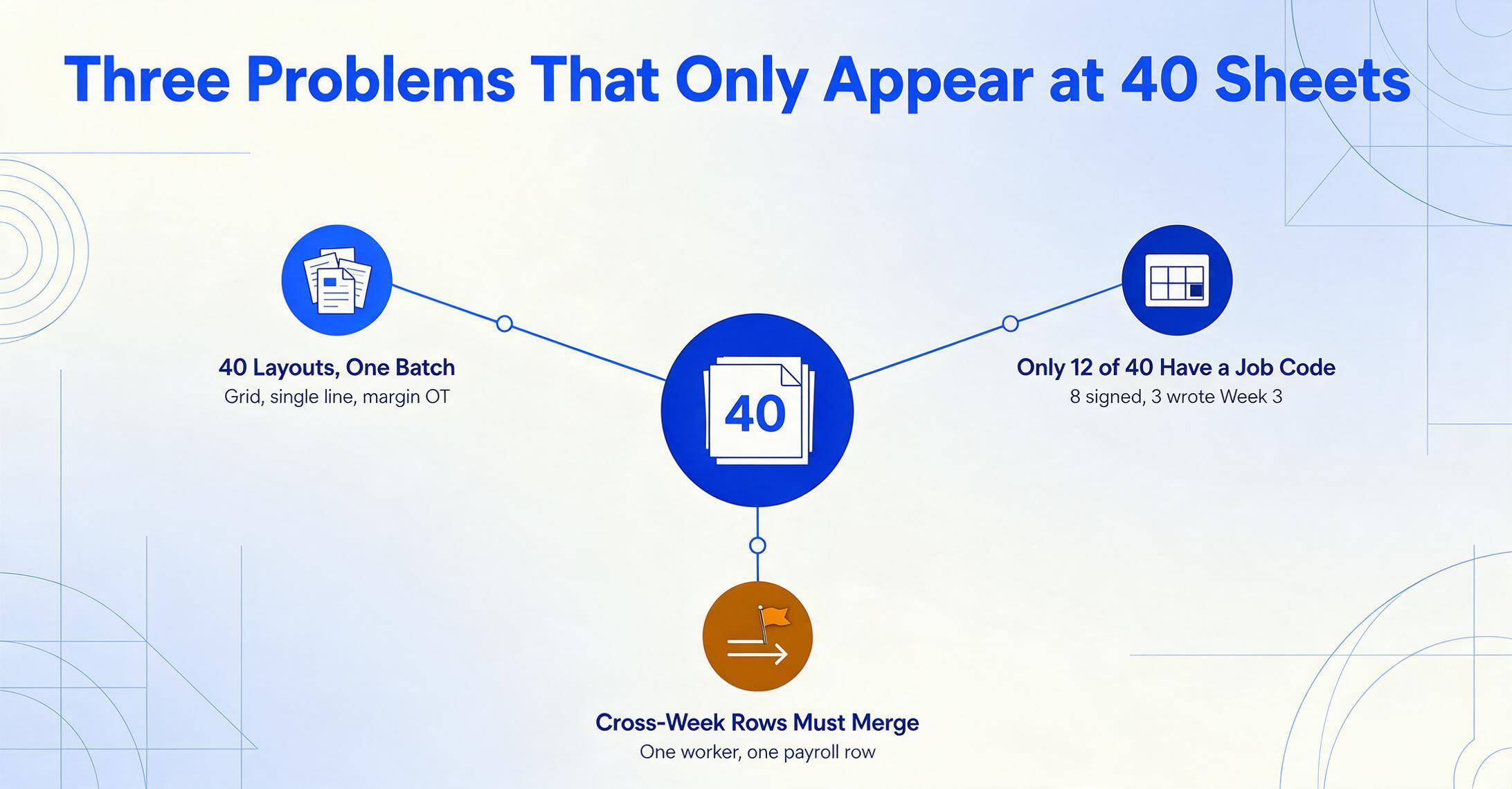
When you process one timesheet, you can manually spot-check every field. With 40 sheets from a month's payroll run, three structural problems emerge that single-document workflows never encounter:
1. Format Inconsistency Across Workers and Weeks
Field worker A writes hours in a grid with Monday–Sunday columns and a daily total. Worker B just writes "Mon 8 Tue 7.5 Wed 8 Thu off Fri 6" in a single line. Worker C uses a printed company form but writes overtime in the margin because there's no designated overtime column. None of these formats is "wrong" — but expecting any template-based OCR tool to handle all three in the same batch is where most systems break. Template-based tools require you to predefine field positions for each format, which defeats the purpose of batch automation.
2. Fields That Exist on Some Sheets but Not Others
In a stack of 40 timesheets, 12 of them have a job code column, 8 include a supervisor signature with hours approval, and 3 are missing the date entirely — the worker wrote the week number ("Week 3") instead. If your extraction workflow assumes every field exists on every sheet, you produce a spreadsheet with gaps that payroll software interprets as errors. EY's 2022 HR Processing Risk & Cost Survey found that the average organization makes 15 corrections per payroll period — and missing or inconsistent fields are the root cause of most of them.
3. Cross-Week Data Merging Creates Silent Payroll Errors
The most dangerous batch error isn't an extraction failure you see — it's a merge error you don't. A worker submits two separate timesheets for the same pay period because they switched job sites mid-week. The extraction works perfectly on both sheets, but when you merge them into your payroll spreadsheet, the worker's hours appear on two rows under different job codes. If your payroll software imports these separately, it calculates overtime incorrectly — because FLSA overtime is based on total hours across all sites in a single workweek, not per-site totals. This is a compliance liability, not just a formatting issue.
Under the Fair Labor Standards Act (FLSA), employers must keep records of hours worked each day and total hours worked each workweek for every non-exempt employee. When batch processing merges the same worker's hours across multiple sheets, verifying that the final spreadsheet accurately reflects the FLSA-required totals is not optional — it's a legal obligation with penalties reaching $10,000 per willful violation.
What Your Payroll Spreadsheet Actually Needs — Before the Software Will Accept It
Most payroll systems don't accept "whatever data you extracted." They expect specific column structures, date formats, and field types — and they will silently reject or misprocess rows that don't match. Here's what the major platforms require:
| Required Field | ADP RUN | Gusto | QuickBooks Payroll |
|---|---|---|---|
| Employee Identifier | Employee ID (numeric) | Email or Employee # | Employee display name |
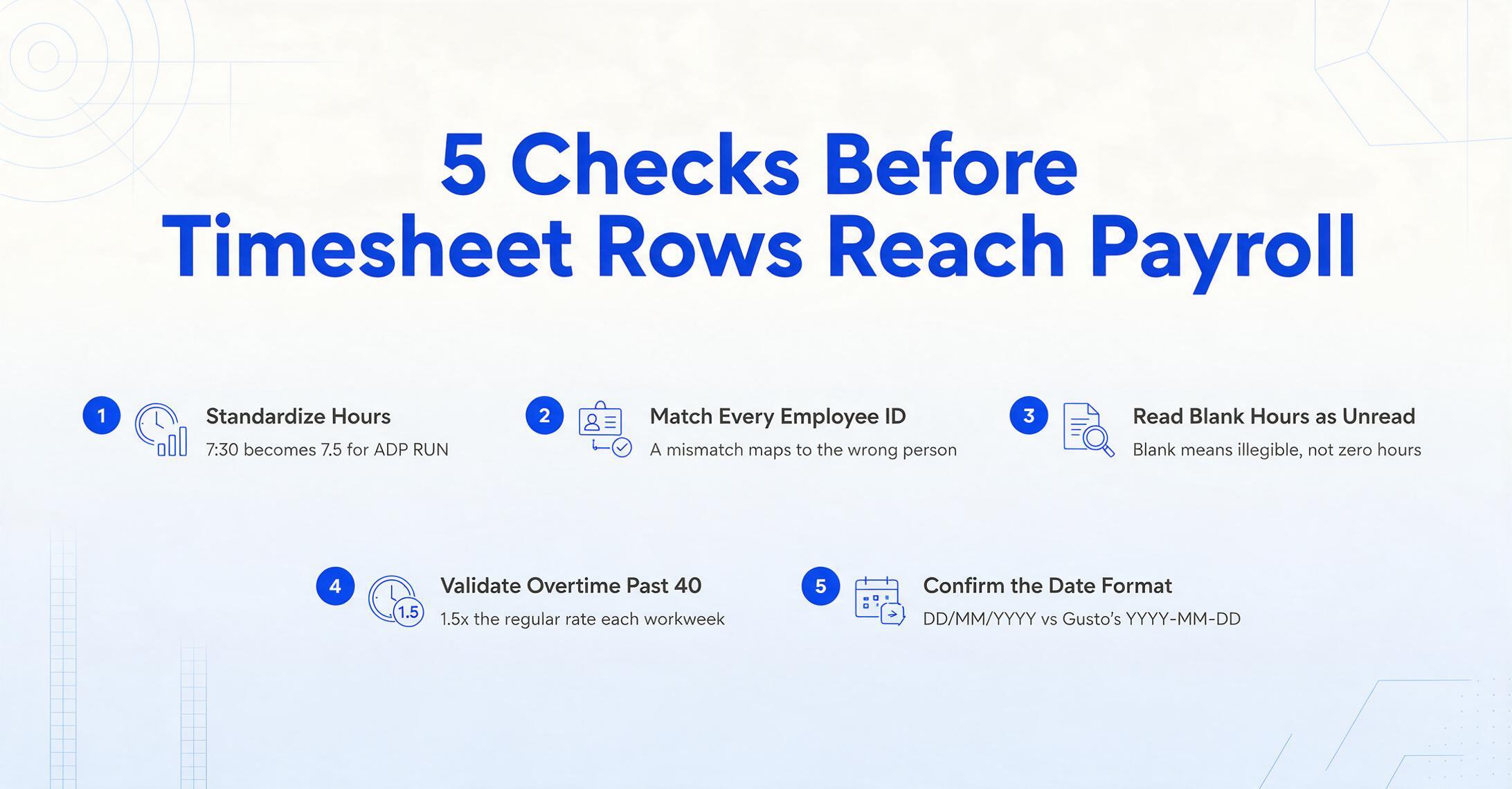
| Date Format | MM/DD/YYYY | YYYY-MM-DD | MM/DD/YYYY |
| Hours Field | Decimal only (7.5 not 7:30) | Decimal or HH:MM | HH:MM or decimal |
| Earnings Code | Required per row | Earning type required | Payroll item required |
| Overtime | Separate earnings code | Auto-calculated or manual | Separate line item |
This table explains why "just extract the data" isn't enough. If field worker A writes "7:30" but ADP expects "7.5", your extraction needs to standardize hours across all 40 sheets before the import file is usable. Similarly, if a construction crew is on a Davis-Bacon prevailing wage project, you need not just hours but also worker classification codes and fringe benefit breakdowns — data that may be spread across the timesheet header, body, and a separate signed certification page.
For construction contractors, the stakes are higher: the WH-347 certified payroll form must include employee classification, hours per classification, base rate, overtime rate, and fringe benefits. Paper-based certified payroll was described by one construction accounting firm as "a recipe for errors" because every field must be manually rekeyed from handwritten sheets into the government form.
How Column-Name Extraction Handles Format Variety Without Templates
Most OCR tools for timesheets work by template matching: you draw a box around the "Hours" field on a sample form, and the tool looks in that exact position on every subsequent sheet. This works if every worker hands in the same printed form. It fails completely when 40 field workers use 40 different sheets — some printed, some written on notebook paper, some photographed at an angle on a job-site trailer table.
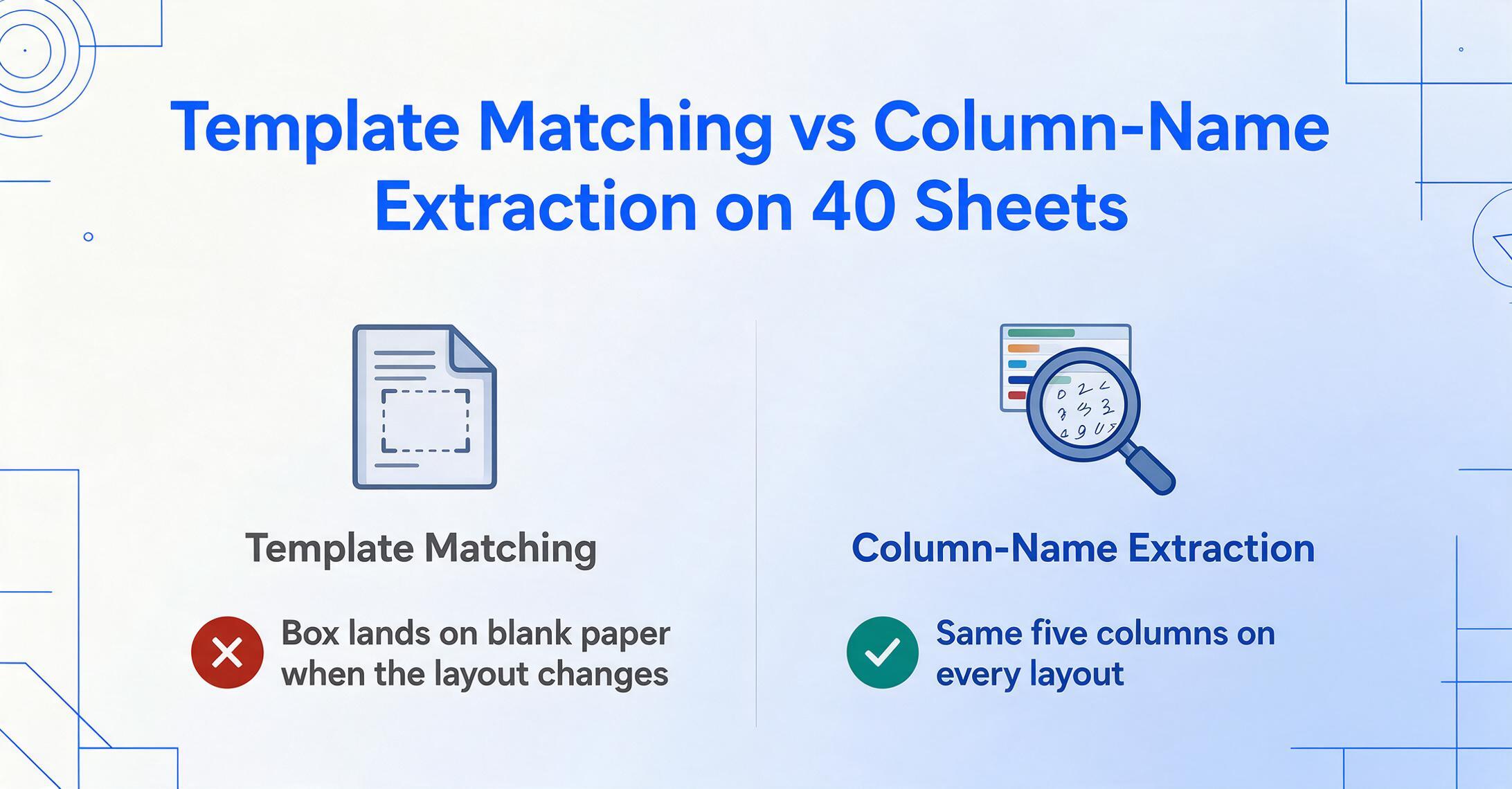
ImageToTable.ai uses a fundamentally different approach: column-name extraction. Instead of defining field positions, you define field meanings — you type the column headers you want in your output spreadsheet (Employee Name, Date, Regular Hours, Overtime, Job Code), and the AI's vision model locates the corresponding values anywhere on each page by understanding what they mean, not where they sit. This is the same mechanism explained in detail in our guide to how AI handwriting recognition extracts data to Excel — the model reads handwriting by understanding context, not by matching character shapes against a font database.
This approach solves the format-variety problem directly. Worker A's grid format and Worker B's single-line format get processed through the same column-name structure because the AI isn't looking at layout — it's looking at semantic content. Which fields exist on each sheet is determined per-sheet, not assumed across the batch.
Files are processed securely and not stored.
When you upload 40 timesheets in a batch to the To Table mode and specify columns like Name, Week Ending, Daily Hours, Overtime, and Job Code, the output is a single merged spreadsheet with one row per timesheet. You can then download the result as Excel (XLSX) or CSV — formats that ADP, Gusto, and QuickBooks Payroll can import directly.
For HR teams managing field crews across multiple job sites, the collection link adds another layer of efficiency: you generate a shareable link (like /c/xxxx) and send it to foremen or site supervisors. They open the link, enter a verification code, and upload timesheet photos directly to your processing queue — no registration, no software installation on their end. Files land in your account, ready for batch extraction.
Handling the Edge Cases: Missing Fields, Overtime Splits, and Unreadable Entries
Batch processing without a plan for edge cases produces spreadsheets that look correct at a glance but contain errors you only find after payroll runs. Here are the scenarios that cause real problems, and how to handle each:
Missing Date Fields
A worker writes "Week 3" instead of a date. When the AI can't locate a value matching the Date column, the cell in your output will be blank — which is the correct behavior because it flags the issue instead of guessing. Your review step catches it. For recurring missing dates, computed columns allow you to add a column like Date Status (if Date is blank, output "CHECK", otherwise output "OK") — a conditional rule that flags problematic rows before they reach payroll software.
Overtime in the Wrong Place
Some workers write overtime hours in the same cell as regular hours: "8 + 2 OT". Others write it in a separate column. Some don't have an overtime column and put it in the margin. As covered in our explainer on how AI reads handwritten forms and structured fields, vision models read entire documents holistically — they can distinguish a number in a column labeled "OT" from the same number scrawled in a margin. The AI extracts what it finds; it doesn't hallucinate values where none exist.
Completely Illegible Handwriting
This is where honest limitation matters. While AI handwriting recognition has advanced substantially — as detailed in our complete guide to AI handwriting-to-text conversion — some handwriting is genuinely unreadable even to a human. When the AI encounters characters it can't resolve, the output cell will be blank or contain a partial reading, which again flags the entry for manual review. This is preferable to a confident-but-wrong guess that silently corrupts your payroll.
Duplicate Entries From Multiple Job Sites
When the same employee appears on two separate timesheets for different job sites within the same week, the import file needs to either merge the rows (for FLSA overtime calculation) or keep them separate with distinct job codes (for project cost tracking). The batch output preserves each timesheet as a distinct row, giving you the option to aggregate in Excel before import or keep the granular line-level data for job costing.
From Extracted Data to Payroll Import: Closing the Last Mile
Data extraction produces a spreadsheet. Payroll software requires a validated import file. The gap between these two states is where most batch workflows silently fail. Here's a checklist that covers the common failure points:
The IRS requires employers to retain payroll records for at least four years after the tax due date, and timesheets specifically for at least two years under the FLSA. The extracted spreadsheet becomes your digital record — downloadable, archivable, and auditable. This is a meaningful compliance improvement over keeping paper copies in a filing cabinet.
Frequently Asked Questions
Can AI read timesheets written in cursive?
Yes, with the same caveat that applies to print handwriting: legibility matters. The vision model reads cursive by understanding the shape and context of entire words, not by tracing individual letters. Connected cursive writing that is clear and consistent typically extracts reliably. Highly stylized or rushed cursive — the kind even a human payroll clerk would flag — may produce partial or blank results. The output cell being blank is a signal that it needs review, not a silent error.
What if workers use completely different timesheet formats in the same batch?
That's exactly the scenario where column-name extraction outperforms template-based tools. Because the AI locates values by meaning rather than position, five different timesheet formats in one upload produce one unified spreadsheet. The only constraint: each timesheet must contain the data you're asking for. If Worker D's sheet has no overtime column, that field will be blank in their row — which is the correct behavior.
Does batch processing work for construction certified payroll (WH-347)?
Batch extraction can capture the data points needed for Form WH-347 — employee name, classification, hours per day, total hours, rate of pay, and deductions — from handwritten daily logs and timesheets. However, certified payroll reports require a specific government form with a signed Statement of Compliance on page 2. The extracted data feeds into the form but the certification signature step remains manual. The output spreadsheet can serve as the input source for certified payroll software that generates the WH-347, reducing the rekeying step.
How do I handle timesheets that have corrections or crossed-out entries?
The AI reads the document as it appears visually. If a worker crossed out "8" and wrote "6.5" above it, the model typically interprets the visible final value (6.5), not the struck-through one. However, heavily overwritten cells — where the correction is as bold as the original — can confuse the model. In those cases, the output may alternate between the two values or produce a blank. These are precisely the rows to review manually before importing into payroll.
Can I process photos of timesheets taken on a phone camera?
Yes. The tool accepts JPG, PNG, and PDF inputs, including phone camera photos. Photos taken at an angle or under uneven lighting (common on job sites) are processed by the vision model, but quality affects accuracy — a flat, well-lit photo produces better extraction results than a shadowed, skewed shot taken on a clipboard propped against a truck dashboard. If your field crews regularly submit phone photos of timesheets, a collection link lets them upload directly from their phones to your processing queue.
What's the realistic accuracy on a batch of handwritten timesheets?
There's no single number because accuracy varies by handwriting quality, photo quality, and form complexity. Our core engine achieves up to 99% accuracy on printed table data. Handwriting recognition is lower and variable — clear block print on a clean form has a higher success rate than rushed cursive on a crumpled sheet. The batch workflow accounts for this variability: you review flagged or blank cells, not every row. This is the difference between "check the 3 rows where something looks off" and "rekey all 40 sheets from scratch."
Turn a Month of Paper Timesheets Into One Payroll Spreadsheet
Upload a month's worth of handwritten timesheets, define your columns once, and export a payroll-ready spreadsheet — in minutes, not hours.
Try It Free — No Signup RequiredUpload your first timesheet and see the extraction live. No credit card needed.