How to Batch OCR Multiple Files:
Complete Workflow from Organizing to Spreadsheet Output
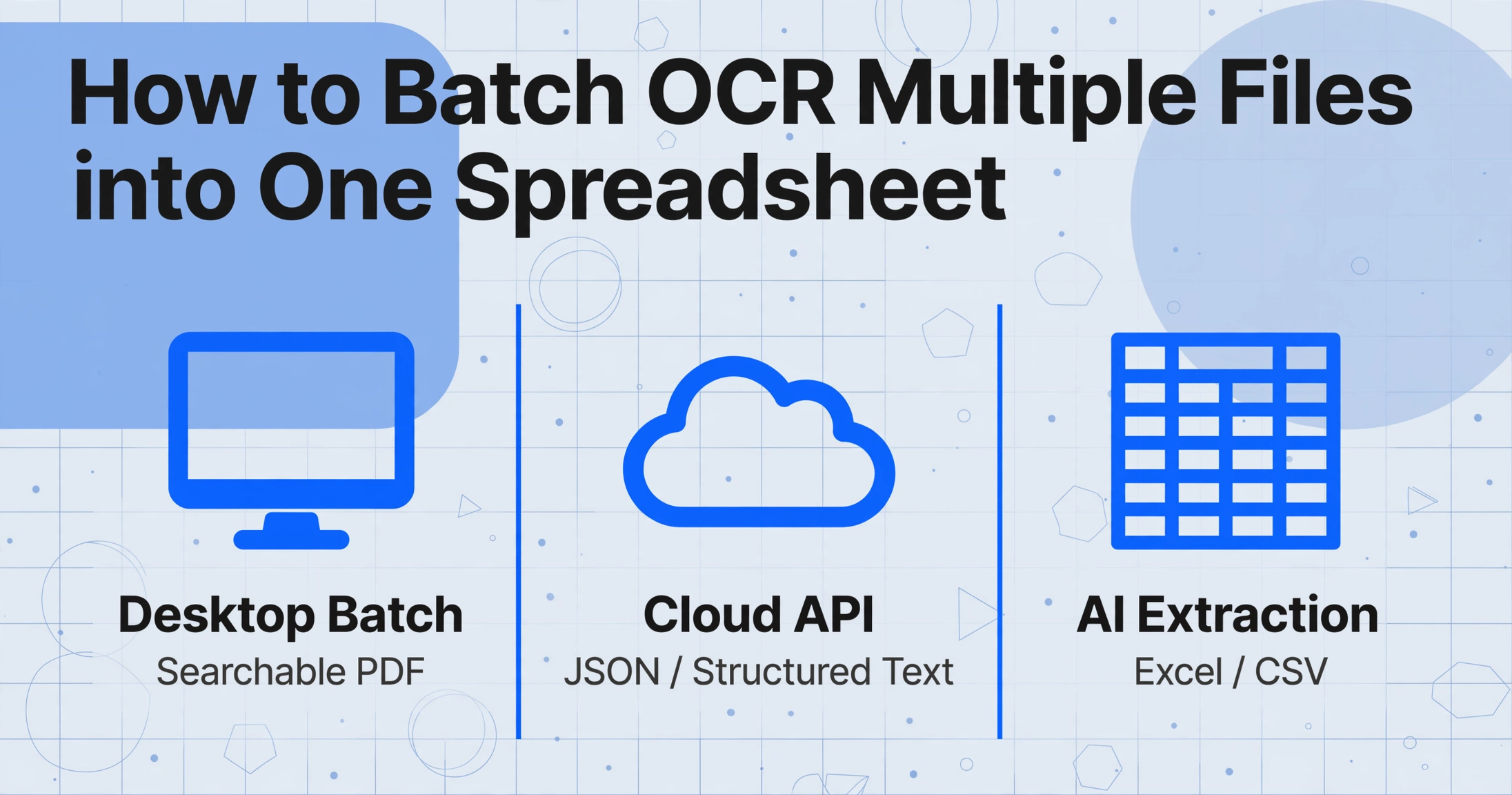
Most batch OCR guides stop at the wrong finish line. They turn your scanned PDFs into searchable documents — but if you're processing invoices, receipts, or purchase orders, what you actually need is all the data in one spreadsheet, one row per document. Here's the complete workflow from file organization through tool selection to merged output, covering every tier: desktop batch, cloud API, and modern AI extraction.
Key Takeaways
- Most batch OCR guides end at 50 files in and 50 searchable PDFs out, then silently hand you the real work: copying every invoice number and total into a spreadsheet by hand.
- Neither desktop batch OCR nor cloud APIs can distinguish an invoice number from a page number, so field-level extraction into a spreadsheet has always required custom scripts or hours of manual copying.
- AI extraction reads fields by meaning rather than page position, so you define your columns once and every batch comes out as one merged spreadsheet with one row per document and zero consolidation steps.
What Batch OCR Actually Does (and Doesn't Do)
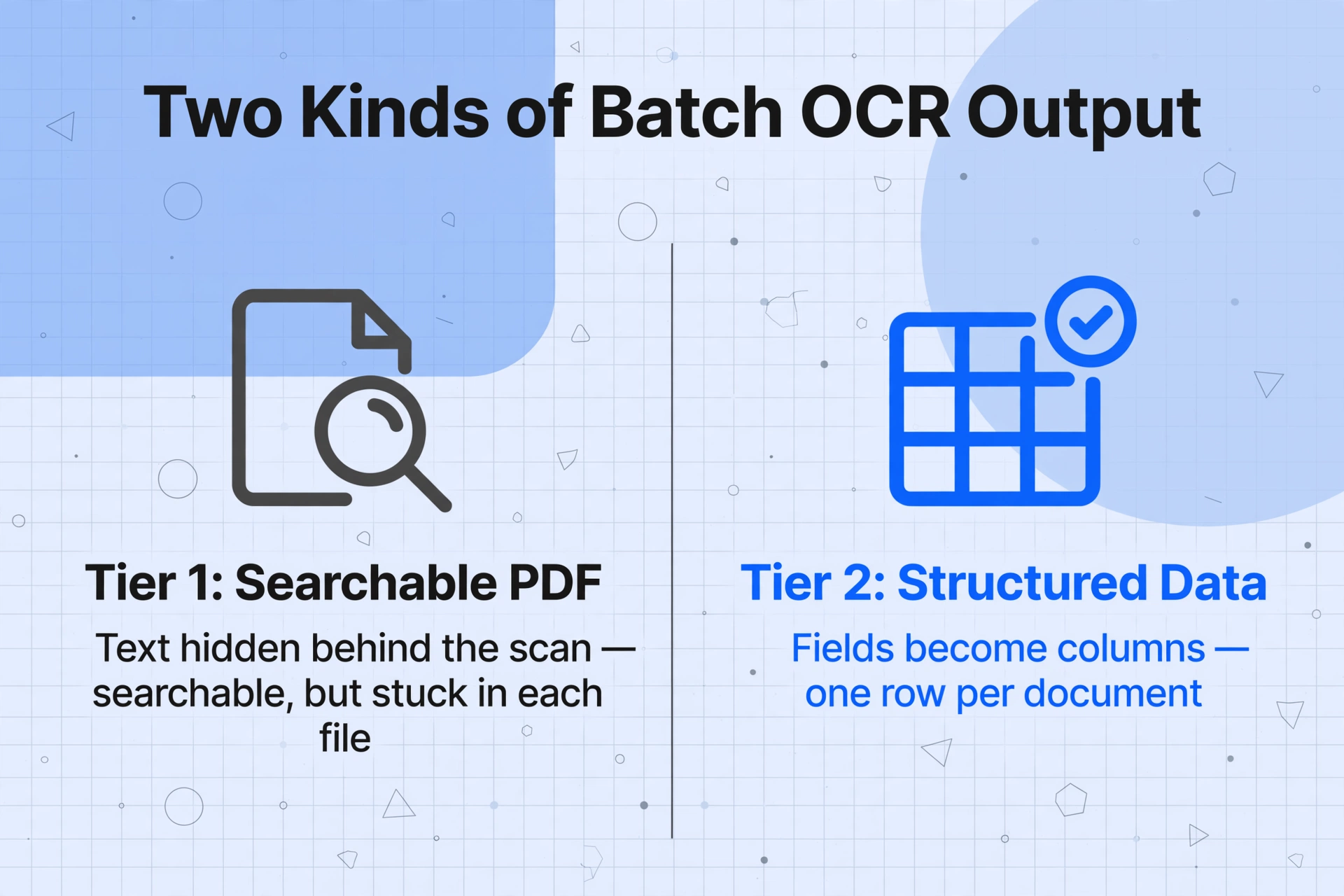
Batch OCR tools produce two fundamentally different kinds of output — and choosing the wrong one is why batch projects stall midway. Tier 1 — Searchable PDF output: the tool reads each page and embeds the text invisibly behind the scan. You can now search your PDFs for keywords, but the data stays trapped inside individual files. Desktop tools like Adobe Acrobat Pro DC and ABBYY FineReader operate here. Tier 2 — Structured data output: the tool identifies what each field means (this text is the invoice number, this is the total) and outputs them as columns in a spreadsheet — one row per document. Cloud APIs and AI extraction platforms operate here at different levels of setup complexity.
If you want to search through 200 contracts, Tier 1 is enough. If you want all 200 invoice totals in a single column to reconcile against purchase orders, you need Tier 2. This guide covers both paths.
Step 1: Organize Your Files Before You Start
The most common batch OCR failure isn't the tool — it's what you feed it. A clean file organization step saves more time than any tool feature. Here's what to do before you run anything:
Gather every PDF, JPG, PNG, or TIFF into a single directory — no subfolders, or the tool may skip nested files. Name it something like 2026-06-batch-invoices/ for easy tracking.
Name files like VENDOR_INVOICENUMBER_DATE.pdf — most tools preserve the filename in the output, so you've already embedded cross-reference keys before processing even starts.
If your batch contains a mix of image-only PDFs and already-OCR'd files, most desktop tools will re-process the latter — doubling time and risking corruption. Quick check: open a PDF and press Ctrl+F. If you can search for text, it already has a text layer. Move those out of the input folder.
Check that every file is readable and scans are at least 200 DPI. Different tools prefer different formats — Acrobat likes PDF, cloud APIs handle images natively. A corrupted or rotated file can fail silently mid-batch.
Reddit-real tip (from r/sysadmin): "If you have a partially failed batch, sort the files by modified time, move the successfully completed ones to another directory, then re-run the batch on the remaining files." This pattern — process, inspect, isolate failures, retry — works across every tool tier.
Step 2: Choose Your Batch Tool
Batch OCR tools fall into three categories. The right choice depends on three questions: What output format do you need? How many files do you process per batch? How much setup are you willing to do?
| Tier | Example Tools | Output | Best For | Batch Size | Setup |
|---|---|---|---|---|---|
| Desktop Batch | Adobe Acrobat Pro, ABBYY FineReader, PDFelement, Kofax Power PDF | Searchable PDF | One-time archive digitization, legal document search | 50–500 files | Install + click through wizard |
| Cloud API | AWS Textract, Google Cloud Vision, Azure AI Vision, OCRmyPDF | JSON/structured text | Developer-built pipelines, high-volume automation | 1,000+ (with orchestration) | Code + AWS/Azure setup |
| AI Extraction | ImageToTable.ai, Nanonets, Rossum | Excel/CSV (structured data) | Field-level extraction to spreadsheets, recurring batch invoices | 10–500 per batch | Upload → name columns → process |
Let's look at each tier in more detail so you can decide which fits your workflow.
Desktop Batch OCR (for searchable PDF output)
Desktop tools are the fastest route if you already own Adobe Acrobat Pro or ABBYY FineReader. In Acrobat Pro DC, go to Tools → Enhance Scans → Recognize Text → In Multiple Files. Choose the OCR language, pick "Searchable Image" (preserves original appearance) or "Formatted Text & Graphics" (reconstructs layout), and uncheck "Prompt User" — or Acrobat will ask for confirmation on every single file, a common frustration in Adobe forums. The tool processes each file and saves searchable PDFs back to the original location.
The limitation: you get searchable PDFs, one per input file. To get actual data values in a spreadsheet, you'd be copying from each PDF manually — which defeats the purpose of batching.
Cloud API OCR (for developer-built pipelines)
AWS Textract, Google Cloud Vision, and Azure AI Vision are the right choice for high-volume automation with a developer to wire the pipeline. AWS Textract runs asynchronous batch jobs via S3 — upload files, call StartDocumentAnalysis, and results land in JSON with text, bounding boxes, and confidence scores. The trade-off: these APIs return raw text and location data — they don't understand that "INV-2026-0042" is an invoice number. Getting structured field-level data requires writing post-processing logic that becomes complex and brittle across varying vendor layouts.
AI Extraction (for structured spreadsheet output)
This tier is built for batch-to-spreadsheet workflows from the ground up. AI extraction tools like ImageToTable.ai use vision-language models to understand document semantics — they identify fields by what they mean, not where they sit on the page. Upload your batch, type the columns you want (Invoice Number, Date, Vendor, Total), and the AI processes every file in parallel. The output is a single spreadsheet — one row per document, columns matching your requested fields. No post-processing, no JSON parsing, no manual consolidation.
This is the batch-flow pattern most people searching for "batch OCR multiple files" actually want — but that most articles never mention because traditional tools don't support it directly.
Files are processed securely and not stored. Try uploading a few sample invoices to see the batch-to-spreadsheet workflow.
Step 3: Configure Batch Settings
Once you've chosen your tool, the configuration step determines whether your batch run produces clean results or messy ones. These settings matter across all three tiers:
Set the language to match your documents. Most desktop tools default to English — if your batch contains French, German, or mixed languages, set it explicitly or use a multi-language engine (ABBYY FineReader, OCRmyPDF, and Tesseract all support this with the right language packages).
Desktop tools offer Searchable PDF or Formatted Text PDF. Cloud APIs return JSON, text, or PDF. AI extraction tools offer Excel (XLSX), CSV, and JSON. Choose the format that feeds directly into your next step — Excel for QuickBooks import, JSON for custom database integration.
Enable deskew (correct rotation), despeckle (remove noise), and contrast normalization if your scans vary in quality. For clean 300 DPI scans you can skip these; for phone photos or mixed-quality documents, preprocessing makes the difference between readable output and garbage. OCRmyPDF's --deskew --clean flags are solid defaults.
Desktop tools almost always produce one output per input — 50 PDFs in = 50 PDFs out. AI extraction platforms let you choose per-file or a single merged spreadsheet. Your choice here determines whether Step 5 is trivial or painful.
Step 4: Run the Batch and Monitor Progress
With your files organized and settings configured, it's time to run the batch. Here's what to watch for during execution:
Desktop tools: Progress indicators per file — green = success, yellow/red = failure. If a file fails, note the error message. Common causes: corrupted PDF, password-protected file, scan too low resolution. Acrobat's Action Wizard can run unattended — just leave the "Prompt User" checkbox unchecked in the settings.
Cloud APIs: Asynchronous jobs return a job ID. Poll the status endpoint to track progress. AWS Textract's GetDocumentAnalysis returns a JobStatus of IN_PROGRESS, SUCCEEDED, or FAILED. Partial failures affect individual pages, not the whole job — parse the response to identify which pages failed.
AI extraction tools: Most provide a real-time batch status dashboard showing files queued, processing, completed, and failed. ImageToTable.ai's batch polling automatically checks every 3–30 seconds depending on job duration. You can leave the tab and return when the batch completes — the dashboard will show each file's status with the extracted data ready for preview or export.
No matter which tier you're using, the post-batch inspection routine is the same: check the failed files first. If a file failed, fix the issue (re-scan a blurry page, unprotect a password-locked PDF, convert an unsupported format) and rerun just the failed file. As that Reddit sysadmin noted, sort by modified time, move successes, rerun the rest — it's the most efficient recovery pattern. When the deliverable is the text out of every file rather than named columns, batch OCR that queues each file with its own status turns that recovery routine into reading a dashboard instead of re-sorting the folder by hand.
Step 5: Merge Results into One Spreadsheet
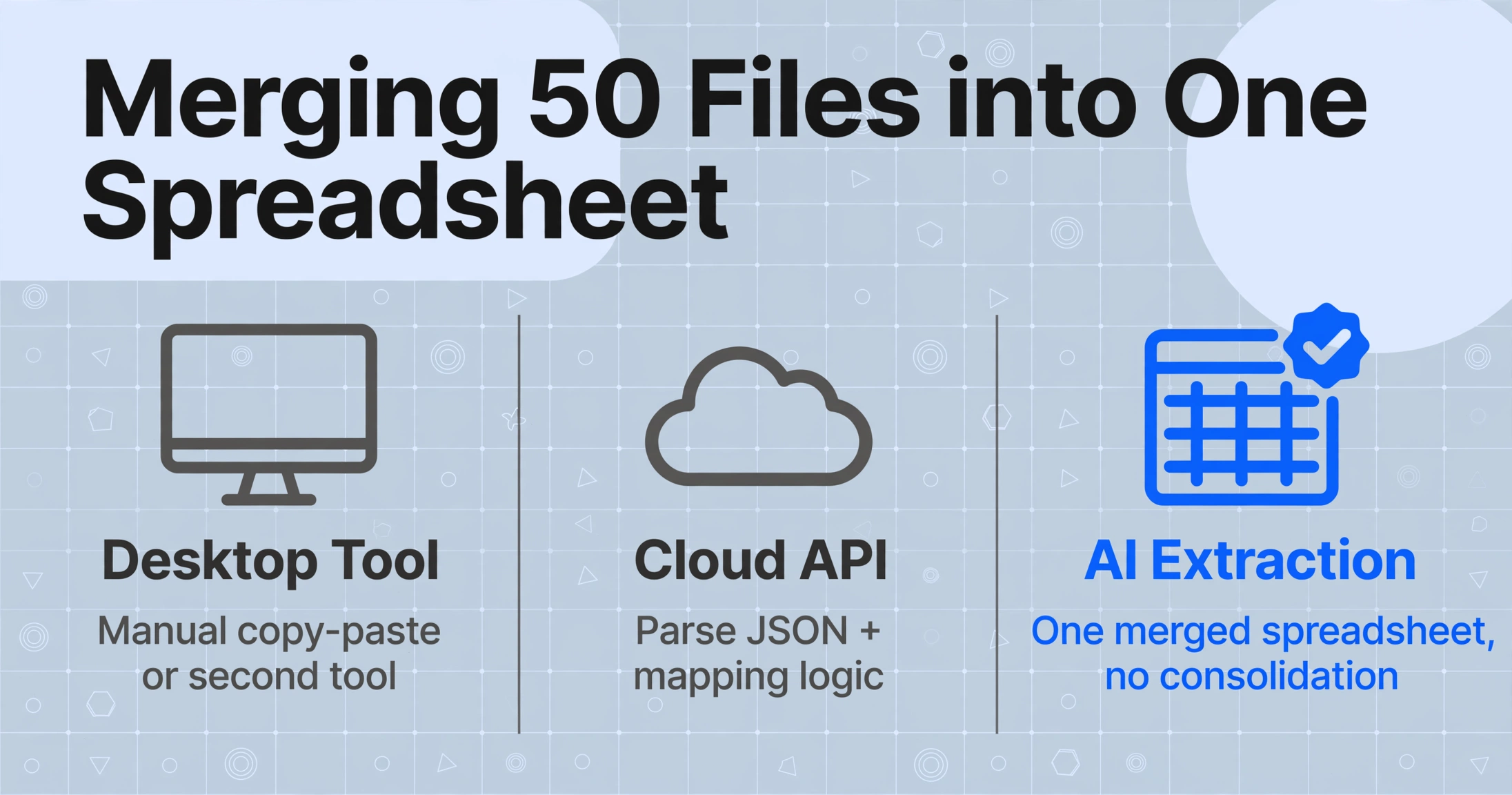
This is the step every other article skips — and the one that matters most. You've processed 50 invoices. Now you have 50 separate output files. How do you get a single spreadsheet where each invoice is a row?
If you used a desktop tool (searchable PDF output): You need a second tool — either Adobe's "Export Multiple Files" to convert all PDFs to Excel (then combine manually), a Python script with pdfplumber, or manual copy-paste from each PDF. None are ideal.
If you used a cloud API (JSON output): Parse each JSON response and write fields to a CSV. Automatable, but cloud API field names are generic ("BlockType": "WORD" in Textract), so you need mapping logic for meaningful field extraction.
If you used an AI extraction tool (structured output): This is where batch-first design pays off. Tools like ImageToTable.ai's batch document to Excel workflow process all files through the same column template and output a single merged spreadsheet — one row per file. No consolidation step needed.
Here's the key: once your first batch is in a spreadsheet, the extraction rules are reusable. Every subsequent batch takes only upload time. What used to take 3 minutes per document manually now takes 5–10 seconds per page — an 18x efficiency gain.
Troubleshooting Common Batch OCR Issues
Even with careful setup, batch runs hit snags. Here are the most common problems and how to fix them:
Symptoms: processing time is much longer than expected, file size doubles. Fix: screen your input folder for already-OCR'd PDFs before adding them. In Adobe Acrobat, you can check Document Properties → Fonts — if fonts are listed, the file has a text layer. Move it to a separate "already processed" folder.
A common Acrobat frustration, especially with Action Wizard. The fix: when configuring the OCR action, click "Specify Settings," configure your language and output style, and make sure "Prompt User" is unchecked. Save the action — subsequent runs will apply the same settings to all files without interruptions.
Traditional OCR engines (Tesseract, Acrobat's built-in OCR) struggle with handwriting, complex tables, and multi-column layouts. If your batch contains handwritten entries, consider using AI extraction tools that employ vision-language models — they can interpret handwritten values, checkboxes, and mixed layouts by understanding the document's visual context rather than matching character shapes. For deeper understanding of traditional vs modern approaches, see our explanation of what OCR actually is and how AI extraction differs.
Desktop tools occasionally choke on a single problematic document, stalling the entire batch. The workaround: process in sub-batches of 20–30 files rather than 200 at once. For cloud APIs, use error handling in your orchestration script — wrap each document call in a try-catch block so one failure doesn't kill the job. For AI extraction platforms, most handle this internally by isolating failures per file.
Documents from different sources may record dates as "06/30/2026," "30 June 2026," or "2026-06-30." Some tools (including AI extraction platforms) can normalize date and number formats during extraction. If yours doesn't, you can use Excel's formatting functions or a simple data-cleaning script after export. This is usually a one-time mapping exercise — once defined, it applies to all subsequent batches.
Frequently Asked Questions
How many files can I process in one batch?
Desktop tools handle 50–500 files comfortably. Cloud APIs scale to thousands with proper orchestration. AI extraction platforms typically support 10–500 files per batch in the UI.
Is batch OCR the same as batch data extraction?
No. Batch OCR converts images to searchable text. Batch data extraction identifies specific fields (invoice number, total, vendor) and outputs structured spreadsheet rows. If you need "find every document with 'invoice,'" OCR is enough. If you need "put every invoice total in column B," you need extraction.
What's the fastest way to batch OCR 500 scanned PDFs?
For searchable text, OCRmyPDF with GNU Parallel processes 500 PDFs in 30–60 minutes — parallel --tag -j 4 ocrmypdf --deskew '{}' 'output/{}' ::: *.pdf. For structured data, AI extraction tools process server-side — 50 invoices in 5–15 minutes as a single Excel file. See our best OCR software comparison for more options.
Can batch OCR handle PDFs and images in the same batch?
Most desktop tools process PDFs only. Cloud APIs handle both but need separate methods per format. AI extraction tools like ImageToTable.ai accept PDF, JPG, PNG, WebP, and AVIF in the same batch natively — no conversion needed.
Do I need to name columns for every batch?
Only for AI extraction tools — and it's a one-time setup per document type. Define columns for invoices once (Invoice Number, Date, Vendor, Total), and every subsequent batch reuses the same template. Desktop OCR has no columns; cloud APIs return JSON you map programmatically.
Your Batch Workflow, From Prep to Spreadsheet
The workflow is clearest when you decide upfront what output you need:
- Searchable PDFs only → Desktop tool (Acrobat, ABBYY) or OCRmyPDF
- Raw text for custom processing → Cloud API (AWS, Google, Azure) → JSON → Your parsing logic
- Structured spreadsheet with all fields → AI extraction → One merged Excel file → Directly into your accounting system
The biggest time saver isn't OCR speed — it's eliminating the manual post-processing that most guides don't mention. When you choose a workflow that outputs merged structured data, you skip the file-by-file consolidation that silently eats hours after the "OCR is complete" notification. Batch processing should save time across the full workflow, not just the digitization part.