The Complete Guide to Receipt Data Extraction:
From Paper Pile to Tax-Ready Spreadsheet
Receipt data extraction is the process of pulling structured information — merchant name, date, line items, prices, tax, total — out of a receipt image or PDF and into a spreadsheet where you can sort, filter, sum, and hand it to your accountant. It sounds straightforward. It isn't. Receipts are one of the hardest document types for any extraction system: every store prints a different format, most are on thermal paper that chemically fades within weeks, and the tax rules that determine which fields matter vary by expense category and country. This guide covers extraction from first principles to IRS filing — what works, what breaks, and how to pick the right approach for your volume and use case.
Key Takeaways
- Every business meal receipt you file in a folder costs you money twice — once in labor to type it, once in lost tax deductions when the thermal paper chemically fades into a blank slip before audit season.
- Thermal receipts self-destruct: perfectly legible on day one, 70% faded after a month in a file drawer, completely blank after a year — and the IRS requires you to keep them for at least three years.
- Photograph and extract at the moment of transaction — the AI captures every line item and can categorize it to the correct Schedule C expense line in the same pass, turning a physical receipt with a chemical expiration date into permanent, tax-ready structured data.
What Is Receipt Data Extraction?
Receipt data extraction takes information trapped in receipt images — photographs of paper slips, PDF e-receipts, screenshots of emailed confirmations — and converts it into structured columns: one row per receipt, one column per field. The output is a table where "Costco" sits in the Vendor column, "2026-06-15" in the Date column, and each line item occupies its own row with quantity, description, and price.
This is different from saving a photo of a receipt. A photo is a memory aid — you can squint at it later and re-type the numbers. Extraction gives you computable data: you can sum all restaurant receipts in Q2, filter by vendor for a 1099, or sort line items by category to split a single Walmart trip across Schedule C expense lines. For a deeper dive into how the underlying technology works, see what receipt OCR actually is and how it differs from generic OCR.
The technology stack that makes this possible has changed substantially. Five years ago, extracting data from a receipt meant either typing it manually or building a template that told the software "the total amount is at coordinates (x, y) on receipts from this specific store." Templates broke when the store updated its POS system. Today's AI extraction reads a receipt by understanding what each field means — it finds "Total" whether it appears top-right, bottom-left, or mid-page, and whether the receipt is from Walmart, a food truck, or a boutique in Tokyo.
Why Receipt Extraction Matters — by the Numbers
The financial case for automating receipt data entry is straightforward, but the real cost isn't just labor — it's what happens when receipts are missing, unreadable, or misclassified at tax time.
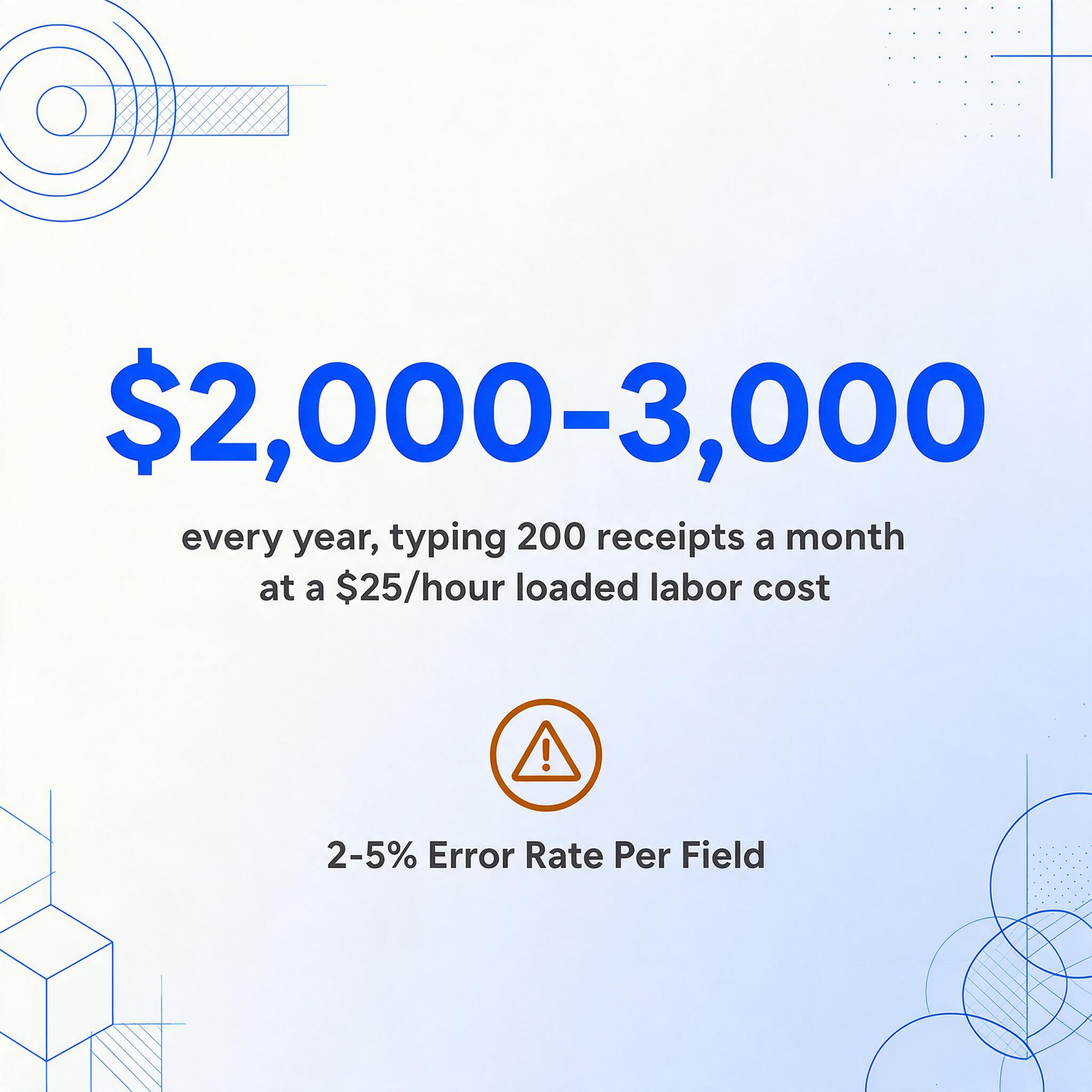
The direct labor cost is measurable. Manual receipt entry takes roughly 2-3 minutes per receipt when you factor in finding it, unfolding it, reading faded thermal print, cross-referencing credit card statements for missing totals, and typing every line item. At a fully loaded cost of $25/hour for a bookkeeper or business owner doing their own books, that's $0.83-1.25 per receipt in pure labor. A freelancer processing 30 receipts a month spends $25-38/month on data entry. A small business with 200 receipts spends $166-250/month — or about $2,000-3,000 a year — just typing numbers from slips of paper.
The bigger cost is tax-time panic. Missing a $45 business meal receipt means losing a $22.50 deduction (50% meals limit) — not catastrophic. But aggregate it across a year of uncategorized, lost, or illegible receipts and the gap can be thousands in unclaimed deductions. The IRS requires receipts for all lodging expenses regardless of amount, and for any other expense of $75 or more, per IRS Publication 463. A single missing hotel receipt from a business trip can cost more in lost deduction than a month of extraction software.
There's also a data-quality cost. Manual entry produces a 2-5% error rate per field — transposed digits, merchant name typos, line items assigned to the wrong category. These errors don't surface during entry. They surface during reconciliation when the credit card statement doesn't match the spreadsheet, or during an audit when the IRS asks for documentation on a specific expense and the merchant name in your books doesn't match the receipt. Correcting these errors costs more than the original entry.
For the deeper story of what manual receipt management actually costs a small business over a full year, see the real cost of manual receipt tracking.
What Makes Receipts Uniquely Difficult to Extract
Invoices have some degree of standardization — even across different vendors, there's usually an "Invoice Number" label, a table of line items, and a clearly marked total. Receipts have none of that. Each of the four challenges below makes receipt extraction a harder problem than invoice extraction, and together they explain why generic OCR fails on receipts at rates far higher than most tools advertise.
Challenge 1: Thermal Paper Fading — the Data Disappears Before You Extract It
Most paper receipts are printed on thermal paper — a substrate coated with a chemical layer containing leuco dye and a developer. The printer applies heat, the chemicals react to form the visible image. This reaction is reversible. Exposure to heat, sunlight, humidity, or just time causes the image to fade back toward blank. A receipt that's perfectly legible the day you receive it can be 30% faded after a week in a warm car, 70% faded after a month in a file folder, and completely blank after a year in a shoebox.
There is no way to prevent thermal paper from fading — laminating it accelerates the reaction (the heat of the laminator turns it black), and clear tape doesn't stop the chemical degradation. The only preservation strategy is to scan or photograph the receipt immediately. Extraction from a photo taken on day one produces usable data. Extraction from the same receipt six weeks later may produce nothing — the data was lost through chemical degradation, not extraction failure.
This has a direct compliance implication. The IRS requires you to retain receipts for at least 3 years from the filing date (IRS Publication 334), and up to 6 years if income was substantially understated. A thermal receipt stored in a folder for three years will almost certainly be illegible by the time an auditor asks for it. Digital capture at the time of the transaction is not just a convenience — it's a preservation strategy that protects your deductions from thermal paper chemistry.
Challenge 2: No Two Receipts Look Alike
An invoice from SAP looks like an invoice from Oracle. Receipts from different merchants look nothing like each other. A few dominant formats illustrate the range:
| Format | Typical Layout | Extraction Difficulty |
|---|---|---|
| Retail (big-box) | Dense, abbreviated product codes in narrow columns. Tax subtotals broken out by rate. Often 2+ feet long. | High — abbreviated names ("ORG CHKN BRST 2LB") are hard to categorize automatically |
| Restaurant | Short item list, tip line, signature area. Prices may be scattered or grouped. Often printed on narrow (2.25") thermal strips. | Moderate — few items, but tip and total fields are handwritten and receipt is often crumpled or stained |
| E-receipt / Email | HTML email or PDF attachment. Logo-heavy, marketing interspersed with transaction data. Often multi-page with return policy filler. | Low-moderate — digital origin means no physical degradation, but layout is optimized for marketing, not data extraction |
| Handwritten | Hand-scrawled on carbon copy or notebook paper. No standard structure. Often from contractors, market vendors, or field purchases. | Very high — cursive variability, no layout conventions, often combined with printed letterhead |
Template-based OCR — the older approach that maps fields by position — fails on receipts because there's no stable position to map to. A template built for Target receipts doesn't work on Costco receipts; a template for Costco receipts breaks when Costco updates its POS layout. AI extraction sidesteps this by reading fields semantically: "Total" is whatever number follows the word "Total" on the page, regardless of where it appears.
Challenge 3: The Tax Rules Are Embedded in the Receipt
Invoice extraction cares about the transaction: what was bought, from whom, for how much. Receipt extraction adds a layer of tax classification on top. That $67.50 restaurant charge isn't just "Restaurant — $67.50." Under IRS rules it's $67.50 × 50% = $33.75 deductible on Schedule C, Line 24b, and only if you recorded who you dined with and the business purpose. If that same meal was part of entertainment — a client golf outing with dinner — the meal portion is still 50% deductible if separately stated on the receipt, but the entertainment is fully nondeductible since the TCJA.
The same receipt from a single store can contain items that fall into different IRS categories. A Target run might mix office supplies (100% deductible, Schedule C Line 18), client gift snacks (50% deductible as meals, Line 24b), and personal items (nondeductible). Traditional extraction tools give you the line items. AI extraction with inferred columns — where you define a column with category options and the AI classifies each line item based on its description — can tag items as "Office Supplies," "Meals," or "Personal" in the same pass that extracts the data. This turns a one-step process (extract) into a two-in-one process (extract + classify), eliminating a separate categorization session after export.
Challenge 4: International Receipts and Multi-Currency
Business travelers and companies with international suppliers accumulate receipts in multiple currencies. The extraction challenge is twofold: first, recognizing that the amount on a receipt is in JPY or EUR rather than USD; second, handling the currency conversion for tax reporting. The IRS accepts any posted exchange rate that is used consistently — there is no single official IRS exchange rate, per IRS guidance on currency exchange rates. The rate applied should be the spot rate on the transaction date for one-time purchases, or the yearly average rate for recurring expenses.
For extraction tools, the practical requirement is not currency conversion — that belongs in the accounting step — but accurate recognition of foreign currency symbols (¥, €, £, ₩), decimal conventions (1.234,56 in Europe vs 1,234.56 in the US), and date formats (DD/MM/YYYY vs MM/DD/YYYY). A tool that misreads €45,50 as $4,550 because it interprets the comma as a thousands separator produces errors that are worse than no extraction at all.
Traditional Methods vs AI Extraction for Receipts
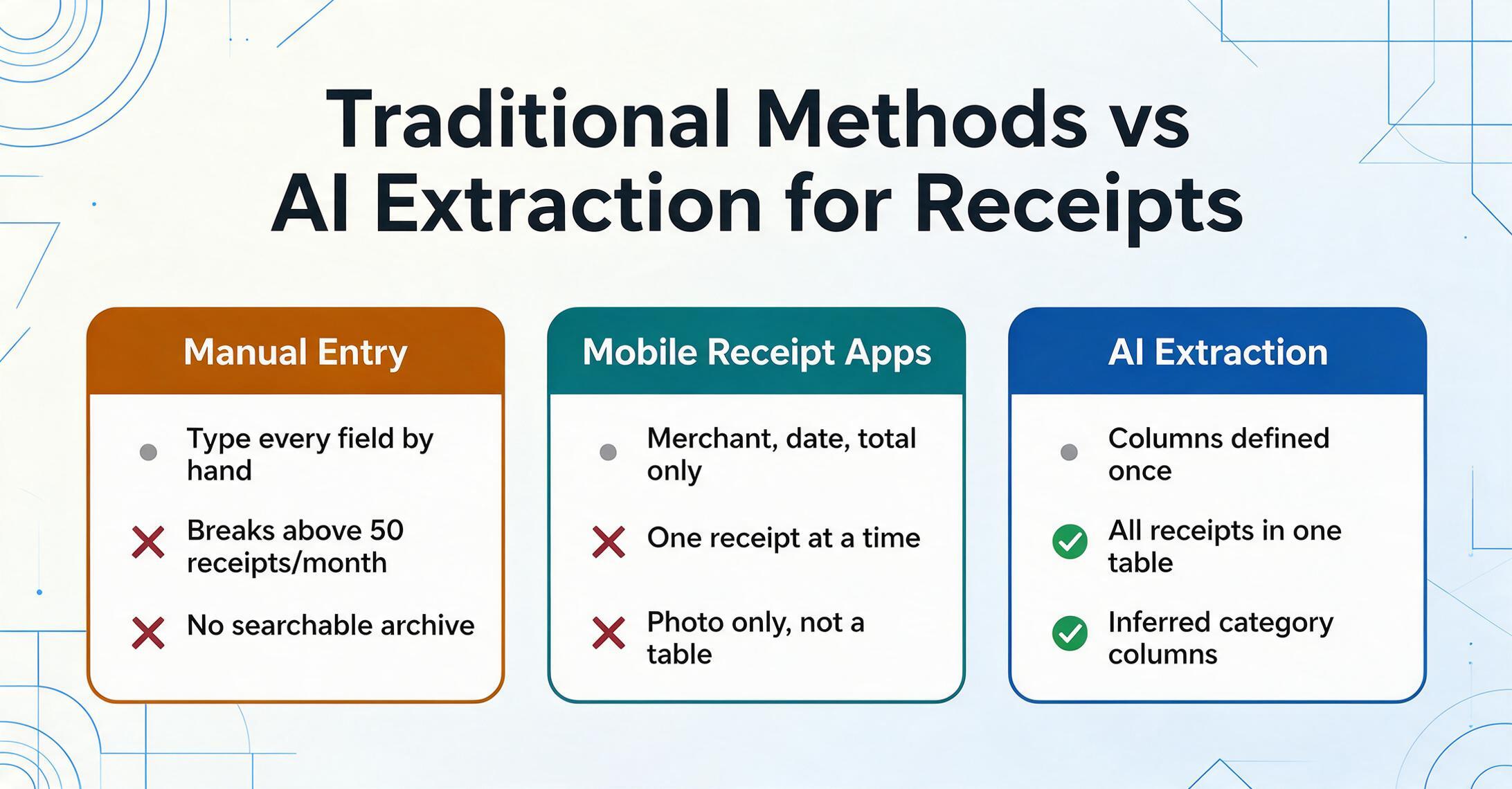
Every receipt extraction approach falls into one of three categories. They scale differently with volume and format diversity.
Method 1: Manual Entry
What it is: Reading each receipt and typing the fields into a spreadsheet or accounting software. This is the baseline — it requires no technology beyond Excel or QuickBooks, and no setup beyond having a system for organizing receipts.
When it makes sense: Below 20 receipts a month, the labor cost of manual entry is less than the subscription cost of extraction software. A sole proprietor with 10-15 receipts a month can enter them all in under an hour — the cognitive overhead of learning a new tool isn't justified at that volume.
When it breaks: Above 50 receipts a month, the time cost exceeds the tool cost. Above 100 receipts a month, the error rate compounds — the same person who was accurate at 20 receipts starts making categorization mistakes at 100 because receipt fatigue sets in. The more subtle failure mode: manual entry doesn't create a searchable digital archive. Six months later, finding the receipt that matches a specific credit card charge means digging through physical slips or scrolling through photos.
Method 2: Mobile Receipt Apps (QuickBooks, Expensify, Wave)
What it is: Apps that let you snap a photo of a receipt and auto-extract a handful of fields — typically merchant name, date, and total. The app attaches the receipt image to an expense record in your accounting software.
What they extract, and what they skip: QuickBooks and Expensify reliably extract 3-4 fields: vendor, date, total, and sometimes payment method. They do not extract line items. That Target receipt with 12 items — the app captures "$87.34" as the total but leaves you to manually split the office supplies from the personal items. This is fine for simple expenses (a single gas station receipt = one category), but breaks for mixed-purpose shopping trips, restaurant receipts where you need the tip amount separated from the subtotal, and any receipt where you need to track spending by subcategory.
When it makes sense: When your receipts are predominantly single-category (fuel, meals, straightforward supplies) and you already use QuickBooks or Xero as your accounting system. The app ties receipts to transactions automatically, which is the integration most small businesses actually need.
When it breaks: When you need line-item detail. When you have receipts in multiple currencies. When you need to batch-process 50 receipts at once — mobile apps are designed for one-at-a-time capture, and snapping 50 photos in sequence is only marginally faster than typing 50 totals.
Method 3: AI-Powered Semantic Extraction
What it is: A vision-language model reads the receipt image and extracts fields based on semantic meaning — it identifies "Total" by understanding what a total is, not by finding it at a fixed position. This is the same technology described in how modern receipt OCR works, but applied with batch processing, custom column definitions, and export formatting built for accounting workflows.
How it works in practice: You define the columns you want — "Date," "Vendor," "Total," "Tax," "Category," and optionally line-item columns like "Item Description," "Quantity," "Unit Price." You upload all your receipt images at once. The AI reads each receipt, extracts the fields, and populates one row per receipt (or one row per line item, depending on your configuration) in a single spreadsheet. If you define an inferred column like Category (options: Meals/Transport/Office Supplies/Other), the AI classifies each receipt or line item into the appropriate category based on the purchase context — a restaurant receipt becomes "Meals," a gas station receipt becomes "Transport."
When it makes sense: Above 30 receipts a month, or whenever you need line-item detail. When your receipts come from diverse merchants with unpredictable formats. When your tax filing requires categorization across multiple Schedule C lines.
When it breaks: When the receipt is photographed at a steep angle in poor lighting — the AI model needs to see the text to read it. When the receipt is a fourth-generation photocopy with most of the print already gone. When the receipt contains specialized industry codes that require human domain knowledge (e.g., medical procedure codes on a pharmacy receipt). No extraction tool handles these perfectly; AI degrades more gracefully than template OCR because it can infer from context, but severely degraded source images produce unreliable output regardless of method.
Key Fields to Extract from Receipts — and What They're For
Not every receipt field needs to be extracted. The fields that matter depend on what you're doing with the data. Here's the framework by use case:
| Field | Tax Filing | Expense Reports | Bookkeeping |
|---|---|---|---|
| Merchant / Vendor Name | Required | Required | Required |
| Transaction Date | Required | Required | Required |
| Total Amount | Required | Required | Required |
| Tax Amount | Required | Optional | Optional |
| Line Items (each row: desc, qty, price) | Depends | Optional | Depends |
| Payment Method (last 4 digits) | Optional | Optional | Required |
| Expense Category | Required | Required | Required |
| Business Purpose / Attendees | Required | Depends | Optional |
| Currency | If foreign | If foreign | If foreign |
Expense category is the field most people skip that costs them the most time later. If you extract 100 receipts without categorizing them, you still have to go back through line by line to assign each one to the right Schedule C line. Inferred columns solve this: define a column like "Category (options: Meals/Transport/Office Supplies/Equipment/Other)" and the AI classifies each receipt during extraction. An Uber receipt gets tagged as Transport. A Staples receipt gets tagged as Office Supplies. A restaurant receipt gets tagged as Meals — and if you've set up a computed column that applies the 50% meals deduction, the output already reflects the deductible amount.
Business purpose is the IRS documentation requirement most people discover during their first audit. The IRS requires "adequate records" establishing the amount, date, place, and business purpose of each expense. For meals, you also need to document who attended and the business relationship. Extraction tools can't infer business purpose from a receipt — that's your knowledge. But they can provide a column for it in the structured output, so you fill it in once during review rather than reconstructing it from memory six months later.
Batch Processing — Process Dozens of Receipts at Once
The biggest practical difference between receipt scanning apps and extraction tools is batch processing. A mobile app processes one receipt at a time: snap photo → wait → review → snap next photo. An extraction tool designed for batch processing handles them simultaneously: upload 30 receipt images → define your columns once → get one spreadsheet with 30 rows.
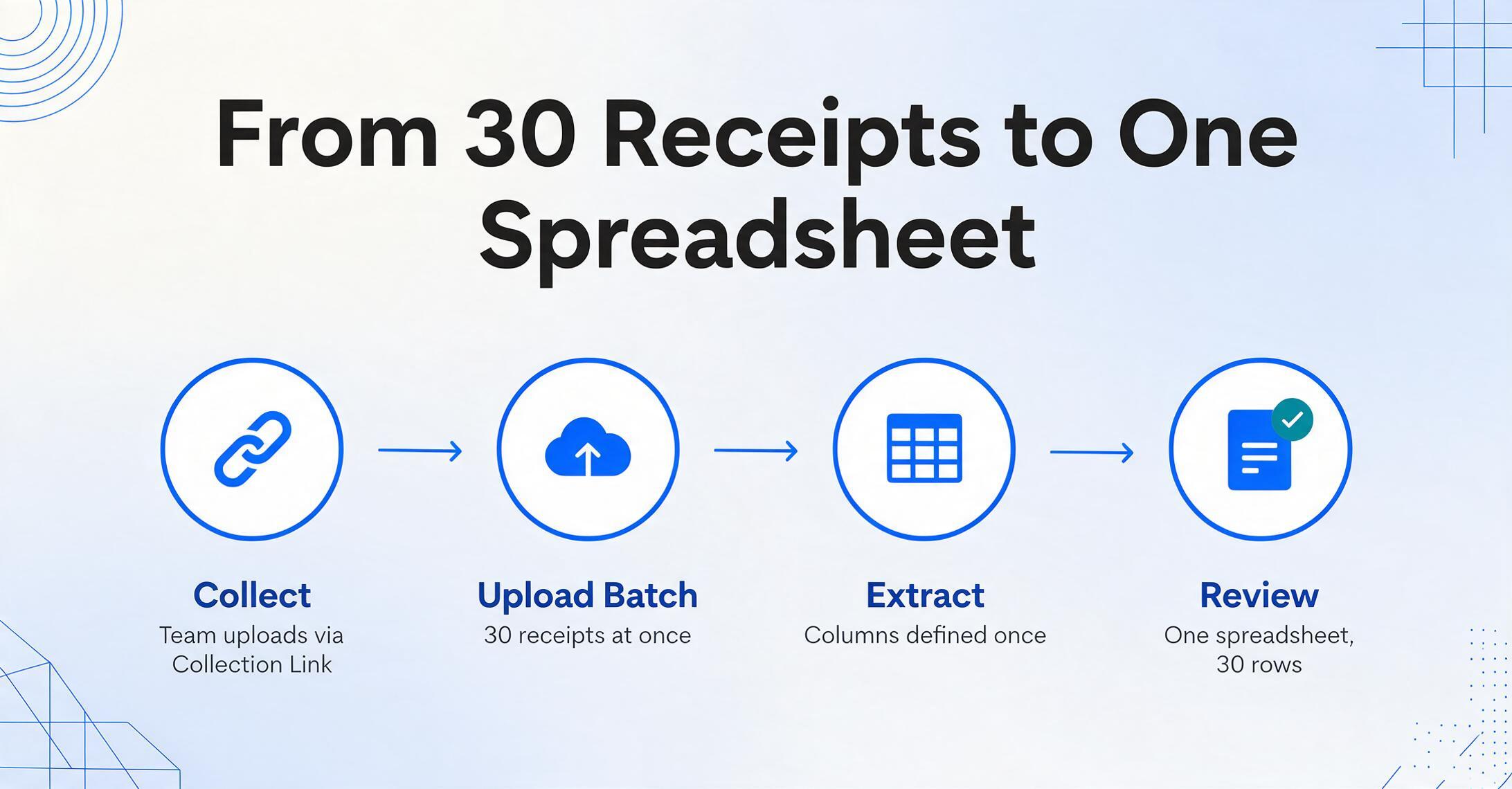
This matters because the per-receipt overhead — loading the app, aligning the photo, waiting for processing, reviewing the result — dominates the time at small volumes and makes mobile apps impractical above 20-30 receipts per session. Batch processing changes the workflow from "process each receipt" to "gather receipts → process all at once → review the spreadsheet." For someone doing monthly bookkeeping with a stack of receipts accumulated over 30 days, batch processing turns a multi-hour session into a 10-minute upload-and-review cycle.
The batch workflow also solves the collection problem. If receipts come from multiple people — employees submitting expenses, field workers buying supplies, contractors billing for materials — a collection link lets each person upload their receipts directly into your processing queue. The uploader opens a link, enters a verification code, and drops their files — no registration, no login. The files land in your account's batch processing pipeline. This eliminates the most tedious part of receipt management: chasing people for their receipts.
Files are processed securely and not stored.
From Extracted Data to Tax Filing
Extraction gets the data out of the receipt. What happens next depends on your tax filing situation.
Route 1: Schedule C (Sole Proprietors and Single-Member LLCs)
This is the most common path for freelancers, contractors, and small business owners. Extracted receipt data maps to specific Schedule C lines:
| Receipt Category | Schedule C Line | Deduction Rule |
|---|---|---|
| Office supplies, software, small equipment | Line 18 (Office expense) | 100% deductible |
| Business travel (airfare, hotel, car rental) | Line 24a (Travel) | 100% deductible; hotel requires receipt regardless of amount |
| Business meals (restaurants, client dining) | Line 24b (Meals) | 50% deductible; must document attendees and business purpose |
| Vehicle expenses (fuel, maintenance, parking) | Line 9 (Car and truck expenses) | Actual expense method or standard mileage rate (70¢/mile for 2025) |
| Continuing education, conferences, subscriptions | Line 27a (Other expenses) | 100% deductible if ordinary and necessary |
The critical distinction most people miss: entertainment is not deductible, but meals are. A receipt from a restaurant where you discussed business with a client is a meal (50% deductible on Line 24b). A receipt from a golf course where you played 18 holes with a client is entertainment (0% deductible, since the TCJA). If the receipt includes both — golf fees and a clubhouse dinner — the meal portion is still 50% deductible only if it's separately stated on the receipt. This is why line-item extraction matters for mixed-purpose receipts: you can separate the deductible from the non-deductible at the line level.
Mileage is tracked separately from receipts — the IRS requires a contemporaneous log with date, destination, purpose, and miles — but fuel receipts and parking receipts support the actual expense method if you use it instead of the standard mileage rate. Fuel receipts should be categorized to Line 9, not Line 24a.
Route 2: Export and Integration Options
Once extracted, the receipt data needs to get into your accounting system. The export path depends on your tech comfort and volume:
Download Excel / CSV
The extraction tool outputs a spreadsheet. You download it, verify the data, and import it into your accounting software using CSV import. Works with every accounting platform — QuickBooks, Xero, Wave, FreshBooks — because CSV import is universal. Takes 2-5 minutes per batch regardless of how many receipts are in it. This is the right path for most small businesses processing under 500 receipts a month.
Google Sheets Direct Integration
Some extraction tools write data directly into Google Sheets via an add-on — upload receipts, define columns, and the extracted data appends to your sheet without leaving the spreadsheet. This eliminates the download-and-import step and is particularly useful if you use Google Sheets as your bookkeeping system or intermediary before final import into accounting software. For the step-by-step workflow, see how to extract receipt data with a Google Sheets add-on.
Collection Links for Multi-Person Receipt Gathering
If receipts come from team members, clients, or field workers, give each person a collection link — they upload their receipts directly into your queue. This eliminates the email-back-and-forth and the "I forgot to send my receipts" problem at month-end. Useful for bookkeepers managing multiple clients, construction firms with job-site purchases, and any business where the person making the purchase isn't the person doing the books.
What to Look for in a Receipt Extraction Tool
Not all extraction tools handle receipts equally. The selection criteria below are ordered by what actually causes implementation failure — starting with format handling (the most common point of failure) and ending with price (which only matters once the tool works).
1. Receipt-specific format handling. Ask directly: "Does your tool handle thermal paper receipts, narrow restaurant strips, multi-page e-receipts, and handwritten elements?" Generic document extraction tools optimized for invoices often struggle with receipt-specific problems — abbreviated product codes, tip fields, credit card signature areas, tax breakout by rate. If the vendor's demo only shows clean invoice PDFs, their receipt extraction capability is unproven.
2. Batch processing with merged output. Can you upload 50 receipt images and get one spreadsheet with 50 rows? This is the core workflow that separates extraction tools from receipt scanning apps. The output should merge all receipts into a single table, not produce 50 separate files.
3. Custom column definitions, including inferred columns. Beyond basic fields (date, vendor, total), you need the ability to define your own columns and have the AI populate them based on document content. Inferred columns for expense categorization are the feature that eliminates the post-extraction classification pass. If the tool can only extract "what's on the receipt" and can't help with "what category this belongs to," you're solving half the problem.
4. No template setup required. If the tool asks you to create a parsing template per store or per format, it's template-based OCR under the hood. Receipts from 50 different merchants mean 50 templates plus ongoing maintenance. AI extraction that reads fields semantically eliminates template creation entirely — you define the output columns once, and the AI finds the data on any receipt format.
5. Export format and integration. Excel (XLSX) and CSV are the minimum. Google Sheets direct integration saves a step if you use Sheets. API access matters if you plan to connect extraction to automated workflows later. JSON output is useful if you're feeding the data into custom software. The export format that matches your accounting software's import format is the one that matters.
6. Accuracy on your actual receipts. Vendor accuracy claims ("99% accuracy!") are meaningless without context — accuracy on clean, flatbed-scanned, printed invoices tells you nothing about accuracy on crumpled, faded, phone-photographed thermal receipts. Test with your own receipts before committing. Upload 10 representative receipts — a mix of retail, restaurant, e-receipts, and any handwritten ones — and compare the extracted output to the originals. For a broader comparison of receipt scanning options, see the 2026 receipt scanning tools comparison.
Going Deeper — Key Receipt Topics
Receipt data extraction connects to several specialized workflows. The articles below go deeper into specific scenarios:
| What Is Receipt OCR? Extracting Store Receipts to Spreadsheets | The foundational guide to how receipt OCR works, why thermal paper fading makes it urgent, and how AI reads receipts differently from traditional OCR. |
| Freelancer Receipt Tax Season Prep | How to organize a year's worth of receipts for tax filing — categorization workflow, what to keep vs discard, digital archiving strategy. |
| Receipt-to-Schedule-C Workflow in Google Sheets | Step-by-step from receipt photo to categorized Schedule C expense lines using Google Sheets — with template for the 50% meals deduction. |
| Handwritten Receipt Extraction for Tax Prep | What AI can and can't do with handwritten contractor receipts, market vendor slips, and field purchase notes — with practical accuracy expectations. |
| Best Receipt Scanning Tools in 2026 | Side-by-side comparison of receipt extraction tools — by technical approach, receipt-specific handling, batch processing, and pricing. |
| Extract Receipt Data with Google Sheets Add-on | How the Google Sheets add-on workflow works — upload receipts, define columns, and get extracted data directly in your spreadsheet. |