The Complete Guide to
Payslip Data Extraction
A mortgage underwriter opens a 42-page PDF from a broker. Somewhere around page 27, buried among tax returns and bank statements, sits an applicant's pay stub from ADP. On page 31, another one from Gusto. On page 35, a third from a payroll provider the underwriter has never seen before — different layout, different labels, different column positions. All three contain the same data: employee name, gross pay, net pay, YTD totals, deductions. But extracting that data into one comparison row means opening three documents, reading three different templates, and typing values into three spreadsheet cells each. Multiply by 120 applications this month. Payslip data extraction exists because this multiplication problem is real, and manual entry at scale is where errors compound into compliance liability.
Key Takeaways
- A mortgage underwriter processing 120 applications a month opens pay stubs from ADP buried on page 27, Gusto on page 31, and a provider they've never seen on page 35 — three incompatible layouts, three data entry exercises, one loan decision.
- Template-based extraction fails on payslips because six payroll providers dominate the US market with fundamentally incompatible layouts — and you can't control which provider your applicant's employer chose.
- A template-free extraction reads all six provider formats with one column definition — and when you separate "Gross Pay" from "YTD Gross Pay" into distinct columns, the YTD figure becomes a built-in fraud check: if period gross × pay periods doesn't equal the YTD total, you know exactly which payslip to pull for review.
Why Payslip Data Extraction Matters
Payslip extraction is rarely the job. It is almost always a step inside a downstream workflow, and the workflow drives what good extraction actually has to deliver. Three workflows recur often enough to define the demand.
Income verification. Mortgage lenders, rental property managers, and auto loan officers all need to confirm an applicant earns what they claim. A single application may include pay stubs from multiple employers — or from previous jobs if the applicant recently switched. The lender needs net pay, gross pay, pay frequency, and YTD totals across all sources, in a single comparison view, fast enough to not slow the underwriting pipeline. When an underwriter handles 30 or 40 applications per week, even two minutes per payslip for manual entry becomes a bottleneck measured in hours per week.
Tax cross-checking. A payroll auditor reconciling year-end W-2 forms against quarterly pay stub records needs to verify that Box 1 wages, Box 2 federal tax withheld, Box 3 Social Security wages, and Box 5 Medicare wages all align with the individual pay-period data that fed into them. A W-2 is a summary of 12 to 26 individual pay stubs. When the auditor finds a mismatch, tracing it back means opening every payslip for every affected employee — a task that, done manually, can consume an auditor's entire week for a mid-size company. Payslip extraction transforms this from a forensic document hunt into a spreadsheet reconciliation: extract all payslips to rows, sum the columns, compare against the W-2, and flag the discrepancies in seconds.
Multi-employee payroll audit. An HR team managing contractor invoices alongside employee payroll — or an outsourced payroll provider handling 50 small-business clients — needs to consolidate compensation data across pay periods, employees, and payroll systems. One employee might have pay stubs from ADP at their current job, Gusto from a side business, and Paychex from a previous employer. If you are auditing total compensation or verifying employment history, these three PDFs are three different data entry exercises. Extraction collapses them into one table with one set of columns. For a deeper look at what this technology is and how it differs from payroll software, see our guide to what payslip data extraction actually is.
The Unique Challenges of Payslip Extraction
Payslips share some challenges with invoices and receipts — format diversity, inconsistent labeling, variable scan quality — but they also have three problems that almost no other document type creates.
Extreme Format Diversity Across Payroll Providers
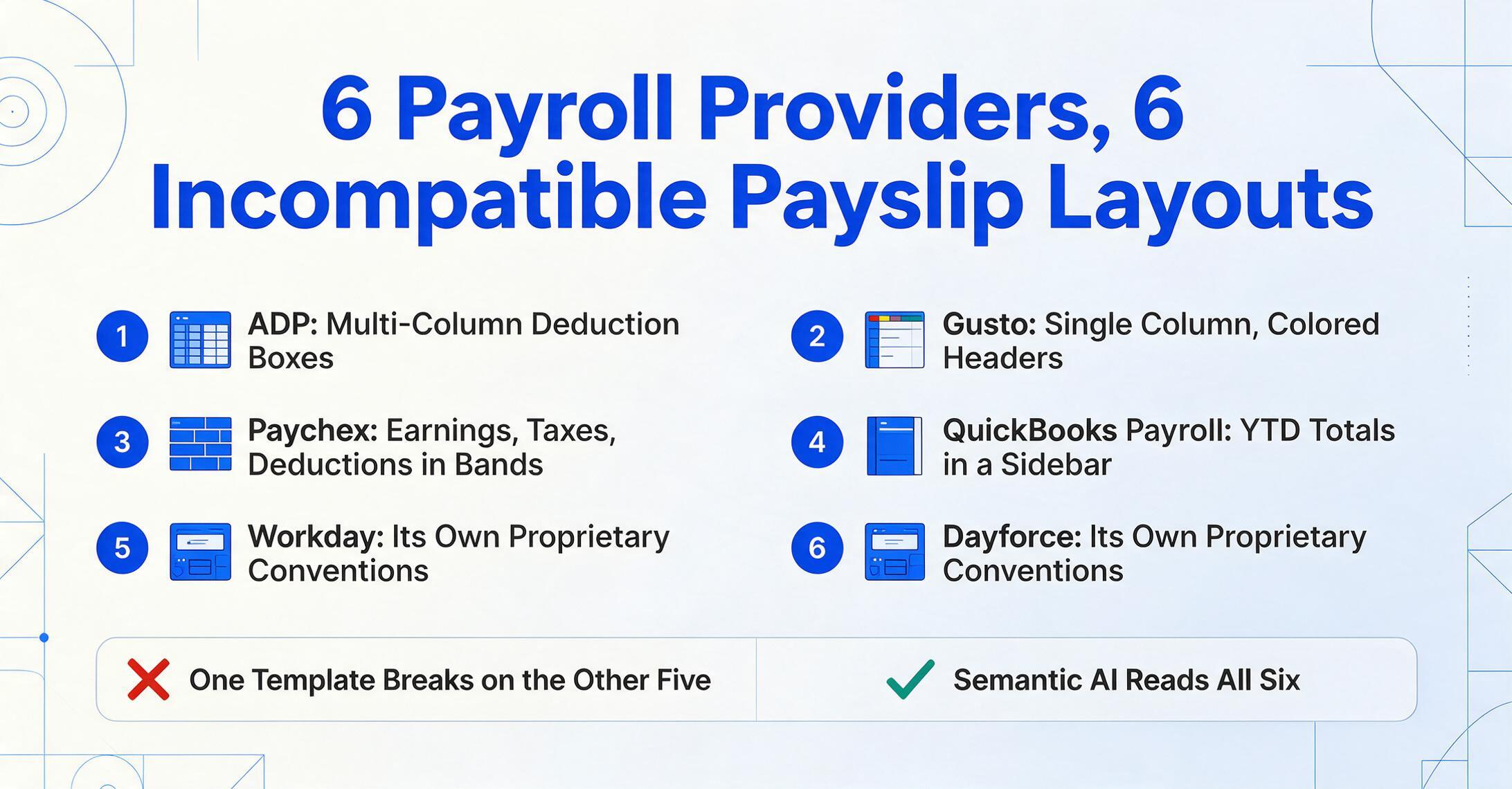
An invoice from one vendor might look different from an invoice from another vendor. That is a challenge. But there are thousands of vendors issuing invoices — any individual format represents a tiny share of the total document pool. Payslips are the opposite: six major payroll providers generate the vast majority of pay stubs in the US, and each one lays out data differently. ADP uses multi-column layouts with categorized deduction boxes. Gusto uses a cleaner single-column design with colored section headers. Paychex splits earnings, taxes, and deductions into separate horizontal bands. QuickBooks Payroll places YTD totals in a sidebar. Workday and Dayforce each have their own proprietary layout conventions. The result is not a long tail of random formats — it is a concentrated set of six distinct layout families, each internally consistent but incompatible with the others.
A template-based extraction approach that works for ADP payslips will break on Gusto payslips. An approach that works on QuickBooks Payroll will fail on Paychex. Payslip extraction has to work across all of them, without per-provider configuration, because the person doing the extraction rarely controls which provider the employee's company uses.
Year-to-Date Cumulative Fields
Most document types extract per-document values: the total on this invoice, the date on this receipt, the vendor on this PO. Payslips add a second layer: year-to-date cumulative figures that are not per-document values. A pay stub for pay period ending June 15 might show $3,200 in gross pay for this period — and $38,400 in YTD gross pay. The $38,400 is the sum of every pay period's gross pay from January 1 to June 15. Both numbers appear on the same document, they are usually near each other, and they need to be extracted separately.
Getting YTD extraction right matters for three reasons. First, income verification workflows use YTD figures to confirm that period-level pay is consistent with year-level totals — a mismatch between "this period's gross pay × pay periods so far" and "YTD gross pay" is a fraud indicator that lenders specifically check for. Second, tax reconciliation against W-2 forms requires YTD data, because the W-2 reports full-year totals, not period-level detail. Third, when processing multiple payslips from the same employee across a year, the YTD field on the December pay stub serves as a built-in validation checkpoint: the sum of all period-level gross pay values should equal the December YTD gross pay figure. If it does not, either an extraction error occurred or a pay stub was missing from the batch.
Deductions vs Employer Contributions — Opposing Fields
This is the payslip-specific challenge that trips up generic extraction tools the most. Every pay stub has two categories of non-wage amounts, and they face in opposite directions:
- Deductions are amounts subtracted from the employee's gross pay before arriving at net pay. Federal income tax, state tax, Social Security (6.2%), Medicare (1.45%), 401(k) employee deferral, health insurance premium share — these reduce the employee's take-home amount. They are money the employee earned but does not receive because it goes to tax authorities or benefit providers.
- Employer contributions are amounts the employer pays on top of the employee's gross pay. The employer's matching 401(k) contribution, the employer-paid portion of health insurance, employer-paid Social Security (6.2%) and Medicare (1.45%) — these are costs the employer bears that never pass through the employee's pay line. They appear on the pay stub for transparency but are not part of the net pay calculation.
A generic extraction tool that reads "401(k)" on a payslip has to decide: is this the employee deduction or the employer match? Both might say "401(k)" or "Retirement" with different dollar amounts. A human reading the pay stub understands which amount is subtracted from gross pay and which is listed separately as an employer contribution. An AI extraction system needs the same contextual understanding — reading the field's position in the document structure, not just its label — to assign each value to the correct column.
Multi-Pay-Period Consolidation
In income verification, the standard is not one pay stub. It is two to three months of consecutive pay stubs, sometimes more. A mortgage underwriter reviewing an applicant needs to see that income is stable across pay periods — not just that one pay stub looks good. This means extracting 4 to 6 payslips per applicant (for biweekly pay), each with its own period-level and YTD values, and consolidating them into a single comparison table.
Manual consolidation means opening each pay stub PDF, finding the six or seven fields you need, typing them into a spreadsheet row, and repeating. With 30 applicants and 5 pay stubs each, that is 150 documents — and 900 to 1,050 individual data points to transcribe. One mis-keyed digit in any of those cells breaks the YTD cross-check or produces a net pay that does not reconcile with the gross-minus-deductions calculation. Batch extraction solves this by processing all pay stubs for a given applicant — or all pay stubs for all applicants — in one pass, producing a single spreadsheet where each row is one pay stub and you can filter by employee name or applicant ID.
Traditional Methods vs AI-Powered Extraction
There are three ways to get payslip data into a spreadsheet, and they sit on a spectrum from fully manual to fully automated — with very different reliability profiles at each level.
| Method | How It Works | Speed (per payslip) | Handles Format Diversity | Handles YTD Fields |
|---|---|---|---|---|
| Manual Entry | Open PDF, read each field, type into spreadsheet cell by cell | ~3 minutes | Yes (human adapts) | Yes (human understands) |
| Template / Zonal OCR | Define coordinate zones per provider layout; OCR reads text in each zone | ~10-15 seconds | No — breaks on new layouts | No — extracts text but does not distinguish period vs YTD |
| AI Semantic Extraction | Vision AI reads document by understanding field meaning, not position | ~5-10 seconds | Yes — layout-agnostic | Yes — distinguishes by field context |
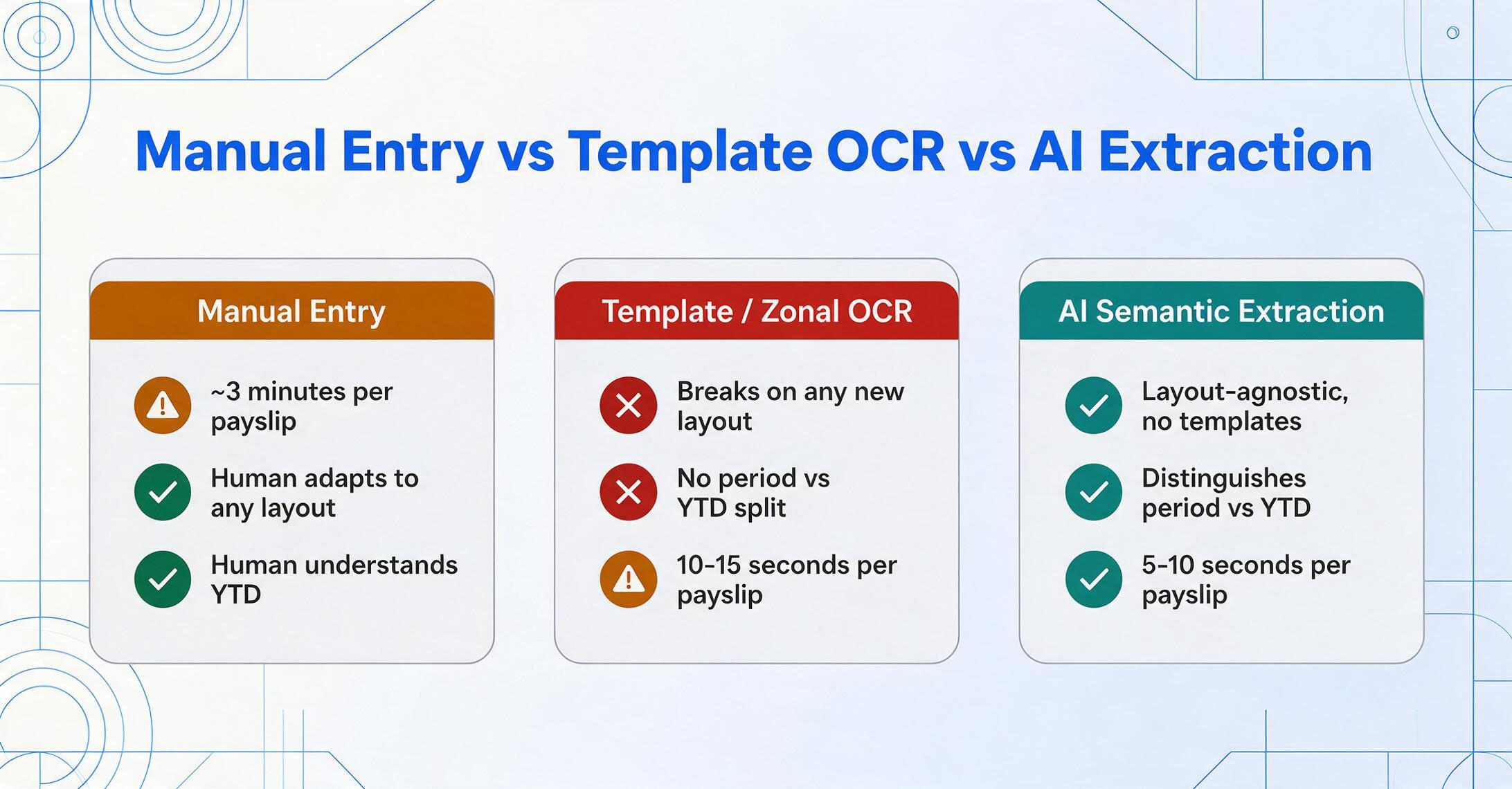
Template-based OCR — the approach used by legacy document processing tools — works by drawing rectangular zones on a document image and running OCR within each zone. If you define a zone for "Net Pay" at coordinates (420, 680, 520, 700) on an ADP pay stub template, the system reads whatever text appears in that rectangle. The moment a pay stub arrives from Gusto — where net pay sits in a completely different position — the zone reads empty space or the wrong field entirely. Since the six major payroll providers each use different layouts, a template system needs six templates minimum, and any new format requires building a seventh. This is not automation; it is digitized manual setup.
AI semantic extraction works differently. Instead of defining where data sits on the page, you define what data you want — by typing the column names you need, like "Employee Name," "Gross Pay," "Net Pay," "YTD Federal Tax." The AI reads the entire document, understands what each labeled value means based on its context within the payslip structure, and populates the corresponding column regardless of where the value appears. This is the fundamental shift from position-based extraction to semantic-based extraction — and it is what makes payslip processing viable across multiple payroll providers without per-provider setup.
The efficiency difference is measurable. Research from the American Payroll Association puts manual payroll error rates at 1-8% of total payroll for companies relying on manual processes. At 3 minutes per payslip for manual entry versus 5-10 seconds for AI extraction, processing 200 payslips drops from 10 hours to approximately 20-30 minutes — an 18x improvement.
Files are processed securely and not stored.
Key Payslip Fields to Extract
What you extract depends on your workflow. An income verification workflow might need six fields. A payroll audit might need twenty. Below are the field groups that cover the most common downstream uses, organized by what each field tells you and where it feeds into your process.
Employee & Employer
- Employee Name & ID
- Employer Name
- Pay Period Start & End Date
- Pay Date
- Pay Frequency (weekly/biweekly/semi-monthly/monthly)
Earnings
- Gross Pay (this period)
- Base Salary / Regular Hours & Rate
- Overtime Hours & Pay
- Bonuses / Commissions
- Allowances (travel, housing, meal)
Deductions (from employee pay)
- Federal Income Tax
- State & Local Tax
- Social Security (6.2%)
- Medicare (1.45%)
- 401(k) / Retirement Deferral
- Health/Dental/Vision Premiums
- Garnishments / Other
YTD & Employer Contributions
- YTD Gross Pay
- YTD Federal / State / Local Tax
- YTD Social Security & Medicare
- YTD 401(k) / Retirement
- Net Pay (this period)
- YTD Net Pay
- Employer 401(k) Match / Health Contribution
When you define columns for extraction, keep two things in mind. First, separate period values from YTD values into distinct columns — "Gross Pay" and "YTD Gross Pay" should be two columns, not one, because they serve different downstream purposes (period analysis vs year-end reconciliation). Second, separate employee deductions from employer contributions — create "401(k) Employee" and "401(k) Employer" as separate columns rather than a single "401(k)" column that conflates the two amounts. The AI can distinguish them if you ask for them separately; if you ask for a single "401(k)" column, it may return either amount depending on which it encounters first on the document.
How Batch Processing Works for Payslips
Batch processing is what makes payslip extraction practical at scale. Instead of extracting one pay stub at a time, you upload all pay stubs for a given batch — all applicants this week, all employees this quarter, all contractors this tax year — and the system processes them together, producing a single spreadsheet with one row per payslip.
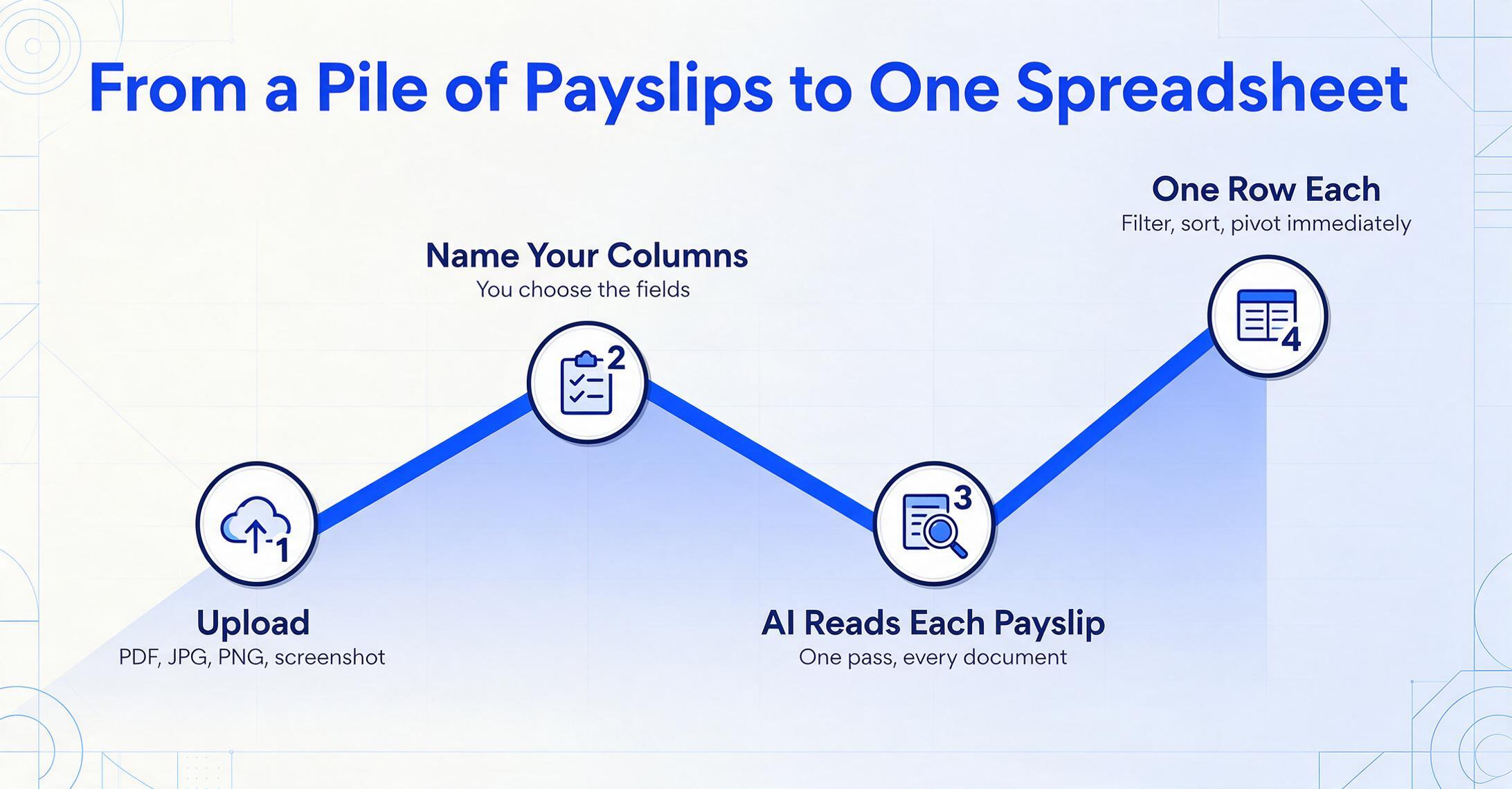
The workflow follows a consistent pattern: upload your documents (PDF, JPG, PNG, or screenshots from any payroll provider), define the column names you want extracted, and let the AI read each document and populate the matching row. The output is one Excel file where each row represents one payslip, each column represents one extracted field, and you can filter, sort, and pivot the data immediately — no manual transcription, no copy-paste between documents, no spreadsheet formula rebuilds each pay period.
Payslip batch processing matters most in three scenarios. When processing mortgage or rental applications in bulk, upload all applicant pay stubs at once and get one spreadsheet with a column for applicant ID — filter to any applicant to see all their pay stubs in consecutive rows with YTD progression visible. When processing quarterly or year-end payroll reconciliations, upload an entire quarter's worth of pay stubs and let the YTD columns provide built-in validation — the sum of all period gross pay values should align with the final YTD gross pay figure. When processing multi-employee HR audits, upload pay stubs across employees and pay periods to build a consolidated compensation view without opening a single PDF.
For teams that need to collect payslips from multiple people — applicants, employees, contractors — a Collection Link simplifies the intake side. You generate a shareable link, send it to each person who needs to submit pay stubs, and they upload their documents directly through that link. The files land in your processing queue automatically. No chasing email attachments, no forwarding PDFs from your inbox to the extraction tool, no asking applicants to log into a system they do not have credentials for. The person uploading only needs the link and a verification code.
Exporting and Using Your Extracted Data
The extraction output is only as useful as the formats it supports and how clean the data arrives. Three export formats cover the most common downstream destinations:
- Excel (XLSX) — The default for most payroll and HR workflows. Extracted data arrives in a spreadsheet with proper column headers, standardized date formats, and numeric fields formatted as numbers (not text). This means you can immediately start filtering by employee, summing gross pay by month, or building a pivot table for compensation analysis — no post-extraction cleanup of date fields stored as strings or currency values stored as text.
- CSV — Useful for importing extracted data into payroll software, accounting systems, or custom databases. Most payroll platforms and ERP systems accept CSV imports for bulk data entry, and a clean CSV from extraction means you skip the intermediate step of manually formatting a spreadsheet for import.
- JSON — For integration with custom applications, APIs, or automated verification pipelines. If you are building an income verification workflow that programmatically checks extracted pay stub data against application forms, JSON output plugs directly into that logic.
For users of Google Sheets, a Google Sheets sidebar add-on allows extraction directly into the active spreadsheet — upload payslip files from within Sheets, define your columns, and append extracted rows to your sheet without switching applications. This is useful for teams that live in Google Sheets for payroll reconciliation or income verification tracking and want to avoid the export-and-reimport loop.
Choosing a Payslip Extraction Approach
Not every extraction tool handles payslips well, and the features that matter for payslips are not the same as the features that matter for invoices. Here are the dimensions to evaluate:
Template-free operation. This is the single most important criterion for payslip extraction. If a tool requires you to build a template per payroll provider — defining zones, training on samples, or configuring layout rules — you will spend more time on setup than you save on extraction, because payslips from different providers have fundamentally different layouts. A template-free tool reads any payslip format without per-provider configuration. It understands that "Net Pay" means the same thing whether it appears in the bottom-right corner of an ADP pay stub or the middle of a Gusto pay stub.
Custom column definition. You should be able to define exactly which fields you want extracted, by name. A tool that extracts a fixed set of fields — say, always extracts "Gross Pay" and "Net Pay" but nothing else — limits you to its assumptions about what matters. Your income verification workflow might need "YTD Gross Pay," "Pay Frequency," and "Employer Name." Your payroll audit might need "Overtime Hours," "401(k) Employee Deferral," and "Garnishments." The tool should extract what you ask for, not what it was pre-configured to find.
Batch processing. Single-document extraction is useful for one-off checks. Batch extraction — uploading 50 or 200 payslips and getting one merged output — is what makes the tool viable for real workflows. If you are processing mortgage applications or quarterly payroll reconciliations, batch is not optional; it is the difference between a tool you use and a tool you abandon after the first week.
YTD field accuracy. Test this specifically before committing to a tool. Upload a pay stub where the period gross pay is $3,200 and the YTD gross pay is $38,400 — and verify that the tool extracts both values into the correct columns. If it places the YTD value into the period gross pay column (or vice versa), the tool does not understand the semantic difference between period and cumulative fields, and your reconciliation will be unreliable.
Deduction vs contribution distinction. Upload a pay stub that shows both "401(k) Employee" (a deduction from pay) and "401(k) Employer Match" (a separate employer contribution). Verify the tool extracts both into separate columns without conflating them. If it does not, your compensation analysis will mix employee and employer money in the same bucket — a material error for any workflow that calculates total compensation cost.
Frequently Asked Questions
Can payslip extraction handle pay stubs from any payroll provider?
Yes, if the tool uses semantic AI extraction rather than template-based OCR. Because semantic extraction reads fields by understanding what they mean — not by matching a pre-defined layout — it works across ADP, Gusto, Paychex, QuickBooks Payroll, Workday, Dayforce, and smaller regional providers. The tool does not need to have "seen" a particular provider's format before. It reads the document and locates each field based on its role in the payslip structure.
How accurate is YTD field extraction?
YTD extraction accuracy depends on the AI's ability to distinguish period-level fields from cumulative fields by context. On clearly formatted digital payslips from major providers, YTD extraction typically achieves 95-99% accuracy. On scanned or photographed pay stubs where YTD and period fields appear close together with similar labels, accuracy can drop — especially if the scan is low resolution or the document is skewed. For critical workflows like mortgage underwriting, spot-check YTD values against period-level math (period gross × pay periods so far ≈ YTD gross) as a built-in validation step before relying on the extracted data.
Can the tool handle handwritten notations on payslips?
AI extraction can read printed text, handwriting, and mixed-content documents. If a pay stub has handwritten corrections or annotations — a manager's initials, a handwritten adjustment amount — the AI will attempt to extract them. However, handwriting accuracy is lower than printed text accuracy, especially for cursive or small annotations. If handwritten corrections are common in your payslip workflow, review those fields manually or set up a verification step for documents flagged as containing handwriting.
Does batch extraction merge data from different pay periods into one spreadsheet?
Yes. When you upload payslips spanning multiple pay periods — whether for one employee across a year or for multiple employees across different periods — the tool processes all documents together and outputs one spreadsheet. Each row is one payslip with its own pay period dates, so you can filter, sort, and group by employee, date range, or pay frequency without manual consolidation.
Can the tool verify that a payslip is authentic or detect fraud?
AI extraction tools are not fraud detection systems. However, consistent extraction enables you to run your own checks: comparing YTD figures against period-level calculations, verifying that net pay equals gross minus deductions, and checking that pay frequency aligns with period dates. Inconsistencies in these mathematical checks can indicate either an extraction error or a manipulated document — both worth investigating. Some specialized payslip verification tools offer dedicated fraud detection, but general-purpose extraction tools read the data; they do not authenticate the document.
What file formats are supported for payslip extraction?
Most AI extraction tools support PDF (digital and scanned), JPG, PNG, WebP, and screenshots. The key distinction is between digital PDFs (where text is embedded as selectable text) and scanned/image PDFs (where the document is a photograph of paper). AI extraction handles both, though image-based PDFs require the AI to perform OCR first, which can slightly reduce accuracy compared to digital PDFs where text is already machine-readable.
How does extraction handle multi-language payslips?
If you are processing payslips from different countries — a French fiche de paie, a German Gehaltsabrechnung, a Japanese 給与明細 — AI semantic extraction can handle them because it reads field meaning, not field labels. "Net Pay," "Net à payer," "Nettoverdienst," and "差引支給額" all mean the same thing, and a multilingual AI model recognizes them as the same semantic field. However, extraction accuracy may be slightly lower for languages or layouts the model has less training data on. For high-volume multi-language processing, test with a sample batch before committing to a production workflow.
Can I use extraction to feed data directly into my payroll or accounting system?
Extraction tools output data as Excel, CSV, or JSON — not as a direct integration into payroll software. Most payroll systems (ADP, Gusto, Paychex, QuickBooks) and accounting platforms accept CSV imports, so the typical workflow is: extract payslip data to CSV, then import the CSV into your target system. This is one extra step compared to a native integration, but it is still massively faster than manual entry. Some tools offer API access for custom integrations if you need a direct data pipeline.
How does the Collection Link work for gathering payslips from other people?
A Collection Link is a shareable URL you generate from your account. You send the link to anyone who needs to submit payslips — mortgage applicants, employees, contractors. They open the link, enter a verification code you set, and upload their documents directly through a simple web page. The files appear in your processing queue. The uploader does not need to create an account or log in. This is especially useful for mortgage brokers collecting pay stubs from applicants, HR teams gathering prior-employer payslips from new hires, or accountants collecting quarterly documentation from clients.