The Complete Guide to UK SA100
Self Assessment Data Extraction (2026)
The SA100 is ten pages long. If you are self-employed, those ten pages are accompanied by a two-to-six-page SA103. If you have rental income, an SA105 joins the stack. A landlord who also freelances might end up holding sixteen pages of densely boxed HMRC form — every figure on those pages having been laboriously calculated from invoices, bank statements, mileage logs, and receipts across a full tax year. When the return is filed, those sixteen pages do not go into cold storage. They live in your records for five years as the definitive record of your tax position. Yet extracting their key figures — your UTR, each income category total, allowable expenses, the final tax calculation — for a spreadsheet, an accountant review, or a mortgage application remains a manual retyping exercise for most filers. This guide covers the SA100 end-to-end: what is genuinely on each page, which fields connect across which supplementary forms, and how to pull the data out into structured output without keying it in again.
Key Takeaways
- The number in SA100 box 8 was calculated on SA103S — a separate six-page document you were not looking at when you typed it.
- Three SA100 error categories — cross-page reconciliation failure, box-number transposition, and nil-field omission — are built into the paper form's structure itself, not caused by careless fingers.
- Extracting the SA100 as linked database records — master row plus child tables from each supplementary page, then reconciling — removes the transcription step before HMRC sees a discrepancy.
The SA100 Is Not a Form — It Is a Data Model
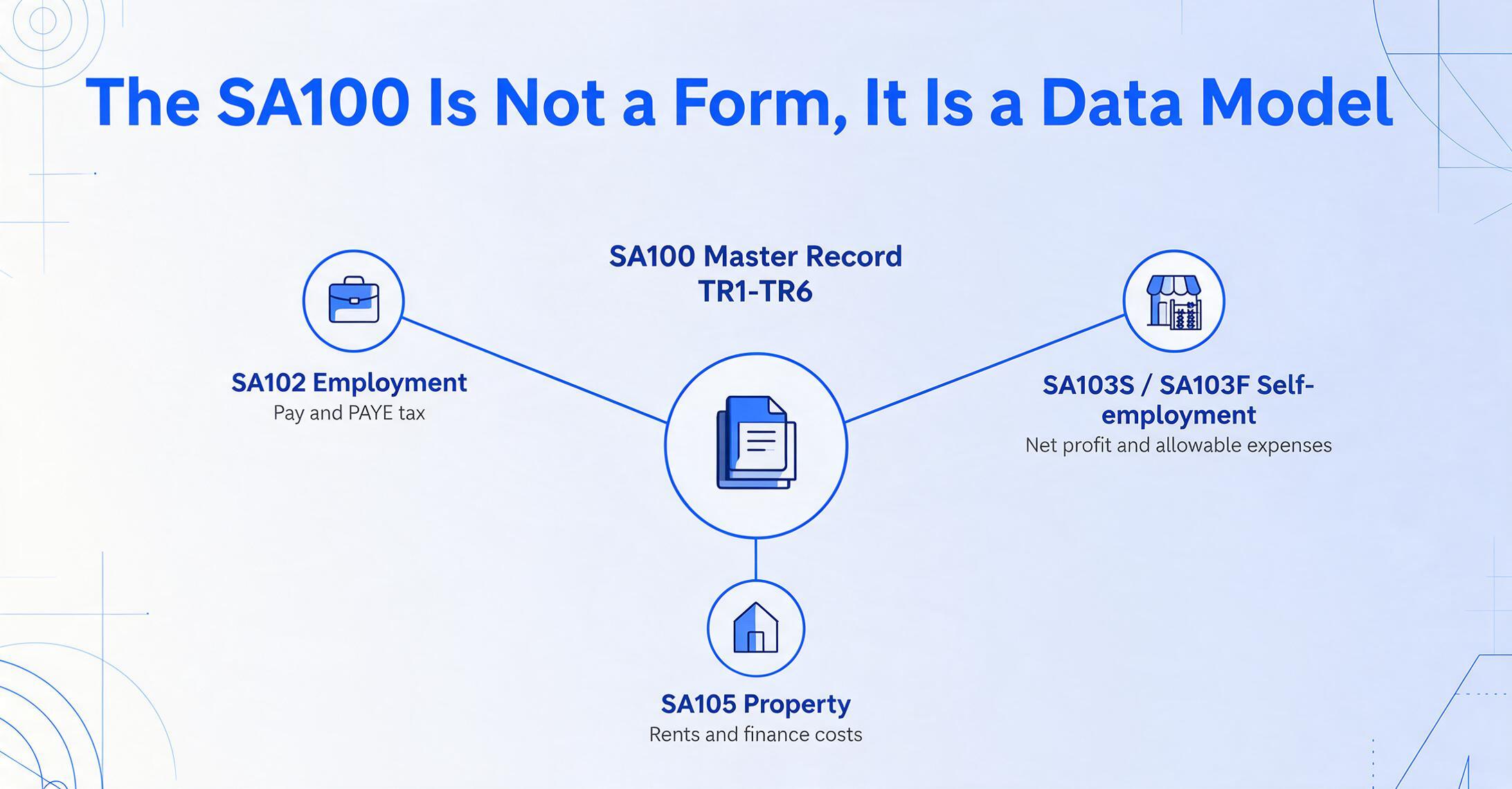
Most document processing guides start by asking "what kind of document is this?" For the SA100, that question is insufficient. The SA100 is better understood as a multi-table database rendered across paper.
Here is what that means in practice. The core SA100 form (pages TR1 through TR6) is the master record: your UTR, your National Insurance number, and an aggregated summary of all your income sources for the tax year. But the detailed data that populates those summary figures lives in supplementary pages — SA102 for employment income, SA103S or SA103F for self-employment, SA105 for rental income, SA108 for capital gains. Each supplementary page is a child table with its own set of fields, and its totals feed up into the master record.
This relational structure is the reason manually extracting SA100 data feels harder than it looks. It is not just that there are many boxes — it is that boxes on page TR3 reference totals calculated on completely separate supplementary pages. Box 1 on TR3 ("Income from employment") draws from the total on SA102. Box 8 ("Taxable profits from self-employment") draws from SA103S or SA103F. A single number on the master form represents the output of a calculation chain that spans multiple documents. You cannot extract the SA100 by OCR-ing one page at a time in isolation — you need to understand the cross-page dependencies.
The field topology of an SA100 plus its attachments is closer to a normalised database schema than to a flat document: one-to-many relationships between the master record and supplementary records, calculated fields that depend on values from child tables, and referential integrity enforced by the UTR. This is not academic — understanding this data model is what determines whether your extraction captures meaningful figures or a list of unconnected box numbers.
For a full walkthrough of the extraction process step by step, see our guide to extracting SA100 data into Excel. For the specific pain points that make the paper version of this form so problematic, see our breakdown of why freelancers dread the SA100 paper trail.
Who Files an SA100 — and What That Means for Your Data Layout
HMRC requires a Self Assessment return from anyone whose income is not fully taxed at source through PAYE (Pay As You Earn). In 2025, approximately 12.2 million individuals filed a Self Assessment return, according to ICAEW — including 780,000 who filed on the final day, 31 January 2025.
The filing population breaks into overlapping categories, each of which adds different supplementary pages — and therefore different extraction fields — to the return:
| Filer Type | SA100 Core | Supplementary Pages Required | Key Extraction Fields Added |
|---|---|---|---|
| Self-employed sole trader (turnover under £85,000) | Yes | SA103S | Turnover, allowable expenses, net profit, capital allowances, CIS deductions |
| Self-employed sole trader (turnover £85,000+) | Yes | SA103F | Same as SA103S plus detailed expense categories, balance sheet items |
| Company director | Yes | SA102 | Employer PAYE reference, salary, benefits in kind (from P11D) |
| Landlord (UK property) | Yes | SA105 | Rental income, property expenses, mortgage interest relief, wear and tear allowance |
| Freelancer with side rental | Yes | SA103S + SA105 | Combined fields from both — extraction must handle two child tables |
| Employee with untaxed side income over £2,500 | Yes | SA102 (+ possibly SA101) | Additional income sources reported on TR3 boxes 17-18 |
| Capital gains from asset disposal | Yes | SA108 | Asset description, acquisition/disposal dates, gain/loss, reliefs claimed |
The practical implication for data extraction: your field schema depends on which supplementary pages your return includes. A self-employed plumber filing SA100 + SA103S has roughly 25-30 meaningful fields. A landlord with two properties who also does freelance consulting (SA100 + SA103S + SA105) has 45-50 fields. The extraction approach needs to accommodate these variations, not assume every SA100 is the same document.
The SA100 Main Form: Field-by-Field Walkthrough
HMRC structures the ten-page SA100 into six numbered pages — TR1 through TR6 — plus the Tax Calculation Summary. Understanding what is on each page is not just useful tax knowledge; it defines exactly which fields you will extract. The following walkthrough covers every section in extraction-relevant terms.
TR1 — Personal Details (Identity Fields)
TR1 is the identity block. It contains your Unique Taxpayer Reference (UTR) — the 10-digit identifier that is the primary key of your entire Self Assessment record — along with your name, address, date of birth, phone number, and National Insurance number. The UTR appears in a box at the top right of the form and on the covering letter, formatted typically as 12345 67890.
For extraction, these fields are the primary index that links the SA100 to every supplementary page and to previous-year returns. If you are extracting multiple years of SA100s into a single spreadsheet, the UTR + tax year combination is your unique row identifier. Mistaking a 6 for an 8 in the UTR during manual retyping creates a cross-referencing error that may not surface until HMRC queries an inconsistency months later.
The UTR is distinct from your National Insurance number. The National Insurance number stays with you for life. The UTR is the tax reference for your Self Assessment account. A limited company director may hold two UTRs — one personal (for SA100) and one corporate (for Corporation Tax CT600). The one on page TR1 is always the personal UTR.
TR2 — Tailor Your Return (Income Source Declaration)
TR2 is the shortest page but the most consequential for extraction. It is a series of Yes/No boxes where you declare what types of income you received during the tax year. Each "Yes" triggers one or more supplementary pages. The fields on TR2 are:
- Employment — triggers SA102 (one per employment)
- Self-employment — triggers SA103S or SA103F
- Partnership — triggers SA104S or SA104F
- UK property — triggers SA105
- Foreign income — triggers SA106
- Capital gains — triggers SA108
- Residence/domicile — triggers SA109
For extraction, TR2 is the schema definition page: it tells you which supplementary pages have been filed and therefore which additional field groups you need to extract. When processing a batch of client SA100s where each client has different income sources, TR2 is how you programmatically determine the field schema for each record.
Filing online makes this straightforward — the HMRC system presents relevant pages based on your answers. But when you are on the receiving end of a paper SA100 someone else has prepared, TR2 is your decoder ring for what supplementary data to expect in the stack.
TR3 — Income (Aggregate Totals)
TR3 is where the headline income figures from all supplementary pages are aggregated. This page alone contains boxes for:
| Box | Field | Extraction Notes |
|---|---|---|
| 1 | Pay from all employments (before tax) | Populated from SA102 total. Includes salary, bonus, benefits. |
| 2 | Tax taken off box 1 | PAYE tax deducted. Extracted from employer P60 or SA102. |
| 3-4 | Taxed/Untaxed UK interest | Bank and building society interest. Report gross, tax on savings handled by PSA. |
| 5-6 | UK dividends + tax credit | Dividend allowance £500 for 2024/25, dropping to £300 for 2025/26. |
| 7-8 | Pensions (state + private) | Includes State Pension, occupational pensions, annuities. |
| 9-10 | Taxable benefits | P11D benefits, not already in box 1. Company car, medical insurance, etc. |
| 11-12 | Other UK pensions (untaxed + tax taken off) | Lump sums, trivial commutation payments. |
| 15-16 | Other income not listed (amount + tax taken off) | Miscellaneous income, casual earnings, freelance payments not in SA103. |
| 17-18 | Additional information pages income (Ai1–Ai2) | SA101 additional information page totals. |
Critically, TR3 does not include self-employment profits — those are entered directly on SA103 and flow into the Tax Calculation Summary, not into TR3. Similarly, rental income from SA105 and capital gains from SA108 enter the tax calculation through their own pathways. The SA100 form operates on a hub-and-spoke model where TR3 is the hub for "simpler" income types, while self-employment, property, and capital gains are separate spokes that converge at the Tax Calculation Summary.
This architectural quirk matters for extraction: pulling "total income" from just the SA100 main form will under-report your income — you must capture figures from supplementary pages separately and combine them. A common error when manually extracting SA100 data is entering the TR3 total as "income" and missing the separate self-employment and rental figures entirely.
We cover the time cost of these types of manual errors in our analysis of what manual SA100 data entry costs UK freelancers per tax year.
TR4 — Tax Reliefs
TR4 captures the deductions that reduce your taxable income. For extraction purposes, these are the fields that explain the difference between your total income and your taxable income:
- Box 1-4: Pension contributions (relief at source) — the payments you made to registered pension schemes. Higher-rate taxpayers claim additional relief through these boxes; basic-rate relief is automatically added by the pension provider
- Box 5: Gift Aid payments — charitable donations where you have a Gift Aid declaration. Higher and additional-rate taxpayers claim back the difference between their tax rate and the basic rate already claimed by the charity
- Box 6-8: Blind Person's Allowance, other reliefs
- Box 9-10: Shares, securities, or land gifted to charity
Gift Aid is one of the most frequently under-claimed reliefs. The charity receives basic-rate tax relief at source (20%), but higher-rate (40%) and additional-rate (45%) taxpayers can claim the difference through TR4. Missing that claim on £1,000 of charitable giving costs a higher-rate taxpayer £200 in unnecessary tax each year. This is also one of the fields most likely to be missed during manual extraction — the paper SA100 does not flag "you could claim here," and extraction tools that only capture what they see miss what should be there.
TR5 — Other Information
TR5 covers several administratively significant but easy-to-overlook items: Marriage Allowance transfer (transfer £1,260 of your Personal Allowance to your spouse), Student Loan repayments (Plan 1, Plan 2, Plan 4, or Postgraduate Loan), and High Income Child Benefit Charge.
The Child Benefit charge is a progressive clawback: for every £200 of adjusted net income above £60,000, you repay 1% of the Child Benefit received, until it is fully repaid at £80,000. If your adjusted net income crosses £60,000 for the first time and you do not register for Self Assessment, HMRC will expect the charge — discovering this retroactively means paying back the benefit received plus potential penalties.
For extraction, the Student Loan fields are particularly relevant if you are using SA100 data for a mortgage application — lenders verify income but may not separately account for student loan repayments, which directly reduce net disposable income. Extraction that separately captures the Student Loan repayment figure gives a more accurate picture than the headline tax calculation alone.
TR6 — Declaration and Payment
TR6 is the finishing section: any underpaid or overpaid tax from previous years, bank account details for repayments, and the formal declaration. The bank sort code and account number on this page control where HMRC sends refunds. If you moved banks, an outdated account number on TR6 means your refund goes to a closed account — and recovering it from HMRC takes months. Extracting and verifying the bank details on TR6 against your current account is a five-second check that prevents a months-long resolution process.
Tax Calculation Summary
The summary page — SA110 or the tax calculation printed by HMRC's system — is where all the threads from TR3, supplementary pages, and TR4 converge into a final tax liability. The key fields:
- Total income — sum of all income sources across TR3 and supplementary pages
- minus Personal Allowance (£12,570 for 2024/25 and 2025/26, frozen since 2021/22 — fiscal drag means more people pay basic rate every year)
- minus reliefs — pension contributions, Gift Aid value
- = Taxable income
- Income Tax due — calculated across bands (basic 20%, higher 40%, additional 45% — and Scottish rates differ)
- plus Class 4 National Insurance — for self-employed, 6% on profits between £12,570 and £50,270 for 2025/26
- plus Student Loan repayments — if applicable
- minus tax already paid — PAYE, CIS deductions, payments on account
- = Final tax due or refund
This one-page summary is what most accountant review checklists live on. It is also the single page that, if extracted correctly into a spreadsheet, tells you 90% of what you need to know about a given year's tax position. We cover the end-to-end of this workflow in our step-by-step SA100-to-Excel extraction guide.
Supplementary Pages: The Child Tables
Your SA100 field list expands dramatically once supplementary pages enter the picture. Each page type adds its own extraction schema. Here is what each one brings:
| Form | Income Type | Version | Key Fields to Extract | Trigger |
|---|---|---|---|---|
| SA102 | Employment | Single | Employer PAYE reference, total pay, tax deducted, benefits, tips | Any employment or directorship |
| SA103S | Self-employment | Short | Business name, turnover, allowable expenses (aggregated), net profit, capital allowances, CIS deductions | Turnover under £85,000 |
| SA103F | Self-employment | Full | All SA103S fields plus disaggregated expense categories (cost of sales, motor, premises, admin, legal, interest), balance sheet (assets, liabilities, capital) | Turnover £85,000+ |
| SA104S/F | Partnership | Short/Full | Partnership name, UTR, your profit share, basis period | Partnership income |
| SA105 | UK Property | Single | Number of properties, total rents, property expenses, finance costs (mortgage interest), residential finance cost relief, furnished holiday lettings | Rental income from UK property |
| SA106 | Foreign | Single | Foreign income by category, foreign tax paid (for double taxation relief), remittance basis claim | Foreign income or gains |
| SA108 | Capital Gains | Single | Asset description, disposal proceeds, acquisition cost, enhancement expenditure, relief claimed, gain/loss | Disposal of chargeable assets |
| SA109 | Residence | Single | Days in UK, residence status, domicile, remittance basis details | Non-UK resident or dual resident |
The short/long split on SA103 is important. HMRC defines the threshold at the VAT registration limit — currently £85,000 for 2024/25. If your self-employment turnover exceeds this, you must use SA103F with its full expense categorisation and balance sheet section. The short form aggregates expenses into a single "Total allowable expenses" field; the full form disaggregates into cost of sales, motor expenses, premises costs, office/admin expenses, legal and professional fees, and interest. For data extraction, SA103F produces approximately three times as many fields as SA103S — and the fields are different, not just more detailed.
Why Manual Extraction From SA100 Produces Errors
The SA100's structural complexity — hub form plus child-table supplementary pages — creates three categories of extraction error that compound when done manually:
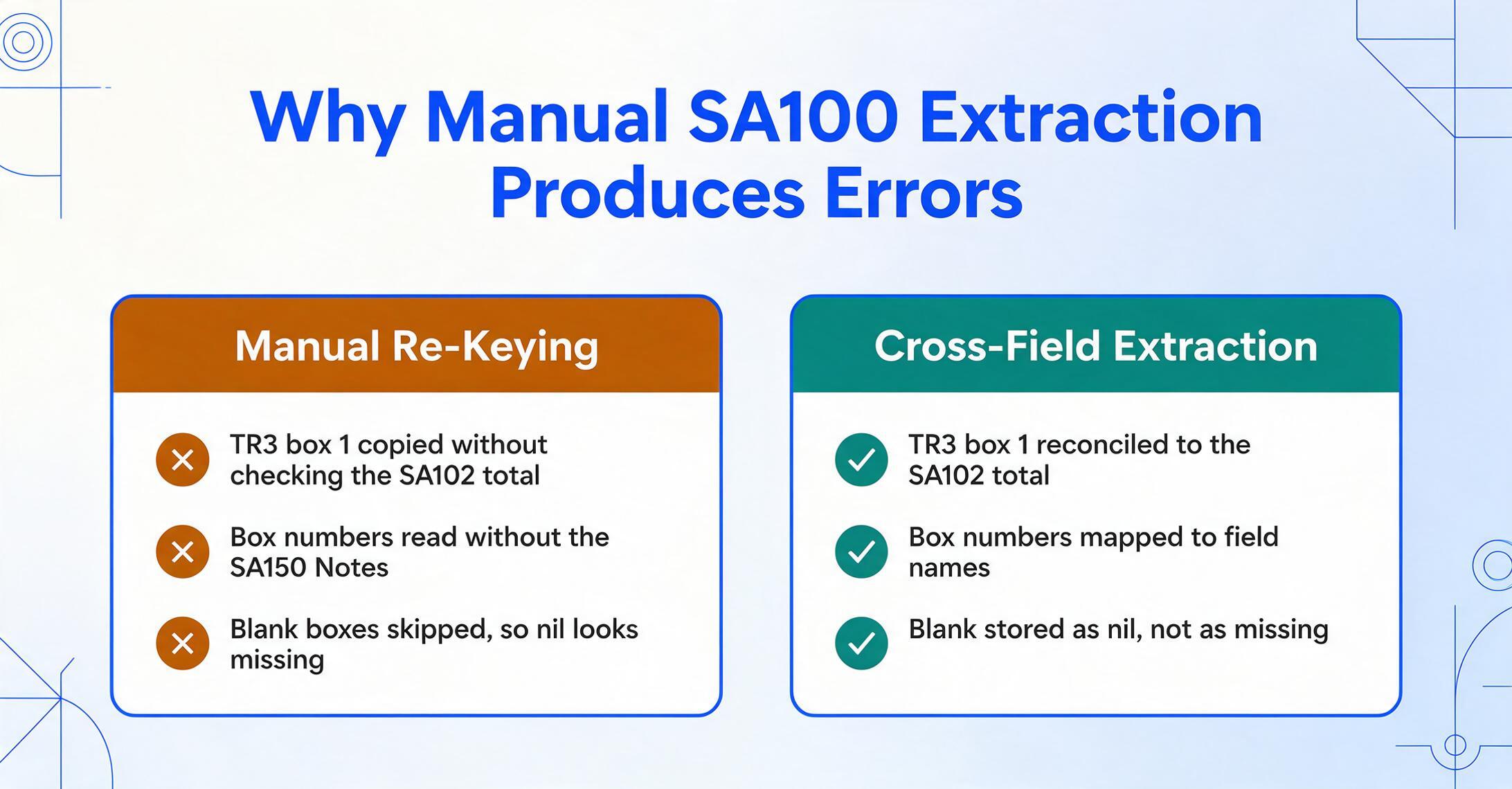
Cross-page reconciliation errors. The figure in TR3 box 1 (employment income) must equal the total from SA102. The figure for self-employment profit must match the bottom line of SA103S/F. A manual transcription of the TR3 number without verifying it against the source supplementary page means any error in the original calculation — or in copying the wrong line — propagates silently into your extracted dataset.
Field-position confusion. The SA100 paper form does not label boxes with the field descriptions that appear in the SA150 Notes. For example, TR4 box 5 is "Gift Aid payments" — but on the physical form, only a box number appears without an explicit label. The person extracting data needs the SA150 Notes open alongside the SA100 to correctly map box numbers to field names. This parallel-reading requirement makes manual extraction vulnerable to transposition errors — especially on supplementary pages where box numbering restarts from 1 on each form.
Nil-field omission. HMRC guidance states: leave a box blank if nothing applies. A blank box is semantically "zero" or "not applicable." Manual extractors commonly skip over blank boxes, producing datasets where "blank" and "not extracted" are indistinguishable — which means a nil-income field looks identical to a field that was accidentally skipped during typing.
These error categories are structural, not carelessness-based. They arise because the SA100 was designed to be completed by a human with HMRC notes in hand, not to be read back by a human extracting data from the result. The solution is not to be more careful — it is to stop treating the SA100 as a set of form fields to be retyped and start treating it as a data structure to be parsed.
SA100 Extraction Workflow: From Paper to Spreadsheet
The extraction workflow follows the same data model we mapped out: identify the supplementary page schema first, then extract the hub form, then the child tables, then reconcile. To see what the finished output looks like without working through every step, our UK SA100 tax return to Excel conversion page shows a completed return converted into a structured workbook.
Step 1: Scan or Locate the Digital SA100
If you hold a paper SA100 (the version HMRC sent back to you), scan it at 200-300 DPI. If you filed online, you can download the PDF version from your HMRC Personal Tax Account or your Self Assessment software (FreeAgent, TaxCalc, QuickBooks all generate downloadable return PDFs). The PDF from HMRC's online system includes all supplementary pages as a single document — which is ideal for extraction.
Do not use a phone photo of a paper SA100 as your extraction source. The box-alignment fields on the SA100 form are small and tightly packed — even slight camera distortion can cause field values to bleed into adjacent boxes in the extraction output. A flatbed scan PDF produces significantly more reliable results than a phone photograph.
Step 2: Define Your Extraction Schema
Before extracting, list the columns you want in your output. The schema depends on which supplementary pages apply, but a baseline SA100-only schema includes:
UTR | Tax Year | Name | NI Number | Employment Income | Tax Deducted (PAYE) | UK Interest | UK Dividends | State Pension | Other Pensions | Gift Aid | Pension Contributions | Total Tax Due | Payments on Account | Balance Payable/Repayable
If SA103S is attached, add: Business Name | Turnover | Total Expenses | Net Profit | CIS Deductions. If SA105 is attached, add: Number of Properties | Total Rents | Property Expenses | Net Property Income.
This is where Custom Column Extraction changes the workflow. Instead of mapping box coordinates to output fields — which breaks when SA100s from different years or different HMRC print layouts vary — you define the field names you want (e.g. "Total Tax Due," "Net Self-Employment Profit") and the AI locates each value by understanding what the field represents, not where it sits on the page. For a document like the SA100 where box positions shift slightly between tax years and where supplementary pages vary by filer, semantic extraction eliminates the per-form template setup that coordinate-based tools require.
Files are processed securely and not stored. Try entering fields like "UTR," "Total Tax Due," or "Net Self-Employment Profit" as column names.
Step 3: Extract Page by Page, Then Reconcile
Process the SA100 in two passes. First pass: extract TR1-TR6 as a single record per tax year. Second pass: extract each supplementary page as a separate record, linked by UTR and tax year. This two-pass approach mirrors the SA100's own data model:
- Pass 1 — Master record: Extract TR1 (UTR, NI, personal details), TR2 (which supplementary pages were filed), the summary figures from TR3-TR6, and the Tax Calculation Summary.
- Pass 2 — Detail records: For each "Yes" on TR2, extract the corresponding supplementary page(s). SA103S gives you the business-level P&L. SA105 gives you property-level income and expenses. SA108 gives you per-asset gain/loss calculations.
After both passes, reconcile: the self-employment profit on SA103S must match what feeds into the Tax Calculation Summary. The rental income on SA105 must match any rental amounts summarised on TR3. If the supplementary page totals do not tie to the summary, one of them was extracted incorrectly — and the reconciliation step catches this before the data is used for any downstream purpose.
Step 4: Validate Cross-Year Consistency
If you are extracting multiple tax years of SA100s — which is the standard scenario for mortgage applications, accountant reviews, or HMRC enquiry responses — validate that the UTR is consistent across years (it should be), that income progression is plausible (a factor-of-ten jump probably means a box was misread), and that the Personal Allowance matches the tax year (the £12,570 allowance has been frozen since 2021/22, so a sharp change in allowance figure signals a data error).
For a more detailed walkthrough of the per-file extraction steps, see our dedicated SA100-to-Excel extraction guide.
Batch Processing: Extracting Data From Multiple SA100s
The individual extraction workflow is designed for a single SA100 return. The real efficiency gain comes when handling multiple returns — the scenario faced by accountants preparing client reviews, landlords managing multiple property entities, or small business owners archiving past years.
Batch processing inverts the workflow. Instead of processing one SA100 return end-to-end and then starting the next, you upload all the returns (or all years) at once, define the extraction schema once, and receive a single spreadsheet where each row is one SA100 return and each column is one extracted field. This produces a dataset where you can sort, filter, and pivot across returns — compare self-employment profit trends across five years, identify which years had capital gains, or isolate returns where Gift Aid was not claimed despite charitable giving appearing in bank records.
The full batch workflow is covered in our guide to batch-processing multiple SA100 returns into one summary spreadsheet. Key principle: the batch output should be a structured, filterable dataset, not a set of individual extractions you then manually combine. The combining step is itself a source of copy-paste errors; the batch process should eliminate it entirely.
Export Options and Accounting Software Integration
Once your SA100 data is extracted and structured, the destination matters as much as the extraction quality. The data needs to land where it is useful.
Excel and CSV
The default outputs — Excel (XLSX) and CSV — cover most use cases. An Excel spreadsheet with one row per SA100 return is immediately usable for:
- Accountant review: Send the spreadsheet alongside the original PDFs. Your accountant can verify key figures against the PDFs without retyping them. If you use FreeAgent, Xero, or QuickBooks, the spreadsheet structure maps naturally to the categories their Self Assessment modules expect.
- Mortgage applications: Lenders typically need SA302 (tax calculation) and Tax Year Overview documents for the last 2-3 years. An extracted spreadsheet with income by category across years gives your broker the figures before HMRC issues the official SA302.
- Tax planning: Side-by-side income across 3-5 years reveals trends — growing self-employment income, declining rental yields, one-off capital gains — that inform decisions about incorporation, pension contributions, or payment-on-account adjustments.
UK Accounting Software Ecosystem
The UK's Self Assessment software landscape is well-developed, with HMRC maintaining an official list of recognised suppliers. The key tools and their SA100 capabilities:
| Software | SA100 Support | Supplementary Pages | MTD ITSA Ready | Best For | Starting Price |
|---|---|---|---|---|---|
| FreeAgent | Direct HMRC filing | SA102, SA103S/F, SA105, SA110 | Yes | Freelancers, contractors, NatWest/RBS customers (free) | Free (NatWest/Mettle) or £19/mo |
| Xero | Via accountant integration | Through partner dashboard | Yes | Scaling businesses, accountant-led | From £16/mo |
| QuickBooks UK | Built-in SA103 | SA103S auto-populated | Yes | Budget-conscious sole traders | From £10/mo |
| Sage Personal Tax | Full SA100 + all supplementary | All schedules supported | Yes (Sage Taxation) | Agents, complex returns | Agent pricing |
| TaxCalc | Full SA100 | All schedules, auto-populates from Xero/QB/FreeAgent | Yes | Individuals and small practices | From £38/return |
| BTCSoftware (BrightTax) | Full SA100 | All schedules, attachments, amendments | Yes | Accountancy practices | Agent pricing |
| GoSimpleTax | Full SA100 | All schedules, integrates with FreeAgent/Xero | Yes | Straightforward returns | From £64.99/return |
Extracted SA100 data is most useful when it feeds into one of these tools. The extraction-produced spreadsheet gives you the figures; the software gives you the filing mechanism and the tax calculation engine that verifies your extraction results against HMRC's own computation.
MTD for ITSA: What Happens to the SA100?
The most significant structural change to SA100 filing since Self Assessment was introduced in 1996 is now underway. Making Tax Digital for Income Tax Self Assessment (MTD for ITSA) does not abolish the SA100 overnight — but it does change who needs to file it and when.
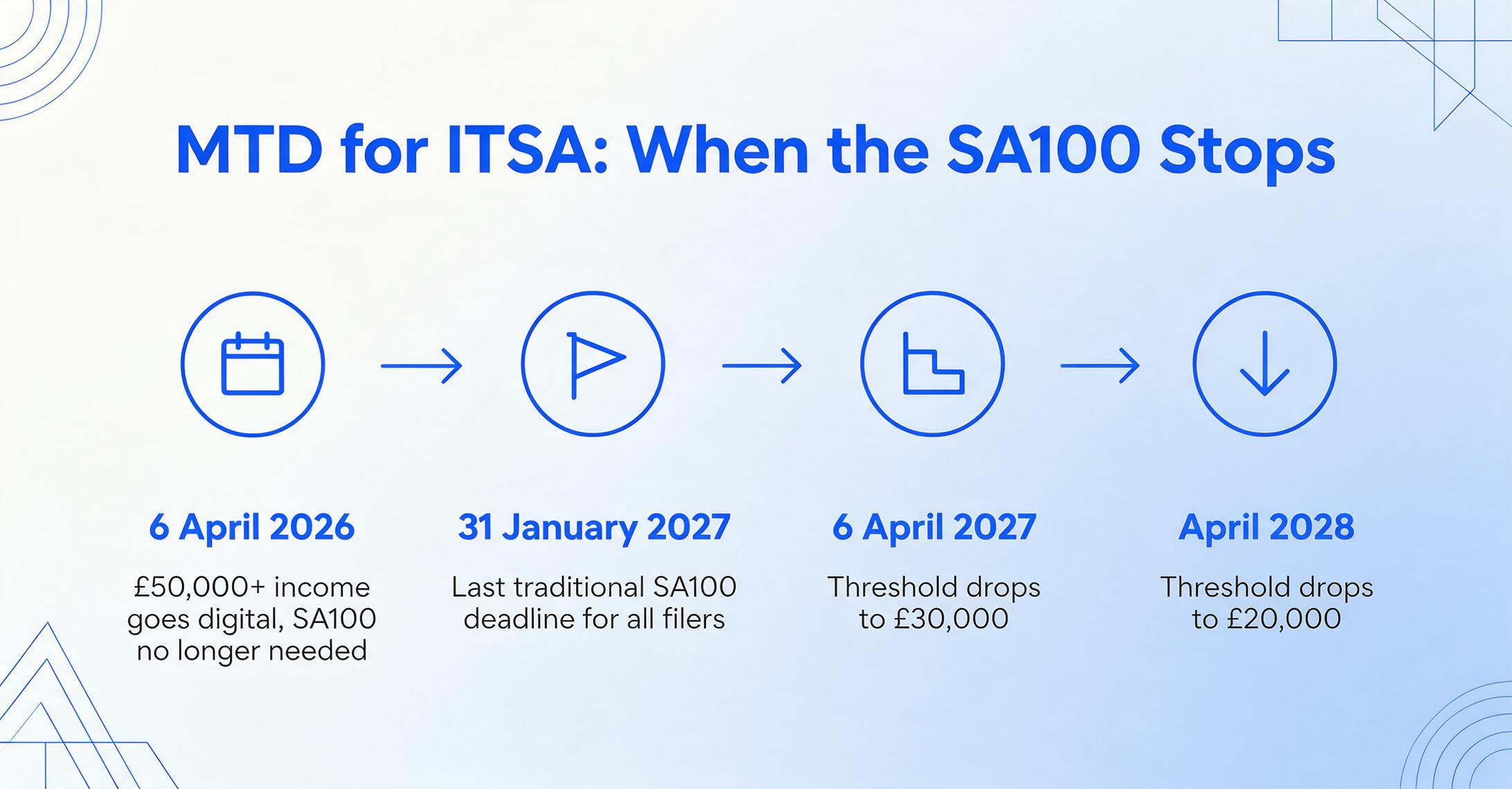
The rollout timeline, as established by HMRC and confirmed by the professional bodies (ICAEW, CIOT, ATT):
| Date | Who is Affected | What Changes |
|---|---|---|
| 6 April 2026 | Sole traders and landlords with gross income over £50,000 (based on 2024/25 return) | Must keep digital records, submit quarterly updates, file final declaration via MTD software. SA100 no longer required for self-employment/property income. |
| 6 April 2027 | Sole traders and landlords with gross income over £30,000 | Second wave — threshold drops from £50,000 to £30,000. |
| April 2028 (projected) | Sole traders and landlords with gross income over £20,000 | Third wave — HMRC's stated ambition to eventually cover all self-employed above the trading allowance (£1,000). |
| 31 January 2027 | All current Self Assessment filers | Last traditional SA100 filing deadline (for 2025/26 tax year). |
What this means for SA100 extraction over the next few years:
- Through January 2027: SA100 extraction remains fully relevant for all Self Assessment filers — 12 million returns will still be filed on the traditional SA100.
- From April 2026 onward: For the first wave of MTD filers (£50,000+), the SA100 is replaced by quarterly digital submissions plus a year-end final declaration. However, these individuals will still need to extract data from their historical SA100s (2024/25 and earlier) for tax planning, accountant handoffs, and mortgage applications. The SA100 does not become irrelevant — it becomes a legacy format that still needs to be extracted for retrospective analysis.
- For those below the thresholds: The SA100 will remain the filing mechanism for the next several years. If you earn under £50,000 (and from 2027, under £30,000) from self-employment and property combined, you will continue to file SA100 through at least 2028.
The shift to quarterly digital submissions under MTD for ITSA actually increases the need for extraction capability. Instead of one annual SA100 to extract from, practitioners and taxpayers will need to process four quarterly update summaries plus a final declaration — five extraction events per year instead of one. The volume of data to be extracted and aggregated goes up; the extraction workflow remains the same.
Sage confirmed in their analysis of the MTD transition that the SA100 as a filing mechanism ends for MTD-mandated taxpayers, but the underlying tax data — income, expenses, reliefs, liabilities — remains the same. The form changes; the data structure does not. For a seasonal perspective on SA100 filing under deadline pressure, see our January 31 deadline survival guide.
Edge Cases and Common Pitfalls
One Person, Two UTRs
A company director who takes both salary and dividends has a personal UTR (for SA100) and the company has a corporate UTR (for CT600). Extracting a corporate UTR from a personal SA100 and filing it on behalf of the company creates a cross-entity data error. Always verify that the UTR on page TR1 matches the taxpayer — the covering letter from HMRC addresses the taxpayer by name and references the same UTR. If the name does not match the person whose data you intend to extract, you have the wrong return.
Scottish Taxpayer Rates
The SA100 is a UK-wide form, but Scotland sets its own income tax rates and bands. For 2025/26, Scottish bands run starter (19%), basic (20%), intermediate (21%), higher (42%), and top (47%) — different rates and thresholds from the rest of the UK. The SA100 tax calculation will reflect these Scottish rates if you are a Scottish taxpayer (determined by where your main residence is). When extracting and comparing SA100s across multiple years or across clients in different UK nations, note that the "total tax due" figure cannot be compared apples-to-apples between a Scottish and a rest-of-UK filer with the same income — the underlying rates differ.
Payments on Account
Payments on account — advance payments towards the next year's tax bill — appear on the Tax Calculation Summary and are due by 31 January and 31 July each year. The total each payment is half of the previous year's tax bill. If your income drops significantly from one year to the next, the payment on account calculated from the previous year will overstate your actual liability. Extracting the payment-on-account figure from the SA100 and treating it as "tax due" for the current year without adjusting for income changes produces a misleading picture. The payment on account is a provisional figure based on the prior year; the actual liability is calculated when the current year's return is filed.
CIS Deductions on SA103
Self-employed workers in the Construction Industry Scheme (CIS) have tax deducted at source by contractors — 20% for registered subcontractors, 30% for unregistered. These deductions appear on SA103 under "CIS deductions suffered" and reduce the final tax bill on the Tax Calculation Summary. Extracting the SA100 main form without extracting the CIS deduction line from SA103S results in a tax liability figure that ignores tax already paid at source — making it appear as though more tax is owed than actually is. For CIS workers, the SA103S extraction is not optional; it is the difference between an overpayment and the correct liability.
Gift Aid Relief Not Claimed
As noted in the TR4 walkthrough, Gift Aid is persistently under-claimed. The SA100 does not automatically populate Gift Aid relief — the taxpayer must enter charitable giving in TR4 box 5. If you extract a SA100 where box 5 is blank but bank statements show regular charitable donations, the extracted figure underestimates the reliefs the taxpayer is entitled to. A responsible extraction workflow flags blank TR4 box 5 as a review item, not as a confirmed zero.
Related UK Tax Document Extraction Guides
The SA100 is one of several UK tax documents that follow a similar hub-and-spoke data model. Our complete guides to related HMRC forms cover the same extraction patterns for different document types:
- UK P45 Tax Form Extraction — extracting leaver data (tax code, YTD pay, YTD tax, NI number) from the four-part P45 for payroll processing.
- UK P60 Tax Certificate Extraction — extracting end-of-year pay and tax summaries from the P60 for mortgage applications, tax refund claims, and employment verification.
Frequently Asked Questions
Can I extract data from a scanned paper SA100?
Yes, but the scan quality directly impacts extraction accuracy. A flatbed scan at 200-300 DPI produces reliable results for all box values. A phone photo of a paper SA100 introduces lens distortion that can cause misalignment with tightly spaced box labels (particularly on TR3, where income fields are tabulated). If you only have a phone camera, hold the phone directly above the page, ensure even lighting (no shadows across boxes), and use a PDF scan app rather than a JPEG photo — PDF scan apps apply perspective correction that JPEG photos do not.
What if my SA100 has handwritten corrections?
Handwritten amendments on a printed SA100 introduce ambiguity: the printed figure, the handwritten correction, and potentially a marginal note from HMRC. An AI-based extraction system will attempt to read both the printed and handwritten values. You should verify that the extracted figure matches what you intended to report (if you made the correction) or what HMRC's final assessment states (if HMRC made the amendment). The extracted data is a reading of the document as it stands — it does not resolve disputes between competing values on the same form.
Does SA100 extraction work for Welsh-language versions?
HMRC publishes the SA100 in both English and Welsh. The field positions and box numbers are identical across both language versions — only the descriptive labels and instructions change. An extraction system that reads values by understanding field semantics rather than by matching English-language labels will handle Welsh SA100s identically. If you have a Welsh SA100 (Ffurflen Dreth Hunanasesiad), no special configuration is needed.
How do I extract data from the HMRC online PDF versus a paper scan?
The HMRC online portal generates a machine-printed PDF with clear box alignments — this is the ideal extraction source. The paper SA100 HMRC posts to you is a carbon-copy-type form that may have less crisp text. Both work, but the online-generated PDF generally produces higher extraction accuracy because there is no scan-quality variable. Download the PDF from your Personal Tax Account before attempting paper-based extraction.
Can I extract data from multiple years of SA100 into one file?
Yes — and this is the standard use case for tax planning and mortgage applications. Upload all returns (each year as a separate file), define the extraction schema with tax year as one of the columns, and the output will be a single spreadsheet where each row is one SA100 year. Validate that the UTR is consistent across rows; a mismatch means a different taxpayer's return was included in the batch.
What fields should I extract for an accountant review?
At minimum: UTR, Tax Year, employment income (box 1), self-employment profit (from SA103), rental income net (from SA105), dividends, total tax due, payments on account, and the balance payable/repayable. Additionally, Gift Aid (TR4 box 5), pension contributions (TR4 boxes 1-4), and Student Loan repayments (TR5) if applicable. If you have capital gains (SA108), extract each disposal's gain/loss separately — aggregated gain does not give your accountant enough detail to verify the return.
Will MTD for ITSA make SA100 extraction obsolete?
No. MTD for ITSA replaces the SA100 filing mechanism for affected taxpayers from April 2026 onward, but historical SA100s (2025/26 and earlier) remain relevant for tax planning, mortgage applications, HMRC enquiries, and accountant due diligence — all of which typically look back 3-6 years. Additionally, taxpayers below the MTD thresholds will continue filing SA100 through at least 2028. The SA100 format has a long tail; extraction capability for it remains necessary well into the 2030s.
Can this handle SA100 returns from tax years before 2020?
Yes. The SA100 form layout has been largely stable for the last decade, with annual updates primarily affecting rate tables and allowance figures in the SA150 Notes, not the box positions on the form itself. A 2018/19 SA100 has the same TR1-TR6 structure as a 2024/25 SA100. The main difference across years is in the supplementary pages — the SA103 short/long threshold was £85,000 (VAT registration threshold) for 2023/24 onward but was lower in earlier years. The extraction fields remain consistent; the threshold for which version of SA103 applies may differ.
Where to Go From Here
Understanding the SA100's data model is the prerequisite to extracting it efficiently. The form's complexity is not an argument for manual re-keying — it is the argument against it. A document structured as a multi-table database across paper should be read by a system that understands cross-field relationships, not by a human transcribing box values one at a time with the SA150 Notes open in another window.
The extraction approach that maps to the SA100's actual structure is the one described throughout this guide: identify the supplementary page schema from TR2, extract the master record (TR1-TR6) and child tables (SA102/SA103/SA105/etc.) as linked records, reconcile the totals, and validate cross-year consistency. This is architecture-aware extraction — it respects the document's own data model instead of treating it as a flat form.
The SA100 will continue to be the definitive record of millions of UK tax positions for years to come. Whether you extract one year for an accountant review or five years to track self-employment income trends, the principle is the same: the data is there. You should not have to type it to get it.