How to Extract SA100 Self Assessment Data
into Excel (2026 Guide)
More than 12 million people file a Self Assessment tax return with His Majesty's Revenue and Customs (HMRC) every year. The SA100 — the main Self Assessment tax return form — is six pages long on its own. If you are self-employed, receive rental income, or hold foreign investments, you likely need one to three supplementary pages on top of that. But when the key figures from those 6–10 pages land in a spreadsheet, they resolve to roughly eight columns: your Unique Taxpayer Reference (UTR), each income category and its gross amount, allowable expenses, net profit, total tax due, payments on account, and the refund or balance owing. The pages describe the same tax return the spreadsheet captures. The gap between them should not take an hour of manual retyping to close.
Key Takeaways
- You pull roughly the same dozen figures from a six-page SA100 into a spreadsheet every January — UTR, income totals, tax due — and copy them cell by cell, year after year since 1996.
- Layout-dependent OCR breaks because HMRC shifts box positions each year, accountant review PDFs render differently from portal downloads, and a phone photo of a paper return has no pixel co-ordinates at all — yet the field names printed on the form never change.
- Define your columns by what each field means — "Total Tax Due," "Payments on Account," "Gift Aid" — not where it sits on the page. One definition extracts data from every SA100 format and every tax year back to 2018-19, including the quarterly Making Tax Digital updates starting April 2026.
What's Inside an SA100 — and Which Numbers Belong in Your Spreadsheet
The SA100 is HMRC's main Self Assessment tax return form. It captures personal details, a summary of your income sources, pension contributions, Gift Aid payments, and your overall tax calculation — everything HMRC needs to determine your tax liability for the tax year running 6 April to 5 April. The full guidance on completing it runs to the SA150 notes, currently 44 pages, but the form itself follows a six-page structure numbered TR1 through TR6.
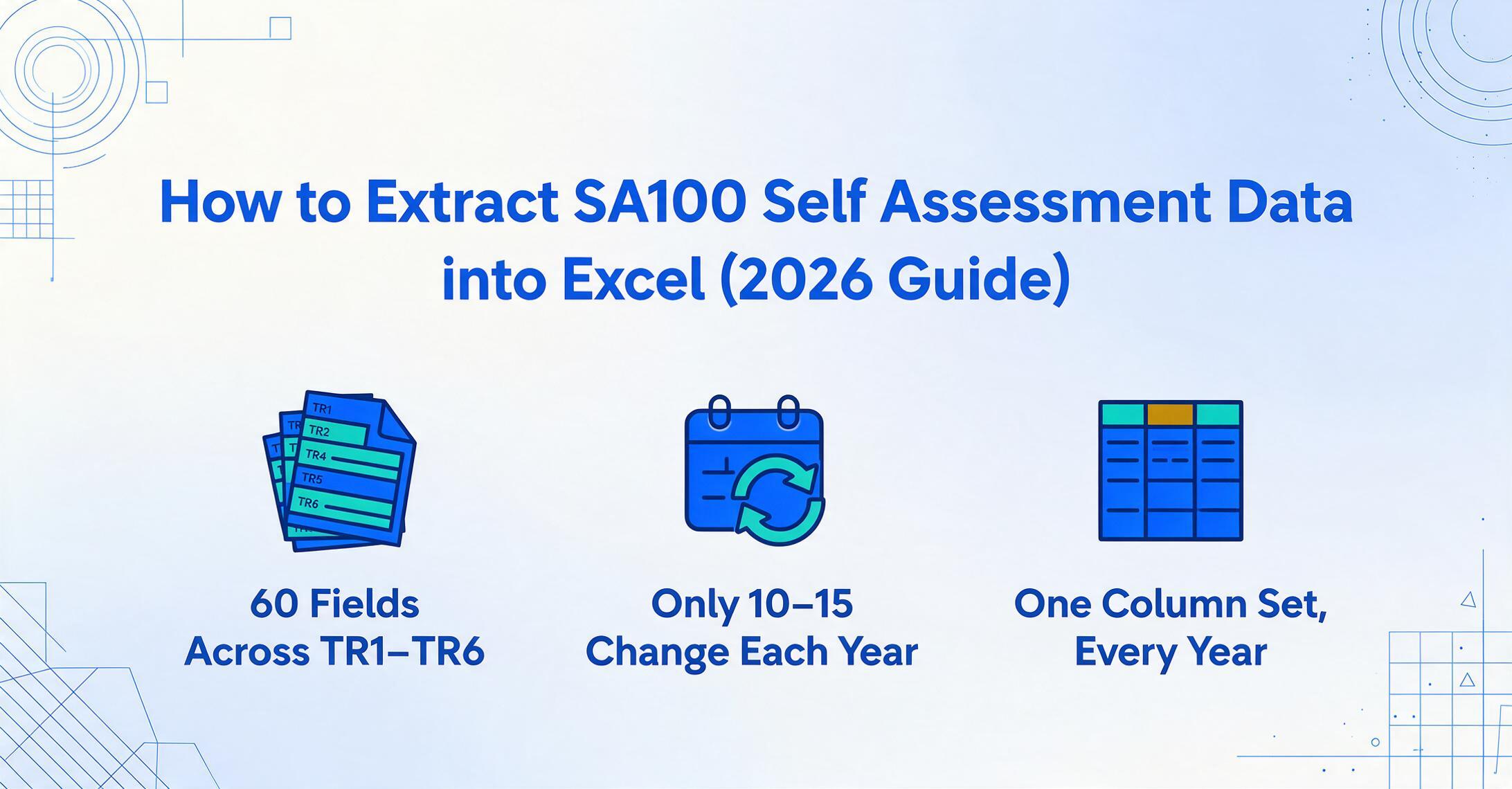
The SA100 carries roughly 60 data fields across TR1–TR6. For most freelancers and small business owners, only 10–15 of those fields are dynamic each year — the rest are personal details, checkbox declarations, and yes/no routing questions that need to be correct but don't change annually. Knowing which fields are the moving parts is what determines whether your spreadsheet captures everything your accountant needs in one column layout, or four.
Identity & Reference Fields
- UTR — your 10-digit Unique Taxpayer Reference. This is the identity key that HMRC uses to match every submission to your tax record. Getting it wrong means your return goes to the wrong account. The UTR is sometimes printed with a 'K' suffix on correspondence; the K itself is not part of the 10-digit format.
- National Insurance Number (NINO) — format two letters, six digits, one suffix letter (e.g. QQ 12 34 56 C). Appears on the TR1 page alongside your UTR and date of birth.
Income Source Figures (TR3)
- UK Interest — taxed and untaxed interest from banks and building societies (boxes 1–2 on TR3).
- UK Dividends — the amount received from UK companies (box 4 on TR3).
- UK Pensions and State Benefits — State Pension, occupational pensions, and taxable benefits (boxes 8–16 on TR3).
- Other UK Income — any income not covered elsewhere or by supplementary pages (boxes 17–19 on TR3).
Tax Reliefs & Adjustments (TR4)
- Pension Contributions — payments to registered pension schemes where basic rate tax relief is claimed at source (box 1 on TR4). The pension provider claims 20% relief; you claim the difference if you are a higher-rate taxpayer.
- Gift Aid Payments — charitable donations made under Gift Aid (box 5 on TR4). Like pension contributions, higher-rate taxpayers can claim back the difference between basic rate and their marginal rate — and this is one of the most commonly missed reliefs on Self Assessment returns.
Tax Calculation & Payment (TR6)
- Total Tax Due — your final tax liability after all income, reliefs, and allowances have been applied.
- Payments on Account — advance payments towards next year's tax bill. If your 2025–26 tax bill was over £1,000 and less than 80% was collected through PAYE, you must make two payments on account: one by 31 January and one by 31 July of the following year, each equal to half of the previous year's liability.
- Refund or Balance Owing — the net amount HMRC owes you or you owe HMRC after accounting for tax deducted at source and payments on account already made.
Those 10–15 fields are what your spreadsheet needs to capture. And that is before supplementary pages enter the picture. If you have self-employment income, the SA103 (short or full, depending on whether turnover exceeds the VAT threshold) adds business income, allowable expenses, capital allowances, and net profit or loss. A property landlord adds the SA105 with rental income, finance costs, repairs, and net property income. A capital gain on shares or property adds the SA108. Each supplementary page adds 5–10 more dynamically changing figures to the same spreadsheet. The SA100 alone may produce 8 columns. A self-employed person with property income may need 15–18 columns that all need to agree with the figures submitted to HMRC. For a page-by-page field reference covering TR1–TR6 and every supplementary form, see our complete guide to UK SA100 data extraction.
Why a spreadsheet at all? Your accountant files the SA100. But you keep the spreadsheet — for your own records, to reconcile against bank statements, to compare year-on-year income and expense trends, and to have a structured record of your tax position if HMRC ever asks. A spreadsheet is not a duplicate of the SA100. It is the working document that the SA100 is filed from.
Why SA100 Data Still Ends Up in Spreadsheets Through Manual Typing
If the SA100 were an API — a structured data feed from HMRC's systems directly into your FreeAgent, Xero, or Excel file — there would be nothing to extract. But the SA100 most self-employed people work with is not a data feed. It is a PDF downloaded from the HMRC online portal, an email attachment from your accountant showing the return they prepared for your review, or — for the 3% who still file on paper — a printed form mailed to HMRC and scanned into your records. Every one of those formats is a visual layout of data, not structured data itself.
Software views of the SA100 make this worse in a way that is specific to Self Assessment. An employee's P60 data is baked into a single format: the tax year-end certificate from one employer, one payroll software. An SA100 self-employed filer's data is assembled from multiple sources — the online HMRC portal aggregates figures from your SA103 self-employment pages, your SA105 property income pages, and any employment income reported on SA102 pages, then renders a calculation that may draw from all of them. The rendered PDF you download from HMRC's portal does not export as a spreadsheet. The PDF your accountant sends for review may use different formatting than the HMRC version. The paper SA100 you filed two years ago and kept for records has no digital data layer at all.
The common thread is that all these formats — HMRC's online portal PDF, accountant-review PDF, scanned paper SA100, supplementary page printouts — carry the same named fields: UTR, employment income, dividend income, rental profit, Gift Aid, total tax due. But they arrange them differently. A template-based OCR tool that expects boxes in fixed positions — the traditional approach to form extraction — fails the moment the layout changes. And in Self Assessment, the layout always changes, because HMRC updates the SA100 form annually and different software providers render it differently.
This is where Custom Column Extraction replaces layout-dependent extraction with something that works across every SA100 format. Instead of telling the tool where the UTR sits on each page layout — co-ordinates, bounding boxes, pixel offsets — you tell it what data you want: "UTR," "Employment Income," "Self-Employment Net Profit," "Total Tax Due," "Payments on Account." The AI reads each SA100 by understanding what each labelled field means, not where it appears on the paper. The same column definition works across HMRC portal PDFs, accountant review copies, and scanned paper returns — because the words "Unique Taxpayer Reference" mean the same thing regardless of which quadrant of the page they occupy.
The extraction principle for SA100: Define your spreadsheet columns once by what each field means — "UTR," "Employment Income Gross," "Self-Employment Net Profit," "Dividends Received," "Gift Aid," "Total Tax Due" — and the AI locates each value by understanding the label semantics, not the layout co-ordinates. A column named "UTR" will extract the 10-digit reference whether it is in the top-left corner (2024 SA100 PDF) or the top-right (2026 SA100 PDF).
Setting Up Your SA100 Extraction: A Reusable Column Definition
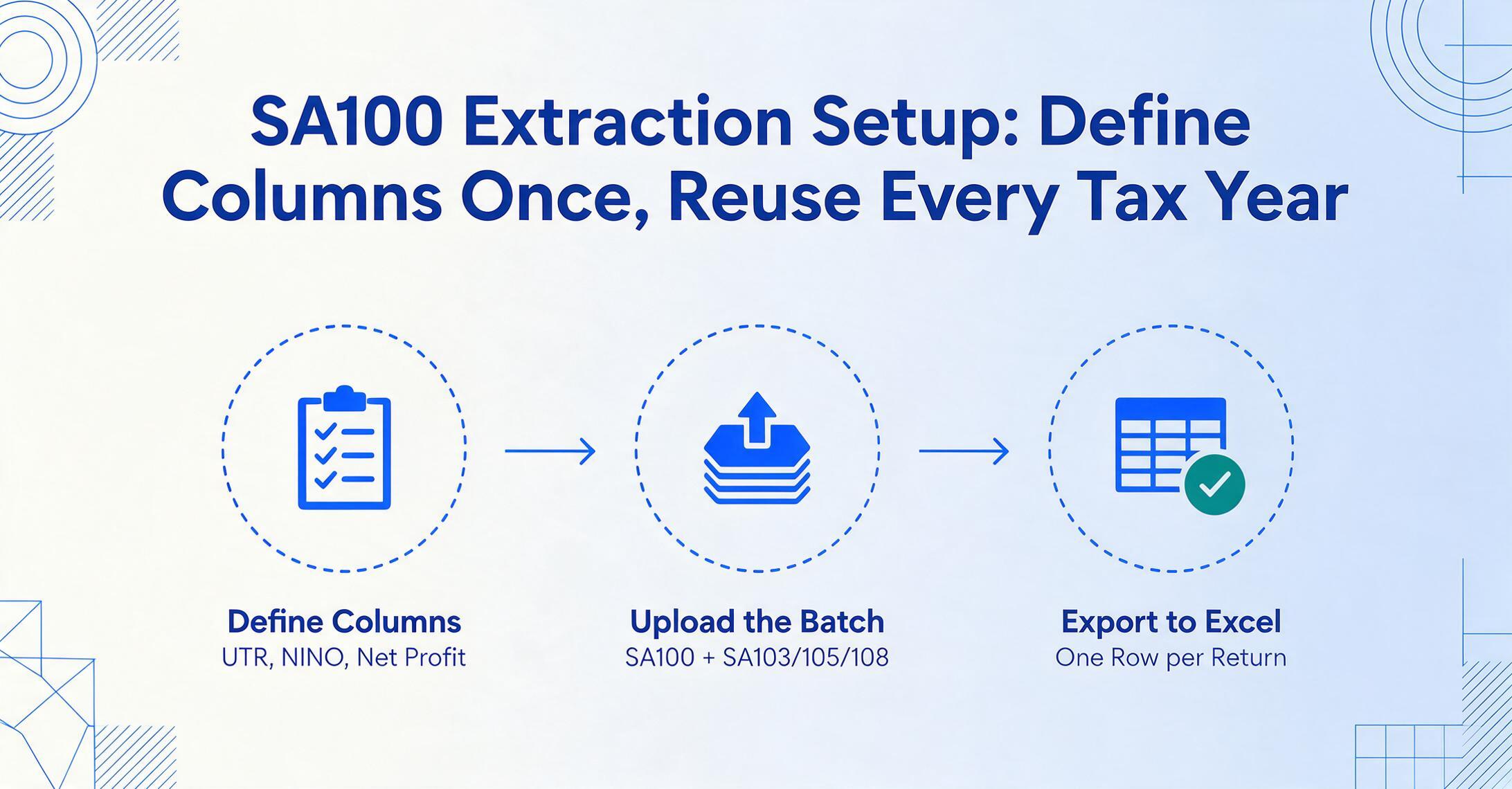
The workflow that replaces manual SA100 transcription has three steps. The configuration step — defining your columns — is what you do once and reuse for every tax year, every SA100 format, and every batch of supplementary pages.
Define your output columns
Type the field names exactly as you want them to appear as spreadsheet column headers. A practical starting set for most self-employed filers is: UTR, NINO, Tax Year, Employment Income, PAYE Tax Deducted, Self-Employment Turnover, Allowable Expenses, Net Profit, Property Income, Dividends Received, UK Interest, Pension Contributions, Gift Aid, Total Tax Due, Payments on Account, Balance Refunded. If your SA100 includes supplementary pages — SA103 for self-employment, SA105 for property income, SA108 for capital gains — you add the fields from those pages to the same column definition. This is Custom Column Extraction: you define the output schema — the columns your spreadsheet needs — and the AI reads the labelled fields on each SA100 page and maps them to your columns by understanding what each field means. The same column definition works across tax years because the SA100 field set is stable; HMRC updates the form layout and labelling annually, but the underlying data fields — UTR, employment income, dividend amounts, Gift Aid — remain the same.
Upload your SA100 PDF — or a whole batch
Drop in the SA100 you downloaded from your HMRC online account. Add the supplementary pages — SA103 for your self-employment income, SA105 for your rental properties, SA108 for that share sale from March — and any accountant review copies you want to cross-reference. Batch processing handles multiple files in a single job: each file is processed independently, and all results merge into one unified spreadsheet. Input formats are flexible: PDF downloads from HMRC's portal, scans of printed paper returns, phone photos of accountant review copies — the AI handles them all. If you are an accountant preparing returns for multiple clients, the same batch allows you to drop 20 clients' SA100s into one upload and get 20 rows in one spreadsheet. For a hands-on preview of the whole flow — uploading a completed SA100 and getting a formatted Excel workbook back — see our UK SA100 tax return to Excel conversion page.
Export and validate
Download the Excel file — one row per SA100, columns in the order you defined. The output includes a source file reference column so you can trace any figure back to the original PDF. Run the validation checks in the section below, flag any outliers worth eyeballing, then send the spreadsheet to your accountant or save it for your own records. The export is also available as CSV for import into FreeAgent or QuickBooks, or as JSON for teams with custom reporting pipelines. For spreadsheets that need to stay in Google Sheets — common in UK accounting practices using shared workbooks for client data — the Google Sheets Add-on writes extracted results directly into the active sheet.
Files are processed securely and not stored.
Three SA100 Extraction Scenarios That Repeat Every Tax Deadline
SA100 extraction does not look the same for everyone who needs it. The following three scenarios cover the most common patterns — and each changes what columns you define and how your output spreadsheet gets used.
The Freelancer Keeping Their Own Tax Records
A freelance graphic designer with one self-employment business, modest dividend income from a stocks and shares ISA, and no property income files an SA100 with one SA103 full self-employment page each year. Their column definition is straightforward: UTR, NINO, Self-Employment Turnover, Allowable Expenses, Net Profit, Dividends Received, Pension Contributions, Gift Aid, Total Tax Due, Payments on Account, Balance Refunded. They extract a single SA100 PDF from their HMRC download — one row of data — and save the spreadsheet alongside the PDF in a tax-year-labelled folder.
This scenario is not high-volume, but it is high-stakes. The freelancer needs the figures to be accurate because the spreadsheet is their only structured record of what they filed. If HMRC opens an enquiry 18 months later, the spreadsheet is what the freelancer pulls up to cross-reference against bank statements and invoices. Extraction removes the transcription errors — mistyped digits, transposed decimals, the wrong payment-on-account figure copied from the wrong box — that make that cross-reference unreliable from the start.
The Accountant Processing Client SA100s at Scale
A small accounting practice serving 80 sole-trader and landlord clients receives SA100s in multiple formats during the December-to-January filing window: HMRC portal PDFs from digital-savvy clients, paper SA100 scans from clients who file by post, email attachments from accountants at previous firms, and PDFs generated by the practice's own tax software showing draft calculations. The practice needs one spreadsheet per client — each with the same column layout — that can be reviewed, cross-referenced against underlying records, and filed with the client's working papers.
The batch extraction workflow handles this naturally. The accountant defines a standard column set once — one that covers the SA100 main form plus the most common supplementary page fields — and processes all 80 clients in one batch upload. Each SA100 (and its attached supplementary pages) becomes one row. Because batch extraction merges results into a single spreadsheet, the accountant gets one Excel workbook with 80 rows, identical columns, ready for review. The practice can also issue a Collection Link — a shareable URL that lets clients upload their SA100 PDFs directly into the practice's processing queue without needing to create an account. The client opens the link, enters a verification code, and drops the file — and it lands in the accountant's queue automatically.
Making Tax Digital: Preparing for Quarterly Updates
From 6 April 2026, the most significant change to UK Self Assessment since its introduction in 1996 takes effect. Making Tax Digital for Income Tax Self Assessment (MTD for ITSA) becomes mandatory for sole traders and landlords with qualifying income — combined self-employment and property income — above £50,000. Roughly 780,000 taxpayers fall into this first wave. The threshold drops to £30,000 in April 2027, bringing in another 970,000, and to £20,000 in April 2028.
Under MTD for ITSA, the annual SA100 filing becomes a year-round digital reporting cycle: four quarterly updates summarising income and expenses, followed by a final year-end declaration — the functional equivalent of the SA100 — submitted by 31 January. Each quarterly update has a fixed deadline: 7 August, 7 November, 7 February, and 7 May. The old workflow — collect 12 months of receipts in a shoebox, tally them in January, file once a year — no longer meets compliance requirements. If your filing remains annual — you are below the MTD thresholds — the SA100 January deadline checklist covers the same gathering work against the 31 January deadline.
The practical consequence for extraction is that the SA100 becomes a quarterly exercise, not an annual cram session. Instead of extracting one SA100 PDF in January and being done, the freelancer or accountant extracts four quarterly income-and-expense summaries plus one year-end SA100. Having a reusable column definition — the same one used for the annual SA100, adapted to include quarterly cumulative totals — means the extraction step takes seconds per quarter rather than the hours that manual transcription would demand four times a year.
The HMRC guidance on MTD for ITSA confirms that MTD-compatible software is required — but the data still originates from documents: bank statements, invoices, receipts, payslips, and the SA100 itself. Extraction bridges the gap between the document you receive and the digital record MTD requires you to maintain.
Validating Your Extracted SA100 Data Before It Goes to Your Accountant
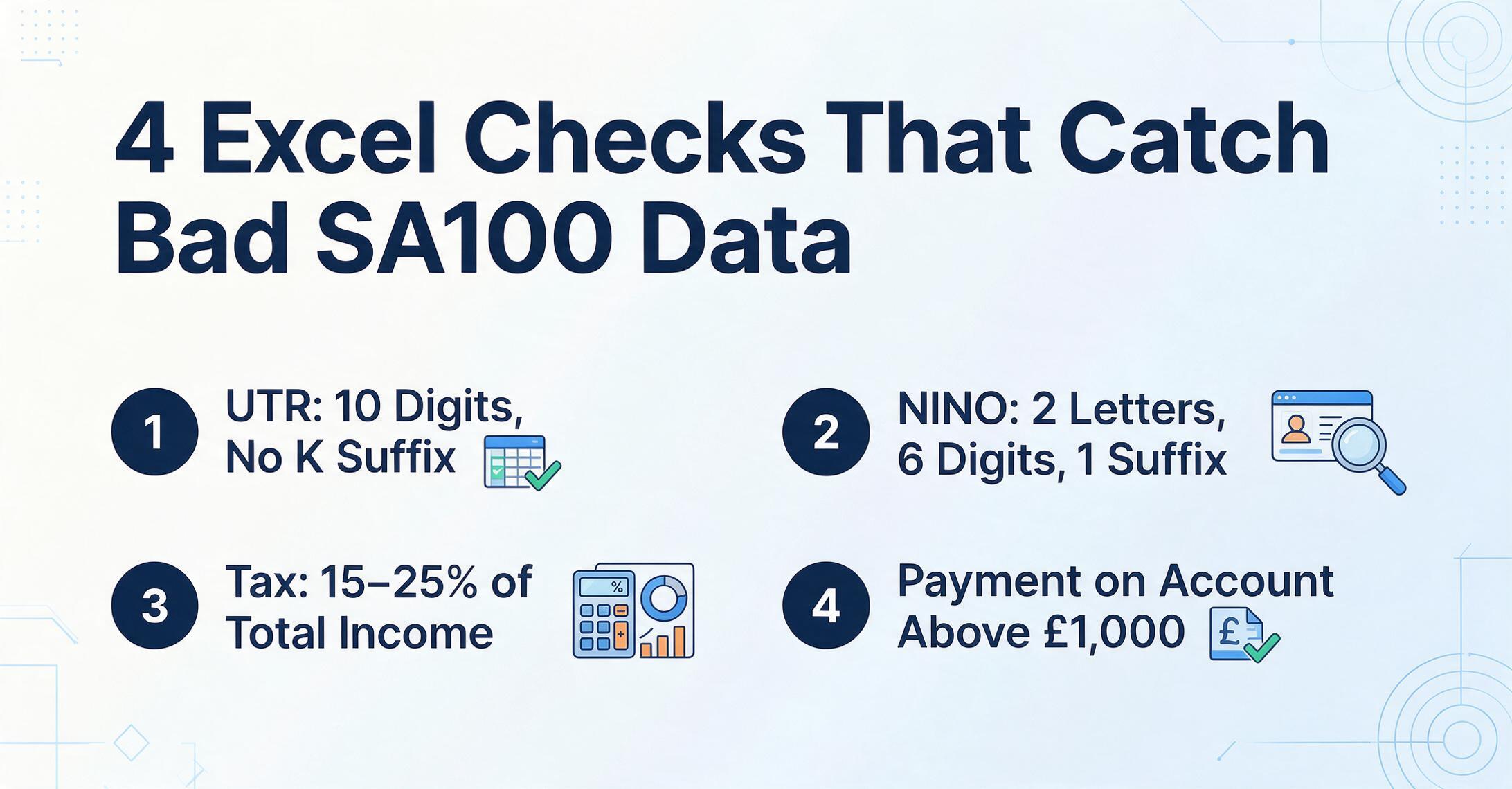
Even at high extraction accuracy, the data you send to your accountant or file with HMRC deserves a sanity pass. The checks below are SA100-specific and run column by column in Excel. They are shape checks — designed to surface the handful of rows worth eyeballing against the source SA100 — not full audits.
| Check | What to Look For | Excel Formula (row 2, drag down) |
|---|---|---|
| UTR format | Exactly 10 digits. A common extraction or transcription error is omitting a leading zero (turning 0123456789 into 123456789), which HMRC will reject. If a 'K' suffix exists on the source document, it is part of HMRC's correspondence formatting, not the UTR itself — the extracted value should be 10 digits without the K. | =AND(LEN(A2)=10,ISNUMBER(VALUE(A2))) — flags non-conforming rows |
| NINO format | Two letters, six digits, one suffix letter (A, B, C, or D). Invalid prefix letters: D, F, I, Q, U, V as first character; O as second character. | =AND(LEN(B2)=9,NOT(ISERROR(SEARCH("??######?",""&B2)))) — flags format violations |
| Tax-to-income proportionality | For basic-rate taxpayers, total tax due should be roughly 15–25% of total income. Rows outside that band warrant a closer look — not automatically wrong (higher rate, large Gift Aid, and loss reliefs all shift this ratio legitimately), but worth verifying against the source. | =AND(C2/D2>0.1,C2/D2<0.3) — conditional formatting for outliers |
| Payment on account consistency | If total tax due exceeds £1,000 and less than 80% was collected at source, payments on account should be present and equal to roughly half of total tax due. Missing payments on account when tax due is above the £1,000 threshold is a common extraction gap. | =IF(E2>1000,AND(F2>0,G2>0),"N/A") — flag empty POA cells when tax >£1,000 |
| Net profit direction | If self-employment turnover is populated, net profit should be a positive number or zero. A negative net profit is a loss — legitimate but less common. Flag all negative values for manual confirmation against the source SA103 page. | =IF(AND(H2>0,I2<0),"FLAG","") — flag profit direction mismatch |
| Gift Aid — gross not net | Gift Aid on the SA100 is the grossed-up amount (donation + basic rate relief). If you donated £80 to a charity, the SA100 shows £100 (£80 + £20 basic rate relief). An extracted figure of £80 rather than £100 understates the relief available. Cross-reference against your charity receipts. | Manual cross-reference; no formula can detect this — flag any Gift Aid figure that looks exactly like a round number of £80, £160, £240 (common net donation amounts) |
The value of a validation pass on extracted SA100 data is that it takes seconds per row rather than minutes. You are checking shape, not re-reading every figure on every page of a six-page form. A column of 10 rows — one per tax year since 2016 — takes under a minute to scan with these formulas applied as conditional formats. The one or two flagged rows get manual review against the source PDF, and the rest proceed directly into your records or your accountant's inbox.
SA100 vs P60 and P45: UK Tax Forms That Share a Spreadsheet
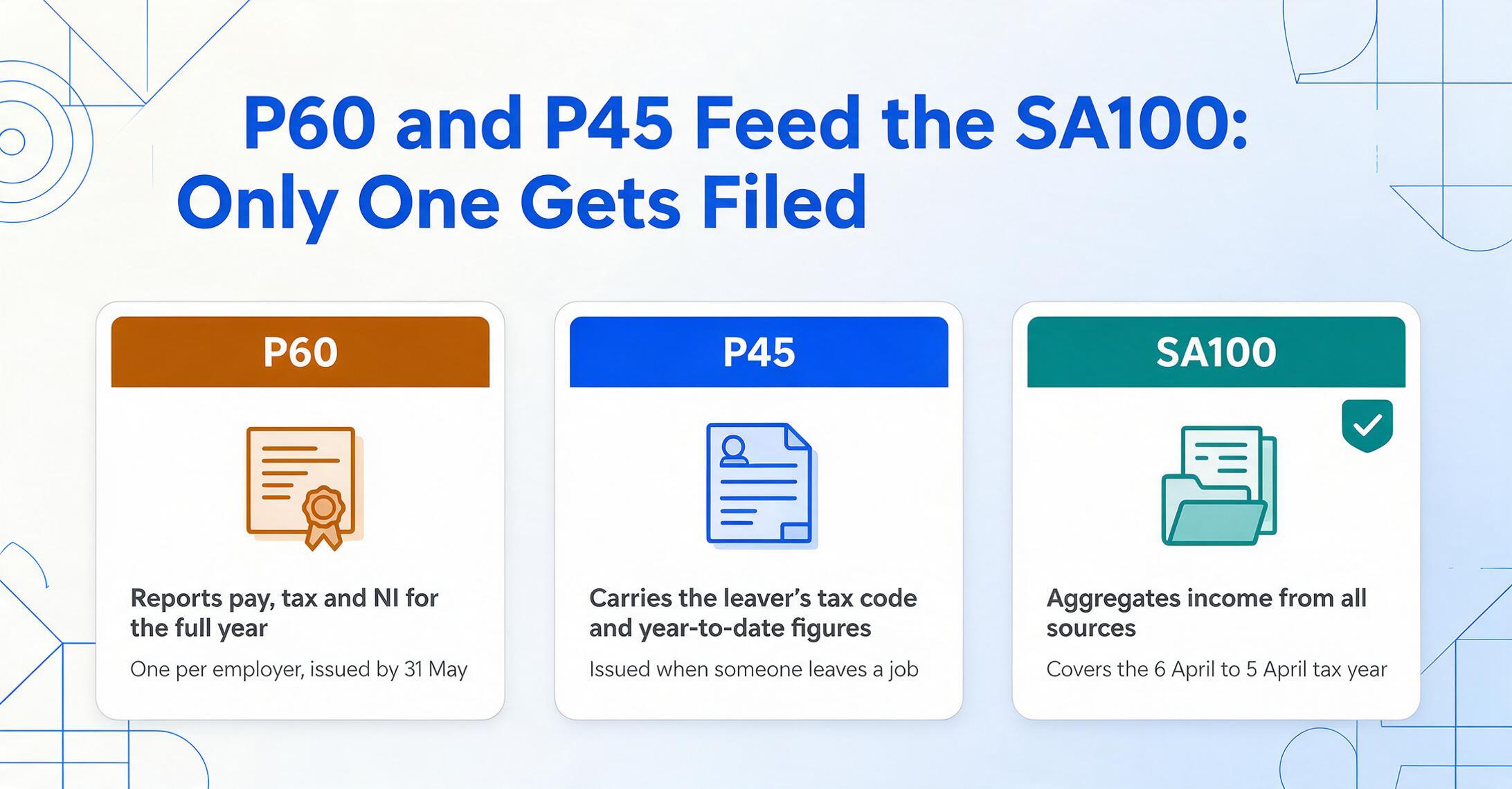
The SA100 is one of three major HMRC tax documents that UK self-employed workers and payroll professionals handle at different points in the tax year. Each serves a different purpose, carries different fields, and enters a spreadsheet at a different time — but all three benefit from the same extraction approach.
A P60 (End of Year Certificate) reports an employee's total pay, tax deducted, and National Insurance contributions for the full tax year — one certificate per employer, issued by 31 May each year. A P45 (Details of Employee Leaving Work) carries the leaver's tax code, year-to-date pay and tax figures, and student loan deduction status — issued when someone leaves a job and needed by the new employer to set up payroll correctly. The SA100 aggregates income from all sources — employment (where P60 and P45 figures feed into the employment page), self-employment, property, dividends, and more — into a single tax calculation.
The practical relationship is that a self-employed person who also has employment income needs three documents to complete their SA100: the P60 from their employer (to verify the employment income figure), any P45s from jobs left mid-year, and the SA100 itself (to file the return). Each document feeds a different part of the same spreadsheet.
For payroll professionals who handle both P60 and P45 extraction alongside Self Assessment data, see our guides to extracting P60 data into Excel for payroll reconciliation, extracting P45 leaver data for new starter processing, and the complete guide to P45 extraction for payroll teams. For practices handling P60 batches on behalf of multiple employer clients, the batch P60 audit spreadsheet guide covers the multi-employer reconciliation workflow.
FAQ
Can I extract data from a paper SA100 — the one I filed by post or that HMRC sent back?
Yes. The AI handles scanned or photographed paper SA100s as long as the text on the form is legible to a human eye. This covers the common scenario where a self-employed person files on paper (deadline 31 October — three months earlier than online), receives a printed copy back from HMRC, or retains a scanned copy from a previous tax year. The extraction reads field labels ("Total Tax Due," "Payments on Account") the same way on a scanned paper form as on a digital PDF — the field names are identical regardless of the physical medium.
What about supplementary pages — SA103, SA105, SA108? Do I extract those separately?
Extract them together in the same batch with the SA100. Upload your SA100 PDF plus your SA103 (self-employment), SA105 (property income), or SA108 (capital gains) pages as a single batch, and define columns that span all the documents in the set. The AI reads across all pages and populates the fields that exist on each. A column named "Rental Income" will only fill on rows where SA105 pages are present; on rows where no property income is declared, that cell remains blank — which is the correct behaviour for an optional supplementary page.
Can I extract SA100s from previous tax years — 2022–23, 2023–24?
Yes. HMRC's SA100 field set is structurally stable across tax years — the same fields appear on every SA100 going back to at least 2018–19, with only minor annual updates (threshold values, new supplementary page additions, box numbering changes). A column definition built for the 2025–26 SA100 will extract figures from a 2022–23 SA100 without modification. Include "Tax Year" as a column to distinguish rows from different years in the same spreadsheet — the tax year appears as printed text on the first page of every SA100.
Can it read handwritten corrections or annotations on my SA100?
The AI handles machine-printed and digitally generated SA100 fields with high accuracy. Handwritten annotations — your accountant's pencilled corrections on a draft copy, your own margin notes, adjustments written next to a printed figure — are read with lower confidence. Treat handwritten values on an otherwise printed SA100 as flags for manual verification. The standard printed fields on the same form will extract correctly alongside any handwritten segments. If you are processing a draft SA100 covered in hand-marked changes, consider asking your accountant for a clean PDF after those changes are incorporated.
Does the extraction work with the SA100 from the HMRC online portal, or only paper forms?
It works with both — and with accountant-generated PDFs, third-party tax software exports, and phone photos of printed paper forms. The HMRC online portal generates a PDF of your completed SA100 when you submit or save a draft. That PDF is a digital document with machine-readable text — the AI reads it the same way it reads any other PDF. The portal view also includes the tax calculation summary (SA302), which you can extract alongside the SA100 to cross-reference the figures HMRC has on file against your own records.
Is my SA100 data secure during extraction?
SA100s contain sensitive personal data — your UTR, NINO, income figures, tax liability, and bank details for refunds. A responsible extraction platform encrypts files in transit and at rest, does not use uploaded documents to train AI models, and automatically deletes source files within a defined retention window after processing. If you are evaluating extraction tools for Self Assessment data, confirm these security commitments before uploading any tax documents. This is particularly important when the document contains your bank sort code and account number for HMRC refund payments.
Can the extracted SA100 data go directly into FreeAgent, QuickBooks, or Xero?
The extracted Excel (XLSX) or CSV file can be imported into most UK accounting software, though the import process varies by platform. FreeAgent supports CSV import for bulk transactions. QuickBooks Online imports CSV for certain data types. Xero offers CSV import for contacts, invoices, and bills. For the SA100 data specifically — income and expense summaries, tax calculations — the spreadsheet serves as a structured working paper that feeds into your software's tax preparation module, rather than as a direct API export. The value is that you have one spreadsheet with every figure your accountant or tax software needs, correctly labelled and validated, rather than scattered across multiple PDFs and emails.
I am below the £50,000 MTD threshold. Does this extraction workflow still apply to me?
Yes. Even if MTD for ITSA does not mandate quarterly digital reporting for you yet — the threshold starts at £50,000 from April 2026 and drops to £30,000 in April 2027 — the annual SA100 filing obligation remains. Extracting SA100 data into a spreadsheet is useful today for record keeping, accountant review, and year-on-year comparison. And when the MTD threshold eventually captures your income level, the column definition and extraction workflow you already use for annual SA100s becomes the foundation for quarterly income and expense summaries — you are building the digital record-keeping habit before it becomes a regulatory requirement.
Your SA100 has the same fields every year and should produce the same spreadsheet columns every year. Define them once, and let the extraction do the work that manual typing has been getting wrong since April 1996.
Extract Your First SA100No sign-up required to test on sample files. Secure processing with automatic file deletion.