80 SA100s, One Spreadsheet
How to Handle Tax Season Without Retyping
More than 11 million Self Assessment tax returns are filed in the UK each year. Fifty-nine percent of them — roughly 6.6 million — are submitted by agents: accountants, tax advisers, and bookkeepers acting on behalf of their clients. A small practice handling 200 returns per season, with an average fee of £450 per SA100, is running a viable business — but not if two partners spend January nights retyping the same ten fields from 200 different PDFs. The filing step is automated: TaxCalc, BTCSoftware, FreeAgent, and IRIS each submit returns to HMRC's Self Assessment for Agents online service in seconds. The bottleneck is upstream — in the eight weeks between October information requests and January's final push, when ten data points from each client's SA100 need to land in a single summary spreadsheet that tells you at a glance who still needs what, which clients owe payments on account, and whether anyone's UTR is missing entirely.
Key Takeaways
- Retyping ten fields from eighty SA100s takes at least two hours and forty minutes — before any tax advisory work begins.
- Template-based extraction needs one reference layout per software — and your clients send SA100s generated by five different products, plus scanned paper returns.
- Define output columns — UTR, income, tax due — once, and the extraction reads by meaning, not by pixel position on a reference page.
When One SA100 Becomes 80: Why Tax Season Is a Data Aggregation Problem
Processing a single SA100 is a solved problem. You open the PDF — whether it is the six-page HMRC form downloaded from a client's Personal Tax Account or a software-generated version from TaxCalc — and you find the fields you need. The main return carries roughly 60 data points across pages TR1 through TR6, but for most freelancers and small business owners the moving parts are a consistent set: UTR, each income category and its gross amount, allowable expenses, total tax due, payments on account, and the resulting balance. Extracting those 10–15 figures from a single SA100 takes attention, not advanced tooling.
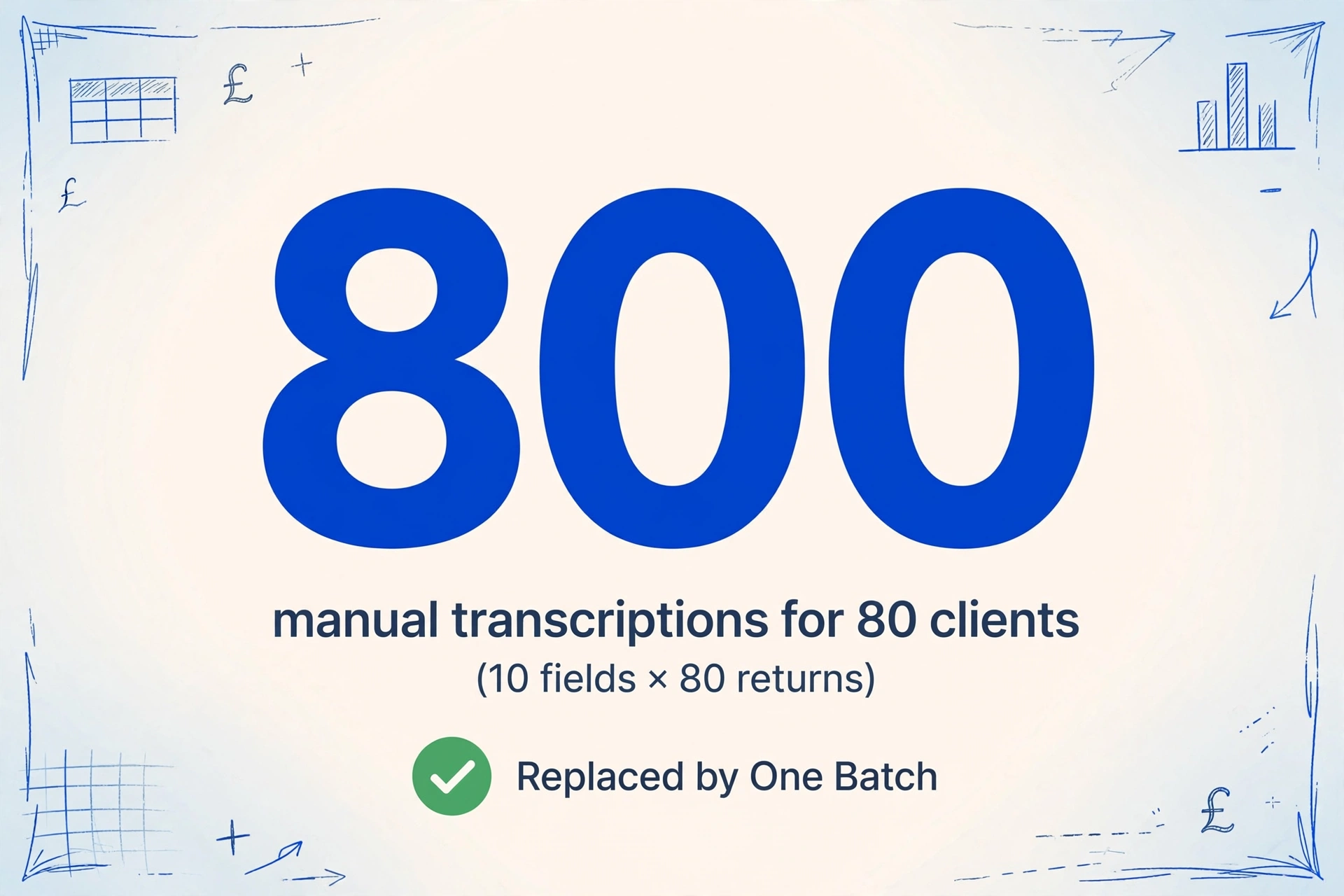
The problem appears the moment you stop processing one return and start processing the practice's entire client list. Eighty clients. Same ten fields each. Same process repeated 800 times — open the file, locate the figures, type them into a spreadsheet row. At two minutes per return for a practised accountant who already knows where every box sits on the page, that is roughly two hours and forty minutes of pure transcription. In practice, it is more: the downloads folder contains SA100s from five different software outputs and three scanned paper copies, each with a slightly different layout. Every layout switch costs five seconds of visual re-orientation before you can start typing. Across 80 returns, that re-orientation alone burns six and a half minutes of dead time. Multiply by every small practice in the UK doing the same thing and you begin to see why, according to capacity planning data from UK accounting firms, 60–70% of SA100 preparation workload compresses into the final eight weeks before the 31 January deadline — not because the work cannot be started earlier, but because the manual aggregation step does not scale.
The core inefficiency in batch SA100 processing is not that reading a single return takes too long. It is that the same ten data points need to be located, verified, and transcribed 80 times — and every transcription is an opportunity for a wrong UTR, a misplaced income figure, or a tax calculation that references last year's values by mistake.
Three structural problems emerge at 80-return scale that do not exist at single-return scale. None of them are fixed by faster typing.
1. Every SA100 looks different depending on where it came from
A client who files through FreeAgent produces a PDF layout that differs from a client whose accountant uses TaxCalc, which differs from an HMRC portal download, which differs from a scanned paper return the client posted in a brown envelope in December. To a person transcribing manually, each source format requires a visual re-scan — locating where the UTR, income boxes, and tax calculation sit on this particular rendering before typing anything. The field names on the form are identical across all of them. Their positions on the page are not.
2. The UTR is an identity key — but only if it makes it into the spreadsheet every time
The Unique Taxpayer Reference — a 10-digit number that HMRC uses to link every submission to the correct tax record — is the only field that ties a spreadsheet row to a specific client, a specific SA100 return, and a specific tax year. If you transcribe 80 UTRs and mistype one — a 7 for a 1, a transposed pair of digits — the entire row is orphaned. It points to a taxpayer that does not exist or, worse, to someone else's account. Without a UTR column in the spreadsheet, cross-referencing a summary figure back to its source document means opening 80 PDFs one by one and scanning for a matching value. With a UTR column, it means Ctrl+F.
3. Exception handling at batch scale kills throughput
In a batch of 80 SA100s, six to eight will be edge cases. A landlord client who filed SA105 (UK property) alongside the main return, whose rental income and property expenses need to be captured in separate columns that do not apply to the other 74 clients. A client with a K-suffixed UTR on correspondence — the K is not part of the 10-digit reference but appears on HMRC letters and confuses anyone transcribing it into a spreadsheet. A director client whose SA100 includes employment income via SA102 alongside self-employment income via SA103S, meaning the "Total Self-Employment Income" column in your summary sheet needs to be split or annotated. Each edge case stops a manual workflow: you set down the keyboard, investigate, resolve, resume. At 80-return scale, the interruptions are the workflow.
The Column Schema That Makes 80 Returns Collapse into One Spreadsheet
The single most important decision in a batch SA100 workflow is the column design — and the first rule of column design at batch scale is that every row must be traceable to exactly one client and exactly one tax year. A spreadsheet with a column for "Total Tax Due" and a value of £8,742 in row 47, but no column identifying whose SA100 produced that value, is a spreadsheet that creates work rather than eliminating it. Under an HMRC compliance check, an inspector can ask to see the source document for any figure in your reconciliation. If you cannot locate the client record within five seconds, the spreadsheet has failed its primary purpose.
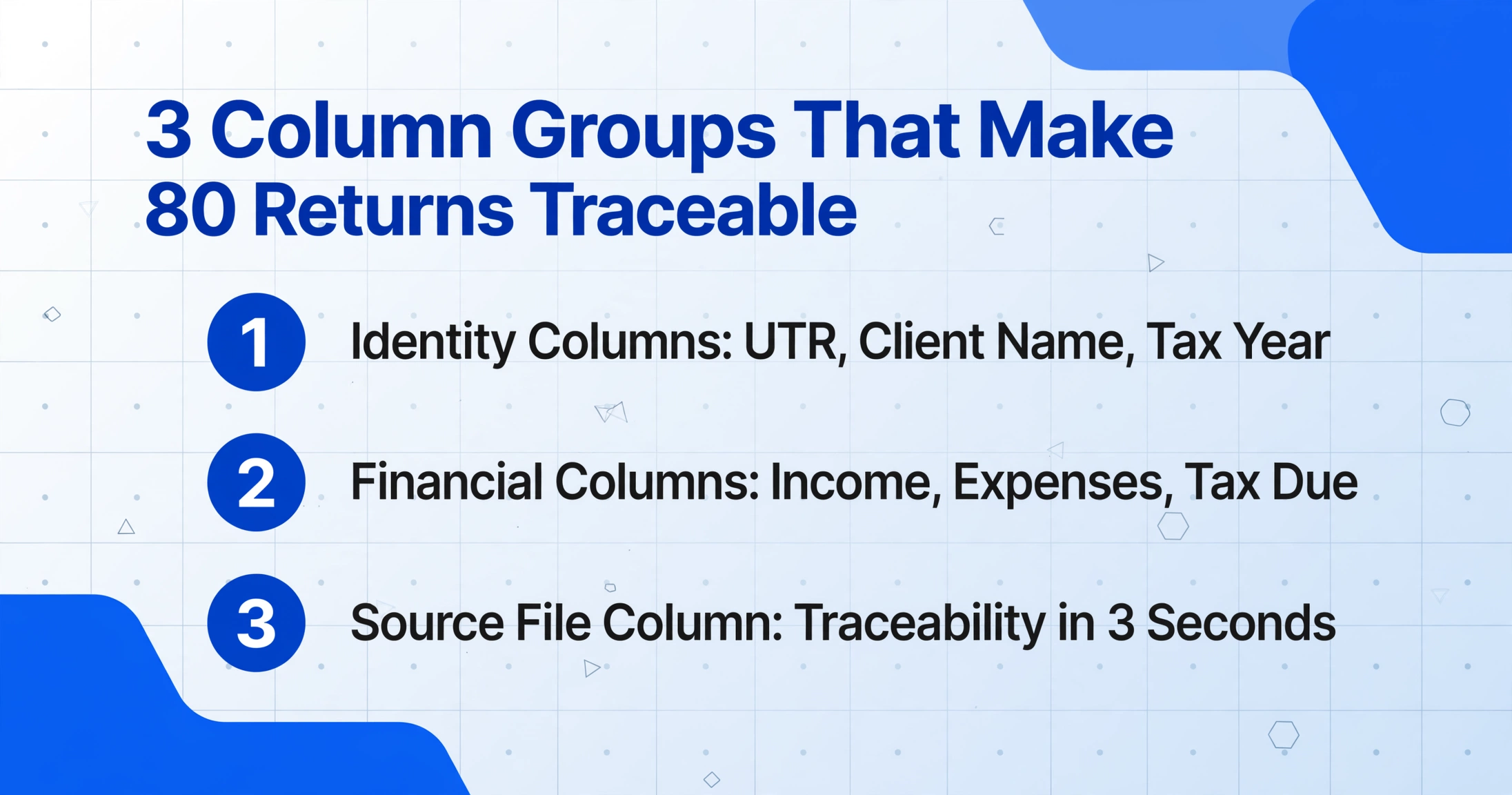
A column schema that serves both tax season tracking and compliance traceability organises into three groups. The structure is the same one that works for batch P60 payroll auditing and monthly P45 leaver database building — because the core requirement — one row per document, one identity key per row, one set of financial columns — is document-agnostic.
Identity Columns
- UTR — 10-digit Unique Taxpayer Reference. The non-negotiable primary key. Every row gets one, no exceptions. Enter it as 10 digits without the K suffix.
- Client Name — extracted from the SA100's personal details section (TR1). Serves as a human-readable cross-check against the UTR.
- Tax Year — the year ending 5 April (e.g. 2026 for the 2025–26 return). Essential for multi-year archiving.
Financial Columns
- Total Self-Employment Income — from SA103S/SA103F supplementary pages, if applicable
- UK Property Income — from SA105, if applicable
- UK Interest & Dividends — from TR3, boxes 1–4
- Total Income Received — the pre-relief sum across all income sources
- Allowable Expenses — trading expenses + property expenses
- Total Tax Due — from TR6, final tax liability
Verification Columns
- Payments on Account — the advance payment amounts for next year, from TR6
- Balance Owing or Repayment Due — the net position after all deductions and payments
- Supplementary Pages Used — which SA102/SA103/SA105 pages accompany this return. Tells you at a glance whether this client has property, employment, or self-employment income
- Source File — the filename of the original PDF, for one-click audit traceability
A client who is a sole trader with no property and no employment income will have zeros or blanks in the UK Property Income and Employment Income columns. A landlord client with no self-employment income will show the inverse. The schema does not require every column to populate for every client — it requires that every client's data has a column to land in. Design the columns once for the full range of income types your practice encounters, and let the extraction populate only what applies to each return.
What makes this approach fundamentally different from template-based data entry is that you define the output you want — the column names — rather than defining where each value sits on each version of the SA100. This is Custom Column Extraction: you type the column headings you want in your summary spreadsheet, and the AI locates each value on each document by understanding what "Total Tax Due" means semantically — not by memorising that it sits in box 18 on page TR6 of the 2025–26 TaxCalc rendering. The same column definitions extract data from a FreeAgent PDF, an HMRC portal download, a BTCSoftware output, and a scanned paper return. For a deeper walkthrough of the individual fields on a UK SA100 — which boxes map to which income categories, how the supplementary pages fit together, and what each field means in a tax context — start with the single-SA100 extraction guide. For the full field-by-field reference across TR1–TR6 and every supplementary page, see our complete guide to UK SA100 data extraction. This article picks up where that one leaves off: what changes when you stop extracting one return at a time and start treating the entire client list as a single dataset.
TaxCalc Isn't FreeAgent Isn't a Portal Download: Why Layout Doesn't Matter at Batch Scale
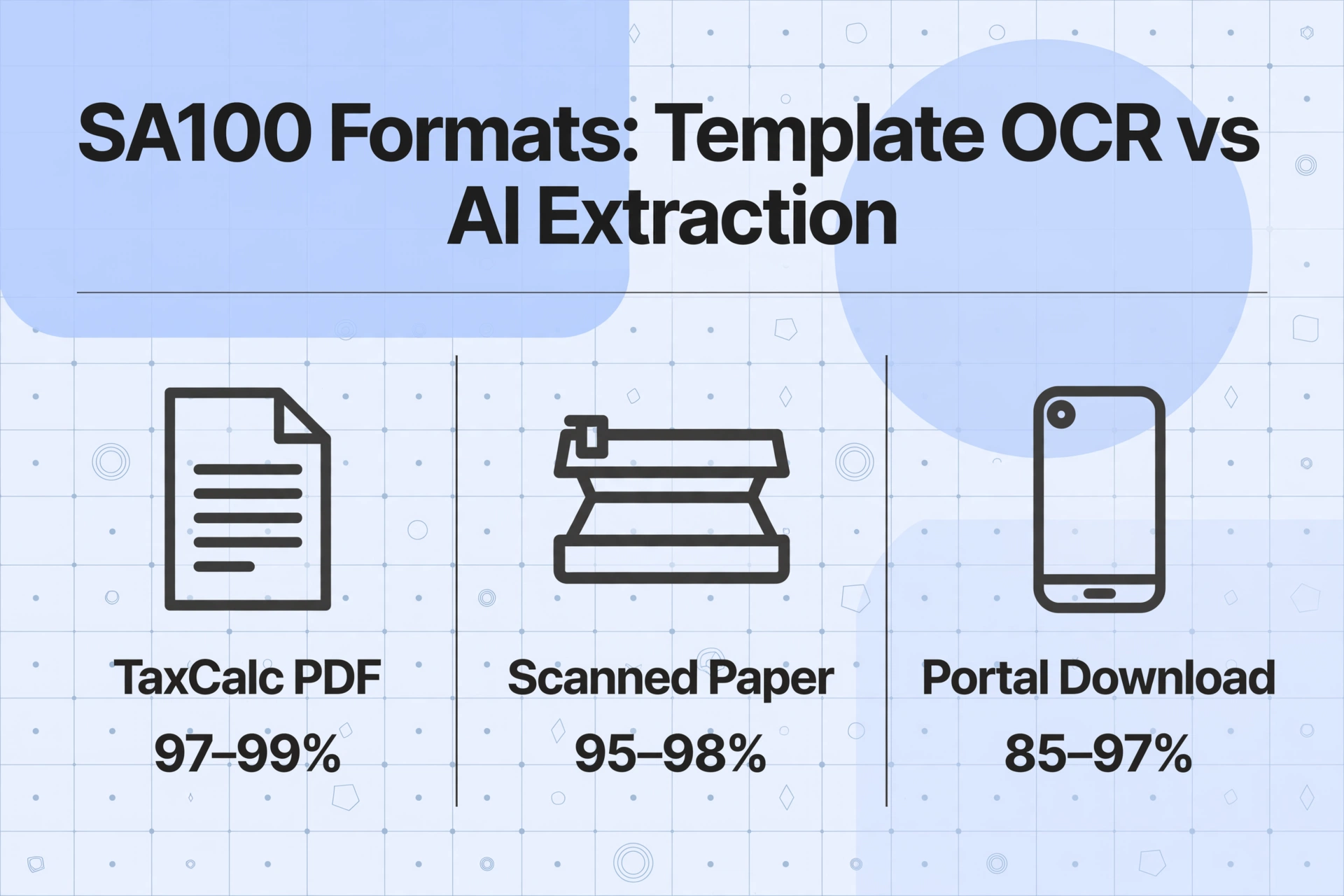
HMRC does not specify a single visual format for SA100 returns. It mandates that certain fields appear — UTR, income categories, reliefs, tax calculation — but every commercial software supplier and every filing route renders the form differently. An SA100 generated by TaxCalc places the UTR and NINO in a compact header block with employer and bank details aligned right. A FreeAgent-generated SA100 spaces the income sections across more pages with larger type. An HMRC portal download — the PDF that a client receives after filing online — uses the government's standard form layout with numbered boxes in a grid. A scanned paper return from a client who insisted on doing it by hand arrives as a phone photo of a crumpled six-page form, with UTR and supplementary page figures scattered across a 150-DPI image that has no pixel co-ordinates at all.
Traditional template-based extraction — where you draw rectangles around fields on a reference SA100 and the tool reads whatever text falls inside those zones — cannot handle this. A template trained on a TaxCalc PDF will misread a FreeAgent PDF because the UTR box is 40 pixels higher and 80 pixels to the right. A template trained on the HMRC portal layout will fail entirely on a scanned paper return where the form is slightly rotated and the printed grid lines are bleeding into the fillable boxes. Five different SA100 layouts from five different sources means five templates to create and maintain — and that is before HMRC revises the form layout for the next tax year, or before a client sends their return in a format you have never seen before.
Layout-independent extraction sidesteps the template problem by reading the document for meaning rather than position. The extraction does not ask "what text is sitting in the rectangle at co-ordinates (420, 680)?" — it asks "where on this page is the 10-digit number labelled Unique Taxpayer Reference?" A TaxCalc PDF, a FreeAgent PDF, an HMRC portal download, and a scanned paper return from a sole trader in Leeds all answer that question differently in terms of pixel position, but identically in terms of semantic content. One column definition. Four SA100 formats. Same UTR in the output spreadsheet.
This semantic approach changes what is possible at batch scale. When you do not need to group returns by source format before processing — all the TaxCalc ones first with Template A, then all the FreeAgent ones with Template B — you can drop all 80 PDFs into one batch, regardless of origin. The extraction runs across the full set, populates the identity columns and financial columns from each return, and produces a single merged spreadsheet. It is the difference between sorting 80 envelopes by colour before opening them, and opening all 80 at once because the letter opener works on every colour. For a concrete example of the final output shape, our UK SA100 tax return to Excel conversion page shows a single return converted into the same row-per-return workbook the batch workflow produces at 80× scale.
From Upload to Audit-Ready Spreadsheet: The Batch Workflow in Practice
With the column schema defined and the multi-format problem handled by layout-independent extraction, the batch workflow itself reduces to three repeatable steps that sit between the moment your client sends their SA100 and the moment your tax software receives clean, verified data.
1Name the source files for instant row-to-client traceability
A naming convention that survives a compliance review six months later: ClientSurname_UTR_TaxYear_SA100.pdf. For example, Patel_1234567890_2026_SA100.pdf. The filename tells you everything you need to know about a spreadsheet row — who the client is, which UTR it maps to, which tax year — before you open the file. When your output spreadsheet has the Source File column populated by the extraction itself, clicking any figure in the summary table leads you to the original PDF in under three seconds.
2Upload the full batch and let the same column definitions extract from every format
Drop all 80 files — TaxCalc PDFs, FreeAgent outputs, portal downloads, scanned paper returns — into one upload queue. The extraction processes them in parallel, applying the same column schema to every file. A return from a client with only self-employment income populates the Self-Employment Income and Expenses columns while leaving the UK Property Income column blank. A return from a landlord client populates the opposite set. The schema handles both — no pre-sorting, no per-client configuration, no template switching between uploads.
3Export the merged spreadsheet and validate the rows that matter most
Export to a single Excel file where each row is one client's SA100. Sort by Total Tax Due to see your highest-liability clients at the top of the sheet. Sort by UTR to match against your client list and spot any missing returns. Filter the Supplementary Pages Used column to isolate landlord clients who need property-specific tax planning. The spreadsheet becomes your tax season dashboard — and because every row carries its source filename, any figure that needs verification is one click away from the original PDF.
Files are processed securely and not stored.
There is a subtle but important consequence of this workflow that does not become apparent until you have run it across two or three tax seasons. When you use the same column definitions year after year — UTR, income categories, tax due, payments on account — each year's batch export stacks on top of the previous years' in the same spreadsheet format. A client's row from 2026 sits above their row from 2025, which sits above their row from 2024. The UTR column ties them together. Suddenly, without any additional effort, you have a multi-year view of every client's tax position: whether their self-employment income is rising or falling, whether their payments on account have jumped, whether they entered a new income category this year that was absent last year. No one designed this longitudinal view. It emerged from the column schema being stable across tax years — a side effect of batch processing done right.
What Batch SA100 Processing Won't Solve — and What It Will
No extraction tool replaces the professional judgement of a qualified accountant reviewing a client's tax position. The numbers it extracts from an SA100 are exactly what is printed on the return — it does not know whether the client declared income from three rental properties but forgot to report the fourth, whether the self-employment expenses figure includes capital items that should be treated as capital allowances rather than revenue deductions, or whether a high-income client's Gift Aid declarations are consistent with the charitable donations they discussed in the January meeting. These are tax advisory questions that sit above the data layer. The extraction solves the layer below them: getting the data out of the PDF and into a format where you can ask those questions at scale.
Similarly, batch extraction does not submit returns to HMRC. The Self Assessment for Agents online service requires commercial software — TaxCalc, BTCSoftware, IRIS, and the other suppliers on HMRC's recognised commercial software list — to file returns on behalf of clients. The batch extraction sits upstream of that filing step. It turns 80 PDFs into one structured spreadsheet containing the exact values that will be entered into the tax software. The filing step uses the data; the extraction step produces it. The two are complementary, not competing.
What batch SA100 extraction will solve is the step that currently consumes most of January: the manual transcription of ten data points per return across 80 returns. That step — opening PDFs, locating fields, typing them into a spreadsheet, switching layouts between FreeAgent and TaxCalc and HMRC portal — accounts for the majority of the 60–70% workload compression that UK accounting firms report in the run-up to the 31 January deadline. The extraction does not eliminate the season. It removes the largest single block of non-advisory, non-billable time from it — and that block, across a small practice with 200 SA100 returns, is measured in days, not hours.
Looking ahead, Making Tax Digital for Income Tax (MTD ITSA) will increase the filing frequency from one annual return to four quarterly updates plus a final declaration — a sixfold increase in submissions per client — starting April 2026 for those with income over £50,000 and April 2027 for those over £30,000. The bottleneck shifts from annual to quarterly, but the underlying problem remains the same: extracting the same fields from the same documents, more often. A batch workflow designed now handles both annual and quarterly cadences without structural change — the column schema stays the same; only the frequency of uploads changes.
The Chartered Institute of Taxation (CIOT) and the Institute of Chartered Accountants in England and Wales (ICAEW), which together set the professional standards for UK tax practice under the Professional Conduct in Relation to Taxation (PCRT), both emphasise the importance of accurate data handling in tax return preparation. The PCRT does not mandate how data enters a return — only that the return is complete, accurate, and filed on time. An extraction that produces a spreadsheet with a traceable UTR in every row, timestamped source filenames, and a consistent column schema across all clients is a compliance asset, not a compliance risk.
Frequently Asked Questions
Does batch SA100 extraction replace the need for tax filing software?
No. The extraction produces structured data in a spreadsheet — it does not submit returns to HMRC. You still need HMRC-recognised commercial software (TaxCalc, BTCSoftware, FreeAgent, IRIS, or any supplier on the HMRC commercial software list) to file the returns. The extraction eliminates the retyping step between receiving the SA100 PDF and having the data ready to enter into your filing software. The two tools perform different jobs in the same workflow.
Can it handle scanned paper SA100 returns — the kind clients post in January?
Yes. Layout-independent extraction reads text based on meaning, not position, so a scanned paper return — even one photographed on a phone at slightly less than flat — is treated the same as a TaxCalc-generated PDF. The AI identifies "Total Tax Due" by understanding what the field label says, not by checking its pixel co-ordinates against a reference template. As with any document capture, image quality affects accuracy: a crisp 300-DPI scan performs better than a shadowed phone photo taken at an angle, and the SA100's small-print supplementary page figures may require a closer review on lower-quality scans. But the extraction does not fail simply because the format is different from the one you trained a template on — because there is no template to begin with.
What happens if a client's SA100 is missing a field — for example, they have no property income?
The extraction column remains blank for that row. A client with no UK property income will have an empty cell in the "UK Property Income" column of your summary spreadsheet. The column schema is designed to accommodate the full range of income types across your client base — individual returns populate only the columns relevant to them. This is a feature, not a bug: blank cells tell you at a glance which clients are sole traders with no additional income sources, which makes portfolio-level analysis faster than scrolling through pages of identical PDFs.
Will SA100 extraction still work when Making Tax Digital for Income Tax becomes mandatory?
Yes. MTD ITSA changes how and how often income data is reported to HMRC — quarterly updates replace the single annual return — but it does not eliminate the SA100 form as a source document. The SA100 continues to serve as the annual final declaration under MTD, and the supplementary pages (SA103S, SA105, SA102) remain the reporting vehicles for self-employment, property, and employment income. A batch extraction workflow designed around the SA100's field structure continues to extract those fields whether the filing frequency is annual or quarterly. The column schema stays stable — only the upload cadence changes.
How do I verify that the extracted figures are correct before entering them into my tax software?
The spreadsheet's own structure supports this. Sort the output by UTR to match against your client list — any missing UTRs are immediately visible. Spot-check rows where the Total Tax Due exceeds £10,000 or where the Payments on Account figure is zero but the Total Tax Due exceeds £1,000 (which would normally trigger payment on account obligations). The Source File column lets you open the original PDF in one click for any row that warrants a closer look. For practices governed by ICAEW or ACCA quality control standards, this spreadsheet becomes part of the working papers — showing that each client's figures were captured, reviewed, and linked to a source document.
The Real Measure of a Tax Season: How Many Times You Touch the Same Data
The time pressure that UK accounting practices feel between October and January is real — 6.6 million agent-filed returns each year, compressed into a window that narrows to a point at 31 January. But the pressure is not caused by the filing step. TaxCalc submits an SA100 to HMRC in under ten seconds. The pressure comes from the step that no one talks about: the 800 manual transcriptions that happen in the weeks before filing, when ten figures from 80 different PDFs need to find their way into cells on a spreadsheet that no tax software generates automatically.
Batch SA100 extraction does not change the number of returns your practice handles. It changes how many times you retype the same field from a different PDF. The summary spreadsheet that comes out the other side — 80 rows, each traceable to a client, a UTR, a tax year, and a source file — is not just a time saver for this January. It is a template for every January after it. The column schema stays the same. The filenames follow the same convention. The spreadsheet from 2027 stacks on top of 2026, which stacks on top of 2025 — and what started as a batch processing shortcut becomes a multi-year client tax archive that no one had to build by hand.
No sign-up. Files processed securely and not stored.