Why Post-Extraction Data Errors Are
Worse Than Most Teams Realize
The bottleneck in document extraction isn't getting data into a spreadsheet. The AI that reads 42 line items from a supplier invoice in six seconds has already solved that problem. The bottleneck is catching the errors that don't look like errors — the totals that are off by exactly the last row, the column of dates sitting where invoice numbers should be, the blank cells where dollar amounts appeared on the page. These errors have no warning light. They feed into your ERP, your month-end reports, your supplier payment runs, and nobody spots them until a reconciliation breaks two weeks later.
Key Takeaways
- At 99% field accuracy, roughly one in seven invoices in your batch carries a silent data error — and your ERP will import every single one without a warning.
- Format validation catches syntax but is blind to relationships between cells — a subtotal that doesn't match the sum of its line items passes every automated check, and tracing that gap during reconciliation costs three to five times the overpayment itself.
- 30 seconds of mechanical verification after extraction catches all seven error classes before they reach your ERP — no new tools, just five checks that close the gap between "the cells look fine" and "the numbers actually add up."
Totals That Don't Sum: The Error Nobody Thinks to Check
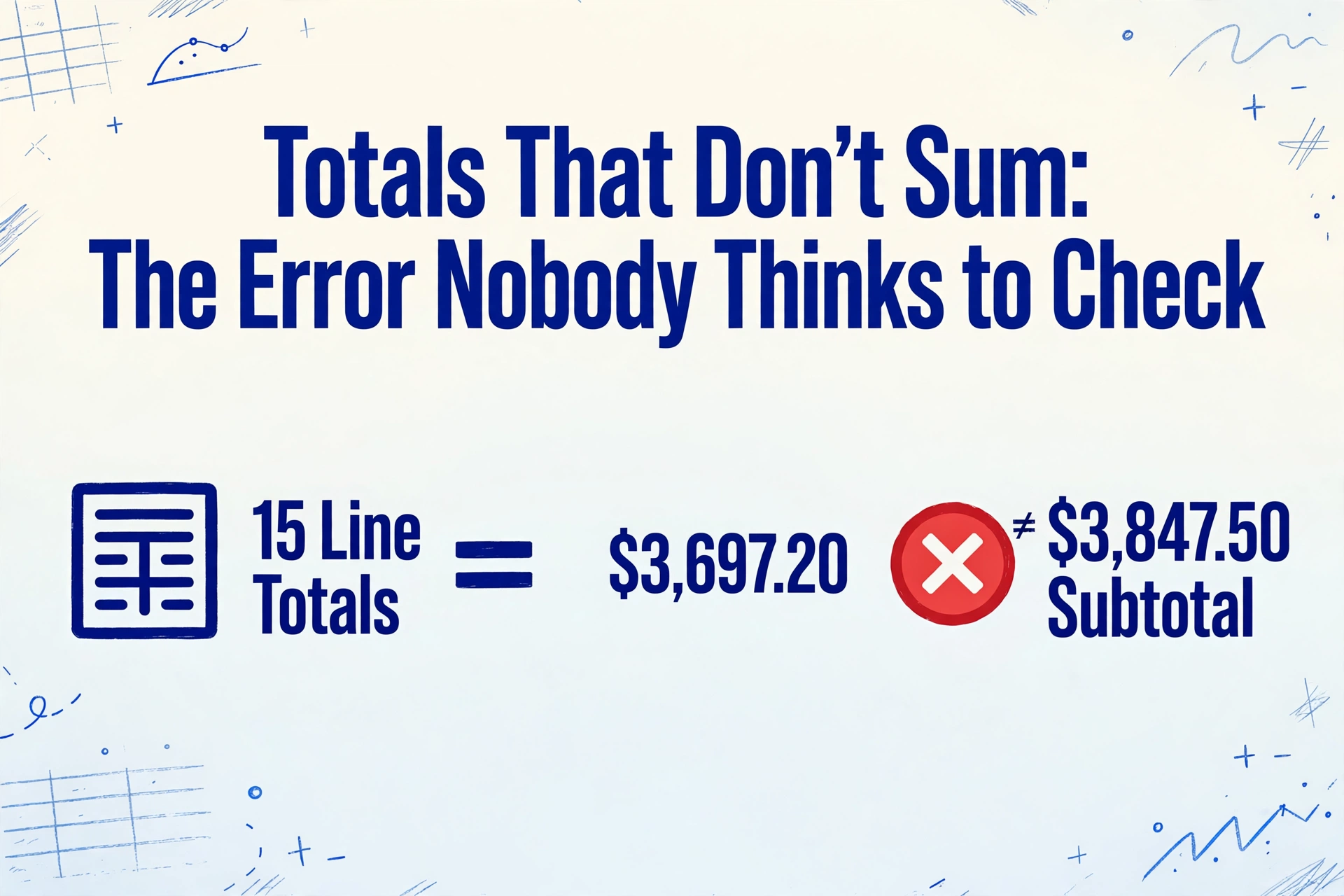
The most common post-extraction error is also the most invisible. An invoice arrives from a plumbing supplier — three pages, 15 line items, a subtotal of $3,847.50, $307.80 in tax, a grand total of $4,155.30. The AI reads every line correctly. Quantity: 12. Unit price: $47.25. Line total: $567.00. All fifteen line totals are correctly extracted. The subtotal is correctly extracted at $3,847.50. The grand total is correctly extracted at $4,155.30. Every individual value on the spreadsheet looks right. But nobody has verified that the fifteen line totals actually sum to $3,847.50. In this particular case, they sum to $3,697.20 — exactly one line item short.
This is the signature of a post-extraction error: every cell looks correct in isolation, but the relationships between cells are broken. The AI extracted each field independently — it read "Qty: 12" and "Unit Price: $47.25" and "Line Total: $567.00" as separate facts on the page. It did not compute the relationship between them. That is not a flaw in the AI. It is the nature of semantic extraction: the model reads what is written, not what should logically follow.
The line item that didn't make it into the total happened to be on the page turn — row 11 of 15, printed at the very bottom of page two, with the rest of the table continuing on page three. The AI correctly read row 11's data. It correctly read rows 12 through 15. But when the output was assembled into a spreadsheet, the subtotal cell became a static extracted value — not a SUM formula referencing the rows above it. The discrepancy between $3,847.50 (extracted subtotal) and $3,697.20 (actual sum of line totals) sat in the spreadsheet for three weeks until the AP clerk noticed the supplier's statement showed a different balance.
Why it happens. Extraction tools output static values, not formulas. The subtotal field on the invoice is a number the AI reads, not a computation it performs. If a line item is mis-extracted — missing the decimal, duplicated, or omitted entirely — the subtotal value extracted from the page won't match what the line items actually add up to. But nothing in the extraction process flags this mismatch. The tool completed successfully. The output looks normal. The error exists only in the gap between what the line items sum to and what the total field says — a gap that no automated check fills.
How to catch it. After extraction, dedicate one check pass to arithmetic closure: sum all line totals and compare the result against the extracted subtotal. Do the same for tax — multiply the subtotal by the stated tax rate and compare against the extracted tax amount. If the two numbers differ by more than a rounding tolerance, flag the document. This is a 10-second check per invoice that catches the most common class of post-extraction error before it enters your AP system. The QA checklist for extracted document data covers this verification step in detail, along with the full verification workflow.
Missing Rows: When 15 Becomes 14 and the Difference Is One Supplier Payment
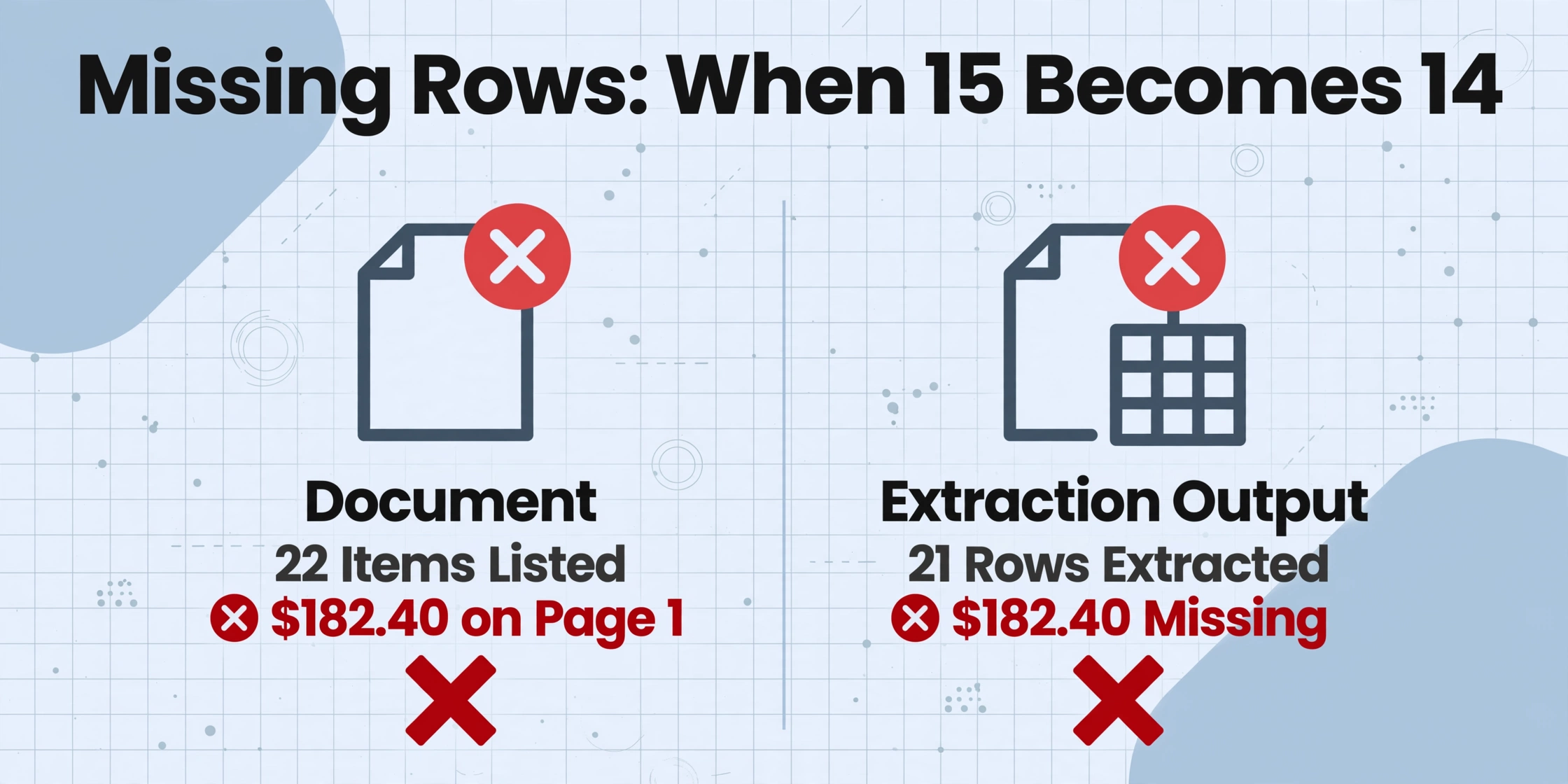
A construction materials invoice lists 22 items — dimensional lumber, concrete mix, rebar, fasteners — spread across two pages. The AI extracts 21 rows. The missing row is the last line on page one, immediately below a page-header box that the AI's layout analysis identified as a structural element rather than a data row. The row exists on the document. The value in the row is $182.40. The row number is 22. But the extraction output shows 21 rows, and $182.40 simply does not appear anywhere in the spreadsheet.
On a $4,200 invoice, $182.40 is 4.3%. It won't break month-end close. But it will surface in the supplier reconciliation six weeks later, at which point three different people — the AP clerk, the procurement manager, and the supplier's AR contact — will spend a combined 45 minutes tracing it. The cost of finding the error exceeds the cost of the error itself.
Missing-row errors cluster around three structural boundaries: page breaks in multi-page PDFs, table sections preceded by thick separator lines or boxed header regions, and pages where the final row of a table sits at the very bottom margin. In each case, the AI's layout understanding treats the boundary as a structural delimiter — end of table, start of new section — rather than recognizing the adjacent row as still belonging to the data region. The irony is that the AI correctly identifies the row as containing data; it just classifies that data as belonging to a different region of the document, and the extraction schema doesn't catch it because the schema defines which fields to extract, not how many rows should exist.
The detection method is simple but rarely built into extraction workflows: count. Count the rows in the output. Compare against a quick visual scan of the source document — or, when processing at scale, against a known row-count range for each supplier's typical invoice format. A supplier who always sends 12-line invoices that suddenly produces an 11-line extraction is a flag worth investigating, even if every extracted value looks correct.
Wrong Column Mapping: Invoice Numbers Where Invoice Dates Should Be
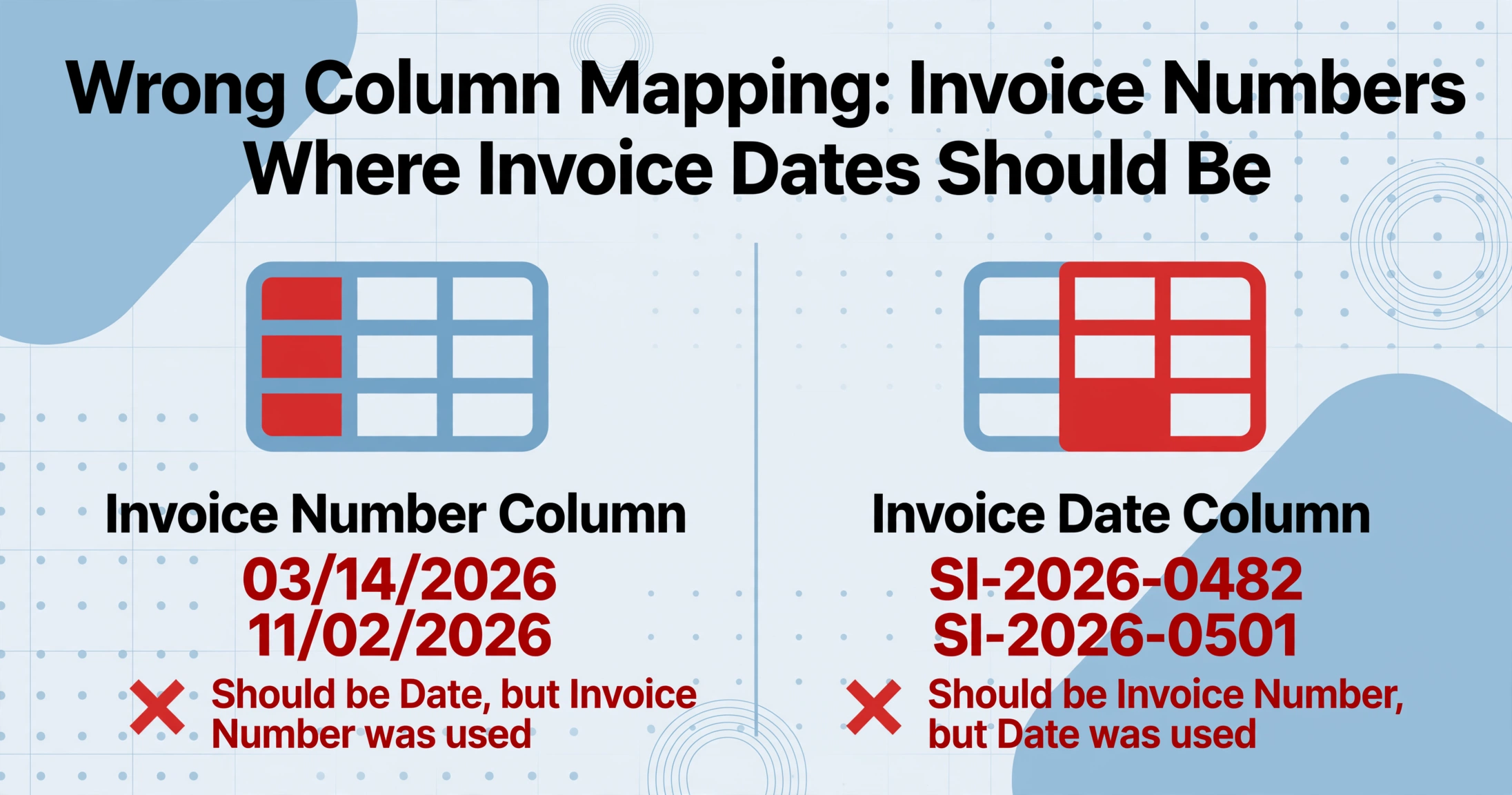
A colleague described this error as "the one that makes you question your own eyes." The spreadsheet column labeled "Invoice Number" contained values like "03/14/2026" and "11/02/2026." The column labeled "Invoice Date" contained values like "SI-2026-0482" and "SI-2026-0501." Every cell had a correctly formatted value. Every value came from the correct document. They were simply in the wrong columns — a transposition error at the semantic level.
This class of error is uniquely dangerous because it passes every automated validation check. The invoice number column contains strings. The date column contains dates. A data type validator sees nothing wrong. A null-value checker sees no blanks. A format validator confirms every value conforms to its column's expected format. The spreadsheet imports into the ERP without a single error message. The damage doesn't appear until three weeks later, when the AP team discovers they've been matching payments against dates instead of invoice numbers.
Column-mapping errors originate in the extraction schema. If you define columns as "Invoice Number" and "Invoice Date," the AI locates both values on the document and assigns them to their respective columns. On most invoices, this works perfectly — the fields are clearly labeled and the semantic match is unambiguous. But on documents where the invoice number and invoice date sit adjacent in a small, unlabeled header block — common on utility bills, some government-issued invoices, and small-supplier statements — the AI's semantic assignment can transpose. The model sees two values in a tight cluster, knows they represent an identifier and a date, but has no explicit layout signal about which is which. In 1–3% of cases across a large and varied invoice corpus, it guesses wrong.
How to catch it. Run a cross-column format check after extraction. An "Invoice Number" column where more than 5% of values match a date pattern should trigger a review flag. Similarly, a "Date" column containing alphanumeric patterns consistent with invoice numbering conventions deserves a second look. This is not a check you run on every row — it's a sanity check on new batch output that takes 15 seconds and catches the silent error class that automated validation is designed to miss.
Currency and Decimal Errors: The Comma That Costs Three Orders of Magnitude
European and Latin American invoice formats use commas as decimal separators and periods as thousands separators — the inverse of US and UK conventions. An invoice from a German supplier reads "1.250,00" — meaning one thousand two hundred fifty euros and zero cents. Extract this as "$1,250.00" and you have the correct value. Extract it as "$1250.00" — losing the thousands separator — and you still have the correct numeric value. Extract it as "$12.50" — misinterpreting the comma as a decimal — and the extracted value is off by two orders of magnitude.
The error is not caught by format validation because "$12.50" is a perfectly valid currency amount. It won't trigger a range check unless someone has set explicit bounds per supplier. It imports cleanly into the ERP. And the real damage doesn't surface until the supplier calls to ask why they were paid $12.50 on a €1,250.00 invoice.
Decimal-point displacement takes multiple forms. The European comma-period inversion — the most famous case — accounts for roughly a third of numeric post-extraction errors in international invoice processing. Another third comes from the AI dropping a trailing zero: $1,250.00 becomes $125.00 because the model parsed "1250" correctly but placed the decimal at the wrong position. The remaining third includes OCR artifacts — a smudge or crease that obscures the decimal point, causing $1,250.00 to be read as $125000 or $12.5000, neither of which maps cleanly to a standard currency format.
How to catch it. For documents with known currency conventions, add a decimal-position validation rule: if the extracted amount is more than one order of magnitude different from the expected range for that supplier, flag it. For batch processing, compare each amount's order of magnitude against the supplier's historical distribution — a single €1,250 invoice from a supplier whose last 50 invoices range from €800 to €3,200 is fine. A €12.50 invoice from the same supplier is worth checking before it reaches the payment run. The accuracy guide for document extraction covers how field-level accuracy metrics interact with real-world financial data — including the specific failure modes that generic accuracy rates conceal.
Date Format Chaos: MM/DD Meets DD/MM in the Same Column
A batch of 200 invoices is processed for month-end AP. The extraction output shows an "Invoice Date" column where some rows read "03/05/2026" and others read "05/08/2026." The first value represents March 5, 2026 (from a US supplier). The second represents May 8, 2026 (from a UK supplier). But there is no way to tell which is which from the spreadsheet alone — both formats are valid dates, both import cleanly into the ERP, and both look normal to a reviewer scanning at speed. The AI extracted the date strings as they appeared on each document, applying no normalization across the batch.
Mixed date formats in a single column are the data quality equivalent of a ticking clock. The column sorts incorrectly — 03/05/2026 sorts before 05/08/2026 in a MM/DD/YYYY system, but after it in DD/MM/YYYY. Aging reports built from this data produce incorrect results. Payment terms calculated from invoice dates shift by days or weeks depending on which convention the formula assumes. And the errors emerge not from bad extraction but from the absence of a normalization step between extraction and ERP import — a step that is so simple it is rarely formalized.
The worst-case scenario: a column that mixes US and non-US date formats from different suppliers, with no metadata about which source follows which convention. The AI reading a single document cannot know the supplier's locale — it can only extract the string as written. Normalization has to happen as a conscious post-extraction step: identify the date convention per supplier, convert all dates to ISO format (YYYY-MM-DD), and validate that no date falls outside a reasonable range for that document type.
How to catch it. After extraction, scan the date column for values where the first segment exceeds 12 — these are DD/MM dates (or errors). For ambiguous values (both segments ≤ 12), cross-reference against the supplier's known locale or the document's language metadata. Set a rule: every date in the output must conform to a single declared format before the batch is approved for ERP import. This is not an AI problem. It is a workflow problem with a deterministic solution.
Duplicate Rows: The Same Data, Extracted Twice
A catering supply invoice has a line-item table that spans two pages. The page break cuts through row 9 of 18. On page one, the AI extracts rows 1 through 9. On page two, the AI's layout analysis encounters what it interprets as a new table — same column structure, same header labels appearing at the top of the page continuation — and re-extracts rows 9 through 18. Row 9 now appears twice in the output: once from the page-one table, once from the page-two continuation.
The duplicate row is normally discovered during three-way matching — PO, goods receipt, and invoice — when the summed quantities on the invoice exceed the PO quantities by exactly the duplicated row's quantity. But discovery requires that someone performs the three-way match. In organizations where AP processes invoices without automated PO reconciliation, the duplicate passes through to payment. A $340 line item paid twice on a $5,000 invoice is a 6.8% overpayment that the supplier may or may not credit back.
Duplicate-row errors are mechanically straightforward to detect: hash each row's content and look for identical hashes within the same document's output. But most extraction workflows don't include a deduplication check because the assumption is that AI extraction produces one row per source row — an assumption that holds 98% of the time and fails in exactly the scenario where a table crosses a page break. The fix is a deduplication rule applied to the output, not a change to the extraction model.
Blank Cells Where Data Exists on the Document
A medical insurance EOB (Explanation of Benefits) lists eight columns of claim data per row: date of service, procedure code, billed amount, allowed amount, plan paid, patient responsibility, deductible applied, and remarks. After extraction, the "patient responsibility" column shows blank cells for four of the twelve claims on the page. The AI read the other seven columns correctly. It simply did not identify a value for patient responsibility — possibly because the field was labeled "You Owe" on this particular EOB format, not "Patient Responsibility," and the semantic match between the label on the document and the column name in the extraction schema was too weak.
Blank cells are the silent killers of post-extraction data quality because they don't look like errors. A row with eight populated columns and one blank looks normal — especially in a column like "patient responsibility" where zero values are genuinely common. A reviewer scanning the output at 2-second-per-row speed sees "blank" and assumes "$0" — a reasonable but wrong inference. The actual value was $47.30. Not huge. But across 42 claims in a batch, four blank patient-responsibility cells represent $189.20 of missing patient billing that goes unnoticed until the next billing cycle.
How to catch it. After extraction, scan each row for the presence of blanks in non-optional columns. Define which columns should never be blank for a given document type — invoice totals, dates, vendor IDs — and flag rows where those columns are empty. For columns that legitimately contain zero values, require the AI to output an explicit "N/A" or "$0" rather than leaving the cell blank, so that missing data (blank) is always distinguishable from zero-valued data ("$0"). This is a field-definition discipline, not a model improvement. The guide to fixing wrong extracted numbers explains how column naming and field definition directly determine whether the AI finds a value or returns nothing.
The seven error types above share a common thread: every single one involves a value that looks correct in isolation and passes all automated format checks. No error triggers an alert. No error crashes the extraction pipeline. No error is obviously wrong to a reviewer scanning at operational speed. These are not extraction failures — they are verification failures. And the cost of missing them scales with the size of the batch.
Why These Errors Compound Silently — and Why the Delay Between Error and Discovery Is the Real Cost
In a traditional manual data-entry workflow, the person typing from a paper invoice into an ERP screen has a visual reference. They can see that the line total column isn't populating. They notice when the last row of a table line gets cut off by a page footer. The feedback loop is immediate — the error surfaces in the same moment the data entry happens, because the human performing the entry is also performing a continuous, unconscious verification.
Automated extraction breaks that feedback loop. The AI reads the document, assembles the output, and passes it to the ERP — all without a human eye on the intermediate result. The feedback loop shrinks from "instant" to "at the next reconciliation." And reconciliation happens weekly, monthly, or quarterly — a window during which errors accumulate undetected.
A single missing row on a single invoice is a $200 problem. Twenty missing rows across twenty invoices in a month is a $4,000 problem. But the cost of diagnosing twenty missing rows — tracing each one back to the source document, identifying the supplier, confirming the correct amount, issuing a corrected payment, and updating the ledger — far exceeds $4,000. The labor cost of finding post-extraction errors is typically 3-5x the value of the error itself. This is why the most effective verification strategy is not "find errors faster" — it is "catch errors before they enter the system." A 30-second pre-import check that catches a missing row transforms a 25-minute reconciliation investigation into a 2-minute re-extraction.
The Ardent Partners 2025 AP metrics report found that the average organization spends $9.40 to process a single invoice end-to-end, with 14% of invoices containing an exception that requires manual intervention. The report doesn't separate "extraction error" from "policy exception" or "approval routing issue," but the overlap is large: a significant share of those manual interventions are triggered by data that didn't land correctly in the ERP — the same class of errors this article describes. Every post-extraction error that enters the ERP converts a machine-speed input into a human-speed exception, and the cost of that exception is paid in labor, not in technology.
The Verification Habit: Five Checks That Take 30 Seconds
Building a verification step into your extraction workflow does not require a data quality platform or a dedicated validation team. Five mechanical checks, applied consistently, catch the seven error types described above before they reach your ERP:
The key insight behind these five checks is that they don't require re-reading documents or manually comparing output against source. They are statistical and mechanical — a 30-second scan on a batch of any size — and they catch the errors that survive visual review because they hide inside data that looks correct to a human eye.
For a deeper treatment of the verification workflow — including how to structure a recurring QA process, what sample size to use for spot-checking, and how to integrate verification into a team workflow rather than treating it as a one-person gate — the QA checklist for verifying AI-extracted data provides a full operational framework. These five checks are the starting point. The QA checklist is the ongoing process.
The extraction accuracy conversation has an important dimension that most benchmarks don't capture, which the practical accuracy comparison for document extraction tools explores in detail: field accuracy and straight-through-processing rates tell fundamentally different stories about the same tool, and understanding the gap between them is essential to building a verification workflow that protects against the right errors.
FAQ
Can't I just use Excel formulas to catch these errors?
You can — and many teams do. A SUM formula that compares extracted line totals against the extracted subtotal will catch arithmetic-closure errors. A COUNT formula will catch missing rows if you know the expected count. A conditional formatting rule that highlights cells matching date patterns in non-date columns will surface column-mapping issues. The problem is that these formulas have to be rebuilt for every batch layout, and they rely on someone remembering to apply them. The verification habit is not about having the capability — it's about making it part of the standard workflow so it doesn't depend on one person's diligence on a busy Tuesday.
How often do these errors actually happen?
Field-level error rates vary by document type and quality. On clean, standard-format business invoices, modern AI extraction achieves 98–99% field accuracy — meaning 1–2 fields per 100 are wrong. On heterogeneous document sets with mixed formats, handwriting, and varying scan quality, field accuracy drops to 90–95%. The key is that even at 99% field accuracy on a 15-field invoice, roughly 14% of invoices contain at least one error. Across 500 invoices per month, that's roughly 70 invoices with at least one error. The error rate is low. The error count, at scale, is not.
Doesn't the ERP catch these when it validates the import?
ERP validation checks data format and completeness — it ensures date fields contain dates, numeric fields contain numbers, and required fields are populated. It does not check arithmetic closure (do line totals sum to the subtotal?), cross-column consistency (is the invoice number column actually full of dates?), or row completeness (should there be 15 rows here instead of 14?). ERP validation catches syntax errors. Post-extraction errors are semantic errors. They pass syntax checks every time.
Should I verify every document or use spot-checking?
For the five mechanical checks — arithmetic closure, row-count sanity, cross-column format, magnitude range, null scan — verify every document. These checks are automatable and fast; there is no reason to sample. For visual verification — comparing the extracted output against the source document image — spot-check 5–10% of documents per batch, stratified by supplier and document complexity. Reserve 100% visual verification for the first batch from a new supplier or a new document format. Once you've confirmed the extraction pattern is stable for that source, dial back to spot-checking.
What about handwriting? Are the error patterns different?
Yes — handwriting introduces a different error profile. Character confusion (1 vs 7, 0 vs 6, S vs 5) is more common, especially in numbers. Missing rows happen more often because handwritten tables have less consistent row spacing and alignment, which confuses layout analysis. Column-mapping errors are rarer because handwritten forms tend to have fewer fields and clearer labels. The verification checks described here still apply, but expect more character-level errors on handwritten documents — arithmetic closure and magnitude-range checks become especially important as backstops.
Can the extraction tool do these checks automatically?
Some tools offer computed columns or validation rules that can perform arithmetic closure and cross-column checks during extraction. ImageToTable.ai's Computed Columns — a feature that lets you define calculations like "sum all line totals and compare against the extracted subtotal" directly in your extraction schema — performs arithmetic validation at extraction time, so the output arrives pre-verified. But even if your tool doesn't offer this, the five checks described above are spreadsheet operations that take 30 seconds per batch. The verification habit doesn't depend on tool features — it depends on making the checks part of the workflow.
Post-extraction errors are not a failure of AI. They are a gap in the process between extraction and ERP — a gap that exists because extraction tools are designed to produce data, not to audit it. The seven errors described here share a single root cause: they pass every automated check because the checks are checking the wrong things. Format validation catches bad format. Arithmetic validation catches bad math. The gap is the one between them — and closing it costs 30 seconds per batch, not a new tool or a larger team.
If you're processing document data and want to build verification directly into your extraction workflow, ImageToTable.ai runs a verification-centric extraction pipeline — the tool extracts by field semantics, not template coordinates, and supports computed columns that reconcile line totals, check tax arithmetic, and flag magnitude-range anomalies during extraction rather than after it. The full QA verification workflow covers how to operationalize the five checks above into a sustainable team process.
Upload your own documents — see what gets extracted, then run the five checks to verify the output.
Test on Your Own Documents