Verify AI-Extracted Data:
A 7-Point QA Checklist for Spreadsheets
You just extracted 300 invoices. The spreadsheet is open — columns filled, rows populated, totals down the right-hand side. Before you forward it to accounting or import it into your ERP, there is a step most invoice extraction guides skip entirely: the output-side QA check. Here is the seven-point checklist that takes 12 minutes and catches the errors that cascade into wrong payments, miscategorized expenses, and tax filings you have to amend.
Key Takeaways
- One decimal you did not catch turned a $295 invoice into a $2,950 payment, and the extraction tool that produced it still reports 99% accuracy.
- Extraction errors are not random one-offs. They follow patterns, and one column-shift configuration silently corrupts every row from that document format.
- A 12-minute spreadsheet gate catches these pattern errors before they become amended tax filings, and after the first batch the formulas run themselves.
Every extraction tool will occasionally return something wrong — even the ones that report 99% accuracy on their marketing pages. A decimal shifted one place. A date pointing at the delivery date instead of the invoice date. A tax ID field left empty because the AI could not find it on page 3. As our practical guide to testing extraction accuracy explains, "99%" is a number with no agreed-upon definition — what matters is whether you catch errors before the data leaves your spreadsheet.
This checklist is designed for the moment after extraction completes and before anyone else touches the file. Each check is independent — you can run them in any order — but together they form a complete gate. Run the lot on a fresh batch and you will find at least one thing you would have missed.
Check 1: Column Alignment — Did Data Land in the Right Place?
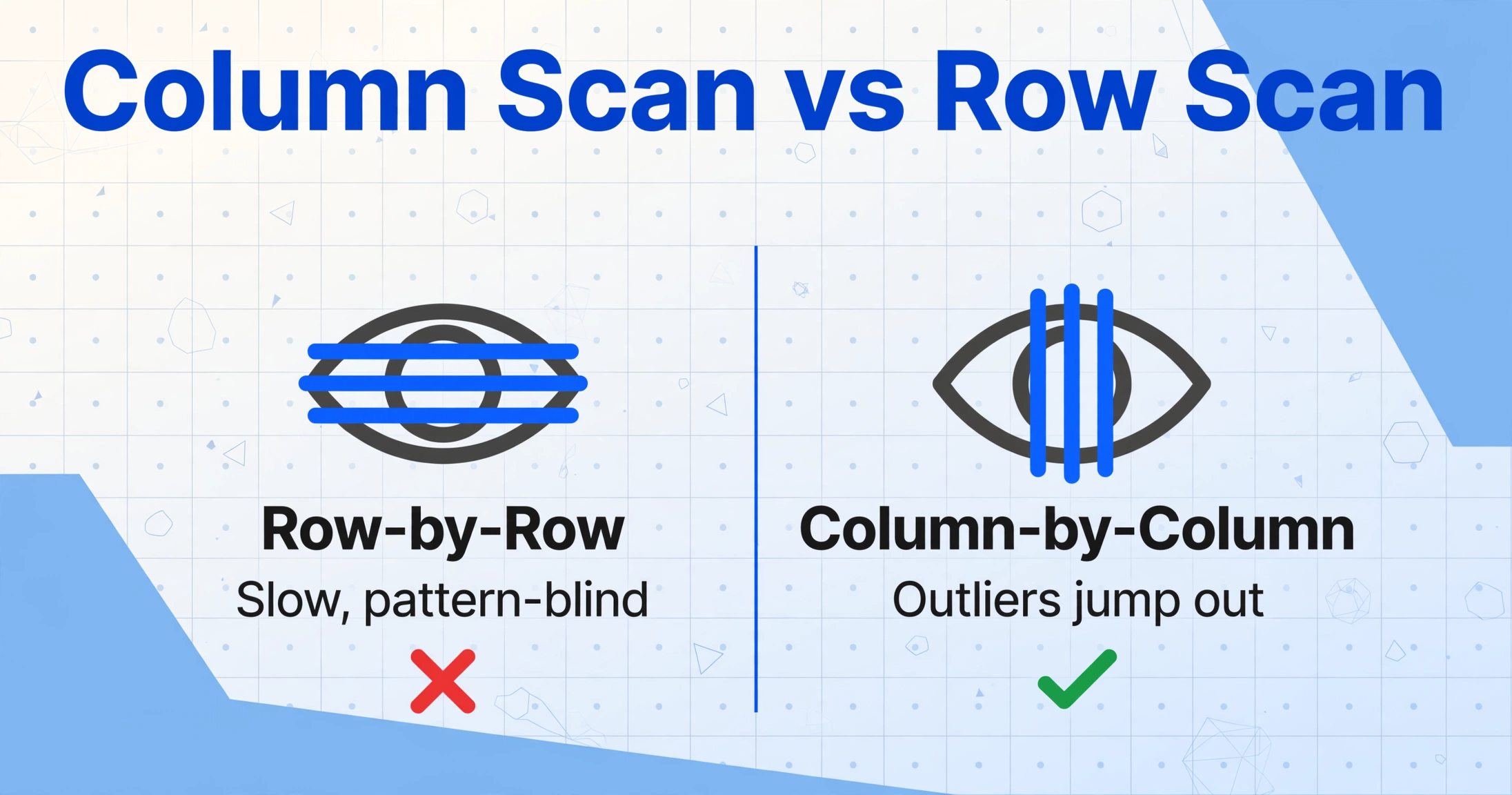
The fastest way to spot a systemic extraction problem is to scan columns vertically. When extraction goes wrong at the column level, it tends to go wrong for whole batches — a field misread shifts every value one column left, or a delimiter confusion puts the vendor name where the address belongs.
What to do: Read down each column, not across each row. Row-by-row scanning is slow and your brain starts pattern-matching — you stop seeing the data. Column scanning, in contrast, makes outliers jump out. An address in the "Amount" column is impossible to miss when you read vertically.
- Text fields: Does every cell in the Vendor Name column contain something that reads like a name — not a street address, not a phone number, not a date?
- Numeric fields: If you have an Amount column and a Tax column next to each other, do the magnitudes make sense? Tax should be roughly 5-25% of Amount. If Tax reads $2,495.00 and Amount reads $2.50, they are swapped.
- Identifier fields: Invoice numbers, PO numbers, reference codes — do they all follow a recognizable pattern, or did one row get a phone number dropped into it?
This check takes 90 seconds for a 200-row spreadsheet. If you find one column shift, you have likely found a bias affecting every document from that source format — correct the column mapping and re-extract rather than fixing rows one by one.
Check 2: Row Count vs File Count — Did We Lose Any Documents?
Nothing undermines an extraction batch faster than a missing document. You forwarded 12 invoices to accounting but only 11 rows landed in their system — the 12th supplier sends a late-payment reminder and you spend 40 minutes tracing what happened.
What to do: Three quick sanity checks on row count:
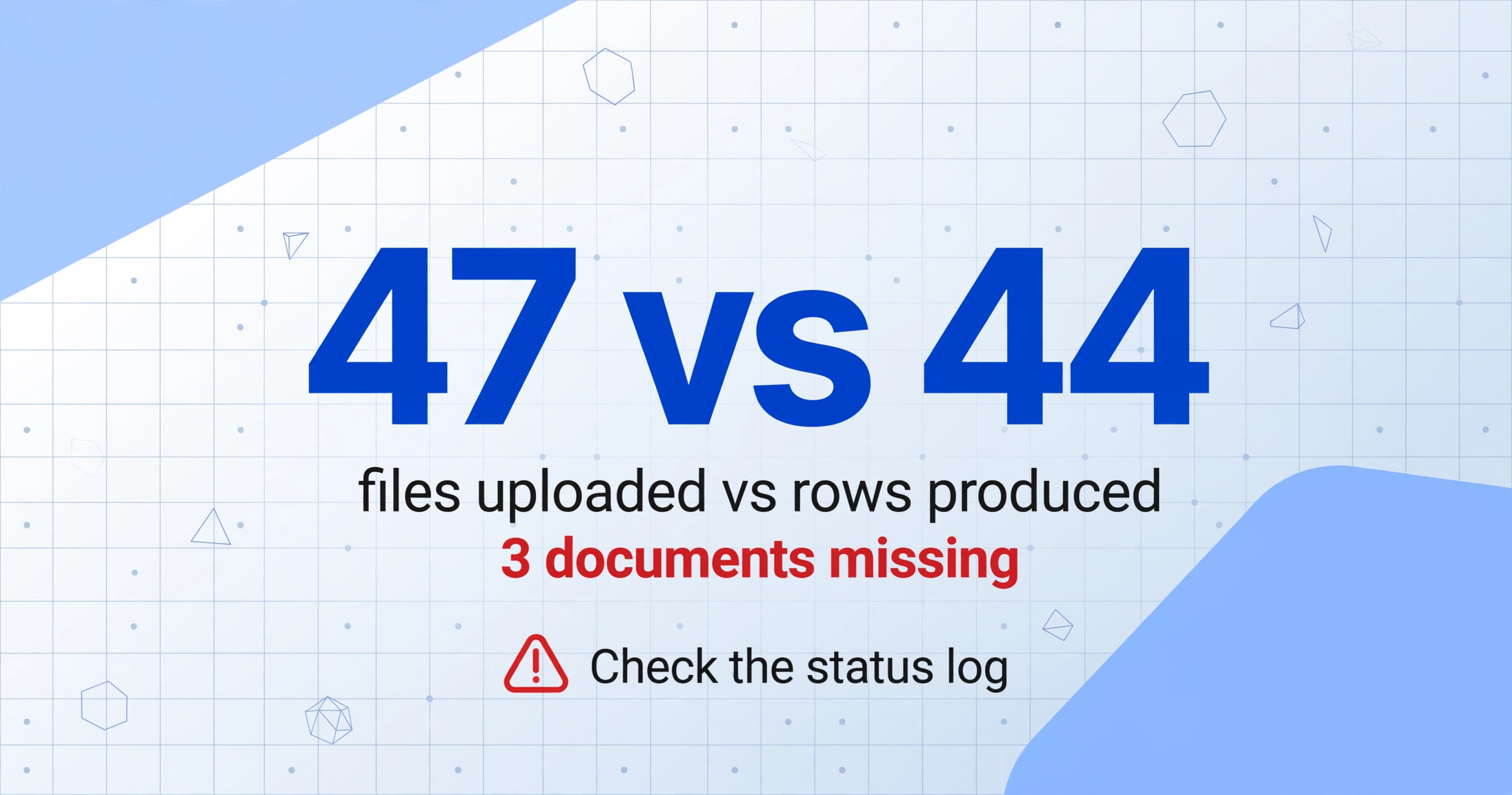
- Uploaded files vs spreadsheet rows: If you uploaded 47 files and the spreadsheet has 44 data rows (plus a header), three documents did not produce output. The extraction tool's status log will tell you which ones failed and why — but you cannot act on a failure you do not know about.
- Blank rows: Select the entire data range, sort by any text column ascending. Blank rows surface at the top. An entirely blank row usually means the document was processed but no fields matched — worth checking why.
- Duplicate rows: Run
=COUNTIF(A:A, A2)on an identifier column like Invoice Number. A value of 2+ means the same document produced two rows — either a duplicate upload or a multi-page PDF that should have been merged into one row.
These checks take two minutes total. The row-count mismatch alone — files uploaded minus rows produced — is the single highest-impact check that most people skip because they assume the tool handled it.
Row-count verification is particularly important when using batch extraction — the mode where you upload multiple files at once and export a merged spreadsheet. A single file that fails silently in a batch of 50 is hard to notice unless you count. In ImageToTable.ai, the batch status dashboard shows per-file completion — green for done, red for failed — so the row-count mismatch is visible before you export.
Check 3: Numeric Validation — Do the Numbers Add Up?
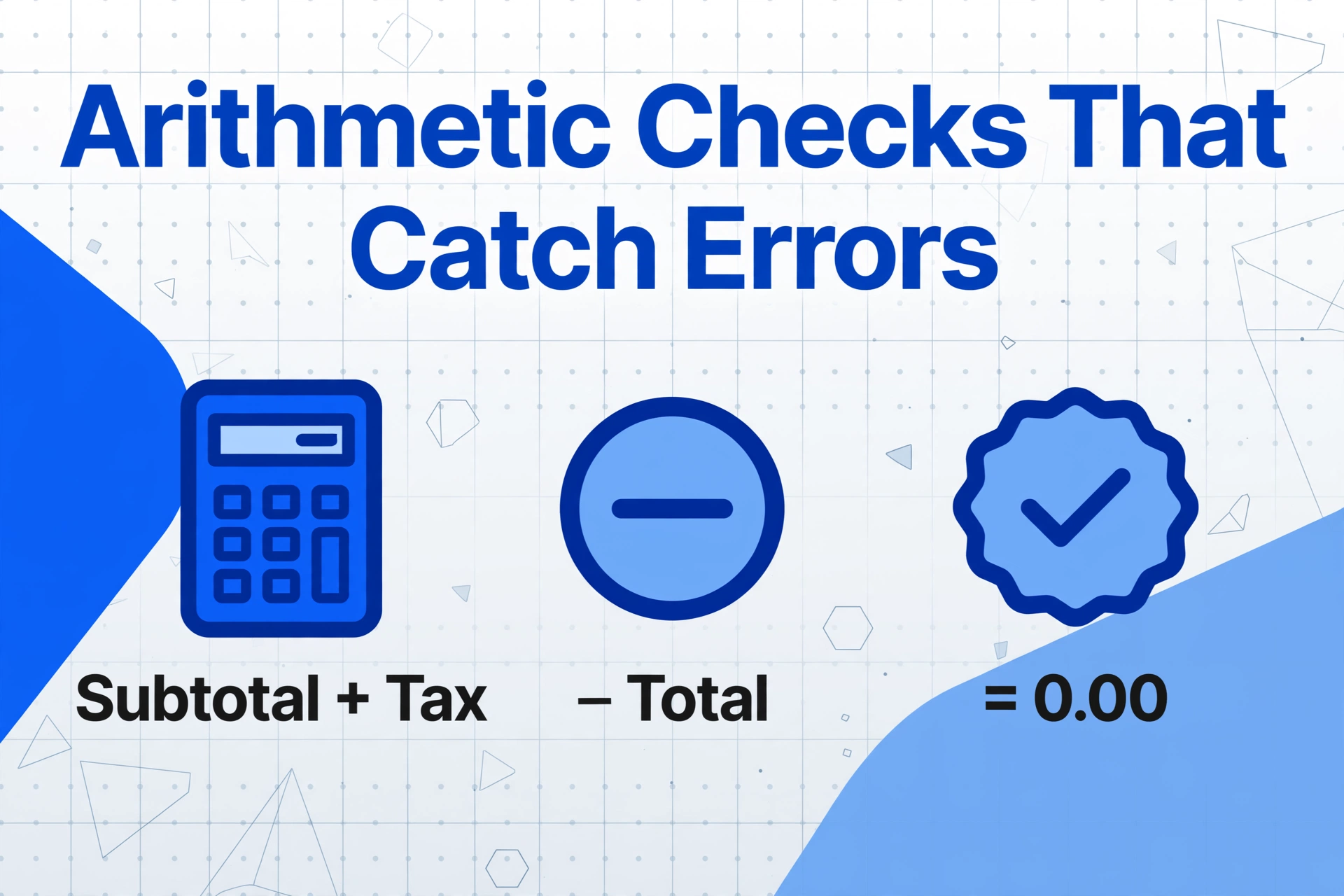
Numbers are where extraction errors cause measurable financial damage. A misread decimal turns a $295.00 invoice into $2,950.00 liability in your records. A subtotal read as the total means you approve a payment $400 short. Arithmetic relationships built into the document are a free verification layer — you just need to use them.
What to do: Add three computed columns to your output spreadsheet:
| Check | Formula | Expected |
|---|---|---|
| Subtotal + Tax vs Total | =ROUND(Subtotal + Tax - Total, 2) | 0.00 |
| Line items sum vs Subtotal | =ROUND(SUM(LineCol) - Subtotal, 2) | 0.00 |
| Qty × Unit Price vs Line Total | =ROUND(Qty * UnitPrice - LineTotal, 2) | 0.00 |
Any row where the result is not zero needs review. In practice, a non-zero result usually points to one of three things: a decimal separator misread (the comma-vs-period problem in European invoices), the wrong line being read as the total (the tool grabbed the subtotal from one section and applied it to the whole invoice), or a quantity field that was misread (50 instead of 15).
If your extraction tool supports computed columns, you can build these arithmetic validations into the extraction step itself — the tool performs the calculation while reading the document and flags the row before it even reaches your spreadsheet. This moves the check from a post-extraction Excel formula to an always-on gate.
Files are processed securely and not stored.
Check 4: Date Validation — Consistent Format, Reasonable Range
A date field that reads "01/03/2026" is correct under DD/MM/YYYY. Under MM/DD/YYYY, the same string means January 3rd — three months earlier. Both are valid calendar dates. Only one matches what the document actually says. Format ambiguity is the most common date extraction error, and it is invisible to casual inspection.
What to do: Three date checks, ordered by how fast they catch errors:
- Format consistency: Select the date column, apply a conditional formatting rule that highlights any cell where the year is not four digits, or the month exceeds 12, or the day exceeds 31. A date like "2026-15-03" (month 15) is an unambiguous extraction error — the model hallucinated a month value.
- Date range sanity: Add
=MIN(DateCol)and=MAX(DateCol)at the top of the sheet. If your batch is June 2026 invoices and the min is 2019-01-01 or the max is 2028-12-15, something is wrong. Out-of-range dates usually come from the AI reading a different date on the document — the payment date instead of the invoice date, or a date from a completely different section. - Invoice date vs due date: If both fields were extracted, add a simple check column:
=InvoiceDate <= DueDate. A due date before the invoice date is almost always an extraction error — the AI swapped the two fields.
The date range check catches the most expensive errors. A single invoice extracted with 2027-03-15 instead of 2026-03-15 moves €4,500 of expense into the wrong fiscal year. An auditor finds it. You fix it. But the correction costs you hours of explanation and revised filings that would have been avoided with a 30-second =MAX() check.
Check 5: Missing Field Audit — Which Fields Came Back Empty?
Not all blank cells are errors — some documents genuinely lack certain fields. But you need to know which fields extracted at 0% across the batch, because a universally blank column is almost always a configuration problem, not a document characteristic.
What to do: For each column you requested, count how many rows have data vs how many are blank. In Excel, select the column and check the status bar for the count (blank cells are excluded from COUNT, so the count shown is your fill rate). Or use =COUNTA(ColRange) / COUNTA(A:A) to get a percentage.
Interpretation guide for fill rates:
- 90-100% filled: Normal. A few documents genuinely missing that field — a supplier who does not print VAT numbers, an invoice without a PO reference.
- 40-90% filled: Worth investigating. The field exists on most documents but the extraction engine is not finding it reliably. Check whether the column name you specified matches the document's terminology — "Supplier" vs "Vendor" vs "Seller" can produce different hit rates across document formats.
- 0-40% filled: Likely a configuration issue. The column name may be too specific ("Remittance Advice Reference" when documents use "Payment Ref"), or the field may not be a direct extraction candidate — it requires inferred extraction, where the AI deduces the value from context rather than reading it from a labeled field.
A column with 5% fill rate that you expected at 95% means one of two things: the documents do not contain what you asked for (check a sample), or the extraction tool is not mapping the column name to the right document field (adjust the column name and re-extract). Either way, finding this before the data goes downstream prevents the "why is this column empty?" email from accounting three days later.
Check 6: Cross-Field Logic — Relationships That Must Hold
Single-field validation (Check 3 covered arithmetic; Check 4 covered dates) catches individual errors. Cross-field logic catches errors where each field looks plausible on its own but the relationship between fields is impossible. These are the hardest errors to spot by eye and the easiest to catch with a formula.
What to do: Build a few logic rules specific to your document type. Start with these cross-industry checks and add your own:
| Document Type | Logic Rule | Formula Skeleton |
|---|---|---|
| Invoice | Invoice date ≤ Due date | =InvoiceDate <= DueDate |
| Invoice / PO | Line Total = Qty × Unit Price | =ROUND(Qty * UnitPrice - LineTotal, 2)=0 |
| Invoice | Tax Amount ≈ Tax Rate × Net Amount | =ABS(Tax / NetAmount - TaxRate) < 0.02 |
| Receipt / Expense | Date within reporting period | =AND(Date >= PeriodStart, Date <= PeriodEnd) |
| Timesheet | End time > Start time | =EndTime > StartTime |
| Bank Statement | Closing balance = Opening balance + Σ transactions | =ROUND(Opening + SUM(TxnRange) - Closing, 2)=0 |
Each rule produces a TRUE/FALSE column. Any FALSE row needs manual review. In a batch of 200 documents, you will typically flag 2-5 rows — that is 2-5 extraction errors you can correct before they become accounting errors. The alternative is finding them during month-end reconciliation, which costs substantially more time and creates pressure that leads to rushed fixes.
For a deeper walk-through of how cross-field arithmetic catches disguised errors, see our guide on verifying extraction results with a layered spot-check framework, which covers the four arithmetic checks in detail with per-error-type diagnosis.
Check 7: Spot Checks — Pick 3 Rows, Compare Against Original
Automated checks (Checks 1-6) catch structural errors — the kind that follow patterns. But not all errors follow patterns. A one-off misread on a single document — the AI confusing two similar line items, or extracting 15 instead of 5 for a quantity on a faded scan — passes most formula-based gates because the number looks reasonable and the arithmetic balances. A human looking at the source document catches it in 20 seconds.
What to do: Pick 3 random rows from the spreadsheet. Open the original documents for those rows side by side. Check every field. You are looking for anything that does not match — a wrong digit, a swapped field, a missing line item. This is not about coverage. It is about catching the error type that statistical sampling and formula validation are blind to.
Opening the source and hunting for each value is the slow part of a spot check. If you extracted with ImageToTable.ai, its review screen can shorten that step. Ask for bbox locating when a file is done processing. You can trigger it per file from the review screen, or turn on auto-annotate so it is already generated every time. Hovering over any extracted cell then highlights exactly where that value came from on the original document. The highlight does not tell you whether the value is right. It tells you where to look, which is the slow part. One click per field, and the side-by-side comparison is done in seconds rather than minutes.
Which 3 rows? Do not pick the first three — those are usually the documents you checked while setting up the extraction. Do not pick obvious outliers — the automated checks already flagged those. Use =RANDBETWEEN(2, COUNTA(A:A)) three times and check those rows. If all three are clean, you have reasonable confidence the batch is healthy. If one or more have errors, increase to 10 random rows. If you find errors in 10, the batch needs a more thorough review.
The spot check discovers whether the automated gates are actually working. If Check 3 said "all numbers balance" but your random row has a subtotal that does not equal the sum of line items, your arithmetic formula has a bug — and you just caught it before processing 200 rows with a broken check.
When to Re-Extract vs When to Fix Manually
Running this checklist will surface issues. The next decision is whether to fix individual cells or re-run the extraction. The rule is simple: if the same error appears on three or more documents, the root cause is in the extraction configuration — fix the column names, adjust the format specification, and re-extract. If the error is isolated to a single document with unusual formatting, fix the cell and move on.
Three signs that you should re-extract rather than manually correct:
- The same field is wrong across multiple rows. If 15 invoices have the wrong total, the extraction tool is consistently reading the wrong line on that document format. Adjusting the column specification — for example, switching from "Total" to "Grand Total" — fixes all 15 at once.
- A column is entirely empty or consistently wrong. This is a column name mismatch. The output is meaningless and manual correction would mean typing every value from scratch — which defeats the purpose of using extraction in the first place.
- Dates are in the wrong format across the batch. A format specification adjustment (DD/MM/YYYY vs MM/DD/YYYY) corrects the whole batch at extraction time. Fixing dates one by one after export is the most tedious post-extraction activity and the most error-prone.
Manual correction is the right call when the error is specific to one document — a smudged scan, a handwritten note that the AI misread, a non-standard layout from one particular vendor. Open the source, read the value, type it in. One edit, done.
Building This Checklist Into Your Workflow
The first time you run this checklist, it might take 20 minutes — you are building the formulas, figuring out which column is which, learning where errors tend to cluster. By the third batch, it takes 12 minutes. By the tenth, you have a template spreadsheet with all the formulas pre-built — you paste the extracted data in, the checks light up, and you spend 5 minutes on the flagged rows and the 3 spot checks.
Think of this checklist the way QA engineers think about test suites: the initial investment is in building the checks, and every subsequent batch pays you back by catching errors before they leave your machine. A $50,000 invoice paid with a misread total costs a lot more than the 12 minutes it takes to verify it.
Frequently Asked Questions
How long does this 7-point checklist actually take?
For a batch of 200 documents from a familiar format: 12 minutes. Breakdown: Checks 1-2 (column scan + row count) — 3 minutes. Checks 3-6 (formulas) — 5 minutes to configure once, 2 minutes to review flagged rows. Check 7 (spot checks) — 5 minutes to open 3 documents and compare. After the first batch, template reuse drops the total to under 10 minutes.
Do I need to run all 7 checks on every batch?
Checks 1-2 and 7 on every batch — they are the highest-yield, lowest-effort gates. Checks 3-6 you set up once as spreadsheet templates and they run automatically when you paste new data in. The question is not "should I run them" — once built, they run themselves. The question is "do I review the flagged rows," and the answer is always yes.
What if the extraction tool has built-in validation — do I still need this?
Built-in validation typically covers format-level checks: "this value is not a valid date" or "this cell is empty." The checks in this article cover relationship-level validation that no extraction tool can fully automate without knowing your business context. The tool does not know that Invoice Date must be before Due Date for your supplier agreements. It does not know your reporting period dates. Those rules live in your spreadsheet, and they are worth the five minutes it takes to build them.
Can I skip the spot check if all the automated checks pass?
No. The spot check (Check 7) is not redundant with the automated checks — it serves a different purpose. Automated checks validate that numbers follow the rules you encoded. The spot check validates that the rules you encoded are the right rules and that they are working correctly. A formula that silently returns zero because of a reference error gives you false confidence. The spot check keeps your automation honest.
Can bbox verification replace the manual spot check?
No. When you extract with ImageToTable.ai, hovering over an extracted cell highlights where that value came from on the original, so a spot-check row takes seconds instead of minutes. But the highlight only shows you where to look. Deciding whether the highlighted value is actually correct is still your judgment. Tools shorten the comparison; they don't replace it.
What is the most common error across all 7 checks?
Column misalignment (Check 1) is the most common and the fastest to catch. In roughly one out of every 15 batches, at least one field ends up in the wrong column — usually because two adjacent fields have similar-looking values. An amount and a tax amount aligned side by side, both numeric, both in a plausible range. You only catch it by reading the column vertically and noticing that "tax" values in the amount column look suspiciously like 15-20% of the real amounts.
Verification is the gap between "I first used the tool" and "I trust the output." It is not about doubting the extraction engine — it is about respecting the downstream consequences if something goes through unchecked. Twelve minutes per batch, seven checks, confidence to close the file and move on.
Run this checklist on your next batch of extracted documents. Open the spreadsheet, walk through Checks 1 through 7 in order, and see what surfaces. The first time you catch a decimal shift before it becomes a payment error, the 12 minutes pay for themselves. Upload a batch and run the verification checklist yourself.
No sign-up required · Works with JPG, PNG, and PDF