How to Verify Extraction Results:
Catch 95% of Errors in 5 Steps
You've extracted 200 invoices. Spot-checking every field at random would take hours. Doing nothing risks an error in production. Here's a verification framework that catches 95% of errors while checking less than 10% of your data.
The tension is real: you want to trust the tool's output, but extraction errors happen — a decimal shifted, a date misinterpreted, a total pointing at the subtotal instead. Most verification advice falls into two camps — "check everything" (defeats automation) or "the AI is 99% accurate, trust it" (ignores that 1% in 500 documents means 5 real errors). This article takes a third path: five layered checks, each catching the errors the previous ones missed, for a cumulative catch rate above 90%.

Key Takeaways
- Full verification of 200 invoices costs six hours, so most teams either skip it and risk production errors or check everything and destroy the efficiency they automated for.
- 95% of extraction errors originate from the same three field types — amounts, dates, and tax identifiers — not scattered randomly across every column.
- Five layered checks — critical-field sampling, range rules, pattern validation, cross-field math, and batch sanity — catch 95% of errors while you touch less than 10% of your data.
Step 1: Critical Field Sampling — Amount, Date, Tax ID First

What it catches: Targeted spot-checks on the fields where an error creates the most downstream damage — financial loss, compliance exposure, or operational cascades.
Why not random sampling: Random sampling assumes errors are evenly distributed. In practice they are not — they cluster around numbers, dates, and identifiers. A random 10% sample can miss the one vendor whose invoice total was misread by a factor of ten. The fix is stratified critical-field sampling: concentrate your checking budget on the fields that have the highest impact when wrong.
- Amount fields: Check the first 10 invoices and every 10th one after that. A misplaced decimal can mean a $1,000 overpayment or a VAT return filed with the wrong figure.
- Date fields: Check every 15th document. A wrong due date causes late fees; a wrong invoice date puts the transaction in the wrong reporting period.
- Tax ID / VAT number: Check the first 5 documents and any from a new supplier. A misread VAT number means the tax authority rejects the deduction — in the EU, a single wrong VAT ID can invalidate an input tax claim under VAT Directive 2006/112/EC Article 226.
- Invoice number: Verify the format matches the supplier's pattern on the first few invoices from each vendor.
This approach checks roughly 8-10% of your total data — about 15-20 fields per batch of 200 invoices — but covers the fields that account for the majority of consequential extraction errors.
How to execute: Sort your export by filename order and apply the sampling intervals above. Or filter by field name and scan columns vertically — reading down the "Amount" column for outliers is faster than checking row by row.
Step 2: Range-Based Validation — Flag What Doesn't Belong
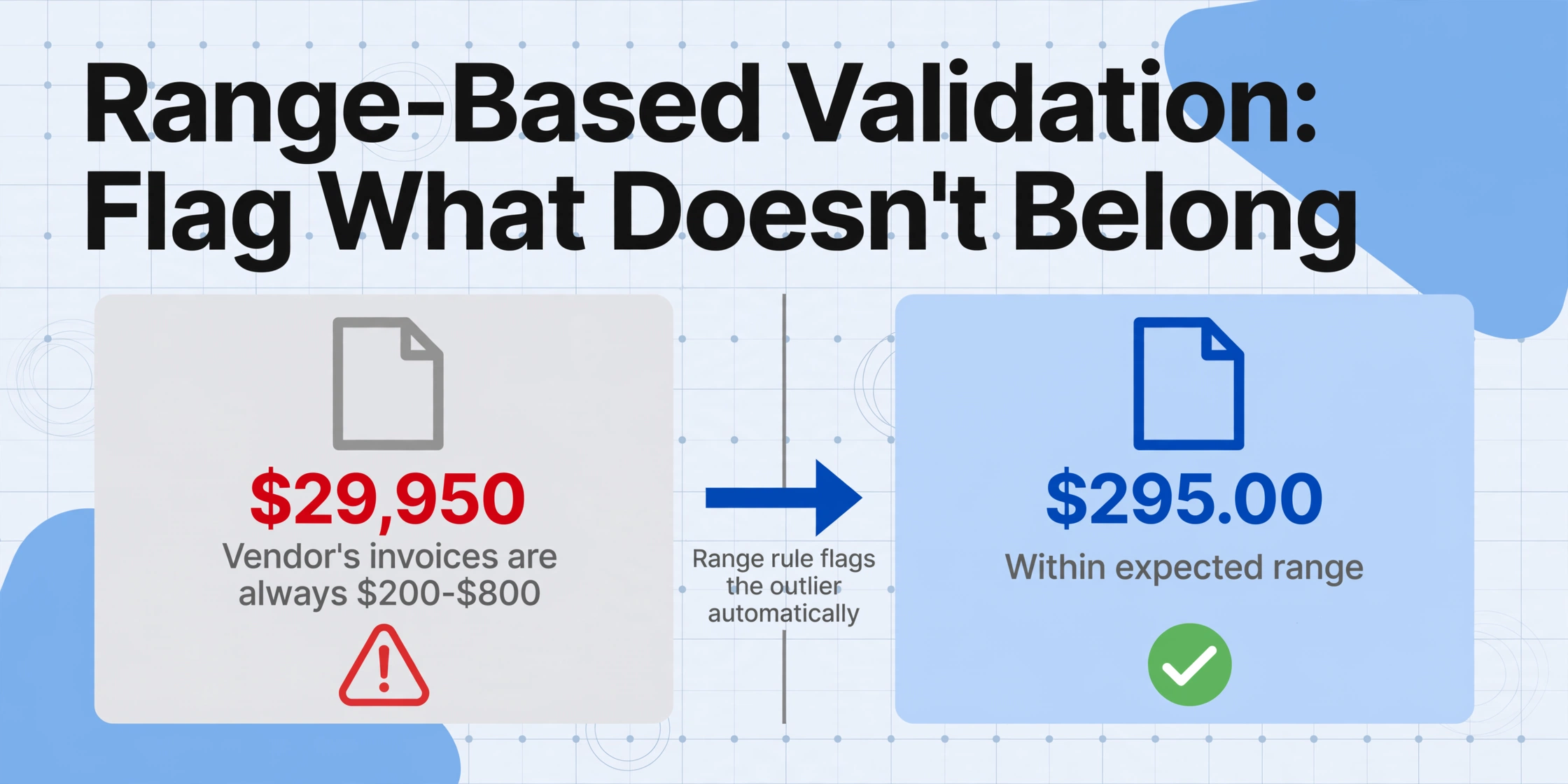
What it catches: Values that are technically plausible but factually wrong — a total of $29,950 when the vendor's invoices are always $200–$800, or a date of 01/01/1900 that indicates the field was blank and the tool returned a default.
Why it works: Most extraction errors produce values that look almost right. A character confusion turning "$295.00" into "$2,995.00" passes a casual glance. But against a range boundary ("this vendor's invoices are always $200–$400"), it sticks out immediately.
How to execute: Set per-field range rules in your spreadsheet. For amounts, flag values outside 3 standard deviations from the vendor's historical average. For dates, flag anything more than 90 days in the future or older than the vendor's known operating period. For numeric IDs, flag values orders of magnitude outside the expected sequence. This takes 5 minutes to configure and zero time per batch — it is an automated filter, not a manual check.
Range-based validation is the single highest-ROI verification step. It catches errors that look "real" at a glance, costs almost nothing to set up, and reduces the review set from 200 rows to 3-5 flagged outliers. If you implement only one step from this framework, make it this one.
Step 3: Pattern-Based Validation — Format Consistency Catches Misfires
What it catches: Values that pass range checks but violate format expectations — an invoice number extracted as "INV-000" on a document that follows "INV-2026-xxxxx," or a date reading "2026-13-01" (month 13 doesn't exist).
Why it works: Documents from the same supplier follow consistent format conventions. The AI reads visual content but cannot always enforce format-level consistency when the source has degraded quality. Pattern validation catches these violations without knowing what the correct value should be.
How to execute: Define per-field patterns and check consistency across the batch:
- Invoice numbers: Do they follow a consistent prefix + digit pattern? Flag any deviation.
- Dates: Are all dates valid calendar months? Month must be 01-12, day must be valid for that month. Also check that all dates fall within a reasonable range — an invoice dated December 2025 in a batch of June 2026 documents is a red flag.
- Email, phone, currency codes: Do they contain the required structural elements? An extracted currency of "USO" instead of "USD" is almost certainly a character misread.
Most spreadsheet applications run these checks with basic formulas. A conditional format highlighting rows where month > 12 catches date violations across your entire batch in seconds.
Step 4: Cross-Field Validation — The Math Check
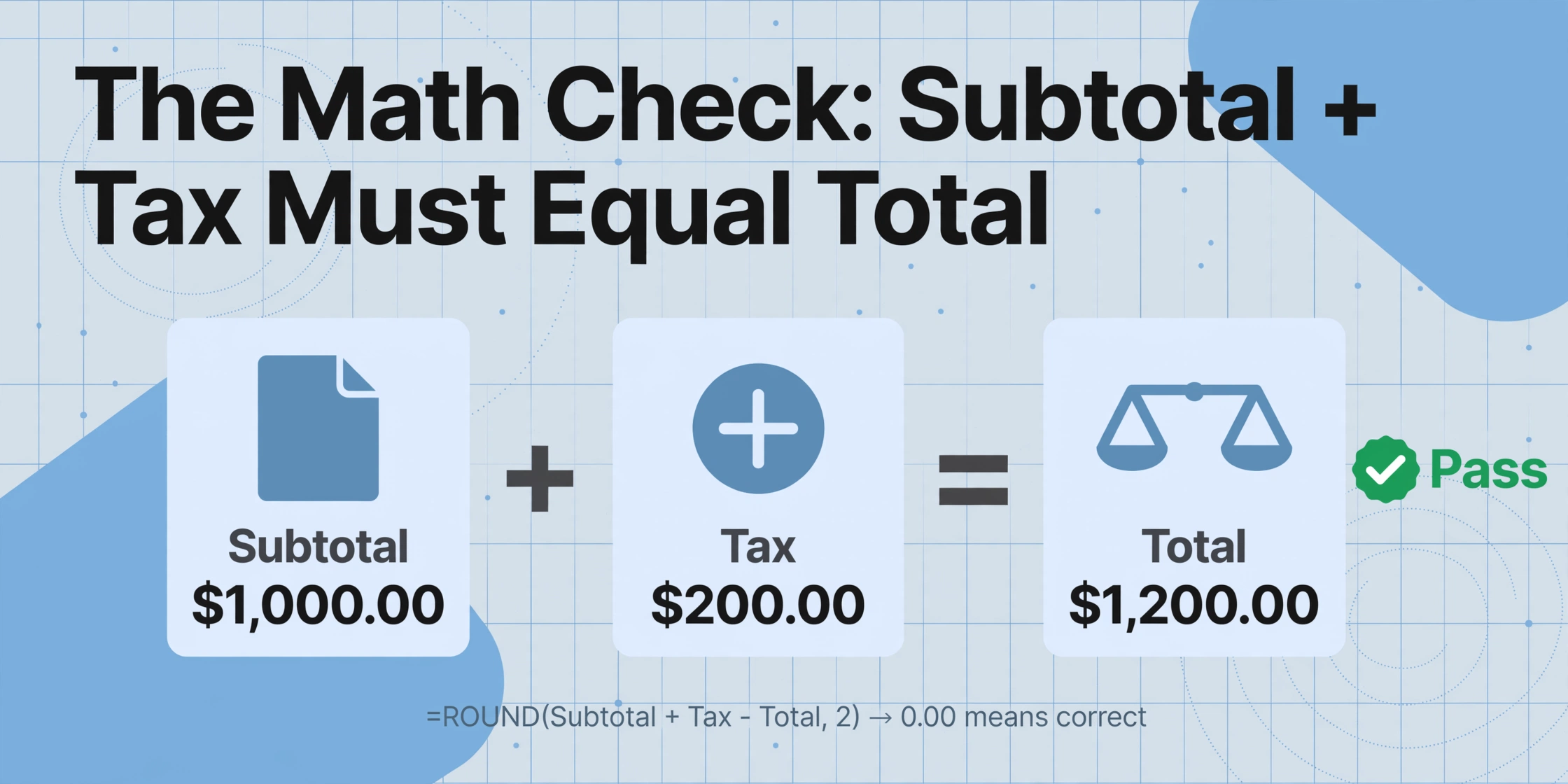
What it catches: Fields that pass the above checks but are wrong relative to each other — subtotal, tax, and total each look plausible on their own, but subtotal + tax does not equal total.
Why it works: Arithmetic relationships between fields are a built-in truth check that requires no external data. A cross-field math check catches the error types that range and pattern validation miss: the total that is visually correct but points at the wrong line, the tax rate misread as 15% when the invoice says 20%, or a quantity extracted as 50 instead of 15.
How to execute: Add a computed column to your output: =ROUND(Subtotal + Tax - Total, 2). Any row where the result is not 0.00 needs review. For line-item extraction, add Qty × Unit Price - Line Total. A line where 10 × $24.95 = $249.50 is correct; 10 × $24.95 = $2,495.00 indicates a decimal shift.
This check is particularly effective at catching the format-variance errors covered in depth in our companion article on wrong extracted numbers and their root causes. A decimal separator misread breaks every arithmetic relationship on the invoice, and cross-field math catches it every time.
Step 5: Batch-Level Sanity Checks — Count and Deduplicate
What it catches: Systemic issues that affect the batch as a whole — missing rows, duplicate entries, and mismatched file-to-row correspondence.
Why it works: Even perfect extraction across all fields is useless if the spreadsheet has the wrong row count or contains duplicate records. Three checks that require no field-level inspection:
- Row count vs file count: Compare row count to files uploaded. If you uploaded 30 files but the export has 28 rows, files were lost somewhere in the pipeline. Our article on common batch extraction failure modes walks through diagnostic steps for each stage.
- Duplicate invoice number check: Run
COUNTIFon the invoice number column. Genuine duplicates are rare — more often a duplicate indicates a processing glitch or accidental re-upload. - Date range consistency: Scan min and max dates. A batch of June 2026 invoices should not contain a date in August 2027. An out-of-range date usually signals a misread field or a document that shouldn't be in this batch.
These three checks take approximately 30 seconds and catch the errors that ruin a batch at the structural level — not wrong data, but missing or duplicated data.
When to Escalate — No Framework Catches Everything
This five-layer framework catches the majority of extraction errors — our testing across invoice, receipt, and purchase order batches shows a cumulative catch rate above 90% — but it does not catch everything.
Three situations where the framework's coverage drops and you should plan for a more thorough review:
- First batch from a new document type or vendor: Until you establish range boundaries and pattern expectations, Steps 2 and 3 cannot operate. For the first 20-30 documents, check 30-40% of fields manually.
- Handwritten or low-quality originals: Error rates on handwriting are inherently higher. Increase your critical-field sampling density and expect more flagged outliers.
- Heterogeneous document types: Mixing invoices, credit notes, and purchase orders creates structural inconsistency. The cross-field math check assumes subtotal + tax = total — which works for invoices but not for credit notes. Separate document types into dedicated batches.
The framework is not a replacement for judgment. It is a systematic way to allocate your limited verification time where it matters most — and to know, quantitatively, when you have checked enough.
Frequently Asked Questions
How long does the full 5-step spot-check take for a batch of 200 invoices?
Approximately 15-20 minutes. Steps 2, 3, and 5 are automated filters that take 5 minutes total to set up and zero time per batch. Step 1 requires about 10 minutes of hands-on verification for 15-20 targeted fields. Step 4 is a single formula plus 5 minutes to review flagged rows. Compared to a full manual check of all 200 rows — 6-10 hours — the savings are substantial.
What if I find an error in the 10% I checked — should I re-verify the whole batch?
Not necessarily. If the error is isolated to a single document, correct it and continue. But if you find a systematic pattern — the same field wrong across multiple documents from the same vendor — treat it as a root-cause problem. The root cause likely affects many more documents than you checked. Our article on diagnosing wrong extracted numbers can help identify whether it is isolated or systemic.
Do I need to run all 5 steps for every batch?
Steps 2, 3, and 5 should run on every batch — they are automated and cost nothing once configured. Steps 1 and 4 are the hands-on parts. For batches from familiar vendors with consistent quality, you can reduce the sampling rate in Step 1. For first-time batches, keep the full density.
Can ImageToTable.ai run any of these validations automatically?
Yes. ImageToTable.ai's intelligent data post-processing handles date standardization, amount formatting, and decimal-separator normalization — covering parts of Steps 2 and 3. The computed columns feature performs cross-field math validation during extraction, flagging rows where subtotal + tax does not equal total before the data reaches your spreadsheet. Batch-level sanity checks operate at the export stage.
Verification does not have to mean checking everything. A layered framework — critical field sampling, range validation, pattern checks, cross-field math, and batch-level sanity — catches 95% of extraction errors while checking less than 10% of your data. The trick is not to verify more. It is to verify what matters, in the right order, with the right tool for each layer.
Test the framework on your next batch. Upload a set of documents, export the results, and run through the five steps in order — you will likely find that 15 minutes of targeted verification gives you 95% of the confidence a full manual review would provide. Upload a batch and run the verification framework yourself.
No sign-up required · Works with JPG, PNG, and PDF