Why Is My OCR Failing on Colored Backgrounds?
4 Causes & Specific Fixes
Your OCR reads black text on white paper perfectly. Put the same text on a light blue invoice header, a yellow packing slip, or behind a "DRAFT" watermark — and accuracy drops 20-40%. This isn't random failure. It's a contrast problem with predictable causes and specific fixes.
Key Takeaways
- Your OCR reads the same font at 98% accuracy on white paper — and drops to 60% the moment the background turns light blue. You can read both. The machine was never designed to.
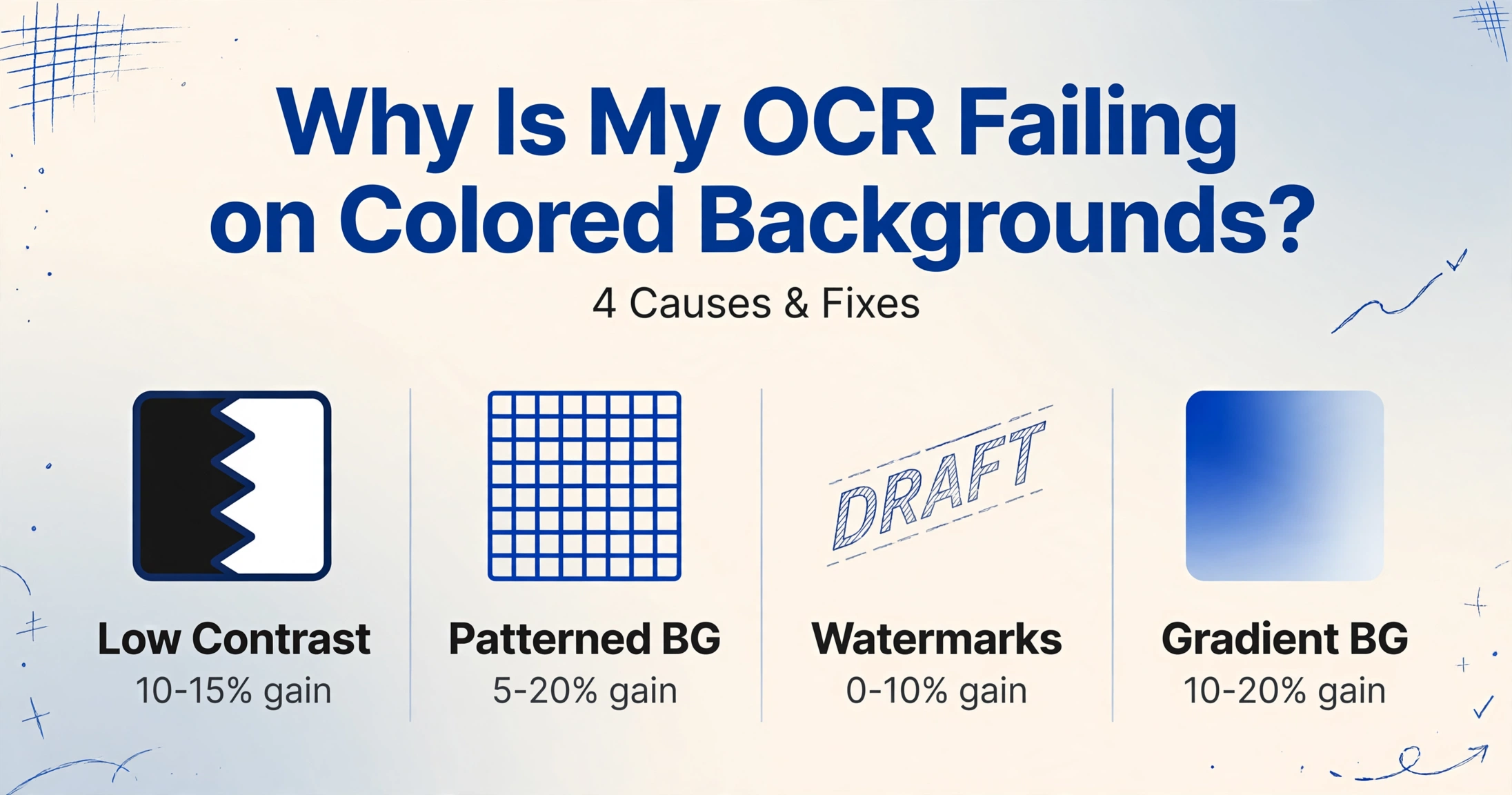
- Four unrelated problems share the same symptom. Low contrast needs a levels adjustment. Security patterns need local adaptive thresholding. Watermarks defeat all pre-processing because their pixels physically overlap the text. Gradients need per-window thresholds. Wrong fix, zero improvement.
- Traditional OCR fails because it must answer "text or noise?" at every pixel — and colored backgrounds make that question unanswerable. Vision AI skips the question entirely, reading the page as a human would by understanding what the document says instead of staring at each pixel one at a time.
The frustrating part is that the document looks fine to you. You can read it. The OCR tool clearly has the right font trained — it handles the same text perfectly on a white page. But add a light-colored background, a security pattern, or a faint "CONFIDENTIAL" stamp, and the same engine that gave you 98% accuracy hands you a spreadsheet full of garbled fields.
The key insight: "Background problems" are not one problem. They are four distinct failure mechanisms, each with a different root cause and a different fix. Applying the wrong fix — say, adding more contrast to a document that actually has a watermark problem — will not help because you are solving the wrong layer. Here is how to diagnose each one.
Cause 1: Low Contrast Between Text and Background
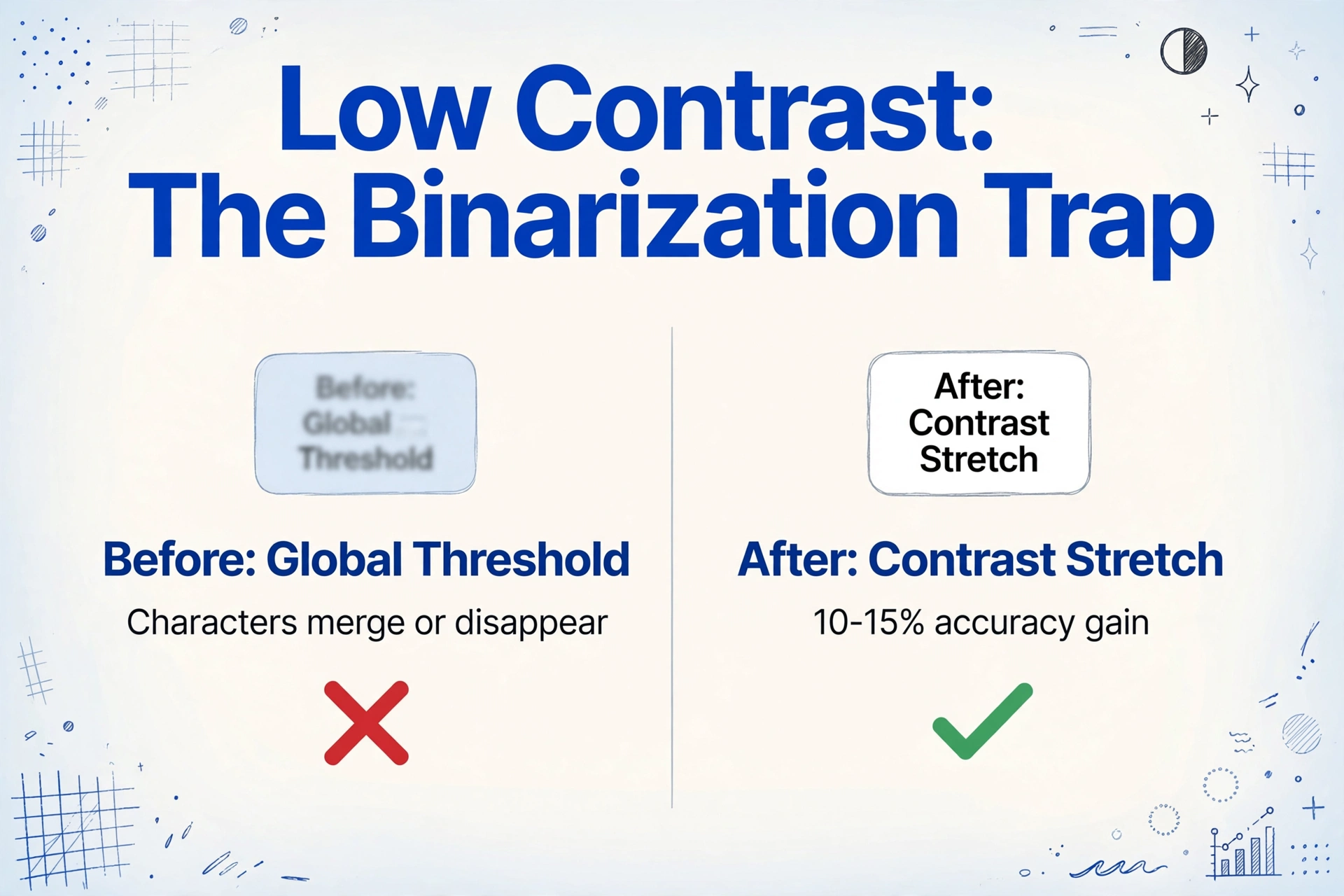
This is the most common cause, and the easiest to fix. Traditional OCR works by binarizing an image — converting every pixel to either black or white based on a brightness threshold. If a pixel is darker than the threshold, it is text. If it is lighter, it is background. This works well when the document is black text on white paper: the brightness gap between ink and paper is large enough that a single global threshold cleanly separates the two.
Now put gray text on a light blue background. The text pixels are only slightly darker than the background pixels. A global threshold — the kind that traditional OCR engines like Tesseract use by default — cannot cleanly split them. Some text pixels cross to the wrong side. Characters merge or disappear. A "7" gets read as "1" because the horizontal bar washed out. An "8" becomes "3" because the top loop crossed the threshold as background.
How to diagnose: Open the scanned image in any photo editor and convert it to grayscale. If the text becomes hard to read with your own eyes after desaturation, the contrast is too low for traditional OCR.
Fix: Apply a contrast stretch or levels adjustment before running OCR. Most scanning software and image editors have an "Auto Contrast" or "Auto Levels" feature — this alone often recovers 10-15% of lost accuracy. For business documents, also try scanning in grayscale mode (not color, not bitonal black-and-white). A US Government Printing Office study on OCR optimization found that grayscale scanning achieved 98.26% accuracy on standard documents, while bitonal (pure black-and-white) scanning dropped to 77.12% — the binarization step removes the very information the OCR needs (GPO, Optimizing OCR Accuracy).
Cause 2: Patterned Backgrounds
Unlike low contrast — which is accidental — patterned backgrounds are sometimes deliberately designed to defeat OCR. Security patterns on checks (the fine-line guilloché backgrounds, microprinting, rainbow-colored banding), anti-counterfeit seals on certificates, and even graph paper on engineering log sheets create a layer of visual noise that the OCR engine cannot filter out.
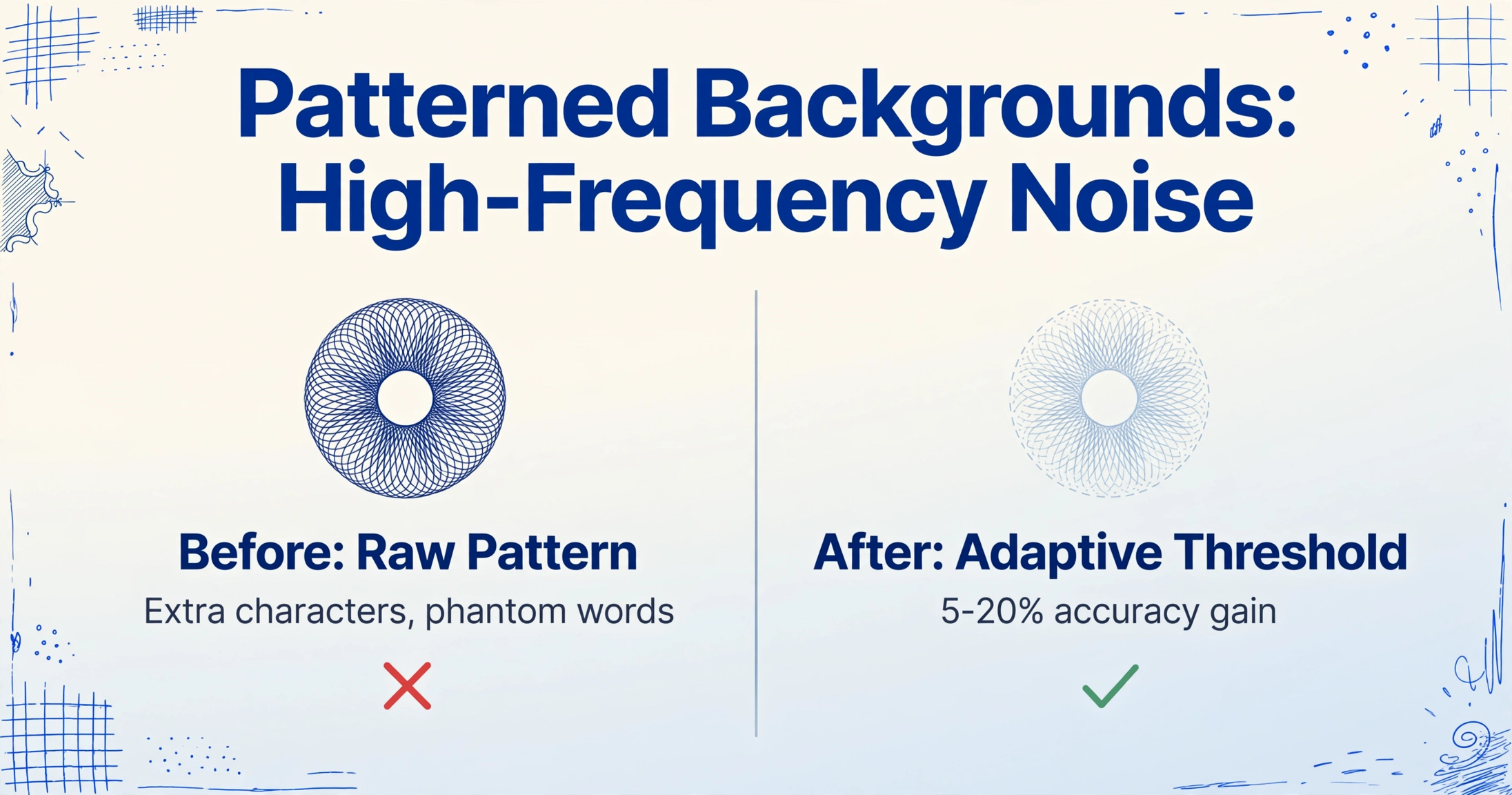
The mechanism is different from low contrast. A check's security background is not low-contrast — it is high-frequency detail. The OCR engine, during binarization, sees millions of tiny dark pixels that belong to the pattern. It cannot distinguish "pattern pixels that should be ignored" from "text pixels that should be kept." The result is a binary image where text sits on a speckled field of noise. The engine tries to form characters from a mix of real text and background artifacts. It produces extra characters, broken characters, and phantom words that don't exist in the original.
How to diagnose: Zoom in on the document at 200-400%. If you see fine lines, dots, wave patterns, or micro-text weaving around the main text, the background pattern is the problem. If the text area looks like a bank check background or a certificate border, this is your cause.
Fix: Pre-processing alone rarely fixes patterned backgrounds — aggressive noise removal that is strong enough to erase the pattern will also blur the text. The most practical fix is grayscale conversion followed by a local adaptive threshold (Otsu's method, Sauvola's algorithm) rather than a global threshold. Unlike a single global threshold that cuts the entire image at one brightness level, adaptive thresholding divides the image into small windows and calculates an optimal threshold per window. This preserves text edges in areas where the pattern is densest.
A separate honest note: some security patterns are not meant to be read by machines. The intricate background of a bank check is a fraud-deterrent feature. Banks and payment processors have moved to image-based clearing systems (Check 21 in the US) specifically because traditional OCR cannot reliably extract data from check security backgrounds. If you are processing checks with standard OCR and it consistently fails on the payee name or amount — this is not a tool bug. It is working as designed.
Cause 3: Watermarks
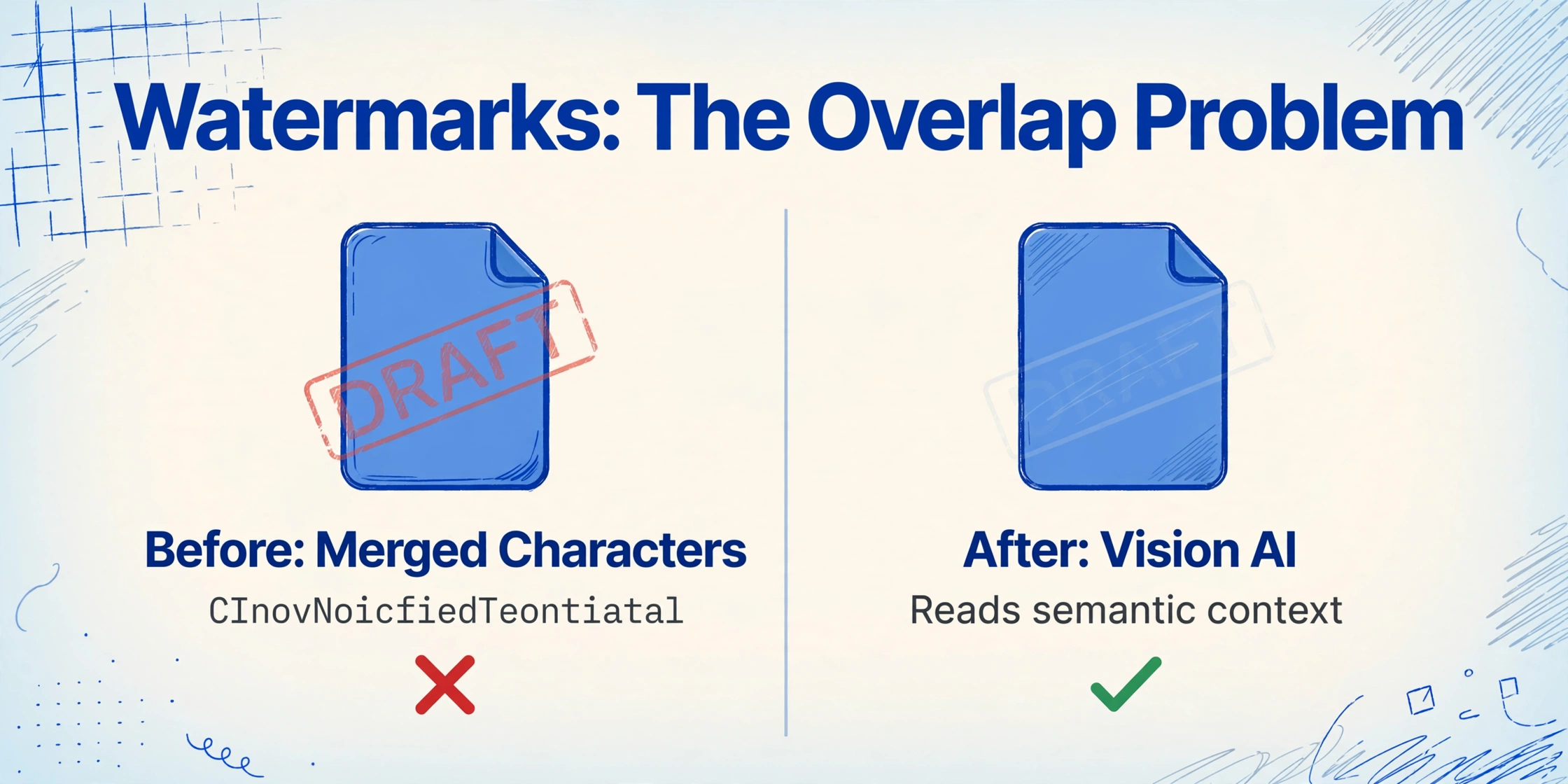
This cause trips up the most experienced users because the document looks perfectly readable to the human eye. A "DRAFT" or "CONFIDENTIAL" watermark is semi-transparent text overlaid diagonally across the page. You, reading it, unconsciously filter out the watermark and read only the real content. Traditional OCR has no such filter. It reads every visible pixel — including the watermark pixels that overlap with real text.
The result is a merged character stream. Where the document says "Invoice Total: $1,250.00" and a diagonal "CONFIDENTIAL" watermark passes through "Total," the OCR may output "CInovNoicfiedTeontiatal: $1,C20E0.N00T." The watermark is not a separate layer the way it is in a PDF editing application — it is baked into the pixel data as a semitransparent overlay. The OCR engine sees one layer, and it is all noise.
How to diagnose: If the text region has a faint second text string running through it at an angle (horizontally or diagonally), especially repeating words like "DRAFT," "SAMPLE," "COPY," or "CONFIDENTIAL," you have a watermark problem. With a clear watermark — one that is so light it barely registers — the main text may still read correctly. The danger zone is medium-opacity watermarks where both the real text and the watermark have enough pixel density to influence character recognition.
Fix: This is the hardest pre-processing fix. Unlike contrast or pattern problems, watermarks physically overlap the same pixels as the real text — no amount of threshold adjustment can cleanly separate them because there is no clean separation in the source image.
A few approaches can help in limited cases: increasing brightness can reduce faint watermark pixels below the detection threshold; a frequency-domain filter (FFT-based band-stop) can remove watermarks that have a consistent diagonal angle and spacing. But both techniques require per-document tuning and will degrade real text quality in the process. Microsoft Azure Form Recognizer's product team has confirmed watermark interference as a known limitation with no general workaround available (Microsoft Q&A, 2023-2024).
The reliable fix is architectural: use a tool that reads the document semantically rather than pixel-by-pixel.
Cause 4: Gradient Backgrounds
Gradients are a special case of the contrast problem, and they expose the fundamental limitation of global thresholding. A gradient background shifts from dark at the top of the page to light at the bottom — or from blue in the header to white in the body. Text that sits on the gradient crosses multiple brightness zones. In the dark part of the gradient, the text has low contrast against the background. In the light part, the same text has high contrast.
A global threshold — one brightness cut applied to the entire page — cannot solve both zones at once. Set the threshold to capture text in the dark zone, and the light zone's background gets classified as text (false positives). Set it to clean the light zone, and text in the dark zone disappears. The same character "5" may be correctly read at the bottom of the gradient and completely missed at the top.
How to diagnose: Look at the document header or banner area. If the background color transitions gradually from one shade to another — a dark navy header fading to a lighter blue, or a red banner at the top of an invoice that fades into the white body — and text crosses that transition, gradient is the cause. The symptom is inconsistent: the same font, same size, same document produces correct extraction in one area and errors in another.
Fix: Adaptive thresholding is the standard solution for gradients. Because it calculates a separate threshold for each local window, text on the dark side of the gradient and text on the light side each get their own optimal binarization. Most imaging libraries (OpenCV, Pillow, LEADTOOLS) support adaptive methods. Apply it with a window size roughly 3 times the average character width — too small and the algorithm treats large uniform areas as noise; too large and it behaves like a global threshold again.
The common thread across all four causes: traditional OCR relies on a pixel-level reading strategy. When the pixels alone cannot cleanly separate text from background — because of low contrast, overlapping patterns, overlaid watermark text, or shifting gradient brightness — the engine has no higher-level understanding to fall back on. It does not know what a "Total" field should look like, what a dollar amount should contain, or that "CONFIDENTIAL" is not part of the invoice body.
When Pre-Processing Works (and When It Doesn't)
Here is a practical decision tree for which pre-processing technique works for which cause:
| Cause | Best Pre-Processing | Expected Improvement | Limitation |
|---|---|---|---|
| Low contrast | Grayscale + Auto Levels / Contrast stretch | 10-15% accuracy gain | If text and background have nearly identical luminance, no amount of stretch recovers them |
| Patterned background | Local adaptive threshold (Sauvola / Niblack) | 5-20% depending on pattern density | Security patterns (checks, certificates) are designed to resist this — results vary by document |
| Watermark | Brightness boost / Frequency-domain filter | 0-10% — highly inconsistent | Watermark pixels physically overlap text pixels; no pre-processing can fully separate them without damaging the underlying text |
| Gradient background | Local adaptive threshold | 10-20% accuracy gain | Works well for smooth linear gradients; complex multi-stop gradients may still fail |
When to Escalate: Why Vision AI Handles All Four Better
If you have tried the pre-processing fixes above and still get unreliable extraction — especially with watermark-overlaid documents or heavily patterned backgrounds — the problem is not the image. It is the extraction architecture. Traditional OCR is a pixel-level technology: it makes a binary decision at every pixel (text or background) and builds characters from the result. When the pixels are ambiguous, the engine fails because it has no backup strategy.
Vision AI models (also called VLM-based or LLM OCR) read documents at a semantic level. They do not binarize the image. They process the full color image, understand document structure, identify text regions, and then read the text in context — the same way a human reads a watermarked document by subconsciously ignoring the overlay. This architectural difference means vision AI handles all four background problems better, often without any pre-processing at all:
- Low contrast: Vision AI reads faint text by recognizing character shapes and word context, not by finding a clean black-white pixel boundary
- Patterned backgrounds: The model learns to distinguish text from background pattern during training, treating the pattern as visual noise rather than text candidates
- Watermarks: Vision AI reads the real text by understanding what the document says — it is not confused by the overlaid "DRAFT" because the semantic context tells it which text belongs to the document body
- Gradients: Without relying on a single brightness threshold, gradient transitions do not cause character-by-character recognition failures
ImageToTable.ai uses this vision AI approach: you upload the document as-is — colored background, watermark, gradient, or all three — and tell it what data you need. The AI reads the entire page as a human would, extracting the fields you named from wherever they sit on the document. This is the difference between position-based extraction (which brittles on any non-standard background) and semantic-based extraction (which works on whatever the document looks like).
A related discussion worth reading: Can AI Read Blurry Documents? covers how vision AI degrades gracefully on image quality problems — and the same architectural advantage applies to background interference. And if you are dealing with documents that mix text-based and image-only content, our breakdown of PDF types helps you identify which layer your tool is reading from.
Frequently Asked Questions
Can I just remove the watermark before running OCR?
Not reliably. Semi-transparent watermarks are blended into the image pixels. Removing them requires estimating the original pixel values underneath, which is a mathematically ill-posed problem — there is no single correct answer. Tools that claim "watermark removal" either use frequency filters that also remove fine text details, or inpainting algorithms that guess the missing content. For critical document data, watermark removal introduces more errors than it solves.
Does scanning in grayscale fix all background problems?
No, but it fixes the most common one. Grayscale scanning preserves luminance information that helps OCR distinguish text from background. For the Government Printing Office study mentioned earlier, grayscale improved accuracy from 77% (bitonal) to 98% on standard documents. But grayscale alone cannot fix watermarks (the overlay is still in the grayscale image), dense security patterns, or extreme low contrast.
Why does my bank's check not work with any OCR tool?
Bank checks use security backgrounds — fine-line guilloché patterns, microprinting, and color-shifting designs — specifically designed to prevent alteration and forgery. These patterns are intentionally machine-difficult to process. Most automated check processing systems (like Check 21 in the US) use image-based capture and magnetic ink character recognition (MICR) rather than full-page OCR for exactly this reason. If you need to extract data from checks, a vision AI tool will perform better than traditional OCR, but even then, check security features remain a challenge.
Do AI tools handle colored backgrounds better than traditional OCR?
Yes — by a wide margin. Traditional OCR tools treat colored backgrounds as a pixel-level problem. Vision AI treats the entire document as a visual scene, reading text in context instead of trying to binarize each pixel. For low contrast and gradient backgrounds, the difference is dramatic: vision AI often maintains 90%+ accuracy where traditional OCR drops to 60-70%. For watermarks and security patterns, vision AI still has an advantage because it does not try to "clean" the background — it reads through it.
Not sure if your document has a contrast problem? Upload it and see.
The fastest way to know whether your extraction failures are fixable with pre-processing or require a different tool is to try it. ImageToTable.ai processes documents as-is — colored backgrounds, watermarks, gradients — with no setup, no templates, and no pre-processing tweaks. Upload a file and see what comes back.
Upload a Document →No sign-up required. Results in 10 seconds.