Why Your OCR Fails on Colored Backgrounds
and Watermarks — 4 Causes & Fixes
You uploaded a batch of invoices, ran the OCR tool, and got back spreadsheets full of garbled text — or worse, fields that came back completely empty. If your documents have colored backgrounds, watermarks, or highlighted sections, there is nothing wrong with your scanner or your settings. The problem is that these visual elements actively break the way character recognition works under the hood.
Key Takeaways
- Every time OCR chokes on a colored invoice header, the problem isn't your scanner settings — traditional binarization was built for one assumption, black ink on white paper, and that assumption fails silently on everything else.
- Watermarks don't just reduce legibility — OCR engines have no concept of document intent, so DRAFT and CONFIDENTIAL get mixed into your extracted totals as if they were real data, contaminating numbers without warning.
- Semantic AI extraction skips binarization entirely — it reads documents the way you do by understanding layout and intent rather than classifying every pixel, which means colored backgrounds and watermarks stop being obstacles.
Traditional OCR was designed around a simple assumption: black text on a white background. Most OCR engines — Tesseract, ABBYY FineReader, Adobe Acrobat's built-in OCR — convert the image to a binary black-and-white representation (a step called binarization) and then match the remaining dark regions against character shapes. The moment the background introduces color, texture, or semi-transparent text, that assumption breaks down.
This is one of the most stubborn challenges in automated document extraction. There is no single fix that handles every case. But understanding why it breaks gives you a practical advantage: you can diagnose the specific cause on your document, apply the right fix, and know when the limitation is in the tool — not the document.
Here are the four most common ways colored backgrounds and watermarks cause OCR extraction failures, and what to do about each one.
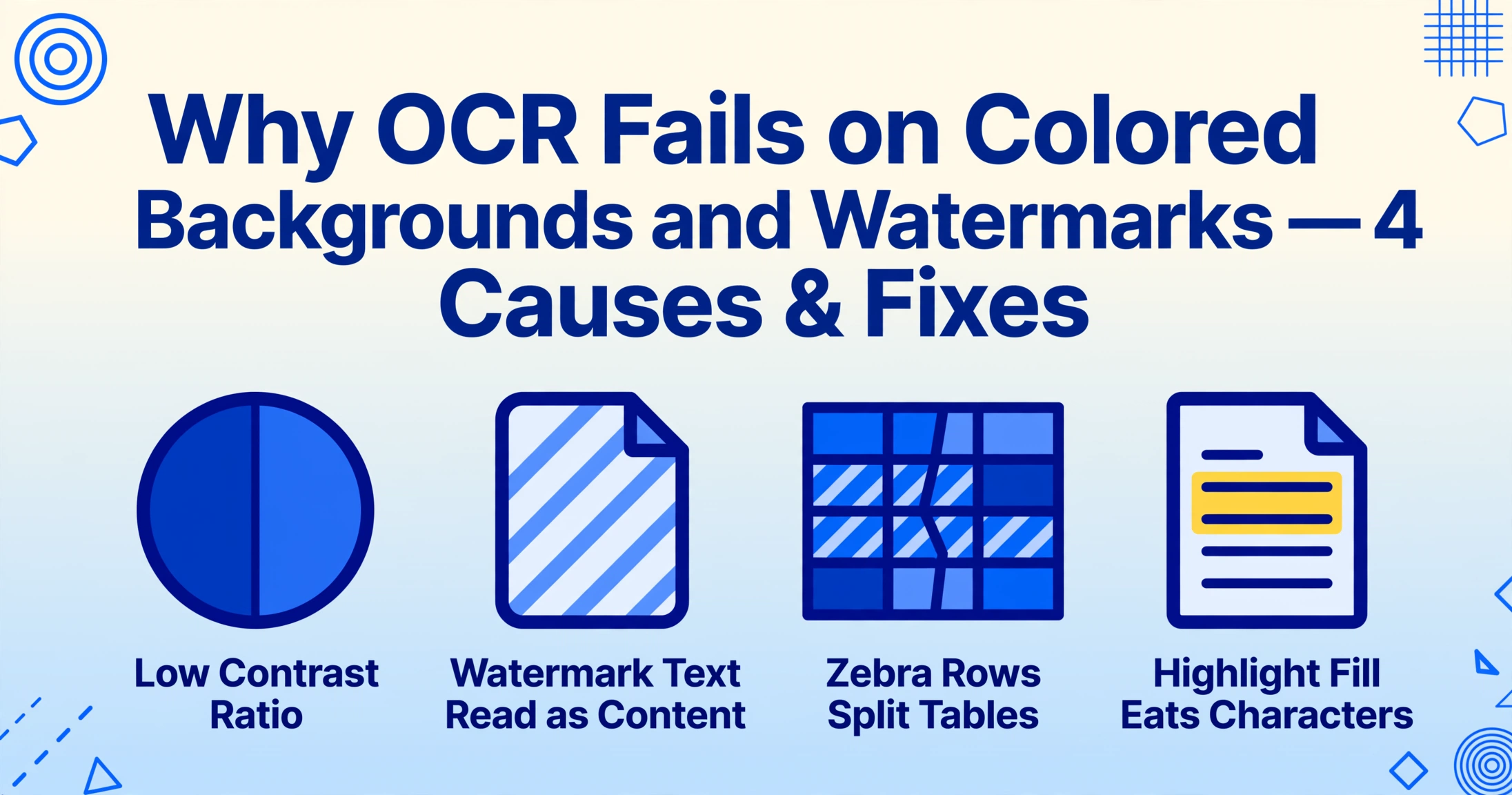
Cause 1: Low Contrast Ratio — When Text Blends into the Background
Binarization is the first thing most OCR engines do: they convert every pixel to either black or white, using a threshold value. Any pixel darker than the threshold becomes a character candidate; anything lighter becomes background. This works beautifully when you have deep black ink on bright white paper. It fails when the difference between text color and background color falls below a certain ratio.
Concrete example: A supplier invoice with a navy blue header bar and white text reading "INVOICE" and "Net 30 Terms." The header is dark blue — say RGB (20, 40, 100). The text is white — RGB (255, 255, 255). To a human eye, the contrast is excellent. To a binarization algorithm, the dark blue background falls on one side of the threshold and the white text falls on the other — often both get classified as "not black enough." The text disappears.
The same problem occurs with light gray text on any background, white text on pastel-colored boxes (common in modern invoice templates), and text overlaid on gradient-filled table headers. The structural problem is the same: the character pixels and the background pixels are too close in luminance for the threshold to separate them.
How to diagnose: Open the scanned image in any photo editor and apply a grayscale filter. If the text that OCR is missing becomes hard to read by eye, binarization is almost certainly the cause.
Cause 2: Semi-Transparent Watermarks — DRAFT, CONFIDENTIAL, and SAMPLE Read as Real Content
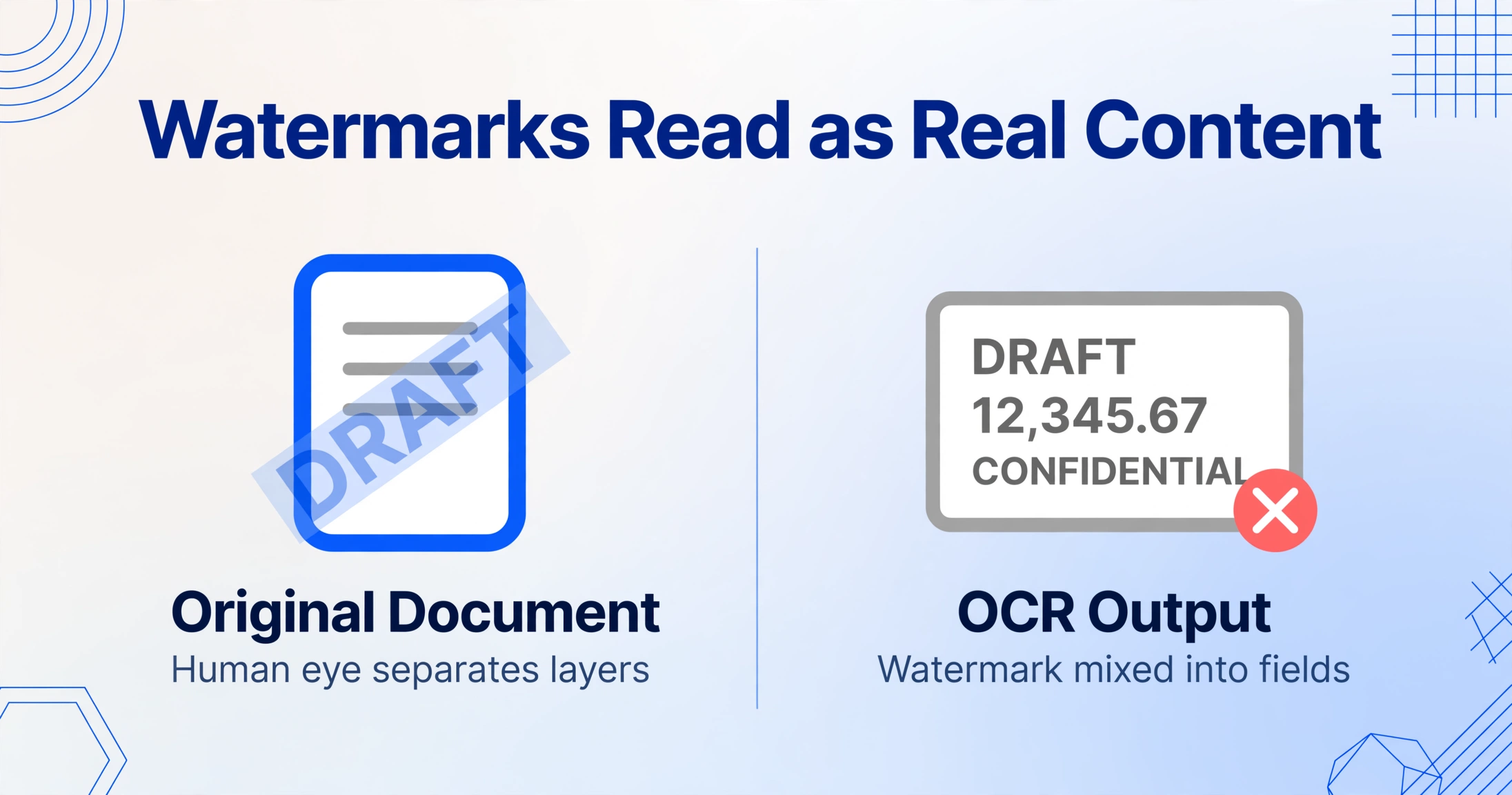
Watermarks are designed to be visible to the human eye without blocking the underlying content. That makes them useful for document security — and disastrous for OCR. The semi-transparent text creates pixel values that sit in the "maybe text, maybe background" zone of the binarization threshold.
The result is unpredictable and varies by engine. Some OCR tools treat the watermark pixels as part of the background and discard them — but the underlying characters also get discarded, producing empty fields. Others treat the watermark as primary text and output something like DRAFT 12,345.67 CONFIDENTIAL instead of the actual invoice total. On Microsoft's Azure AI Document Intelligence forum, users have reported that watermark strings like "SAMPLE" or "VOID" get mixed into extracted field values, inflating character counts and breaking downstream validation rules.
The core issue is that traditional OCR has no concept of intent. It cannot distinguish between "DRAFT" printed as a security overlay and "DRAFT" printed as a contract version label. Both are just pixel patterns that match a set of characters.
How to diagnose: Check whether your extracted output contains extra words like "DRAFT," "CONFIDENTIAL," "SAMPLE," or "COPY" that do not correspond to any real field in your document. If these words appear repeatedly across documents from the same source, a watermark is the culprit.
Cause 3: Color-Coded Alternating Rows — Layout Analysis Confusion
Alternating row colors — often called zebra striping — improve readability for human eyes. For OCR layout analysis, they create a segmentation nightmare. The layout engine divides the page into text regions, tables, and blocks based on consistent visual structure. When the background color of every other row shifts from white to light blue or gray, the engine can interpret each row as a separate text block rather than part of a continuous table.
This typically manifests as extracted tables where rows appear in the wrong order, some rows are missing entirely, or the table is split into multiple separate tables for even and odd rows. The layout analysis step — which runs before character recognition — makes an early decision about where the table boundaries are, and colored rows cause it to make too many boundaries.
The problem is particularly common with bank statements, financial reports, and aged receivables reports, where zebra striping is standard practice. A statement layout that looks clean and organized to a human produces a fragmented extraction that requires significant manual cleanup.
How to diagnose: Compare the row order in your extracted output with the original document. If every other row appears in a separate table or the output alternates between two table blocks, you are seeing layout analysis failure caused by alternating colors.
Cause 4: Highlighted Text — When Background Fill Eats Characters
Yellow highlighter over black text is a staple of document review. For OCR, it creates a situation where the effective contrast between text and background drops significantly — not because the text is faint, but because the highlight fills the negative space inside and around each character.
OCR engines rely on the empty space between character strokes to determine where one character ends and the next begins. When that negative space is filled with a bright color — yellow, green, pink — the edge detection that separates, say, an n from an h loses the signal. Adjacent characters appear to bleed together, producing substitution errors: "Confirm" becomes "C0nfi rm," dollar amounts drop digits, and invoice numbers come back partially legible at best.
Digital highlights in PDFs are even more problematic than physical marker on paper, because the highlight layer is rendered as a semi-transparent overlay that sits between the text layer and the scanned image, creating a three-layer transparency problem that binarization was never designed to handle.
How to diagnose: Look at the original document. If any text has a colored background highlight — whether yellow from a reviewer marker or colored from a digital annotation — and the extracted output for those specific fields contains merged characters or digit dropouts, highlighted text is your cause.
How to Fix Colored Background and Watermark OCR Failures
No single technique fixes all four causes. Here are five practical approaches, ordered from simplest to most effective, along with which cause each one addresses.
1. Grayscale Conversion + Contrast Enhancement
Before sending a document to OCR, convert the image to grayscale and manually adjust contrast. This eliminates color as a variable — the OCR engine receives a luminance-only image where text-background separation is based purely on brightness. Most desktop scanning software and PDF tools (Adobe Acrobat, NAPS2, VueScan) have a "grayscale" or "remove color" option. Apply it before OCR, not after. This fix is most effective for Causes 1 and 4 (low contrast and highlighted text).
2. Adaptive Thresholding
Standard binarization applies one threshold to the entire page. Adaptive thresholding calculates a local threshold for each region, so a document that has both a dark blue header area and a white body area gets treated with different thresholds in each zone. Some OCR tools expose this as an "adaptive" or "local" binarization option. Tesseract supports it via the --psm and --oem flags combined with image preprocessing. This fix helps with Causes 1 and 4 — any case where contrast varies across different regions of the same page.
3. Scan "Remove Background" Option
Many enterprise scanners and professional OCR packages (ABBYY FineReader, Adobe Acrobat Pro) include a "remove background" or "background removal" preprocessing filter. This filter attempts to identify and strip uniform colored backgrounds before binarization. It works well on documents with solid-color headers or column backgrounds (Cause 1) but typically fails on watermarks (Cause 2), because watermarks are not uniform enough for the filter to recognize them as "background."
4. Semantic AI Extraction (Watermark-Aware Processing)
Vision-language models (VLMs) — the technology behind modern AI extraction tools — do not rely on binarization. They read the document as an image and understand the semantic meaning of each text region. A VLM can often identify that "DRAFT CONFIDENTIAL" appearing diagonally across a page is a watermark, not a data field, and exclude it from the extracted output. Similarly, VLMs handle colored backgrounds and zebra-striped tables more gracefully because they analyze the full layout context instead of making binary foreground-background decisions.
This is not a silver bullet — even the best VLMs can be confused by dense watermarks or extremely low-contrast text. But for Causes 2 and 3 (watermarks and alternating rows), switching from a traditional OCR engine to a VLM-based extraction tool is the single most effective step you can take. This is the approach used by ImageToTable.ai in its To Table mode, where the model interprets the document's intent rather than its pixel values.
5. Post-Extraction Keyword Filtering
If your documents have consistent watermarks (such as "SAMPLE" on all demo invoices or "CONFIDENTIAL" on draft contracts), a simple post-processing script can strip these known strings from extracted fields. This is a band-aid, not a fix — it works only when you know exactly what the unwanted text is and it does not help with the missing data caused by low contrast. But it is fast, requires no tool changes, and reliably cleans up Cause 2 (watermark text) for predictable documents.
When to Escalate: Recognizing Documents Beyond Traditional OCR
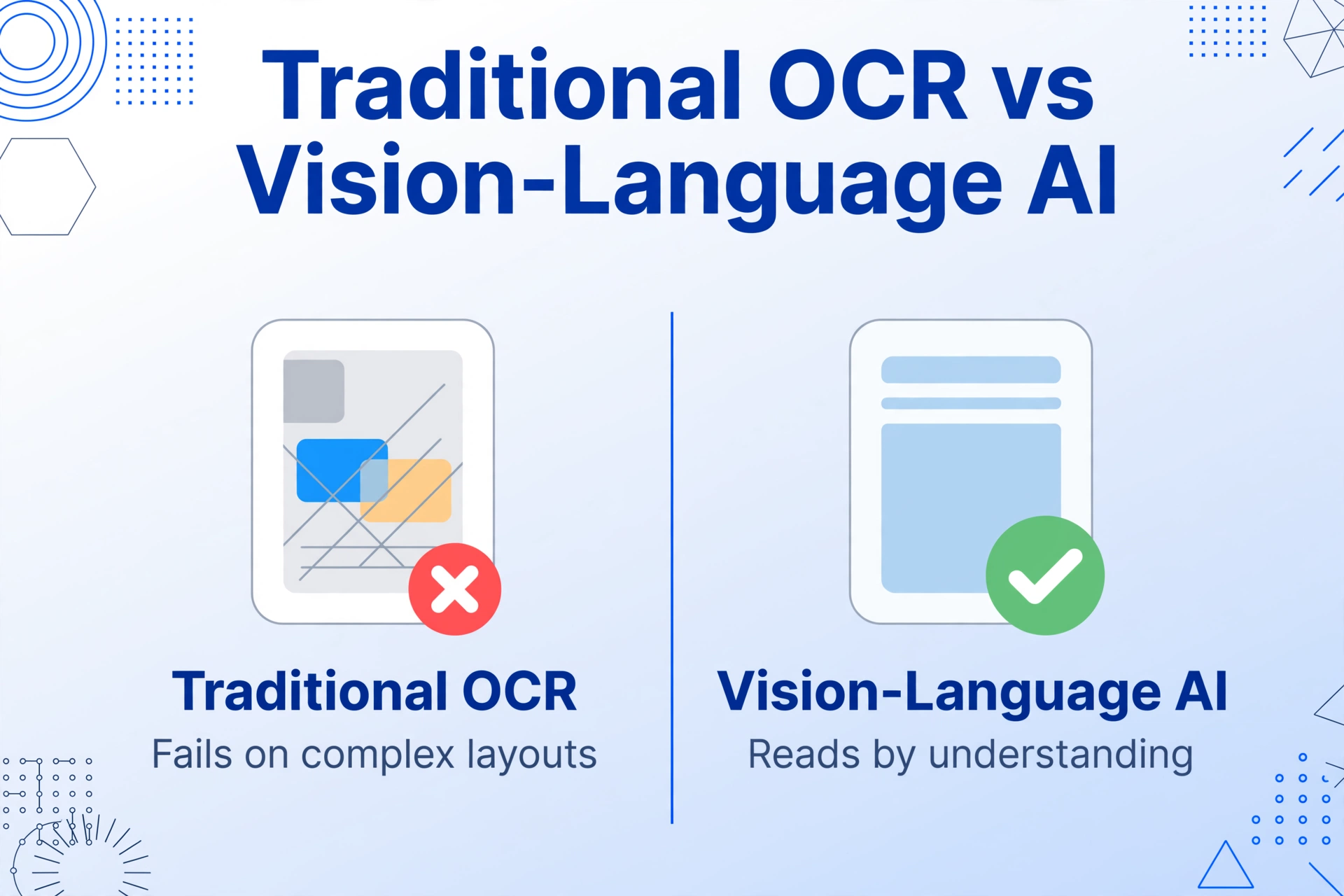
Some documents are fundamentally outside the capabilities of traditional OCR — not because the technology is flawed, but because the extraction approach itself is the wrong tool.
If your documents consistently exhibit any of these characteristics, preprocessing tweaks will never fully solve the problem:
- Multiple overlapping visual elements: Watermark + colored header + table on the same page. Each element degrades the signal independently, and the cumulative effect exceeds what thresholding or background removal can recover.
- Non-uniform backgrounds across pages: Some pages are plain white, others have light blue headers, others have scanned-in gray shadows. A single preprocessing pipeline cannot adapt to all three.
- Watermark density that covers 30%+ of the page: Dense watermarks mean that even if the watermark text is filtered out, the pixels underneath it have been altered enough that the original character shapes are no longer recoverable.
- Extraction is already failing on plain documents of the same type: If the tool misses fields even on clean white-background invoices, the problem is not the background — it is the tool. Adding color to the document will only widen the gap.
In these cases, the correct escalation is not better preprocessing — it is a fundamentally different extraction architecture. Vision-language models that extract by understanding rather than thresholding represent the next step up. And for documents with exceptionally complex layouts, opting for a structured preprocessing guide combined with a modern AI extraction tool gives the best chance of clean results.
Understanding why accuracy drops across different document styles is covered in depth in our article on why OCR accuracy varies by document type, and troubleshooting table extraction specifically is addressed in our guide on fixing merged-cell extraction problems.
Frequently Asked Questions
Does scanning in grayscale instead of color fix OCR problems with colored backgrounds?
Partially. Grayscale scanning eliminates color as a variable, which helps with light colored backgrounds (Cause 1). However, it does not fix watermark interference (Cause 2) because the watermark text still appears in the grayscale output. For watermarks, you need semantic filtering or AI-based extraction that understands the watermark as a separate visual layer.
Can OCR read white text on a dark background if I increase the brightness?
Sometimes, but not reliably. Increasing brightness makes the dark background lighter, which brings both the background and the text closer to the white end of the threshold. What you actually want is contrast enhancement, not brightness adjustment — increasing the difference between the text and background luminance, not moving both in the same direction. Tools like Adaptive Thresholding or CLAHE (Contrast Limited Adaptive Histogram Equalization) do this more effectively than simple brightness sliders.
Why does my OCR tool read watermark text on some documents but not others?
Different OCR engines use different binarization algorithms. Some engines (like Tesseract with default settings) are more aggressive about treating everything as potential text, which makes them more likely to read watermarks. Others (like ABBYY FineReader) apply more preprocessing to suppress background elements before binarization. The same watermark can produce completely different extraction results across tools because the preprocessing pipeline — not the character recognition engine — determines whether the watermark survives to the recognition stage.
Will AI-powered extraction completely solve colored background and watermark problems?
AI vision models are significantly more tolerant of colored backgrounds and watermarks than traditional OCR — they handle Causes 2, 3, and most of Cause 1 much better because they do not rely on binarization. However, they are not perfect. Extremely low contrast (white text on a white-ish background), dense watermarks that cover large portions of the document, and heavy digital highlights can still confuse VLMs. The honest answer is that this remains one of the hardest problems in document extraction, but modern AI tools have closed the gap substantially — from "fails on most colored documents" to "succeeds on most, struggles on extreme cases."
Can I remove a watermark from a PDF before running OCR?
PDF watermarks are sometimes in a separate rendering layer that can be removed with PDF editing tools like Adobe Acrobat Pro, PDFpen, or command-line tools like qpdf or cpdf. However, watermarks that have been flattened into the image (rasterized during PDF creation or scanning) cannot be removed — they are permanently baked into the pixel values. For flattened watermarks, the fix must happen at the extraction level, not the document level.
Test your colored-background documents on a modern AI extractor
Upload an image or PDF — see whether semantic extraction handles your watermark or colored layout better than traditional OCR.
Try It Now →No sign-up required. Results in 10 seconds.