Why Does Your PDF Extraction Tool Give 98% on One File
and Garbage on Another? — 3 PDF Types Explained
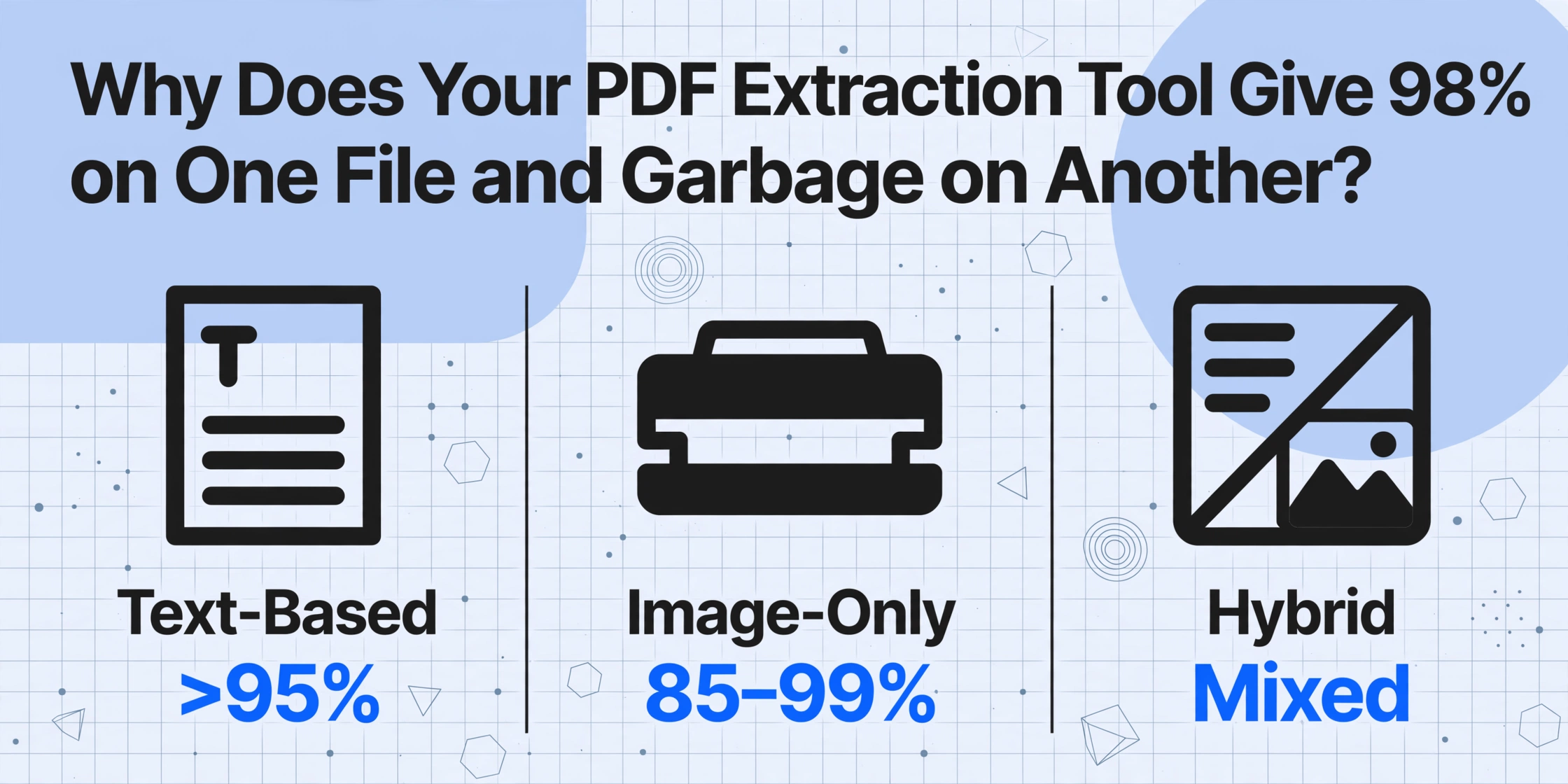
You processed two PDFs that look identical on screen. One came out clean at 98%. The other was a scrambled mess of misaligned columns and missing fields. The difference? One was a text-based PDF, the other was image-only — and your extraction tool handled them completely differently.
Key Takeaways
- Two PDFs produce 98% and garbage from the same extraction tool — and they look identical on screen because PDF is not one format but three structurally different containers.
- A hybrid PDF buries a text layer on page one and a scanned image on page three, so your tool silently reads the wrong data source on half the pages and returns numbers that look correct but are not.
- Try to select text with your cursor — a ten-second test reveals which of three PDF types you have and exactly which extraction strategy to apply.
The Three PDF Types That Determine Extraction Success
If you have ever opened two PDFs side by side, confirmed they contain the same kind of information, run them through the same extraction tool, and gotten wildly different results — you are not alone. This is the single most common complaint about document extraction tools, and it is almost never the tool's fault.
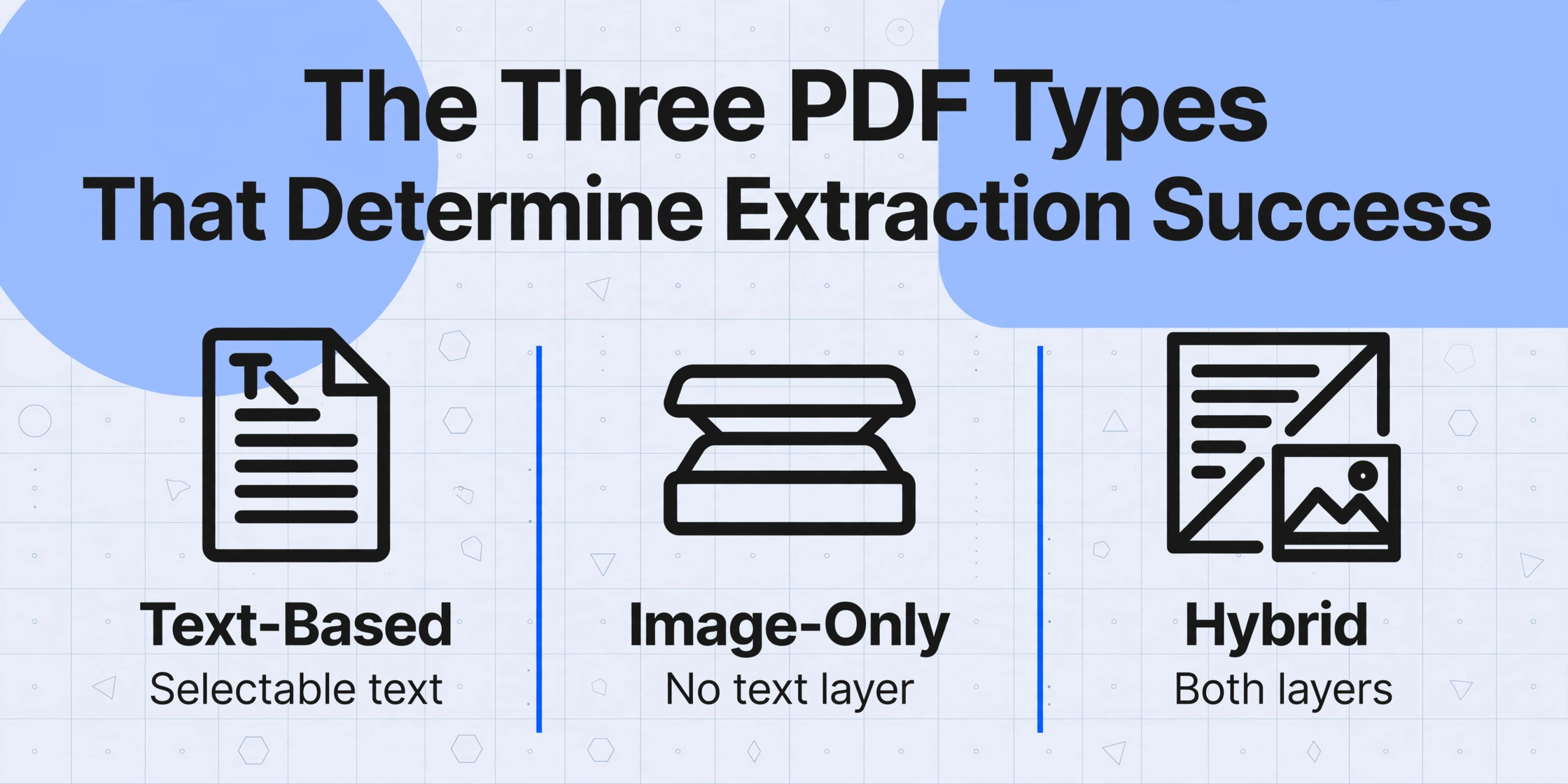
The problem is that PDF is not a single format. It is a container that can store text in three fundamentally different ways, and most extraction tools handle only one or two of them well. The distinction that matters is not whether the file ends in .pdf — it is whether the file contains an embedded text layer, a flat image of text, or both. Here is what each type looks like under the hood:
Created by software — a Word document saved as PDF, a QuickBooks export, an ERP-generated report. Contains an embedded text layer with actual character data, font information, and position coordinates. You can highlight, select, and copy individual words with your mouse.
Accuracy with standard extraction: >95%. No OCR needed.
A photograph or scan of a paper document saved as PDF. No text layer exists — every character is simply pixels arranged in a pattern. Try to select text and your cursor draws a hollow rectangle; nothing highlights. The document is essentially a photo inside a PDF wrapper.
Requires OCR or a vision AI. Accuracy: 85–99% depending on scan quality.
A mix of both: a text layer and embedded images. Common examples include a contract with scanned signature pages, or an AP packet where page 1 is a system-generated summary followed by photos of supporting receipts.
The most dangerous type. The tool may read the wrong layer and produce garbage that looks plausible.
The core insight: you cannot judge a PDF by how it looks on screen. Two files that display identically can be structurally different at the format level. If your extraction tool handled the first one perfectly and produced a scrambled mess on the second, the most likely explanation is that they belong to different PDF types — and the tool applied the wrong extraction strategy.
How to Diagnose Yours in 10 Seconds — Three Tests
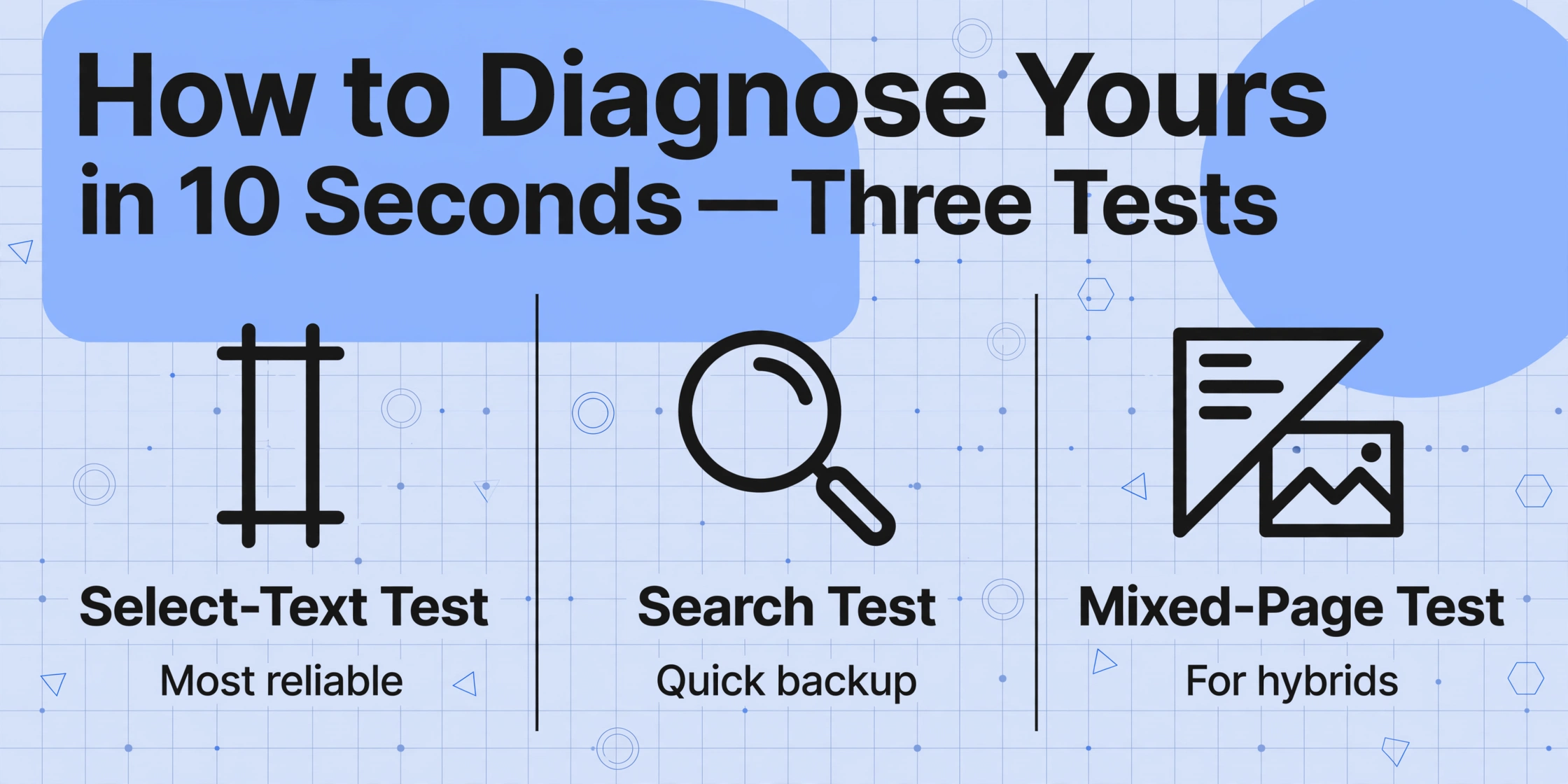
You do not need a PDF analysis tool or a developer to figure out what kind of PDF you have. Every operating system ships with the one tool you need: a PDF reader. These three tests take less time than uploading a file to an online analyzer:
Test 1: The Select-Text Test (Most Reliable)
Open the PDF in any reader — Adobe Acrobat, Chrome, macOS Preview, or a mobile PDF app. Click the text selection tool (usually an I-beam cursor or a T icon) and try to drag-select a sentence or a number.
- If individual words highlight and you can copy them: the PDF has a usable text layer. It is either a native text-based PDF or one that has been OCR'd. Standard extraction should work.
- If the cursor draws a hollow rectangle and nothing highlights: the PDF is image-only. There is no text layer for any tool to extract — only pixels. OCR or vision AI is required.
This test is definitive. A scanned document produces exactly zero selectable text regardless of how clear the text looks to your eyes. The human visual system reads the pixel patterns as text. The computer sees an image.
Test 2: The Search Test (Quick Backup)
Press Ctrl+F (or Cmd+F on Mac) and type a word you know appears in the document — for example, "Total" on an invoice or "Date" on a contract.
- If the word is found and highlighted: the PDF contains searchable text. Extraction should succeed with standard methods.
- If the search returns zero results despite the word being visibly on the page: the document is image-only.
Test 3: The Mixed-Results Test (For Hybrid Detection)
This is the test most people skip, and it is the reason hybrid PDFs go undiagnosed. Perform Test 1 on every page, not just the first page. Select text on page 1, then scroll to page 3, then page 5.
- If some pages have selectable text and others do not: you are holding a hybrid PDF. This is the scenario that produces the most baffling extraction failures — the tool processes pages 1 and 2 perfectly (they have a clean text layer), then produces misaligned columns and missing fields on page 3 (which is a scanned image inside the same file). Because the file name is the same and the visual layout looks consistent, it feels like the tool "broke" mid-processing.
Once you have identified your PDF type, the fix becomes straightforward. Each type has a different root cause and a different solution.
Cause 1: Text-Based PDF That Still Produces Garbage
Symptoms: Text is selectable, the PDF was created by software, but the extracted output contains misordered columns, merged table cells, or characters that do not match what is on the screen.
Why it happens: A PDF does not store text like a Word document. Instead of a linear paragraph with a defined reading order, a PDF encodes text as a series of drawing instructions — place the character "I" at coordinates (72, 540), place "n" at (78, 540), and so on. There is no inherent concept of paragraphs, reading order, or table structure built into the format. The PDF knows where each character sits on the page, but it has no understanding of what the text means or how it should be read.
Extraction tools must reconstruct logical structure from these low-level positional instructions. When a PDF was generated with unusual font encoding, custom character mapping (CMap), or non-standard PDF producers, the reconstruction can produce scrambled output even though the file technically contains a text layer. This is most common with:
- ERP-generated PDFs: Some enterprise systems use custom PDF generators that encode text in non-standard ways — the characters look correct on screen because your PDF reader applies its own text rendering, but the underlying encoding is non-standard and extraction tools cannot interpret it correctly.
- PDFs with embedded font subsets: When only a subset of font characters is embedded, the extraction tool may map glyphs to the wrong Unicode characters, producing "text" that is alphabetically adjacent to the real content but semantically wrong.
- Multi-column layouts: Even well-formed text-based PDFs can produce garbled output when the extraction tool reads top-to-bottom across two columns. Sentences jump from the end of the left column to the end of the right column — completely unreadable.
How to fix it: For text-based PDFs that extract poorly due to encoding or layout issues, flatten the PDF to images and use a vision AI tool. By converting the PDF pages to high-resolution images (300 DPI or higher) and feeding them to a vision-language model — which treats the page as a visual scene rather than a text stream — you bypass the entire encoding and reading-order problem. The AI reads the document the same way a human does: by looking at the page and understanding its visual structure.
ImageToTable.ai handles this automatically: when you upload a PDF, its vision model reads the rendered page as an image, not the text layer. This means even poorly encoded text-based PDFs are processed correctly because the extraction does not depend on the PDF's internal text stream.
Cause 2: Image-Only PDF — No Text Layer at All
Symptoms: You cannot select any text on any page. The file looks fine when you view it, but every extraction tool returns empty results or OCR garbage. The document is effectively a set of photos glued into a PDF wrapper.
Why it happens: This is the most common PDF scenario in real-world business. A vendor prints an invoice, signs it, stamps it, and scans it back into a digital file. Or a field inspector fills out a paper form, photographs it with a phone, and emails the image saved as a PDF. The PDF's internal structure contains exactly one object per page: a single flattened image. There are zero character objects, zero font references, and zero text rendering instructions.
Traditional extraction tools — including Python libraries like pdfplumber and PyMuPDF's text extraction mode, as well as built-in Excel PDF import — read only the text layer. When they open an image-only PDF, they find nothing to extract and return blank results. This is not a bug or a limitation of the tool. The tool is working correctly. The document simply does not contain what the tool needs.
How to fix it: Image-only PDFs require OCR (Optical Character Recognition) or a vision AI. The extraction tool must be able to read the page as an image, recognize the pixel patterns as characters, and reconstruct the text. This is where the quality of the scan directly determines the accuracy of the result.
A high-resolution scan (300 DPI or above) with good contrast, no shadows, and minimal skew will produce extraction accuracy upwards of 95% with modern tools. A low-resolution scan — think a phone photo of a crumpled receipt under bad lighting — can drop accuracy below 70%. AI extraction from scanned PDFs typically handles this range because vision models are trained to read documents in real-world conditions, not just pristine scans.
The key distinction: image-only PDFs are consistently solvable — every page needs the same approach (visual reading), and the result quality is predictable based on source quality. The real trap is the type that behaves inconsistently.Cause 3: The Hidden Hybrid That Wrecks Everything
Symptoms: Some pages extract perfectly. Others produce scrambled output, misaligned columns, or missing fields. The pages that fail look the same as the pages that succeed. The extraction tool appears to "randomly" break mid-batch.
Why it happens: Hybrid PDFs are the most underdiagnosed cause of extraction failures because they look exactly like normal PDFs. A hybrid PDF contains both a text layer and embedded images, often on different pages. Here is the scenario that produces this:
- A construction contractor submits an AIA G702 payment application. Page 1 is generated by their accounting software (text-based). Pages 2–5 are scanned copies of signed change orders (image-only). The entire set is merged into a single PDF file.
- An insurance broker sends a Certificate of Insurance. The first page is a digital export from their system. The second page is a scanned copy of the original policy endorsement.
- A supplier email includes a "complete invoice packet" — the actual invoice is a digital PDF, but the attached packing list and delivery confirmation are scanned photos saved into the same document.
When a traditional tool processes a hybrid PDF, it applies a single extraction strategy to the entire file. If the tool reads the text layer, pages 2–5 return nothing (they have no text layer). If the tool applies OCR to everything, it may double-extract text from pages that already had a clean text layer — producing duplicate or merged data. Some tools try to read both layers simultaneously and produce output that is a confused mixture of the two, where columns from the text layer and columns from the OCR layer are interleaved at random.
This is the most dangerous failure mode because the output looks like real data. There are numbers in the cells, dates that match, and names that appear correct — but the totals are wrong, the line items are misaligned, and the extraction cannot be trusted without a full manual verification that defeats the purpose of automation.
How to fix it — two options:
Convert every page of the hybrid PDF to a high-resolution image (using a tool like Adobe Acrobat's Export All Images or a free converter), then recombine the images into a single image-only PDF. Now every page is uniformly an image — no mixed layers to confuse the extraction tool.
Best for: Users working with tools that handle image-based PDFs well but get confused by mixed layers.
Some AI extraction tools, including ImageToTable.ai, process all PDFs by reading the rendered page as an image by default — effectively ignoring the text layer and treating the entire document visually. This sidesteps the hybrid problem entirely because the tool never tries to reconcile two different data sources.
Best for: Users who process a high volume of vendor documents and cannot afford to inspect each file before processing.
When to Flatten, When to Switch — A Practical Decision Framework
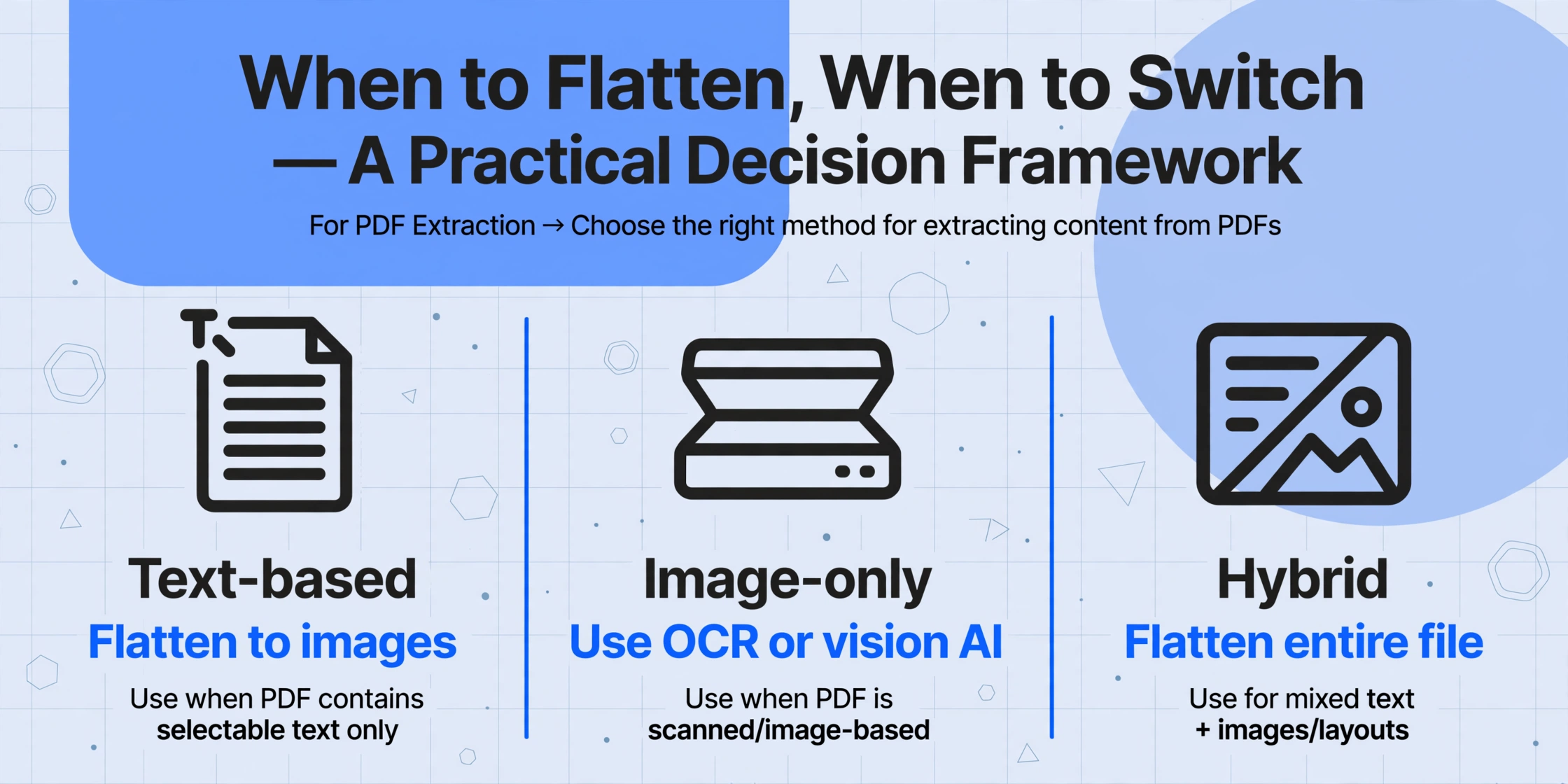
Here is a quick reference for diagnosing and resolving any PDF extraction issue based on the type you identified:
| Your diagnosis | Your fix | Expected accuracy |
|---|---|---|
| Text-based, extracts cleanly | Nothing needed — your tool and file are compatible | >95% |
| Text-based, extracts with garbled columns | Flatten to images and use a vision AI tool | >95% after flattening |
| Image-only, good scan quality | Use any tool with OCR or vision AI | 90–99% |
| Image-only, poor scan quality | Improve source document first, then use vision AI | 70–90% (source-dependent) |
| Hybrid (mixed pages) | Flatten entire file, or use image-only mode | Matches the image-only rate after fix |
The flattening approach — converting every page to a clean image — is the universal workaround that works for all three PDF types. It is not a hack. It is a deliberate strategy to remove format ambiguity from the extraction pipeline. Once every page is uniformly an image, the extraction tool applies a single consistent method and the output becomes predictable.
This decision framework covers PDF-type issues. If your columns are correctly structured and the PDF type is right, but the extracted numbers are consistently wrong — a total that comes out as the subtotal, or a date swapped with a different date — the problem may be in how you defined your extraction columns. Ambiguous column names are one of the most common causes of wrong extracted numbers, and the fix is usually as simple as renaming "Total" to "Total Amount Due."
FAQ
"I checked and all my pages have selectable text. Why is the extraction still producing garbled output?"
Selectable text confirms a text layer exists, but it does not guarantee the text layer is well-formed. Some PDF generators create text layers with non-standard character encoding or CMap tables that render correctly on screen (your PDF reader applies its own font rendering) but are difficult for extraction tools to parse. In this case, treat the file as if it were image-only: flatten to images and use a tool that reads the page visually.
"Can the same tool handle all three PDF types?"
Yes, if the tool reads the document visually rather than relying on the text layer. Tools that depend solely on text-layer extraction (most PDF-to-text libraries, Excel's built-in PDF import) can only handle text-based PDFs. Tools with vision AI — like ImageToTable.ai — process all PDF types uniformly because they render each page as an image and read it the same way a human would.
"My tool doesn't tell me which type it supports. How do I know?"
Run the select-text test on a PDF you know is image-only (a scanned document where nothing highlights). If your tool extracts data from it, it uses some form of visual reading or OCR. If it returns empty results, it relies on the text layer. Most simple PDF parsers fall into the second category.
"If I scan all my paper documents at a higher resolution, will that fix the problem?"
Higher resolution improves OCR accuracy on image-only PDFs, but it does not change the fundamental issue — an image-only PDF still has no text layer for traditional tools to read. If your extraction tool does not support visual reading, even a 600 DPI scan will return nothing. Upgrade the tool, not just the scan quality.
"What if a PDF was OCR'd by someone else before I received it? Does that change anything?"
An OCR'd PDF has an invisible text layer added on top of the scanned image. The select-text test will work (text highlights), and most extraction tools will succeed. However, the underlying image quality still matters — if the original scan was poor, the OCR text layer may contain character errors that your extraction tool inherits. Some vision AI tools can be configured to re-OCR the image directly rather than trusting the embedded text layer, which can improve accuracy on poorly OCR'd documents.
Not sure what type of PDFs you are working with? Upload a sample and see how a vision-based tool handles it — no registration required.
Test PDF Extraction on Your File