Can AI Extract Data from Scanned PDFs?
Yes — Here's How It Works
Yes. AI can extract structured data — like dates, amounts, vendor names, and line items — from scanned PDFs, including image-based PDFs where traditional text extraction fails. On clean scans of printed documents, modern AI extraction tools achieve up to 99% accuracy. Handwriting drops that to 85–95% depending on legibility. The key distinction that determines whether extraction works isn't "how good is the AI" — it's understanding what kind of PDF you're dealing with in the first place.
Key Takeaways
- Open your PDF and try to select text — if nothing highlights, every Python library, Excel importer, and PDF parser returns exactly nothing, because scanned PDFs contain zero characters.
- AI skips the text layer entirely and reads scanned pages as visual scenes — locating "Total: $4,287.50" by understanding what the number means, not by searching for its pixel coordinates.
- The same three column names — Invoice Number, Date, Total — extract data from native PDFs, scanned PDFs, and phone photos through a single pipeline, because the extraction was never about file format.
How Well It Works: The Three Kinds of PDFs
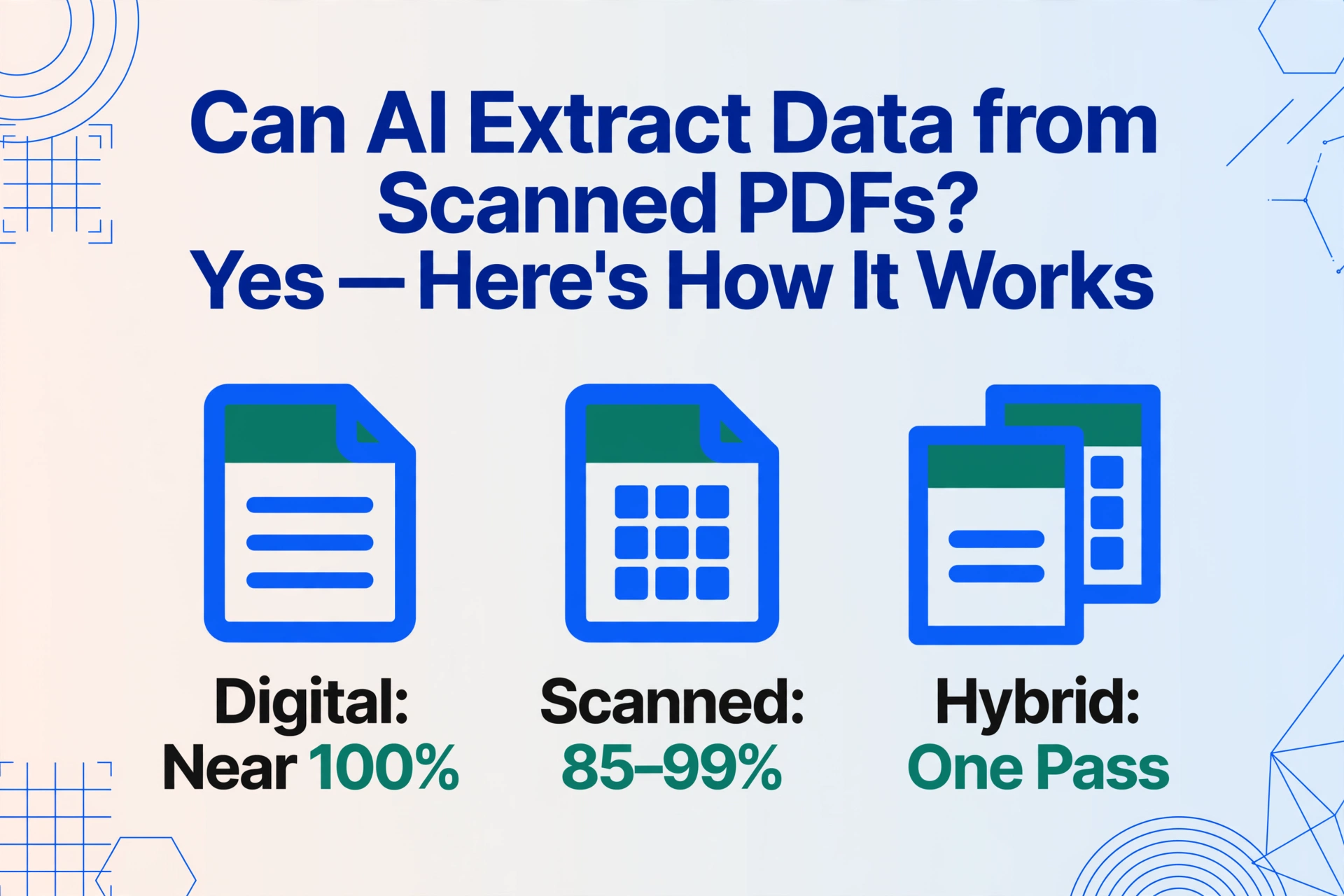
"Can AI extract data from my PDF?" The answer changes depending on what kind of PDF you have — and most people don't realize there's more than one kind. Here's the framework that determines whether extraction succeeds or fails before any tool even gets involved:
Created by software — Word saved as PDF, QuickBooks export, system-generated report. Contains an embedded text layer. You can select, highlight, and copy text with your mouse. Any basic extraction tool can read it. Accuracy: near 100% — the characters are already machine-readable.
A photograph of paper saved as PDF. No text layer — every character is just pixels. You can't select or copy text; clicking and dragging draws a selection box over the image. Needs AI with visual understanding or OCR before any data can be extracted. Accuracy: 85–99% depending on scan quality.
A mix: page 1 is native text from a system export, pages 2–5 are scans of paper forms stapled into the same file. Common in real-world business — contracts with scanned signature pages, AP packets with mixed sources. Most tools fail on the scanned pages. AI handles both uniformly.
The quick test: open your PDF and try to select text with your mouse. If text highlights and you can copy it, you have a digital PDF — almost any method will work. If your cursor draws an empty selection rectangle and nothing highlights, it's scanned — and you need a tool that reads images, not just text strings. If your tool gives near-perfect results on one file and garbage on another even though they look identical on screen, the difference is almost always the PDF type — see why extraction results vary across the 3 PDF types.
An estimated significant portion of supplier invoices arrive as scanned PDFs, not digital ones — printed, signed, stamped, then scanned back into a computer. These are the documents that break copy-paste, Excel's built-in importer, and every traditional extraction library.
Why Scanned PDFs Break Traditional Tools
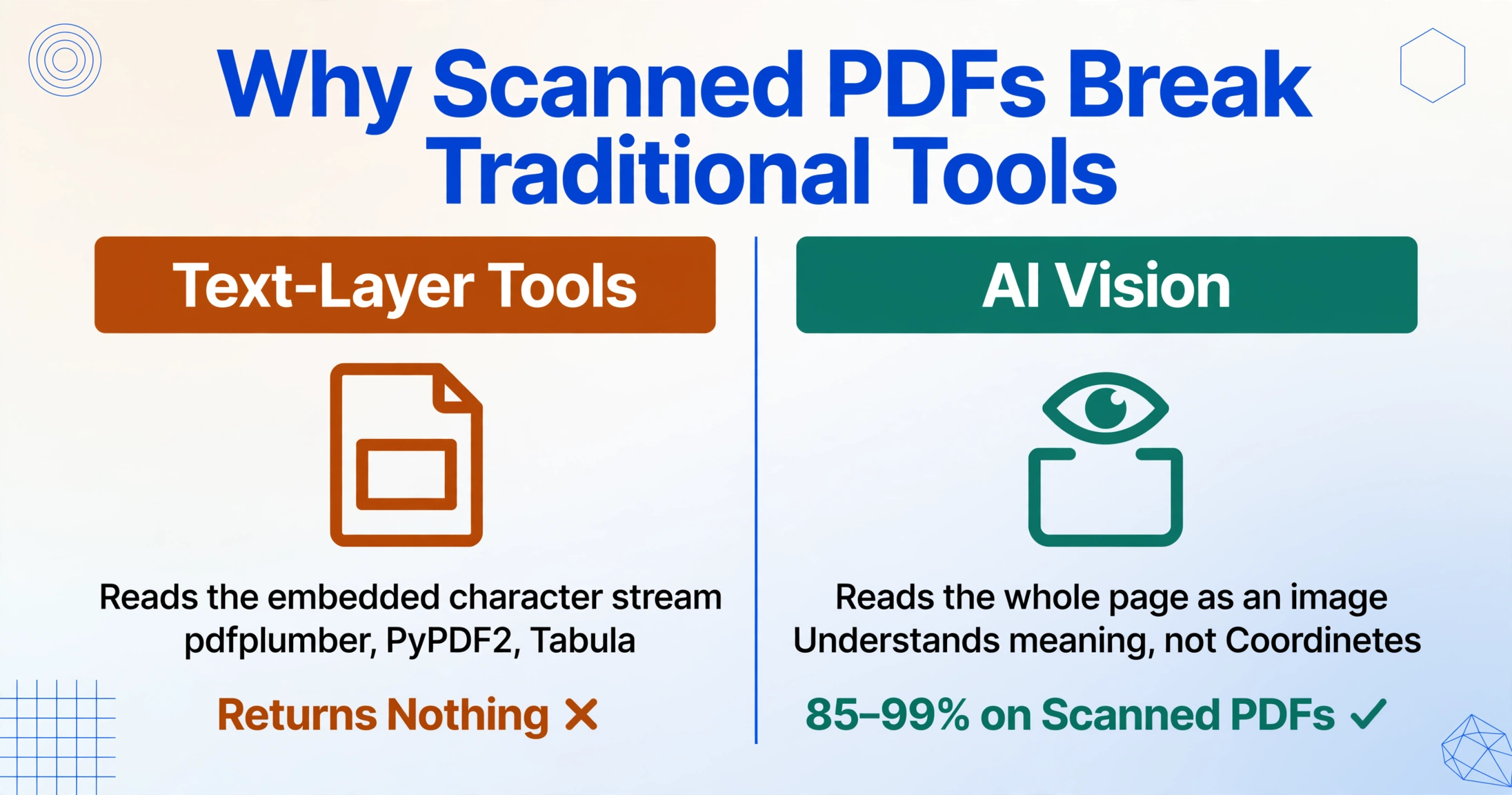
Every traditional PDF extraction tool — from Python libraries to Excel's built-in importer — works the same way: it reads the text layer embedded in the file. Scanned PDFs have no text layer. The tool opens the file, finds nothing to read, and returns emptiness. This isn't a bug. It's the document not containing what the tool needs.
Take pdfplumber, one of the most popular Python libraries for PDF data extraction with over 7,700 GitHub stars. It works by accessing the PDF's internal text stream — the invisible character data, font information, and coordinate positions that digital PDFs carry. Give it a clean, native PDF with a simple table, and it extracts rows and columns precisely. Give it a scanned PDF — a photograph of a document — and it returns nothing. There are no characters in the stream. The entire page is one flat image.
The same limitation applies to PyPDF2, Tabula, Camelot, and Excel's Data → Get Data → From PDF importer. Each of them looks for text at specific coordinates. When those coordinates contain pixels instead of characters, the tool has nothing to work with. This is why a Reddit user on r/automation who tested six PDF extraction tools noted: "The real test is always: can it handle the weird edge cases without manual intervention? That's where most solutions break down."
The workaround has historically been to run a separate OCR (optical character recognition) step first — convert the scanned image into machine-readable text, then feed that text into the extraction tool. But this two-step pipeline introduces its own problems: OCR errors compound into extraction errors, formatting cues that the extraction tool relied on get lost in the OCR conversion, and the whole workflow becomes fragile.
The core problem: Traditional tools answer "where is the text?" Scanned PDFs answer that question with silence. You need a tool that asks a different question entirely.
How AI Reads Scanned PDFs Differently
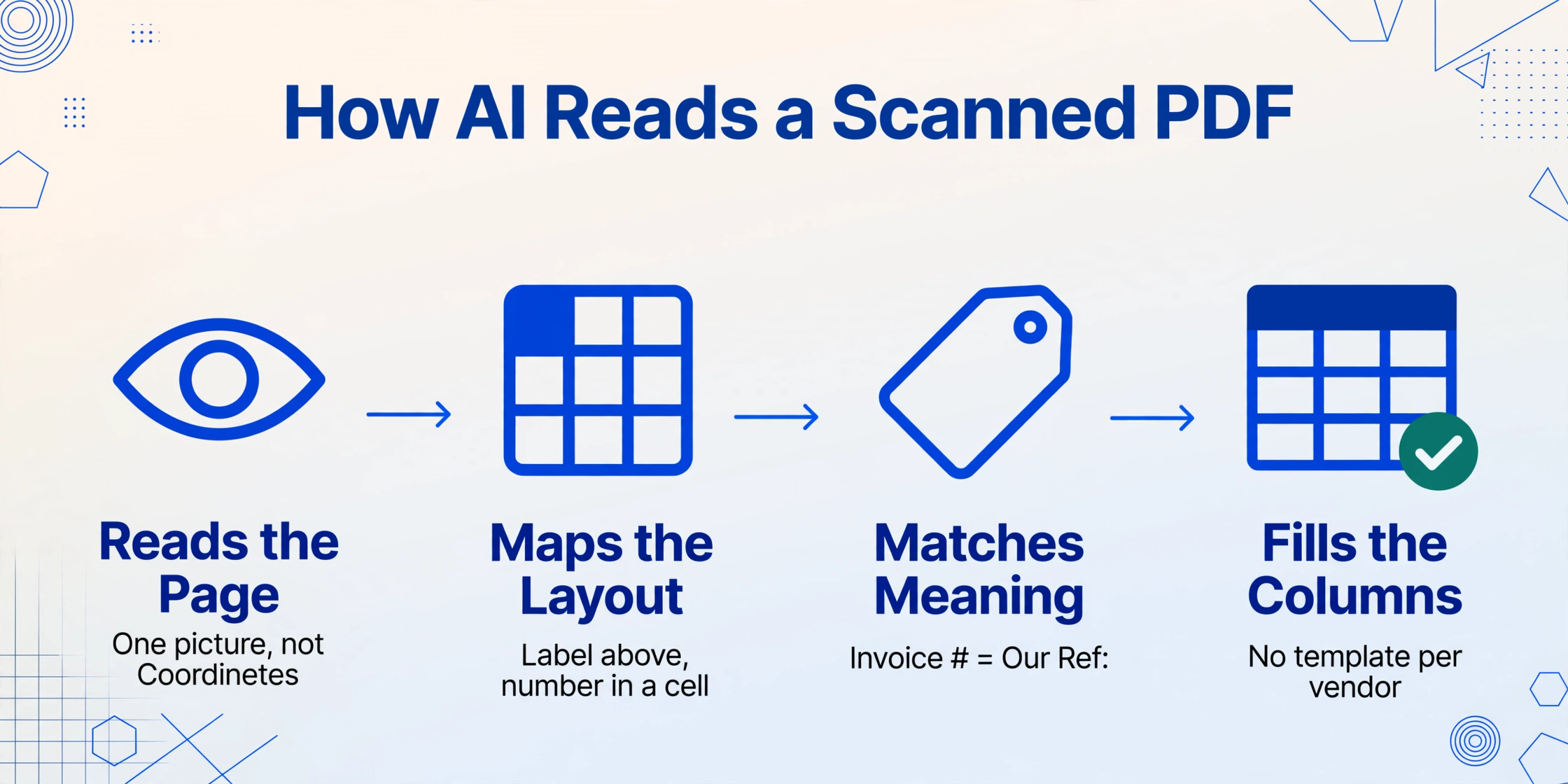
AI extraction doesn't look for a text layer at all. It reads the document the way your eyes read a photograph — by understanding the visual scene as a whole, recognizing what each piece of information means, not just what coordinates it sits at.
Think about how you read a scanned invoice on your screen. You don't mentally reconstruct character coordinates. You glance once and your brain maps the entire page: logo at the top, line items in the middle, total at the bottom-right. You find the invoice number not because you know it's at position (428, 156), but because you recognize the pattern — a label like "Invoice #" followed by a short alphanumeric string.
Modern AI document extraction — powered by vision large models — works the same way. It sees the full page as one complete picture. It recognizes spatial relationships: a label above a value, a number inside a table cell, a logo in the header area. And critically, it understands semantic roles: it knows that "Invoice Number," "Inv No," "Invoice #," and "Our Ref:" are all different labels for the same thing, so a format change from one vendor to the next doesn't break it.
This is fundamentally different from traditional OCR. OCR converts images of characters into text strings — it tells you the page contains "I-N-V-O-I-C-E space pound sign colon space four five two one" without any understanding that this is an invoice identifier. AI vision models skip the "convert to text first" step entirely. They process the visual scene directly, answer "what information lives here," and output structured data — dates, amounts, names — into the columns you defined.
In practice, this means you use a tool that supports Custom Column Extraction: you type the field names you want — "Invoice Number," "Date," "Total," "Vendor Name" — and the AI locates each value anywhere on the scanned page by understanding what it means. You define the output columns. The AI navigates the visual input to find matching data. When the next document is a native PDF instead of a scan, or a phone photo instead of a PDF, the AI processes it through the same pipeline — because it was never relying on a text layer to begin with.
This visual-first approach handles what the AI document extraction process was built for: documents where format, layout, and input type vary unpredictably. For a deeper look at the three-step process — SEE the page, UNDERSTAND its content, FETCH the right values — see how AI reads documents.
Files are processed securely and not stored.
What AI Gets Right with Scanned PDFs
AI extraction handles several scenarios that defeat traditional tools — not just scanned PDFs in general, but specific edge cases that show up in real-world documents:
- Inconsistent layouts across the same document type. Five suppliers send you invoices as scanned PDFs — each in a different format. Traditional tools need per-vendor templates. AI recognizes fields by meaning, so a single set of column names ("Invoice Number," "Date," "Total") works across all five layouts without configuration.
- Mixed document types in one batch. A project folder might contain native PDFs from QuickBooks, scanned PDFs of signed contracts, and phone photos of handwritten delivery notes. AI processes all three through the same pipeline — it reads pixels, not file formats. What took three separate tools becomes one upload.
- Common business fields across document types. Fields like dates, amounts, vendor names, and reference numbers appear across invoices, purchase orders, receipts, and bank statements. AI trained on diverse documents transfers that pattern recognition across document types — it finds "Total Due" whether it's on an invoice or a statement.
- Table extraction from scans. Line items in a scanned invoice — quantity, description, unit price, line total — are particularly hard for traditional OCR because the column alignment is visual, not textual. AI vision models see the tabular structure directly and preserve row-column relationships that character-by-character OCR loses.
- Batch processing at scale. Drop 30 scanned PDFs into a batch, define your columns once, and get one unified spreadsheet back. For a single page from a clean scan, AI processes it in roughly 5–10 seconds — compared to an average 3 minutes of manual data entry, that's an 18× efficiency gain per document.
The accuracy pattern: For clean, well-lit scans of printed documents at 200+ DPI, AI extraction accuracy is comparable to a careful human typist — up to 99% on key fields like dates, amounts, and reference numbers. The drop-off begins when scan quality degrades, which is what the next section covers.
Where AI Struggles with Scanned PDFs
Being honest about limitations matters more than a perfect accuracy number. Here are the scenarios where AI extraction on scanned PDFs needs human review — and why.
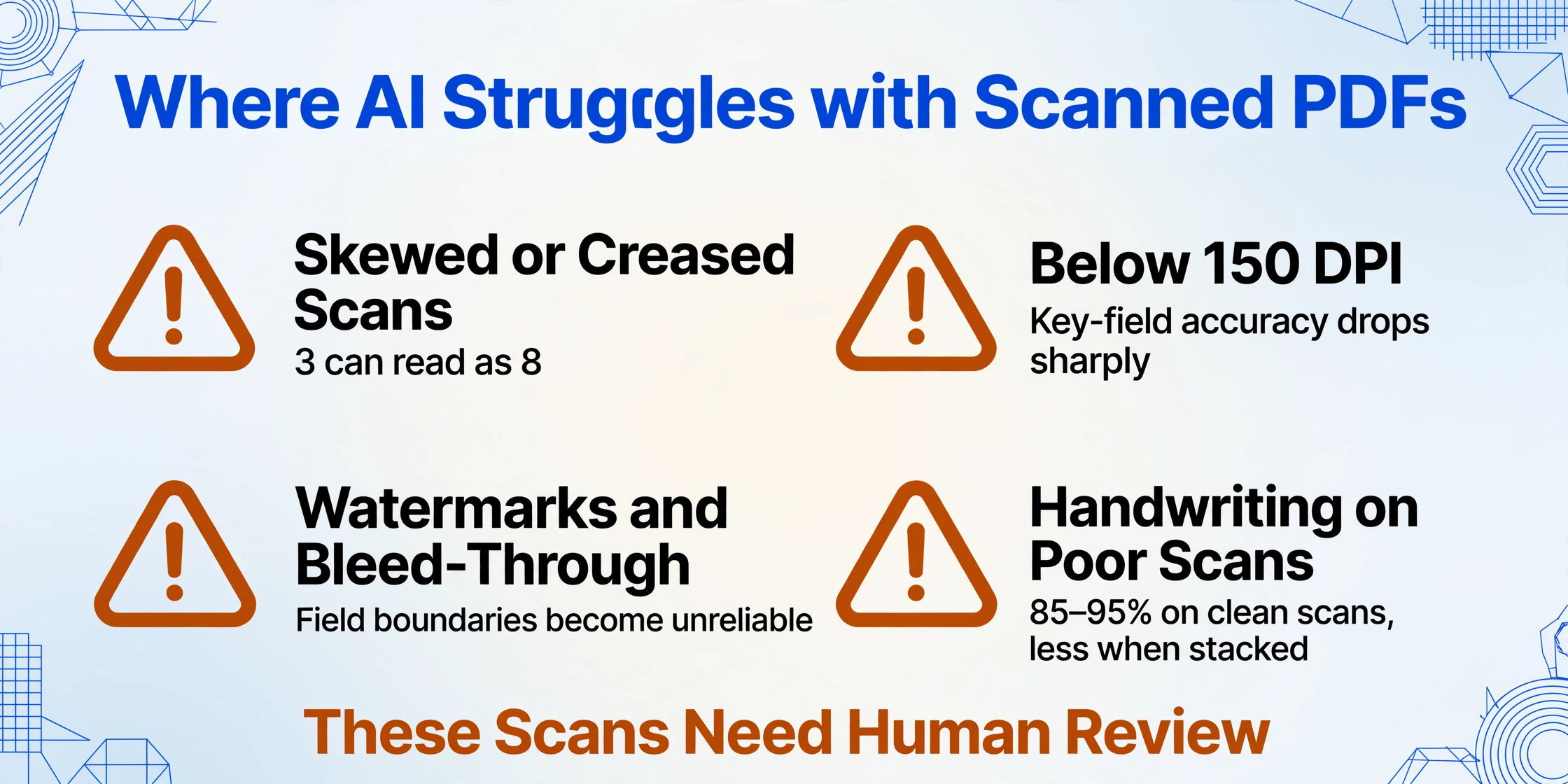
- Heavily skewed or distorted scans. If the paper was fed into the scanner at a steep angle, or the document has creases and folds that warp the text, the AI's visual understanding degrades. It can still read most of the content, but individual character recognition errors increase — a "3" might read as "8," a "$" as a smudge.
- Extremely low resolution (below 150 DPI). Scans at 72–100 DPI — common in old archives or documents forwarded through multiple email compressions — produce pixelated text that even human eyes struggle with. AI accuracy on key fields drops significantly below 150 DPI. A 200+ DPI scan is the practical minimum for reliable extraction.
- Watermarked backgrounds and heavy artifacts. Scanned documents with "CONFIDENTIAL" watermarks across the background, or documents where the scanner picked up bleed-through from the reverse side of the page, confuse the AI's ability to separate foreground text from background noise. The text may still be recognized, but field boundaries — where one data point ends and the next begins — become unreliable.
- Handwriting on low-quality scans. A handwritten note on a clean scan is one challenge. A handwritten note on a dark, angled, low-resolution scan compounds the difficulty. AI handwriting recognition achieves 85–95% accuracy on reasonable-quality images; stack poor scan conditions on top, and that drops toward 70% or lower.
- Merged table cells in scanned documents. If a scanned table has cells that visually overlap — common in poorly designed forms where borders are ambiguous — the AI may combine values from adjacent columns, producing a single garbled field instead of two separate data points.
The practical takeaway: AI extraction on scanned PDFs is not a set-it-and-forget-it pipeline. It's a tool that gets you 95% of the way there on good scans, and the remaining 5% is a quick review — scanning the output spreadsheet for highlighted low-confidence fields — rather than manually typing every line from scratch. On a 50-document batch, reviewing 3–5 flagged fields is still a dramatic improvement over keying in 500.
How to Get the Best Results from Scanned PDFs
Most accuracy problems with scanned PDF extraction trace back to the scan itself, not the AI. A few simple practices before you scan — or when you receive scanned documents — make the difference between high-confidence extraction and a spreadsheet full of question marks:
Scan at 200–300 DPI. This is the sweet spot. Below 150 DPI, character edges blur and the AI's visual recognition accuracy drops sharply. Above 300 DPI adds file size without meaningful accuracy gains for data extraction — the AI doesn't benefit from seeing individual ink dots. If you receive scanned PDFs from others at low resolution, ask for a rescan rather than accepting degraded input.
Keep the document flat and aligned. A document fed crooked or with a fold across critical fields like the total or invoice number is a known failure point. Use a flatbed scanner rather than a sheet-fed scanner for documents that have been folded, stapled, or handled heavily. For phone-camera scans of paper documents, hold the phone directly above the document with even lighting — no flash, no angle.
Remove background noise. If the back of a double-sided document bleeds through, place a black sheet of paper behind it when scanning. For documents with heavy watermarking, color scanning (rather than grayscale or black-and-white) gives the AI more visual information to distinguish watermark from text. A quick visual check — can you read every field clearly on screen at 100% zoom? — is a good proxy for whether the AI can.
Define your columns before uploading. The more specific your column names, the more precise the extraction. "Amount" is ambiguous — the AI might return the subtotal, tax, or total. "Invoice Total (after tax)" tells the AI exactly which value to find. The same principle applies to dates: "Invoice Date" vs "Due Date" — if these are different fields on your document, name them differently.
Review before exporting, not after. The best extraction tools flag low-confidence fields — values where the AI isn't sure it got the right data. Spend 30 seconds scanning these flagged fields rather than spot-checking the entire output randomly. On a batch of 30 scanned invoices, this typically means reviewing 5–8 fields total, not 30 rows of 10 columns each.
Real Examples: Scanned PDFs AI Handles Every Day
Scanned Invoice PDFs
The most common scanned PDF in business: a printed paper invoice from a supplier, signed and stamped, fed through a scanner. The document contains an invoice number, date, due date, vendor details, line items with quantities and unit prices, subtotal, tax, and total — spread across a header, a table, and a footer section. Traditional approaches require a template per supplier because each vendor arranges these fields differently. AI extraction reads the document semantically: it understands that the value next to "Invoice #" (or "Inv No." or "Our Ref:") is the invoice identifier regardless of where it lives on the page, and that the number in the bottom-right corner with a currency symbol is probably the total. Line items inside a scanned table — traditionally the hardest part — are extracted with column relationships preserved: quantity, description, unit price, and line total stay in their correct columns.
Scanned Contract PDFs
Signed contracts are almost always scanned — the original exists as paper with wet-ink signatures. A typical scanned contract contains party names, effective dates, termination dates, contract value, governing law, and key clause references — spread across 5–40 pages of dense text. What makes contracts different from invoices is the lack of consistent field labels. One contract says "Commencement Date," another says "Effective Date," a third says "This Agreement shall become effective as of." AI extraction handles this variation by recognizing temporal patterns near contract-opening language rather than looking for a specific label string. It also handles the hybrid PDF problem common in contracts: pages 1–3 are native text from the Word document, pages 4–5 are scanned signature pages — and both types live in the same file without the user having to separate them first.
Scanned Bank Statement PDFs
While most modern banks generate digital PDF statements, archived statements — especially for closed accounts, older periods, or smaller banks — arrive as scans. A scanned bank statement packs transaction dates, descriptions, debit amounts, credit amounts, and running balances into dense tables that may span dozens of pages. The table extraction challenge is acute here: traditional PDF-to-text conversion often collapses the transaction description and amount columns into one merged text block, making reconciliation impossible. AI vision models preserve the column structure by reading the table visually — recognizing that each row is a separate transaction and each column is a separate field — producing a spreadsheet where Date, Description, Debit, Credit, and Balance each live in their own column, ready for import into accounting software.
FAQ
How do I know if my PDF is scanned or digital?
The fastest test: open your PDF and try to select text with your mouse. If text highlights and you can copy it, it's a digital PDF. If your cursor draws an empty rectangle and nothing highlights, it's scanned. This single test tells you whether basic tools like Excel's PDF importer will work, or whether you need AI-powered extraction. Once you've confirmed you're working with a scan, see our step-by-step guide to OCR a scanned PDF to Excel for the full end-to-end process.
What accuracy can I expect from AI on scanned PDFs?
For clean, well-lit scans of printed documents at 200+ DPI, AI extraction matches careful human data entry — up to 99% on structured fields like dates, amounts, and reference numbers. For handwriting on scans, expect 85–95% depending on legibility. Accuracy drops on heavily skewed, low-resolution (under 150 DPI), or watermarked scans — these scenarios need human review of flagged low-confidence fields rather than blind acceptance of the output.
Can I extract data from scanned PDFs with free tools like pdfplumber or PyPDF2?
No. pdfplumber, PyPDF2, Tabula, and similar Python libraries read the text layer embedded in digital PDFs — structured character data with coordinates. Scanned PDFs have no text layer; they're images. These tools return nothing because there are no characters to extract. You would need to add a separate OCR step (like Tesseract) before using these libraries, which introduces its own error rate and complexity.
Does AI extraction work on scanned documents with handwritten notes?
Yes, within limits. AI vision models can read handwriting on scanned documents — including cursive — at 85–95% accuracy on reasonable-quality images. The accuracy depends on handwriting legibility, scan quality, and whether the handwritten text overlaps with printed text. For more on handwriting capabilities, see what AI handwriting recognition can and can't do.
Can AI handle a mix of scanned and digital PDFs in one batch?
Yes — this is one of AI extraction's strongest use cases. Because AI reads pixels rather than relying on a text layer, it processes scanned and digital PDFs through the same visual pipeline. Upload a folder containing both types, define your column names once, and the output spreadsheet has one row per document regardless of whether the source was digital or scanned. For a step-by-step walkthrough, see how to convert PDFs to structured data.
Are my scanned documents secure when using AI extraction?
This depends on the specific tool. Reputable extraction tools encrypt data in transit, process files without permanently storing them, and comply with relevant data protection regulations. Always review a tool's privacy policy and data handling practices before uploading sensitive scanned documents like financial statements, contracts, or tax forms. Look for explicit statements about file retention — whether files are deleted after processing and how long results remain accessible.
What about multi-page scanned PDFs?
AI extraction handles multi-page scanned PDFs without issue. The vision model reads each page as a separate visual scene, extracts the data, and consolidates it into one row per document. For documents where the same field appears on multiple pages — like a contract with the effective date on page 1 and the signature date on page 5 — the AI distinguishes between them based on surrounding context. Batch processing multiple multi-page documents produces one merged spreadsheet where each row represents one complete file, not one page.
If your PDF lets you select text, almost any tool will work — copy-paste, Excel import, or a PDF library. If it doesn't — if your cursor draws an empty box over an image of a document — you need a tool that reads pixels, not text strings. Upload a scanned PDF and see the difference: the same column names you'd type into a spreadsheet pull data from an image that traditional tools can't even open.
Try ImageToTable.ai Free