Can AI Extract Data from Phone Photos?
Yes — No Scanner Needed
Yes. AI can extract data from photos taken with a smartphone — without needing a flatbed scanner. Modern vision AI handles perspective distortion, uneven lighting, and slight angles that would break traditional OCR. A well-taken phone photo now produces extraction accuracy within 3–8 percentage points of a flatbed scan, enough for production workflows in field service, construction, logistics, and anywhere a scanner simply doesn't exist.
Key Takeaways
- Your phone photo extraction failed not because your photography was bad — traditional OCR reads characters as isolated shapes and keystone distortion changes every shape on a page.
- AI automatically deskews your angled photo before reading — detecting document edges and flattening the view mathematically so every character keeps its correct shape regardless of where it sits in the frame.
- Five shooting habits — straight-on angle, window light, glare check, frame filling, steady hands — close the gap between a phone photo and a flatbed scan to just 3–5 percentage points.
How AI Handles Phone Photos vs Scanners
A flatbed scanner produces a near-perfect image: the document is flat, evenly lit from below, shot straight-on at a calibrated resolution. A phone photo is the opposite — held at an angle, lit from one side, shot at whatever resolution your camera app defaulted to. These are not small differences. They are the four core challenges that made phone-photo extraction essentially non-viable with traditional OCR.
Perspective distortion. When you hold a phone over a document, keystone distortion skews lines and stretches characters — a "0" at the top of the frame is geometrically different from a "0" at the bottom. Traditional OCR reads characters as isolated shapes. Keystone distortion changes every shape on the page, and traditional OCR has no mechanism to compensate. Modern AI takes the opposite approach: it applies automatic perspective correction as a preprocessing step before any character recognition begins. The model detects the document edges, computes the transform matrix that would flatten it to a straight-on view, and deskews the entire image. This happens silently on upload — no manual cropping or adjustment required.
Uneven lighting. A phone photo taken under office fluorescents has a bright spot near the center and shadows at the edges. A photo taken near a window has one side overexposed. Traditional OCR thresholds the image into black and white pixels at a fixed cutoff — uneven lighting pushes text into the wrong side of that cutoff across different regions of the same page. AI models use adaptive contrast adjustment that varies by region, lightening dark areas and dampening hotspots. More importantly, vision-language models read text the way a human does — by recognizing word shapes and semantic context, not by thresholding individual pixels. A character that's 20% dimmer than its neighbor doesn't vanish; the model sees it as part of the same word.
Resolution. Scanners capture at 200–300 DPI by default. Phone cameras can match or exceed that — a modern smartphone shooting at 12MP produces roughly 250 DPI on a letter-size document — but only if the photo is taken from the right distance and not zoomed or cropped. Below 150 DPI, individual character strokes blur into each other. Above 300 DPI offers diminishing returns. The practical floor for AI extraction from phone photos sits around 200 DPI effective resolution, easily achievable with any phone from the last five years if you fill the frame with the document.
Glare and reflections. Glossy paper, laminated documents, or plastic sleeves produce specular highlights — bright white blobs where the light source reflects directly into the camera. Traditional OCR treats these as white pixels and loses the underlying text entirely. AI models handle glare better by inferring missing characters from surrounding context — the same mechanism that lets you read a word with a smudge on it — but severe glare that obliterates multiple characters in sequence still defeats any model. The fix is physical: change the camera angle slightly to move the reflection off the page.
These four problems interact. A photo taken at a steep angle under harsh ceiling lights on glossy paper combines perspective distortion, uneven lighting, and glare into a triple failure mode. No AI handles all three at once well. But a photo taken with minimal care — straight-on, even light, matte paper — lands in the sweet spot where AI extraction performs nearly as well as it does on a flatbed scan.
What Phone Photo Extraction Gets Right
When the photo conditions are in the sweet spot, AI extraction performs close to scanner quality. Here is where it delivers reliably.
Well-lit, straight-on photos. A document photographed head-on under natural daylight or diffuse office lighting, filling most of the frame, with no visible shadows crossing the text — this is the ideal phone input. Microsoft's own "Insert Data from Picture" feature in Excel explicitly recommends this setup: shoot head-on, avoid angles, ensure even lighting. Under these conditions, structured extraction accuracy is within 3–5 percentage points of a 300 DPI flatbed scan. A field test documented by independent practitioners confirmed that AI models handle these "clean phone photos" essentially identically to scans for printed text, with differences emerging only on small fonts or dense tables.
Document-only frames. When the document fills the viewfinder — no background clutter, no desk surface, no partial neighboring pages — the AI can correctly identify document boundaries and apply perspective correction without ambiguity. Background objects confuse edge detection, and when edge detection fails, the entire correction pipeline starts from a flawed assumption. Cropping tightly to the document before taking the photo is the single most impactful thing you can do beyond lighting.
High-contrast documents. Black ink on white paper is the optimal input across all capture methods, but it matters disproportionately for phone photos. A dark blue pen on cream paper loses contrast under uneven lighting. Thermal receipts — the kind printed on slick paper — are particularly challenging because the print is already low-contrast and the paper curls. Standard office documents with dark, crisp printing on matte white paper produce the best results from phone cameras, often indistinguishable from scanner output for structured data fields like dates, amounts, and vendor names.
Where Phone Photo Extraction Still Struggles
The honest list of failure modes is shorter than you might expect — but knowing them prevents wasted time.
Extreme angles. A photo taken from 45 degrees or sharper introduces keystone distortion severe enough that the perspective correction itself becomes a source of error. Characters near the far edge of the page get stretched more during deskewing than characters near the near edge, creating inconsistent character shapes across the corrected image. Above roughly 30 degrees off perpendicular, the correction process introduces more noise than it removes. The practical rule: if you can clearly read every word in the photo with your own eyes, AI can too. If you're squinting at the far edge, reshoot.
Heavy shadows across text. A shadow cast by your phone or hand that falls across a line of text creates a hard contrast boundary — half the character is lit, half is in shadow. Adaptive contrast adjustment helps, but hard shadow edges create artificial contours that the model may interpret as character strokes. The result is not a blank field but a wrong character — harder to catch than a missing value. On financial documents, a shadow-corrupted "3" misread as an "8" in a dollar amount is costly. When photographing in directional light, check that no hard shadow crosses the text area.
Glare on glossy paper. Laminated menus, plastic-sleeved inspection forms, and glossy purchase orders all produce specular highlights. A single bright reflection across a 5-character word typically destroys all 5 characters — too many to infer from context. Glare is binary: either it's not there and extraction works, or it is there and that region is lost. Unlike perspective distortion or uneven lighting, there is no AI fix for glare. The only solution is to change the camera angle until the reflection moves off the page.
Folded or crumpled documents. A document that has been folded into thirds for a pocket creates geometric ridges across the page. These ridges produce both shadows (from the fold crease itself) and geometric distortion (the page surface is no longer flat). AI perspective correction assumes a flat plane — when the document surface curves or bends, the correction is mathematically incorrect for some regions. Flattening the document under a book for a few minutes before photographing produces better results than any software fix.
How to Get the Best Results from Phone Photos
Five practical techniques that move a borderline phone photo into the reliable extraction zone. None requires equipment beyond what you already carry.
1. Shoot straight-on, filling the frame. Hold the phone parallel to the document. Most camera apps have a document scan mode that auto-detects page edges and corrects perspective — use it. On iPhone, the Notes app's scan feature does this; on Android, Google Drive's scan or the native camera's document mode. Fill at least 80% of the viewfinder with the document. The more pixels dedicated to the text, the higher the effective resolution.
2. Use natural, diffuse light. Daylight from a window is ideal — it's bright, even, and shadowless. If indoors under artificial light, position the document so that the light source is directly above or to the side at a shallow angle, not creating hard shadows. Avoid the camera's flash entirely — flash creates a central hotspot and dark vignette edges that no preprocessing can fully compensate for.
3. Check for glare before shooting. Tilt the phone slightly left, right, up, or down while watching the screen — if you see a white reflection moving across the page, choose an angle where it disappears. This takes 2 seconds and is the difference between a usable extraction and a blank field where the glare landed.
4. Keep the document flat and isolated. Place the document on a contrasting surface — a dark desk under white paper works well. Remove other papers, notebooks, or objects from the frame. A clean background lets edge detection find the document boundaries correctly, which makes perspective correction accurate.
5. Hold steady — motion blur destroys characters. In low light, phone cameras use longer exposure times, and hand movement during that exposure smears text. Brace your elbows on the table or hold the phone with both hands. If the camera app shows a night mode indicator, find more light instead of relying on longer exposure. A slightly darker but sharp photo extracts better than a bright but motion-blurred one.
Real-World Scenarios Where Phone Photos Beat Scanners
The phone camera is not a compromise — it is the only option in the environments where document data matters most urgently. These are not hypotheticals.
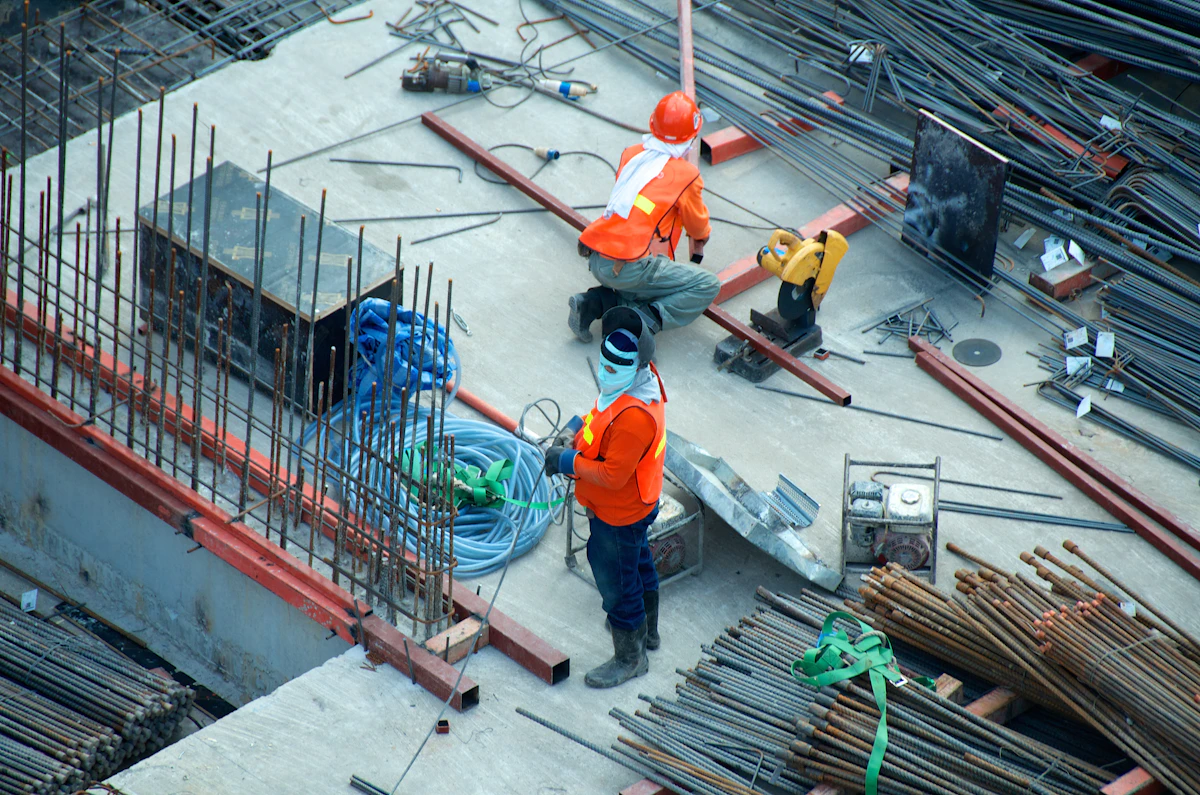
Construction sites. A field supervisor receives a delivery manifest, a subcontractor invoice, and an inspection form — all on paper, all at a job site with no office equipment. A scanner doesn't exist within miles. The supervisor photographs each document on the hood of a truck, uploads through a mobile browser, and the office gets structured data before the truck leaves the site. The alternative — collecting paper all day, driving back to the office, scanning and entering data at 6 PM — creates a daily backlog that compounds across projects. A simple guest upload page or a Collection Link — a shareable URL that lets others upload documents directly to your processing queue without creating an account — turns the supervisor's phone into the intake point for the entire job site's paperwork.
Restaurant kitchens and food service. A restaurant manager receives daily supplier invoices from a dozen vendors — produce, meat, dairy, dry goods. The invoices arrive with the delivery, on paper, often stained or damp from refrigerated items. The manager photographs each invoice at the receiving counter, uploads them as a batch, and gets a single spreadsheet with every vendor, item, quantity, and cost merged into one table by end of day. No scanner survives a kitchen environment. The phone — already there, already handling orders and schedules — becomes the data intake tool. For more on this specific workflow, see our guide on restaurant invoice extraction.
Delivery drivers and logistics. A driver completes a delivery, hands over the package, and collects a signed proof of delivery. The POD form has the recipient's name, signature, delivery time, and any notes about damage or exceptions. The driver photographs it on the spot. By the time they're at the next stop, the data is extracted — recipient confirmed, timestamp logged, exception flagged — without anyone typing a single field. For logistics teams running dozens of stops per day per driver, eliminating end-of-shift data entry from a stack of crumpled PODs is not a productivity gain; it's the difference between same-day invoicing and next-day invoicing. See batch processing delivery notes for the full workflow.
Field service technicians. An HVAC tech, an equipment inspector, or a utility meter reader fills out paper forms in basements, rooftops, and outdoor installations — environments where a tablet or laptop is impractical. The inspection checklist combines checkboxes (pass/fail items), numeric readings (pressures, temperatures, meter values), and handwritten notes ("leaking at valve seal — needs replacement"). Modern AI reads all three from a phone photo: checkboxes detected by visual pattern recognition, numeric fields extracted with high accuracy, and handwritten comments transcribed for the work order record. The tech photographs the form before leaving the site; the back office has the data before the tech reaches the next job.
Insurance and claims adjusting. An adjuster visits a damaged property and fills out a claim form with policy numbers, damage descriptions, estimated costs, and photos. The paper form travels with the adjuster all day. Photographing each completed form as it's finished — rather than scanning everything back at the office — means the claims system is updated in near real-time, and the adjuster's phone (which they're already using for property photos) handles both image capture and data extraction.
What connects these scenarios is not the document type — it's the environment. Every one of them takes place where a scanner cannot go. The phone was already there. What changed is that the phone photograph is now a viable input for structured data extraction, not just a reference image to be rekeyed later.
Frequently Asked Questions
Can AI extract data from a photo taken at an angle?
Yes, up to about 30 degrees off perpendicular. AI applies automatic perspective correction — detecting the document edges and mathematically deskewing the image to a straight-on view. Beyond roughly 30 degrees, the correction process itself introduces enough distortion that accuracy drops noticeably. If you can read every word on the page in the photo, AI can too. If you're squinting at the far edge, reshoot closer to straight-on.
How much accuracy do I lose using a phone photo instead of a scanner?
Under good conditions — straight-on, well-lit, high contrast, no glare — a phone photo loses roughly 3–5 percentage points of accuracy compared to a 300 DPI flatbed scan on the same document. Under poor conditions (angled, shadowed, glossy paper), the gap widens to 10–20 points or more. The variable is not the phone camera hardware — modern phones have excellent sensors — but the shooting conditions. A scanner controls lighting, angle, and flatness perfectly. A phone photo puts those variables in your hands.
Does AI work on photos of crumpled or folded documents?
Partially. AI perspective correction assumes a flat surface. When the document is wrinkled or folded, the 3D contours break that assumption — shadows form in the creases and characters near folds become geometrically distorted. Mild creasing is tolerated; documents that have been tightly folded into pocket-sized squares produce significantly worse results. Flattening the document first — even just pressing it flat with your hands for the photo — makes a measurable difference.
Can I use the flash when photographing a document?
Don't. Flash creates a bright central hotspot and dark edges (vignetting), and on glossy paper produces specular reflections that obliterate text. If the ambient light is too dim for a sharp photo, move to a brighter location rather than using flash. A slightly darker but sharp photo extracts far better than a flash-lit one with hotspots and hard reflections.
Does the phone model or camera quality matter?
Any smartphone from the last five years — roughly iPhone 11 and later, or equivalent Android — has a sensor and lens sufficient for document extraction at 200+ DPI effective resolution on a letter-size page. What matters far more than the phone model are the shooting conditions: angle, lighting, glare, and steadiness. A five-year-old phone shooting a well-lit, straight-on document will outperform a brand-new flagship shooting at 45 degrees under a ceiling light on glossy paper.
Can AI extract from multiple phone photos at once?
Yes — this is what batch processing is designed for. You can upload a batch of phone photos taken throughout the day — delivery notes, invoices, inspection forms, all from different locations and lighting conditions — and the AI processes them together, merging the extracted data into a single spreadsheet with one row per document. This is the natural workflow for field teams: shoot throughout the day, batch-upload at the end, get one consolidated Excel file instead of one file per document.
Can AI extract handwriting from phone photos too?
Yes, with the same accuracy range described in our guide on AI handwriting recognition — roughly 85–95% for printed handwriting, 65–75% for messy cursive. Phone photos add a small accuracy penalty (3–5 points) for handwriting compared to scans, because handwriting strokes are thinner and more affected by perspective distortion and resolution limits. Dark ink on white paper, shot straight-on, minimizes the phone-photo penalty.
Phone photo extraction is not a downgraded version of scanner extraction — it is a different workflow for a different environment. If you sit at a desk with a scanner next to you, use the scanner. If you stand on a construction site, in a restaurant kitchen, or next to a delivery truck with a paper document in one hand and your phone in the other, AI extraction works — and it works well enough that finding a scanner isn't worth the trip. The five shooting habits above are the difference between "close enough" and "needs rekeying."
If you're new to AI document extraction and want to understand the fundamentals first, start with what AI document extraction is and how it works. If you're dealing specifically with the photo-to-spreadsheet workflow, see our photo to Excel converter page. For teams collecting documents from multiple field workers, the document collection workflow guide explains how to set up a shared upload page that feeds directly into your processing queue. And for the photos of documents people shoot most often — business cards, shipping labels, meter displays, and prescription labels — each has its own field-by-field walkthrough.