Why Is My OCR Missing Decimal Points
and Currency Symbols? 5 Failure Modes & How to Fix Each
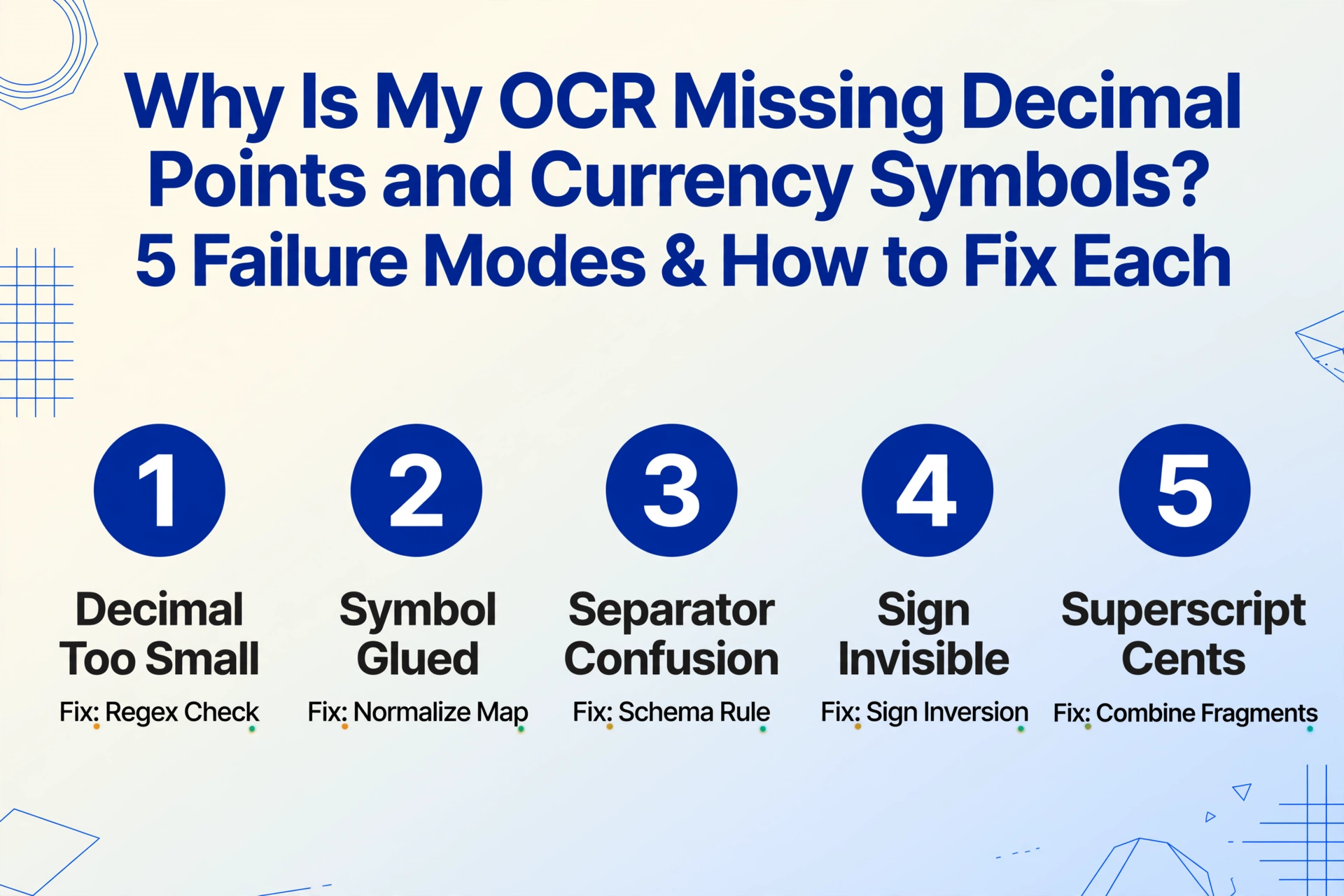
Your extraction read "15600" when the document clearly says "$156.00." The decimal point vanished, the currency symbol disappeared, and now your spreadsheet has a $15,600 error instead of a $156 expense. Here's exactly why these small symbols are the first things to break — and how to protect against each failure mode.
Key Takeaways
- Your extraction just multiplied an invoice by 100 without a single warning — $156.00 became 15600 while vendor name, date, and line items all came through clean. Only the number that matters most is wrong.
- Decimal points get filtered as dust at low DPI (2 pixels wide), currency symbols drown when they touch the first digit, European commas flip the decimal place, parentheses on credit memos get discarded, and superscript cents vanish into separate text lines — five physics problems that look like random software bugs.
- One validation rule comparing every extracted total against the sum of line items catches the 100x error before it reaches your general ledger — no new tool, no pre-processing, just a check that runs after every extraction.
A single missing decimal point is not a small error — it's a ten-times error. And the frustrating part is that the rest of the extraction looks clean. The vendor name, date, line items all come through correctly. Only the numbers that matter most — totals, tax amounts, unit prices — have silently shifted by one or two orders of magnitude. The impact is not abstract: a posted payment of $15,600 instead of $156 ties up cash, triggers reconciliation work, and erodes trust in the automated process.
The core insight from document processing research is consistent: small symbols — decimal points, currency marks, minus signs — fail before larger characters fail because they operate at the edge of an OCR engine's resolution threshold. These are not random errors. They follow predictable failure modes, each with a known root cause. Identifying which mode you're dealing with is the difference between a quick regex fix and a data disaster that reaches your ERP undetected.
This article covers five distinct failure modes for missing decimal points and currency symbols. Each one has a specific diagnostic signature and a specific fix. For the broader picture of why extraction tools return wrong numbers even when the text is clearly legible, see our companion article on field design mistakes that cause wrong extracted numbers — that article focuses on ambiguous column naming, while this one focuses on symbol-level failures.
Failure Mode 1: The Decimal Point Is Too Small for the Engine to See
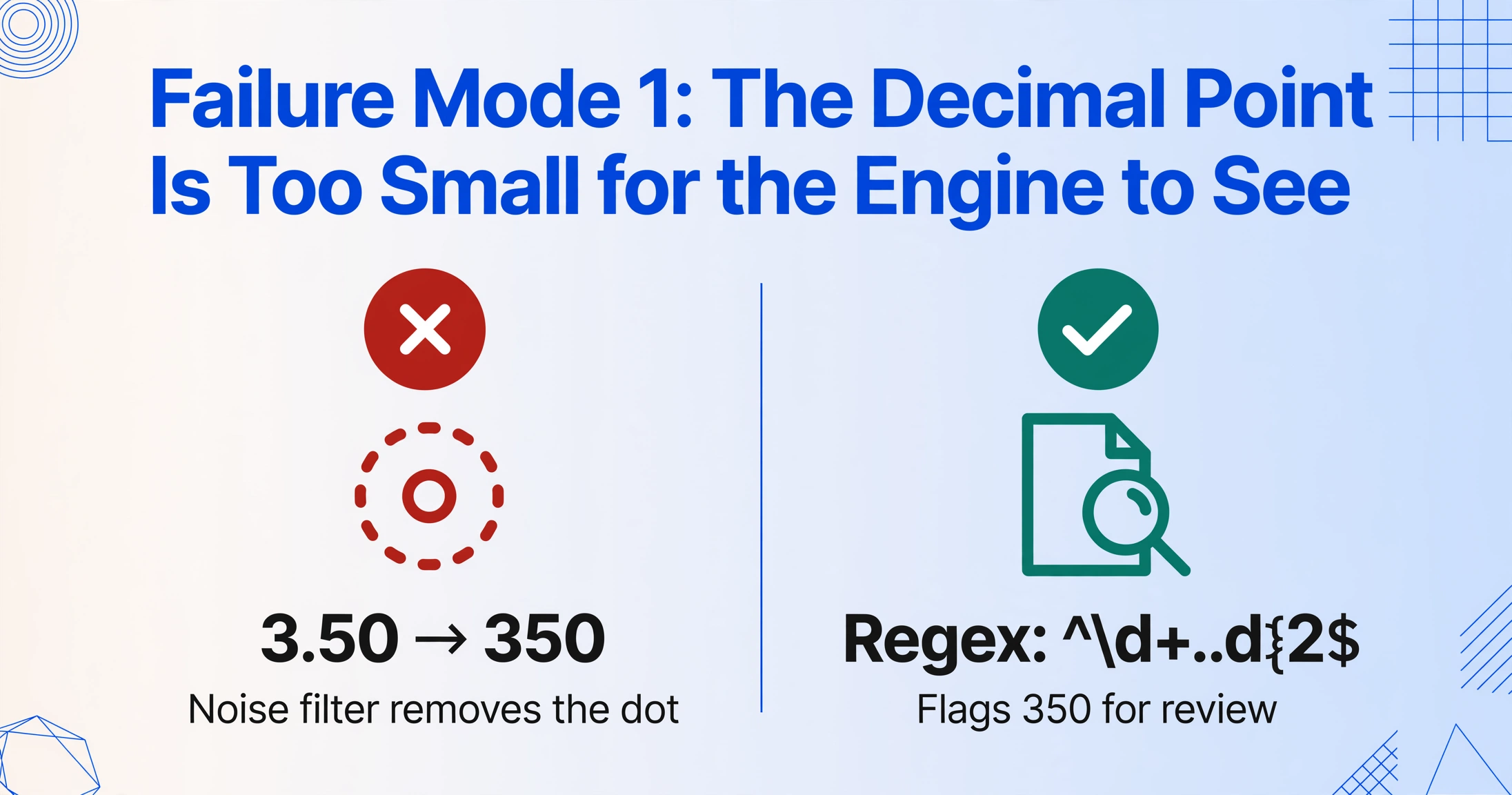
Symptoms: "3.50" extracts as "350" or "3 50." "19.99" becomes "1999." The digits themselves are perfectly legible — the decimal point simply isn't there. The missing dot shifts every number in your spreadsheet by two orders of magnitude.
Why it happens: Traditional OCR engines pre-process images by applying noise filters, contrast adjustments, and binarization before reading characters. A decimal point at 8–10 pixels in height — common on thermal receipts, low-DPI scans, and faxed documents — falls below the noise floor of these pre-processing steps. The engine's filter sees a tiny speck between two digits and classifies it as dust, paper fiber, or compression artifact. At 72 DPI, a decimal point occupies roughly 2–3 pixels in width. At that size, it is visually indistinguishable from a dust particle to any binarization algorithm.
This is not a failure of recognition — it is a failure of pre-processing. The decimal point never reaches the recognition stage because it was removed before the engine got to look at it.
How to fix it: The most reliable fix is post-extraction validation rather than trying to change the OCR engine's pre-processing. Implement a field-level regex check that validates every extracted monetary amount against the expected pattern:
# Check: does this value have exactly two decimal places?
pattern = r'^\d+\.\d{2}$'
if not re.match(pattern, extracted_value):
    flag_for_review(extracted_value)
Beyond regex, compare the extracted value against an expected magnitude. If your invoice total typically falls between $50 and $5,000 and the extraction returns $500,000, a sanity check catches the error before it reaches your accounting system. Many extraction tools, including ImageToTable.ai, let you define output formatting rules that standardize amounts during extraction — the decimal position becomes part of the output schema rather than something the raw OCR output must preserve.
For extremely low-resolution scans where decimal points are physically smaller than 6 pixels, no post-processing fix is fully reliable. The honest answer is that the source image does not contain the information needed for accurate extraction. In those cases, rescanning at 300 DPI or higher is the only durable fix.
Failure Mode 2: Currency Symbol Glued to the First Digit Gets Dropped
Symptoms: "$156.00" extracts as "156.00" (symbol missing) or, in worse cases, as "$15600" (symbol + digits merged into a single token with the decimal point lost in the merge). The currency context evaporates, and downstream systems treat a USD amount as a unitless number.
Why it happens: Currency symbols ($, €, £, ¥, R$) are typographically distinct from digits — they are often set in a different typeface or weight, and they sit on the same baseline as the number but with a different visual profile. When an OCR engine tokenizes a line, it must decide whether the "$" is part of the number or a separate entity. Proximity-based tokenizers frequently merge the symbol with the leading digit, producing a single token like "$156" that the engine then misreads because the internal character classifier has lower confidence on the "$" symbol than on the digits that follow. The engine resolves the confusion by dropping the low-confidence character — the currency symbol — and keeping the high-confidence digits.
Some vision-based extraction engines handle this better than traditional OCR because they process the entire visual context rather than tokenizing character by character. But even modern models can struggle when the currency symbol and the first digit share a tight bounding box, or when the symbol appears in a uncommon typeface (such as the curled "$" on some receipt printers).
How to fix it: Implement a currency symbol normalization map as a post-extraction step. Define the expected output format for monetary fields — for example, "USD 156.00" or "$156.00" — and normalize extracted values into that format:
# Known currency symbols by document context
currency_map = {
    'USD': r'[\$]',
    'EUR': r'[€]',
    'GBP': r'[£]',
    'JPY': r'[¥]'
}
# If the extracted value has digits but no symbol,
# assign the expected currency from document metadata
if re.match(r'^\d+\.\d{2}$', value) and not has_currency_prefix(value):
    normalized = f"{doc_currency} {value}"
The key is not depending on the OCR to decide whether the symbol belongs — define it at the extraction schema level and validate against it.
Failure Mode 3: Thousand Separator Confusion Reverses the Decimal
Symptoms: A US invoice with "1,234.56" extracts as "1.23456" or "1234.56" (comma lost). A European document with "1.234,56" extracts as "1.23456" or "1234.56" — the period is treated as a decimal, inflating the value by 1,000. The same punctuation mark means opposite things depending on locale, and the OCR engine does not know which rule to apply.
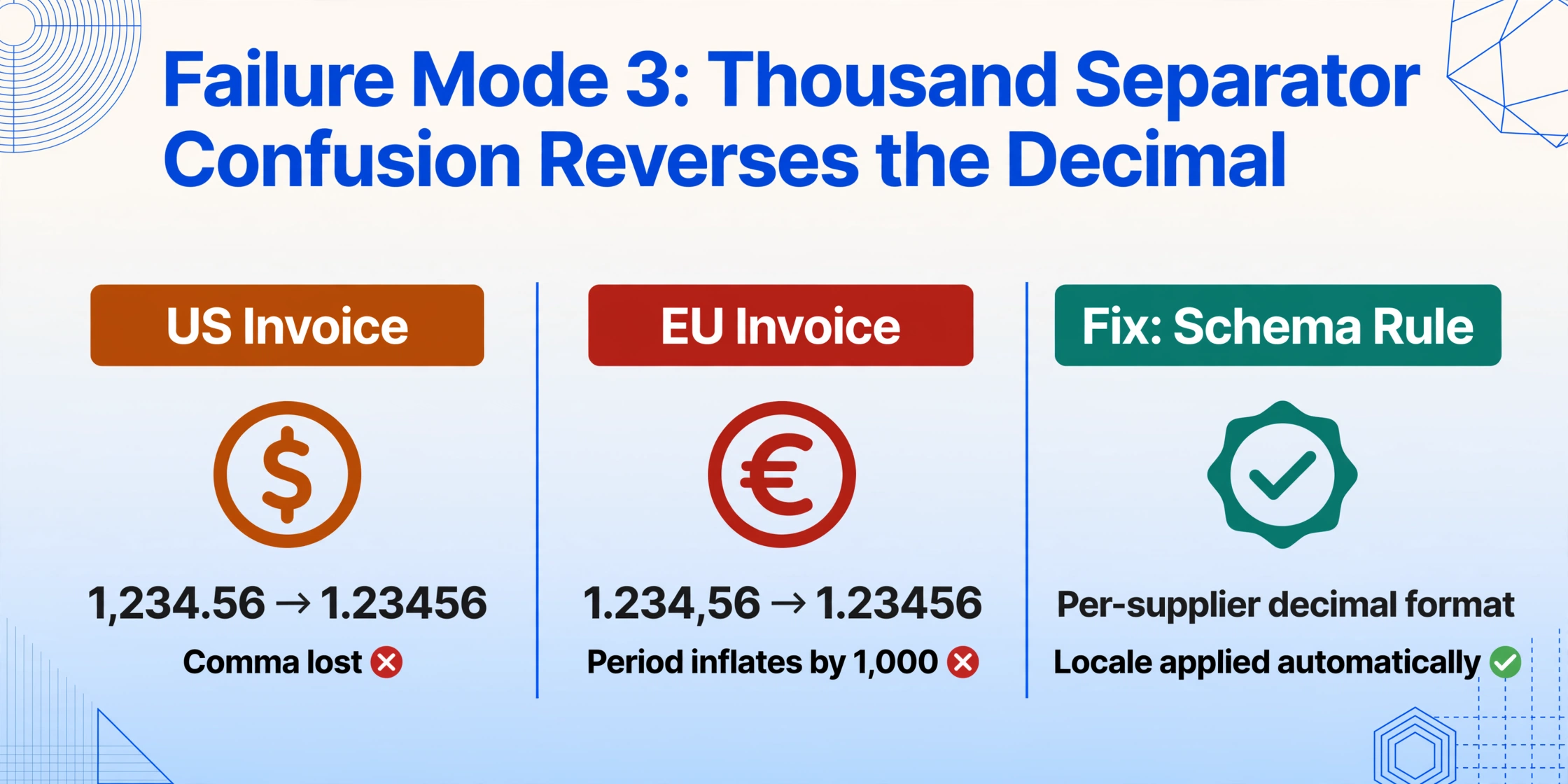
Why it happens: OCR engines treat punctuation marks as characters, not as mathematical notation. A period and a comma are distinct characters with known visual profiles, but the engine does not have native knowledge of which one is a decimal separator in the document's locale. This is not a limitation of a single engine — every mainstream OCR tool, from Tesseract to commercial cloud APIs, processes punctuation the same way: it outputs what it sees, leaving the interpretation of that punctuation to downstream logic. The result is that the same extraction pipeline can produce $1,234.56 on a US invoice and 1,234.56€ on a German invoice — and both will parse incorrectly if the downstream system does not know which convention to expect.
This problem compounds when you process invoices from multiple countries. A single batch of 50 invoices from US, German, and French suppliers can contain three different decimal conventions. The extraction engine does not automatically detect which convention applies to which document.
How to fix it: Two approaches. The first is schema-level: define the expected decimal format per supplier or per document type before extraction runs. If you know that invoices from your German supplier use comma decimals, configure a parsing rule that interprets commas as decimal separators and periods as thousand separators for that document group.
The second approach is magnitude validation — a technique described in depth in our article on multi-language extraction accuracy drops, which covers how format variance across document sources creates cascading errors. In practice, check that the extracted total is within a reasonable range of the sum of line items. A $1,234,567.89 total when line items sum to $12,345.67 is a clear indicator of a decimal-thousand separator reversal.
# Validate: does the total match the sum of line items
# within a reasonable tolerance?
line_sum = sum(line_items)
total = extracted_total
# If total is ~1000x line_sum, decimal was read as thousand separator
if abs(total - line_sum) / max(line_sum, 1) > 100:
    flag_decimal_ambiguity(extracted_total)
Failure Mode 4: Negative Sign and Parentheses — The Invisible Indicator
Symptoms: A credit memo showing "(156.00)" extracts as "156.00" with no negative sign. A bank statement balance of "1,247.30-" extracts as "1,247.30" — the trailing minus is dropped. The number is technically correct, but the sign is wrong, which turns a credit into a debit and a refund into a charge.
Why it happens: OCR engines treat parentheses as independent punctuation characters. When a number is enclosed in parentheses — the standard accounting notation for negative values — the opening parenthesis is read as a separate character before the first digit, the closing parenthesis as a separate character after the last digit. During data extraction, these parentheses are often discarded because they do not match the expected character class for a numeric field. The same applies to trailing minus signs: positioned after the digits, they fall outside the numeric token and get classified as a separate text fragment that the extraction logic never associates with the number.
How to fix it: Define field-level sign detection rules. If the extracted value appears in a field that typically contains credits, discounts, or negative adjustments — or if the original document contains parentheses around a dollar amount — apply a sign inversion after extraction. Combine this with a field naming convention: a column called "Credit Amount" or "Discount" should expect an absolute value and apply a negative sign automatically, regardless of what the OCR returned.
# If the document context indicates a negative-magnitude field
# and the extracted value is positive, invert the sign
negative_context_fields = ['credit_memo', 'discount', 'refund', 'adjustment']
if field_name in negative_context_fields and extracted_value > 0:
    extracted_value = -extracted_value
Failure Mode 5: Superscript and Subscript — Cents That Vanish Between Lines
Symptoms: A price tag reading "$9999" (meaning $99.99, with cents as superscript) extracts as "$99" or "$9900." A tax amount printed in tiny superscript next to a subtotal goes missing entirely. The base number is correct, but the fractional part that defines the precise monetary value disappears.
Why it happens: Superscript characters share the same horizontal region as the main number but sit above the baseline at a fraction of the size — typically 40–60% of the point size of the main digits. OCR engines detect them as a separate text line or fragment because the vertical position deviates from the primary baseline. In text extraction, this fragment is either assigned to a different output line or dropped during layout analysis as an outlier. The cents notation common on retail price tags and some invoice line items is the most frequent casualty.
Subscript values — less common in monetary contexts but frequent in tax rates and reference codes — face the same problem in the opposite direction: characters below the baseline are segmented as independent text regions and lose their association with the main number.
How to fix it: The most practical approach is to combine all text fragments that share the same horizontal position within a tight vertical range, then validate the combined value against expected monetary patterns. If a main number of "99" is followed by a superscript "99" in the same column region, the combination "99.99" is a valid monetary value. Implement this as a spatial merging rule: any text fragment within 150% of the main number's X-coordinate range and within a defined vertical offset should be merged into the extracted field value.
# Merge fragments in the same horizontal region
# within a tight vertical band
def merge_superscript(main_number, fragments, y_threshold=15):
    """Combine main digit cluster with nearby fragments."""
    combined = main_number
    for frag in fragments:
        if abs(frag.y - main_y) < y_threshold and \
           abs(frag.x - main_x) < main_width * 0.5:
            combined += frag.text
    # Validate after merge
    if re.match(r'^\d+\.\d{2}$', combined):
        return combined
    return main_number  # fall back to original if merge is invalid
When to Escalate: The Honest Limits of Automated Fixes
The five fixes above cover the majority of decimal-point and currency-symbol failures. But there is a category of document where no post-processing rule can reliably recover the correct value: documents where the decimal point is physically smaller than the minimum resolution the capture method can reproduce. A decimal point on a 72 DPI thermal receipt is approximately 2 pixels wide. At that size, the information literally does not exist in the image for any engine — traditional OCR or vision AI — to read reliably.
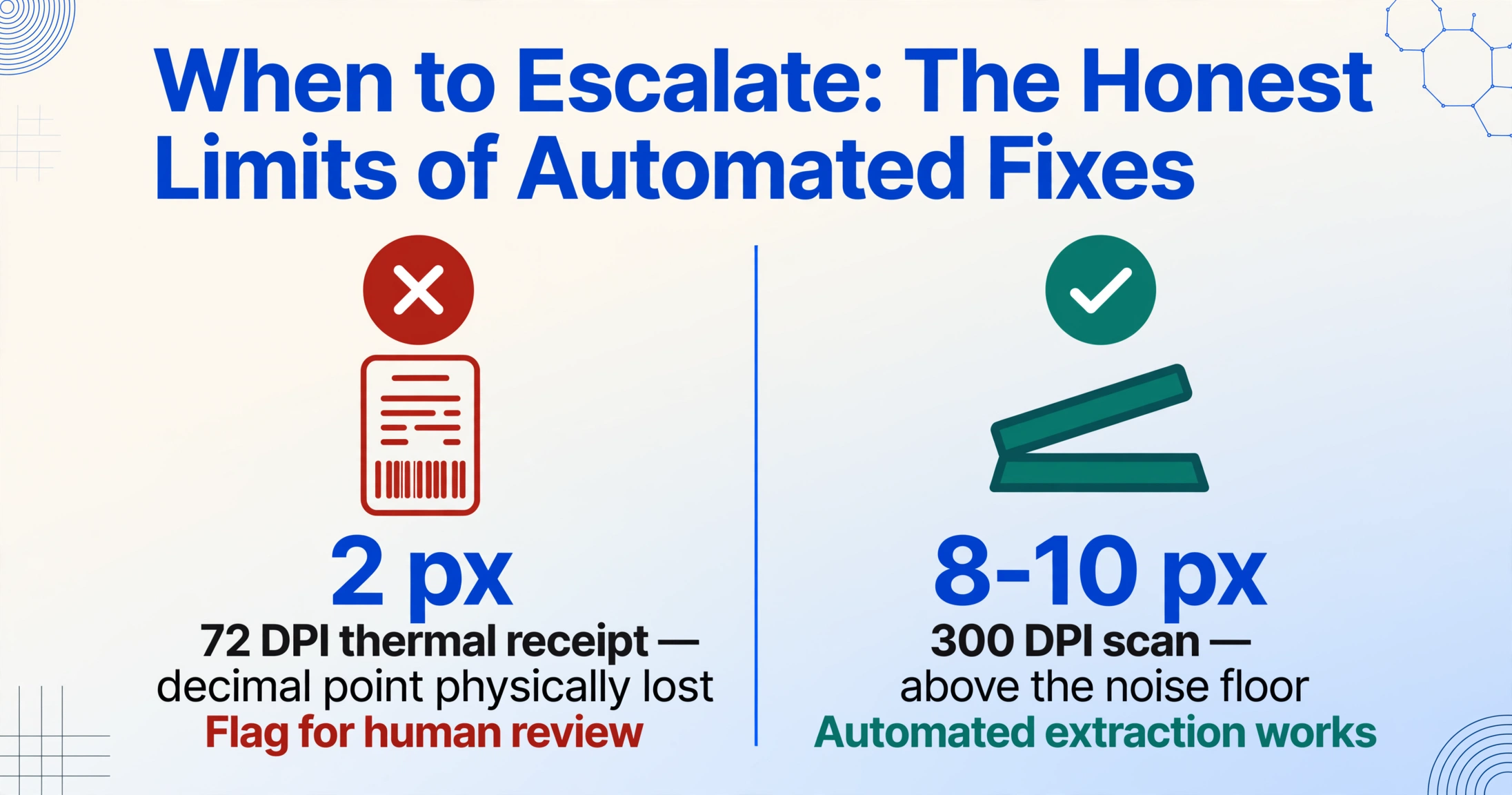
If you are working with thermal receipts, faxed documents, or second-generation photocopies, accept that some decimal points will require manual verification. The practical approach is to flag every extracted monetary value that fails a magnitude check — total outside expected range, line items that don't sum to total, number of decimal places inconsistent with the currency — and route those flags to a human reviewer. A 30-second review of flagged values is faster and more reliable than trying to tune post-processing to recover information that was lost at capture time.
For teams processing documents that consistently arrive at low resolution, the most effective investment is not a better extraction tool — it's a scanning standard that requires 300 DPI or higher for incoming documents. At 300 DPI, a decimal point occupies 8–10 pixels, which is above the noise floor of every modern extraction engine.
Frequently Asked Questions
Can AI extraction tools read decimal points on thermal receipts?
Modern vision AI tools can read decimal points on thermal receipts when the print quality is good and the image is captured at sufficient resolution (ideally 300 DPI or higher). However, thermal receipts are inherently low-contrast and the print fades over time. At print sizes below 8 points, the decimal point may be physically too small for any system to distinguish from background noise. The honest answer: if a human has to squint to see the decimal point on a receipt photo, the AI will miss it too.
Why does my OCR keep dropping the $ symbol from extracted amounts?
Currency symbols are dropped most often when they appear in close proximity to the first digit without a space separator, or when the symbol uses a typeface that differs from the surrounding digits. The OCR engine has lower confidence on the symbol character and resolves this by keeping the high-confidence digits and discarding the low-confidence symbol. Fix this by defining a currency symbol normalization rule in your extraction schema: specify the expected currency per document source and have it applied automatically to every extracted amount, rather than depending on the OCR to preserve the symbol.
Can post-extraction regex fix all decimal point errors?
Regex can catch many decimal point errors, but it cannot fix them all. If the decimal point was lost during OCR capture and the extracted value is "15600" instead of "156.00," a regex cannot determine where the decimal belongs without additional context — the value could be 15.600, 156.00, or 1560.0 depending on what the original document said. Regex works well when combined with magnitude validation (comparing against line-item sums or expected ranges) or when the document format is known in advance (e.g., all prices have exactly two decimal places). For unknown-format documents, regex is a flagging mechanism, not a correction mechanism.
What resolution do I need to scan at to avoid decimal point loss?
300 DPI is the industry standard for reliable OCR on printed documents. At 300 DPI, a 10-point decimal point occupies approximately 8–10 pixels in width — well above the noise threshold of modern OCR and AI extraction engines. At 150 DPI (common for fax and archive scanning), the same decimal point drops to 4–5 pixels and becomes borderline. At 72 DPI (typical for mobile phone screenshots of documents), the decimal point may be only 2 pixels wide and is effectively invisible to any extraction system. If your decimal points are missing consistently, check your scanning resolution first.
Next Steps: From Diagnosis to Prevention
A missing decimal point is not a random event — it is the predictable result of one of five known failure modes. The difference between a team that catches these errors and a team that doesn't is not the tool they use; it's whether they have a diagnostic framework. When you know which of the five failure modes you're dealing with, the fix is usually a post-processing rule — not a different AI engine.
Start with a simple audit: take the last 50 extracted monetary values from your pipeline and classify each error by failure mode. If 80% of your errors fall into one or two categories, you have a focused fix that costs nothing but a few lines of validation logic. If errors are spread across all five modes, the issue is likely capture quality — and the fix is a scanning standard, not a tool change.
For a deeper look at how extraction accuracy varies by document format and how to design fields that minimize ambiguity, see our guide on field design mistakes that produce wrong extracted numbers and the analysis of how format variance across document sources creates accuracy drops. Between these three diagnostics — field design, format variance, and now symbol-level failure modes — you have a complete framework for debugging extraction accuracy at every level of the pipeline.