Why Is Your OCR Missing Decimal Points
& Currency Symbols?
If your OCR tool just turned $154.99 into $15499 — inflating an invoice total by 100× — you are not alone. This is one of the most frequently reported data extraction failures in accounts payable and expense management. The problem has four distinct root causes, and knowing which one hit your document is the fastest way to fix it.
Key Takeaways
- OCR tools tout 99% character accuracy but concentrate their 1% error rate on the single character that inflates your invoice amount by a factor of 100.
- Every decimal-point mistake carries a recognizable fingerprint that traces back to one of just four root causes, from JPEG compression discarding 2-pixel dots to European comma decimals misleading US-trained engines.
- Matching that fingerprint to its cause means you stop cycling through blind resolution tweaks and apply the one fix that addresses the actual problem on the first try.
The cost goes beyond a wrong number on a screen. Under SOX compliance requirements, publicly traded companies must maintain complete and accurate financial records — a decimal error in an automated pipeline is a compliance exposure. For any business, a $15,499.00 payment against a $154.99 invoice means overpaying $15,344.01 until month-end close catches it. Most OCR engines advertise 99% character-level accuracy, but that figure is misleading when a single character error in a numeric field can break an entire row of data. Here is what causes these errors at the pixel level — and how to stop them.
Cause 1: Low-Resolution Compression Wipes Tiny Dots
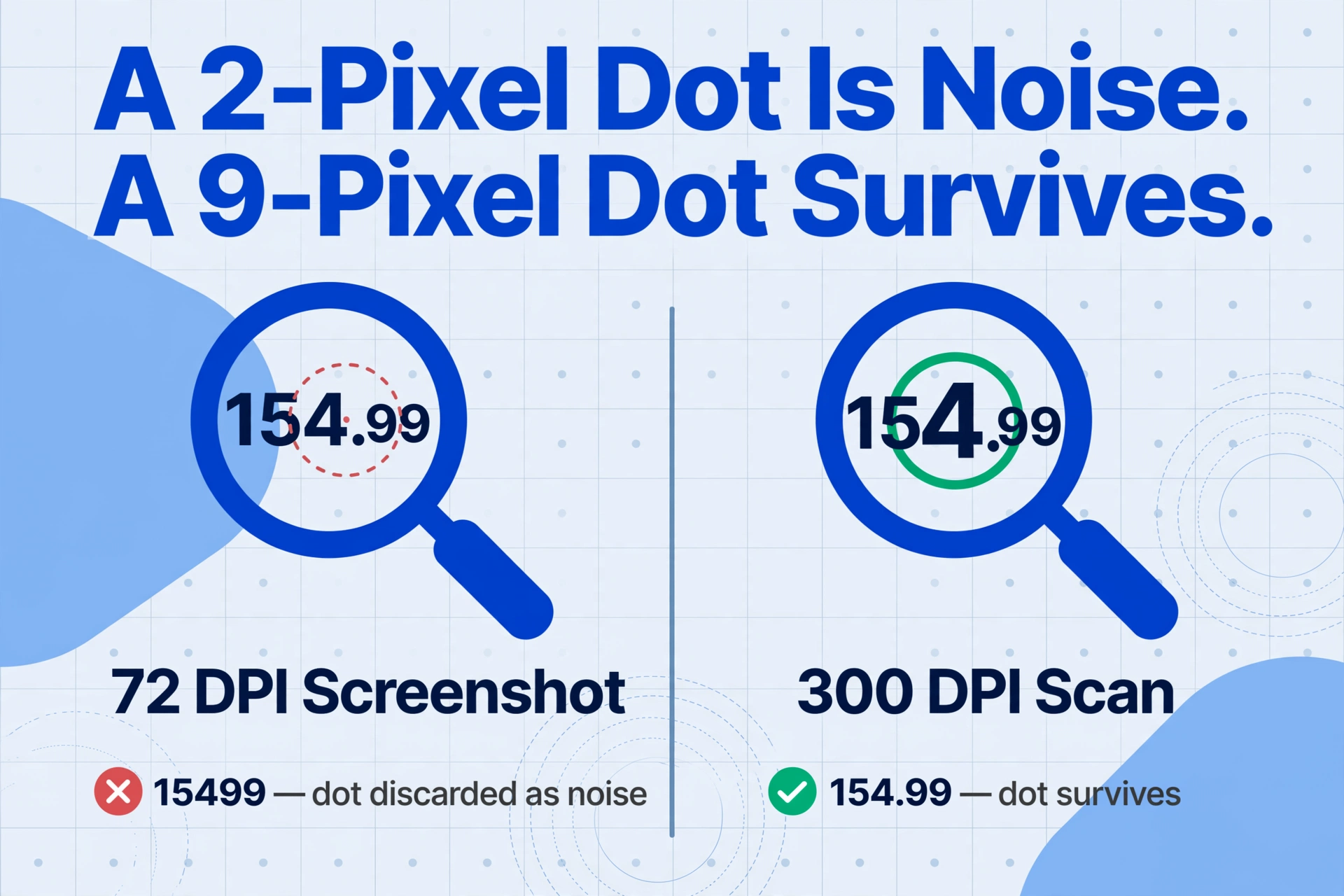
A decimal point in a 10pt font is only 3 to 5 pixels wide at 100 DPI. At 72 DPI — the resolution of most screenshots — it shrinks to roughly 2 pixels. JPEG compression processes images in 8×8 pixel blocks, and a 2-pixel dot inside a mostly-white block is treated as noise and discarded.
This is how $154.99 becomes $15499 — the decimal point between 4 and 9 simply vanishes, and the previously distinct values 154 and 99 merge into a single number that is 100 times larger than the original. The same mechanism affects line-item amounts, unit prices, tax totals, and any other field that depends on a two-digit fractional component.
The effect worsens with poor lighting — shadows or glare around a decimal point make it even harder for the binarization filter (converting color to black-and-white pixels) to distinguish the dot from its background. Once the dot is gone in the binarized image, no language model can recover it — because the engine never saw it.
Cause 2: Currency Symbol Proximity Confusion
Currency symbols sit in a blind spot for most OCR engines. The dollar sign ($), euro symbol (€), pound sign (£), and yen sign (¥) are decorative characters that appear immediately before or after a numeric value. Traditional OCR treats them as isolated glyphs to be identified, and it frequently gets them wrong.
Three distinct failure modes affect currency symbols in practice:
- The symbol is dropped entirely — the OCR engine decides that $1,234.56 should simply be 1,234.56, silently stripping the currency indicator. This creates ambiguous output: is 1,234.56 in USD, EUR, or some other unit? When data from multiple suppliers or currencies is merged into a single spreadsheet, the loss of the currency marker makes it impossible to determine which values are comparable.
- The symbol is misread as a letter or digit — $ is frequently read as S or 5. £ may be read as an uppercase L or a stylized E. These substitutions produce output like
S1,234.56, which downstream systems may interpret as a string rather than a numeric value, causing type-cast errors in database imports or Excel formulas. - The symbol merges with an adjacent digit — when a $ sign is printed in a bold or serif font and sits close to the first digit, OCR may read the combined region as a single character.
$5becomes55or95depending on the font details.
Currency symbol confusion is frustrating because the output passes a quick visual scan — the numbers look right — but the information about which currency those numbers represent has been lost. This is why field-level accuracy matters more than character-level accuracy in financial document processing.
Cause 3: Anti-Aliasing Blur on Small Characters
Anti-aliasing (font smoothing) renders character boundaries as gradients of partially filled pixels to create the illusion of smooth curves. For large body text this improves readability, but for small characters like decimal points and currency symbols it does the opposite.
A decimal point rendered at 8pt or 9pt — common in invoice line-item tables or the fine print on receipts — has so few pixels that any smoothing blurs it into the background. When the OCR engine applies binarization (converting the image to black-and-white), the dot becomes a gray smudge that falls below the confidence threshold, and the engine outputs nothing for that position.
The same applies to minus signs for negative amounts, parentheses used for credits, and the thin strokes in currency symbols like ¥ or € — all frequently rendered at very small sizes in dense table cells where anti-aliasing is most destructive.
Cause 4: Comma & Decimal Convention Ambiguity
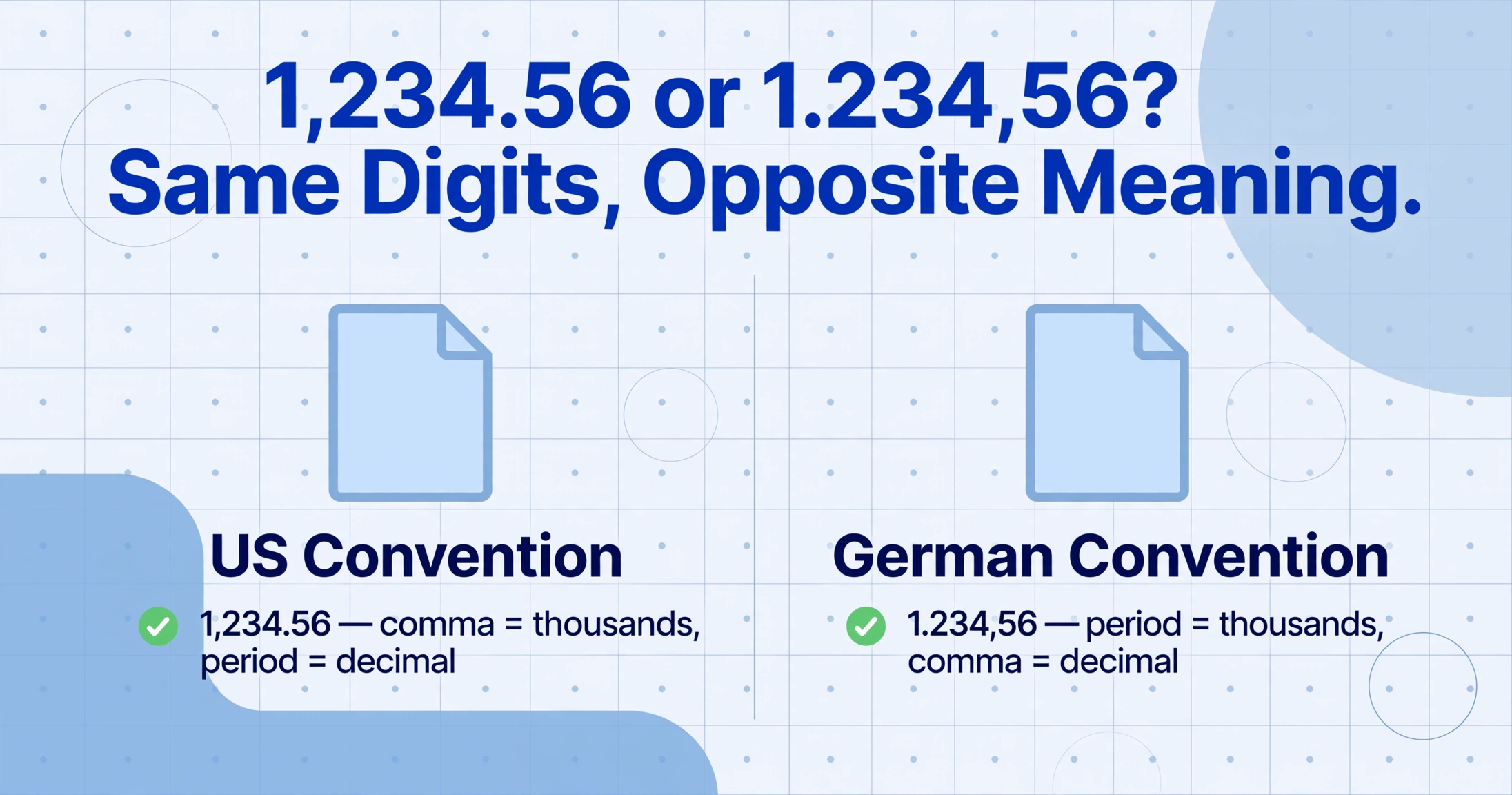
A single character — the period or comma — carries opposite meanings depending on where the document originated. In the US, 1,234.56 uses a comma as the thousands separator and a period as the decimal point. In most of continental Europe, the same written value appears as 1.234,56 — period as the thousands separator, comma as the decimal point. An OCR engine without regional context has no reliable way to tell them apart.
An OCR system designed for US invoices encountering a German 1.234,56 may split it into two numbers (1 and 234,56) or strip both separators entirely (123456), inflating the value by 100×. Either way, corrupted data enters the accounting system silently.
The problem compounds with mixed-region documents — a French supplier using comma decimals but English field labels confuses locale-based OCR tools that expect a single regional convention.
The real cost of decimal ambiguity: An accounts payable team processing 1,000 international invoices per month at a 2% decimal misreading rate faces 20 silent errors. If even 5 of those result in incorrect payments, the average $3,000 per correction means $15,000 in preventable losses monthly — and that is before accounting for the time spent on investigations and vendor relationship repair.
How to Fix It: A Symptom-Based Diagnostic Framework
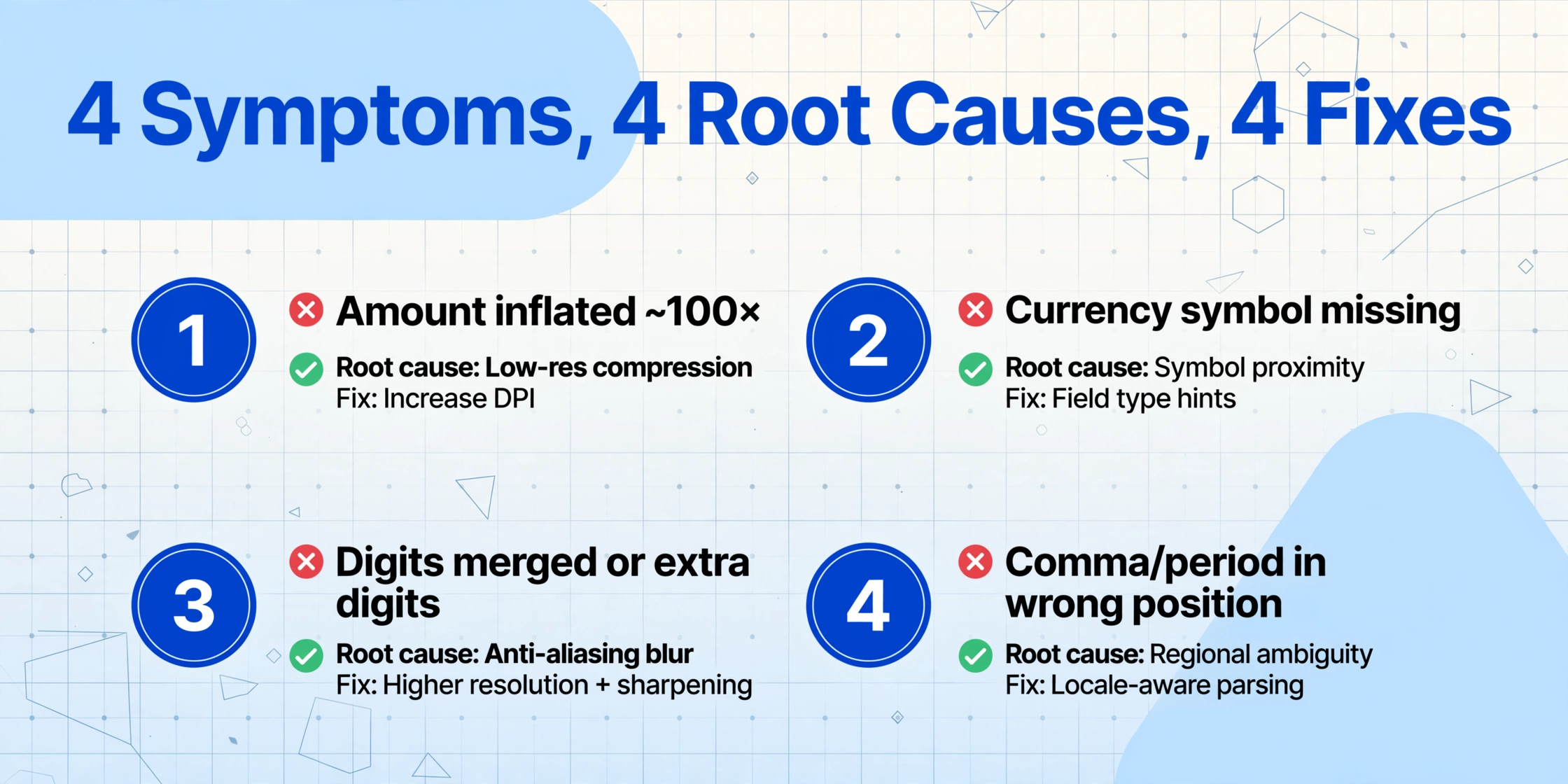
Not all decimal and currency errors have the same root cause. Using the wrong fix wastes time and misses the actual problem. The table below maps the symptom you see in your extracted output to the most likely cause and the corresponding fix.
| Symptom in Output | Most Likely Cause | Primary Fix |
|---|---|---|
| Amount inflated ~100× (e.g. 154.99 → 15499) | Low-resolution compression (Cause 1) | Increase input DPI / use lossless format |
| Currency symbol missing ($/€/£ dropped) | Symbol proximity or font rendering (Cause 2 or 3) | Field type hints + semantic extraction |
| Currency symbol misread as letter (e.g. $ → S) | Character shape confusion (Cause 2) | Post-processing regex pattern match |
| Digits merged or extra digits appearing | Anti-aliasing blur (Cause 3) | Higher input resolution + sharpening preprocess |
| Comma/period in wrong position (123.456 vs 123,456) | Regional convention ambiguity (Cause 4) | Locale-aware post-processing + cross-footing |
| Amount split into two separate values | Comma decimal misinterpretation (Cause 4) | Context-aware parser with region detection |
Fix 1: Improve Source Image Quality
The most effective fix is the most straightforward: give the OCR engine more pixels to work with. A decimal point at 300 DPI occupies roughly 9 pixels — enough that JPEG compression cannot discard it as noise. At 600 DPI, that same dot spans 18 pixels and survives aggressive compression settings.
- Scan at 300 DPI minimum — 200 DPI is the floor; 300 DPI is the reliable standard for financial documents. Use a flatbed scanner rather than a phone camera whenever possible.
- Save as TIFF or PNG, not JPEG — JPEG's lossy compression is the primary cause of decimal-point dropout. TIFF and PNG preserve the 2- to 3-pixel dots that JPEG discards.
- For phone photos — shoot from directly above, use a well-lit surface, and export at the camera's maximum resolution. Crop tightly to the document area to maximize pixel density on the text region.
Fix 2: Use Field Type Hints
This is the fix most general-purpose OCR tools cannot offer — and the most effective one for financial data. When you tell the system a field is a currency amount, it treats the decimal point and currency symbol as semantic signals about the value, not ordinary characters.
In ImageToTable.ai, this works through Custom Column Extraction: you define columns like "Invoice Total" and the AI understands the field type. When it encounters a value in a known currency field, it actively looks for the decimal separator and uses the expected two-decimal structure to validate digits. If the raw output produces "15499" for a "Total (USD)" field, the AI flags the missing decimal and applies probabilistic correction.
This is the fundamental difference between position-based extraction (where the tool reads every character in a zone and outputs whatever it sees) and semantic-based extraction (where the tool understands what it is looking for and uses that context to resolve ambiguities). Field type hints turn a decimal-point dropout from a silent data corruption into a correctable ambiguity. The same approach enables you to process batches of supplier invoices directly into structured Excel sheets without per-vendor template configuration — the AI handles the format variations by understanding what each field means, not where it sits on the page.
Fix 3: Regex and Cross-Footing Post-Processing
When you cannot control the source quality or the extraction tool, post-processing is the safety net. Two techniques catch the majority of decimal and currency errors after extraction. For a broader overview of preprocessing, engine tuning, and field-level validation strategies, read our complete guide on how to improve OCR accuracy on financial documents.
Pattern-based validation. Most currency amounts follow predictable patterns. A regex like ^\d{1,3}(?:,\d{3})*\.\d{2}$ validates US-format amounts. Any value with no decimal point, four decimal places, or mismatched separators gets flagged for review.
Cross-footing (mathematical validation). On any document with line items, the sum of line amounts should equal the total. A discrepancy signals misread decimal points. If line items sum to $1,249.85 but the total extracts as $124,985.00, the decimal migrated three positions — almost certainly a dot-loss error. Cross-footing catches this instantly regardless of the root cause.
Post-processing is not a replacement for good source quality or semantic extraction — it is a detection layer designed to catch the errors that slipped through.
When to Escalate: Recognizing the Limits of Fixes
Not all decimal-point and currency-symbol errors can be fixed by improving input quality or adding post-processing rules. Three scenarios indicate the extraction approach itself needs to change:
Scenario 1: High-volume mixed-source processing. If your workflow processes invoices from hundreds of suppliers using different formats and regional conventions, per-vendor preprocessing tuning does not scale — the overhead cancels automation's efficiency gains.
Scenario 2: Predominantly mobile-captured documents. Phone photos introduce perspective distortion, glare, and variable lighting that consistently degrade small-character recognition. The fix is not better preprocessing; it is a system that uses semantic context to interpret values when character-level recognition is uncertain.
Scenario 3: Documents with extremely dense tables. Bank statements, brokerage reports, and multi-line invoices pack numbers into small table cells where decimal points render at 6pt to 8pt. At that size, anti-aliasing blur is nearly unavoidable regardless of scan resolution — pixel-based OCR reaches a fundamental accuracy ceiling.
In these scenarios, even perfect preprocessing cannot bridge the gap — the solution is a vision-based approach that understands document structure and field semantics, not just pixel values. For related guidance, see how merged cells break table extraction and why OCR fails to recognize tables — common scenarios where decimal errors originate from structural misreads rather than pixel-level problems.
Frequently Asked Questions
Why does my OCR keep dropping the decimal point on phone photos but not on scanned documents?
Phone photos captured at arm's length produce images in the 72–150 DPI range — a decimal point at this resolution is only 2–4 pixels wide. JPEG compression processes the image in 8×8 pixel blocks, and a 2-pixel dot inside a mostly-white block is treated as noise and discarded. Flatbed scanners at 300 DPI produce dots that are 9+ pixels, surviving compression reliably. This is a hard physical limitation: small characters need enough pixels to be distinguishable from sensor noise.
Can AI-based OCR fix decimal point errors that traditional OCR misses?
Yes — but not by "seeing" a dot that JPEG destroyed. AI-based extraction infers the decimal position using context. When the system knows it is reading an invoice total and the raw output reads "15499", it applies learned patterns — most totals have two decimal places — and reconstructs $154.99. This works only when the field type is known; in a blank-slate OCR scenario, no AI can fix what was never captured.
How do I handle invoices with mixed regional formatting (US and EU suppliers)?
Mixed-region processing is the hardest case for convention-dependent parsing. The most practical approach is to validate extracted amounts against mathematical consistency — do line items sum to the total? If a comma-decimal reading of 1.234,56 produces a clearly implausible value, the system tries the alternative parsing. Semantic extraction tools can apply this automatically — if the AI understands a field should be a reasonable amount, it rules out implausible separator interpretations.
Does upscaling a low-resolution image before OCR help recover decimal points?
Traditional upscaling (bilinear or bicubic interpolation) does not recover lost detail — it spreads existing pixels across a larger canvas. A 2-pixel decimal point upscaled to 200% becomes 4 pixels of interpolated gray, still below most OCR detection thresholds. Starting with a higher-quality source image is always more effective than trying to fix a degraded one.
What is the minimum scan resolution to reliably capture decimal points in financial documents?
300 DPI is the practical minimum. At 200 DPI, decimal points in standard 10pt fonts span 4–5 pixels — only marginally better than phone-camera resolution. At 300 DPI, the same dot spans 8–9 pixels, giving OCR engines enough signal to distinguish it from background noise. For documents with very small fonts (8pt or below in line-item tables), 400–600 DPI is recommended with the understanding that higher DPI increases file size linearly.
Are comma-separated thousands (1,234.56) safe with most OCR tools?
Not inherently. While most OCR engines handle the US convention reasonably well, the comma can be misread as a period or discarded, producing 1.234.56 or 1234.56. More critically, if the same document contains values where comma is the decimal separator (common in mixed-vendor workflows), the OCR has no way to distinguish the two uses by shape alone — it needs contextual knowledge of which field is which. This is why field-level type hints are essential for reliable multi-region processing.
Don't Let a Missing Dot Cost You Thousands
Decimal points and currency symbols are small characters with enormous consequences — a single missed dot can overpay a vendor by $15,000 or slip a compliance violation past month-end checks. The errors are not random: each has a traceable cause rooted in how OCR engines process images at the pixel level. Knowing which cause hit your document is the difference between blindly tweaking settings and fixing the problem permanently.
The most reliable fix is an extraction system that understands what it reads — reconstructing missing decimal points, validating values against expected formats, and handling regional separator conventions without manual configuration. That is what semantic extraction makes possible. Upload an invoice your current tool struggles with and compare the accuracy side by side.