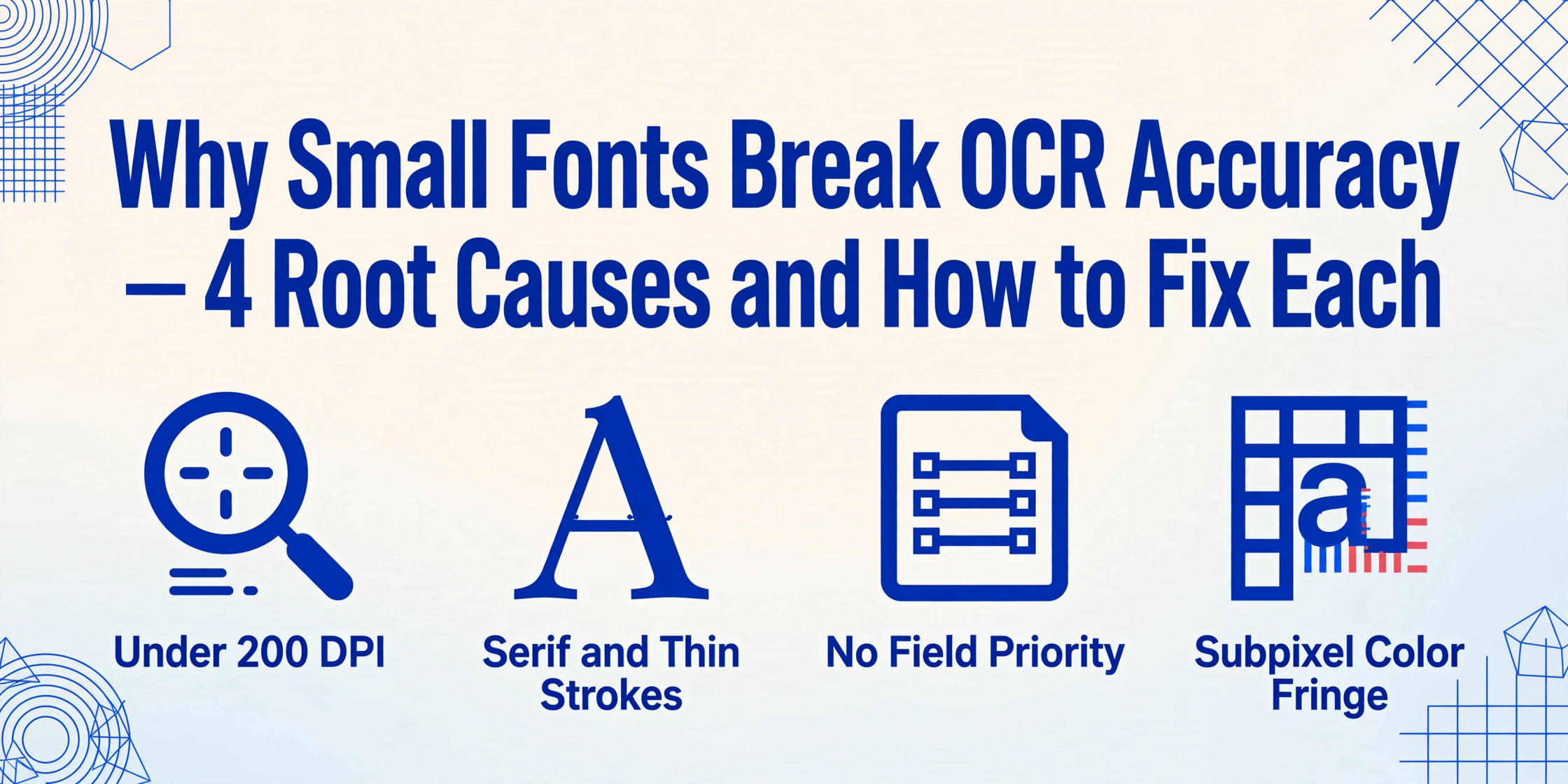
Why Small Fonts Break
OCR Accuracy — 4 Root Causes and Fixes
You scanned a contract, ran extraction on a bank statement with fine-print terms, or tried to grab line-item data from a screenshot of a densely formatted table. The 10pt and 12pt fields came through fine. But the small text — the 6pt footnote, the 7pt legal disclaimer, the fine-print unit prices at the bottom of a supplier quote — produced garbage or nothing at all. The problem is not that the AI is bad at reading small fonts. The problem is physics: at 150 DPI, a 6pt character is roughly 12 pixels tall. Twelve pixels is not enough information for any system — human or machine — to distinguish an "8" from a "6" or an "rn" from an "m."
Key Takeaways
- A 6pt character scanned at 150 DPI is 12 pixels tall — twelve. The features that distinguish an "8" from a "6" occupy 2 of those 12 pixels, and a single pixel of scanner noise erases the difference. This is not an AI problem; it is a physics problem that every extraction tool on the market shares.
- The 20-pixel rule: if a character occupies fewer than 20–25 pixels in height, the gap between "rn" and "m" or "5" and "S" collapses to one pixel of ambiguity. Most office MFP scanners default to 200 DPI, which pushes everything below 10pt into that danger zone — your body text extracts fine while the table values turn to noise.
- You cannot add pixels that were never captured, but you can stop fighting physics: scan small-font documents at 400+ DPI, define extraction columns only for the data your workflow actually needs, and treat sub-7pt text as a hard limit rather than a failure to fix.
The Problem Is Physics, Not AI
When an OCR engine or vision AI model fails on small text, the first instinct is to blame the software. But the real bottleneck shows up before any AI processing begins — it is determined by the number of pixels available per character.
Here is the math. A "point" in typography is 1/72 of an inch. At 150 DPI (dots per inch, the resolution of a typical fax or low-end scanner), the pixel height of a character is:
pixel height = font size (pt) × DPI / 72
For a 6pt character at 150 DPI:
6 × 150 / 72 = 12.5 pixels
Twelve pixels is roughly the height of a single letter in the smallest font size your operating system allows in a terminal window. Now consider what happens inside a character at that scale. The distinguishing features that separate "8" from "6" — a closed upper loop vs. a closed lower loop — span 2 to 3 pixels at most. A single pixel of noise from the scanner sensor, a fractional degree of page skew, or the JPEG compression block from a phone photo can eliminate that distinction entirely. The character "m" and the pair "rn" occupy the same 2-3 pixel column width at small sizes — they become structurally identical.
This is not a problem that better AI training or more sophisticated OCR post-processing can solve. The input signal is missing the information required for any recognition system to produce the correct output. Every subsequent fix in this article works around this constraint or reduces it — but the constraint itself is inescapable.
How Many Pixels Does a Character Actually Need?
To understand when small font becomes a practical problem, map font size and scan resolution to pixel height. The critical threshold for character recognition is roughly 20-25 pixels of character height for reliable discrimination between similar glyphs:
| Font Size | 150 DPI | 200 DPI | 300 DPI | 400 DPI | 600 DPI |
|---|---|---|---|---|---|
| 6 pt | 12 px ✗ | 17 px ✗ | 25 px ⚠ | 33 px ✓ | 50 px ✓ |
| 7 pt | 15 px ✗ | 19 px ⚠ | 29 px ✓ | 39 px ✓ | 58 px ✓ |
| 8 pt | 17 px ✗ | 22 px ⚠ | 33 px ✓ | 44 px ✓ | 67 px ✓ |
| 10 pt | 21 px ⚠ | 28 px ✓ | 42 px ✓ | 56 px ✓ | 83 px ✓ |
| 12 pt | 25 px ✓ | 33 px ✓ | 50 px ✓ | 67 px ✓ | 100 px ✓ |
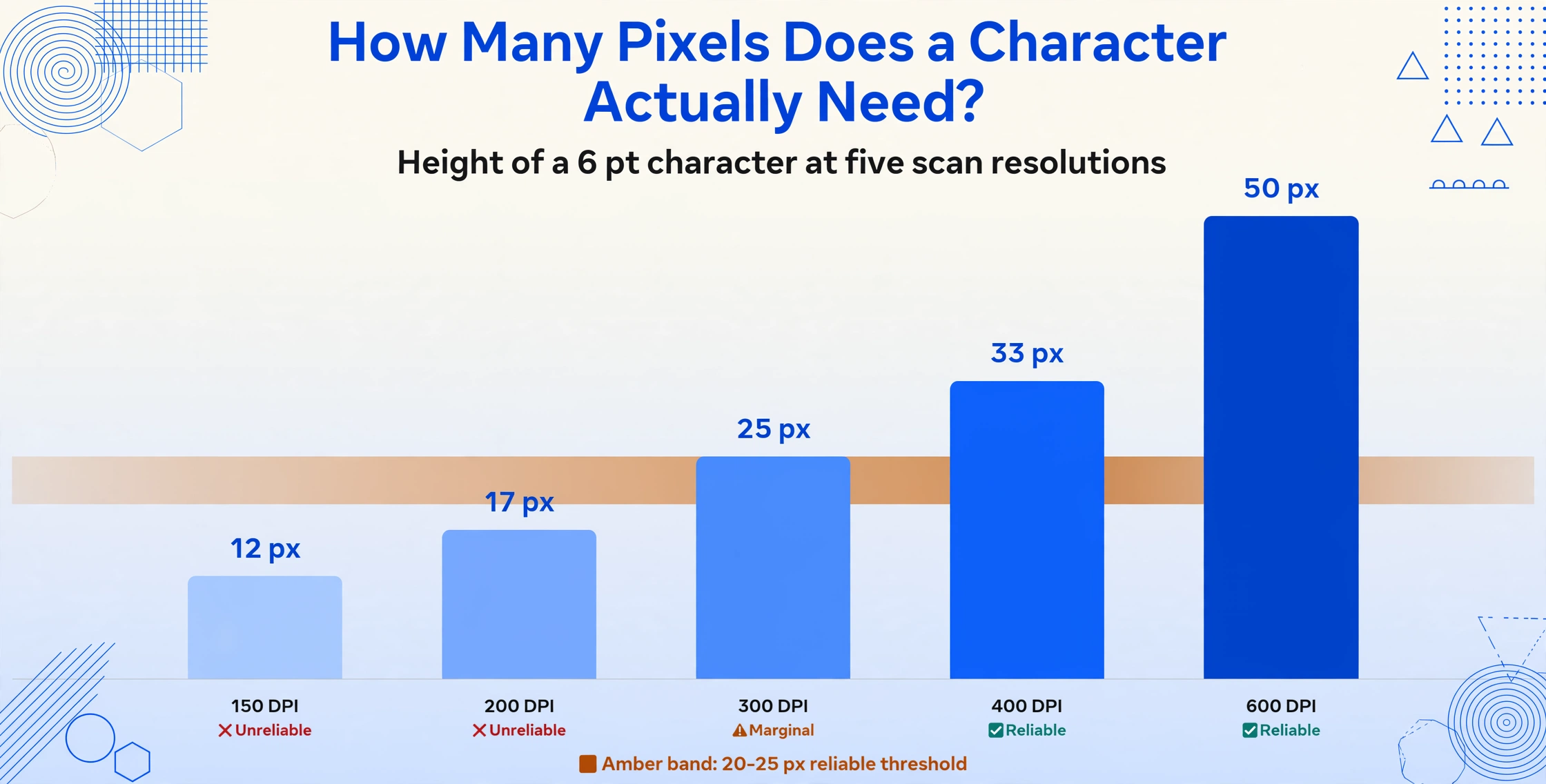
✗ = unreliable ⚠ = marginal ✓ = generally reliable for printed text. These are character height estimates — recognition also depends on stroke width, contrast, and font design.
The table makes the pattern obvious: at standard 300 DPI, 6pt text sits right at the marginal line. At 200 DPI — the resolution of many office multi-function printers and most faxed documents — everything below 10pt is marginal or unreliable. By the time you drop to 150 DPI (common for faxes and low-quality PDFs), only 12pt and above is reliable.
Cause 1: Scan Resolution Below 200 DPI
The most common single cause of small-font extraction failure is scan resolution too low for the target text. The issue is not that the scanner hardware itself is inadequate — it is that the scanning workflow was designed for readable text (~10-12pt body copy) and nobody adjusted it for the smaller characters that appear in footnotes, table cells, legal disclaimers, and form instructions.
Why 200 DPI is the danger threshold: At 200 DPI, an 8pt character — the typical size of many table cell values and form labels — produces only 22 pixels of height. Characters like "e" and "c" become nearly indistinguishable because the open counter (the interior space of the letter) collapses to 1 pixel. The loop of an "8" and the bowl of a "6" occupy the same 2-pixel vertical space. This is why faxed invoices and scanned contracts routinely produce extraction errors on small-font sections while the main body text looks fine.
What to check: If your scanned PDF was produced by an office MFP (multi-function printer) set to its default "standard quality" mode, it is almost certainly at 200 DPI. Faxed documents arrive at 100-200 DPI depending on the sender's equipment. Before blaming the extraction tool, verify the effective DPI of the input image: open the file properties in any image viewer and divide the pixel width by the physical page width in inches. If the result is below 250 DPI and your document contains text below 10pt, resolution is likely the root cause.
For more on how image quality interacts with extraction accuracy across different document types, see our guide on OCR low accuracy from scanned documents.
Cause 2: Font Choice Amplifies the Resolution Problem
Not all 8pt characters are created equal. Font design determines how much of the available pixel budget is actually usable for recognition:
Sans-serif vs. serif at small sizes. A serif font like Times New Roman adds decorative strokes (serifs) at the ends of letter stems. At 10pt and above, those serifs aid legibility. At 6-8pt on a 200 DPI scan, the serifs merge into the main stroke, thickening the character unpredictably and making adjacent characters harder to separate. Sans-serif fonts (Arial, Helvetica, Calibri) lack these extra strokes, which means their simpler shapes survive low-resolution scanning better. Tesseract's own documentation and multiple library guidelines specifically recommend sans-serif fonts for OCR-friendly documents.
Thin/light font weights. A font family's "Light" or "Thin" weight — popular in modern brand design, financial report headers, and minimalist UI — uses strokes that may be only 1 pixel wide at common scan resolutions. A single pixel of stroke width means that any noise, compression artifact, or scanner sensor variation will either break the stroke (making the character invisible) or thicken it asymmetrically (changing the character shape). Bold and regular weights, with 2-3 pixel stroke widths at the same resolution, have significantly more tolerance for these artifacts.
Fonts with ambiguous glyphs. Certain font designs make characters that are already difficult for OCR even harder. Arial, for example, renders lowercase "l" (L) and uppercase "I" (i) identically — the only distinguishing signal is context, which traditional OCR lacks. At small sizes, this ambiguity grows worse because any remaining visual difference (a fraction of a pixel in the serif or stem height) disappears entirely.
The practical pattern: if the small text on your document uses a modern lightweight sans-serif font (common in European bank statements, SaaS invoices, and investment reports), you will see extraction errors at sizes where a bolder or serif-heavy font would still produce readable output. The font choice does not cause the problem — but it determines at what pixel height the problem becomes visible.
Cause 3: Trying to Extract Everything Instead of Prioritizing
This is less a technical problem and more a workflow design problem — but it is one of the most common sources of frustration with small-font extraction.
Many users approach extraction with the mindset that everything on the page should come through: every line item, every disclaimer, every footnote, every marginal notation. When a 6pt legal disclaimer at the bottom of a bank statement produces garbled output, it feels like the entire extraction failed. In practice, the body text and key financial figures may have been extracted perfectly — the failure was isolated to a section of text that no practical workflow actually needs.
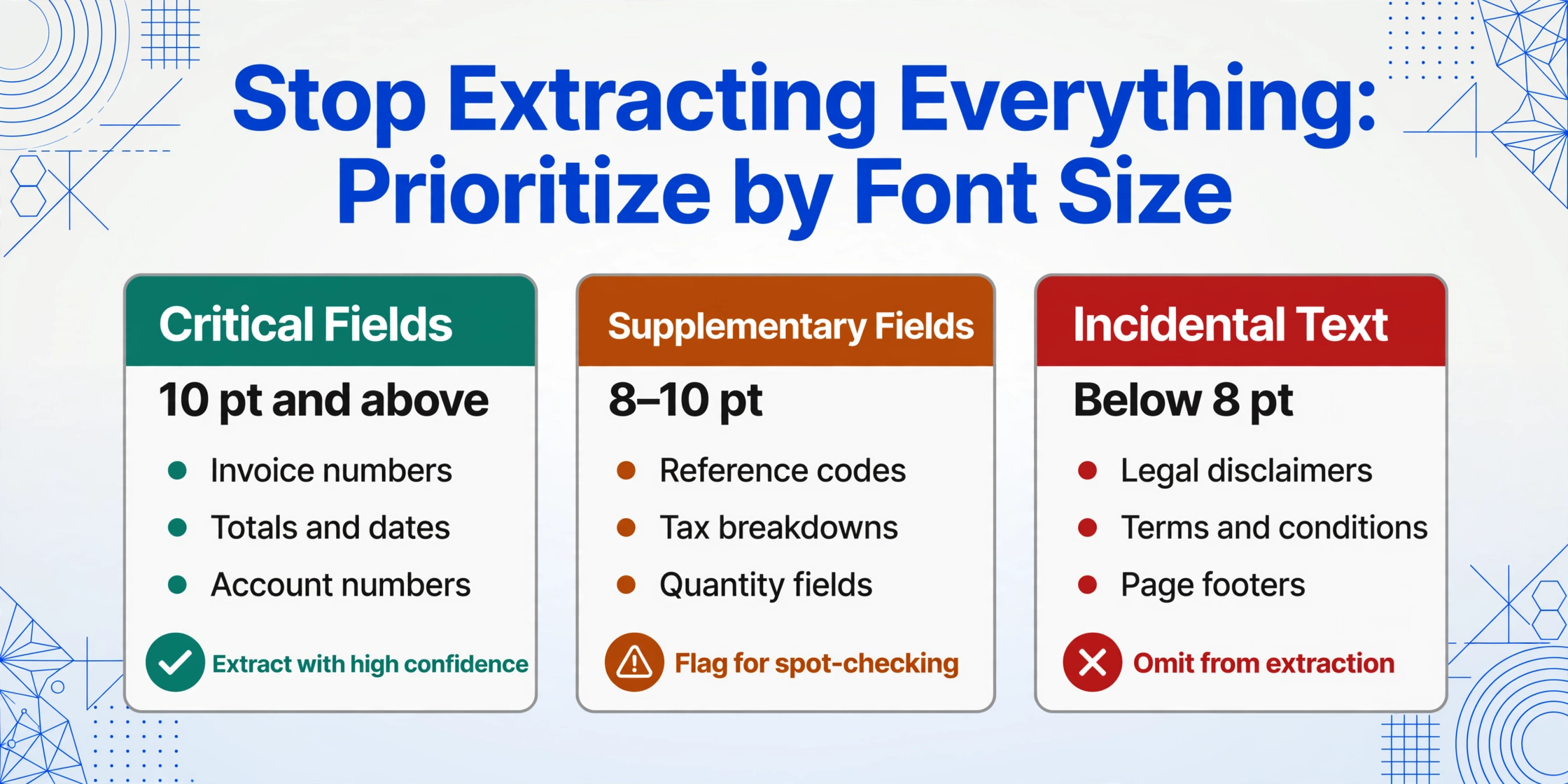
The field prioritization strategy: Before extracting, separate the document's content into three buckets:
- Critical fields (10pt+) — invoice numbers, totals, dates, vendor names, account numbers, policy numbers. These are almost always set in a readable font size and carry the financial or operational weight. Extract these with high confidence.
- Supplementary fields (8-10pt) — reference codes, department names, tax breakdowns, quantity fields. Usually extractable at 300 DPI, possibly marginal at lower resolutions. Flag these for spot-checking.
- Incidental text (below 8pt) — legal disclaimers, copyright notices, terms and conditions, page footers, fine-print instructions. These are rarely needed in a structured data workflow. Consider omitting them from the extraction entirely rather than letting errors in these fields erode confidence in the overall result.
When using an AI extraction tool with Custom Column Extraction (where you type the column names you need and the AI locates the values semantically), this prioritization is built into the workflow by design: you only define columns for the data you actually need. The AI does not waste processing capacity on document sections you never asked for. If a column contains a value from a small-font region, its confidence score gives you a natural flag for manual review.
The same principle applies to batch processing: if you are extracting 50 supplier quotes and the fine-print terms ship to every row with mixed accuracy, ask whether you need those terms in the spreadsheet at all. Often the answer is no — and dropping them improves both extraction speed and the perceived quality of the output.
Cause 4: Subpixel Rendering Artifacts on Screenshots
This cause is almost invisible (literally) to the human eye but produces some of the most confusing extraction failures. It only affects screenshots — but since a growing fraction of document processing starts as screen captures (dashboard exports, web portal invoices, mobile app screenshots), it matters for more workflows than most people realize.
Modern operating systems use subpixel rendering (ClearType on Windows, Core Text on macOS) to improve text clarity on LCD screens. The technique works by addressing individual red, green, and blue subpixels within each screen pixel, effectively tripling the horizontal resolution for text rendering. To your eye, this makes small on-screen text look sharp and well-defined. To an OCR engine processing the screenshot as a flat image, the same text arrives with colored fringing — red and blue edges on character boundaries — that confuse edge detection, binarization, and character segmentation.
Traditional OCR engines that rely on thresholding (converting the image to black and white before recognition) are particularly sensitive to this artifact. When the binarization step encounters a character edge with a red subpixel fringe, it may interpret the fringe as part of the character or as a separate object — either way, the character boundary shifts unpredictably. At normal document sizes (10-12pt), the artifact is small relative to the character and the OCR engine can still guess correctly. At 6-8pt, the subpixel fringe can be as wide as the character stroke itself, producing output that appears to "read" colored noise instead of text.
How to test for this: If you are getting poor results from a screenshot but the same document scanned at 300 DPI works fine — and the text is small enough that the human eye finds it hard to read on screen — subpixel rendering is a likely contributor. Try zooming the browser or application to 150% before taking the screenshot, which increases the pixel budget per character and makes the subpixel fringe proportionally smaller.
For a more detailed look at screenshot-specific extraction challenges, including color, contrast, and scaling issues, see why OCR extraction fails on colored backgrounds and watermarks — many of the same image-quality principles apply to screenshots with small text.
What Actually Works: A Practical Fix Hierarchy
The fixes below are ordered from highest impact / lowest effort to lowest impact / highest effort. Start at the top and stop when accuracy is acceptable for your workflow.
Fix 1: Target 300+ DPI for Documents with Small Text
If you control the scanning step, this is the single most effective action. For documents known to contain text below 10pt, scan at 400-600 DPI rather than the standard 300 DPI. The University of Pittsburgh's OCR best practices guide confirms that 400-600 DPI is recommended specifically for small-font documents. The trade-off is larger file sizes and slower processing, but for the subset of pages where small-font accuracy matters, the step-up is worth it. For faxed or emailed documents where you cannot control the source, note the resolution limit as a known constraint in your workflow — not all documents can be extracted with equal accuracy, and that is acceptable as long as expectations are set accordingly.
Fix 2: Apply Field Prioritization in Your Extraction Design
Review your column definitions and remove any field that targets small-font incidental text. If the 6pt footer line contains a vendor registration number that you have never actually used in reconciliation, drop the column. Every column you remove is a source of low-confidence output that no longer needs verification. When using Custom Column Extraction, explore the tool's confidence signals — if a field consistently returns low-confidence values, check whether the source text is small enough that the AI is genuinely guessing. If so, decide whether the field is worth keeping with manual verification or whether you can source it differently.
Fix 3: Super-Resolution Upscaling — Use Cautiously
AI-based upscaling (super-resolution, or SR) can enlarge a 150 DPI scan to an apparent 300 DPI by interpolating new pixels between existing ones. The results on small-font text are mixed: simple nearest-neighbor or bilinear upscaling does not add new information — it just spreads the same 12 pixels across more space. AI super-resolution models (SRGAN, ESRGAN, Real-ESRGAN) trained on document images can recover some stroke detail on moderately degraded text, particularly on printed, high-contrast characters. For small-font text that already lacks distinguishing pixel features, however, SR cannot invent features that were never captured — it may produce visually smoother output without actually improving character-level accuracy. The most reliable use case for SR is enlarging text from an already marginal-resolution scan (e.g., 200 DPI to 400 DPI) before passing it to an extraction tool — do not expect SR to rescue text that was captured at fax-level resolution.
For preprocessing techniques that work before extraction, including upscaling, binarization, and deskewing, see our OCR image preprocessing guide.
Fix 4: Re-Request Better Source Documents When Possible
In many professional workflows — particularly accounts payable, contract management, and tax document processing — you have the option to request a better source. If a vendor sends a faxed invoice at 150 DPI and the line-item descriptions at 7pt are consistently unreadable, ask the vendor to email a digital PDF instead. If a subcontractor submits a photocopy of a photocopy of a signed form, ask for the original or a clean photo. This fix is not always available (some legacy vendors only fax, some government forms only come in a fixed printed format), but it is more often available than teams assume. The cost of one email request is lower than the cost of manually correcting 50 extraction errors across a batch.
The Honest Limit: Below 7pt Is Unreliable for Any System
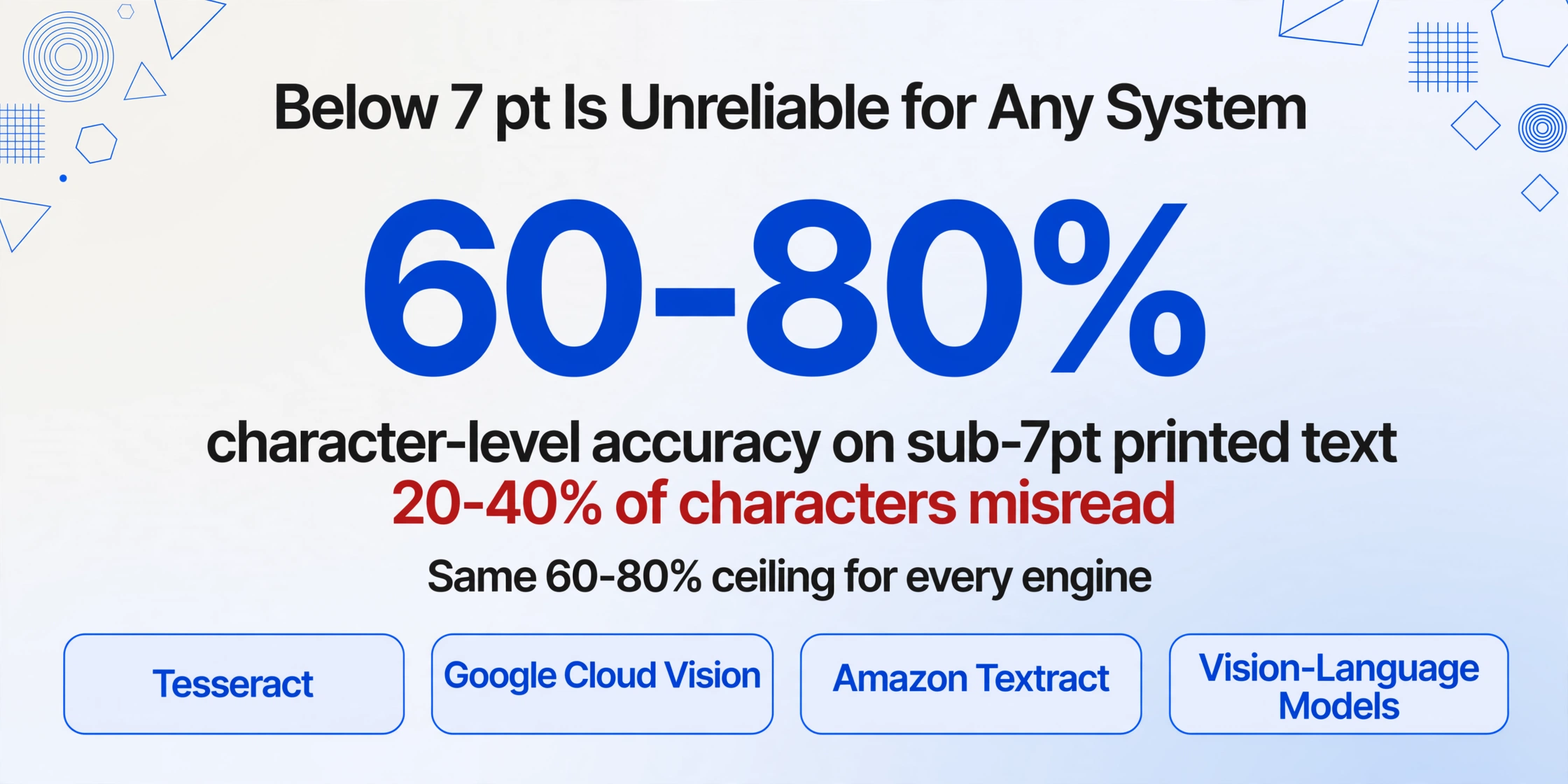
No accuracy improvement, workflow adjustment, or tool upgrade will make 6pt text reliably extractable from a 200 DPI scan. The pixel budget simply is not there. Recognition accuracy on sub-7pt printed text plateaus at roughly 60-80% character-level — meaning 20-40% of characters are misread — regardless of whether the engine is traditional OCR or a modern vision-language model. The margin on that 6pt number on your invoice is not going to be extractable with 99% field-level accuracy, and the responsible answer is to plan for manual verification or omission rather than spend time optimizing a workflow around an input that the physics of digitization cannot support.
This limit applies to every system currently in production. Not just Tesseract, not just legacy OCR — it applies to Google Cloud Vision, Amazon Textract, and vision-language-model-based tools alike. The difference between these tools on small-font text is measured in percentage points, not orders of magnitude. Vision AI models have an advantage on sub-7pt text because they use surrounding context to guess a missing character — if the AI sees "Inv_ice N_mber" among familiar invoice headers, it can infer the correct values — but this contextual guesswork has a ceiling. When characters below a certain pixel threshold are genuinely ambiguous, inference is an educated guess at best.
For a broader view of accuracy expectations across different document types and conditions, see our practical guide to improving OCR accuracy.
Frequently Asked Questions
Would a more expensive or specialized AI tool solve small-font extraction?
Partially, but not completely. A vision-language model that processes text in context can recover some small-font characters by inferring them from surrounding data — for example, reading "Invoic_ N_mber: INV-2026-0_4_" and filling in the missing characters based on the expected invoice number format. This contextual correction can improve field-level accuracy by 5-15 percentage points over traditional OCR on the same small-font input. It does not, however, change the fundamental pixel budget. If the input resolution is too low for the AI to distinguish between "5" and "S" at the pixel level, no amount of contextual reasoning can guarantee the right answer. The reliable fix remains better source resolution.
Can I take a phone photo of a document instead of scanning it to get better small-font extraction?
Not reliably. A phone photo taken from a normal distance (30-40 cm) at 12 MP resolution produces roughly 150-200 effective DPI of the document — better than a fax but not as good as a 300 DPI flatbed scan. More importantly, phone photos introduce perspective distortion (unless the phone is held perfectly parallel to the document), uneven lighting, and potential motion blur — all of which degrade small-font characters further. If you must use a phone, place the document on a flat surface in even light, hold the phone parallel, and zoom slightly (1.5-2x) to fill the frame with the document. This produces better results than a wide shot that gets cropped later.
Is AI extraction significantly better than traditional OCR for small fonts?
On small-font text at marginal resolution (e.g., 7-8pt at 200 DPI), AI extraction typically outperforms traditional OCR by 10-25 percentage points — the contextual understanding gives the AI an edge in resolving ambiguities that a character-by-character OCR engine cannot. On very small text (below 7pt) or very low resolution (below 150 DPI), the gap narrows because both systems face the same underlying pixel shortage. The choice of tool matters most at the margins — where contextual inference and semantic understanding can still operate. For a detailed field-level comparison of these approaches, see AI OCR vs. traditional OCR accuracy.
Does upscaling a low-resolution image improve small-font OCR accuracy?
Yes and no. Simple image resizing (nearest-neighbor or bilinear interpolation) makes the image larger but does not add information — the characters still have the same pixel-level ambiguity, just spread across more pixels. AI-based super-resolution models trained on document images can recover some lost edge information, but the improvement on small-font text is modest (typically 5-10% relative accuracy gain) and depends heavily on the original image quality. Upscaling is worth trying as a preprocessing step, but it is not a substitute for adequate source resolution. Starting from a higher-DPI original is always the more reliable path, as discussed in our image preprocessing guide.
Does language or script make small-font extraction harder?
Yes. Scripts with high stroke complexity per character (Devanagari, Arabic, Chinese, Japanese, Korean) require more pixels per character for reliable recognition because the distinguishing features are more numerous and finer. A 7pt Devanagari character at 200 DPI may be effectively unreadable to OCR whereas a 7pt Latin character at the same resolution might still be marginally readable. If your documents contain non-Latin scripts, increase the minimum DPI recommendation accordingly — 400 DPI should be considered the floor for mixed-script documents with small text, not the ceiling.
Small-font extraction has a hard physical limit, but within that limit the right workflow choices — adequate resolution, field prioritization, and tool selection — make the difference between a batch you trust and a batch you redo. Test on your own small-font documents and see where your accuracy ceiling actually sits.
Test Extraction on Your Document