No-Code AI Data Entry:
Extract Document Data Without Training a Model
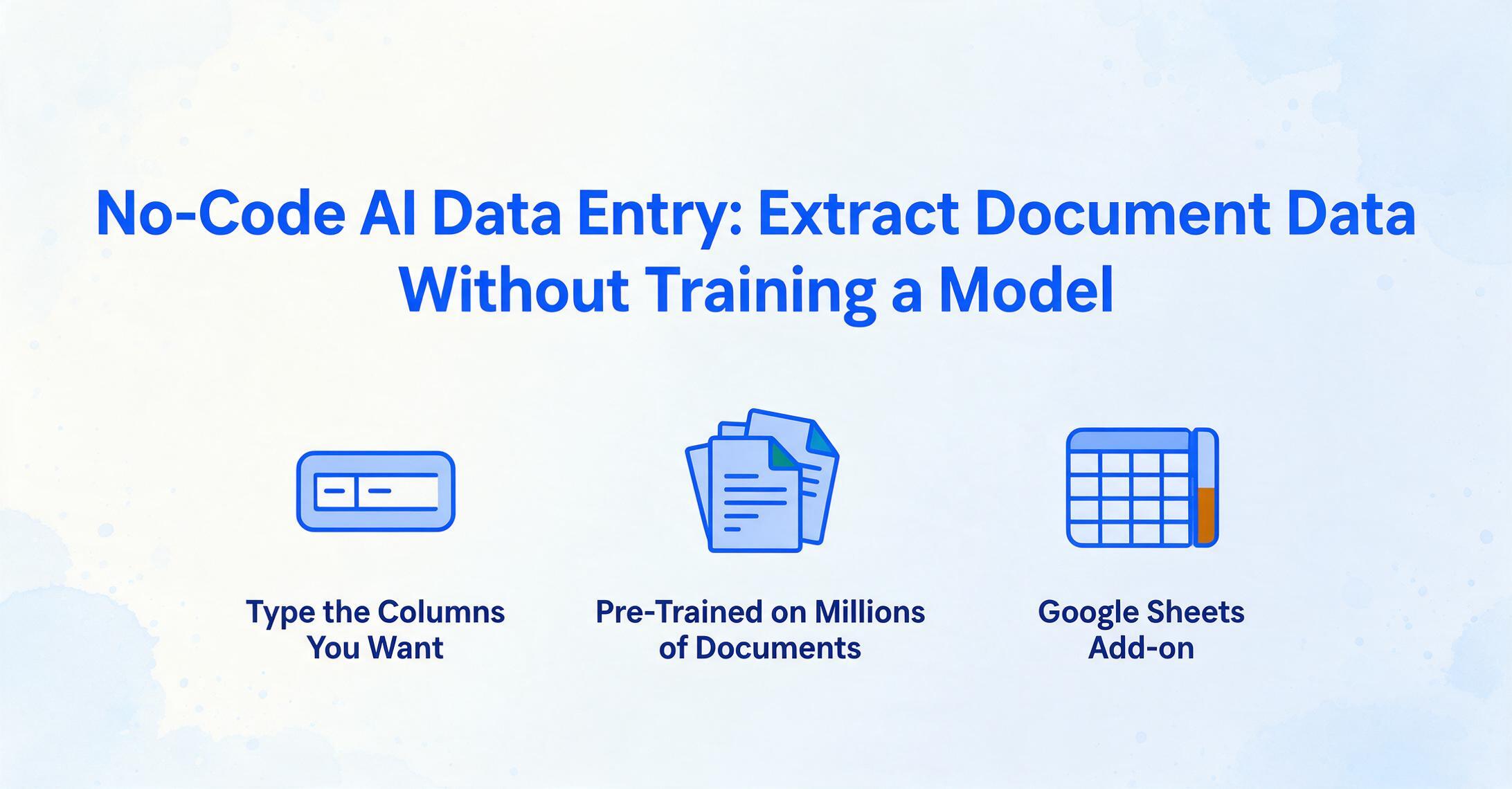
Most people who hear about AI document extraction assume the same thing: that somewhere behind the interface, someone trained a model on thousands of labeled invoices, that it took weeks to deploy, and that it required a machine learning engineer to set up. That assumption used to be correct — until about two years ago. The category has split. One path still demands annotated training data, model training cycles, and technical teams. The other path requires you to type the column names you want and upload your documents. This article is about the second path — what makes it possible, how it works day to day, and where it stops being enough.
Key Takeaways
- You assume AI document extraction demands a developer and 500 labeled training samples — that was true until 2023, but the technology shifted and the assumption hasn't caught up yet.
- The AI does not learn from your documents — it already knows what an invoice number looks like from seeing millions of documents during pre-training, which means it extracts by meaning rather than position.
- ImageToTable.ai replaces weeks of model training with a single question — what columns do you want in your spreadsheet — and puts structured data there the same day you start.
The Old Way: Why Document Extraction Used to Demand Developers and Training Data
To understand what "zero training" means, it helps to understand what training used to cost. Before vision language models, document extraction ran on a two-layer stack: OCR to convert images to text, and machine learning classifiers to map text to fields. The OCR layer handled character recognition. The ML layer handled everything else — and it was the expensive part.
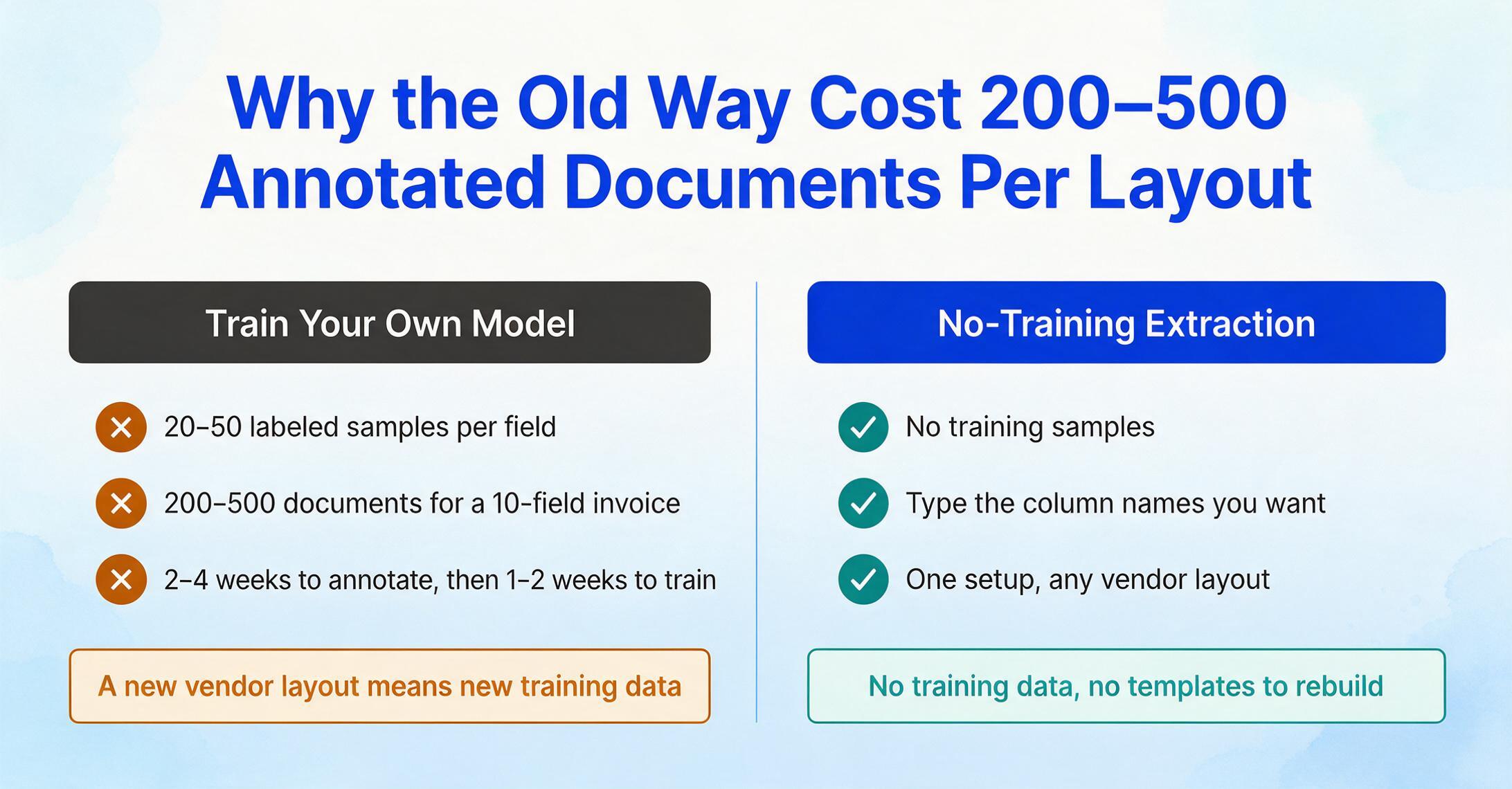
Training a traditional ML model for document extraction meant feeding it labeled examples: hundreds of documents where a human had manually marked which piece of text was the invoice number, which was the date, which was the total. UiPath's own documentation specifies 20 to 50 labeled samples per regular field — so a 10-field invoice template requires 200 to 500 annotated documents before the model reaches production-grade accuracy. For column fields like line item tables, the requirement jumps to 50 to 200 documents per column. And that's for one document layout. A new vendor with a different invoice format means new training data, or accepting lower accuracy from a model stretched across layouts it wasn't optimized for.
The timeline: 2 to 4 weeks to collect and annotate training samples, another 1 to 2 weeks for model training and evaluation, and an ongoing maintenance cycle where new document layouts trigger re-training. The team needed: a data annotator who understood the document domain, a machine learning engineer to configure the training pipeline, and a developer to integrate the resulting model into a production system. Total time to first useful extraction: typically 3 to 6 weeks. Total cost: measured in engineering salary, not software subscription.
This is the world that "AI document extraction" meant to anyone who evaluated it before 2023 — and it's the reason the assumption "this needs developers" persists. The assumption is outdated, not unfounded.
The Shift: How AI Reads Documents Today Without Any Training
The technology that changed the economics of document extraction is the vision language model (VLM) — a class of AI that processes documents the way a human does: by looking at the whole page and understanding what each piece of information means, not by matching patterns learned from labeled examples.
A VLM doesn't learn from your invoices. It was pre-trained on millions of documents — invoices, receipts, bank statements, contracts, forms, reports — across layouts, languages, and quality levels. During pre-training, the model learned to associate visual patterns with semantic roles: a number in bold at the bottom-right corner of a document next to the word "Total" is the amount due. A date near the top of the page formatted as "Invoice Date: MM/DD/YYYY" is the invoice date. A column labeled "Qty" next to "Unit Price" means the quantity — and the number after it multiplied by the unit price is the line total. The model learned these associations by seeing them millions of times across millions of documents, not by being told what to look for on your specific invoice.
This is what "zero training" actually means. The model already understands invoices, receipts, bank statements, purchase orders, contracts, and dozens of other document types — not because you trained it, but because it was pre-trained on visual document understanding at massive scale. When you upload your first invoice, the model isn't learning. It's applying what it already knows to a document it's never seen before. The same mechanism works on a photo of a crumpled receipt taken with a phone camera, a scanned PDF from a 15-year-old multifunction printer, and a digital invoice generated by SAP — different visual quality, same underlying semantic structure.
The core difference: Traditional ML extracts by pattern matching — it learns "on this vendor's invoice, the invoice number is always at coordinates (x,y)" and breaks when the layout changes. VLMs extract by semantic understanding — they identify the invoice number because they understand what an invoice number looks like in context, regardless of where it appears on the page.
This distinction explains why no-code tools can work on day one with zero setup. If extraction required per-layout training, you'd need a developer to build training pipelines and a domain expert to annotate samples before the tool produced anything useful. Because VLMs handle extraction semantically, the only input needed is what you want extracted — and that's something you already know.
Firstsource's research on VLM-based document processing found that traditional OCR pipelines produce 15-20% error rates in information extraction due to the cascading failures of separate OCR → layout analysis → field mapping stages. VLMs close this gap by processing visual layout, text content, and semantic meaning as a single unified step — no cascading failures, no intermediate outputs to degrade, no templates to maintain when a vendor redesigns their invoice header.
For a deeper comparison of the technical architecture differences, our introduction to AI data entry covers how VLMs differ from OCR at the mechanism level.
From Column Names to Structured Data: How No-Code Extraction Works in Practice
If you don't need to train a model or write integration code, what do you do? The workflow is built around a single design decision: instead of configuring the input (templates, zones, rules), you describe the output. Here's what that looks like.
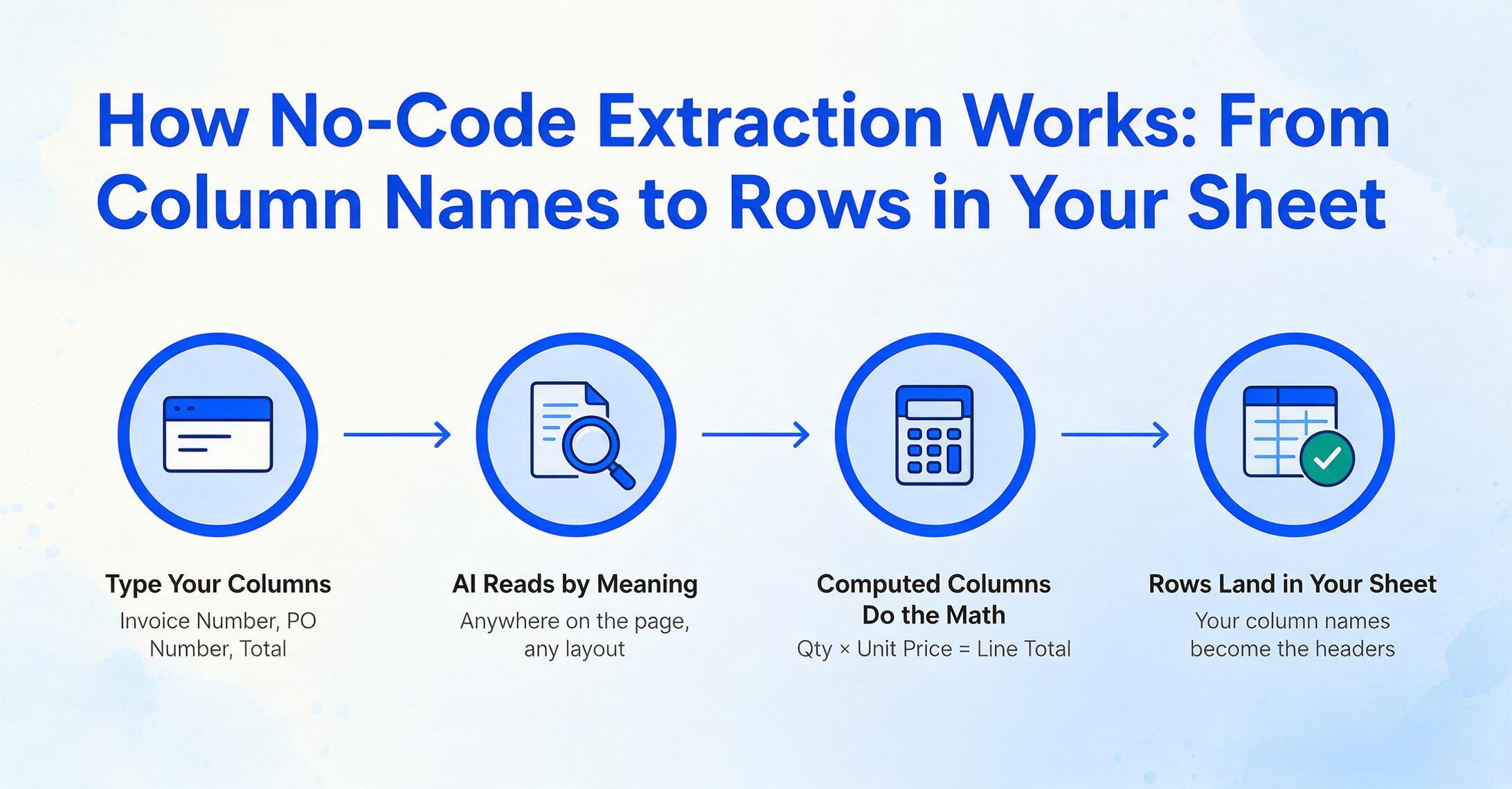
The core mechanism is Custom Column Extraction: you type the field names you want into a text input — "Invoice Number", "Supplier Name", "PO Number", "Total", "Due Date" — and the AI locates each value anywhere on the document by understanding what it means semantically, not where it sits. The column names you type become the exact headers of your final spreadsheet. You're describing the data structure you want to receive, not the document you're feeding in.
This is the fundamental inversion that makes no-code extraction work. Template-based tools ask you to mark up the document: "draw a box around the invoice number here, draw a box around the date there." You're configuring the tool to understand one layout. Column-based extraction asks you to describe what you want: "give me the invoice number, the date, and the total." The AI handles the mapping — across any layout, from any vendor, in any format.
Beyond direct extraction of printed fields, no-code AI supports two additional modes that extend what you can do without touching a formula or writing a script:
Computed Columns perform calculations during extraction and output the result — not raw data you need to process later. A purchase order lists Qty and Unit Price but doesn't print the line total. Define a column called Line Total (Qty × Unit Price) and the AI extracts both source values, multiplies them, and writes the result to your spreadsheet — in a single pass. No post-extraction Excel formulas. The same mechanism handles cross-row aggregation (summing all items in a section), conditional logic (flagging mismatches between calculated and printed totals), and fixed parameter references (applying a tax rate that isn't on the document at all).
Inferred Columns let the AI make a judgment about what category, tag, or label applies to a document — and fill that into your spreadsheet. A receipt from a restaurant doesn't say "Category: Meals." But you need expense categories for accounting. Define a column called Category (options: Meals/Transport/Office/Other). The AI reads each receipt — a lunch receipt, a gas station receipt, an office supply receipt — and determines the correct category. Extraction and classification happen simultaneously, across an entire batch. Inferred Columns work the same way on any document type: flagging rush orders from delivery notes, detecting currency from international invoices, identifying document subtypes from insurance certificates.
These three modes — direct extraction, computation, and inference — converge on a single operational reality: you type what you want, upload what you have, and receive a structured spreadsheet. No training data. No template editor. No code.
Batch processing extends this to volume. Upload 50 invoices from 15 different suppliers. Type your column names once. The AI processes all 50, identifies each field across every layout variation, and exports a single spreadsheet with 50 rows — one per document — where every field lands in the right column. What took an afternoon of manual entry takes a few minutes of upload-and-review.
Files are processed securely and not stored.
The Google Sheets Add-On: No-Code Extraction, Inside Your Spreadsheet
If the web-based workflow lowers the barrier from "you need a developer" to "you need a browser," the Google Sheets add-on lowers it further: to "you don't need to leave the tool you already work in."
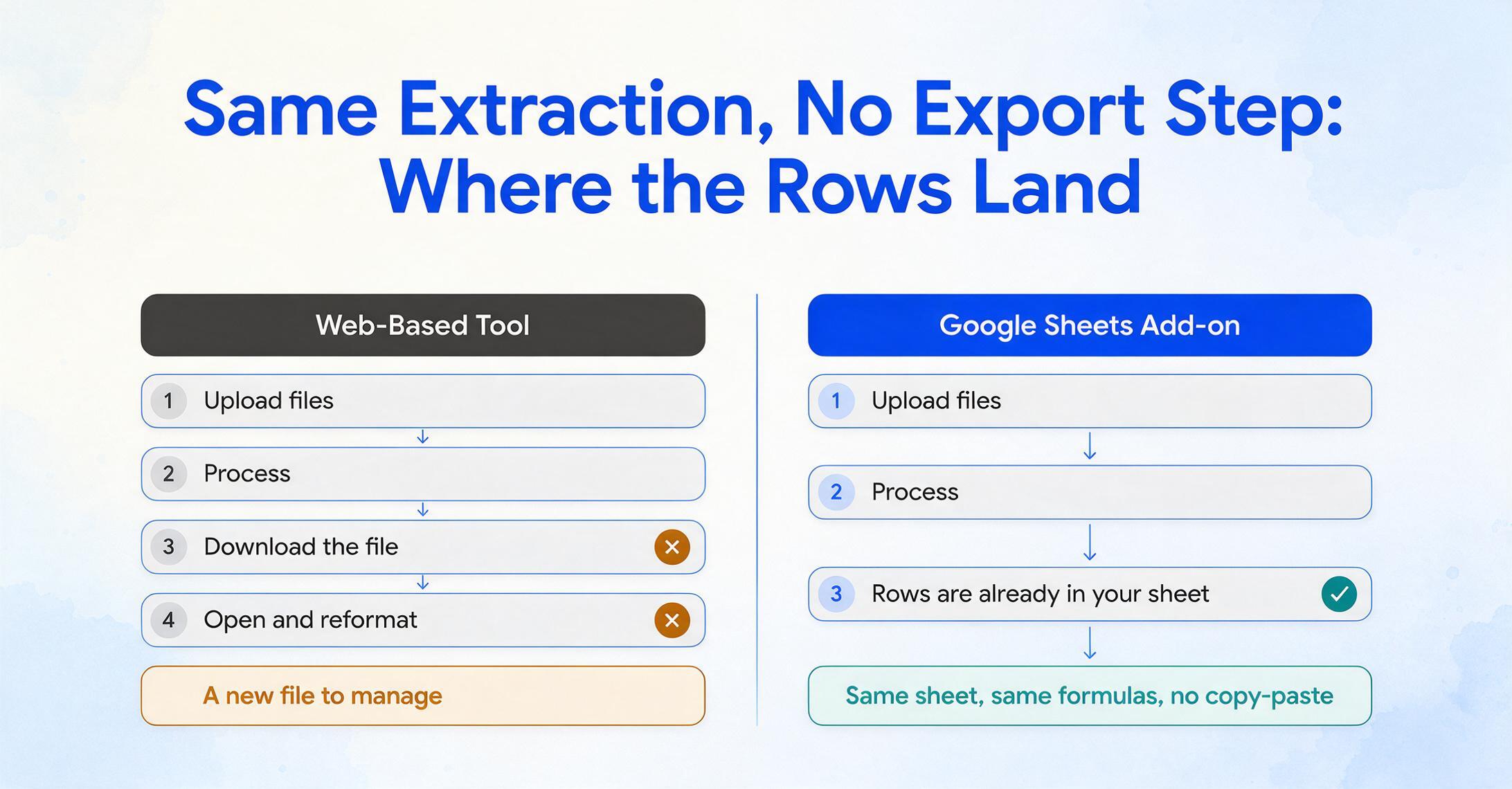
The ImageToTable.ai Google Sheets add-on is a sidebar that lives inside your spreadsheet. Open it, upload images or PDFs, type your column names, and extracted data appends directly to the active sheet — structured rows, correct columns, no copy-paste. The entire workflow happens inside Sheets: extract invoice data, receipt details, or bank statement transactions directly into your working spreadsheet without switching tools, downloading files, or reformatting output.
This matters because it removes the last friction point in a no-code workflow: the export step. In a web-based tool you upload → process → download → open the file. With the Sheets add-on, upload → process → the data is already in your spreadsheet — in the sheet you're actively using, alongside your existing formulas, charts, and references. For a team processing supplier invoices into a shared AP spreadsheet, this means the extraction step doesn't create a new file to manage — it adds rows to the file everyone already has open.
The add-on operates in account mode: bind your API key once, and it syncs with your web dashboard — same history, same saved column templates, same usage tracking. No separate setup. No new login. The extraction engine is identical to the web version; the interface is the only thing that changes.
The add-on also enables a workflow no web tool can do alone: Collection Link. You generate a shareable link and send it to clients, suppliers, or team members. They open it, enter a short verification code, and upload documents directly — no registration, no login, no tool to learn. Files land in your processing queue automatically. Combined with the Sheets add-on, this creates a fully no-code pipeline: someone else uploads the documents, you open your spreadsheet, and the extracted data is waiting in your processing queue — ready to append to your sheet in one click. For a deeper look at this workflow, see how teams collect employee expense receipts into a shared Google Sheet with zero per-employee setup.
Who Gains the Most — And Who Might Need More
No-code AI extraction doesn't serve everyone equally. It's optimized for a specific profile, and knowing whether you fit that profile is more useful than a feature list.
Operations and accounting teams are the natural fit. They process documents daily, they know exactly what data they need from each document type, and they already work in spreadsheets. The jump from manual entry to no-code extraction is measured in minutes — because the interface asks them to do what they already do mentally ("I need Invoice Number, Date, Total from this stack of invoices") and automates the physical part (finding each value, typing it into the right cell). The impact on accounting workflows is immediate because the bottleneck — manual field transcription — is what the tool replaces.
Small business owners who handle their own bookkeeping get outsized benefit from no-code extraction. They lack the volume to justify a dedicated AP clerk and the budget to hire a developer for custom automation. Processing 20 to 50 invoices a month manually is slow and error-prone; processing them with no-code AI takes under 10 minutes. The cost math is different from enterprise — it's not about replacing a team, it's about reclaiming an afternoon every month that was going to manual data entry.
Anyone running a document collection process — gathering signed forms from clients, collecting expense receipts from employees, receiving inspection reports from field staff — benefits from the combination of Collection Link and no-code extraction. The collection side removes the need for participants to install anything or create accounts. The extraction side removes the need for the collector to manually transcribe each submission. Together they turn "collect documents → enter data → file" into "share link → review spreadsheet → done."
Teams that need an API are on the other side of the architecture divide. If extracted data must flow automatically into a database, ERP, or another application without human review, an API-first approach is the right fit. The decision framework is straightforward: if data lands in a spreadsheet that a human reviews, no-code covers it. If data triggers downstream business logic programmatically, you need an API. Our comparison of API vs no-code architectures walks through the four questions that determine which path fits your team.
Organizations with highly specialized documents — proprietary internal forms, industry-specific regulatory filings with unique layout conventions, documents in niche languages with limited training data — may find that zero-training accuracy is lower than they need. This isn't a failure of the approach; it's a consequence of pre-training coverage. VLMs perform best on document types they've seen millions of examples of. For a document type that exists only inside one company, that exposure doesn't exist — and custom training (or a tool that supports it) becomes the option.
What Zero-Training AI Extraction Can't Do (Yet)
Being clear about the boundaries of no-code extraction is what separates an honest evaluation from a sales pitch. Here's where it falls short.
Extremely specialized or proprietary document types. A VLM trained on millions of invoices, receipts, and bank statements has deep semantic understanding of those document types. A proprietary internal form designed by one company, used nowhere else, and formatted in an idiosyncratic way — the model has never seen anything like it. It will still attempt extraction, and it may get some fields right (dates, amounts, names — things that look like things it knows), but accuracy will be noticeably lower than on standard document types. If your workflow centers on a custom document format with no industry-wide equivalent, expect to verify more fields per document.
Complex multi-page layouts with cross-page dependencies. A table that runs across three pages with merged cells, split rows, and running totals that reference values from a previous page — this still challenges VLMs. The model processes pages independently and doesn't maintain a running memory of "this line item started on page 2 and continues across the page break to page 3." Simple multi-page continuity (a transaction table that continues cleanly from one page to the next) is handled well. Complex spanning logic — where a single data point depends on aggregating values across non-contiguous pages — produces errors in a meaningful percentage of cases and needs human review.
Purely graphical information. If a document communicates data exclusively through charts, diagrams, or color-coded visuals with no text labels, there's nothing for the AI to extract. A bar chart's height doesn't translate to a numeric value without a labeled axis. A color legend that assigns meaning to shades of blue without text labels isn't parseable. Documents that mix text and visuals — a report with both a data table and a chart — work for the table portion only.
Severely degraded input quality. A clean 300 DPI scan of a printed invoice will approach 99% accuracy. A photo of a faded thermal receipt taken at an angle in low light — accuracy drops. The VLM compensates for moderate quality issues (slight blur, tilt, uneven lighting), but when characters become genuinely ambiguous to a human reader, the AI will also struggle. Confidence scoring — where the tool flags low-certainty fields for manual review — mitigates this but doesn't eliminate it.
The honest distribution: no-code AI handles the 80% of documents that are clean, legible, and structurally clear with high accuracy. It handles the next 15% — moderate quality issues, uncommon layouts, light handwriting — with usable but not perfect accuracy. The last 5% — highly degraded scans, overlapping handwriting, purely graphical documents, proprietary forms with no industry equivalent — still needs human attention. For a detailed breakdown of what affects extraction accuracy across different document types, our practical accuracy guide covers the variables that matter.
Frequently Asked Questions
Does no-code AI extraction really work without any training or setup?
Yes, for common document types — invoices, receipts, bank statements, purchase orders, contracts, and most business documents with standard layouts. The AI was pre-trained on millions of these documents and understands their semantic structure out of the box. You type the column names you want, upload your files, and the AI finds the data. No training samples, no template configuration, no setup beyond describing what you want extracted. For highly specialized or proprietary document formats with no industry equivalent, expect lower accuracy — the model hasn't seen enough examples of that format during pre-training to have strong semantic understanding of it.
How is this different from traditional OCR with templates?
Traditional OCR with templates requires you to configure the input: draw zones around each field on a sample document, then hope those zones align with the next document's layout. When a vendor changes their invoice format, the template breaks and needs rebuilding. No-code AI extraction works the opposite way: you configure the output (what columns you want), and the AI maps fields to columns by understanding what they mean, not where they sit. A date in the top-right corner of one invoice and the bottom-left of another both land in the "Date" column — because the AI identifies them as dates semantically, not by position. This also means you don't need separate templates for each vendor's invoice format. One column setup works across all layouts.
What's the difference between no-code extraction and using an API?
No-code extraction happens through a visual interface — a web app or Google Sheets add-on where you upload documents, define columns, and download results. It's designed for people whose primary job is accounting, operations, or logistics — not software development. API-based extraction is designed for developers who want to embed document processing into a larger automated pipeline: documents arrive programmatically, extraction happens via REST endpoints, and structured data flows into databases or other applications without human intervention. The same underlying AI engine powers both. The difference is the interface and the workflow it enables. For teams deciding between the two, our API vs no-code comparison provides a decision framework based on volume, team skills, and data destination.
Can I process multiple documents at once without code?
Yes. Batch processing is a core part of the no-code workflow. Upload any number of documents — 10, 50, 200 — define your column names once, and the AI processes all of them, exporting a single spreadsheet where each row is one document and each column is one extracted field. The batch merges results across documents regardless of layout differences, so 50 invoices from 15 different vendors all produce rows in the same output table with fields in the same columns.
Does it work with handwritten documents?
Legible handwriting on structured forms — a printed form filled in by hand, a delivery note with handwritten quantities — is handled well by modern AI. The form's structure provides context that helps the model interpret handwritten content. Free-form handwritten notes, rapid cursive with highly stylized letterforms, and overlapping handwriting produce less reliable results. If your documents are predominantly handwritten, expect to verify more fields rather than process them straight through.
How much does no-code AI extraction cost compared to manual data entry?
No-code AI extraction tools are typically subscription-based with page or document-based pricing tiers. Manual data entry costs are measured in labor: at an average of 3 minutes per page, processing 200 documents a month consumes roughly 10 hours — or about a quarter of one person's workweek. At conservative wage rates, that's several hundred dollars a month in labor alone, not counting error correction time. The subscription cost of a no-code extraction tool is typically a fraction of that. Our cost comparison analysis breaks down the math across different volume levels and document types.
What document formats and languages are supported?
PDFs (both native digital and scanned), JPEG, PNG, WebP, AVIF, and webpage screenshots. The AI processes whatever format you upload — a photo of a receipt taken on a phone works the same as a PDF generated by accounting software. Language support covers English, Japanese, German, French, Spanish, Portuguese, Korean, and Chinese, among others. The extraction quality is highest for languages well-represented in the model's training data, though the VLM's cross-lingual transfer means it handles less common languages better than traditional OCR trained on single-language corpora.
No-code AI extraction changes who can use document automation — not by making the technology simpler, but by moving the complexity from setup to pre-training. The model did the hard work of learning what an invoice looks like before you ever opened the tool. What's left for you is describing what you want out of your documents — which, if you're the person processing them every day, you already know.