How to Choose an OCR Tool:
A 5-Step Decision Framework for 2026
Most OCR buying guides start in the wrong place: they list tools, compare features, and ask you to pick from a menu before you know what kind of output you actually need. This article takes the opposite approach. By the end of these five steps you will have a documented set of requirements, a shortlist of tool categories that match those requirements, and a testing plan that confirms which tool actually works on your documents — not on the vendor's demo samples.
Key Takeaways
- Every OCR tool claims 95%+ accuracy — but that number is measured on clean printed English text prepared for a demo, not on the phone photo of a wrinkled receipt you actually need processed.
- The metric every vendor leads with — character recognition rate — is the wrong one for most business workflows. A tool can read 99% of characters correctly and still get your invoice total wrong because it misread one digit. The metric that matters is field-level accuracy.
- Before comparing a single tool, answer one question: do you need searchable text or structured data in a spreadsheet? Answering this eliminates 75% of tools immediately — the wrong category cannot be fixed by more features or a lower price.
Before You Start: Three Numbers You Need to Know
The decision framework works only if you start with honest answers to three questions. Skip this step and the rest of the process becomes guesswork dressed up as analysis.
What document types are you processing? Write down every document type you handle — invoices, receipts, purchase orders, contracts, handwritten forms, whatever lands on your desk. Group them by format (PDF from email, photo from phone, low-quality scan). The range of document types you process determines whether you need a specialized tool for one format or a generalist tool that handles many.
How many documents per week? Count, don't estimate. 10 documents per week needs a different class of tool than 500. The volume number determines whether batch processing matters, whether per-page pricing makes sense, and whether automation speed is a real concern or a nice-to-have.
What is your real budget? Count the full cost: license fees or subscription, setup time (your hourly rate × hours spent), and ongoing maintenance. A "free" tool that costs you 10 hours of configuration is more expensive than a $30/month tool that works in 10 minutes.
Decision rule: Write these three answers down before you evaluate a single tool. Every subsequent step refers back to them. If the answers change (you scale up, your document mix shifts), the framework still works — you just rerun it with the new numbers.
Step 1: Audit Your Documents
Before you can match a tool to your documents, you need to know what your documents are like. Document audit sounds like overhead, but it is the step that separates a purchase you use for years from one you abandon after three months. For a deeper look at how document types compare side by side, our best OCR software comparison breaks down which tools handle which document formats.
Audit along five dimensions:
1. Format
Native digital PDF from email? Scanned image at 300 DPI? Phone photo taken under fluorescent light? Each format affects tool performance differently. Traditional OCR (Tesseract, ABBYY) was designed for high-quality scanned images. AI-based tools handle phone photos and screenshots almost as well as clean scans. If most of your documents come as phone photos, you need a tool built for that.
2. Quality
Rate your documents on a simple scale: Good (clean 300 DPI scan, high contrast), Fair (some blur, low contrast, slight skew), Poor (low resolution, shadows, glare, faded text). If more than 20% of your documents land in Fair or Poor, look for tools with built-in image preprocessing — deskewing, denoising, contrast enhancement. These features can improve accuracy by 5-15 percentage points on their own.
3. Layout Complexity
Simple = one column of text, no tables (a letter, a contract page). Medium = tables with clear cell boundaries, line items (a standard invoice, a packing slip). Complex = merged cells, multi-column layouts, rotated text, checkboxes, handwritten annotations (a purchase order with terms, a coi certificate). Your layout complexity determines whether a tool needs table extraction, reading order detection, or checkbox recognition. Most free OCR tools fail on complex layouts.
4. Language
Single language (English only), multiple languages in the same document (a bilingual invoice), or non-Latin scripts (Chinese, Arabic, Korean)? Free OCR engines like Tesseract support many languages but require separate language packs and degrade in accuracy on mixed-language documents. Cloud APIs like Google Cloud Vision and Azure Document Intelligence handle 200+ languages natively. If your documents are multilingual, this alone may eliminate certain tools.
5. Desired Output
This is the most important question and the one most guides skip: do you need searchable text or structured data? If your goal is to make PDFs searchable or copy paragraphs into a document, you need traditional OCR — character recognition. If your goal is to get invoice totals, line items, dates, and vendor names into a spreadsheet or database, you need data extraction — which is a different technology category. Understanding this difference is the single most important decision you will make. Our AI OCR vs traditional OCR comparison explains the gap in detail.
Output from this step: A document profile card — format, quality level, layout complexity, languages, and the specific fields you need extracted (if data extraction is your goal). This profile becomes your evaluation baseline for every tool you test.
Step 2: Choose Your Deployment Category
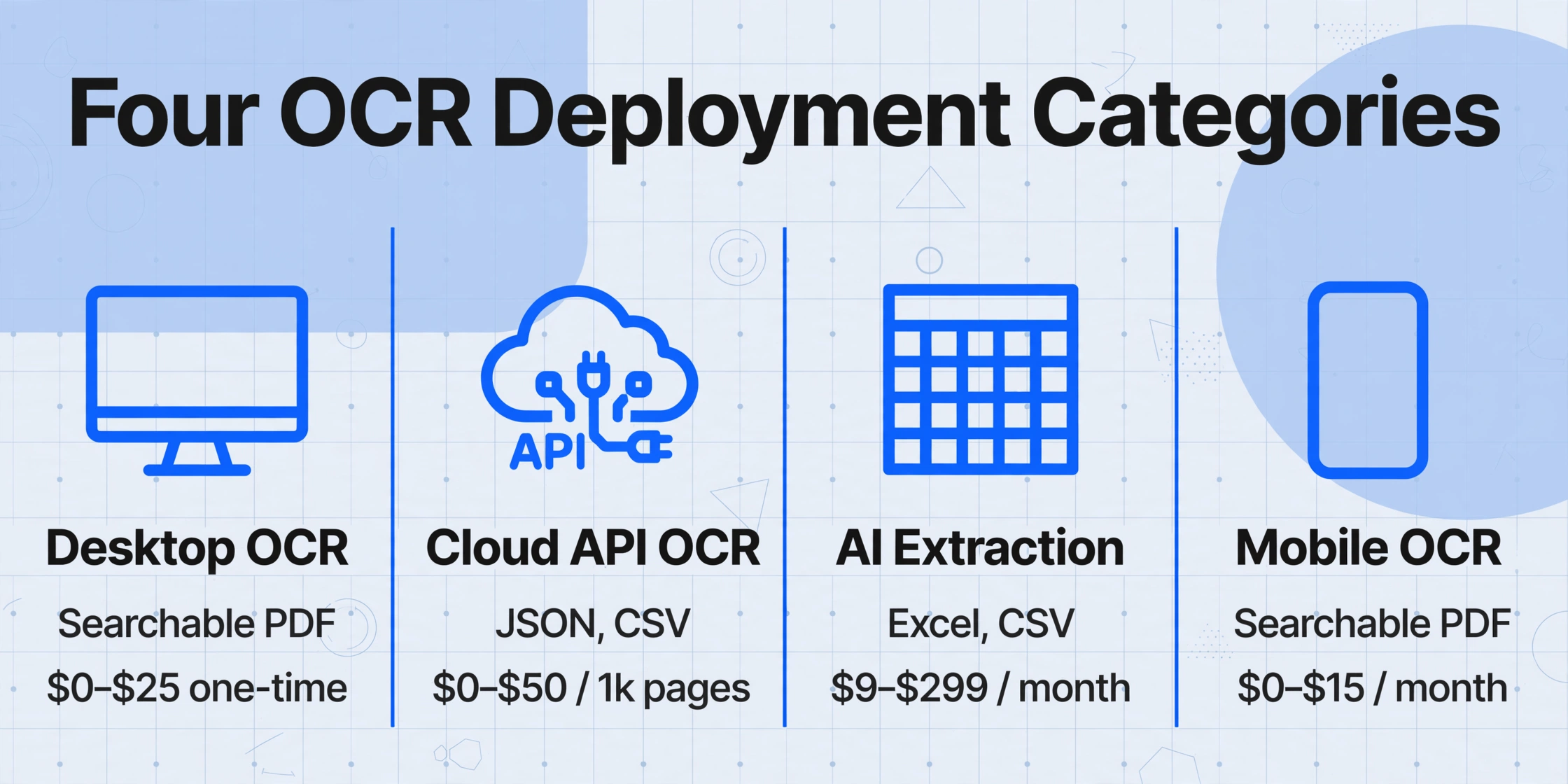
OCR tools fall into four deployment categories. Each solves a fundamentally different job. Picking the right category eliminates 75% of the options before you even compare specific tools.
| Category | Best For | Output Type | Monthly Cost (Typical) | Technical Skill |
|---|---|---|---|---|
| Desktop OCR ABBYY, Adobe, Readiris | Offline, one-time projects, document archival | Searchable PDF, editable Word | $0–$25 one-time (perpetual license) | Low |
| Cloud API OCR Google, AWS, Azure, Tesseract API | Developer integration, high-volume, custom pipeline | JSON, CSV, structured text | $0–$50 per 1,000 pages | High |
| AI Extraction ImageToTable.ai, Nanonets, Rossum | Structured data to spreadsheet, no-code, template-free | Excel, CSV, Google Sheets, structured JSON | $9–$299 per month | None to low |
| Mobile OCR Adobe Scan, Microsoft Lens, CamScanner | On-the-go capture, receipts, whiteboards | Searchable PDF, text export | $0–$15 per month | None |
The choice between these four categories comes down to the "Desired Output" entry from your document profile. If you need searchable documents, look at desktop or mobile. If you need structured data in a spreadsheet, look at AI extraction or cloud APIs. If you have a developer on your team and need to process 5,000+ documents per month, cloud APIs become cost-effective. If you have no developer and need data in Excel, AI extraction tools remove the integration layer entirely. Our specialized guides go deeper into each category: best desktop OCR software, best OCR API, and best mobile OCR apps.
Decision rule: If your output column says "data," skip desktop OCR entirely. If your output column says "searchable PDF," skip AI extraction. Trying to use a desktop OCR tool to extract structured data into a spreadsheet is like using a hammer to screw in a lightbulb — possible in theory, but painful in practice.
Step 3: Evaluate Against Your Requirements (Checklist Framework)
With your deployment category selected, you now have a shortlist of 3–6 tools. Evaluate them across eight dimensions. Score each from 1 (does not meet the requirement) to 5 (exceeds the requirement). Use your document profile from Step 1 to weight each dimension.
1. Accuracy on Your Documents
Vendor accuracy claims are based on clean, printed, English text in ideal conditions. Your documents are not that. The only accuracy metric that matters is how the tool performs on your actual document mix. Run a test with your real files (see Step 4).
2. Output Quality & Format
Can the tool output exactly what you need? For data extraction, that means field-level accuracy — does it get the invoice total right, not just read most characters correctly? For searchable PDFs, does it preserve the original layout? Check that the output format (Excel, CSV, JSON, searchable PDF) integrates directly with your downstream system without manual reformatting.
3. Setup & Learning Curve
Desktop OCR: install and use in one session. Cloud API: days to weeks for SDK integration and IAM setup. AI extraction: upload a file and extract in under a minute. Realistic setup time matters. A tool that takes two weeks to configure may not be worth it for 50 documents per month.
4. Integration Capabilities
Does the tool connect to the systems you already use? ERP integration (SAP, Oracle), accounting software (QuickBooks, Xero), Google Sheets or Microsoft Excel, cloud storage (Google Drive, Dropbox). If the tool produces a CSV but your accounting system needs an API, you need an integration layer — cost it into the budget.
5. Scalability & Performance
Desktop OCR slows down significantly beyond 50-100 pages per batch. Cloud APIs can process thousands of pages per hour but may rate-limit you. AI extraction tools typically handle 100-500 files per batch. Match throughput to your volume from Step 1, plus a 2× buffer for peak periods.
6. Security & Compliance
Where are your documents processed and stored? On-premise tools process everything locally — no data leaves your machine. Cloud APIs and AI extraction tools process data on remote servers. If you handle sensitive data (PII, HIPAA, GDPR), verify the tool's data handling policies: SOC 2 certification, data encryption in transit and at rest, data residency options, and whether uploaded documents are used for model training. For HIPAA-covered documents, on-premise or a BAA-signed cloud provider is required.
7. Cost Structure
Desktop: one-time license + annual upgrade fee. Cloud API: per-page pricing with volume tiers. AI extraction: monthly subscription by document count or processing points. Mobile: free tier with ads or monthly subscription. Calculate cost-per-document at your actual volume. A $300/month tool that processes unlimited documents becomes cheaper per page than a "cheap" per-page API once you exceed 500 pages.
8. Support & Community
Desktop OCR: official support + user forums. Open-source (Tesseract): community forums, Stack Overflow, GitHub issues. Commercial: email/chat support, SLAs for enterprise tiers. If you are non-technical, open-source tools without commercial support carry a hidden cost every time something breaks.
Weight these dimensions against your priorities. If cost is your primary concern, Desktop or Open-source may win on price even if they score lower on setup time. If accuracy on handwritten documents is critical, AI extraction tools that use vision language models (which understand context rather than matching character shapes) will score higher than traditional OCR engines, even at a higher price point. For readers on a tight budget, our best free OCR software guide covers the free options with honest accuracy trade-offs.
Step 4: Test with Real Documents
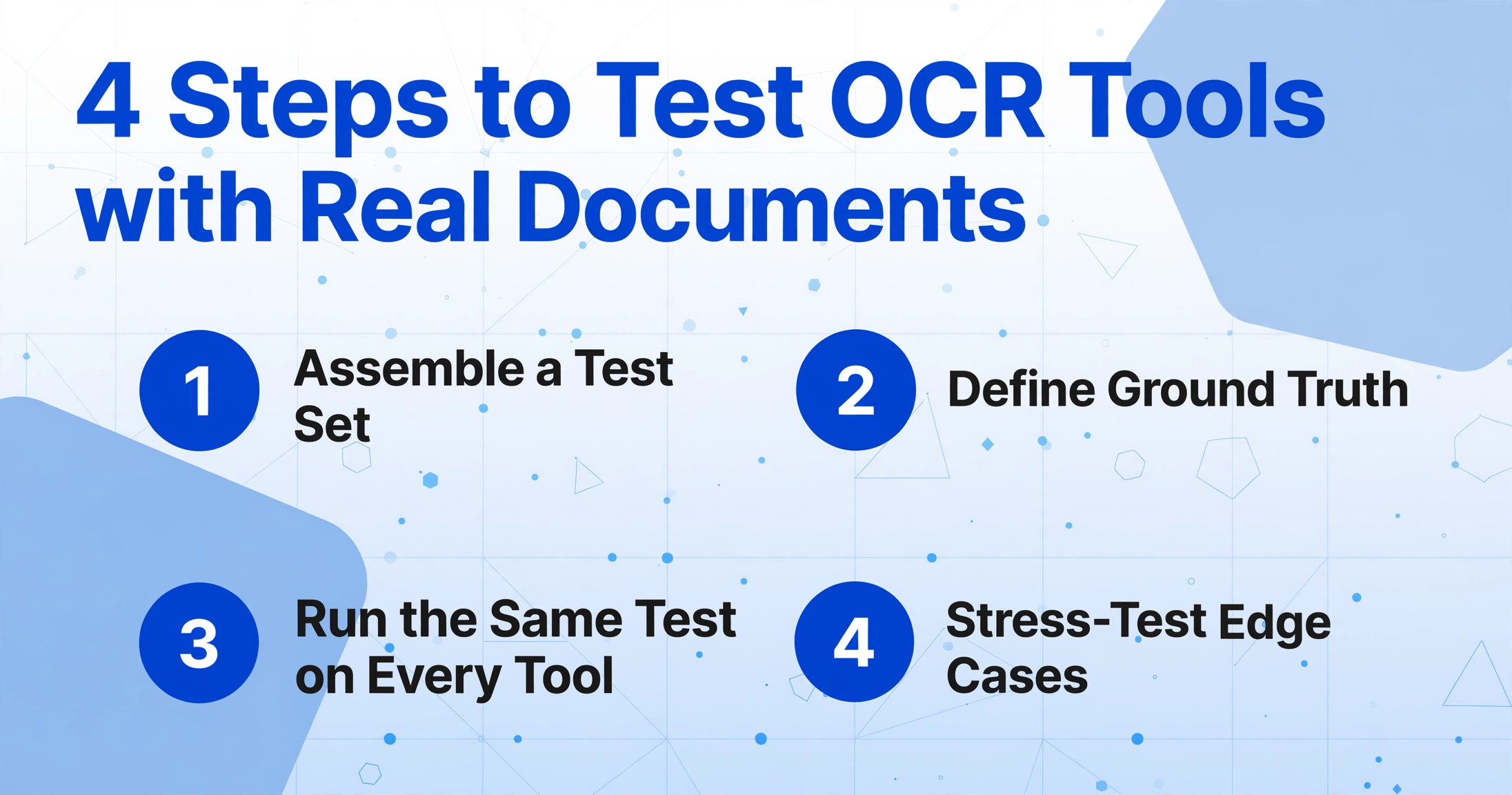
Every vendor provides demo samples. Every vendor's tool scores 100% on those samples. Testing with your own documents is the only evaluation that matters. Here is a repeatable testing methodology:
1. Assemble a test set. Collect 20-50 documents that represent your real document mix: the common formats, the edge cases, and a few of your worst-quality files. Include at least 5 documents for each major type in your document profile from Step 1. This is the same advice Penn State's library services gives for OCR projects — a representative test set is the foundation of reliable evaluation.
2. Define ground truth. For each test document, manually record the fields that matter. For data extraction — record the invoice number, date, total, vendor name, and line items. For text recognition — record a representative paragraph of text. This is the benchmark your tool's output will be measured against.
3. Run the same test on every tool. Process the exact same documents with each tool. Do not adjust settings per document — test as a new user would. Record three numbers per tool: character-level accuracy (how many characters were read correctly), field-level accuracy (if extracting data, how many target fields were returned correctly), and time per document (setup time + processing time, averaged across the test set).
4. Stress-test edge cases. Run your worst document — the low-resolution photo taken at a bad angle — through each tool. This single test often reveals which tools have robust image preprocessing and which rely on ideal inputs.
Note on field-level accuracy: A tool can read 99% of characters correctly (CER = 1%) and still return a wrong invoice total because it misread one digit. For data-driven workflows, field-level accuracy is the metric that determines whether the output is usable or requires manual review of every row. At ImageToTable.ai, field-level accuracy is the design target — the system is built to understand what each field means, not just to read individual characters.
5. Evaluate confidence scoring. Good tools provide a confidence score per field or per document. This lets you set thresholds: documents scoring above 95% go straight through; documents below require manual review. The confidence score effectively turns a binary pass/fail into a triage system — you review only the fraction of documents the tool is uncertain about, rather than every single one.
Step 5: Make the Decision
You now have scores from Step 3 and test results from Step 4. Make the final decision using a weighted scoring approach:
- Assign weight to each evaluation dimension from Step 3 based on your priorities. If accuracy is critical, weight it at 30%. If cost is primary, weight at 30%. Distribute 100% across the dimensions that matter most to you.
- Multiply each tool's Step 3 score by the weight and sum to get a weighted score.
- Factor in test results as a separate row. A tool that scored well on paper but failed on your real documents gets a penalty. A tool that surprised you on test accuracy gets a bonus.
- Consider switching costs. If you already use a tool, the cost of migrating historical data, retraining staff, and rebuilding integrations may offset the benefits of a new tool — unless the gap in accuracy or throughput is large enough to justify the disruption.
- Plan a pilot. Pick the top-scoring tool and run a live pilot for two weeks on real work. Measure actual time saved, error rate in production, and team satisfaction. If the pilot meets your success criteria, proceed to full deployment. If not, move to your second-choice tool and repeat.
This five-step process sounds like effort — and it is. But the alternative is selecting a tool based on a feature checklist or a single demo meeting, then discovering six months later that it does not handle phone photos, or that its field-level accuracy is too low for your accounting team, or that the per-page pricing made sense at 50 documents per month but not at 500. Spending a week on a structured evaluation upfront saves months of frustration downstream.
Troubleshooting Common Issues
"I chose a desktop OCR tool, but now I need structured data in a spreadsheet." This is the most common migration scenario. Desktop OCR tools output searchable PDFs and editable text, not structured rows. You can extract text and manually format it, but that defeats the purpose. The real fix is switching to an AI extraction tool that outputs Excel or CSV natively. Export your document profile from that old tool — the fields you had been copying manually become your column names in the new tool.
"My volume doubled. The pricing tier I signed up for no longer makes sense." If you chose per-page pricing at a low volume, scaling up means a proportional cost increase. If you chose a flat-rate subscription, your cost per page drops as volume grows. Review your pricing model when your volume changes by more than 50% — re-running Step 3 with new numbers often reveals a different optimal choice.
"The tool works on most documents but fails on the edge cases." No tool handles every document perfectly. Budget for a manual exception rate: plan for 5-15% of documents to require human review depending on the tool and your document quality. The question is not whether exceptions occur, but whether the tool gives you an efficient way to handle them — confidence scores, review queues, and field-level editing all reduce the time spent fixing errors.
"I need to process different document types — can one tool handle all of them?" Generalist tools exist (cloud APIs, multi-purpose AI extraction) but they usually trade depth for breadth. A tool that handles invoices, receipts, and contracts acceptably will not match a dedicated invoice tool on invoice accuracy. If your document types are fundamentally different (a letter needs text extraction; an invoice needs table extraction), consider whether you need two tools rather than one Swiss Army knife.
Frequently Asked Questions
What is the most important factor when choosing OCR software?
The match between your desired output and the tool's output capability. If you need structured data, pick a tool designed for data extraction. If you need searchable documents, pick a tool designed for OCR. Buying a tool from the wrong category is the most expensive mistake you can make, regardless of its accuracy or price.
How much should I spend on OCR software?
For individuals and small businesses, free open-source tools or paid tools under $30/month cover most needs. For teams processing 100+ documents per week, expect $50-$300/month for a commercial tool. For enterprise-scale deployment (10,000+ documents per month), $500-$2,000/month is typical. Calculate cost per document: a $300/month tool processing 1,000 documents costs $0.30 per document — less than a minute of manual data entry time.
Can I use free OCR tools for business use?
Yes, with caveats. Tesseract is free and open-source with no usage restrictions, but requires technical skill to operate and has lower accuracy on handwriting, photos, and complex layouts. Free online services like Google Drive's built-in OCR work for casual use but have no batch processing, no API, and no data privacy guarantees — documents are processed on the vendor's servers. For occasional use with clean documents, free tools work. For regular business use, a paid tool usually pays for itself in time saved.
How accurate do OCR tools need to be for my workflow?
It depends on what you do with the output. For document search (finding a keyword in a scanned contract), 95% character accuracy is sufficient — you will still find most documents. For data entry into an accounting system, field-level accuracy must be 99%+ — one wrong digit in an invoice total creates a reconciliation problem that takes longer to fix than manual entry would have taken. Different accuracy thresholds for different use cases mean the same tool may be acceptable for one workflow and unacceptable for another.
Do I need an API or a no-code tool?
If you have a developer who can integrate an API into your existing systems (ERP, accounting software, custom database), an API-based OCR service offers the most flexibility and the lowest per-document cost at scale. If you are non-technical or need results immediately, a no-code tool (desktop OCR or AI extraction with a web interface) delivers value faster. Many teams start with a no-code tool to validate the workflow, then migrate to an API when the volume justifies the integration investment.
How do I know if AI extraction is better than traditional OCR for my use case?
The deciding factor is what you need the tool to understand. Traditional OCR recognizes characters — it reads every letter but cannot tell whether "1,250.00" is the invoice total or a line item subtotal. AI extraction, powered by vision language models, understands document semantics — it knows the difference between a total and a subtotal because it understands the document the way a person would. If you need specific fields extracted to a spreadsheet, AI extraction is the right category. If you need a document converted to searchable text, traditional OCR is sufficient and usually cheaper. Our article on AI OCR versus traditional OCR accuracy goes deeper into when each approach wins.
What should I do if the tool I chose doesn't work out?
First, identify whether the problem is with the tool category (wrong output type), the specific tool (poor accuracy on your documents), or implementation (setup, integration, training). If it is a tool category mismatch, start over from Step 2. If it is a specific tool, the weighted scores from Step 3 give you a clear second choice to evaluate. If it is implementation, consider whether paid onboarding or support would solve the problem before switching tools entirely.
Can I test OCR tools before buying?
Every reputable OCR tool offers a free trial or a free tier. Desktop tools typically offer 14-30 day trials. Cloud APIs offer a free tier (Google Cloud Vision: 1,000 units per month, AWS Textract: 1,000 pages per month for 3 months). AI extraction tools like ImageToTable.ai offer free processing of your own files without requiring a credit card. Use these trials to run the test methodology from Step 4 before committing to a purchase. A vendor that does not offer a meaningful trial of your own documents is a vendor to be skeptical of.
Apply the Framework to Your Documents
The difference between a good OCR purchase and a bad one is rarely the tool itself. It is whether the buyer took the time to answer what am I actually trying to produce before comparing features. A tool that matches the output type, the document mix, and the volume you actually have will serve you for years. A tool chosen for its feature list or brand name will frustrate you within months.
The five steps in this article give you a repeatable process. Use it once for your current need. Use it again when your needs change. And when you test real documents against different approaches — especially if structured data in a spreadsheet is your goal — you will see quickly which category of tool actually delivers output you can use without hours of correction.