Best Mobile OCR Apps 2026:
11 Scanner Apps for iOS & Android
Every "best mobile scanner" list I read before writing this one had a blind spot: it evaluated scanning quality — edge detection, shadow removal, color accuracy — and treated OCR as a checkbox feature. That misses the real question someone asking "best mobile OCR app" is actually asking: which app will reliably turn a camera photo of a receipt, a whiteboard, a delivery note, or a business card into text I can actually use? It is the everyday photo to text question. This guide covers eleven apps that do mobile OCR across three categories — OS-level built-in, free standalone, and premium — with specific free-tier limits, real accuracy constraints, and honest best-for picks. Disclosure: ImageToTable.ai, an AI document extraction tool, operates this site. I have no affiliation with any other app reviewed here, and every paid app links to its official pricing so you can verify claims yourself. If you're new to OCR, our guide to what OCR is explains how the technology works, and our best free OCR software roundup covers desktop and web-based options that complement these mobile apps. And when a business card needs to become structured columns rather than a block of text — name, company, title, phone, email — there is a dedicated business card photo extraction walkthrough.
Key Takeaways
- Every "best mobile scanner" list you've read evaluated shadow removal and edge detection, not whether the text that comes out the other end is usable.
- The two most recommended free OCR apps — CamScanner with 750 million downloads and Adobe Scan, Wirecutter's top pick six years running — have zero offline OCR between them, meaning both are paperweights the moment you lose signal.
- Your scanner app decision collapses to one question: will it still produce usable text under your worst lighting, at your worst angle, with your worst signal — because that's when you actually need it to work.
Quick Comparison Table
Eleven mobile OCR apps, grouped by what they charge and where they run. Prices checked June 2026. "Offline OCR" means the app can recognize text without a network connection — critical for field workers.
| App | Platform | Price | Offline OCR | Languages | Best For |
|---|---|---|---|---|---|
| Apple Live Text | iOS | Free (built-in) | Yes | 13+ | Quick text grabs on iPhone |
| Google Lens | Android + iOS | Free (built-in) | Partial | 100+ | Instant text copy & translate |
| Adobe Scan | iOS + Android | Free ($10/mo Premium) | No | 19 | Professional document scans |
| Microsoft Lens | iOS + Android | Free | No | ~20 | Office ecosystem users |
| vFlat Scan | iOS + Android | Free (no ads) | Yes | ~30 | Curved book pages & budget scanning |
| Text Fairy | Android | Free | Yes | 110+ | Free offline OCR on Android |
| ABBYY FineScanner | iOS | Free (3 docs) / $5.99/mo | Yes (on-device) | ~200 | Highest accuracy OCR on iPhone |
| CamScanner | iOS + Android | Free (watermark) / ~$5/mo | No | ~20 | High-volume general scanning |
| Genius Scan | iOS + Android | Free / $40/yr Premium | No | ~30 | Simple, no-frills scanning |
| TurboScan | iOS + Android | $4.99 one-time | Yes | Basic | One-time purchase, no subscription |
| SwiftScan | iOS + Android | Free (2 pp) / $60/yr | No | ~30 | Multi-cloud upload automation |
How We Picked: Why Mobile OCR Is Different From Desktop OCR
A mobile OCR app operates under constraints a desktop scanner or web tool doesn't face: variable lighting, camera angle, motion blur, curved or creased paper, and often no internet connection. The evaluation criteria that matter for mobile are substantially different from what you'd consider when choosing a tool like desktop OCR software or an online OCR tool.
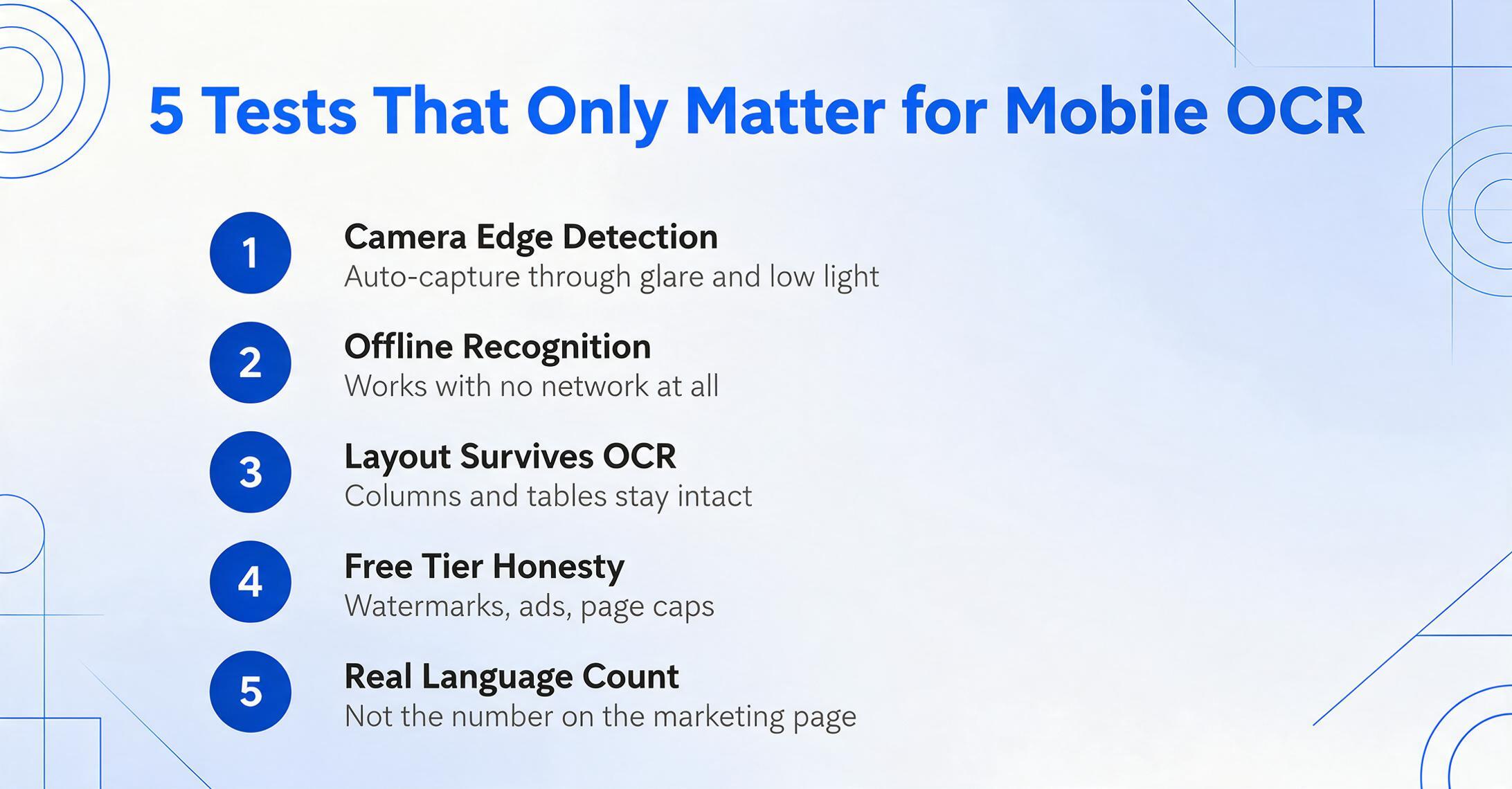
We evaluated every app on five mobile-specific dimensions:
- Camera integration — does the app auto-detect document edges, correct perspective, and handle low light or glare? Does it require you to press a button or does it capture automatically?
- Offline OCR — can it recognize text without a network connection? This is the single most underrated feature in mobile OCR and the one most reviews ignore.
- OCR output quality — not just whether text is recognized, but whether formatting (tables, columns, paragraphs) survives extraction, and whether the result is searchable PDF, plain text, or structured data.
- Free tier honesty — what does "free" actually mean? Watermarks? Page limits? Feature gates? Ads?
- Language support — the range of OCR languages each app actually handles, not just what the marketing page claims.
We didn't run a laboratory-style benchmark across all eleven apps — we're not a testing lab, and accuracy varies too much by document type to produce a single number that's useful. Instead, we drew on independent reviews from Wirecutter, PCMag, and ZDNET, combined with real user feedback from Google Play, the App Store, and Reddit communities including r/androidapps and r/iphone. Every app listed below has at least one of those sources backing up its placement.
This roundup is about camera-based capture — a document or receipt you photograph in the moment. If what you're actually doing is transcribing a screenshot from your own phone or desktop rather than pointing a camera at a physical page, see our screenshot-to-text tools comparison — the built-in options and the trade-offs are different from what's covered here. If you just need a one-off picture to text read from an image already on your device, that comparison covers the fastest free options.
Apple Live Text: The Default You Already Have
Available on every iPhone XS or later running iOS 15+, Apple's Live Text is the most friction-free OCR experience on any mobile platform. Point your camera at any printed text — a menu, a whiteboard, a shipping label — and the text becomes selectable, copyable, and searchable in real time. It works in the Camera app, in photos, and even in paused video frames (since iOS 16). All processing happens on-device, which means it works offline and your images never leave the phone.
What it does well: Live Text excels at quick, one-off text grabs. The on-device OCR accuracy on clean printed text is outstanding — one forum user on r/androidapps noted that "Google Photos has OCR built in, called Lens. It's the most precise I had tried," and Live Text's on-device engine is similarly strong. It supports 13 languages including English, Chinese, French, German, Italian, Japanese, Korean, Portuguese, and Spanish. The translation feature (tap a selected phrase to translate it) is genuinely useful for travelers.
Where it falls short: Live Text is a feature, not an app. There's no batch scanning, no multi-page document management, no PDF export workflow, no folder organization, and no way to save OCR output as structured data. It's designed for "see text, copy text, move on" — not for building a document library. It struggles with handwriting (Apple is clear about this limitation) and with heavily formatted tables.
Best for: Anyone with an iPhone who needs to grab text from a photo or the real world without installing anything. Not ideal for: Multi-page document scanning, batch processing, or handwriting OCR.
Google Lens & Google Drive Scan: The Android Default
Google Lens is the Android equivalent of Live Text — built into the OS, zero-install, free — with one critical difference: it's available on iOS too (through the Google app). On Android, Lens is accessible directly from the camera app, Google Photos, and Google Assistant. On iOS, you access it through the Google Search app.
What it does well: Lens OCR is fast — 2–5 seconds per image — and handles printed text with very good accuracy. Its standout feature is text translation across 100+ languages, which makes it the best mobile OCR choice for travelers and multilingual environments. The "Copy to computer" feature lets you copy text from a phone photo and paste it directly on a linked PC. Google Drive's built-in scanner (tap the + button in the Drive app, then Scan) creates searchable PDFs and integrates with Google Docs' OCR, which PCMag rates 4.5/5 as the best free OCR option for its combination of storage (15GB free) and OCR.
Where it falls short: Lens does not preserve document layout — it extracts text in reading order but discards formatting, tables, and column structure. It requires an internet connection for most features (on-device OCR is limited). It's also not designed for document management: there's no multi-page PDF creation, no folder system, and no way to organize scans beyond the Google Photos gallery.
Best for: Quick text extraction on Android, instant translation, and one-off scanning into Google Drive. Not ideal for: Layout-preserving document scanning or offline batch work.
Adobe Scan: The Wirecutter Top Pick for Document Scanning
Wirecutter's top pick for six consecutive years, Adobe Scan is the most polished mobile document scanner available. It uses AI-powered edge detection that captures automatically when it detects a document — you don't need to press the shutter button. The image processing pipeline applies perspective correction, shadow removal, and text sharpening before you see the result.
Adobe Scan's OCR produces searchable PDFs and recognizes 19 languages. On the free tier, you get unlimited scans, 2GB of Adobe Document Cloud storage, and OCR on documents up to 25 pages per file. The free version also includes basic editing (crop, rotate, filter) and the ability to combine multiple scans into a single PDF. One Google Play reviewer summed it up: "It has more options and more tools than Lens or any other app there is. The only thing I don't like is that it is slow" — a consistent complaint across reviews is that Adobe Scan is noticeably slower than Microsoft Lens or Google Drive, taking 5–6 seconds per page even without edits.
The Premium tier ($9.99/month) unlocks OCR editing, export to Word and Excel, OCR on up to 100-page documents, and 20GB of cloud storage. For users already in the Adobe ecosystem (Acrobat, Creative Cloud), the seamless sync makes the subscription worth it. For everyone else, the free tier is generous enough for most use cases.
Best for: Professional-looking document scans with automatic edge detection and OCR. Not ideal for: Users who need fast, in-and-out scanning (it's slower than alternatives), offline OCR, or budget-conscious users who don't want ecosystem lock-in.
Microsoft Lens: Free Scanning for the Microsoft Ecosystem
Microsoft Lens (folded into the Microsoft 365 app as of late 2025) remains one of the best free scanner apps available — zero ads, zero watermarks, zero subscription. It offers dedicated capture modes for documents, whiteboards, business cards, and photos, and it can export directly to Word, PowerPoint, OneNote, and PDF.
The OCR engine inside Lens is solid on printed text. The whiteboard mode is genuinely useful: it crops the board, enhances contrast to remove glare, and converts the image into an editable format that preserves the structure of notes. One Reddit user on r/sysadmin noted: "I don't use one frequently but Microsoft Lens is what I've been using when I do. It does the standard perspective correction, OCR, etc."
Microsoft Lens does not do OCR offline — it requires a network connection for text recognition. And while it's free, the export options are heavily weighted toward Microsoft products: Word, PowerPoint, OneNote, and OneDrive. If your workflow runs on Google Drive, Dropbox, or Notion, Lens is a less natural fit. Wirecutter noted that it's "somewhat slower at scanning documents than the competition, and it shoots darker, less-clear scans" compared to Adobe Scan.
Best for: Microsoft 365 users, students, and anyone who needs free scanning with Office integration. Not ideal for: Offline OCR, non-Microsoft cloud storage users, or precise color reproduction.
vFlat Scan: The Best Free App Nobody Talks About
If users on r/androidapps are any guide, vFlat Scan is the most underrated free scanner app on the market. It's completely free with no ads, no watermarks, and no account required — a claim almost no other app on this list can make. Its signature feature is curved page flattening: photograph a book that won't lie flat, and vFlat automatically straightens the curved text, removes the shadow from the gutter, and produces a flat, readable page.
The OCR engine extracts text from scanned images and supports roughly 30 languages. The app also includes an AI-powered "erase handwritten notes" feature that removes scribbles from printed pages — useful for cleaning up annotated documents. It offers auto-scan mode (captures multiple pages without tapping), finger removal from book scans, and two-page book scanning that automatically splits facing pages into separate images.
vFlat processes all OCR on-device, which means it works offline and your documents never leave your phone — a meaningful privacy advantage over cloud-dependent apps like Adobe Scan and CamScanner. The main trade-off is that vFlat's OCR accuracy is good but not best-in-class: it handles clean printed text reliably but struggles with unusual fonts, low contrast, and handwriting. The extracted text is displayed in a plain text viewer without layout preservation.
Best for: Budget-conscious users who want a free, ad-free scanner with curved page correction. Not ideal for: High-accuracy OCR on complex documents or handwriting recognition.
Text Fairy: The Android-Only Indie OCR Powerhouse
Text Fairy is an Android-only OCR app from indie developer Renard Wellnitz, and it has built a loyal following precisely because it does one thing and does it well: extract text from images. It processes everything on-device (no network required), supports over 110 languages through downloadable language packs, and produces clean, editable text output.
A Google Play reviewer put it simply: "It does one thing — perform OCR on images — and it does it well," specifically praising the developer for keeping the app free of intrusive ads. Another 2026 review on Google Play noted: "It gets the job done right from my phone, and has minimal ads removed with a one-time purchase. I find scanning in small chunks makes for the least errors. I do have to make minor corrections for the occasional scanning errors, but rarely is this more than a word or two."
Text Fairy includes automatic image cleanup (perspective correction, text line straightening), text-to-speech, and automatic detection of text columns in complex documents. It can also join multiple scanned files and manage them within the app. The key limitation is that Text Fairy explicitly cannot read handwriting — it's designed strictly for printed text. It's also Android-only, so iPhone users are out of luck.
Best for: Android users who need free, offline OCR with broad language support. Not ideal for: iOS users, handwriting OCR, or users who need structured data output (it produces plain text only).
ABBYY FineScanner: The Accuracy King, iOS Only
PCMag rates ABBYY FineScanner 4.5 out of 5 — their highest score for any mobile scanning app — and calls it "best for iPhone power users." The app uses ABBYY's industry-leading OCR engine, which is the same technology behind their desktop FineReader product, and it shows in the results. On clean printed text, FineScanner's OCR is the most accurate of any mobile app tested by major reviewers.
FineScanner includes automatic document boundary detection, annotation tools for redacting sensitive information, and the ability to sign documents. It supports approximately 200 languages — by far the widest language coverage of any app on this list. The app also includes a BookScan mode (iOS only) that captures two facing pages and separates them into individual images with curved page correction.
The critical catch: the Android version of FineScanner was discontinued. The app is now iOS-only. The free tier allows you to scan just three documents — after that, it's $5.99/month or $21/year for unlimited scanning, OCR, and cloud sync. FineScanner offers both on-device OCR (faster, less accurate) and cloud-based OCR (slower, more accurate). Wirecutter noted that cloud OCR took about three minutes for a four-page scan — noticeably slower than Adobe Scan or Google Drive.
Best for: iPhone users who need the highest possible OCR accuracy, especially for multi-language documents. Not ideal for: Android users, anyone who needs more than occasional free scanning (the 3-document free tier is very tight), or users who need fast scanning.
CamScanner: Most Installed, Most Controversial
With over 750 million downloads, CamScanner is the most widely used mobile scanner app in the world. It offers a full suite of scanning features: automatic edge detection, multiple scanning modes (document, receipt, ID, business card, QR code), image enhancement filters, OCR, and cloud sync. The paid version ($4.99/month or $49.99/year) removes watermarks, unlocks OCR, and enables cloud sync to Google Drive, Dropbox, and OneDrive.
CamScanner's popularity is real — Reddit users on r/androidapps regularly recommend it: "CamScanner paid version. I've tried many free scanning apps, but CamScanner is the best by far even with its high price tag." Another wrote: "CamScanner. I've used it for years! Fantastic picture perfect clarity."
The controversy is also real. In 2019, CamScanner was temporarily removed from Google Play after security researchers discovered malware in an advertising SDK. The company (INTSIG, based in China) resolved the issue, but the incident left a lasting trust gap. Wirecutter notes that the free version has an "overly busy" interface with ads and scanning modes of "limited usefulness (stuff like question sets, an ID photo maker, and QR codes)." The free version also adds watermarks to exported PDFs — a significant limitation for professional use.
Best for: High-volume scanners who are willing to pay for the Pro version and don't mind the interface density. Not ideal for: Privacy-conscious users, anyone relying on the free tier (watermarks + ads), or users who prefer a clean, minimal interface.
Genius Scan: Simple, If Unpolished
Genius Scan positions itself as the simplest scanner app for users who just want to digitize documents without learning a complex interface. The free version includes automatic edge detection (manual only on the free tier — the premium version adds auto-capture), perspective correction, background removal, and multi-page PDF creation. It supports export to PDF and JPG, plus cloud sharing to major services.
Where Genius Scan is let down is OCR and polish. OCR is not automatic — you have to press a separate button per page to recognize text. Wirecutter tested it and found that "search within OCR results was hit or miss." The premium subscription ($39.99/year) unlocks automatic OCR, cloud sync, batch processing, and searchable PDFs. It doesn't automatically open to the camera, and the UI doesn't rotate when shooting in landscape orientation — small frustrations that add up.
Best for: Users who want the simplest possible scanning interface and don't need OCR as a primary feature. Not ideal for: Anyone who needs reliable, automatic OCR, or users who scan frequently enough that the UX quirks would become annoying.
TurboScan: The One-Time Purchase Option
TurboScan is the only app on this list that charges a one-time fee ($4.99) with no subscription — a pricing model that's increasingly rare and genuinely appealing if you hate recurring charges. The app uses what it calls "SureScan" mode, which takes three pictures of the same document and composites the sharpest parts for a guaranteed sharp result — particularly useful in low-light conditions.
The iOS version of TurboScan has a strong track record with long-term users. One 2026 Google Play reviewer wrote: "Very handy to digitize documents from paper. 24: Great app. Back up worked to transfer data to new, replacement Android phone. 25 & 2026: A most used and most dependable of the apps I use." Another reviewer noted: "The only thing I don't like was, it lacks editing feature with previously scanned image documents."
The biggest limitation is that TurboScan does not include OCR — it's a scanner app first, not an OCR app. This makes it a less obvious fit for a "best OCR apps" list, but it earns its place because the $4.99 one-time purchase covers all scanning features, and you can pair it with a free OCR tool (like Text Fairy or Google Lens) to complete the workflow. A notable UX complaint on Google Play: "TurboScan calls all your files 'Document' so when you see a list of your 500 files, all of them are called 'Document' without even giving you the capability to rename them."
Best for: Users who want a one-time purchase scanner and already have a separate OCR tool. Not ideal for: Anyone who needs built-in OCR, file organization, or handwriting recognition.
SwiftScan: Cloud-First Scanning for Multi-Service Users
SwiftScan differentiates itself on cloud connectivity: the premium tier ($59.99/year or $7.99/month) can auto-upload scans to over a dozen cloud services — Google Drive, Dropbox, OneDrive, Evernote, iCloud, Box, FTP servers, and more — making it the best choice for users who need scans to land in multiple destinations automatically. The free version limits you to two pages per scan and shows ads even during shooting.
The app includes automatic edge detection (though Wirecutter found it "had more trouble detecting document edges than other apps"), image enhancement filters, and OCR that produces searchable PDFs. The Pro tier also includes business card scanning that extracts contacts directly to your address book.
SwiftScan is a solid app that does many things competently, but it doesn't do any one thing better than the category leaders. Its OCR accuracy is good but not in ABBYY's league. Its edge detection is decent but not as reliable as Adobe Scan's. Its real strength — the cloud routing — only unlocks at the $60/year price point, which is the most expensive subscription on this list.
Best for: Users who need scans auto-routed to multiple cloud services. Not ideal for: Budget-conscious users, anyone who doesn't need multi-cloud syncing, or those who want best-in-class OCR or edge detection.
Once you've scanned a document with your phone and extracted the text, the next question is often: what next? Mobile OCR gives you raw text. If you need that data organized into a spreadsheet — line items from an invoice, rows from a table, fields from a form — you need a different kind of tool. That's where AI extraction tools like ImageToTable.ai come in: you upload the same phone photos, and the AI identifies which text is the invoice number, which is the total, which is the date, and lays it out in columns. It's the step after OCR.
Which App for Which Need?
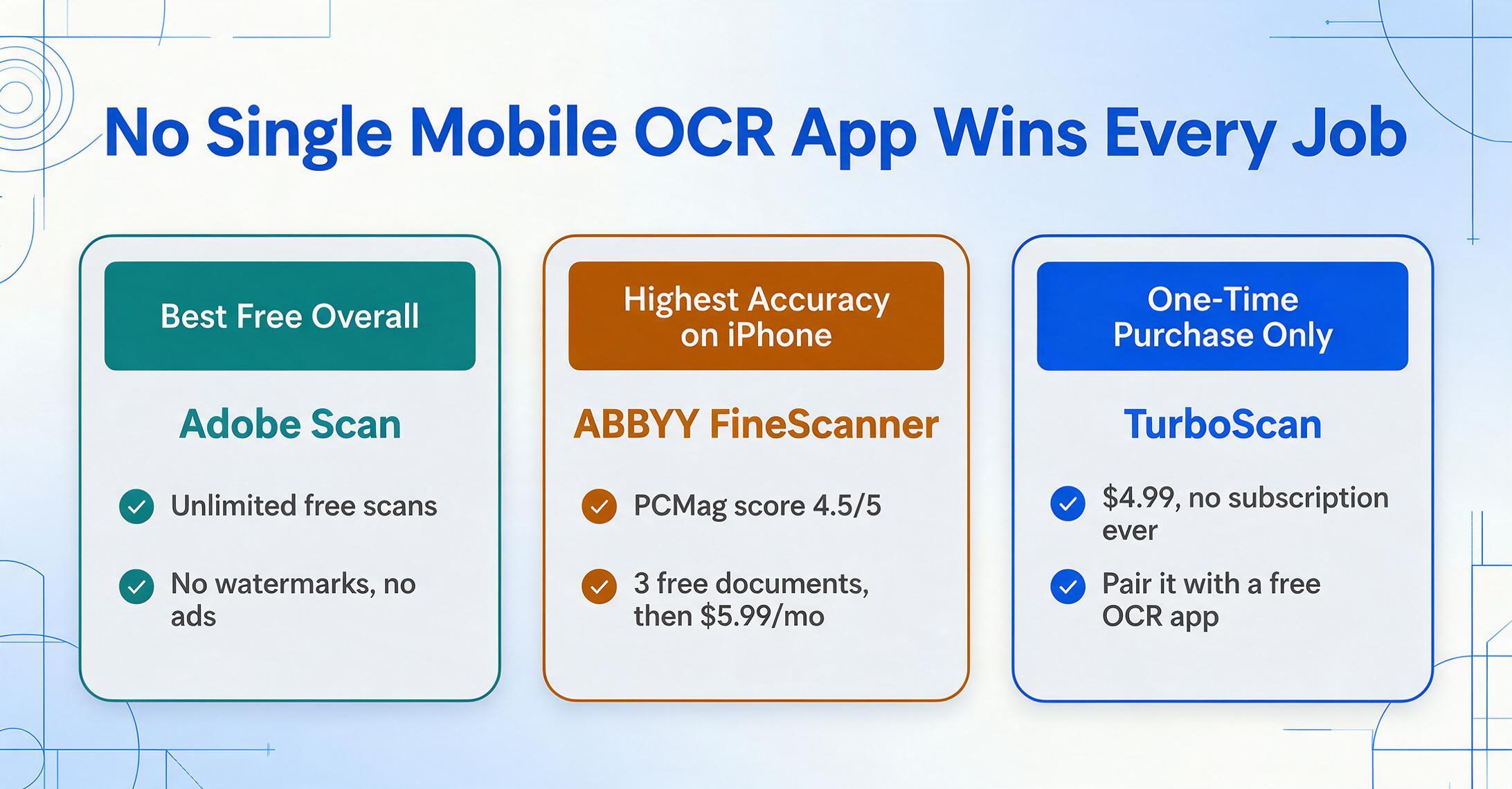
No single app wins every category. Here's the quick decision guide based on what you actually need to do:
| Your Scenario | Best App | Runner-Up | Why |
|---|---|---|---|
| Best free overall | Adobe Scan | Microsoft Lens | Best balance of free features, scan quality, and OCR — no watermarks, no ads, unlimited free scans. |
| Zero-install (iPhone) | Apple Live Text | Google Lens | Built in, works offline, no app to download. For quick text grabs, nothing is faster. |
| Zero-install (Android) | Google Lens | Google Drive Scan | Built into every Android phone. Instant text extraction plus translation. |
| No ads, no tracking, free | vFlat Scan | Text Fairy | Both are genuinely free with no watermarks. vFlat has better scan quality; Text Fairy has better offline OCR. |
| Highest OCR accuracy (iPhone) | ABBYY FineScanner | Adobe Scan | ABBYY's OCR engine is industry-leading, especially for multi-language documents. |
| Best offline OCR | Text Fairy (Android) | Apple Live Text (iOS) | Both work fully offline. Text Fairy supports 110+ languages; Live Text is integrated into the iOS camera. |
| Book scanning | vFlat Scan | ABBYY FineScanner | vFlat's curved page flattening and two-page capture are purpose-built for books. |
| One-time purchase only | TurboScan | — | $4.99, no subscription. Pair with Text Fairy or Google Lens for OCR. |
| Microsoft Office workflow | Microsoft Lens | Adobe Scan | Direct export to Word, PowerPoint, OneNote — free, no ads, no watermark. |
| Multi-cloud auto-upload | SwiftScan | CamScanner | SwiftScan routes scans to 10+ cloud services automatically (paid tier). |
Frequently Asked Questions
How does mobile OCR accuracy compare to desktop OCR?
On clean, well-lit printed documents taken straight-on, modern mobile OCR engines match desktop scanners in accuracy — you can expect 95–99% character accuracy on ideal captures. The difference shows on challenging conditions: curved pages, low light, glare, camera shake, and unusual angles. A desktop scanner provides consistent lighting and a flat page every time; a phone camera depends on your technique. Our guide to OCR vs AI extraction explains how the two technologies compare for different document types.
Which mobile OCR app is completely free with no limits?
No app is completely unlimited on every dimension. vFlat Scan comes closest: free, no ads, no watermarks, no account, unlimited scans. Text Fairy is similarly free on Android with excellent offline OCR. Microsoft Lens is free with no ads or watermarks but requires a Microsoft account for full functionality. Adobe Scan's free tier is generous (unlimited scans, 2GB storage, OCR on 25-page documents) but requires an Adobe account and internet connection.
Can mobile OCR apps work without internet?
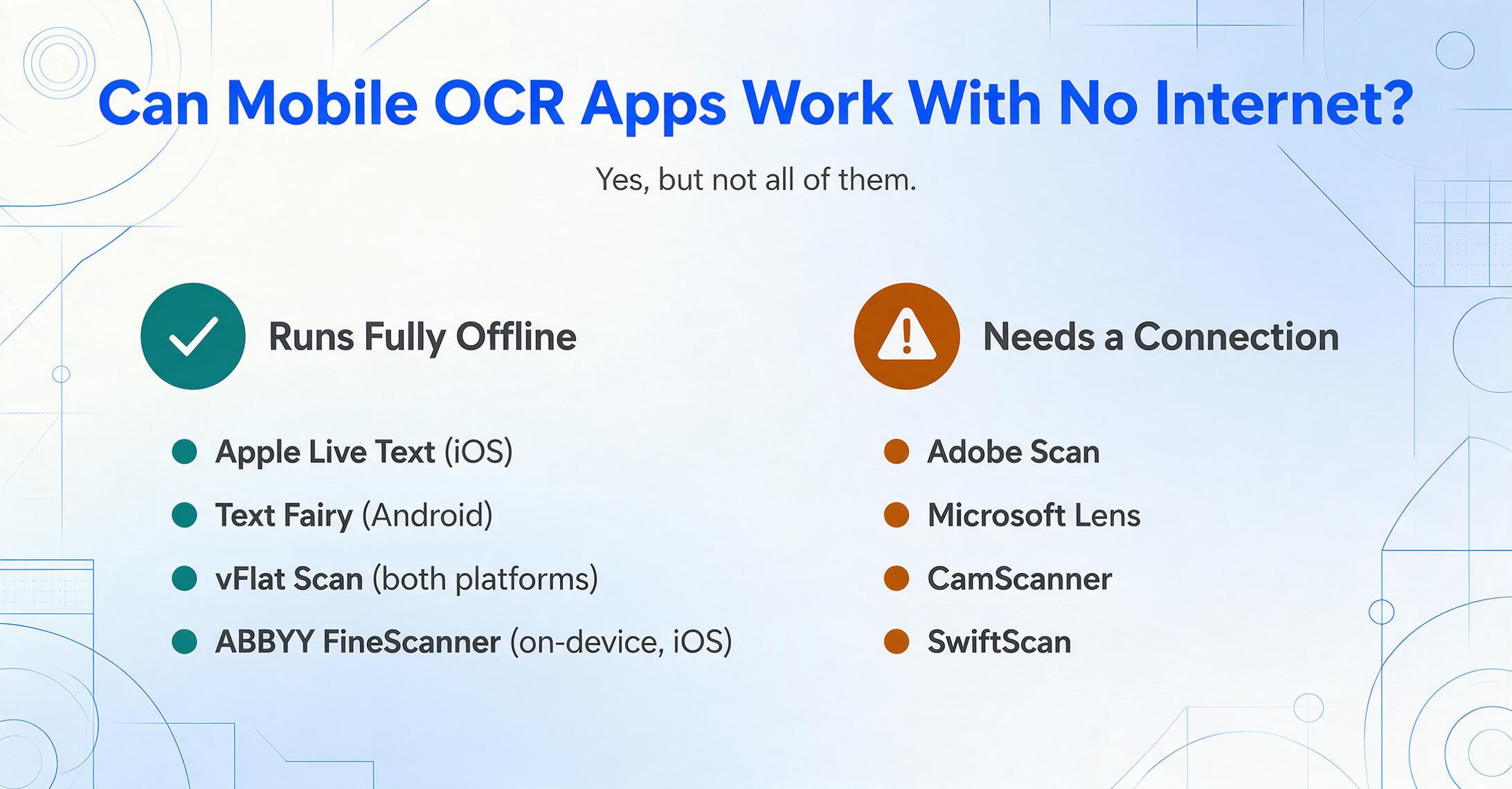
Yes, but not all of them. Apps that process OCR on-device work fully offline: Apple Live Text (iOS), Text Fairy (Android), vFlat Scan (both platforms), and ABBYY FineScanner's on-device mode (iOS). Apps that rely on cloud-based OCR require internet: Adobe Scan, Microsoft Lens, CamScanner, and SwiftScan. Google Lens works partially offline but many features require a connection. If you work in areas with unreliable connectivity, choose an app from the offline-first group.
Do mobile OCR apps read handwriting?
Most mobile OCR apps are designed for printed text and do not read handwriting reliably. Apple Live Text has limited handwriting support (reasonably accurate on neat, print-style handwriting). ABBYY FineScanner handles some handwriting but accuracy varies significantly by legibility. Dedicated handwriting OCR tools exist — our best handwriting OCR software roundup covers them — but most general-purpose mobile scanner apps will give poor results on cursive or messy handwriting.
Can mobile OCR apps output to Excel or structured data?
Most mobile OCR apps output searchable PDFs or plain text — not structured spreadsheet data. Adobe Scan Premium exports to Excel, and ABBYY FineScanner can export to Excel and other formats. But even these outputs are "text placed in a spreadsheet," not structured data organized by field. If you need line items from an invoice to land in separate columns, or a table from a photo to become spreadsheet rows, you need an AI document extraction tool like ImageToTable.ai, which understands what each piece of text means, not just where it sits on the page.
Which mobile OCR app supports the most languages?
ABBYY FineScanner leads with approximately 200 languages, followed by Text Fairy (110+ languages), Google Lens (100+ languages for translation, fewer for native OCR), and Adobe Scan (19 languages). Most other apps support 20–30 languages. If you regularly work with non-English documents, ABBYY FineScanner is the clear choice — but it's iOS-only and requires a subscription after three documents.
Which app preserves the original document layout best?
Adobe Scan preserves layout better than any other mobile app. It produces PDFs that maintain the original positioning of text, tables, images, and signatures, and independent testing has confirmed that it keeps structural elements intact better than Google Lens, Apple Notes, or Microsoft Lens. The trade-off is speed: Adobe Scan takes 5–6 seconds per page. For layout preservation in editable formats, our guide to OCR software covers desktop and web-based alternatives.
Which mobile OCR app is best for privacy?
Apps that process OCR entirely on-device offer the strongest privacy because your document images never leave your phone. Apple Live Text and vFlat Scan are the best choices here — both work fully offline and explicitly state they don't upload images. Text Fairy also processes on-device (though it has optional telemetry you can disable). ABBYY FineScanner offers an on-device mode, but the more accurate cloud mode requires sending images to ABBYY's servers. Cloud-dependent apps (Adobe Scan, CamScanner, SwiftScan) send images to their servers for OCR processing — check their privacy policies if document confidentiality is a concern.
Next Steps: From Scanned Text to Usable Data
Mobile OCR apps have reached the point where, for clean printed documents captured under reasonable conditions, the text extraction is reliable enough for daily use. The hard part isn't getting the text out of the image anymore — it's what happens next. Raw OCR output is a wall of words. If what you need is a spreadsheet with columns — invoice numbers, dates, totals, line items — you need a tool that understands the meaning of what it reads, not just the shape of the letters.
That's the difference between OCR and AI extraction. OCR reads characters. AI extraction reads documents: it knows that "12,450.00" next to "Total" is the invoice amount, that "John Smith" under "Authorized Signature" is a name, and that these belong in different columns of a table. If you've already scanned a document with your phone and you're staring at a page of text wondering how to get it into Excel, that's exactly the gap ImageToTable.ai was built to close.
Upload a Phone Photo, Get a Spreadsheet
No sign-up, no credit card. Upload a receipt, invoice, or document photo — see what AI data extraction looks like in 10 seconds.
Try It Now →No sign-up · No credit card · Results in 10 seconds