How to Extract Student Enrollment Form Data
to Excel for School District Student Information Systems
Every August, the paper arrives. A mid-size K-12 district of 5,000 students receives enrollment packets for roughly 20% of its population — families who enrolled in person, submitted forms during summer registration events, or whose primary language isn't supported by the online portal. Each packet is 15 to 25 pages: student demographics, parent contact details, emergency contacts, medical conditions, immunization records, bus transportation requests, photo consent, technology use agreements, handbook acknowledgment. Multiply by a thousand students, and the front-office math becomes simple: thousands of pages, each one requiring a human to read every field, decode the handwriting, check the boxes, and type it all into PowerSchool, Infinite Campus, or Skyward.
The bottleneck is not that the data doesn't exist. It's that the data lives on paper in a dozen different field formats — and your SIS needs it as structured rows. This guide covers a practical workflow that closes that gap: scan the forms, define the output columns once, and let semantic AI extract every field type into a spreadsheet ready for SIS import.
Key Takeaways
- 333 hours — that's what one thousand paper enrollment packets cost your district to type into PowerSchool every August.
- Traditional OCR reads handwriting character by character but has no way to know whether a phone number belongs to the emergency contact or the parent — the only distinction your SIS actually needs.
- Define 28 column names once, scan 200 packets as one batch, and get one completed spreadsheet ready for import — your staff shifts from retyping every field to spot-checking only the highest-stakes rows.
The Paper Enrollment Form Is Not Going Away — Here's Why
Online registration portals exist. PowerSchool Enrollment — deployed in over 3,500 districts — offers mobile-friendly forms, conditional logic, sibling prefill, and direct SIS sync. Infinite Campus Online Registration promises "no data entry — just click to approve." The vendor pitch is consistent: eliminate paper, and the data entry problem disappears.
The pitch overlooks how registration actually works on the ground. A significant fraction of families in every district fill out paper forms — and the reasons are structural, not temporary.
Language barriers. PowerSchool Enrollment supports multiple languages, but the full registration workflow — from portal navigation through form completion to document upload — assumes a level of digital literacy and English proficiency that not every family has. In districts where 15% or more of families speak a language other than English at home, paper forms completed with help from a bilingual front-office staff member remain the most accessible path.
In-person registration events. The "registration day" gymnasium setup — tables, stacks of blank packets, families filling out forms while standing — still happens in hundreds of districts every August. For families who show up without a device, without an internet connection, or simply because they moved into the district over the summer and the online portal hasn't caught up, paper is the universal fallback.
Digital access gaps. According to the National Center for Education Statistics, approximately 49.5 million students were enrolled in U.S. public K-12 schools in fall 2023. Among households with school-age children, an estimated 5% to 8% lack reliable home broadband access. When the only way to meet a registration deadline is to fill out a paper packet at the district office, families take it.
Returning student updates. Online portals handle new-student registration well. What they handle less well are the annual update forms that every returning family must complete — updated emergency contacts, new medical information, re-consent for photo and media release. Many districts mail these as paper packets because the SIS portal's returning-student workflow is clunky, requires a parent account many families never created, or simply doesn't exist in older SIS versions still running in smaller districts.
The result: even districts that invested in online registration still process paper forms every August. The question is not "how do we eliminate paper" — it's "how do we get the data off the paper efficiently once it's here."
What's Inside a K-12 Enrollment Packet — and Why Each Section Is a Different Extraction Challenge
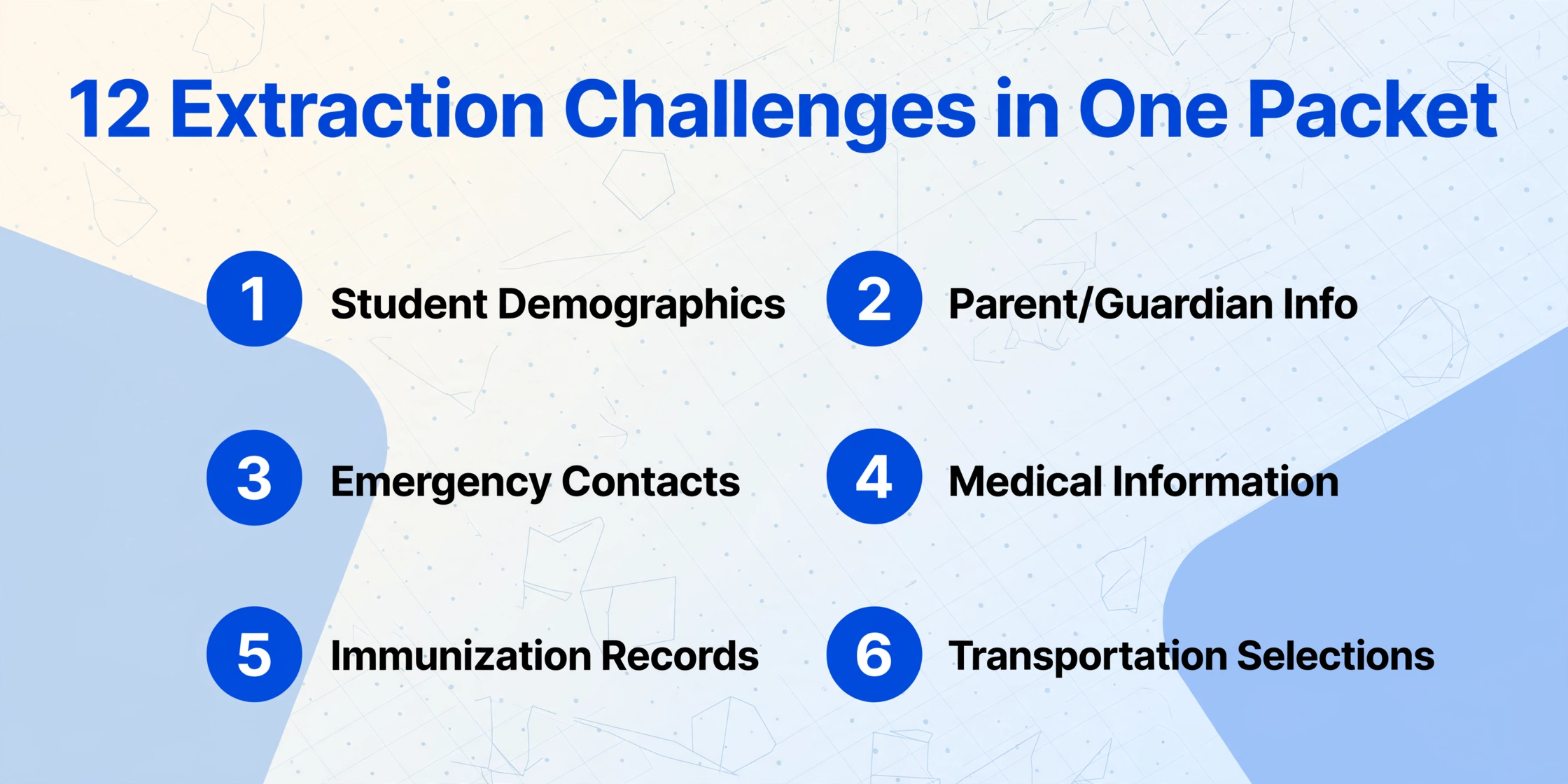
A single student enrollment packet is not one data extraction problem. It is twelve different extraction problems, each with a different field format, on pages that were designed to be filled out by hand in a crowded gymnasium. Understanding the field types — and why each one breaks traditional OCR — is the prerequisite for setting up a working extraction workflow.
| Section | Typical Fields | Field Format | OCR Difficulty |
|---|---|---|---|
| Student Demographics | Full name, date of birth, gender, grade entering, home address | Printed or handwritten in text boxes | Moderate — handwritten DOB and address are the common failure points |
| Parent/Guardian 1 & 2 | Name, relationship, phone, email, employer, work phone | Printed/handwritten text, multi-line blocks | Moderate — multiple contacts on one form require field association |
| Emergency Contacts | Name, relationship, primary phone, alternate phone (2-3 contacts) | Handwritten text, often abbreviated | High — abbreviated relationship labels and handwritten phone numbers confuse character-level OCR |
| Medical Information | Allergies, medications, chronic conditions, physician name/phone, hospital preference | Handwritten in narrative blocks | High — free-text medical conditions with no consistent vocabulary |
| Immunization Records | Vaccine type, date administered, provider (often a scan of a separate state form) | Structured table on a state-issued form | High — small table text, sometimes a scanned copy of a copy |
| Transportation | Bus / car rider / walker selection, bus route number, AM/PM schedule | Checkboxes + printed route numbers | Moderate — checkbox detection + field association across columns |
| Lunch Program | Free/reduced eligibility application, household income, case number | Checkboxes + handwritten income fields | High — confidential financial data with small-field entries |
| Technology Use Agreement | Student name, parent name, date, parent signature | Printed text + handwritten signature line | Low — primarily checkbox and signature, minimal structured data to extract |
| Photo/Media Release | Opt-in/opt-out checkbox, student name, parent signature, date | Checkbox + signatures | Low — binary consent, light extraction load |
| Handbook Acknowledgment | Student name, grade, parent name, signature, date | Printed + signature | Low — acknowledgment only, no structured data |
| Home Language Survey | Primary language spoken at home, additional languages, parent preferred language | Handwritten entries + checkbox selection | Moderate — language names are short fields but often handwritten |
What makes an enrollment packet uniquely difficult for traditional OCR is the mix of field types on a single page. On one sheet you might find printed text (the form's own labels), handwritten answers in block letters, handwritten answers in cursive, checked boxes, circled options, and a signature — all within a few inches of each other. Traditional OCR reads characters. It does not understand that a phone number written in the "Emergency Contact Phone" box belongs to the emergency contact, not the parent — and that distinction matters when the data lands in a SIS that has separate database fields for each.
Semantic AI extraction closes this gap by understanding what each field means, not just what it says. When you define a column called "Emergency Contact 1 — Phone Number," the AI looks for a phone number in the emergency contact section of the form and associates it with the first contact, not the parent's work phone two sections up. This is the fundamental difference between character recognition and document understanding — and it's why enrollment forms reward the semantic approach more than most document types. For a deeper look at how FERPA governs the moment student data enters an AI processing pipeline, see our FERPA compliance guide for admissions document extraction.
From Paper Packet to SIS-Ready Spreadsheet: The 3-Step Workflow
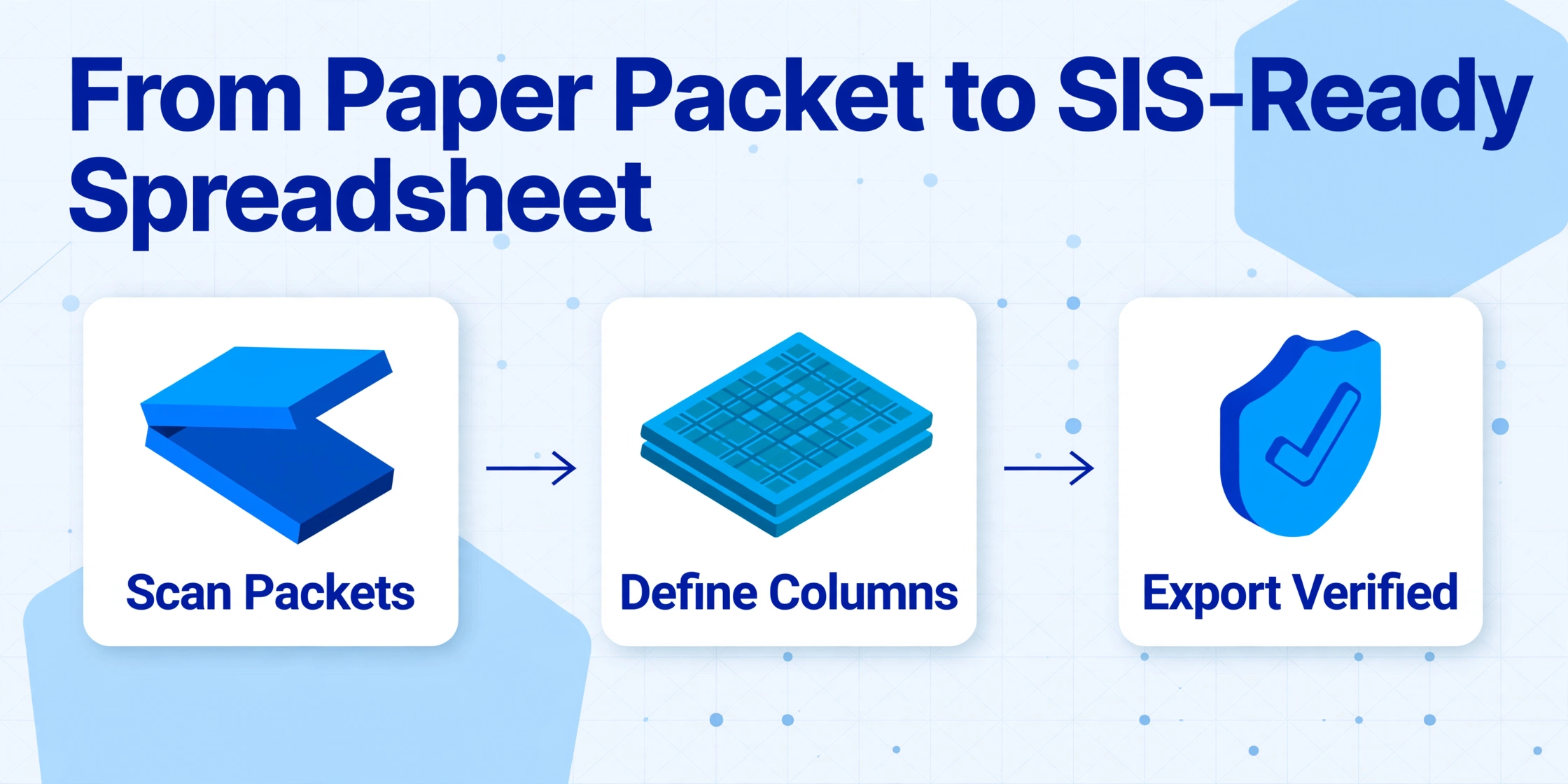
The core workflow is straightforward enough that a front-office staff member can run it without IT support. What takes the most thought is the column setup — get that right, and the extraction runs itself.
Step 1: Scan the Enrollment Packets
Scan all pages of each student's packet into a single multi-page PDF per student. Set your scanner to 300 DPI grayscale — color adds file size without meaningful accuracy gains for most enrollment form layouts, but black-and-white loses the subtle contrast that distinguishes a checkbox from a smudge.
Naming convention matters. Name each file [Grade]_[LastName]_[FirstName].pdf. This naming pattern serves two purposes: it gives you a unique identifier for each file, and it lets you later cross-reference extracted data against the source document during spot-checks without opening every PDF.
If forms arrive pre-stapled as a single packet per student, scan each student's set as one document. If the district organizes forms by type — all medical forms together, all transportation forms together — you will need a different workflow, but that pattern is rare in K-12 registration where the packet is organized by student, not by form type.
Step 2: Define Your Output Columns
This is where the extraction tool's behavior is programmed — not with code or templates, but by listing exactly which fields you want in your final spreadsheet. The column names you type become both the instructions to the AI and the headers of your output table.
For a K-12 enrollment form, a practical column set looks like this:
Recommended Column Set for K-12 Enrollment Forms
Student Last Name
Student First Name
Student Date of Birth
Grade Entering
Home Street Address
Home City
Home State
Home ZIP
Parent/Guardian 1 Full Name
Parent/Guardian 1 Relationship
Parent/Guardian 1 Primary Phone
Parent/Guardian 1 Email
Parent/Guardian 2 Full Name
Parent/Guardian 2 Relationship
Parent/Guardian 2 Primary Phone
Emergency Contact 1 Name
Emergency Contact 1 Relationship
Emergency Contact 1 Phone
Emergency Contact 2 Name
Emergency Contact 2 Relationship
Emergency Contact 2 Phone
Medical Conditions / Allergies
Primary Care Physician Name
Primary Care Physician Phone
Transportation Method (Bus / Car Rider / Walker)
Bus Route Number (if applicable)
Photo/Media Consent (Yes / No)
Technology Use Agreement Signed (Yes / No)
Handbook Acknowledgment Signed (Yes / No)
A few notes on column design for enrollment forms:
Separate first and last name. SIS platforms store student names in separate fields. Extract them separately from the start, and you avoid a manual split step in Excel — a step that breaks when you encounter hyphenated last names, middle names written in the first-name field, or cultural naming conventions that don't follow Western first-last order.
Use inferred columns for binary fields. For consent checkboxes — photo release, technology use agreement, handbook acknowledgment — define your column with the options in parentheses: Photo/Media Consent (Yes / No). The AI will read the checkbox state on the form and output "Yes" or "No" accordingly. You do not need to extract checkbox coordinates or attempt per-pixel detection — the AI reads the form's meaning, not its pixels.
Include the SIS field name as a hint. If your district uses PowerSchool, the field for bus transportation is often "Transportation Method" in the dropdown. Naming your column Transportation Method (Bus / Car Rider / Walker) gives the AI both the semantic target and the valid options. It also means the column header in your output Excel matches the field label in your SIS import template — one less mapping step during upload.
For a detailed walkthrough of defining extraction columns on any document type, see our guide to extracting student transcript data to Excel, which covers column design patterns that apply equally to enrollment forms.
Step 3: Process and Export to SIS
Upload all the scanned PDFs in one batch. The tool processes every file against your column definitions — extracting student names, contact details, medical information, consent statuses — and merges the output into a single spreadsheet where each row is one student.
The output format that matters for SIS import is Excel (.xlsx), which PowerSchool, Infinite Campus, and Skyward all accept natively. If your SIS requires CSV with specific column ordering, export as CSV and reorder columns in the tool's interface before downloading.
Spot-check the first five rows against the original PDFs. Pay particular attention to emergency contact phone numbers — a transposed digit in an emergency contact field is the highest-stakes error in the entire enrollment workflow. If your tool allows you to name each file with the student identifier, the file name column in the output gives you a one-click reference back to the source document for every row.
Handwriting, Checkboxes, and Signatures: The Three Form Elements That Break Traditional OCR
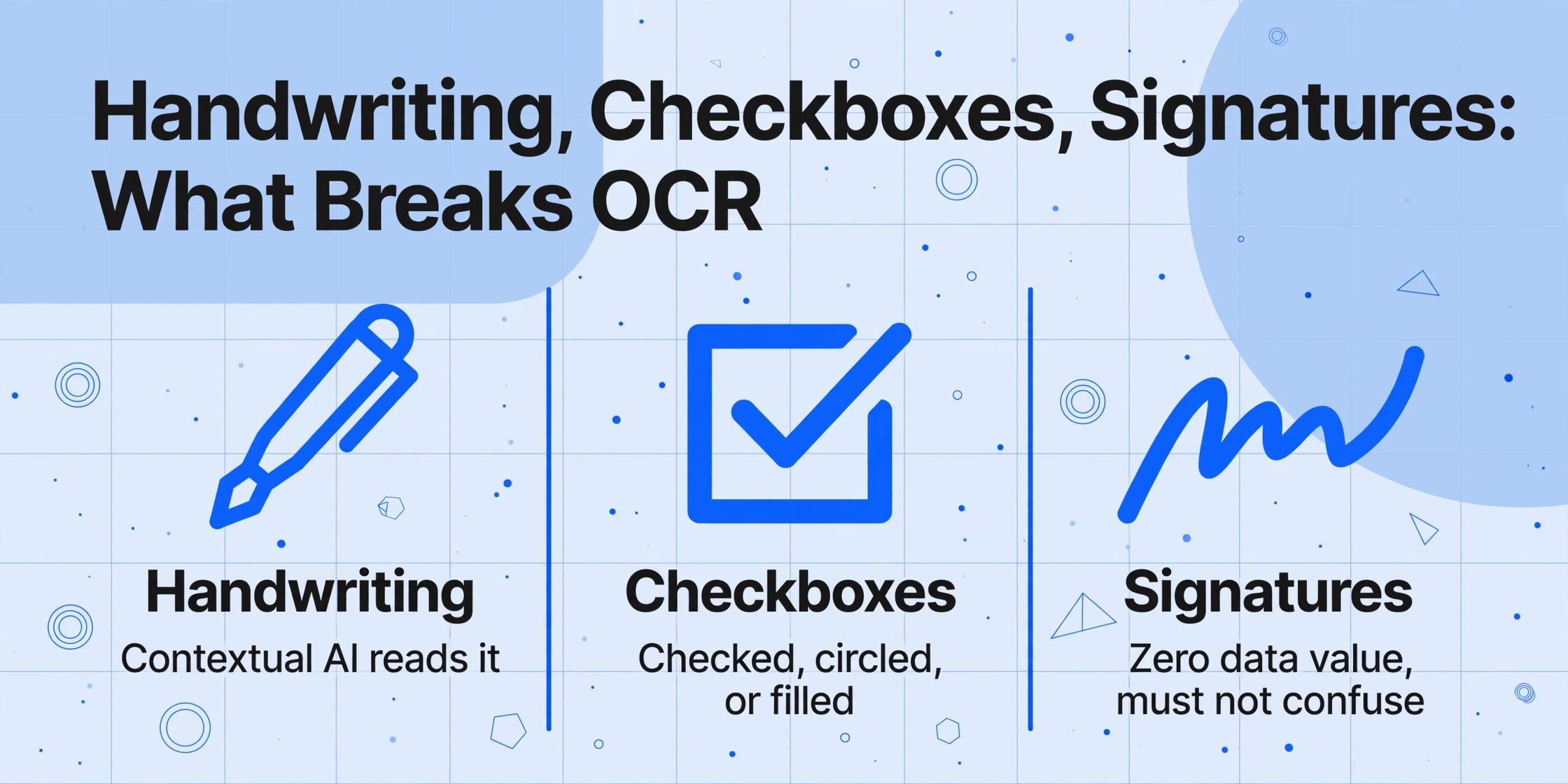
Most OCR tools were built for printed text on clean white backgrounds. K-12 enrollment forms are filled out by parents standing in a gymnasium with a clipboard — the handwriting is inconsistent, checkboxes are sometimes checked, sometimes circled, sometimes filled in completely, and every page has at least one signature that carries zero extractable data value but must not confuse the tool into outputting garbage.
Handwritten fields. The fields with the highest handwritten rate on enrollment forms — parent phone numbers, emergency contact names, medical conditions — are also the fields where an error has the highest consequence. A mistyped parent phone number means the school cannot reach the family in an emergency. A misread allergy notation has medical implications.
Semantic AI handles handwriting differently from character-level OCR. Instead of trying to identify each letter shape independently and assembling them into words — the approach that produces "Emily" from a handwritten "Amy" when the initial loop is ambiguous — the AI reads the visual context of the entire field. It sees a block of handwritten text in the "Emergency Contact Name" section and understands that this block should produce a person's name, in the format the parent intended, using the surrounding printed field labels as semantic anchors to disambiguate unclear handwriting.
This contextual reading is what makes the difference between 70% handwritten accuracy on isolated text blocks and 95%+ on form fields with clear semantic context. For more on the accuracy factors in AI extraction, see our practical guide to improving OCR accuracy.
Checkboxes. Enrollment forms contain anywhere from 5 to 15 checkboxes — transportation method selection, lunch program eligibility, photo consent, technology agreement, handbook acknowledgment. Traditional OCR either ignores checkboxes entirely or produces "☐" characters that mean nothing in a spreadsheet.
Semantic AI reads checkboxes as binary states by understanding their position relative to labeled options. When the form says "Transportation: ☐ Bus ☐ Car Rider ☐ Walker" and one box is marked, the AI identifies which label corresponds to the marked box and outputs the label text — "Bus" — not a checkbox character.
Signatures. Every enrollment packet has parent signatures on the technology agreement, media release, and handbook acknowledgment. Signatures carry no extractable data — a parent's name should be extracted from the printed name field, not from a cursive scrawl. But traditional OCR often produces a garbled string of characters from the signature line.
The practical solution: define your columns to extract the parent name from the demographic section, not from the signature line. If you need to confirm that a form was signed, define a binary column like Parent Signature Present (Yes / No) — the AI can detect the presence of a signature without attempting to read it. This gives you the audit trail without the extraction noise.
Processing an Entire Grade Level's Enrollment Forms as One Batch
The real efficiency gain is not extracting one enrollment form faster — it's extracting a hundred enrollment forms and getting one spreadsheet.
In a traditional data entry workflow, each packet is processed independently: open PowerSchool, create a new student record, type the demographic fields, type the parent contacts, type the emergency contacts, type the medical information, check the consent boxes, save, move to the next packet. At a measured pace of 20 minutes per packet — scanning each line for accuracy, cross-referencing the handwritten fields, correcting the inevitable typo — a thousand packets is 333 staff-hours.
Batch extraction inverts this. You do the paperwork handling once — scan all packets — and the extraction runs across all of them as one job. The output is one spreadsheet with a thousand rows, each row a complete student enrollment record. The staff time shifts from data entry to data review: open the spreadsheet, spot-check the emergency contact fields, verify the medical flags, and flag any rows that need human review before SIS import.
This workflow mirrors what admissions offices do with transcript processing at scale. For the full picture of how batch processing works in an education context, see our guide to batch-processing transcripts into an admissions database — the pipeline architecture is the same, just with enrollment data instead of course grades.
Frequently Asked Questions
Does this work with forms that are filled out in languages other than English?
Yes, with an important caveat. The AI reads handwritten and printed text in most common languages, including Spanish — which is the most frequent non-English language on U.S. K-12 enrollment forms. However, the column names you define should be in English if your SIS expects English field labels. The AI will extract the Spanish handwritten text and place it in the corresponding English column — "Nombre del Estudiante" on the form becomes "Student First Name" in your spreadsheet.
For districts that provide enrollment forms in multiple languages, define your columns once in the language your SIS expects, and the extraction will work regardless of which language version of the form each family completed.
What if a student has multiple emergency contacts beyond the two we defined as columns?
Define as many emergency contact columns as the maximum your forms contain. If most packets have two emergency contacts but some have three, define three sets of emergency contact columns — Name, Relationship, and Phone for each. The AI will leave the third contact fields blank for packets with only two contacts. You do not need to reprocess or split the batch.
How accurate is handwritten extraction on enrollment forms?
Printed text on enrollment forms — the form's own labels, typed-in fields on fillable PDFs — approaches 99% accuracy. Handwritten fields depend on handwriting clarity, but on structured forms with clear field boundaries (like enrollment packets), handwritten extraction typically exceeds 90% accuracy. The fields most prone to error are phone numbers written without separators — "5551234567" vs "555-123-4567" — and abbreviated medical terms written in tight handwriting. These are exactly the fields you should prioritize in your spot-checking.
The tool does not guarantee 100% accuracy on handwritten fields, and no extraction system can. Design your review workflow to catch the highest-stakes fields — emergency contacts and medical information — and accept that low-stakes fields like handbook acknowledgment dates can tolerate a review rate closer to sampling than line-by-line verification.
Can I extract data from the state immunization form that's stapled to the enrollment packet?
Yes, if you include it in the scan. The state immunization form is a structured table — vaccine names in rows, dates in columns — and the AI reads it as a table, not as narrative text. Define columns for the specific vaccines your state requires for school entry — DTaP, Polio, MMR, Hepatitis B, Varicella — and the extraction will pull dates from the corresponding cells. If your SIS stores immunization data in a separate module, export the immunization columns to a separate CSV for import into that module.
How does FERPA apply to this workflow?
Uploading student enrollment forms to a third-party extraction tool constitutes a disclosure of personally identifiable information from education records under FERPA (34 CFR § 99.30). Before processing any forms, confirm that your extraction provider signs an institutional agreement covering data ownership, redisclosure restrictions, deletion at contract end, breach notification, and audit rights — and that student documents are never used to train the provider's AI models. For the full compliance framework, see our FERPA compliance guide for student data extraction.
The goal of enrollment form extraction is not to eliminate human review. It is to move the human from the role of data entry operator — reading handwriting and typing it character by character — to the role of data reviewer, verifying that the AI's output matches the source document in the fields where an error has real consequences. That shift, across a thousand enrollment packets, turns several weeks of typing into a day or two of verification.
Test the workflow on this year's enrollment forms. Define a column set that matches your SIS fields. Process a batch of ten packets and spot-check the output. If the accuracy holds — and on structured forms with clear field labels, it typically does — you have your August workflow for next year and every year after.