Why Your Power Query Breaks
on a Monthly PDF Report
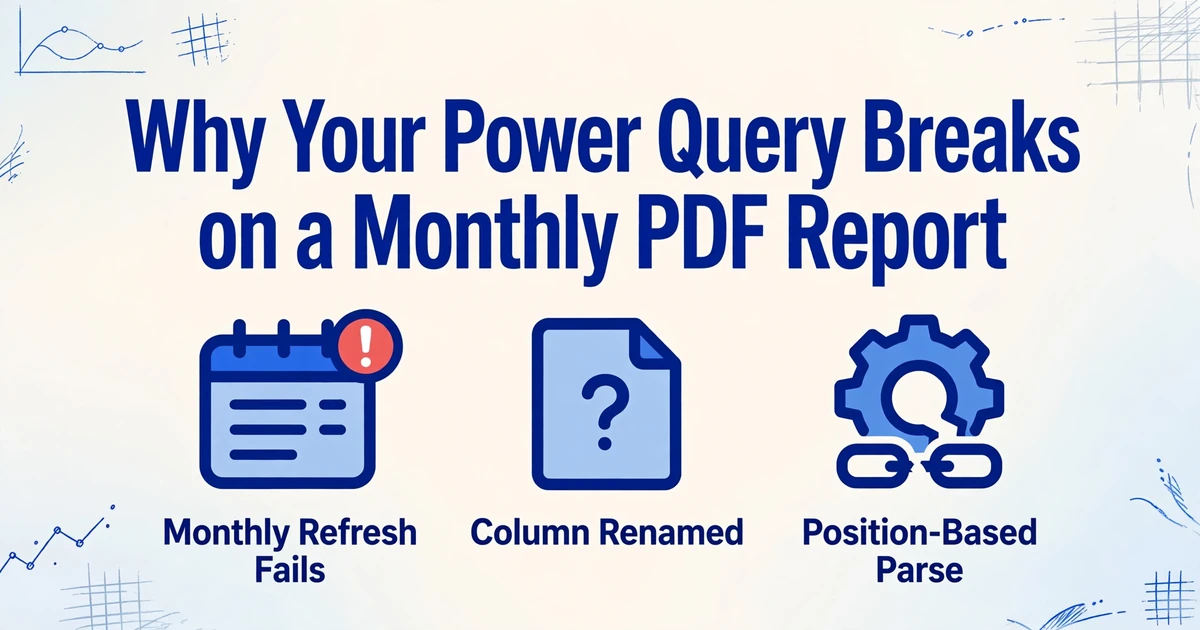
The first refresh of the month fails with the same message it failed with last month: The column 'Jan 2026' of the table wasn't found. You open the Power Query editor, find the step where that old column name is hardcoded, fix it, refresh again, and the report loads. You have done this ten times now, and you will do it again next month, because the fix repairs one version of the report, not the thing that keeps changing.
The query is not badly written. It is bound to a report that someone else edits every month, and that binding is the whole problem. This article shows where the binding happens, why some breaks are loud and some are silent, and what actually changes when the parse stops depending on where a column sits.
Key Takeaways
- A fifteen-minute fix once a month becomes three hours a year for one report, and roughly fifteen hours across five reports.
- The break that stops your refresh is the cheap one, because the failure that costs you is the refresh that succeeds and fills the wrong column.
- Define columns by meaning instead of by name or position, and the report can reorder itself without taking your query down.
The Refresh That Fails Every Month
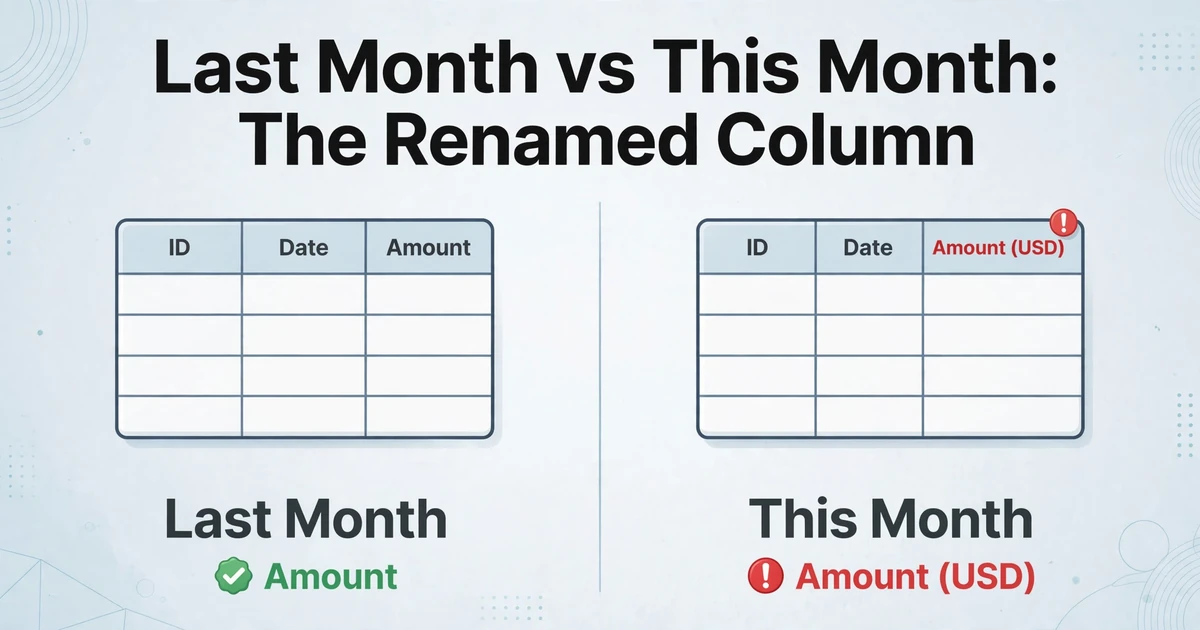
A recurring report is rarely a frozen file. The bank statement adds a column for the new month. The supplier's month-end export renames "Amount" to "Amount (USD)" after a system update. A discontinued field drops out of the layout entirely. The query you built was correct against last month's output, and nobody told it the output changed.
Microsoft's own documentation describes the failure precisely: if a column header in the data source changes after the query is created, Power Query "might no longer find the expected column name" and returns the error The column '<column name>' of the table wasn't found. The usual repair is to select Go To Error, open the offending step, and either correct the formula or delete the step and let the editor rebuild it.
The pattern is familiar to anyone who maintains a query against a recurring report. The query works this week, a new file arrives with different headers, and the next refresh reports a missing column. Nothing in the report announced the change, and nothing in the query was ready for it.
Every repair restores the query to working against one version of the report. The next version is already being generated.
What Your Query Is Actually Doing
To see why the break keeps coming back, look at what a Power Query actually stores. The Applied Steps pane is a recipe, and each step is a line of M code that names the columns it touches. Rename Column, Changed Type, Remove Columns, and Reorder Columns all reference columns explicitly, by name or by position.
Microsoft's data type documentation shows the shape directly. The automatic Changed Type step writes column names into the formula: Table.TransformColumnTypes(#"Promoted Headers",{{"OrderID", type
number}, {"CustomerID", type text}, ...}).
That example is fine for a fixed source. Point it at a monthly report that
renames a field and the step is now looking for something that no longer
exists. The same is true of the rename function: if a referenced column is
missing, the operation raises an error unless you explicitly tell it to
ignore or null the miss.
The second half of the problem sits in how Power Query reads a PDF in the first place. A PDF is not a spreadsheet. It is a set of glyphs placed at coordinates, with no built-in notion of rows, columns, or field names. The connector infers a table by reading the spatial layout, so a small change in margins, spacing, or a moved signature block can be interpreted as a different column structure. That is the "position" in position-based parsing: the parser builds the table from where things sit, then the transformation steps describe that built table by name. Merged headers, spanning cells, and multi-page tables each add their own structural distortion, the kind collected in this guide to fixing merged-cell extraction.
One dependency comes from position, the other from names. A recurring report that changes either one turns a working query into a monthly repair job.
Why the Break Is Structural, Not a Bad Query
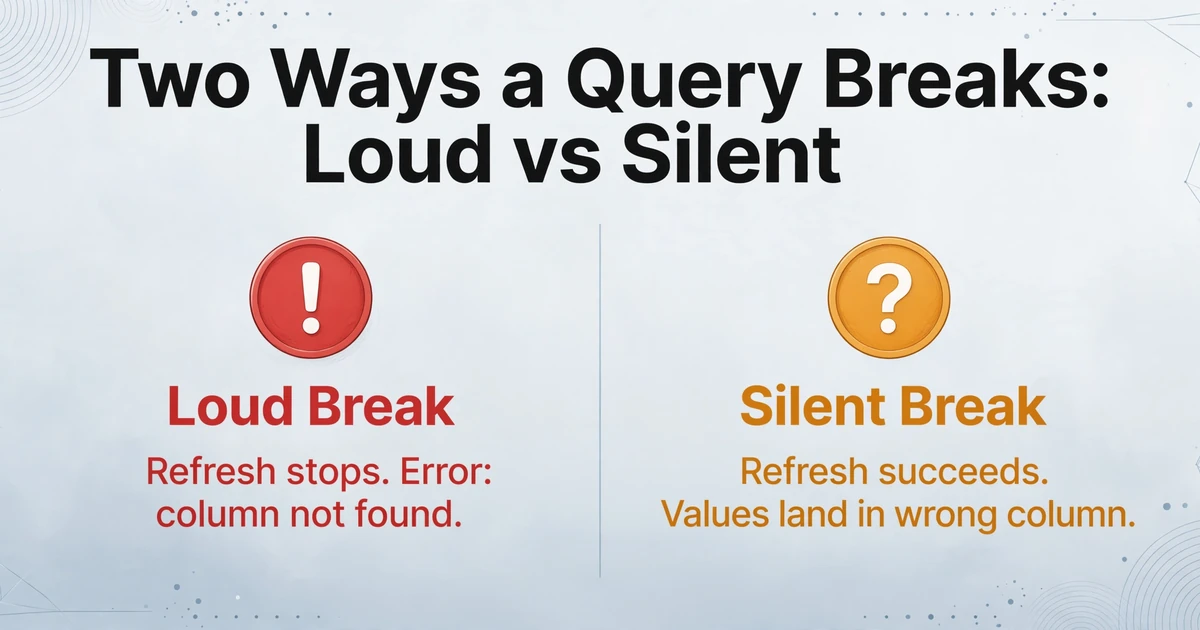
There are two distinct ways this fails, and they cost different amounts.
The loud break stops the refresh. A hardcoded column name no longer exists, Power Query raises the "wasn't found" error, and the report will not load until someone fixes it. Painful, but visible. The data is either wrong or absent, and you know which.
The silent break lets the refresh succeed and fills the wrong column. This happens when the report keeps its field names but reorders or restructures them, or when the connector reads a shifted layout as new columns. Nothing errors. The values simply land in the wrong place, and the error surfaces downstream as an off total or a mismatched field. This is the failure mode behind inconsistent extraction results, and it is why field design matters as much as field location, a point covered in common field-design mistakes.
Then there is the leftover the refresh leaves behind. When a query returns fewer columns than it did on the previous load, the Excel Table it feeds does not always shrink to match. A user on the Microsoft Tech Community described the result as a "ghost" column, a blank column inherited from the previous load's structure that keeps showing up next to the real data. The query output is clean; the destination is not.
This is why the popular workaround is only half a cure. You can stop referencing columns by name and reference them by position instead, using Table.ColumnNames to grab "the third column" regardless of what it is called. That survives a rename. It does not survive a reorder, which changes which column is third. You have traded a name dependency for a position dependency, and the report can change either one. Downstream formulas that point at a renamed or deleted column surface their own broken references on top of that.
The loud break is the cheap one. The expensive failure is the refresh that succeeds and quietly fills the wrong column.
The Repair Bill You Never Itemize
Nobody files an expense report for a fifteen-minute query fix, which is exactly why the cost stays invisible. Do the arithmetic anyway. One fix a month, fifteen minutes each, is three hours a year for a single report. If you maintain five recurring reports, that is roughly fifteen hours, or most of two working days, spent repairing a setup that was supposed to run by itself.
That number sits inside a much larger pattern of spreadsheet maintenance. Cleaning and preparing data before any analysis is a familiar tax on analyst time. A brittle parse is one contributing line in that budget, and it is the line that repeats without ever shrinking.
The recurring-report scenario makes the pattern sharper. Teams that run the same twelve monthly statements through one workflow only have to build the query once, but they have to keep it alive twelve times a year. There is also a knowledge risk folded in: the person who understands the Applied Steps is often the only person who can fix them. When that person is on leave, the report waits.
A one-time setup that needs a monthly fix is not a one-time setup. It is a subscription with a variable bill.
The Fix: Bind Columns to Meaning, Not Position
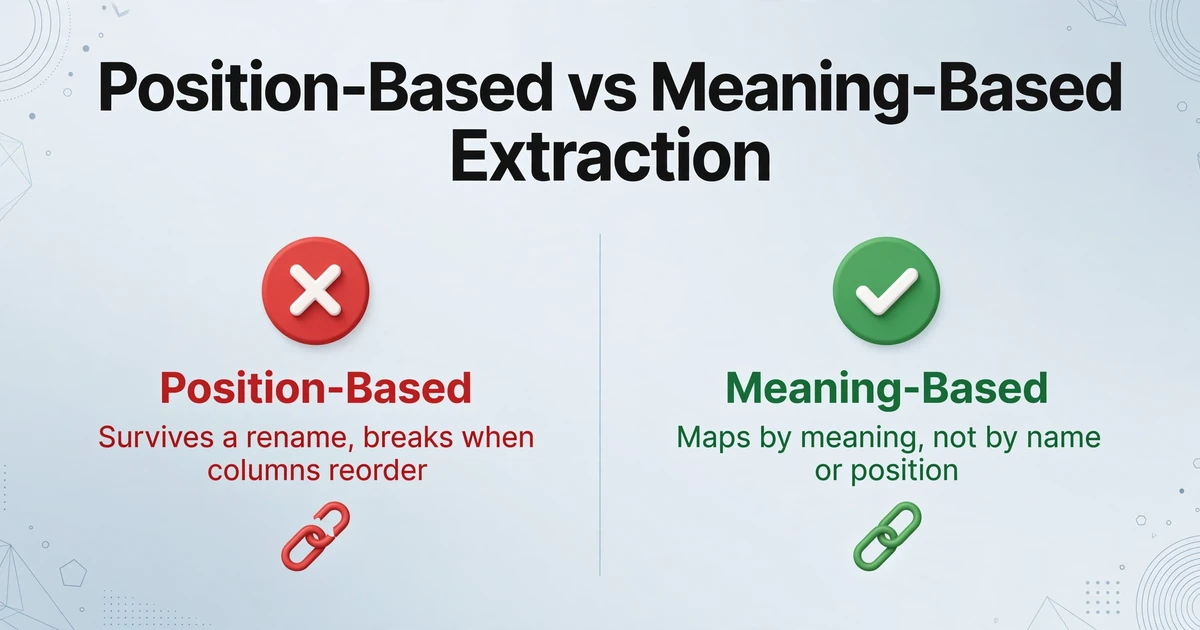
The repair cycle continues because the parse layer keeps asking two version-specific questions: which position is this value in, and what is this column called this month. Change the question to "what does this value mean" and the report's layout stops being part of the query's contract.
That is what Custom Column Extraction does. Instead of drawing zones or writing rules against positions, you type the column names you want, such as "Statement Date", "Total Amount", and "Account Number". The AI reads the document and locates each value by understanding what the column name means, wherever that value sits and whatever the source label happens to be. A rename from "Amount" to "Amount (USD)" still maps to your "Total Amount" column, because the mapping is based on meaning rather than on exact text or coordinates.
Mapped to the steps you currently maintain, the change is straightforward. There is no Changed Type step hardcoding a month name, because nothing is pinned to the built table's headers. There is no Reorder step to break when the report reorders itself. You define the output columns once, and the same definition runs against every version of the report.
Files are processed securely and not stored.
Two related capabilities do the cleanup that usually follows extraction. The tool's data post-processing can normalize dates, amounts, and reference numbers into the format you specify during the same pass, so a column named "Statement Date (YYYY-MM-DD)" comes back already consistent instead of needing a second formatting round. That is the same discipline described in our guide to standardizing vendor data across formats. And because batch processing is built in from the start, you can upload a folder of monthly reports at once and get one merged spreadsheet rather than one output per file.
The important boundary is what this replaces. Semantic extraction takes over the document-reading layer, the part that was version-locked to the report's positions and names. It does not delete Power Query from your workflow. The tool returns a clean, already-structured spreadsheet, and Power Query remains an excellent tool for everything downstream: business-logic transforms, merges, and calculated columns on data that is already in tabular form. For teams that want to see the parse side on its own, the walk-through of extracting a clean table from a PDF and the general PDF to spreadsheet path cover the mechanics.
What This Doesn't Solve
Honesty matters more here than a clean pitch, because a workflow decision built on an overstated claim will fail the same way the query did.
It does not touch your existing query. The tool reads the documents and returns a spreadsheet. It does not write back into Power Query, regenerate your Applied Steps, or update a query automatically. You are replacing the parsing step, not automating the maintenance of the old one.
It does not do cross-document field matching. It maps fields within each document to your named columns. Comparing a value in one document against a value in another and deciding automatically is a different job, and one that belongs in your downstream logic, not in this step.
It cannot invent a value that isn't in the report. If the January column is present, it will find it. If the report drops a field entirely, no method knows what should have been there. You will see a blank and flag it for review. A semantic read is still a read.
Recognition has limits on poor inputs. Clean scans and born-digital PDFs produce the strongest results. Heavily faded or low-resolution scans reduce accuracy, and those outputs deserve a review pass. The goal is not to remove human judgment. It is to move that judgment from rebuilding a query to checking the values that need a second look.
Frequently Asked Questions
Why does my Power Query break when the column names change?
Because the transformation steps store the column names they act on. A Changed Type, Rename, or Remove Columns step looks for a specific name, and when the source header changes, Power Query can no longer find it and returns "The column of the table wasn't found." The fix is to correct that step for this month's file, which is why the same problem returns with the next version.
What is a ghost column in Power Query?
A ghost column is a blank column that persists in the Excel Table after a refresh, usually when the query returns fewer columns than the previous load. The query output is correct, but the destination Table retains a column from the earlier structure. Community reports describe it appearing unpredictably, and the reliable fix is to rebuild the Table rather than refresh on top of the old shape.
Can I make Power Query reference columns by position instead of name?
Yes, using Table.ColumnNames to select a column by its index. It solves the rename case, because the query no longer cares what the column is called. It does not solve the reorder case, because the column's position changes. You have moved the fragility rather than removed it, and the downstream references still break when a column is renamed or dropped.
Does ImageToTable.ai update or write back into my Power Query?
No. It replaces the document-reading step and returns a structured spreadsheet. It does not edit your query, modify your Applied Steps, or run inside Power Query. Many teams keep Power Query for the downstream business logic and use extraction for the parse that used to break.
Will it handle a report where a whole column disappears?
It will return an empty value for the missing field rather than fabricate one. That is the correct behavior. If a genuinely required field vanishes from the source, the right response is to notice the blank and check the source report, not to accept a synthesized number.
The setup you built once should stay built. The monthly repair ticket opens itself because the parse keeps asking where a value sits and what this month's header is called. When it asks what the value means instead, the report can change its layout without taking your query down with it.