How to Convert Chase Bank Statements to Excel
— Checking & Savings
You have a Chase checking or savings PDF — maybe from your Total Checking account, maybe a Business Complete statement with 200+ transactions across six pages. Chase stores up to seven years of these PDFs in its online archive, and the download button gives you a clean, well-formatted document. It also gives you a file that no spreadsheet will open natively. Chase's own CSV export covers roughly the last 90 days of activity — anything older than that, or any formal monthly statement PDF, requires extraction. The question is whether you spend 20 minutes per statement typing rows into a spreadsheet or find a faster route.
Key Takeaways
- Chase's CSV export covers only the last 90 days — the seven years of formal monthly PDFs have no CSV option at all.
- Checking, savings, credit card, and business statements each use a different layout — a position-based extraction tool silently misaligns data when the format changes.
- The running balance column is a built-in accuracy check — if the math doesn't close after extraction, you know which row to inspect without re-reading the PDF.
When Chase's Own CSV Export Isn't Enough
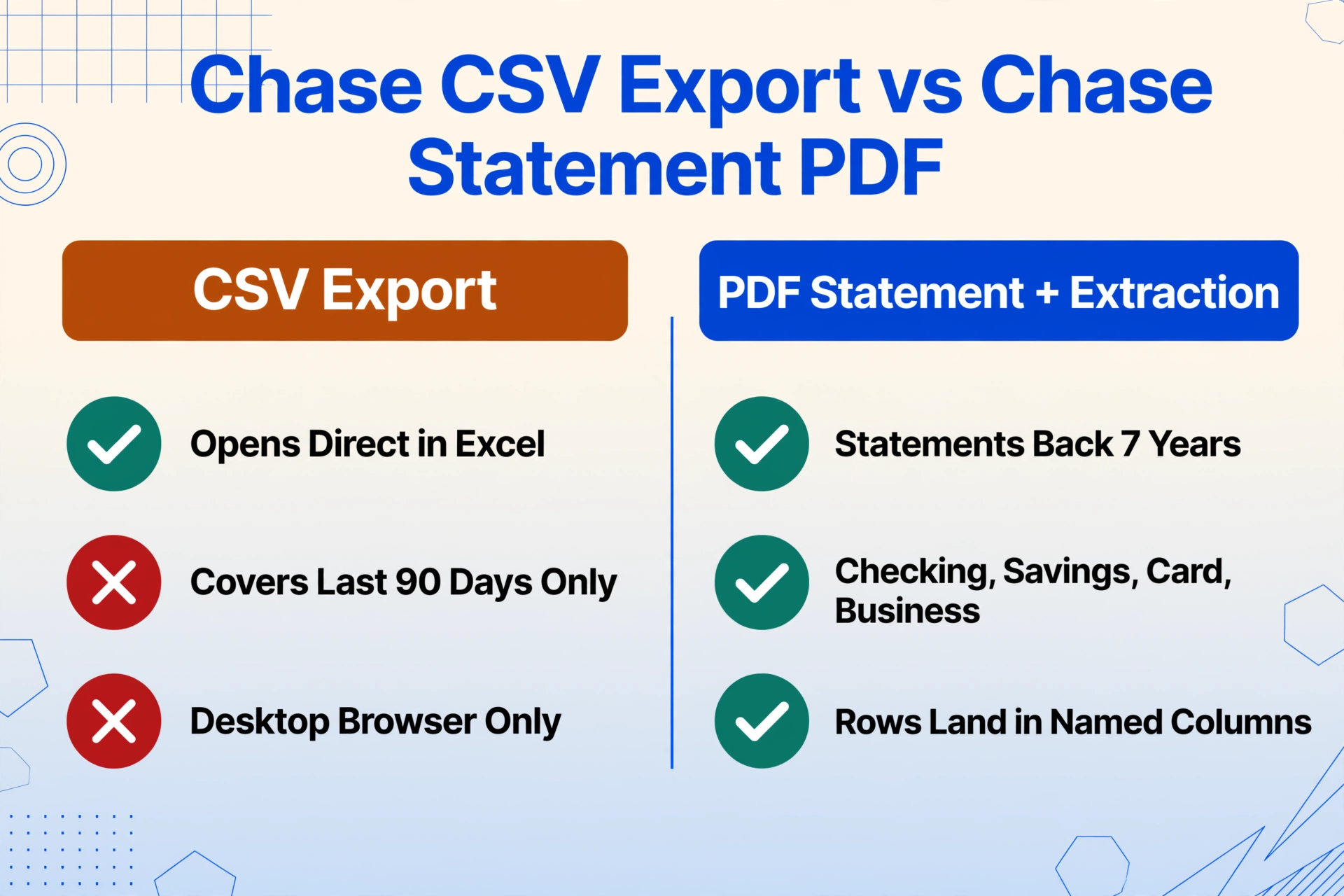
Chase.com offers a straightforward way to download recent transactions: click into your account, open the "Download account activity" link, select "Spreadsheet (Excel, CSV)," and choose a date range. The result is a CSV file that opens directly in Excel. For current-month transactions, this is the fastest path. The r/excel community notes that this option is available on desktop only — the Chase Mobile app does not offer it.
The limitation is the date window. Chase's transaction download covers a rolling window of recent activity — typically no more than 90 days. The formal monthly PDF statements stored in the "Statements & Documents" section, which go back seven years as required by IRS Publication 583, have no CSV export. You download them as PDF, and that's the only format available. For bookkeepers reconciling prior quarters, accountants preparing year-end tax returns, or business owners catching up on three months of backlogged statements, the formal PDFs are the only complete source of historical transaction data — and they arrive as unextractable images of text.
This is the gap that every Chase bank statement conversion guide addresses: you have a PDF that you can read with your eyes, but your spreadsheet software cannot read it. The solution is an extraction step — pulling the transaction rows out of the PDF layout and into structured columns.
What Makes Chase Statements Format-Specific
Chase is the largest bank in the United States by assets, and its statement format reflects a design that has evolved across multiple account types. A Chase checking statement and a Chase savings statement look noticeably different on the page — and a Chase credit card statement follows a completely separate layout. Understanding these format differences is the difference between a clean extraction and a table full of misaligned columns.
Chase Checking Statement Layout
A personal Chase checking statement — whether Total Checking, Premier Plus Checking, or Sapphire Checking — follows a consistent three-block structure. The top section shows the account summary: beginning balance, total deposits and additions, total withdrawals, any service fee, and the ending balance. Below that, the transaction table runs chronologically with columns for Date, Description, Amount, and Running Balance. The description column uses Chase's standard format — "DEBIT CARD PURCHASE 04/15 AMAZON.COM," "CHECK # 1234," "ACH ELECTRONIC CREDIT PAYROLL," "CHASE MOBILE DEPOSIT." These descriptions are consistent across personal accounts and are one of the clearest signals of a Chase statement.
Business checking statements — Business Complete Checking and Platinum Business Checking — follow the same structure but add a "Transaction Type" column separating debit card transactions from checks and electronic transfers. Multi-page business statements (often 6 to 12 pages for high-volume accounts) repeat the column header row on each new page and include a "Balance Forward" line that carries the running total across the page break. This is where template-based extraction tools fail: a page header or "Balance Forward" row that looks like a transaction to an OCR engine will pollute the output with phantom rows.
Chase Savings Statement Layout
Chase savings statements are simpler by design. The transaction list is shorter (savings accounts typically have fewer than 20 transactions per month), and the table has only four columns: Date, Description, Amount, and Balance. The description column uses the same DTC-format codes as checking — "INTEREST PAID" and "ELECTRONIC WITHDRAWAL" being the most common for standard savings accounts. Interest information appears as a separate line at the bottom of the statement, showing the annual percentage yield and year-to-date interest earned. Savings statements rarely exceed one or two pages, making them structurally easier to extract — but the "INTEREST PAID" line is often the one field that manual typists forget to copy, throwing off the year-end interest reconciliation.
Chase Credit Card Statement Layout
Chase credit card statements — Sapphire Preferred, Freedom Unlimited, Amazon Prime Rewards, Ink Business — use a fundamentally different layout from checking and savings. Instead of a single chronological transaction table, the statement is divided into sections: an account summary at the top, followed by separate sections for Payments, Purchases, Returns, and Fees. Each section has its own table with columns for Transaction Date, Post Date, Description, and Amount. The Description column shows merchant names but may also include reference numbers and transaction type codes. A single billing cycle can include multiple sections spanning multiple pages.
The key extraction challenge for Chase credit card statements is the split between Transaction Date and Post Date. These are two different columns in the statement's layout, and a tool that merges them into a single "Date" field loses the distinction that accountants rely on for reconciliation. Dedicated Chase statement extraction should preserve both date values as separate output columns.
Three Ways to Get Chase Transaction Data Into Excel
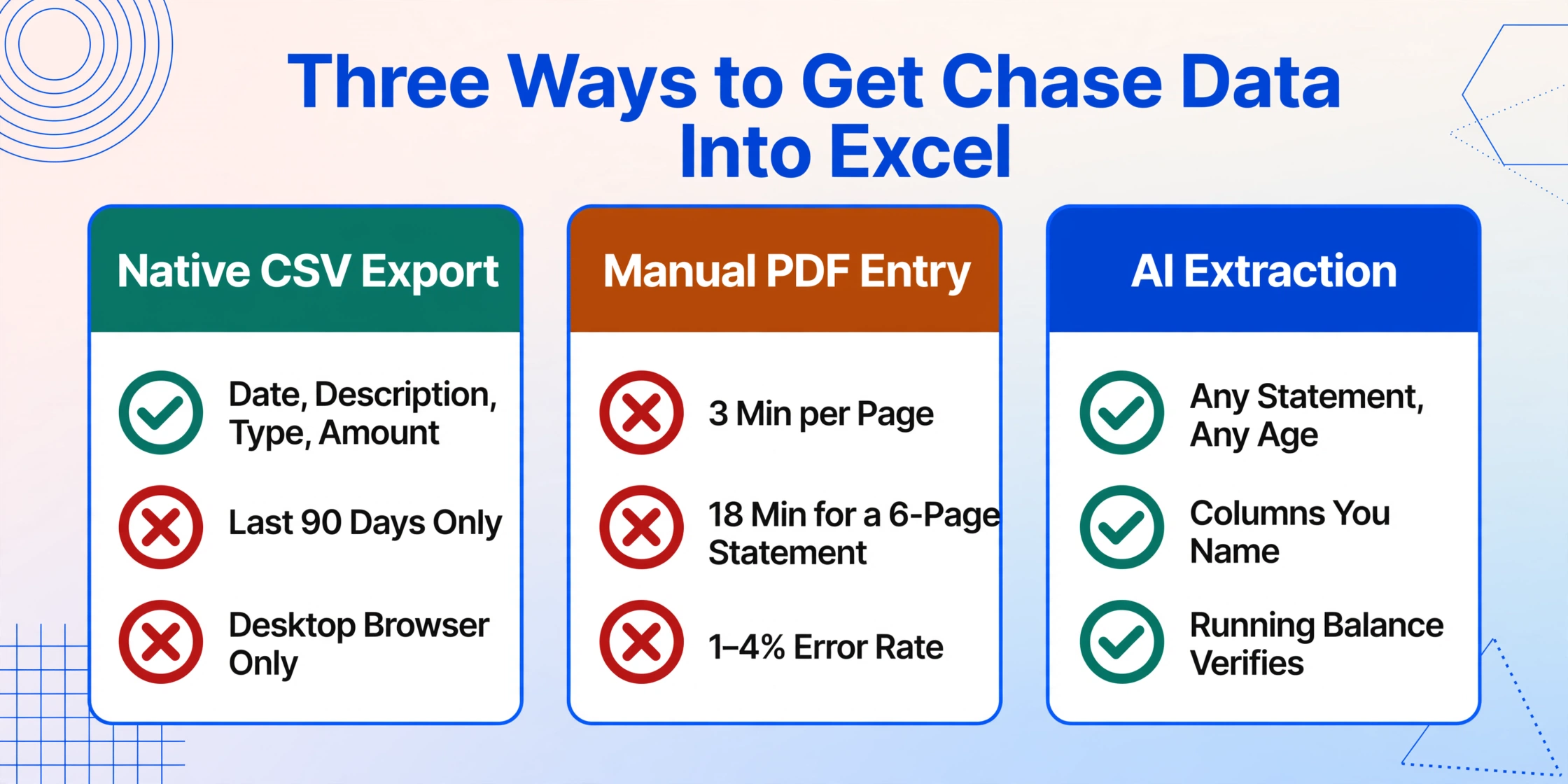
Each method corresponds to a different scenario. Which one applies to you depends on how far back your data goes and what format you have.
Method 1: Native CSV Export (Recent Activity Only)
Log in to Chase.com on desktop, select your account, click the download icon above the transaction list, choose "Spreadsheet (Excel, CSV)," pick a date range, and download. The CSV opens directly in Excel with columns for Date, Description, Type, and Amount. This is the cleanest data path — no extraction needed — but only captures the last 90 days of transactions. Historical monthly PDFs are not accessible through this method.
Method 2: Manual PDF Data Entry (All Periods)
Open each Chase statement PDF, read each transaction row, and type the date, description, and amount into Excel. At 3 minutes per page — the benchmark used in the AICPA's processing efficiency studies — a 6-page Chase Business Complete Checking statement consumes 18 minutes of typing. A full year of monthly statements for one account takes roughly 3 to 4 hours of manual data entry. The error rate for sustained manual transcription under typical office conditions runs between 1% and 4% per field, according to industry data. On a single statement with 150 transactions, a 2% error rate means three miskeyed entries that must be hunted down when the ending balance does not reconcile.
Method 3: AI Extraction (Any Chase Statement, Any Age)
Upload the Chase PDF to an AI extraction tool that uses vision-based document understanding — not template matching or zonal OCR. Because the AI reads the document by understanding what each label means ("Date," "Description," "Amount") rather than memorizing where each column sits on the page, it handles the format differences between checking, savings, and credit card statements without reconfiguration. A 6-page Chase business statement processes in roughly 60 seconds, and the output is a structured Excel file where opening balance + deposits − withdrawals = closing balance — arithmetic that can be verified before the data enters your accounting system.
How to Convert Any Chase Statement PDF to Excel
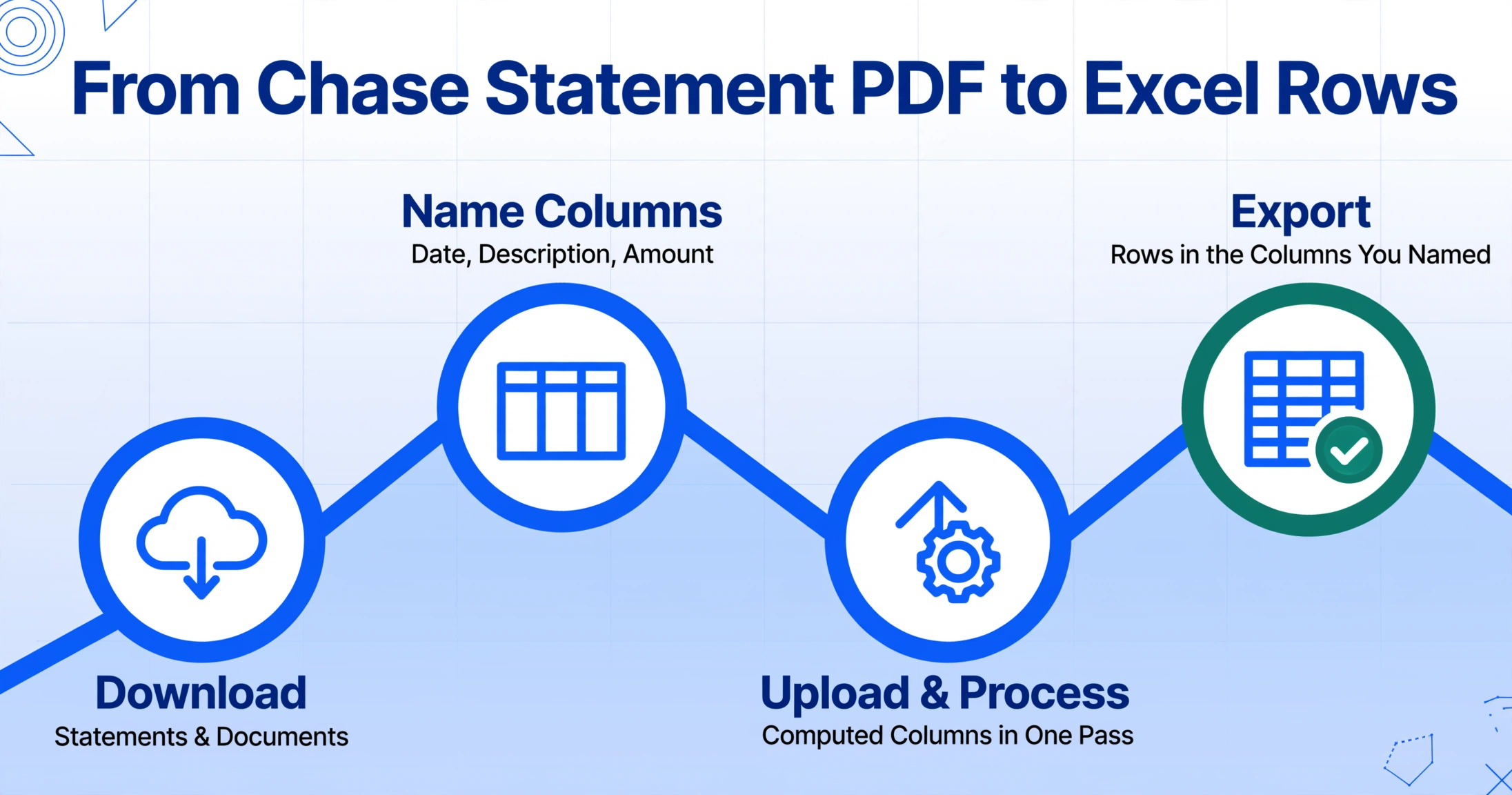
The workflow below works for every Chase account type: personal checking, savings, credit card, and business. The column names you enter define the output table — you are not limited to what the statement shows, and you can add computed columns (such as "Transaction Month" extracted from the date) or inferred columns (such as "Category" with options like Meals/Transport/Office).
Download the Statement from Chase.com
Log in to chase.com, select your account, and navigate to "Statements & Documents." Choose the statement month you need and click the download icon. Chase stores statements going back approximately seven years. Save the PDF to your computer. If you have a paper statement, photograph it or scan it — the extraction process handles images and digital PDFs equally (both are visual inputs to the AI).
Name the Columns You Want Extracted
In the extraction tool's interface, enter the column names that define your output table. For a Chase checking statement: Date, Description, Amount. For a Chase credit card statement where you need the two-date split: Transaction Date, Post Date, Description, Amount. You can also add computed columns such as "Debit Amount" and "Credit Amount" to split the single Amount column into separate debit/credit fields for accounting software import. If you define a computed column like Category (options: Meals/Transport/Office/Other), the AI will classify each transaction as part of the same extraction pass.
Upload and Process
Upload the Chase PDF. Processing takes approximately 5 to 10 seconds per page. For a multi-page statement, the tool reconstructs the continuous transaction ledger — page headers and "Balance Forward" rows are recognized as structural elements, not transaction data, and are excluded from the output. The running balance column is verified against the arithmetic: opening balance plus debits minus credits must equal the closing balance. If the arithmetic does not close, the extraction flags the statement for review.
Export to Excel
The structured output can be downloaded as Excel (XLSX), CSV, or JSON. If you process multiple Chase statements — say, a full year's worth — the tool merges them into a single spreadsheet with a "Source File" column tracing each row back to its statement PDF. From here, the data is ready for import into QuickBooks, Xero, FreshBooks, or your reconciliation spreadsheet. No reformatting, no date-standardizing, no debit/credit column reordering.
To see this workflow in action on a real bank statement, the embedded demo below lets you upload a document and define your columns directly in the browser:
Files are processed securely and not stored.
Batch-Processing Multiple Chase Statements
The single-statement workflow extends directly to batch processing. If you manage three Chase accounts — personal checking, joint savings, and a business checking — and need to reconcile all three for the full year, that is 36 monthly statements: 3 accounts × 12 months. Manually, that represents roughly 10 to 12 hours of typing across three different statement formats, each with its own column layout and page structure.
With batch extraction, you upload all 36 PDFs in one operation. The tool detects the account type from each statement's header information and applies column-name extraction uniformly across checking, savings, and business formats. The output is a single Excel workbook with all transactions from all accounts — or separate sheets per account — with source-file traceability maintained. The 12 hours of manual data entry becomes approximately 6 minutes of processing time.
For readers who work with batch bank statement processing across multiple banks — not just Chase — our guide to batch-processing 12 months of bank statements covers the workflow for merging statements from Chase, Wells Fargo, Bank of America, and credit unions into one reconciliation file.
Handling Chase Checking vs. Savings vs. Credit Card Differences
Because each Chase statement type has a different layout, the extraction strategy needs to account for what changes between them. The table below summarizes the key differences:
| Statement Type | Table Structure | Transaction Description Format | Key Extraction Consideration |
|---|---|---|---|
| Checking (Total, Premier Plus, Sapphire) | Summary block + chronological transaction table with running balance | "DEBIT CARD PURCHASE 04/15 MERCHANT NAME" — includes date of purchase | Running balance must verify arithmetically across multi-page statements; "Balance Forward" rows must be excluded from transaction output |
| Savings (Chase Savings, Premier Savings) | Short transaction table, no running balance column | "INTEREST PAID," "ELECTRONIC WITHDRAWAL," "ACH TRANSFER" | Interest line items must be captured separately — they are the most frequently omitted field in manual entry and affect year-end interest reporting |
| Credit Card (Sapphire, Freedom, Ink, Amazon) | Sectioned: Payments, Purchases, Returns, Fees — each with its own sub-table | Merchant name only — no purchase date in description; Transaction Date and Post Date as separate columns | Both date types should be extracted as separate columns; the section headers ("PURCHASES," "PAYMENTS") must not appear as transaction rows in the output |
| Business (Complete, Platinum) | Checking-style summary + transaction table, with Transaction Type column | Same DTC format as personal, plus ACH and wire transfer codes | Transaction Type column adds a fourth data column that personal checking statements do not have; the column structure is wider and more prone to OCR column drift |
Why PDF Extraction Beats Manual Typing on Chase Statements
The arithmetic that defines a bank statement — opening balance + credits − debits = closing balance — is also the arithmetic that defines whether an extraction succeeded. If the tool misreads one row, the balance does not close. You know immediately that something is wrong, and you know which statement to inspect. Manual typing has no equivalent check: you can miskey a $147.23 as $147.32, the balance will not close, and you will spend 20 minutes looking for the $0.09 difference across 150 rows.
For a deeper look at the structural reasons why traditional OCR and template-based tools fail on bank statements — not just Chase but any bank — our article on why most OCR fails on bank statements explains the linked-list data structure that makes transaction tables fundamentally different from invoice fields. And for the full breadth of bank statement extraction across multiple formats and account types, the complete guide to bank statement data extraction covers extraction strategies for personal, business, and international statements.
Every Chase statement carries an implicit verification mechanism: the running balance column. If an extracted column of running balances does not increase and decrease consistently with the debits and credits on each row, the extraction is wrong — and you can identify the error without re-reading every line against the original PDF. No manual data entry workflow provides that level of automated integrity checking.
Frequently Asked Questions
Can I export my Chase statement as a CSV directly from Chase.com?
Yes, for recent transactions. Log into Chase.com on a desktop browser, navigate to your account, click the download icon above the transaction list, select "Spreadsheet (Excel, CSV)," choose a date range, and download. This works for approximately the last 90 days of activity. The formal monthly statement PDFs in the "Statements & Documents" section — which go back seven years — cannot be downloaded as CSV; they are PDF only.
Are Chase bank statement PDFs password protected?
Chase digital PDF statements downloaded from chase.com are not password-protected. However, some commercial banking platforms and older legacy statement delivery systems may apply PDF-level restrictions. If you receive a password-protected Chase statement from a client or third party, an extraction tool that supports encrypted PDF input — with the password provided separately — can process it without requiring you to strip the password first.
Does Chase connect directly to QuickBooks?
Yes. Chase offers a direct bank feed integration with QuickBooks Online that syncs recent transactions automatically. The integration covers the last 90 days of activity and works for Chase checking, savings, and credit card accounts. For statements older than the feed window, or for business checking accounts with high transaction volumes where the feed may lag behind the formal PDF statement, extraction from the PDF is the only complete data path — QuickBooks cannot read a PDF directly.
Can I import Chase statement data into Xero?
Yes, Xero supports Chase through direct bank feeds (available for most major US financial institutions) and through manual CSV import. If you extract Chase statement PDFs to CSV or Excel format, the structured output can be uploaded to Xero using the "Import Bank Statement" feature. Xero also supports OFX format imports for Chase statements, though OFX files must come from Chase's native export — not from PDF conversion.
What is the difference between a digital Chase PDF and a scanned Chase statement?
A digital PDF is generated directly by Chase's banking system — the text is selectable and the file can be read by software that supports text-layer PDF extraction. A scanned or photographed statement is an image of the printed document — the text is visual, not selectable, and requires OCR or vision-based extraction. AI extraction tools that use visual language models process both types identically, because they read the document visually rather than relying on the text layer. Template-based OCR tools that depend on text-layer extraction fail on scanned statements.
Can I extract data from Chase statements older than one year?
Yes, provided you can access the PDF. Chase's online banking portal stores statements for approximately seven years. Download the PDF for any month within that window and process it through an extraction tool. The format of older statements may differ slightly from current ones — Chase has updated its statement layout over the years — but a format-independent AI extraction tool adapts to the layout automatically without requiring a template update.
Why does the running balance matter for extraction accuracy?
The running balance column on a Chase checking statement is a built-in accuracy check. If the extraction produces a table where row N's balance does not equal row N−1's balance plus or minus row N's transaction amount, the extraction has introduced an error somewhere in the chain. This arithmetic check can be automated: a valid extraction produces a column of running balances that passes the linear verification test, while an extraction that misread a row or shifted a column fails it. Manual data entry has no equivalent self-check — the only way to verify a manually typed statement is to retype it and compare the two versions.
Want the full workflow? Our guide to converting bank statement PDFs to Excel covers multi-page statements, running balance validation, and batch processing for any bank — step by step.